Printing digital photos isn’t a very popular service today since most people prefer keeping them in a digital format. However, some pictures deserve better than just being stored away in the cloud . You might want to showcase some of the best moments of your life to your family and friends.
For when you want to use your digital pictures to decorate your house, or bring them to your workplace there are websites that can help you get digital photo prints. We’ve handpicked the top 10 online digital photo printing services so you can choose the one that suits your needs best.
Before you go off printing a bunch of photos, make sure you take the time to edit your pictures so that you get the best quality showpiece at the end of the day. Check out our video on YouTube for some good editing apps on Mac:
Printiqueby Adorama – Best Overall
If you’re looking for an all-in-one kind of service to print digital photos, Printique is your best pick. This photo printing service comes with a great user-friendly website that supports all photo files including TIFF and large files.
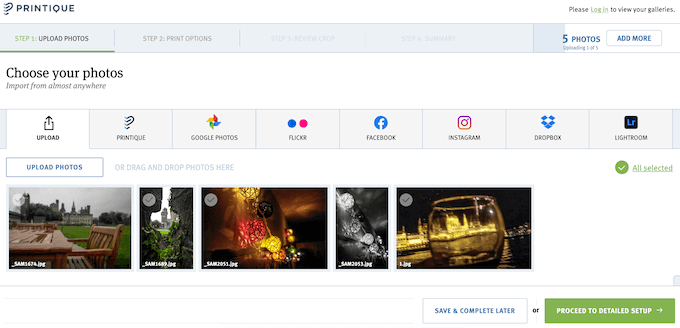
Printique also offers a choice of high-quality photo paper and great print quality. You don’t have to worry about the photo delivery either – the site offers highly-protective packaging for shipping. Overall, Printique is a great choice no matter your needs – from printing simple cards to ordering large prints to go as your wall decoration.
Xpozer– Highest Quality Big Prints
If you’re specifically looking for a photo printing service to get big digital prints, have a look at Xpozer. The website is extremely easy to navigate, and the print quality is outstanding.
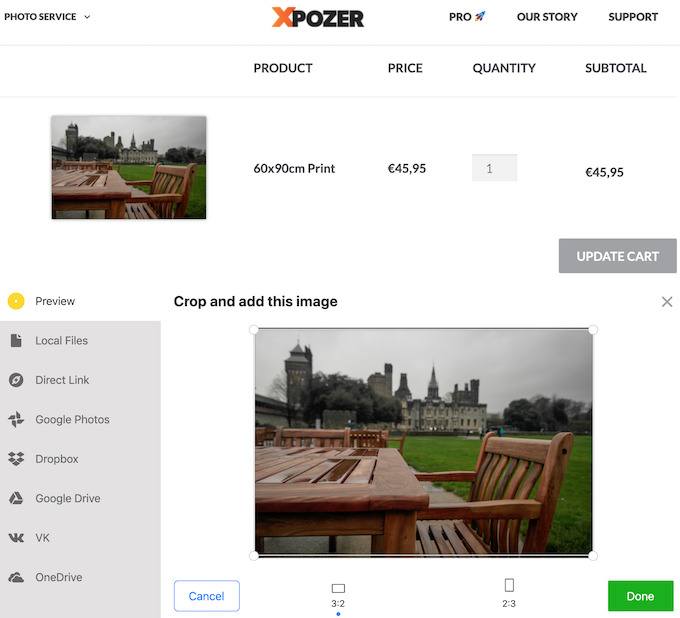
Xpozer uses their own photo paper called Vivid Satin, and offers an optional Forever Frame for hanging your prints on the wall. You can later get a different print from the company that will fit perfectly with the same frame from your first order. For those not convinced there’s also a 30 day money-back guarantee.
WhiteWall– Best For Ultra HD Prints
WhiteWall is the best photo printer if you’re looking to bring your photos to life. You can get standard prints on photo paper, as well as canvas, acrylic, and metal prints from WhiteWall.
You can choose from a variety of premium materials, shapes, and photo framing options that the site offers. Before you complete your order, you also get to see what your future print will look like on the wall which is a pretty handy feature.
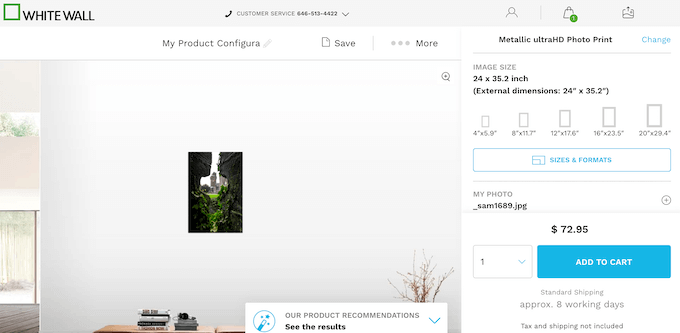
The price of the prints is a little steep compared to other sites. However, according to the reviews, you can really see the difference when it comes to large-format photography works printed with WhiteWall.
Nations Photo Lab– For Professional Photo Printing
Nations Photo Lab is one of the best options to professionally print digital photos. If you’re a photographer yourself or are trying to print professional pictures, look no further.
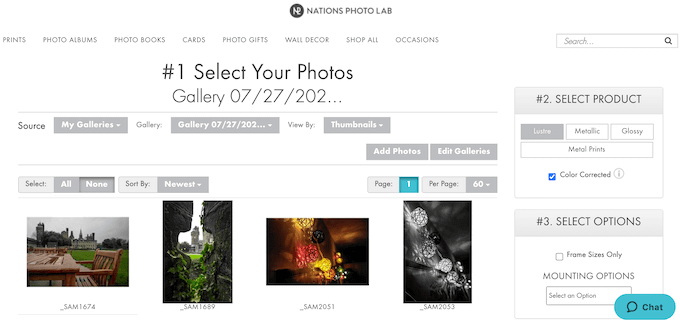
Nations Photo Lab offers exceptional print quality, and a variety of options when it comes to photo enlargement. You can also upload images in TIFF format. However, you can only upload photos from your hard drive and not from your smartphone or social networks like Facebook or Instagram .
Mpix– Best Rated
Mpix is one of the most popular photo printing services. It has only positive reviews online, with users highlighting the print quality, excellent packaging, easy-to-use interface, and a variety of framing options that the company offers.
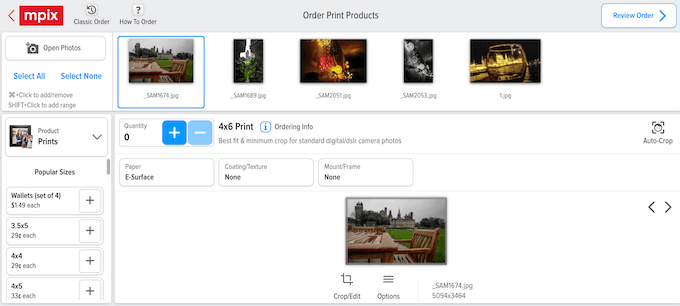
Some of the drawbacks include lack of support for TIFF and PNG formats, and high price of the prints compared to other services.
Snapfish– Best User Experience
If you’re not looking for anything fancy but just want a few pictures printed for your family album, Snapfish is the place to go. The website is extremely easy to navigate and the whole ordering process won’t take you longer than a few minutes.
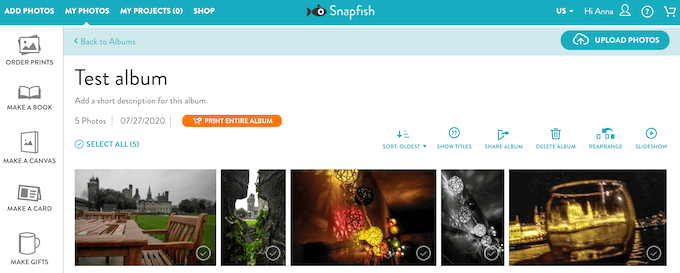
Although the service doesn’t support TIFF, Snapfish still offers decent print quality for an affordable price. Unlike other photo printing services, Snapfish also allows you to upload your pictures from your smartphone and social networks. You can get your prints shipped to your home address, or pick them up at a local Walmart, CVS, or Walgreens.
Shutterfly– Best For Gifts
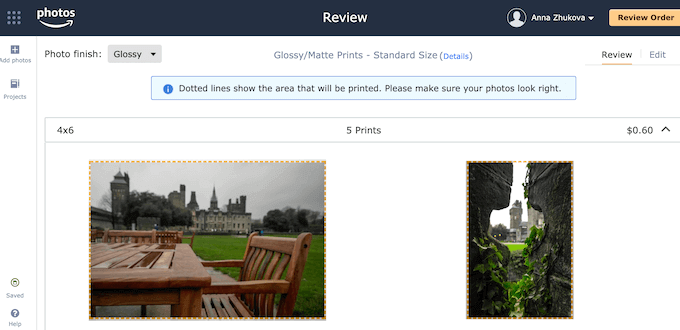
Shutterfly is the top pick for anyone looking for creative photo gifts. The service offers a vast variety of options in the gift department, as well as cool little add-ons like being able to print text on the back of your photos.
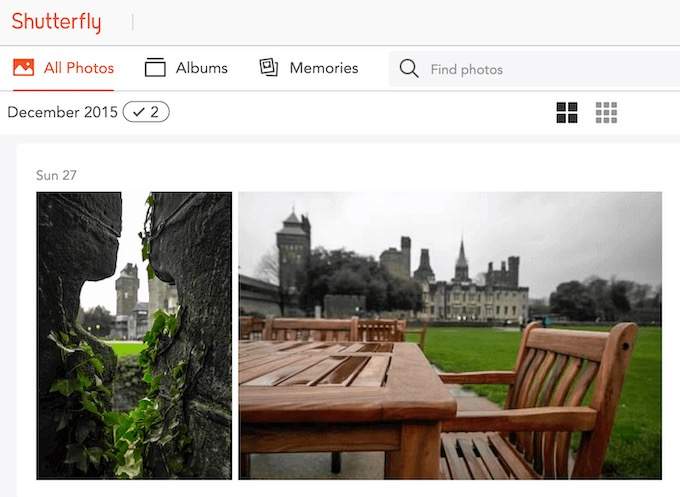
In comparison to other photo printing services on the list, Shutterfly is among the most affordable ones.
Ritzpix– For Secure Shipping
When looking for a place where to print your digital photos, one of the most important criteria is reliable shipping. Ritzpix has a reputation for making sure your prints are delivered to you safe and sound.
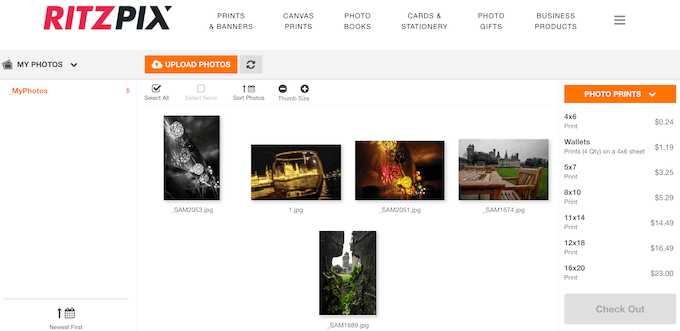
The website also has integrated photo editing tools that can help you improve your picture quality before you print it.
Walmart Photo– Best For Fast Service
If your goal is to get the photo prints ASAP, look no further than the Walmart Photo service. The company offers pickup on the same day and even in one hour. Other perks include cheap prices and free shipping of all orders over $25.
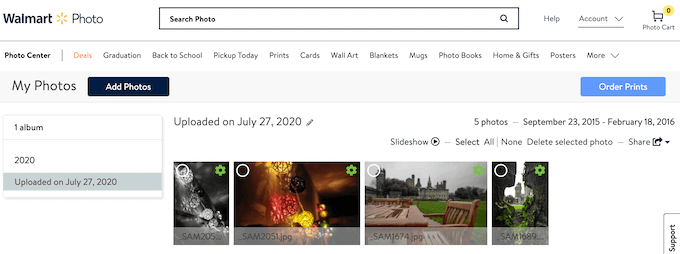
Walmart Photo has a great variety of gift options to choose from as well. So if you’re looking to get a few cheap and quick prints, order them at Walmart Photo and get them delivered to your home address, or pick them up at a local Walmart store.
Give Your Pictures a Second Life
As much as we all enjoy sharing pictures on Instagram and other photo-centered social networks, some pictures deserve to be properly brought to life in the form of digital prints. Whether it’s a family photo album or fine art prints that you hang in your living room, nothing compares to being surrounded by high quality pictures of your happy memories.
- The 8 Best Sports Streaming Sites in 2025
- The 10 Best Free Image Hosting Sites in 2025
- 8 Best Crowdsourcing Sites to Fund Your Business Idea in 2025
- 10 Best Free Audio Converter Tools (Online & Offline)
- 7+ Free Tournament Bracket Generators and Templates
Printing when you’re on the road is never a simple matter. Where you choose to print depends on when you need your printed document.
If you only need to pick up your printout when you get home, printing over the Internet to your home computer is the way to go. This is possible from either your laptop or your cellphone.
However, if you need a printout immediately, there are lots of kiosks and printing centers around the country where you can send your printout and pick it up immediately.
In this article, you’ll learn about all the options available to print documents whenever you’re out of the house.
1. Using Google Cloud Print
One of the best services ever offered by Google is Google Cloud Print . This service lets you safely and securely connect your wireless printer to the Internet. Once connected to the Google Cloud Print service, you can use your Google account to print anything from your laptop or your smartphone.
Setting up this service is very easy if you have a printer supported by the service. Just visit the Google Cloud Print page to get started. You’ll need to log into your Google account if you haven’t already.
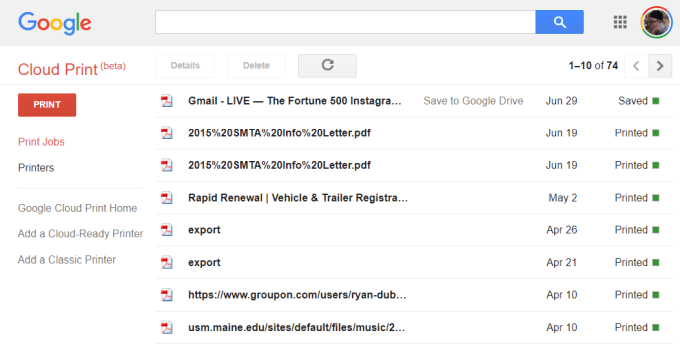
If this is your first time setting up one of your printers with Cloud Print, click Add a Cloud-Ready Printer to see if your model of printer is compatible.
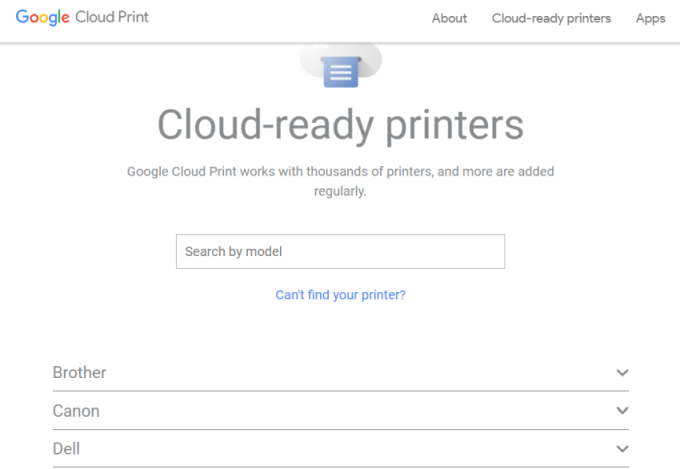
If your printer isn’t a Cloud-Ready model, then click Add a Classic Printer to see the setup instructions for adding a regular printer to Google Cloud Print (see simple instructions below).
Connecting Your Computer to Google Cloud Print
To set up your Google Cloud ready printer:
- Make sure your computer is turned on
- Open your Chrome browser, click the three dots in the upper-right, and select Settings .
- Scroll down and select Advanced .
- Scroll down further to Printing and expand Google Cloud Print .
- Select Manage Cloud Print Devices .
You may be prompted to sign into your Google account. If you see the cloud-ready printer that your computer is already connected to, click the Register button. Otherwise, under the Classic Printers section, click the Add printers button.
If you register a cloud-ready printer, you’ll need to confirm the registration on the printer itself. Adding a classic printer will detect printers connected to your computer and walk you through a wizard to add them to Google Cloud Print.
Printing to Google Cloud Print
Once you’ve set up your printers on Google Cloud Print, using the service is very easy.
In the Google Chrome browser, you can print as you normally do by clicking the three dots in the upper right and selecting Print .
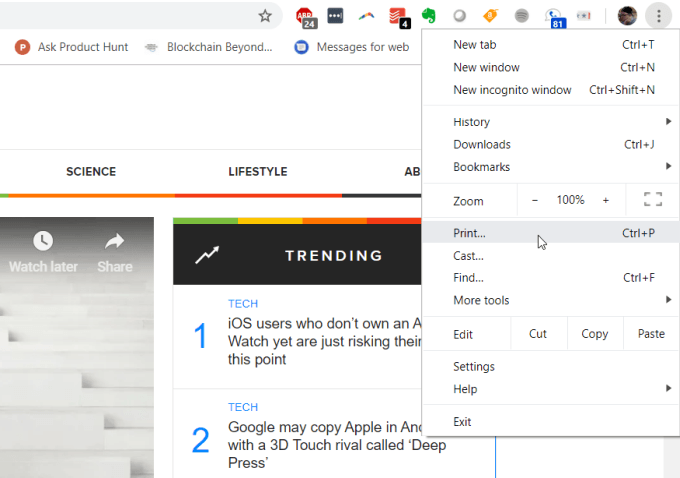
You’ll see the Google Cloud printer available to print to along with its internet address.
Select this printer and click the Print button to print.
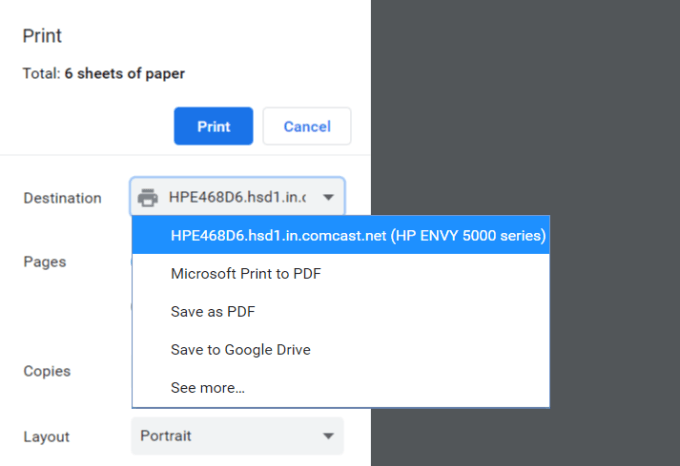
Having a Google Cloud Print connected computer, you’ll see the same printer available on different Google services like Google Docs, Google Sheets, and Gmail. It’ll also let you print from your Chromebook if you own one.
On your mobile phone, printing is typically available under the Share feature in different apps.
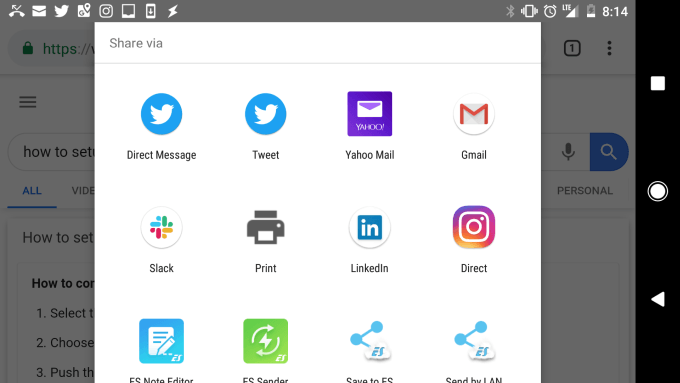
When you choose the Print option, you’ll see your new cloud printer available.
Send your printout to that printer, and it’ll show up on your home printer, no matter where in the world you are.
2. Set Up a Home VPN
Another, slightly more complicated solution to print to your home printer from anywhere is setting up a VPN network you can connect to from the internet.
You can do this using a hidden VPN service included with your Windows 10 computer. You’ll need to follow this procedure from your computer that has access to print to your home printer.
First, you’ll need to allow users to connect to your computer through the internet.
Open the Control Panel and select Network and Sharing Center . Select Change Adapter Settings and press Alt-F on the keyboard. Select New Incoming Connections .
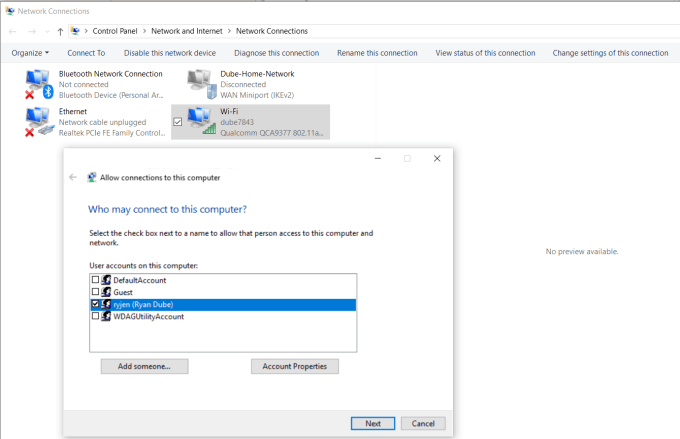
Enable the user accounts you want to give access to, or create a new ID and Password you want to use to allow incoming connections.
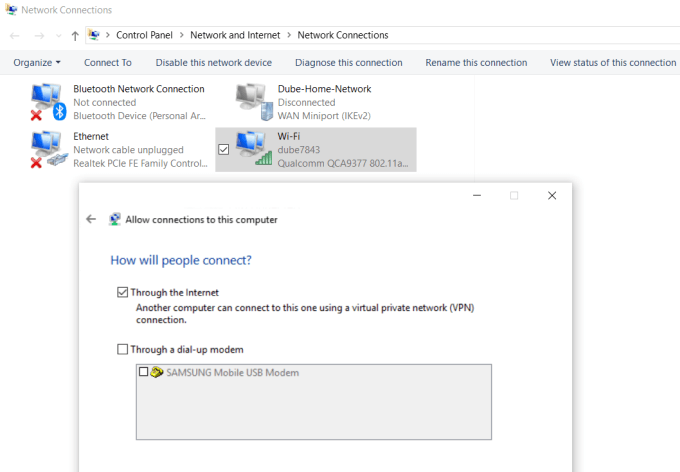
Click Next and enable Through the internet .
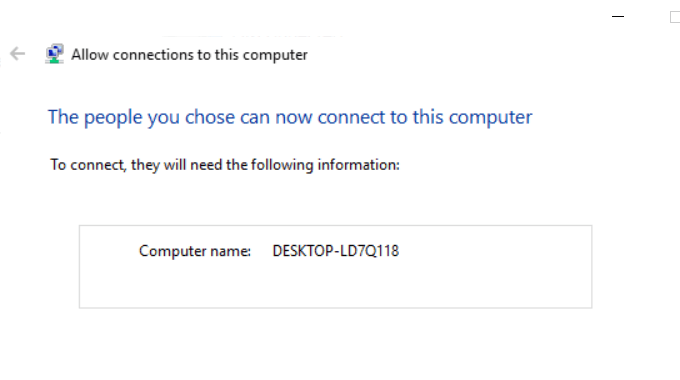
Click Next to finish off the Wizard. You’ve now provided access to your computer through the network via VPN.
Next, you’ll need to log into your home network router and add port forwarding for VPN connections. If this sounds hard, read our post on understanding what port forwarding is and how to setup port forwarding. Make sure to use port 1723 if using PPTP. LT2P uses port 1701.
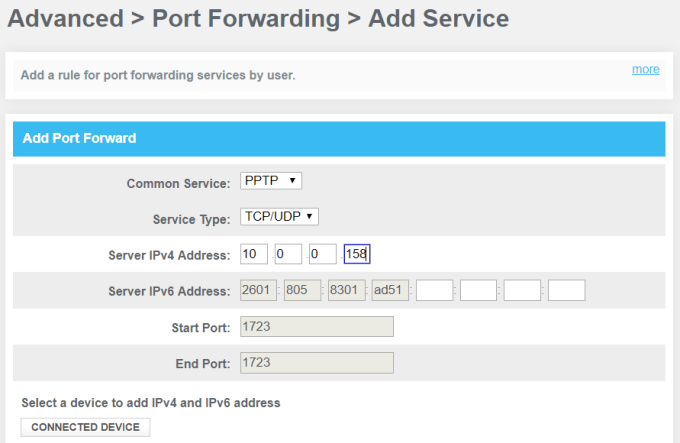
The Windows VPN uses PPTP so select that as the service. Type the internal IP of your computer that’s connected to the printer for the Server IPv4 Address, and leave all other fields as is.
Now, when you want to connect to your computer for printing, you can connect to it via VPN. First, click the Start menu and type VPN . Click on VPN Settings .
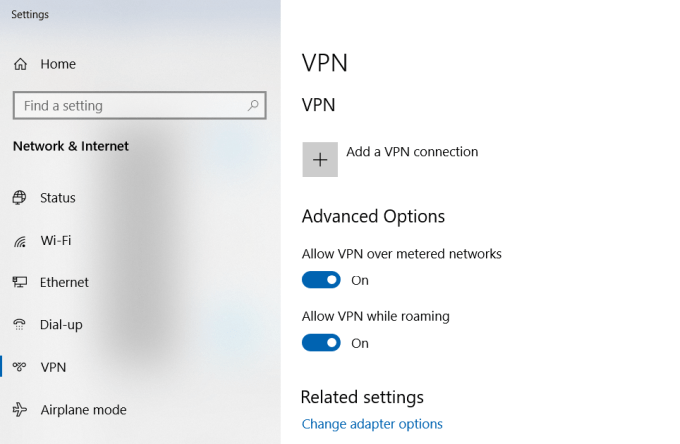
Click on the plus icon to add a new VPN connection.
Before you can fill out the fields, you’ll need your computer’s public IP address . You can see this by visiting a site like WhatIsMyIP.com .
Fill out the VPN form as follows:
- Provider : Windows (built-in)
- Connection Name : Name the connection anything you like
- Server name or address : Give this your computer’s public IP address.
- User name and password : Provide the ID and Password you created when you enabled Internet access to your computer.
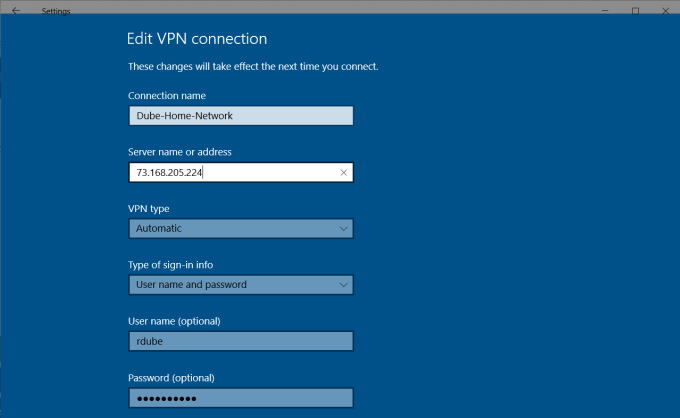
Once you’re done setting this up, you’ll see the VPN connection listed in the VPN settings window. Just click connect while you’re connected to the internet away from home to connect to your home computer. Once connected, you’ll have access to all the network devices, like your home printer.
There are several issues that may cause a VPN setup like this to not work. Your virus software, firewall settings, or other computer security settings could block the connection.
3. User Free PrinterShare Software
Another solution that’s a whole lot simpler than trying to figure out what security settings is blocking your VPN connection is just installing free software that will share out your connected printer to the Internet.
Install the PrinterShare software on a computer on your home network. To use the web printing option, you’ll need to create a free PrinterShare account and password.
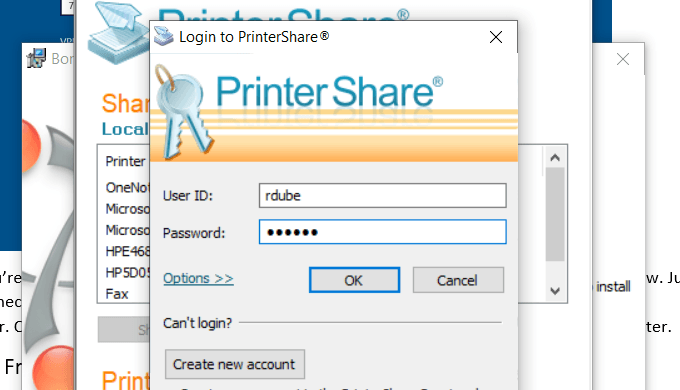
The software will randomly generate a user account number that will display in the software. Remember this ID, and the password you configured for it.
Launch the software on the computer and share the printer that you want to allow internet printing to.
Install the PrinterShare application on the second computer that you’re using outside of your home. Next time you run the software while you’re sitting in an internet café somewhere, you’ll see the printer you shared under the Remote Printers list.
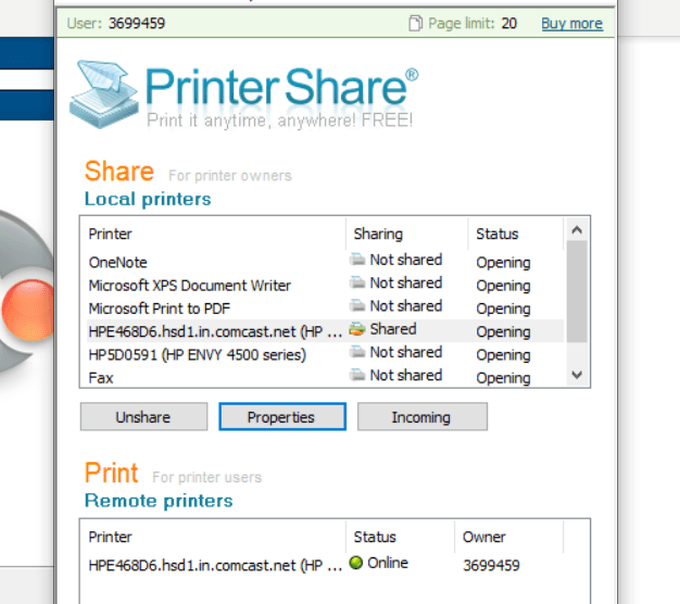
Now, when you try to print a document or anything else on your computer, you’ll see the PrinterShare printer available under your list of printers.
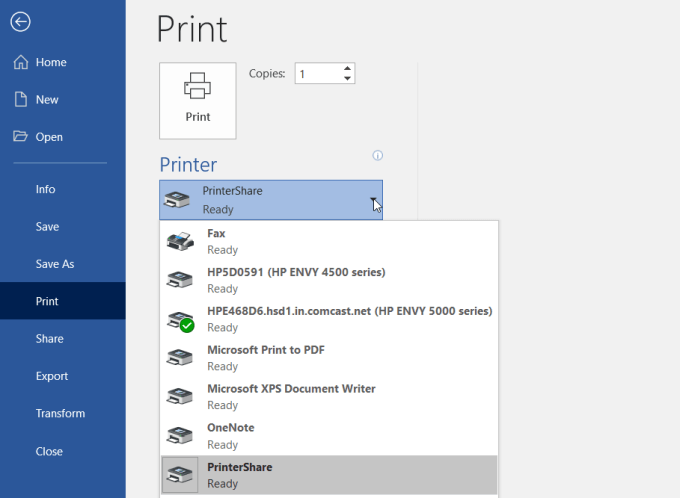
Printing to this printer will send the print over the internet to the printer connected to your other computer on your home network.
As you can see, you don’t have to configure the router or change any security settings. The print is transmitted directly over the internet via the internet connection on your home computer.
4. Online Printing Services
If you don’t mind spending some money and you won’t need the printout for a few days, you can order printouts online.
There are several services where you can upload documents and have the service print them and mail them to you.
A few of these services include:
- PrintDog : Order anything from brochures and greeting cards to posters or color and black and white document copies. Prices are very reasonable at just a few cents per page for regular documents.
- UPrin t ing : You can use this service to print regular documents. But you can also order flyers, posters, brochures and more. You can even order a design printed on t-shirts or mugs.
- Best Value Copy : If you just want fast and cheap copies, this is probably the best service for it. Prices are just a few cents a page at a flat rate. There’s also no minimum order, so if you want to just print a few pages, you can.
5. Shipping Print Kiosks
If you want your document printouts immediately, using a local shipping service is the best option.
These companies offer either web-based file transfers, or you can transfer documents from your computer using a memory stick to a computer in the shop. There, you can use their printer to print out your document.
A few of the most popular print kiosks you’ll find all around the country (and in some cases the world) are the following:
- UPS : You either print online or at your local UPS shipping center.
- FedEx : Print using their website and pick it up at a local FedEx center.
6. Local Print Shops
Beside large shipping services, there are also lots of print shops around the world where you can bring in a memory stick with your documents on it and print those documents for very cheap per-page prices.
A few of these include:
- Staples : Use the website to find a Staples print center near you.
- Office Depot : Do in-store document printing quick and easy.
- CVS : Visit the CVS photo center where you can also print documents.
- Costco : If you have a Costco membership, visit a location for your document printing needs.
7. Your Local Library

One of the most overlooked resources is the local library. Almost every town in the country has a library. Even the smallest libraries offer printing services for their patrons.
Usually, you can buy a card that works on the printer and you load the card with a set amount of money that you can use to make copies. Modern printers at libraries have a memory card slot so you don’t even need a computer to print to the library printer. Or, you connect to the library network and print to the printer that way.
Usually, library printing services are dramatically discounted from the prices you’ll find at commercial printing centers.
- How to Fix Slow Wi-Fi on Your Smartphone
- 7 Best Machine Translation Software (or AI) to Try in 2025
- What Does the Green Dot Mean on Facebook?
- How to Turn off Hardware Acceleration in Chrome
- How to Check VRAM in Windows 10, 11, and macOS?
