From jokes and stories to games and Easter Eggs, this list of 10 cool Alexa tricks will keep you entertained.
1. Ask Alexa to Sing to You
Whether you enjoy rap, love cats, or want a moment of praise, Alexa can sing you a song. Try one of these little ditties.
- “Alexa, give me a rap.”
- “Alexa, give it up for science.”
- “Alexa, sing a song about cats.”
- “Alexa, sing a Thank You song.”
- “Alexa, sing ‘America the Beautiful’.”
- “Alexa, sing a song about space.”
- “Alexa, sing a blues song.”
- “Alexa, sing a barbershop quartet.”
- “Alexa, sing a football song.”
Want to hear how far Alexa’s musical talent goes? Say “Alexa, beatbox for me”. You won’t regret it!
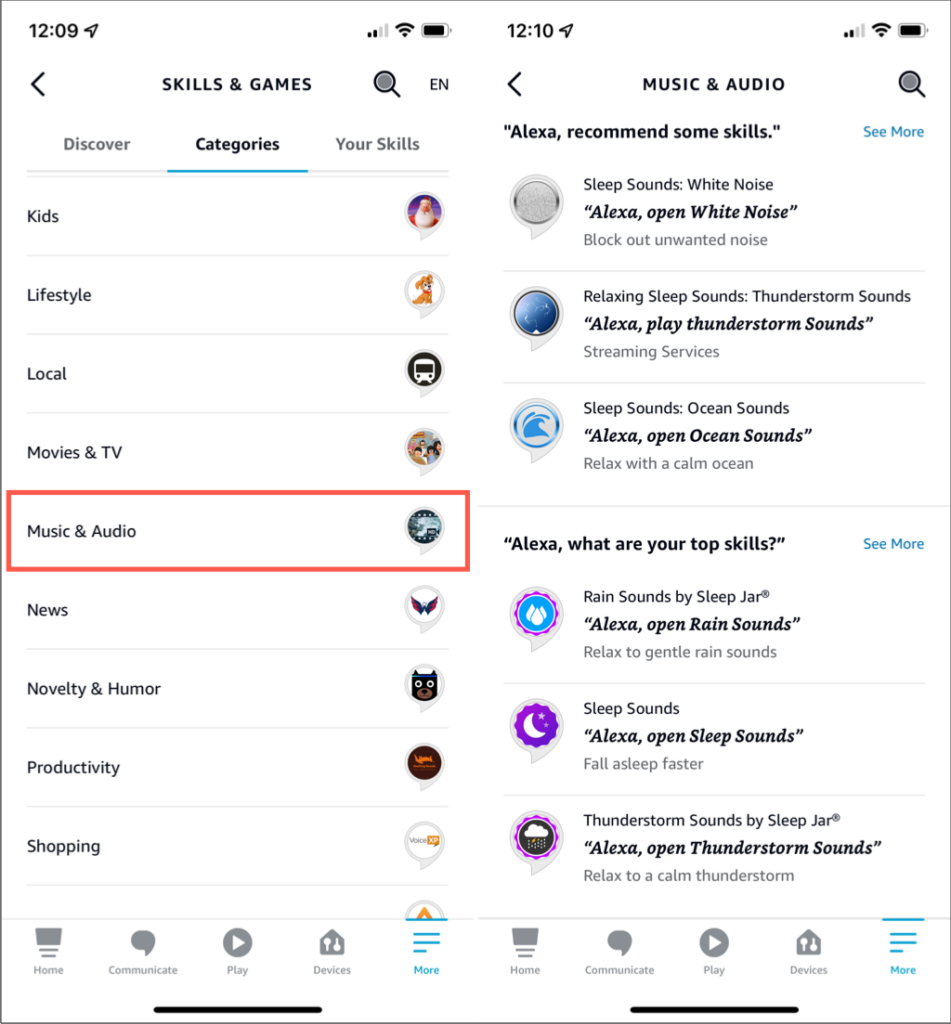
Along with recommendations and trending Skills, you’ll see relaxing sounds and podcast options.
2. Ask Alexa to Tell You a Joke
It’s simple enough to say “Alexa, tell me a joke” but if you have a particular theme in mind, Alexa will comply.
You can ask for a joke about animals, light bulbs, coffee, Star Trek , Star Wars , programmers, Jimmy Fallon, autumn, food, zombies, ghosts, Halloween, dads, barbecue, video games, and the list goes on.

For a puzzling joke each day, you can also ask “Alexa, what’s the riddle of the day?” for a good giggle.
3. Learn a Prank From Alexa
If you’re a jokester yourself, you can get some terrific ideas from Alexa. Start with “Alexa, teach me a prank.”
4. Ask Alexa About Shows and Movies Books
You may not realize it, but Alexa has quite a memory for TV shows and movies. If you want to hear a response from a famous line or give an instruction, try one of these:
- “Alexa, you had me at hello.”
- “Alexa, there’s always money in the banana stand.”
- “Alexa, eat my shorts!”
- “Alexa, E.T. phone home.”
- “Alexa, I need more cowbell.”
- “Alexa, speak Klingon.”
- “Alexa, begin my Jedi lesson.”
If you’re interested in Skills for TV and movies, you can check out this category in the Alexa app. Go to More > Skills & Games and then select Categories > Movies & TV .
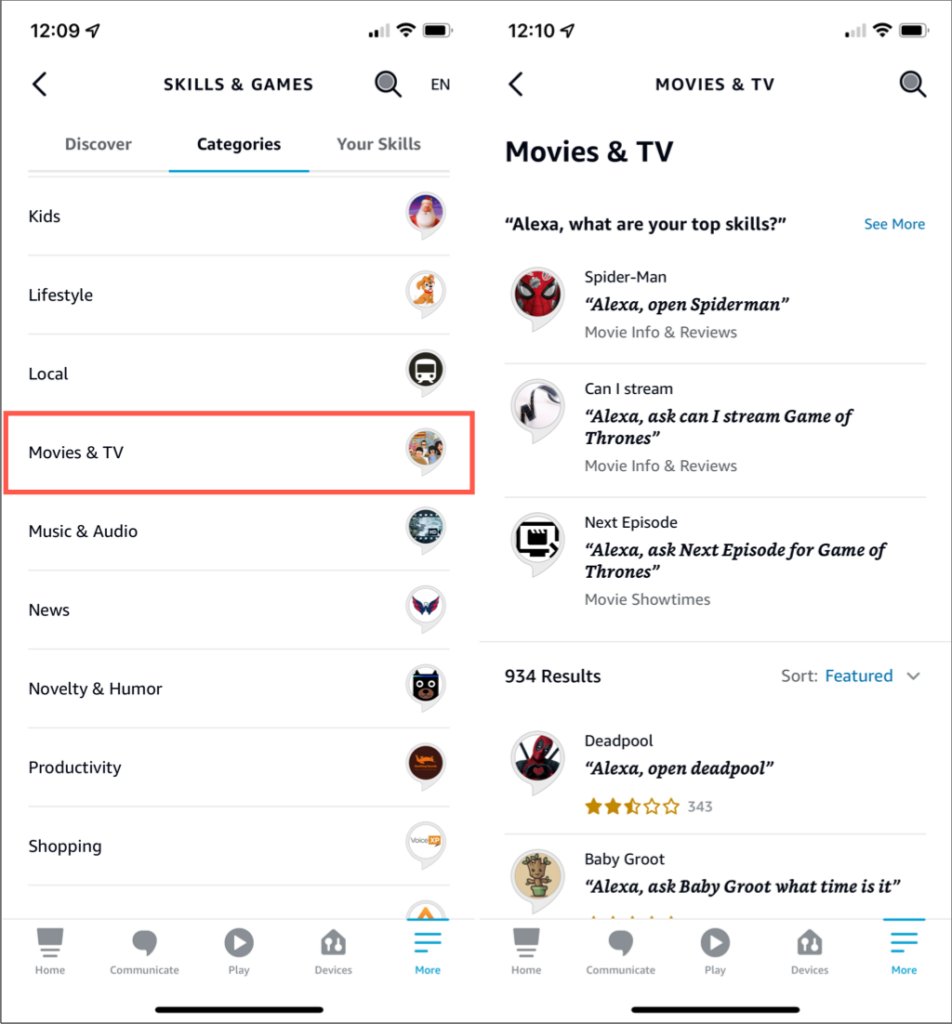
You’ll see everything from top Skills to featured ones and you can use the search at the top for something specific.
5. Ask Alexa to Play a Game
Taking a break from your day and feel like playing a game ? You can put down that recently played game on your cell phone and have some fun with this cool Alexa trick instead.
Here are some games you might enjoy:
- “Alexa, play Common Knowledge.”
- “Alexa, play Twenty Questions.”
- “Alexa, start the Weird Word Quiz.”
- “Alexa, open Queen Trivia Challenge.”
- “Alexa, play Who Wants to Be a Millionaire.”
- “Alexa, play Jeopardy!”
You can also add games via Skills through the Alexa app. Go to More > Skills & Games and then select Categories > Games & Trivia .
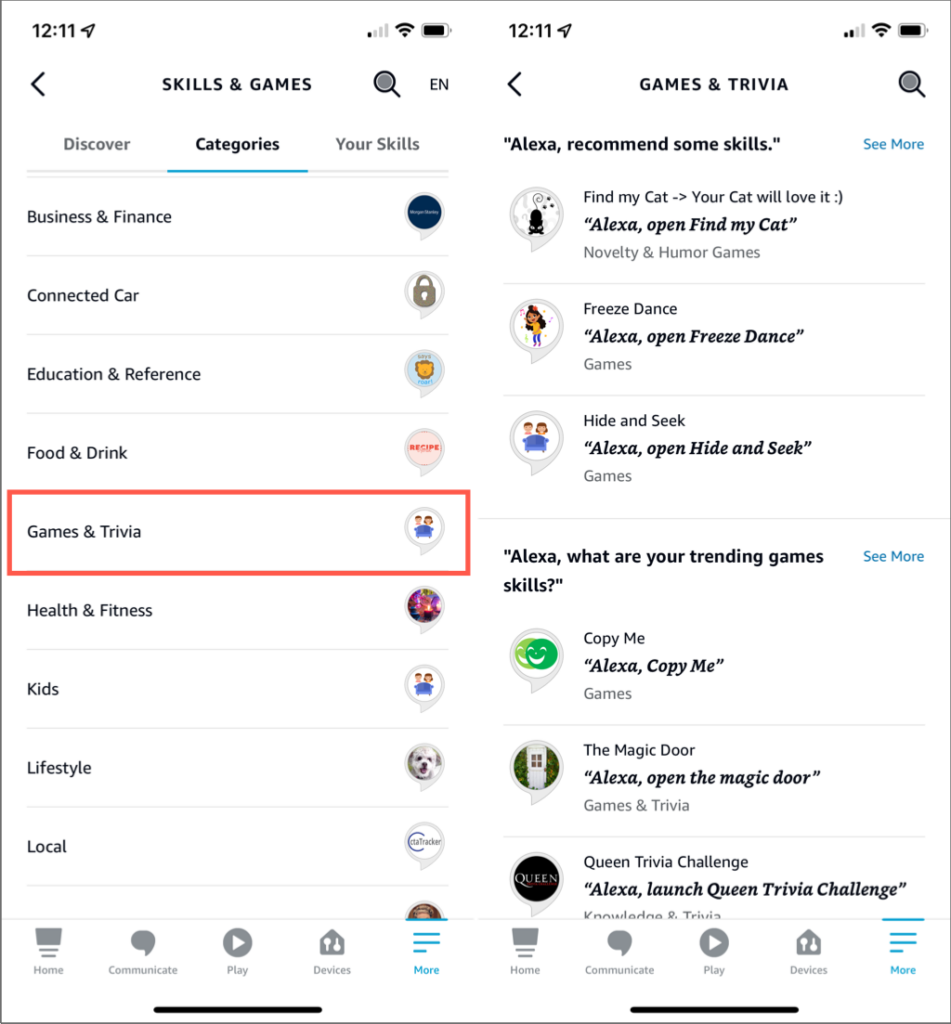
You’ll see recommended Alexa Skills, trending game Skills, and even games for kids to enjoy .
6. Ask Alexa to Be Creative
Alexa can be just as creative as a writer or poet, well, almost. You can ask to hear a story, poem, or limerick.
Here are several things to try:
- “Alexa, tell me a story.”
- “Alexa, give me a bad poem.”
- “Alexa, read me a spooky story.”
- “Alexa, tell me a poem by Robert Frost.”
- “Alexa, tell me a limerick.”
- “Alexa, tell me a St. Patrick’s Day limerick.”
- “Alexa, tell me a winter poem.”
To see what Skills are available for stories and poems in the Alexa app, just do a search. Tap the search icon at the top, enter “story” or “poem,” and tap Search .
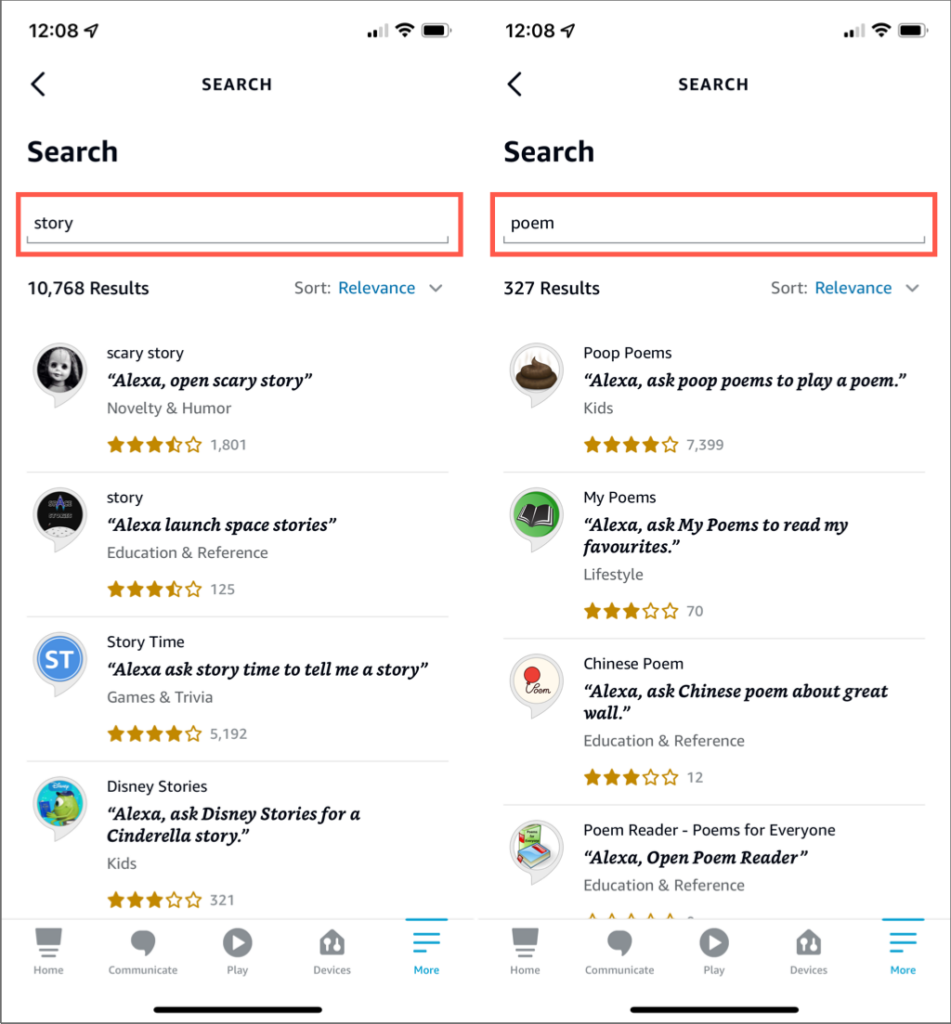
You’ll see a nice collection of story and poem Skills for adults and children.
7. Ask Alexa for Celebrity Voices
Just note, after hearing the descriptions, Alexa may ask if you’d like to purchase the voice with a one-time payment, which is currently $4.99.
8. Follow Alexa on TikTok
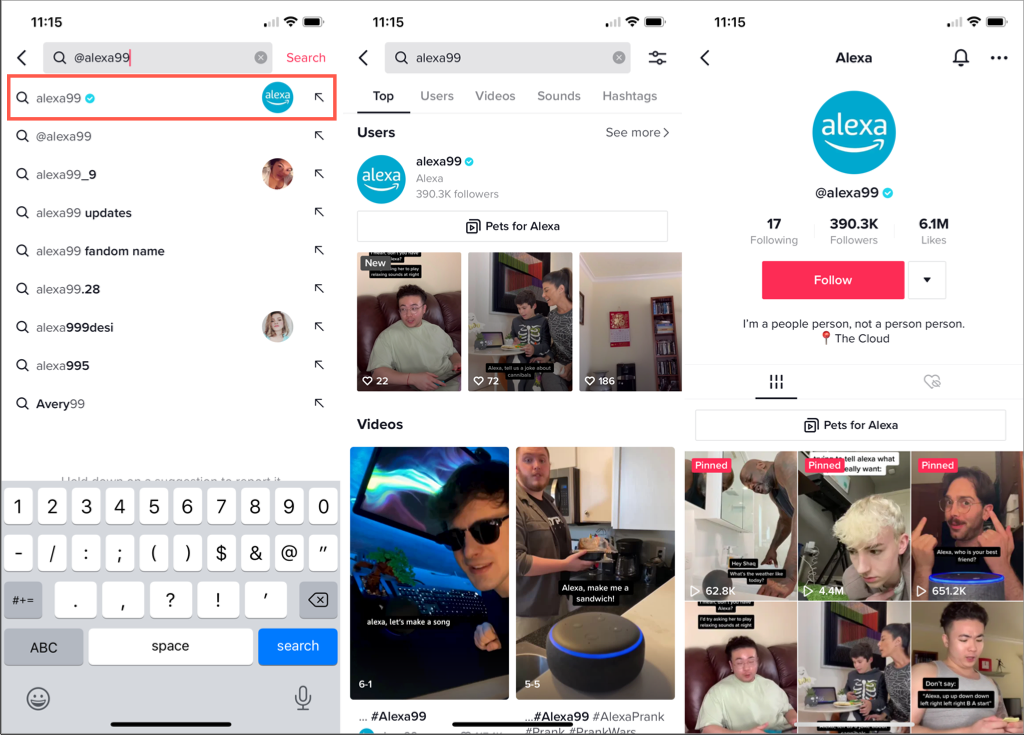
If you ask, “Alexa, are you on TikTok?” you’ll hear a resounding “Yes”! Alexa will let you know the handle is @alexa99.
You can open TikTok on your mobile device, tap the search icon at the top, and type in Alexa’s handle. You’ll see the official Alexa account indicated by the icon. Tap to view details and then select Follow to jump on board.
9. Find an Easter Egg
You know about Easter Eggs, those hidden messages or images you can find tucked away in things like software or video games? Well, Alexa hides Easter Eggs too! Say “Alexa, find me an Easter egg.”

Alexa will speak your clue and it’s up to you to figure it out and respond correctly.
10. Just for Fun
If you just feel like messing around with Alexa to see what kind of responses you get, here are several cool phrases to say.
“Alexa, scream.”
“Alexa, surprise me.”
“Alexa, what’s up?”
“Alexa, who inspires you?”
“Alexa, let’s have fun.”
“Alexa, talk like a pirate.”
“Alexa, share the love.”
How to Create Alexa Skills for Your Business or Employees
How to Create Skills With Alexa Blueprints
How to Shop With Alexa for All Your Shopping
How to Change Alexa Language to Spanish and Other Languages
Why Alexa Is Flashing Yellow, Green, and What Does it Mean?
However, you may be looking for something in particular. Maybe you want a trivia game about your family, a fairy tale where your child is the star character or a guide to your home and neighborhood for a houseguest.

Well, guess what? You can make your own skill using Alexa blueprints. Here’s how!
Browse Alexa Skill Blueprints
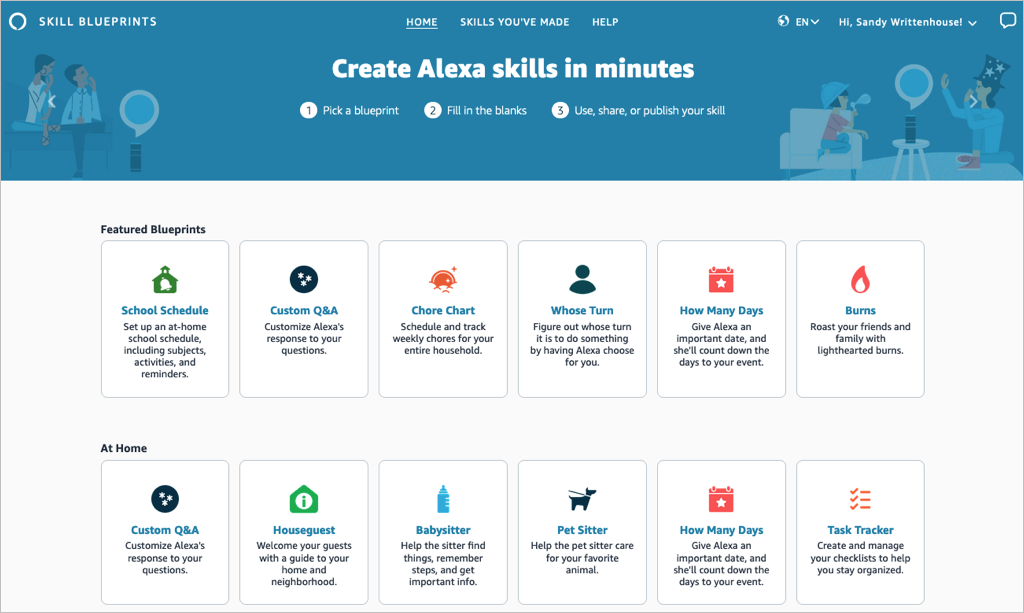
Select a blueprint to view more details and check out examples. This helps you see how the babysitter blueprint can help when you’re away, or the family jokes blueprint can liven up quality time.
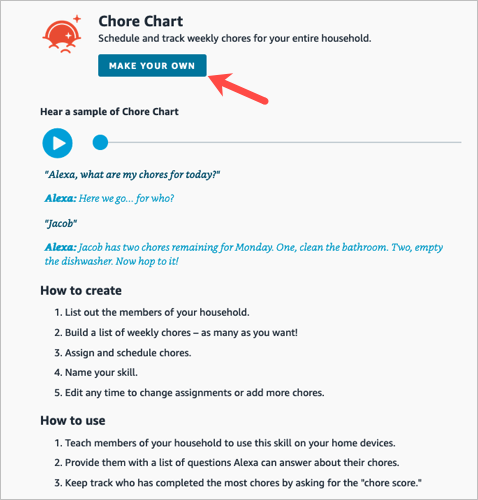
If you find one you want, pick Make Your Own on the skill information screen.
Create a Skill
The steps are the same whether you’re creating a skill with a blueprint on the web or on your mobile device. However, those steps may differ depending on the type of blueprint you select.
For instance, you’ll enter different information for a birthday trivia skill compared to one for flashcards, the pet sitter, or bedtime stories. You can see these steps when you select a blueprint to view its details.
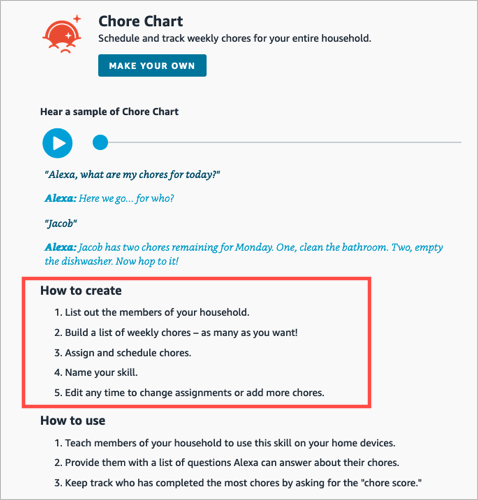
To show you just how easy it is, we’ll create one on each device.
Make a Chore Chart Skill on the Web
For this first example, we’ll use the Chore Chart blueprint to create a skill on the website. This skill helps keep track of household chores and who is responsible for each one.
- Visit the Alexa Blueprints website, sign into your Amazon account, and choose a blueprint.
- As described above, select Make Your Own directly below the skill name. If you see a short tutorial for building the skill, choose Start Now when you get to the end.
- Next, you’ll be prompted to replace the details for the skill with your own. For the Chore Chart, we’ll fill in the names of our household members and chores.
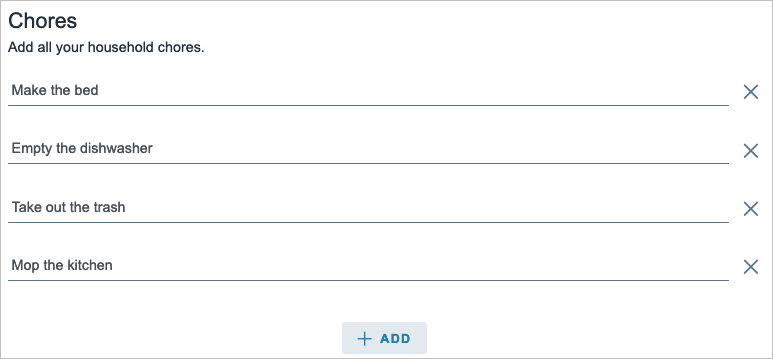
- Select Next on the top right to move to the next step.
- Here again, you may be asked to enter more details for the skill. For the Chore Chart blueprint, we assign the chores to the household members. Just keep in mind that the number of prompts and requested details depend on the exact skill and blueprint.
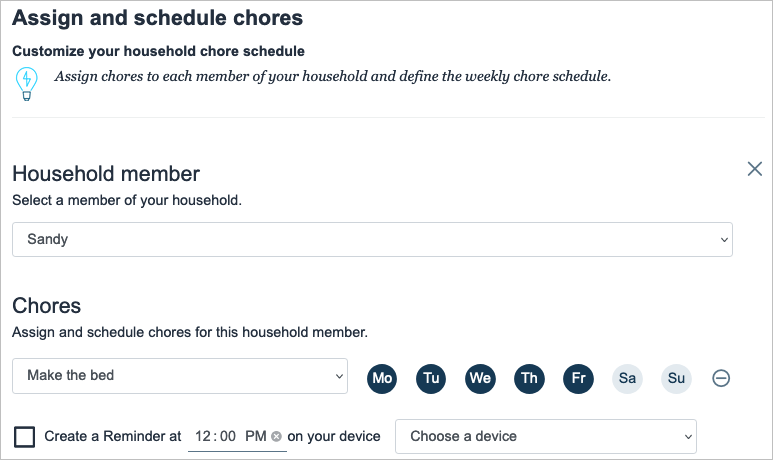
- Select Next to continue.
- One step that you’ll find in most blueprints is for customizing the experience. This refers to how you interact with Alexa for that particular skill. For instance, you can enter introduction phrases for when someone opens the skill and then other phrases for when someone completes a chore. These are the phrases Alexa uses for that specific skill.
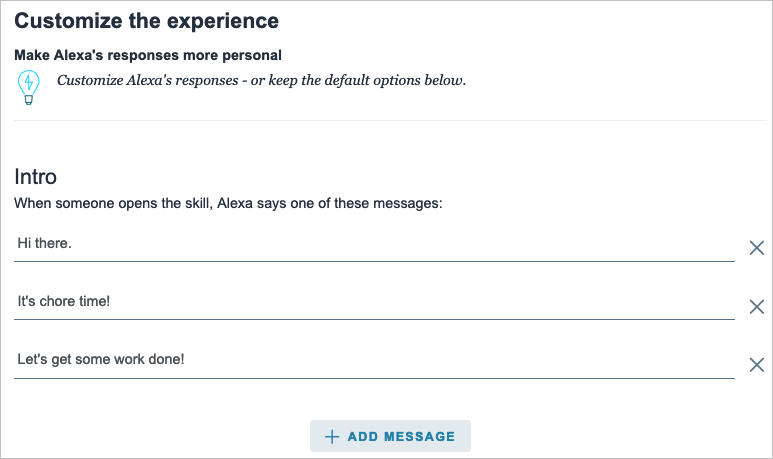
- Select Next to finish entering the details.
- The final step in creating a skill is to give it a name. Try to use something meaningful that you’ll remember but also something simple enough for Alexa to recognize.

- Select Next one last time to create the skill.
After a few moments to process all the information, your skill should be ready to use!

Make a Whose Turn Skill in the Mobile App
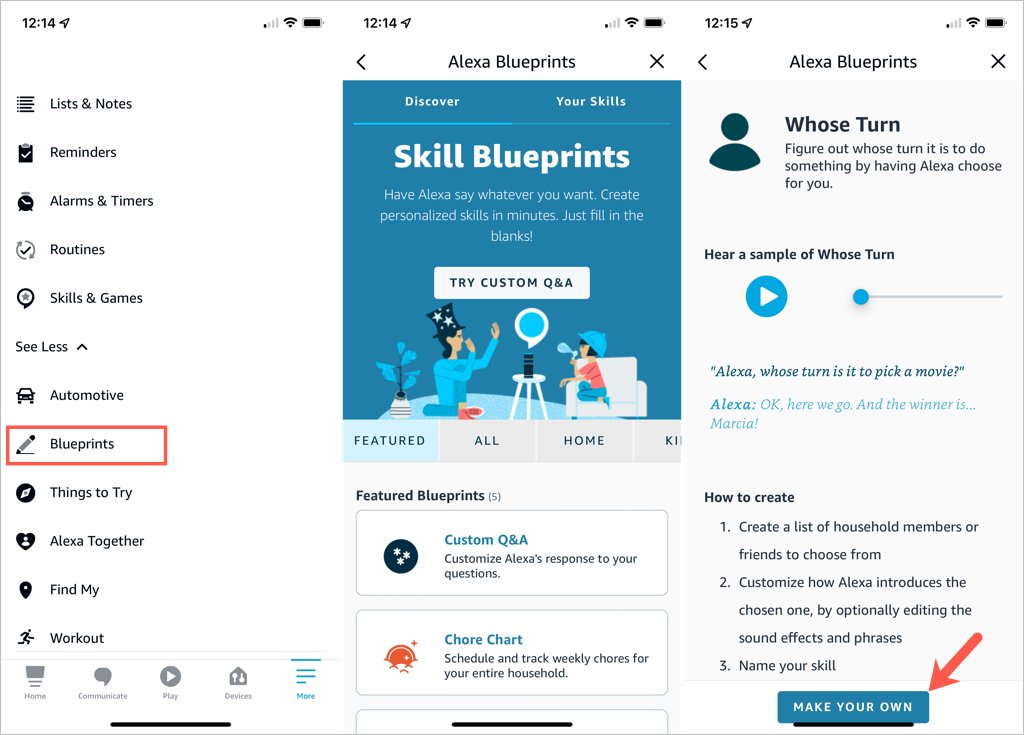
For this next example, we’ll use the Whose Turn blueprint to create a skill in the Alexa app. This skill prompts Alexa to choose whose turn it is to do something.
- Open the Alexa app on Android or iOS and select the More tab.
- Pick See More in the top section and choose Blueprints .
- Browse the options by category, just like on the website. Then, select the one you want to use and tap Make Your Own .
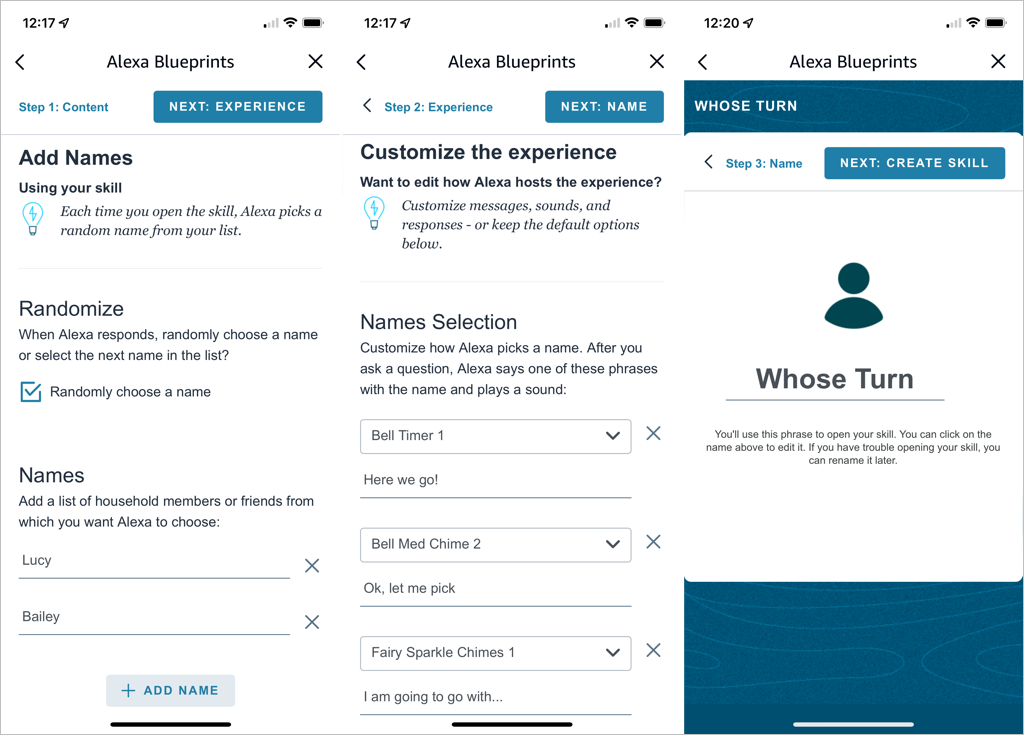
- Replace the details for the skill with your own. For the Whose Turn skill, we’ll add the names for Alexa’s choices.
- Tap Next on the top right to continue.
- The next step for the Whose Turn skill is to personalize the experience. This allows you to customize how Alexa picks a name. After you ask a question, Alexa uses the phrases and sound effects you select in this section. Optionally, you can scroll down for additional customization options.
- Tap Next to name your custom skill.
- Select the text on the name line to edit it or enter your own. Again, pick a meaningful name and one that’s easy for Alexa to recognize.
- Tap Next to create the skill.
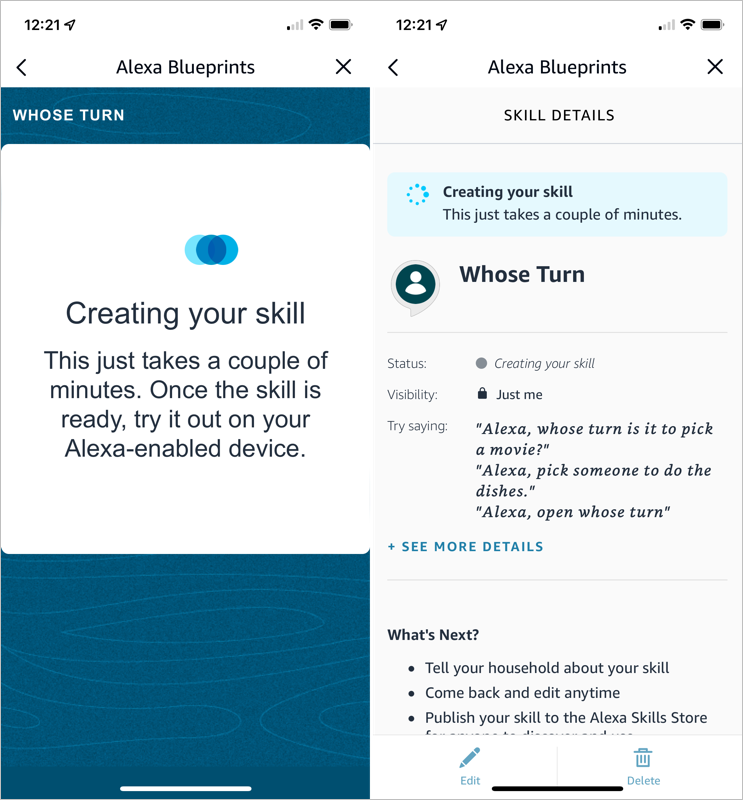
You’ll see the progress as your skill is created and a confirmation when the process completes. You can tap the X on the top right to exit when you finish reviewing your skill.
Edit Skills You Create
Once you create a skill using Alexa Blueprints, you may want to make adjustments to it. You can do this on the web and in the mobile app too.
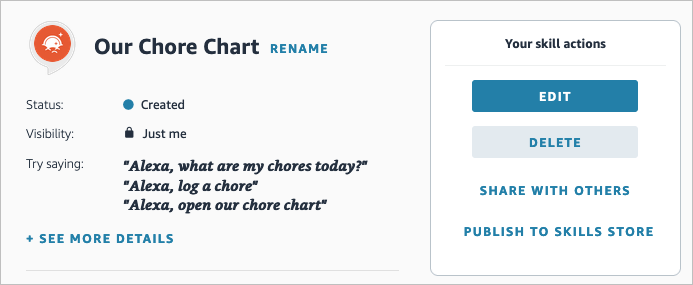
Your Skills on the Web
- Visit the Alexa Blueprints website and sign in. Select Skills You’ve Made at the top.
- You’ll see a list of your skills. Choose Details to the right to open the one you want to edit.
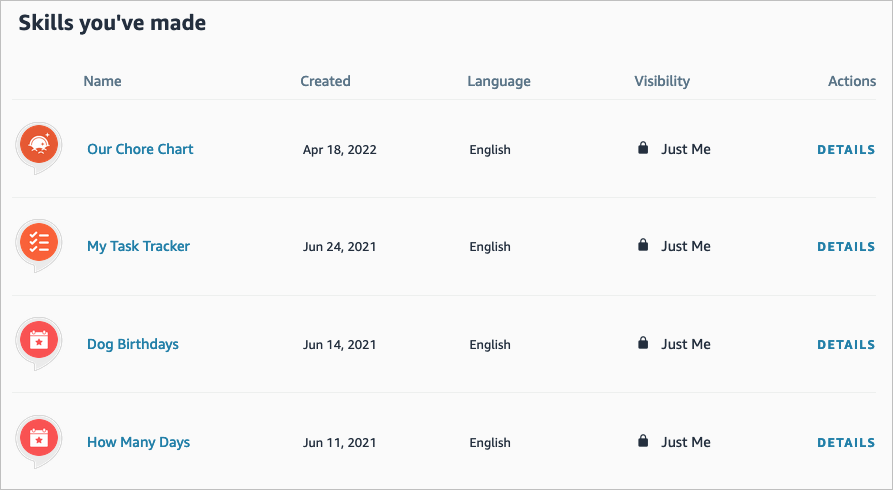
- On the right side, select Edit or Delete . You’ll notice you can also pick Share With Others to make it easy for your family or friends to access or Publish to Skills Store for other Alexa users.
Your Skills in the Mobile App
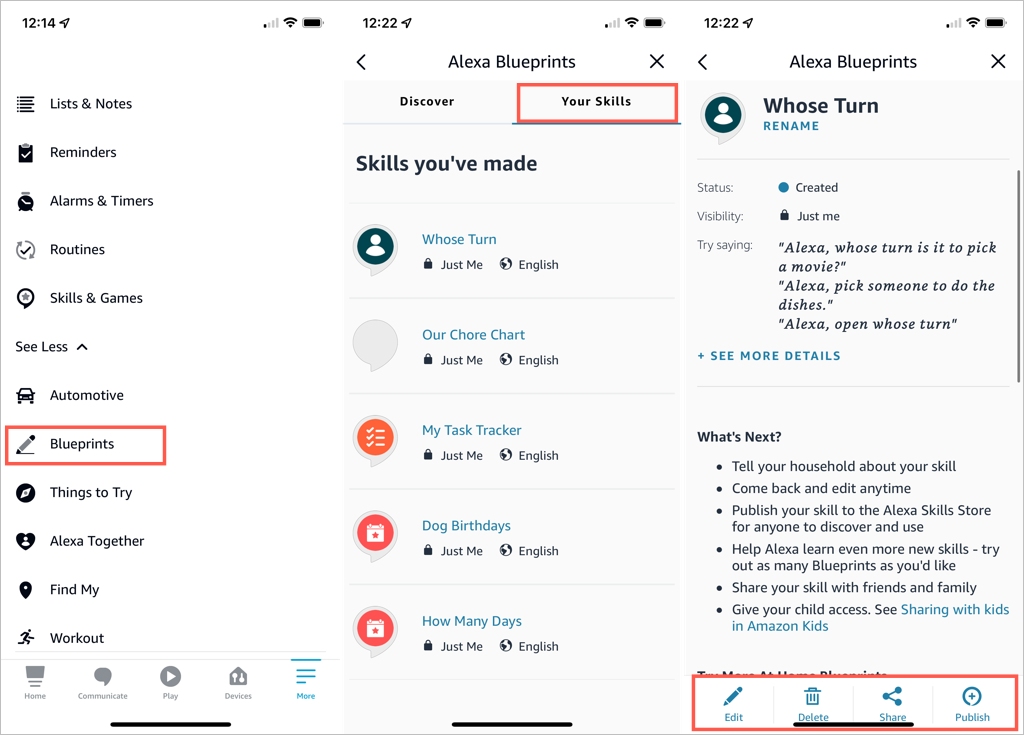
You can edit your custom skills easily in the Alexa mobile app as well.
- Go to the Menu tab.
- Select See More > Blueprints .
- On the Your Skills tab, select the blueprint you want to edit.
- Use the buttons at the bottom to make your changes.
Take Advantage of Alexa Blueprints
Even though there are many premade skills you can pick from, creating your own Alexa skills gives you great ways to personalize the experience on your Alexa devices, get tasks done, or have a little fun !
- How to Create Alexa Skills for Your Business or Employees
- How to Shop With Alexa for All Your Shopping
- 10 Cool Alexa Tricks to Try With Your Amazon Echo
- How to Change Alexa Language to Spanish and Other Languages
- Why Alexa Is Flashing Yellow, Green, and What Does it Mean?
