Is Face ID not working on your iPhone or iPad Pro? If you’re tired of having to punch in your device passcode or Apple ID all the time, the fixes in this troubleshooting guide will help you out.
Although Face ID is a remarkably well-implemented feature, there are various instances where it malfunctions on the iPhone and iPad. For example, the TrueDepth camera could fail to kick in at device unlock or Apple Pay checkout. Or, it might struggle to recognize you.
Work through the fixes that follow, and you should be able to get Face ID working correctly on your iPhone and iPad Pro again .
You Must Enter Your Passcode In the Following Instances
Before you start, it’s a good idea to familiarize yourself with situations where you must enter the device passcode despite having Face ID active on the iPhone and iPad. These happen because of protective measures and feature limitations but are easily misunderstood as problems. The following isn’t an exhaustive list but covers the most common scenarios.
- You just rebooted your iPhone or iPad.
- You’re unlocking the device for the first time in 48 hours.
- You aren’t looking at your iPhone or iPad directly. Face ID checks for your attention to improve security, but you can configure it to authenticate you regardless (more on that below).
- You’re attempting to unlock your iPhone while holding it horizontally; this is not a problem on the iPad.
- You’re obscuring your face with a mask or sunglasses. We’ve talked about ways to deal with this problem further into the post.
1. Review Face ID Settings
If Face ID never shows up to authenticate specific actions like App Store and iTunes purchases, it’s best to begin by reviewing the Face ID settings on your iPhone or iPad.
- Open the Settings app.
- Scroll down, tap Face ID & Passcode , and enter your iPhone’s device passcode.
- Turn on the switches next to the activities where you want Face ID to work:
- iPhone Unlock : Unlock your iPhone at the Lock Screen
- iTunes & App Store : Authorize iTunes and App Store purchases.
- Wallet & Apple Pay : Authorize Wallet and Apple Pay purchases.
- Password Autofill : Authenticate password auto-filling in Safari and other apps.
- Other Apps : Manage third-party apps that support Face ID.

2. Restart Your iPhone or iPad
If there’s nothing wrong with your Face ID settings, try rebooting the system software on your iPhone or iPad. That’s a quick fix to minor technical issues preventing the feature from working.
To restart any iOS or iPadOS device:
- Open the Settings app and tap General .
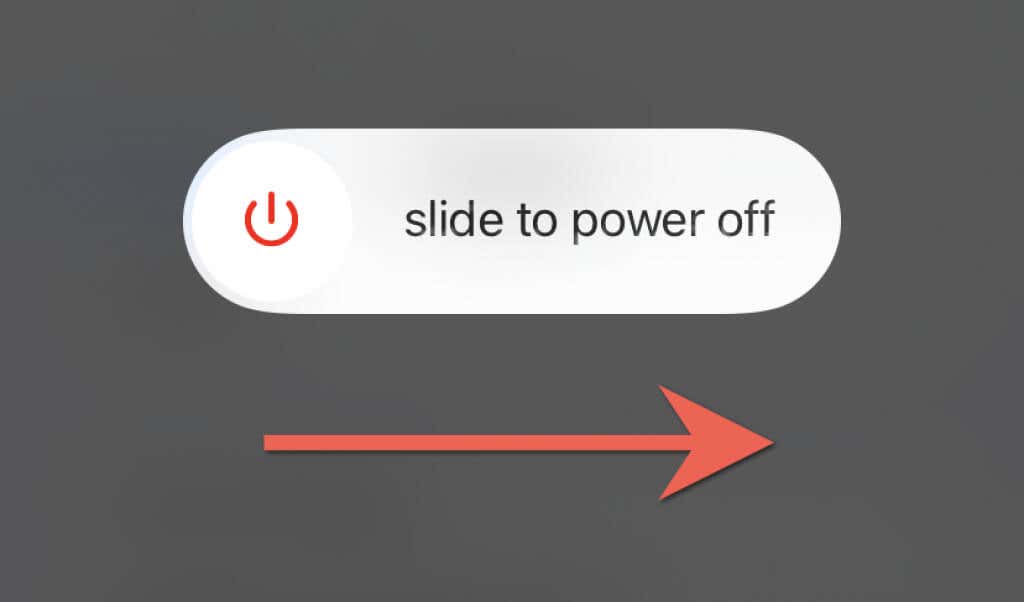
- Tap Shutdown and swipe right to power off the device.
- Hold the Top / Side button until you see the Apple logo.
3. Update to the Latest Version of iOS
Face ID can stop working due to problems with iOS or iPadOS. Perform a software update and check if that makes a difference.
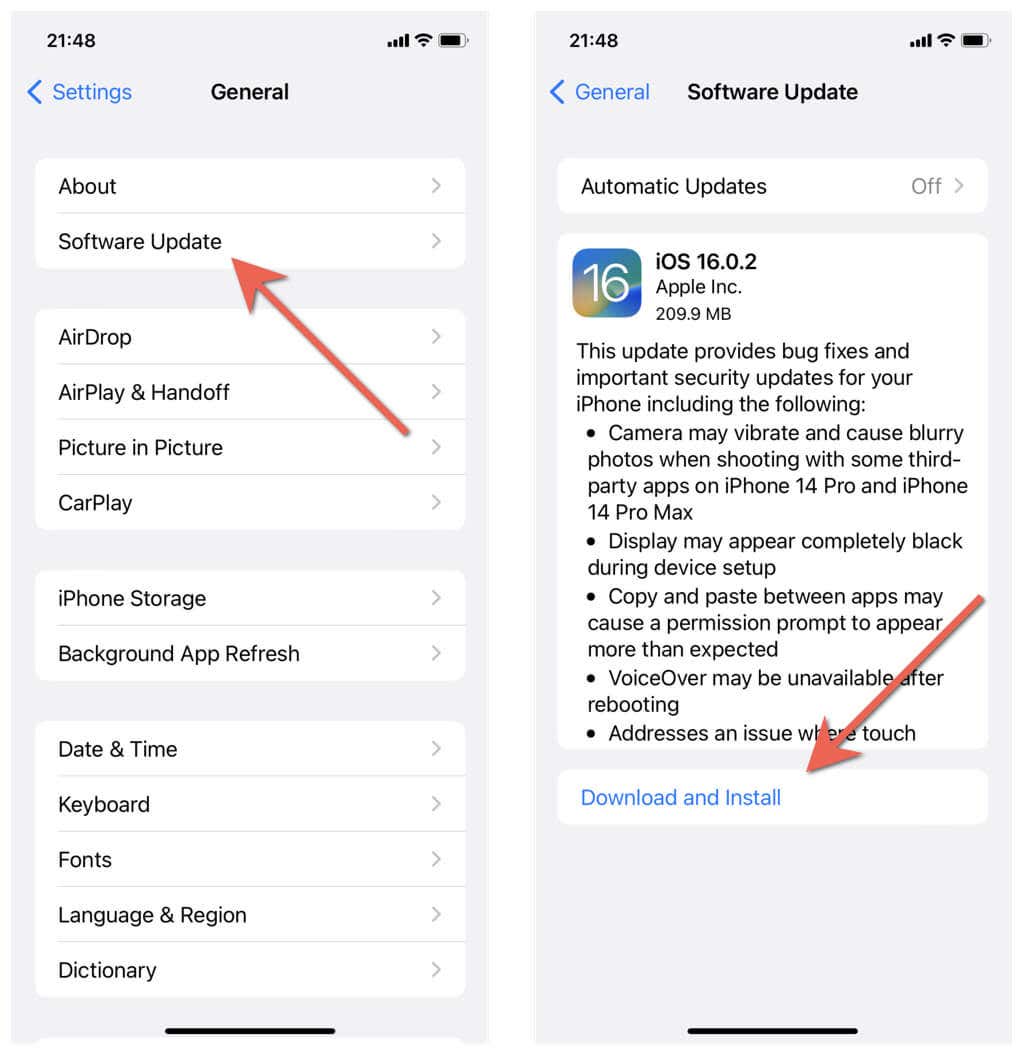
- Open the Settings app and tap General > Software Update .
- Wait until your iPhone or iPad scans for newer system software updates.
- Tap Download & Install to install an update.
Can’t update your iPhone or iPad? Learn how to fix stuck iOS or iPadOS updates .
4. Face the TrueDepth Camera
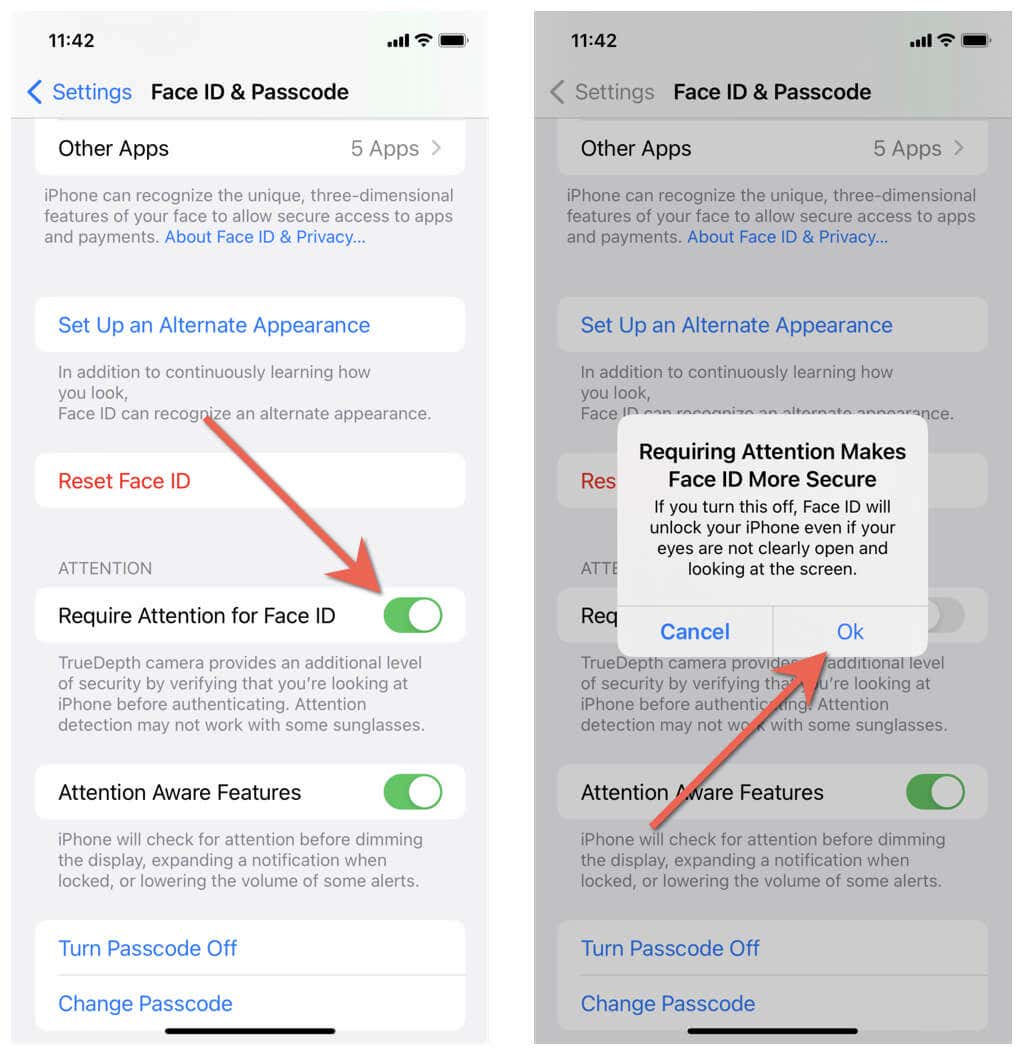
To improve Face ID security, your iPhone or iPad will not authenticate you unless you look directly at the screen or the TrueDepth camera.
If that annoys you and you want your iPhone to unlock you regardless, go to Settings > Face ID & Passcode and turn off the switch next to Require Attention for Face ID . Then, tap Yes on the security warning pop-up.
5. Check the TrueDepth Camera
Next, check the front camera on your iPhone or iPad and make sure that nothing is blocking it. For example, if you’re using an excessively bulky case, it could obstruct the top of the device. A screen protector that’s cracked (particularly closer to the camera) can also cause problems.
A sweaty or greasy iPhone screen is another reason that makes it harder for Face ID to scan your face. Wipe it with a microfiber cloth regularly to avoid that.
6. Are You Covering Your Face?
Face ID requires a full facial scan to authenticate you, which means you must always enter your device passcode if you use a face mask. However, you have a couple of ways to avoid that on the iPhone.
- Set up Unlock with Apple Watch : Use an Apple Watch to authenticate you instead of Face ID.
- Activate Face ID with a Mask : Set up Face ID to authenticate you with a partial scan around the eye area. This feature is only available for the iPhone 12 and later.
Face ID also doesn’t work well with sunglasses. Set up “Unlock with Apple Watch” or an alternative appearance (more on that next).
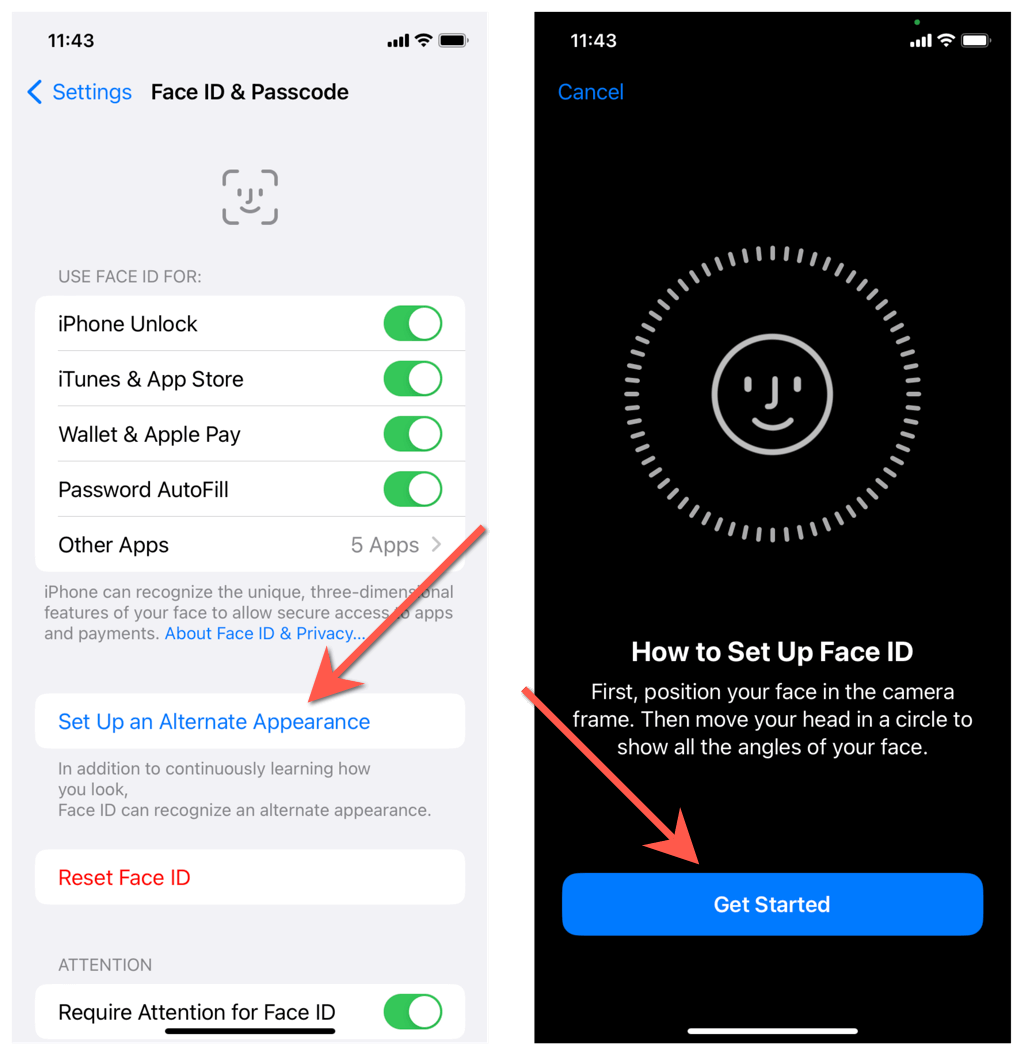
7. Add Alternate Face ID Appearance
Face ID is smart enough to adapt to subtle changes in your face, but it may have trouble identifying you if you change your appearance too much—e.g., with glasses or headgear. That’s why you must set up an alternative appearance. To do that:
- Go to Settings > Face ID & Passcode .
- Tap Add Alternate Appearance .
- Tap Continue and go through a standard Face ID setup.
8. Reset and Set Up Face ID From Scratch
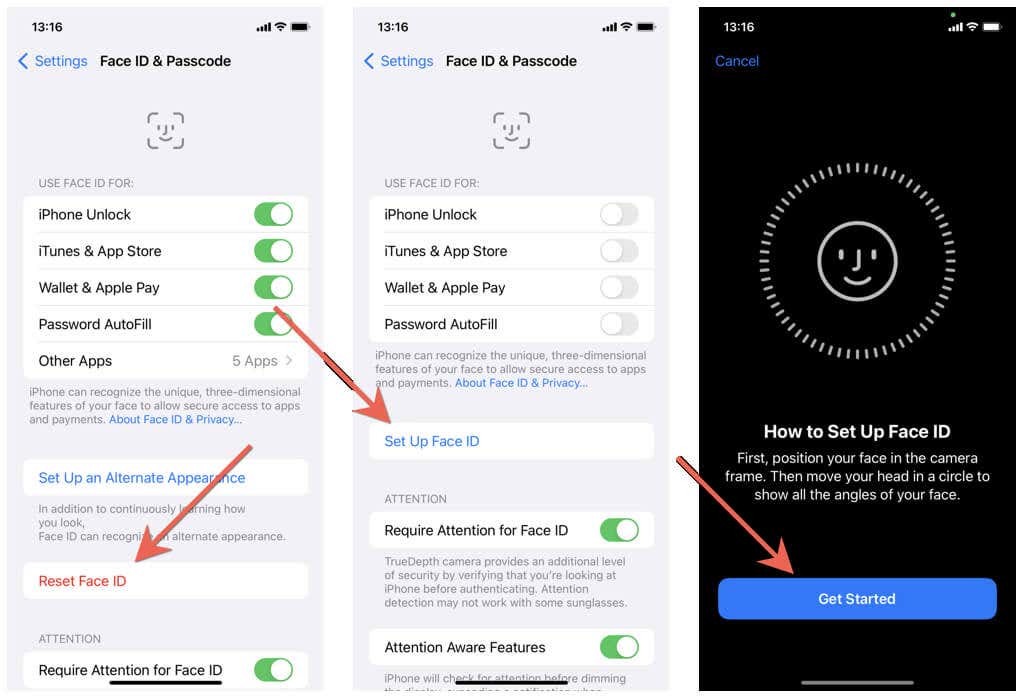
If Face ID continues to have trouble showing up or fails to recognize, it’s time to reset Face ID and set it up from scratch. That clears the Secure Enclave—the subsystem that houses facial data—and helps fix persistent Face ID-related issues.
- Go to Settings > Face ID & Passcode .
- Tap Reset Face ID .
- Restart your iPhone or iPad and revisit the Face ID & Passcode screen.
- Tap Set Up Face ID .
- Tap Continue and go through a standard Face ID setup.
Learn how to fix the “Face ID Is Not Available” error if you run into it during the Face ID setup.
9. Factory Reset All Settings on iPhone
- Open the Settings app and tap General > Transfer or Reset iPhone / iPad > Reset .
- Tap Reset All Settings .
- Enter your device passcode and tap Reset Settings .
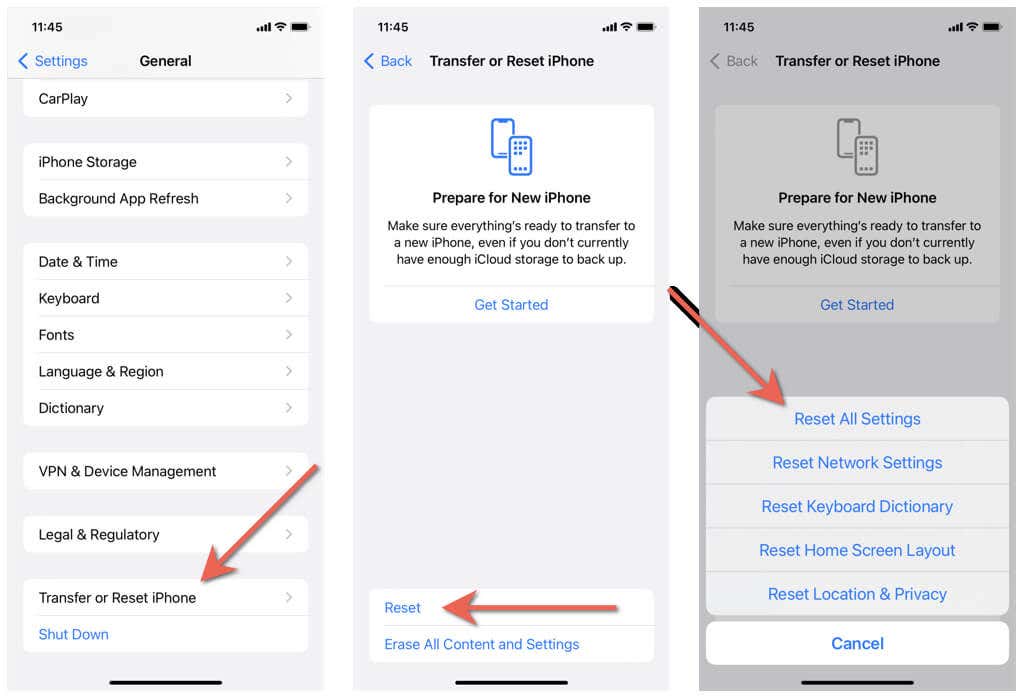
Your iPhone or iPad will reset all settings to factory defaults and auto-reboot itself. Once it finishes doing that, visit the Face ID & Passcode screen, tap Reset Face ID > Set Up Face ID , and set up Face ID from scratch. If a broken settings configuration was the source of the issue, you should be able to use Face ID without problems.
10. Factory Reset the iPhone Software
If the solutions above did not fix Face ID on your iPhone or iPad, you might be dealing with a severe software-related issue that nothing but a complete system reinstallation can fix.
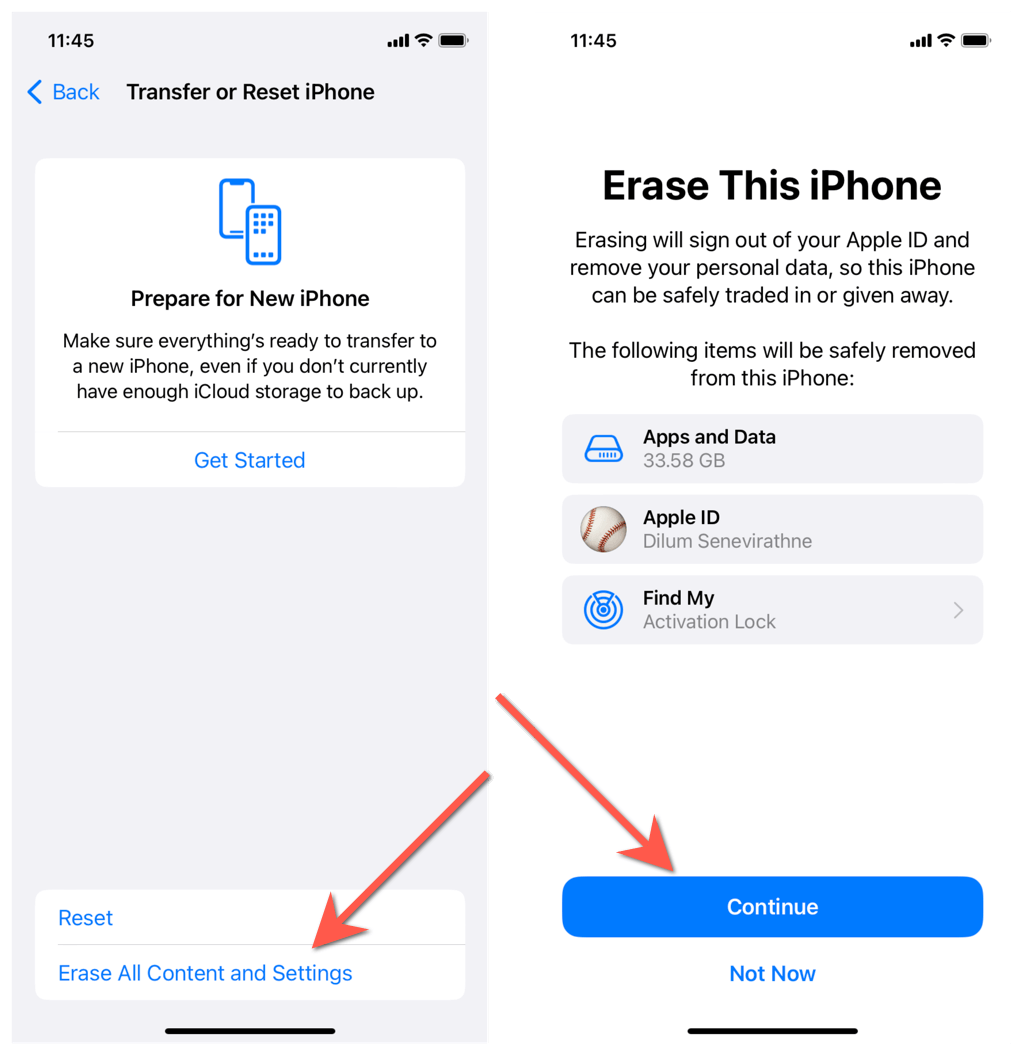
- Back up your iPhone or iPad to iCloud or a computer .
- Open Settings and tap General > Transfer or Reset iPhone .
- Tap Erase All Content and Settings and follow the on-screen instructions to reset the device to factory defaults. You can choose to restore your data while setting up the device again.
No Luck? It’s Time to Contact Apple
Contact Apple Support if you continue to have problems with Face ID. You could be dealing with a defective TrueDepth camera that warrants a visit to the Apple Store. If you still want to stand a chance of fixing the issue yourself, try reinstalling the system software and the device firmware in DFU (Device Firmware Update) Mode .
- How to Delete Multiple Apps (At Once) On Your iPhone/iPad
- How to Restore the Missing Phone Icon on iPhone/iPad
- How to Dismiss the “Update Apple ID Settings” Notification on iPhone and Mac
- How to Change Your Game Center Nickname (iPhone, iPad, and Mac)
- Guided Access Not Working on iPhone/iPad? Try These 9 Fixes Now
Passcodes suck. They take a long time to type in, it’s easy to forget them and most people probably pick something really easy to guess, which hurts their security. This is why biometric unlock methods are so popular.
All but the most inexpensive smartphones now have fingerprint scanners built-in. One little touch and your phone unlocks, which is pretty convenient. But more devices are also now using facial recognition instead since screens are getting so large. Apple is no different and offers devices that use both of these technologies to secure them. Technologies that are officially known as Face ID and Touch ID.

But how do Face ID and fingerprint scans work?
What Are Face ID & Touch ID?
The obvious answer to this question is that Face ID is a face unlock system and Touch ID is a fingerprint unlock system. Job done. End of article. Right? Well, it’s a little more complicated than that because although lots of different companies use faces and fingerprints to unlock their devices, they don’t all work in the same way.
These two biometric systems are Apple’s proprietary solutions to the biometric problem. This matters because companies like Apple feel that their approach and technology are more secure than their competition. It matters because hackers and other security specialists have managed to fool systems like these in the past.
As you’d expect, there’s a race between the creators of biometric security sensors and those who want to defeat them. You must know how the sensors on your Apple device work and what their limitations are.
How Does Face ID & Touch ID Work?
Touch ID is Apple’s most mature biometric system and you’ll find it on certain models of iPhones, iPads, and MacBook Pros. Its sensors use the sapphire crystal as the button material. This is very hard and incredibly resistant to scratches, which is why high-end smartphone cameras also use sapphire lens covers.
When you place your finger on the button, a very high-resolution image is taken of your fingertip. A proprietary software algorithm then examines the image, transforming your fingerprint into pure math. This is then compared to the stored mathematical transformation of the fingerprint that was registered when Touch ID was set up. If they match, then the device unlocks.

Face ID works in a pretty smart way as well. Many devices use a normal camera for facial recognition. It compares the photo it has on record with the one you are presenting to unlock the device. The software that does the facial matching is quite sophisticated, but many of these cameras can’t tell the difference between a photo or a mask, so they can be fooled into unlocking.
Face ID, on the other hand, makes use of a specialized TrueDepth camera to create a very detailed depth map of your face. One with over 30 000 points. It combines this with an infrared image of your face to create a facial profile. The neural net machine learning hardware components of modern Apple mobile device processors make this level of sophistication possible.
So how secure are these technologies and are they good enough for you to trust?
General Biometric Security Flaws
First of all, some security vulnerabilities apply to biometric systems in general. The biggest problem with using an aspect of your biology to unlock something is that you can’t change it. If someone managed to make a perfect copy of your fingerprint or face, they could unlock anything. If someone figures out a password or passcode, just change it.

This sort of thing has happened in the past and the way that biometric sensors have got around it is by becoming more detailed and looking at multiple aspects of your biology. For example, finer details of your fingerprints or the presence of body heat. Those who want to defeat these systems have to get better at replicating your biology, which is impractical for the average hacker at a certain point.
The biggest weakness of biometric systems is a pretty simple one. Someone can simply take your finger or face and force you to unlock your device. That’s different from a password or code which you can “forget” or otherwise withhold. We’ll deal with this scenario at the end of the article.
How Secure Are Face ID & Touch ID?
This is a bit of a loaded question since that depends on what your definition of ‘secure’ is. Usually, the security of systems like these is expressed as the odds of someone randomly beating them. That’s the “brute force” method of cracking a digital lock. For Touch ID there’s only a 1 in 500,000 chance of someone’s fingerprint being similar enough to yours that Touch ID will be fooled.
Of course, that’s very different compared to someone making an impression of your fingerprint or creating fake ones from a scan. Then again, how likely that is to happen depends on who you are and if someone would be motivated to take this extreme path. If you’re a VIP who draws this sort of attention, you shouldn’t be using biometrics, since they aren’t secure enough at that risk level in our opinion.

Face ID is more secure from a brute force perspective according to Apple’s numbers. With a one-in-a-million chance of a random person looking enough like you. Identical twins are perhaps the exception here. So what about photographs or masks that replicate your face? Face ID has countermeasures for this. As mentioned above, photos won’t work since the camera can sense depth. It uses neural net technology to also mitigate against the use of masks.
There are no numbers to tell us how effective this is, but once again for the average user, no one is going to spend thousands or even millions of dollars creating technology to defeat Face ID. If you’re the president of a country, don’t use biometric locks.
Activating The iOS Biometric Killswitch
Now only one issue remains. What if someone is in a position to force you into unlocking your phone? They just have to point it at your face or put your finger on it, after all. If you think you may be entering this situation, you can simply click the on/off button five times and biometrics will be disabled in favor of a passcode.
On the iPhone 8 and up you need to squeeze the side button and either of the volume buttons. These methods could be different when you read this, so be sure you look up the biometric killswitch method for your specific iOS device.
In short: Face ID and Touch ID are plenty secure for most people, but not for people who need military-grade security. If you are however very paranoid, use a six-digit passcode instead.
- How to Fix Face ID With a Mask Not Working on iPhone?
- How to Use Face ID on iPhone With a Mask On (No Apple Watch Required)
- Is iPhone Face ID Safe To Use?
- Fix Apple Watch Charging Problems (All Models)
- How to Use Your iPhone as a USB Drive on Mac and PC
