While virtually all laptops ship with Wi-Fi built-in these days, they don’t always come with the best wireless hardware. If you’re a desktop PC user, you’ll probably get an Ethernet network adapter included with your computer, but not Wi-Fi.
Either way, you’ll want to choose the best USB Wi-Fi adapter for your needs and budget, which means you’re in luck since we’ve listed twelve of the very best Wi-Fi adapters, each in their unique way.
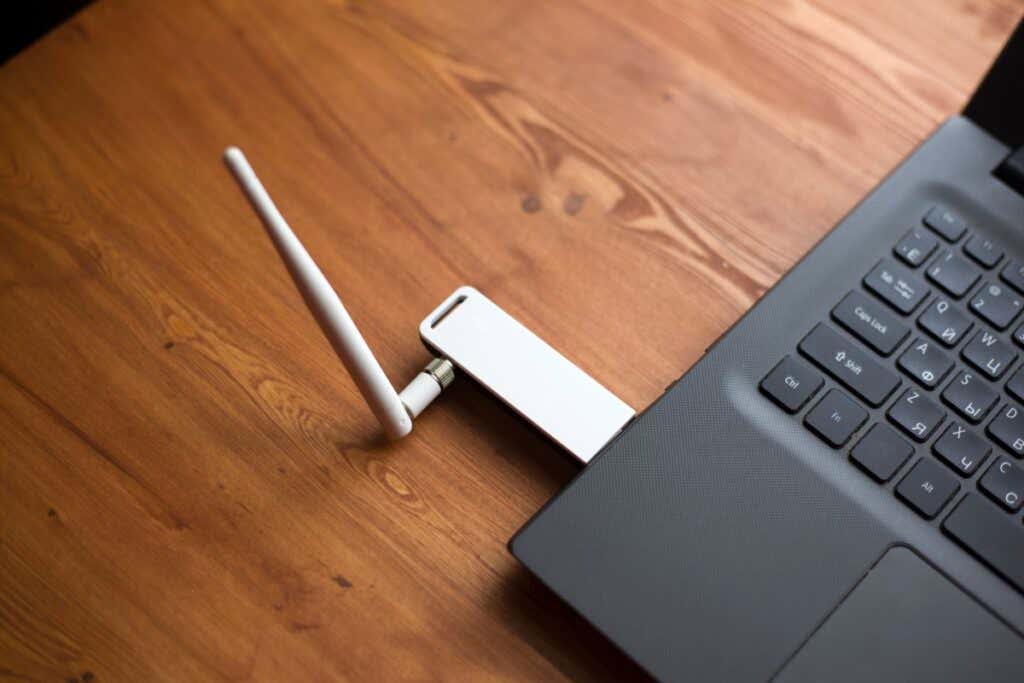
What to Look For in a Wi-Fi USB Adapter
Shopping for a USB Wi-Fi adapter for your wireless network can be more complicated than you might expect. Not only are there many different Wi-Fi standards to contend with, but also different USB standards .
Then you also need to decide whether you want a large dongle with an antenna that can sustain high speeds over long distances or a compact dongle that can easily fit into your laptop bag.
It’s a good idea to get a dongle that’s dual-band Wi-Fi so that you can connect to hotspots that use either 2.4Ghz or 5Ghz Wi-Fi bands. If you’re only going to use your USB adapter with your home router and only care that they are compatible, then it’s not a significant deal.
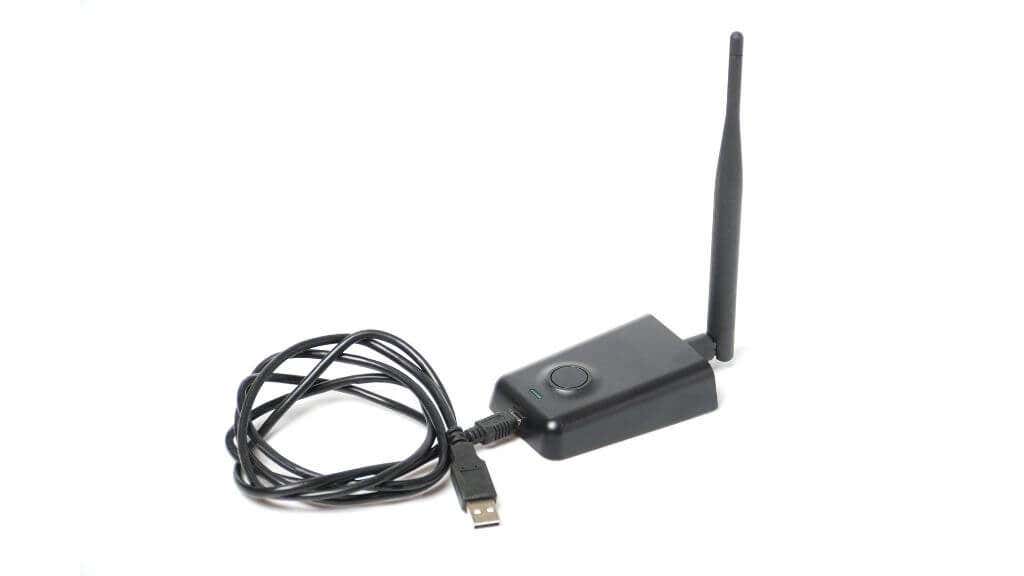
As for Wi-Fi standards, don’t worry too much about buying a Wi-Fi 6 adapter right now unless you know that you’re in the market for a Wi-Fi 6 router and will have the sort of broadband that will test its fast internet connection speed.
You may also want to keep an eye out for “beamforming technology,” which is a method to give Wi-Fi signals more directionality. A device with beamforming can target your router’s relative position more directly and maximize transmission power. It can be crucial if you’re looking to stretch the limits of Wi-Fi penetration and range!
A Note for macOS Big Sur and Linux Users
All modern Apple Macs have a built-in Wi-Fi module, but you might not be happy with it for several reasons. Unfortunately, during our research for this article, it became apparent that since macOS Big Sur, the support for third-party USB Wi-Fi adapters on the operating system has become spotty at best. Most of these dongles don’t have an official driver software for macOS, so you’ll be forced to rely on third-party drivers if any.
As for Linux, things are a little better there since most desktop distros of Linux have support for several common Wi-Fi chipsets. This means you may not even have to install any drivers to make the adapter work. Still, if you’re a Linux user, double-check that an adapter has compatibility with your flavor of Linux. Even if you’re dual-booting with Windows 10, you still need to have suitable drives when booting into Linux.
1. Best Online Gaming Adapter:Asus USB-AC68Dual-Band USB 3.0 Wi-Fi Adapter
Features:
- Fast AC1900 speeds
- Foldable for portability
- 3×4 MIMO for low-latency gaming
Gamers have very different requirements from other Wi-Fi users. It’s not so much the peak speed of the connection that matters, but how little latency there is between you and the server. A lag spike can mean the difference between taking a virtual bullet and dishing them out.
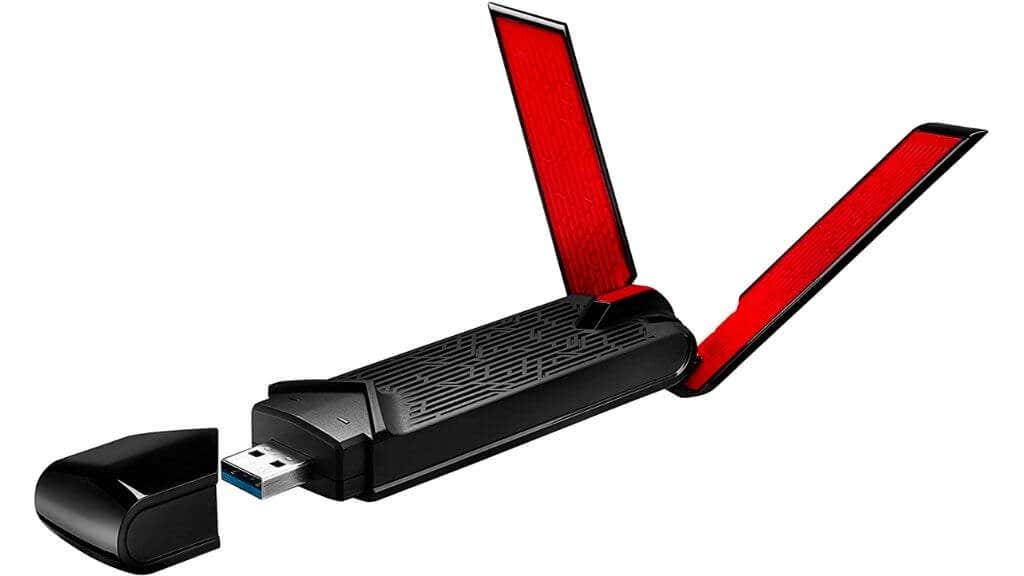
The Asus USB-AC68 is designed to make sure there’s no unnecessary lag when sending or receiving your multiplayer game data. Assuming that you also have a good gaming router, the 3×4 MIMO design can simultaneously send and receive data with no interference.
This is also a Wi-Fi adapter that uses beamforming technology to ensure that the signal between the adapter and router remains rock-solid. While this adapter is best for desktop gaming systems, it’s portable too. It has folding antennas, so if you want to slip it into your laptop bag, you can do it without much fuss, If you aren’t an online or LAN gamer, the AC68 doesn’t have that much appeal at its price, but if you take multiplayer seriously, this is the one to go for.
2. Best for Fast Downloads:Netgear Nighthawk A7000 AC1900
Features:
- Very fast
- Neat magnetic cradle idea
Netgear’s Nighthawk routers are well-respected in both the gaming community and among those who appreciate high-end home network gear that can handle modern fiber broadband and high-bandwidth LAN applications such as large file transfers and in-home streaming.
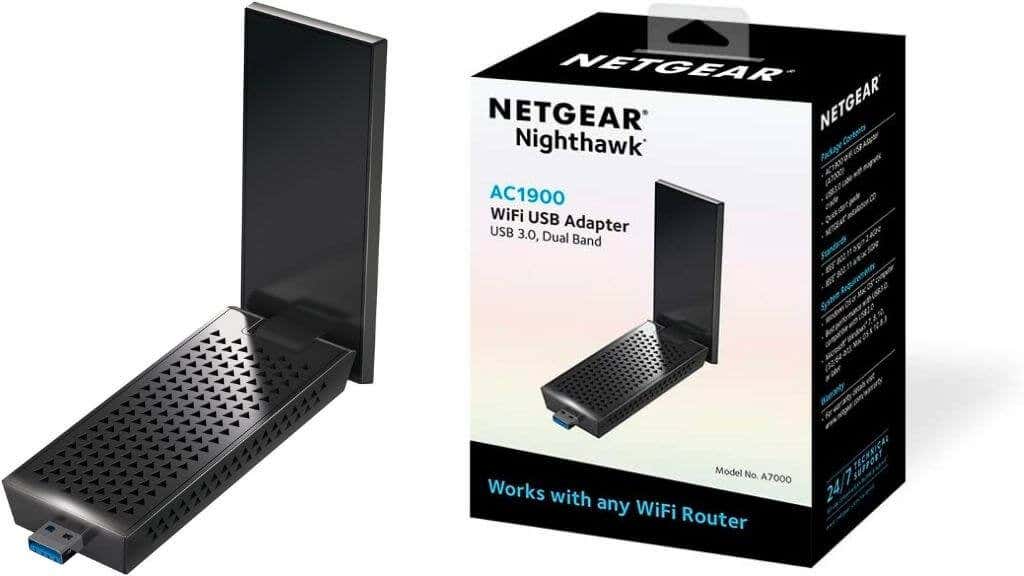
The Netgear Nighthawk AC1900 USB adapter offers ludicrous Wi-Fi transfer speeds in a compact form factor. There’s an excellent magnetic desktop cradle included that you can use to position the adapter on any magnetic metal surface optimally. There’s also a clever integrated foldable antenna, so you can easily take it with you for laptop use.
This is a dual-band adapter, so you don’t have to worry that you can’t connect to older 2.4Ghz routers. Significantly, Netgear supports macOS. Based on the forum articles we checked, it does seem to work on Big Sur and newer, although some users had to jump through a few hoops to get it all set up.
3. Best Combo Adapter:Edimax 2-in-1 Wi-Fi 4 + Bluetooth Low Energy Combination Adapter
Features:
- Includes Bluetooth and Wi-Fi in one device
- Compact
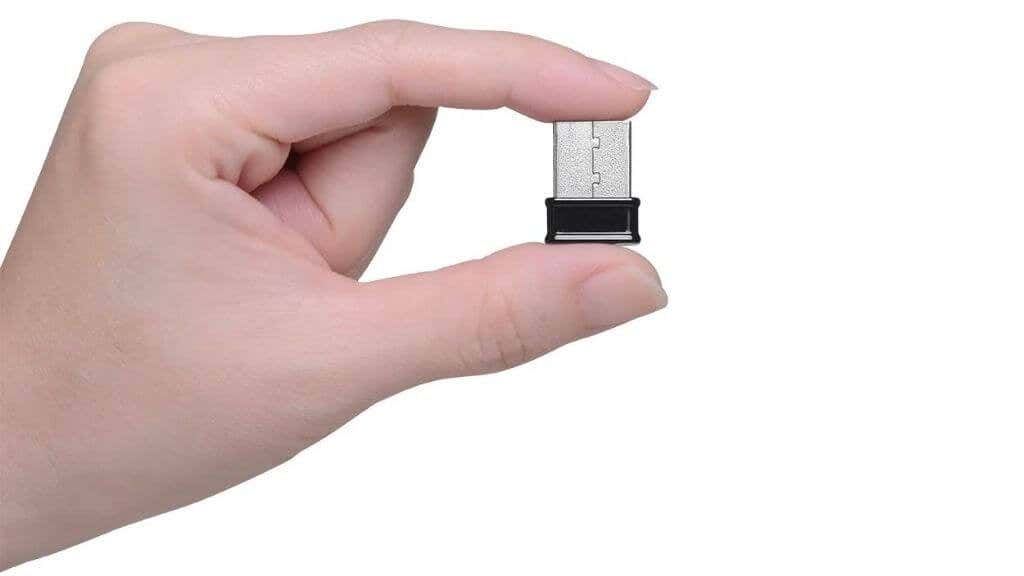
Sometimes you only have many USB ports available, especially on older computers. If you have an older desktop system that has neither Wi-Fi nor Bluetooth, this Edimax 2-in-1 adapter will add both technologies to your design in one go. Sadly, this is still a Wi-Fi 4 device, so it only supports 150Mbps speeds on the 2.4Ghz band. However, for an older computer, you want to hook into the wireless world, that’s more than enough.
4. Best Premium Adapter: TrendnetTEW-809UB
Features:
- Awesome design
- Removable antenna
- Great performance
The TEW-809UB looks a little like a bug that’s stuck on its back, but this Wi-Fi adapter offers fast AC1900 speeds for a great price and doubles as a long-range adapter when you need it to. Those antennas are removable, so if you want to take your adapter with you in a laptop bag, you can take them off and avoid worrying that you’re going to break something off.
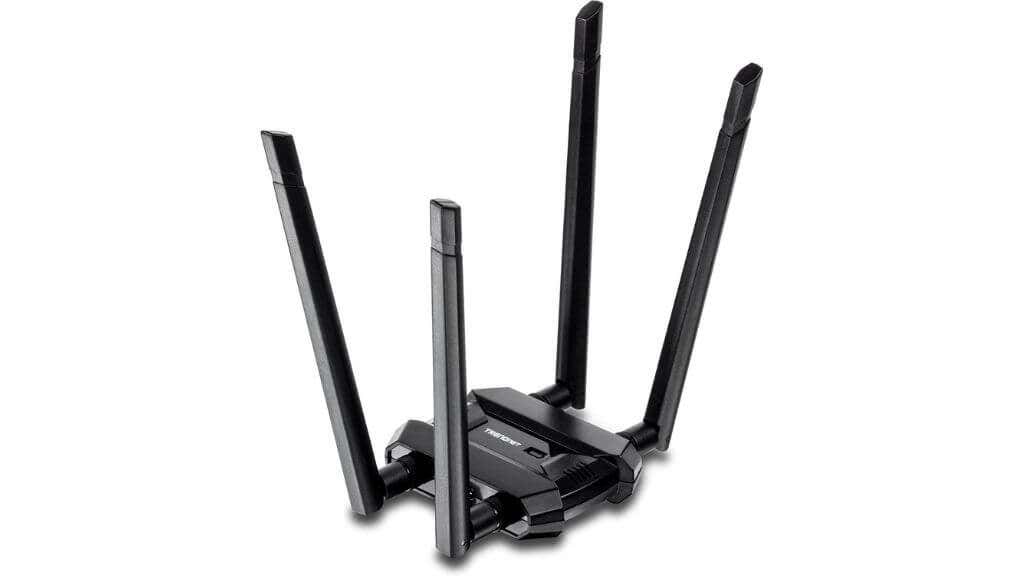
Suppose you use a single USB Wi-Fi adapter at home and on the go. In that case, the TEW-809UB offers killer performance, cutting-edge wireless technology, and compatibility with any router, thanks to dual-band support. It’s a little pricey, but reading about the real-world performance experience from customers, it seems worth every dollar.
5. Best Budget USB Adapter:TP-Link AC600 USB Wi-Fi Adapter
Features:
- Very affordable
- Simple design with an adjustable antenna
- Dual-band Wi-Fi 5 (802.11ac)
Sometimes all you need is to add Wi-Fi to a computer with broken, missing, or outdated Wi-Fi. You certainly don’t want to experience sticker shock for such a simple feature. USB Wi-Fi Adapters can cost more than $100 if you want the latest cutting-edge hardware, but TP-Link has the other end of the market covered with the AC600 rated at 600 Mbps total.
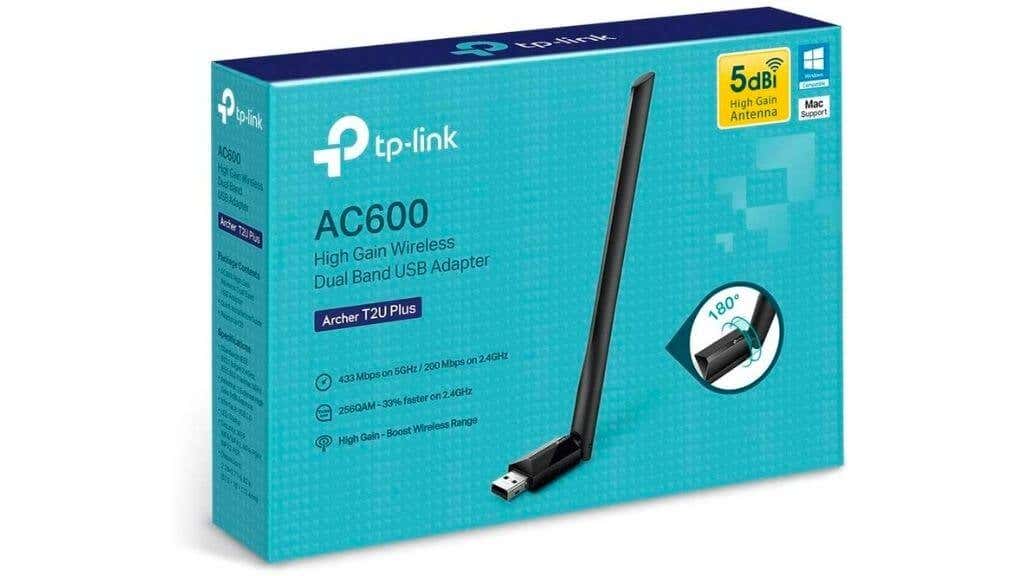
You can buy five of these adapters at $100 and still have change left over for a burger and fries. So it’s an excellent way to add Wi-Fi to every computer in your house. This is a Wi-Fi 5 (802.11ac) adapter with a high-gain dual-band antenna. It supports 200Mbps on the 2.4Ghz band and 433Mbps on the 5Ghz band. This adapter should work with any modern router or hotspot, and the speeds on offer should be enough for any given single user.
Sadly this is an omnidirectional adapter without beamforming technology, so the range may be shorter than expected. Still, you should be using Wi-Fi extenders to ensure your home has complete Wi-Fi coverage anyway!
6. Best Compact Adapter:Netgear A6150 AC1200
Features:
- Small
- Good price
- Adequate speed limited by USB 2
This nano adapter from Netgear is designed to slot into a USB port and then be left alone. There’s little danger that this will hook on anything and get broken off, so it’s perfect for laptops where you may need to move the computer around and don’t want to constantly unplug your Wi-Fi adapter when you put the laptop in its bag.
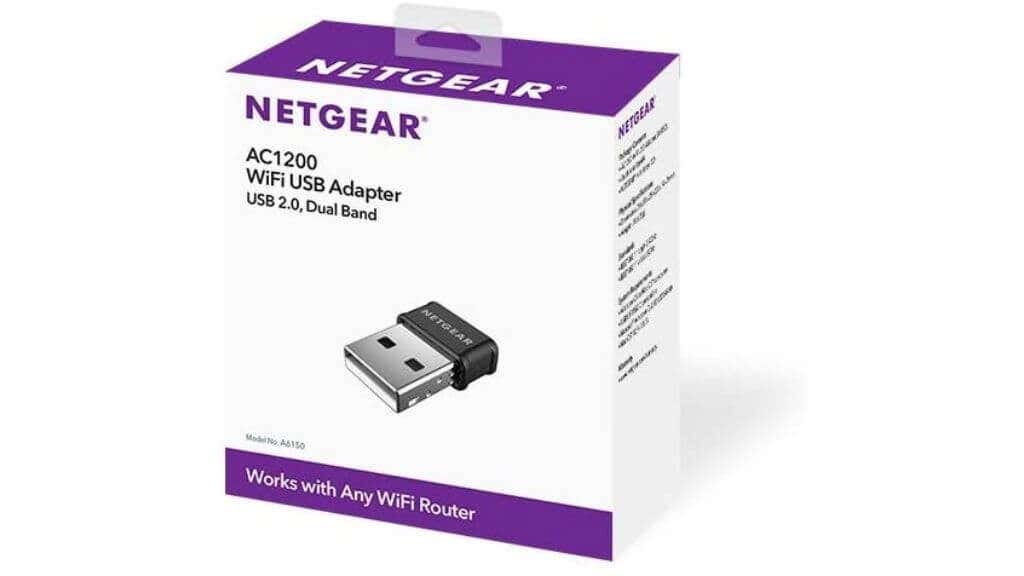
This is a dual-band adapter, so you’ll have no trouble connecting to any router you find. Netgear claims speeds of 300 Mbps and 867 Mbps for each band, but temper your expectations since this is a USB 2.0 device. USB 2.0 itself is limited to a throughput of 480 Mbps. Realistically you’ll max out at a few hundred megabits, but for most mobile users, this is more than enough. In any event, there’s only so much you can get out of the tiny antennas in a nano adapter. The main draw of the A6150 is that it’s compact, reliable, and well-priced. Not blazing-fast speeds.
We’ve picked up from the various user reviews to skip the software on the included CD-ROM (who has a CD drive these days?) and get the latest driver from the Netgear website.
The A6150 is a great way to upgrade the Wi-Fi on older laptops as a plug-and-forget solution.
7. Best Portable Antenna System:Edimax EW-7833UAC
Features:
- Fast performance
- Excellent reception in a compact dongle
When it comes to compact, portable Wi-Fi adapters, you usually have to choose between a relatively weak internal antenna array or a clunky external antenna system. Edimax has come up with a third option to integrate a foldable antenna into an adapter body the size of a flash drive.
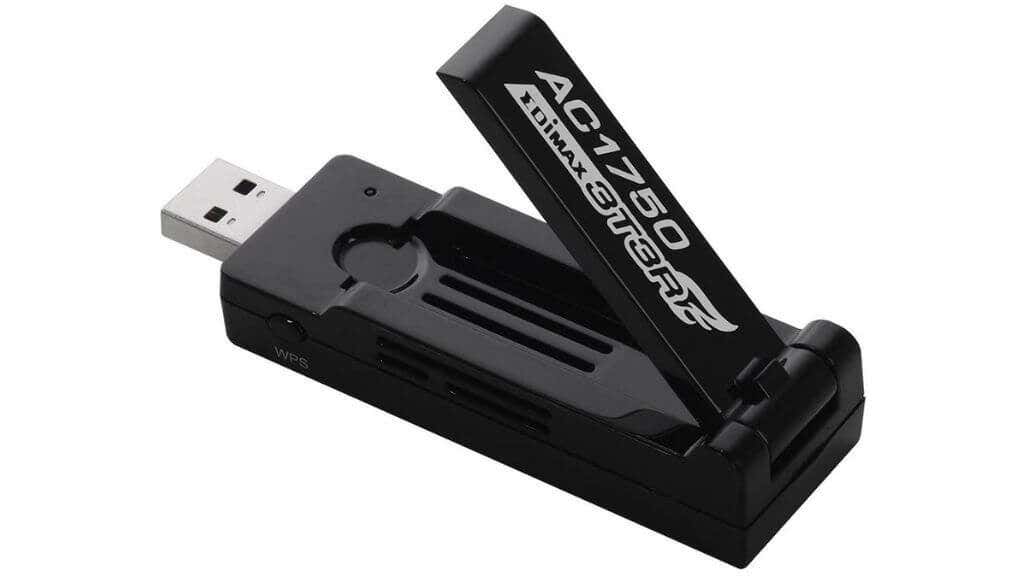
It might seem small, but this is an AC1750 802.11ac adapter. So you can push the megabits if the router supports it. It hides three transmission and three reception antennas and can be adjusted through 180 degrees, so you get the best signal.
If you don’t mind having a fairly long adapter stick out of your laptop, this is a simple adapter to fold up and slip in a laptop bag pocket.
8. Best for OS Compatibility:NinePlus USB Wi-Fi Adapter
Features:
- Dual antenna design
- Excellent compatibility with many operating systems
When adding a Wi-Fi adapter to a modern Windows system, it’s usually a matter of plugging it in, and then everything works. If you’re not a Windows user or you’re using some variant of Linux, it can be hard to find adapters that work.
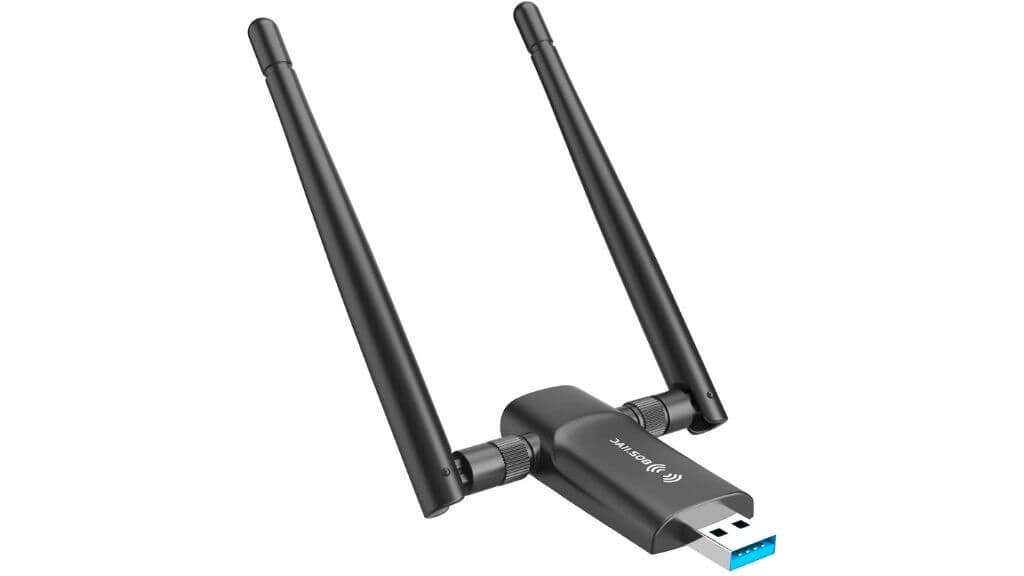
The Nineplus has a great reputation for being compatible with various operating systems. Including ones that aren’t that mainstream and ones that are old now. So if you want to add Wi-Fi to a system that’s not running the latest version of Windows, the Nineplus is an excellent choice.
9. Best Price to Performance ratio:TP-Link Archer T4U Plus
Features:
- Fast performance
- USB 3
- Fantastic price for the specifications
Common wisdom holds that something can be fast or cheap, but not both. The T4U Plus seems to take that wisdom, roll it up, and throw it straight in the trash.
For around $25, the T4U Plus offers AC1300 (around 1300Mbps total) performance and excellent stability.
The T4U Plus uses a dual antenna system to provide a stronger, more stable connection to your Wi-Fi network. It also features MU-MIMO technology to make the most of its bandwidth, sending and receiving data simultaneously.

Unlike other adapters in this price range, the T4U Plus is a USB 3.0 device, which means it’s capable of the advertised 400Mbps and 876Mbps speeds for each band. Products like the NETGEAR AC1200 Wi-Fi USB 2.0 Mini Adapter offer 1200Mbps speeds, but USB 2.0 itself is limited to 480Mbps!
Unless you have a specific high-performance Wi-Fi use case, most people should be delighted with the T4U Plus as a Wi-Fi solution for a desktop system.
10. Best Long-range Wi-Fi:D-Link DWA-192
Features:
- Awesome design
- Wall-penetrating power
If nothing else, the D-Link DWA-192 is notable for its interesting spherical shape. Memes about “pondering your orb” come to mind, but we think this Wi-Fi adapter looks so cool you won’t want to hide it away.
The spherical shape hides a formidable set of antenna and transmission hardware, specifically designed to stretch your Wi-Fi range and reduce the need to have repeaters or a Wi-Fi mesh system.
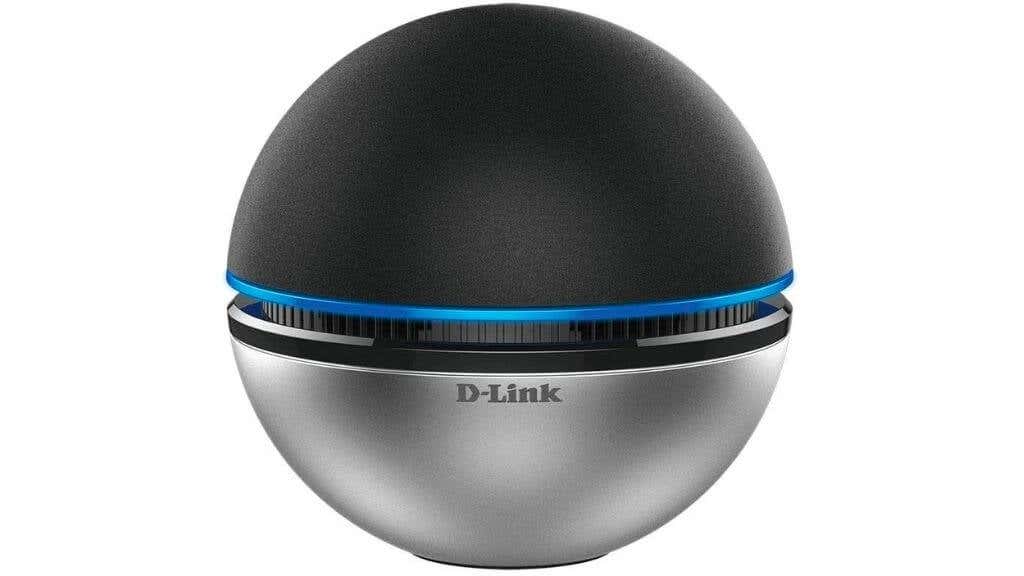
This is an AC1900 adapter using a USB 3.0 interface, so there’s plenty of potential speed on offer here, assuming your router can keep up. The DWA-192 uses advanced beamforming technology to target your router and ensure transmission power isn’t wasted.
D-Link claims that the DWA-192 offers three times the range of typical Wi-Fi adapters and can help overcome signal loss because of walls and other objects between you and the router. Since this adapter comes in at under $50, it’s also cheaper than many Wi-Fi extenders, without the speed sacrifice.
The only real problem with the DWA-192 is that it’s not very compact. This is definitely for home use only, but other than that, this ball of wonders should amp up your browsing like nothing else.
11. Best Portable Wi-Fi 6 Dongle:D-Link DWA-X1850
Features:
- All the benefits of Wi-Fi 6
- Compact design
- High speed
Wi-Fi 6is the latest and greatest Wi-Fi standard. It doesn’t just offer higher speeds than older Wi-Fi standards but many improvements to reliability, latency, and security. Sadly, the chances are that your current laptop or desktop doesn’t have Wi-Fi 6, so even if you buy a Wi-Fi 6 router or you encounter one out in the wild, you won’t be able to take full advantage of it.
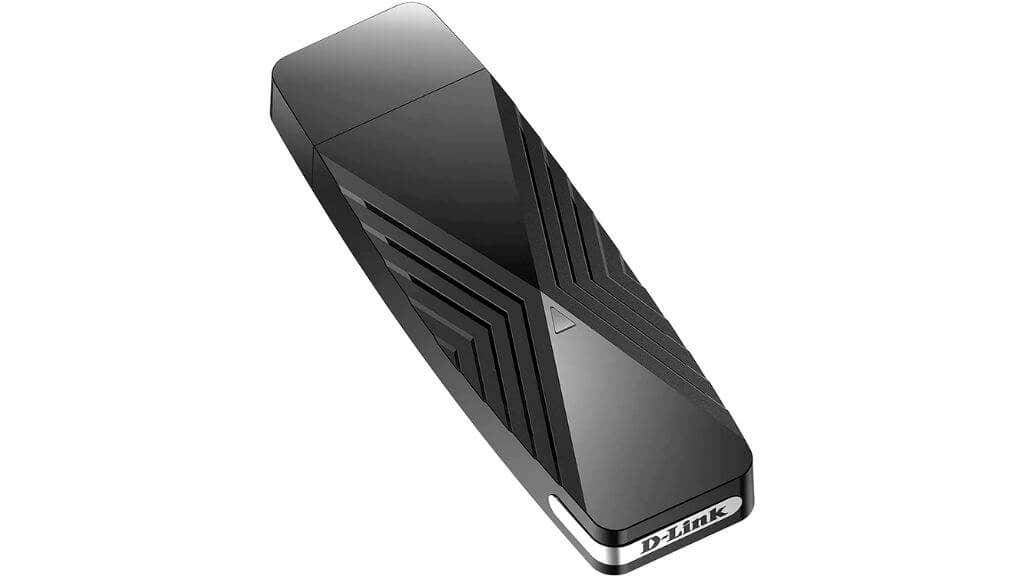
While buying a new computer in the future is one way to solve the issue, in the meantime, you can use this excellent compact adapter from D-Link to upgrade any USB 3 capable computer.
While you can’t get the full 3000Mbps speeds of a PCIe Wi-Fi 6 card, 574- and 1200- Mbps on each band is nothing to be sniffed at. It’s certainly faster than any Wi-Fi USB adapter.
12. Best Compact Long-range Adapter:BrosTrend 1200
While we adore the D-Link DWA-192 with its alien orb design and long-range ability, it’s just too bulky to take anywhere. If you need to take a long-range Wi-Fi adapter to a work site or some other open space where you can’t be very close to the router or hotspot, we think the BrosTrend 1200 is a better solution.

The adapter comes with a 5 dBi high-gain antenna that lets you angle the antenna towards the router and gets a connection from long distances. This USB 3 dual-band wireless adapter supports 300- and 867- Mbps speeds on each band.
Plug In That Wireless Power
There’s nothing like a fast and reliable wireless connection. By picking the right wireless adapter, you take all the frustration of poor connections out of your life and just leave the freedom and convenience. A Wi-Fi connection is an essential part of life these days, and one of the adapters above should keep you connected to the global web.
- WhatGeek x 3inuS Kebohub EE01 Mechanical Keyboard Review
- Mobile Pixels Duex Max Portable Monitor Review
- Trifo Lucy: The AI Robot Vacuum and Mop
- Review of Anycubic Kobra Max 3D Printer
- The OBSBOT Tiny 4K: an Impressive Webcam for PC & Mac
Sydney Butler is a social scientist and technology fanatic who tries to understand how people and technology coexist. He has two decades of experience as a freelance computer technician and more than a decade as a technologies researcher and instructor. Sydney has been a professional technology writer for more than five years and covers topics such as VR, Gaming, Cyber security and Transhumanism. Read Sydney’s Full Bio
3D printer manufacturer, Anycubic, recently released two new printers—the Anycubic Kobra and its bigger, badder uncle, the Anycubic Kobra Max. We were interested in testing both products in our hunt for the best entry-level 3D printers. We’re looking for ease-of-use and affordability, as well as build and print quality.
We’ve published a number of 3D printer reviews from Anycubic—for both FDM printers like the Anycubic Vyper that print with spools of filament and SLA resin 3D printers like the Anycubic Photon Mono X 6K that use a liquid resin as its raw material—and we can say that the Kobra Max has quickly become one of our favorites.
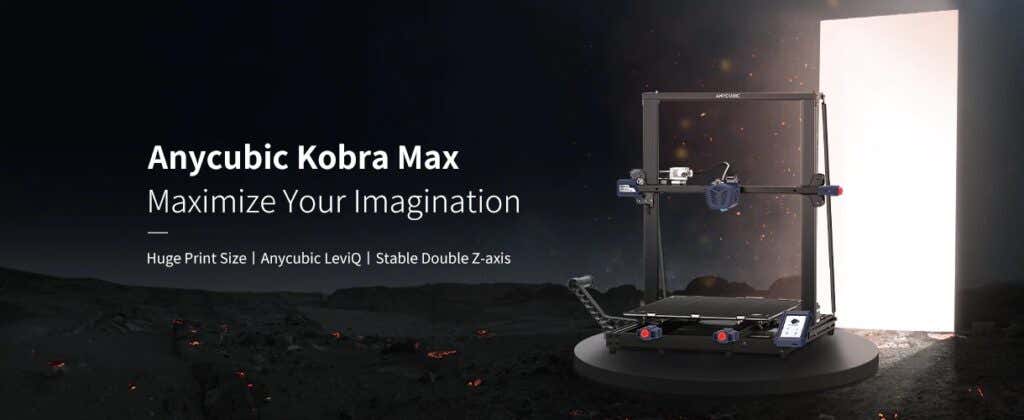
Features of the Anycubic Kobra Max 3D Printer
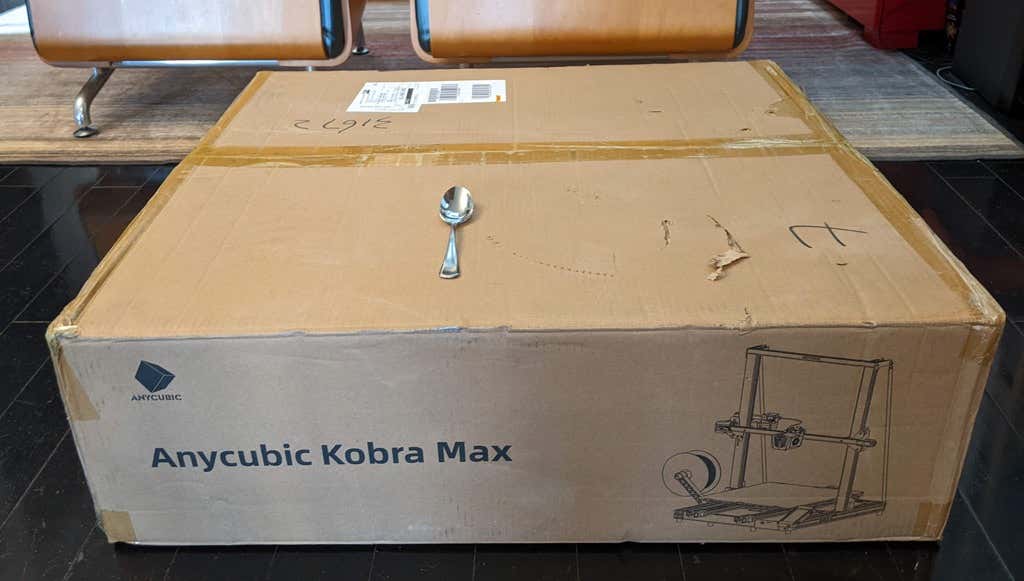
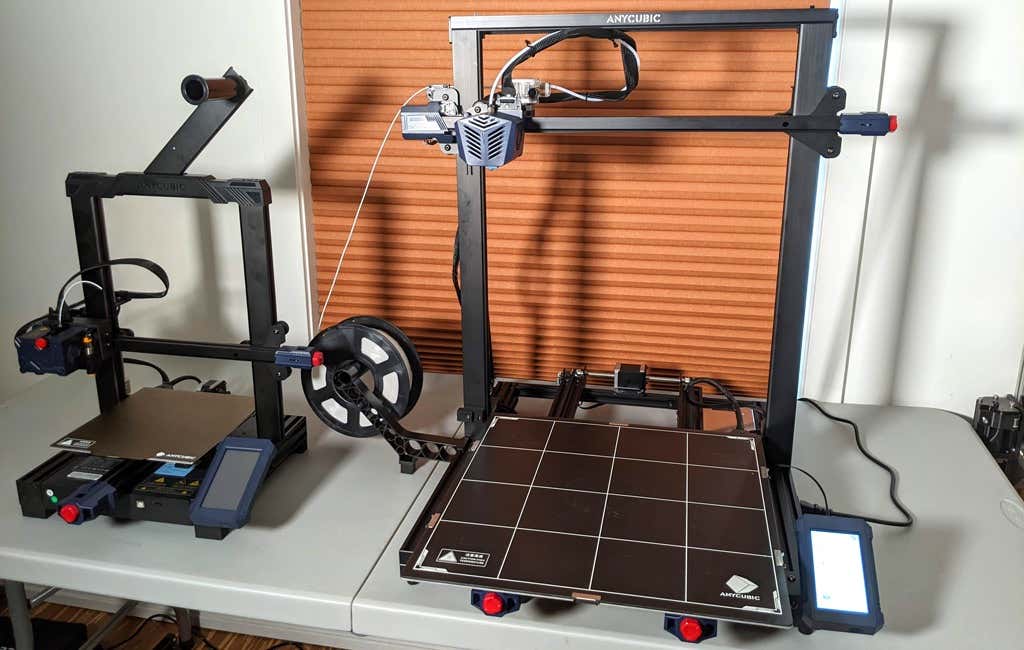
The most obvious feature of this printer is its size. It is absolutely massive. That means you can print huge items in a single piece. Think of a full helmet or an entire ukulele—these are things you couldn’t print in one piece on a normal-sized 3D printer. Truly, the word “Max” doesn’t sufficiently capture just how big this printer is. Good luck fitting the packaging into your trash or recycling bins!
We were skeptical that a Cartesian printer of this size (which relies on a moveable print bed) would perform well since it has a lot of weight to move around. Admittedly, it’s not the speediest printer out there because of those design tradeoffs, but it works great.
The Kobra Max has an impressive list of technical specifications:
- Leveling: Automatic, 25 points leveling using the Anycubic Leviq technology
- Panel area: 7.95 in² / 51.3 cm²
- Filament run-out detection: support
- Printing material: PLA / ABS / PETG & TPU
- Nozzle size: ø 0.4 mm (replaceable)
- Nozzle temperature: ≤ 500 °F / 260 °C
- Hot bed temperature: ≤ 194 °F / 90 °C
- Average speed: 3.1 – 3.9 in./s (80mm/s – 100m/s)
- Control panel: 4.3 inch LCD touch screen
- Z-axis: double threaded rod
- Print size: 17.7 x 15.7 x 15.7 in. / 45 x 40 x 40 cm (HWD)
- Build volume: 19.02 gal. / 72.0 L
- Machine dimensions: 72 x 71.5 x 66.5cm
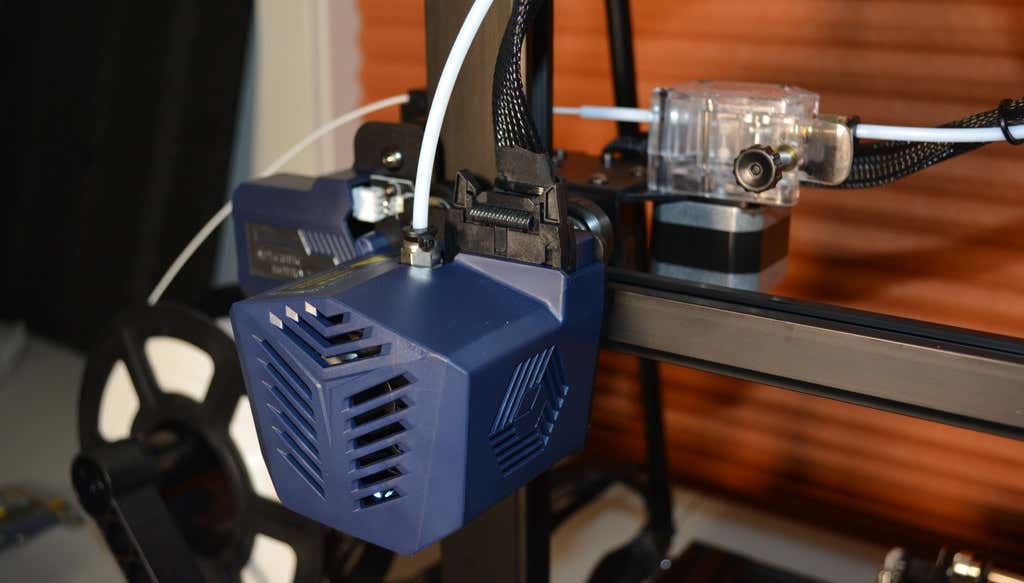
As far as we can tell, the extruder is identical to the extruder and print head on the Anycubic Vyper. Furthermore, the Kobra Max has the same automatic bed-leveling system as the Vyper. The system uses a pressure sensor instead of an inductive sensor.
The bed-leveling sensor is right on the nozzle itself, ensuring that it can probe every printable part of the bed. And since the sensor is pressure-based, you could replace the glass bed with any other material and the bed-leveling system will still work. (Inductive sensors require metal to work, so you won’t find them on printers with glass beds.)
Since the Kobra Max’s printing platform is a rigid glass sheet, you can’t remove and flex it to pop your prints off. We prefer removable spring steel build plates, but glass is still a nice printing surface. If your printer doesn’t have a removable bed, glass is ideal because you can use metal scrapers to remove your prints without worrying about scratching the surface.
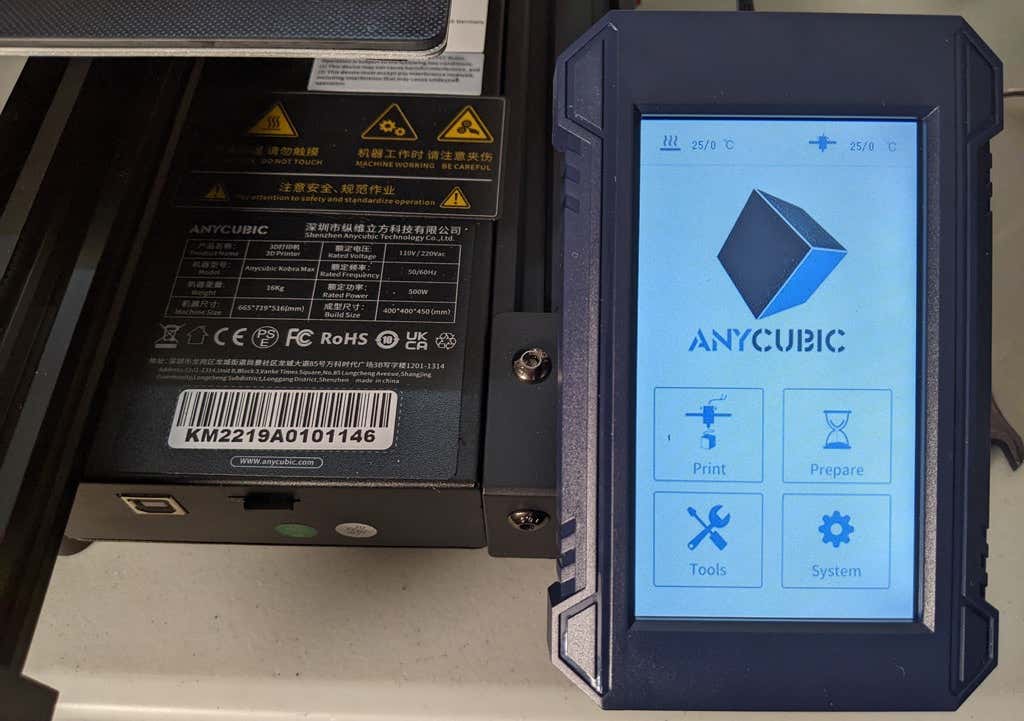
The LCD touchscreen is identical to the screens used on many other Anycubic printers. As usual, it’s responsive and easy to use.
A note about filament types: the Kobra Max will print with PLA, PETG, TPU, and ABS. However, if you really want to print with ABS and get the best possible results, the printer should be inside an enclosure. Given its size, it may be challenging to build a suitable enclosure for the Kobra Max.
Assembling the Kobra Max 3D Printer
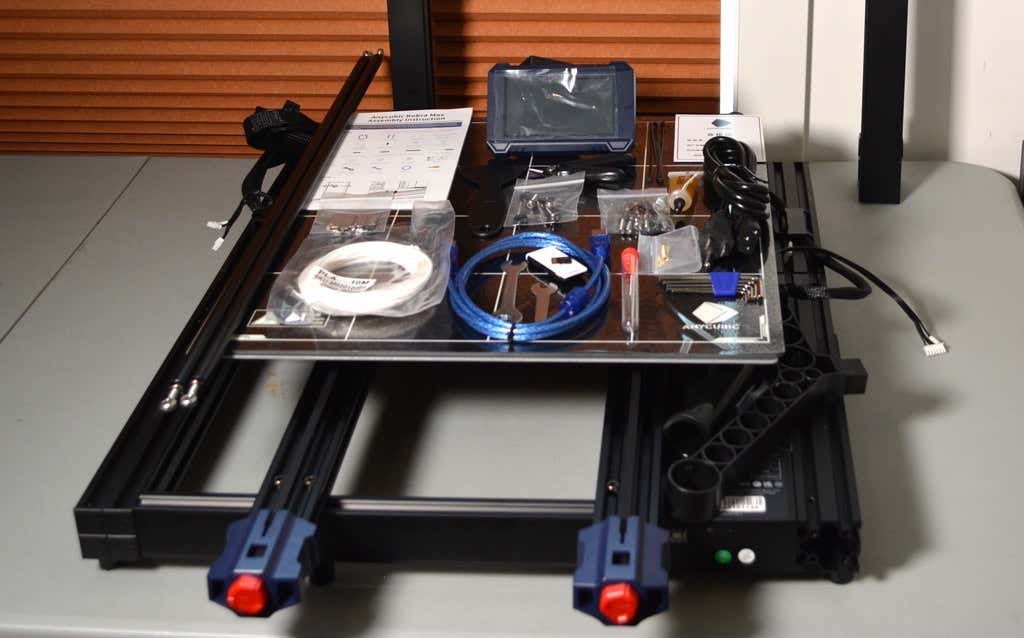
When assembling the new Kobra Max, make sure you have sufficient working space. Since the bed moves forward and backward, you need more space than you’d think. We put it on a 30” folding table, and when it’s printing, it needs about 36 inches, front to back.
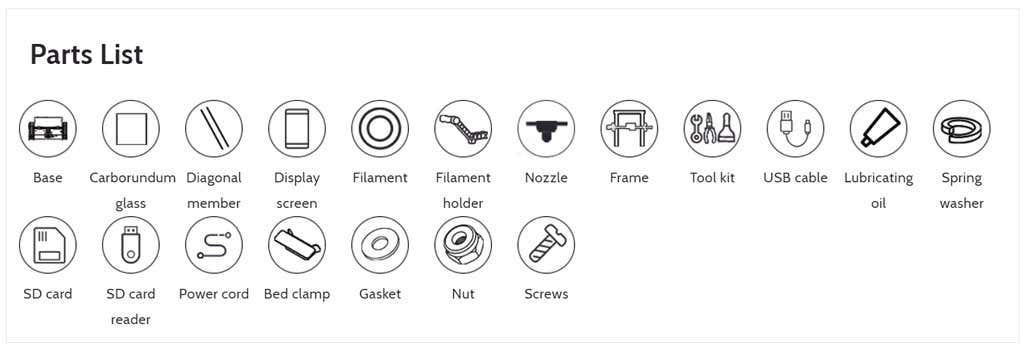
Assembly of the Kobra Max is no more difficult than assembling the Kobra or Vyper. The only additional items are the diagonal braces which add stiffness to the frame, reducing mechanical vibration.
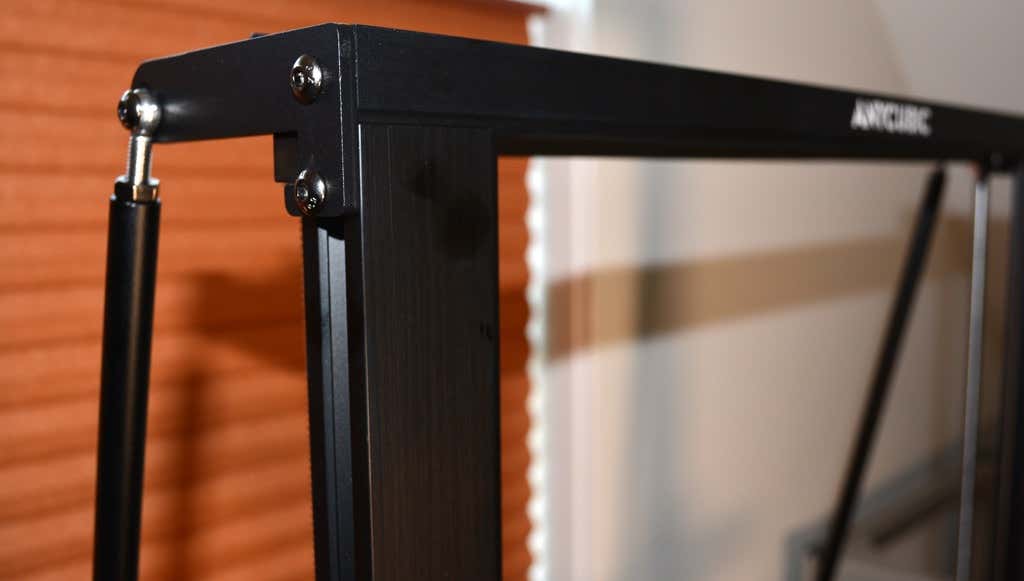
It took two people about 15 minutes to assemble. Double-check that you’ve cut all the zip ties used to stabilize the printer during shipping. There are a lot of them.
Calibration
The auto-bed-leveling system is easy to use. Anycubic recommends that you check the x- and the y-axes to make sure they don’t wobble. If they do, you can adjust the eccentric nuts until the wobbling stops. There was no wobble on our printer, so we didn’t have to do anything.
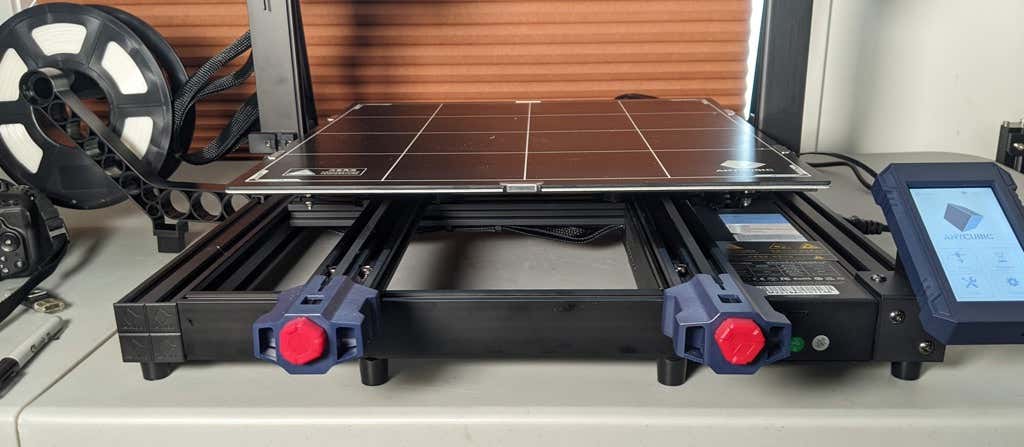
Additionally, the x- and y-axes have belt tensioners. We needed to slightly tighten the x-axis on ours. The tensioners are easy to use and are features a lot of other printers lack. Who wants to take apart the extruder assembly just to tighten the belts? Not us, and probably not you.
Build Quality of the Kobra Max
Due to the addition of the diagonal braces, the frame is really stiff. The dual z-axis screws are an improvement over the smaller Kobra. They virtually eliminated sagging of the x-axis assembly.
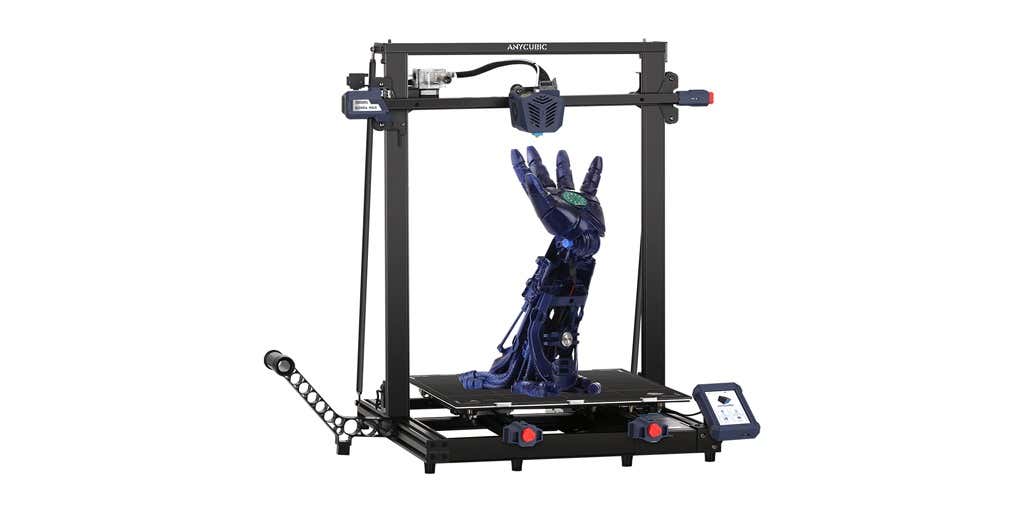
The spool holder sits on the base of the printer, reducing wobbling when printing tall items. It’s better than having the spool on the top like on the Kobra.
This printer is built with aluminum extrusions with aesthetically-pleasing plastic covers for the hotend and the tenionsers. It’s got an optical z endstop. The x and y endstops are mechanical. The whole thing feels solid.
First Print
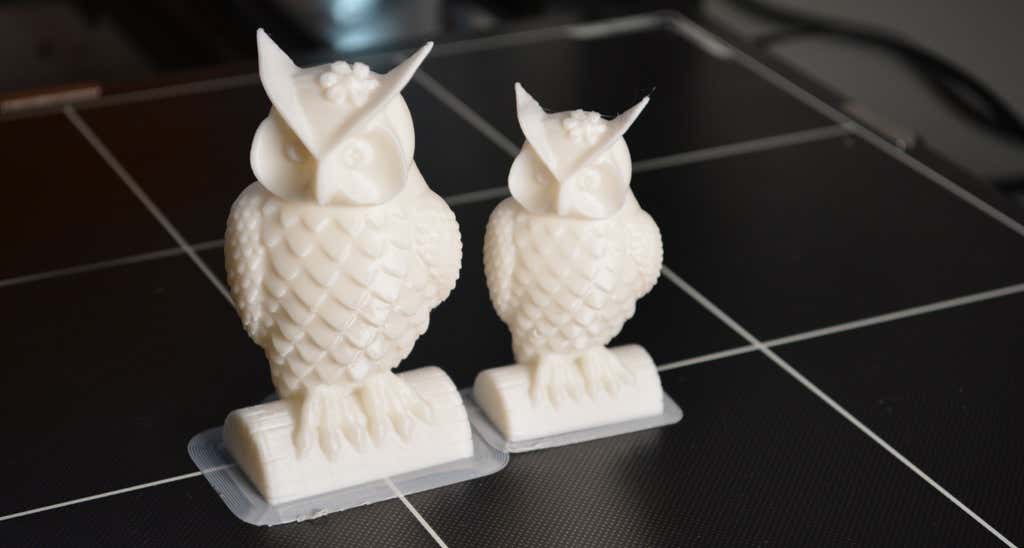
For the first print, we used the test file provided by Anycubic. Appropriately, the owl is about twice the print volume of the owl test print that comes with the smaller Kobra. Given the bowden setup (which makes sense for a printer this size), we were surprised that the ears on the owl turned out so well.
The ears look better than they did on the owl printed on the Kobra which has a direct drive extruder system. We suspect that’s due to the slower print speed. Many times, retractions on bowden extruders will create artifacts, but we didn’t notice any blobs or stringing. It approaches the quality you’d expect from a direct-drive.
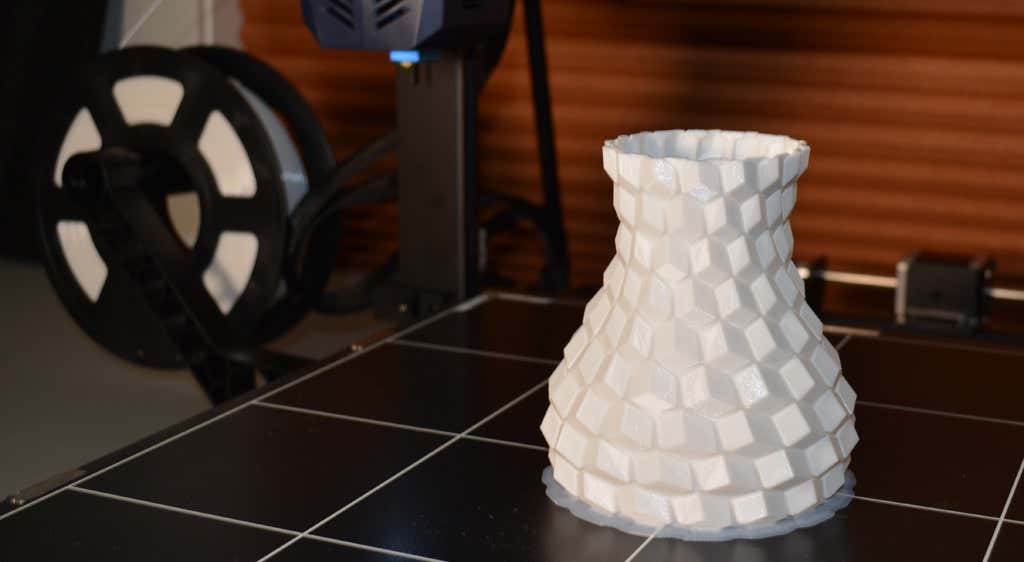
Next, we printed a vase with a large, flat base with a 0.2mm layer height. Removing prints from the glass bed is certainly not as easy as removing prints from smaller, flexible beds, but it’s not a deal-breaker either. We didn’t have any adhesion problems. The prints didn’t release when the glass bed cooled, which is what we expected and hoped for.
Curious what the power requirements would be for a printer this size, we were worried we wouldn’t be able to run multiple printers on the same circuit. We measured the power usage while the Kobra Max was printing, and, as expected, power usage is highest while the printer is warming up. Ours topped out at 473 watts. While printing, it was a more manageable 200-300 watts. We thought it would be more than that. You could probably run three of these printers on a 20 amp circuit.
Cut to the Chase
To drive home just how big the Kobra Max is, we put the Kobra on the bed of the Kobra Max. Insane. (We do not recommend you try this.)
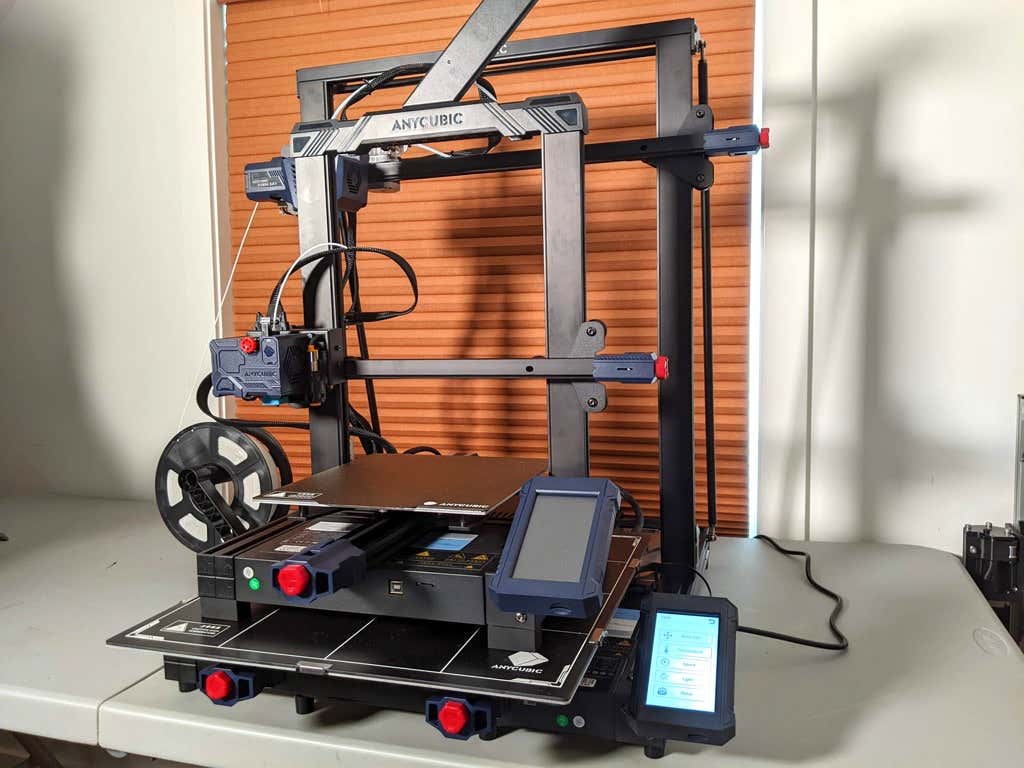
A small printer is limiting, so if you find yourself printing large objects in small pieces and assembling them, consider buying a Kobra Max. If you’re new to 3D printing, keep in mind that it takes a long time to print big objects—potentially days and days. Typically, we’d recommend a smaller printer to beginners, but at the price point of $569.00 if you purchase on the Anycubic site, it’s worth considering as an entry-level printer.
One downside is that smaller prints will take a little longer than they would on a smaller, faster printer. That’s just physics. Bigger printers have more inertia to overcome and take longer to move. For example, the print time for our vase was thirteen hours. On our Prusa MK 2.5 with similar settings, it would have taken about twelve hours—not a huge difference.
*Special thanks to FormerLurker for help in reviewing AnyCubic’s Kobra Max 3D printer.
- WhatGeek x 3inuS Kebohub EE01 Mechanical Keyboard Review
- Mobile Pixels Duex Max Portable Monitor Review
- Trifo Lucy: The AI Robot Vacuum and Mop
- The OBSBOT Tiny 4K: an Impressive Webcam for PC & Mac
- Review of Anycubic’s Kobra 3D Printer
Maggie Marystone is a freelance technology writer, human rights worker, and storyteller based in Chicago. Read Maggie’s Full Bio
