If you use Dropbox as your primary storage, you need uninterrupted access to your files all the time. Sometimes, you may find that your Dropbox files are not syncing. If this happens, you won’t be able to keep your files in sync and your devices will have older versions of your files.
There are many reasons why Dropbox files are not syncing. Some of these reasons include your firewall preventing Dropbox from sending and receiving files, trying to upload restricted files, and so on.

Close & Re-Open Dropbox On Your Computer
One easy way to fix most minor issues with Dropbox files not syncing is to close the Dropbox app and then re-open it. This should fix sync issues on your computer.
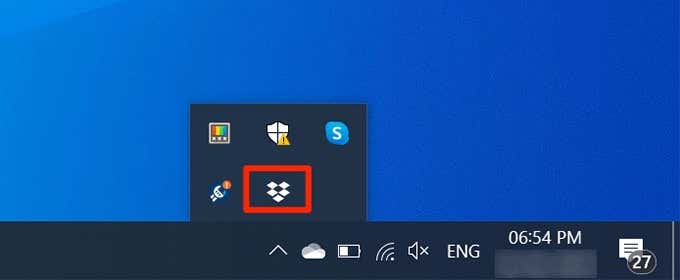
- Find the Dropbox icon in your system tray and click it.
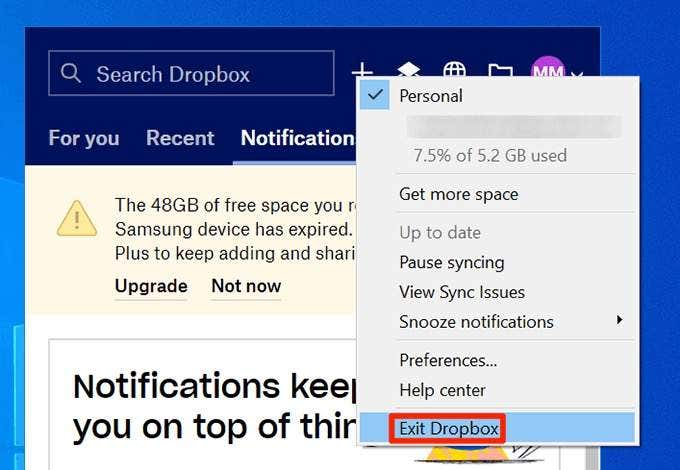
- Click your name at the top-right corner and select Exit Dropbox .
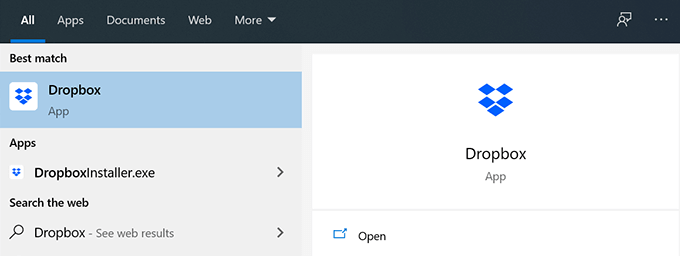
- Launch Dropbox from the Start Menu.
Allow Dropbox Through Your Computer Firewall
If your firewall is causing Dropbox not to sync your files, you need to add Dropbox as an exception to your firewall .
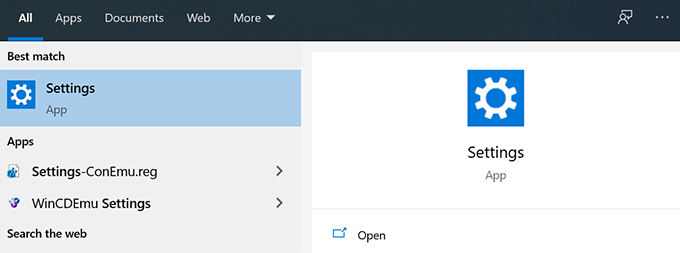
- Open the Settings app on your PC.
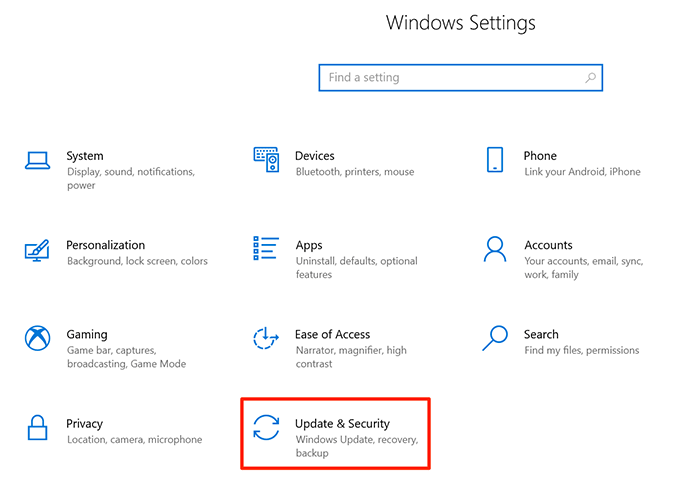
- Click Update & Security .
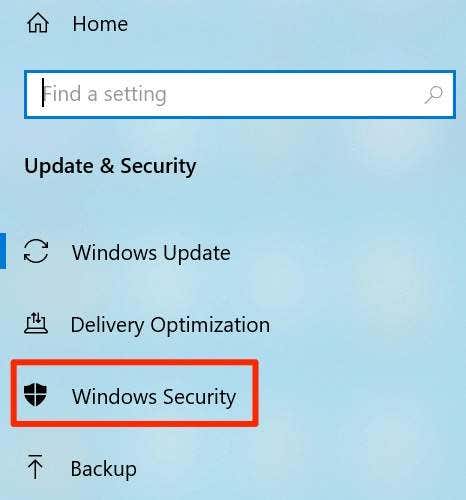
- Select Windows Security from the left sidebar.
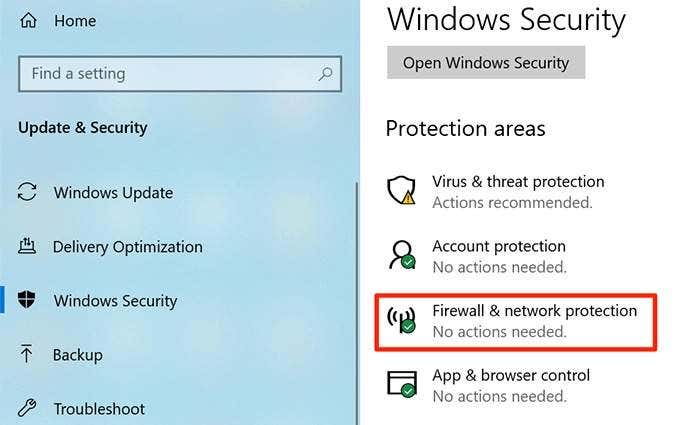
- Click Firewall & network protection on the right-hand side pane.
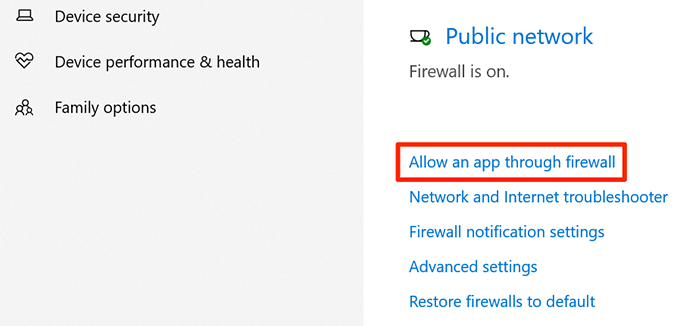
- Select Allow an app through firewall .
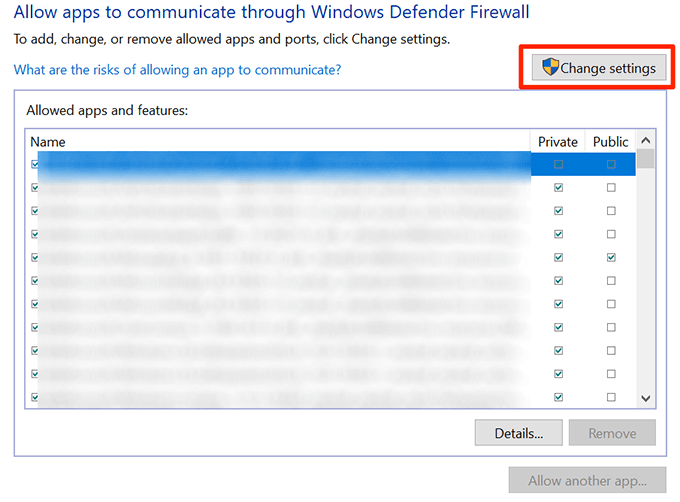
- Click Change settings at the top.
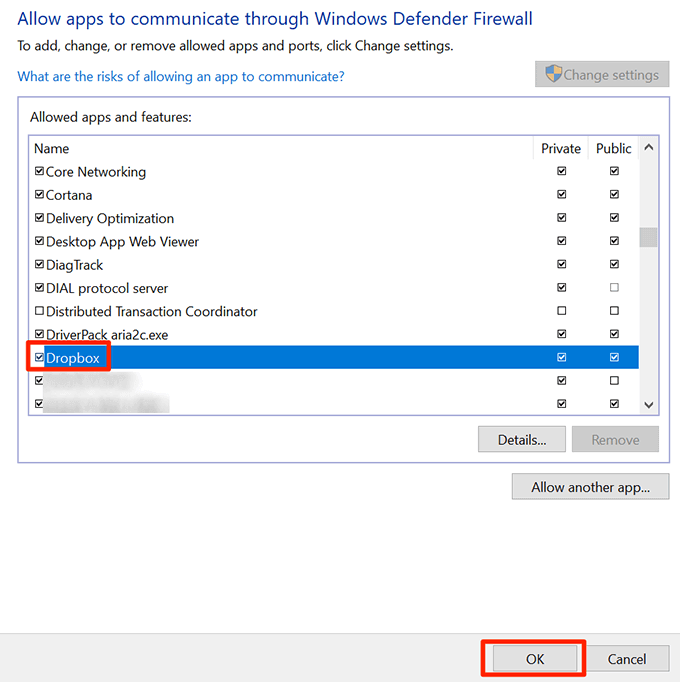
- Tick-mark the Dropbox option and click OK at the bottom.
Stop Other Syncing Apps When You Use Dropbox
If you use other apps to sync content on your computer, you need to stop those apps while Dropbox is syncing its content. Running multiple sync apps at the same time can cause Dropbox not to sync your files.
Close your other sync apps like OneDrive and Google Drive until Dropbox finishes syncing your files.
Make Sure There’s Enough Storage Available In Your Dropbox Account
If you’re adding new files to your Dropbox account, you need to make sure there’s enough memory space available in your account. You can check your storage usage on the Dropbox website as follows.
- Open the Dropbox site and log into your account.
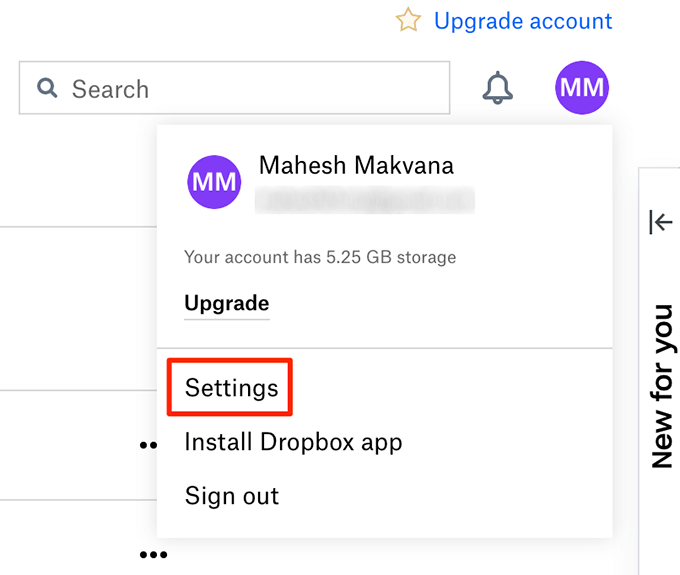
- Click your profile icon at the top-right corner and choose Settings .
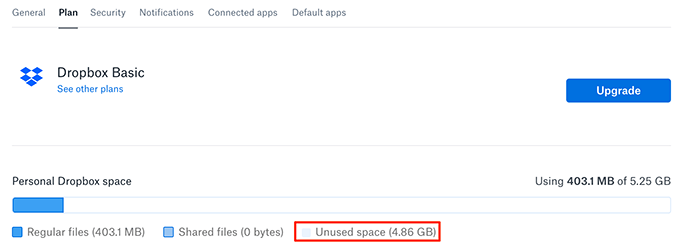
- Click the Plan tab.
- You’ll see the remaining space in your Dropbox account.
Set The Correct Time & Date On Your Computer
Some sync procedures require that your date and time settings are correct. If your time and date settings are incorrect, you need to fix them.
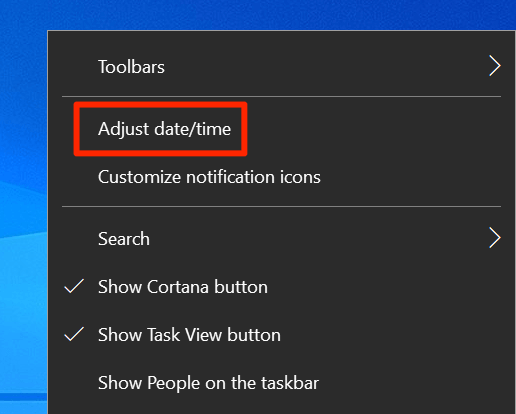
- Right-click your current date and time at the bottom-right corner and choose Adjust date/time .
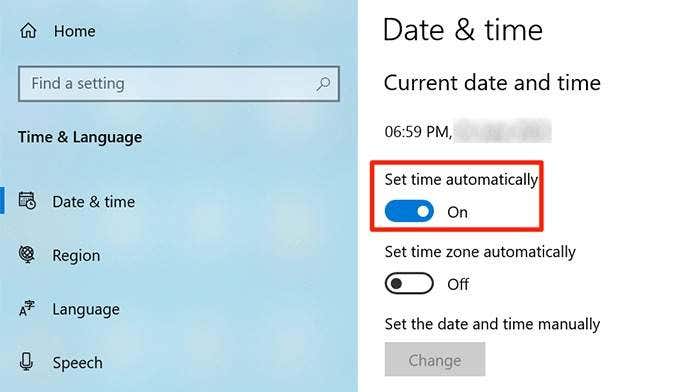
- Disable the Set time automatically option.
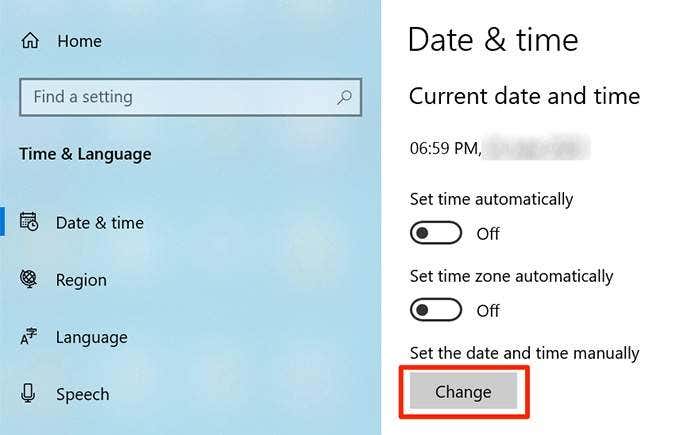
- Click Change under Set the date and time manually .
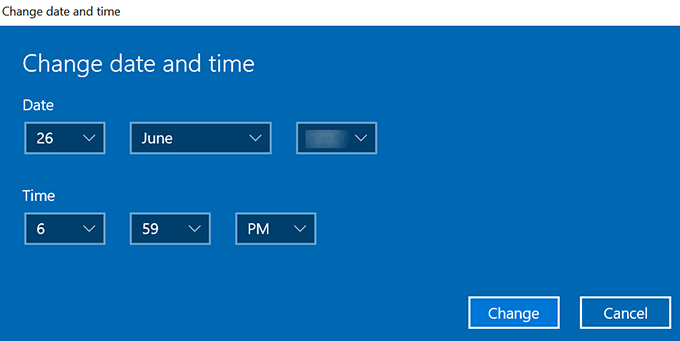
- Enter the correct date and time.
Rename Your Files To Fix The Dropbox Sync Issue
One reason your Dropbox files are not syncing is that you have some restricted characters in your file names. Dropbox has a guide telling what characters are not allowed in your file names if you want to upload your files to the service.
You can rename your files to fix this issue.
- Right-click your files and choose Rename .
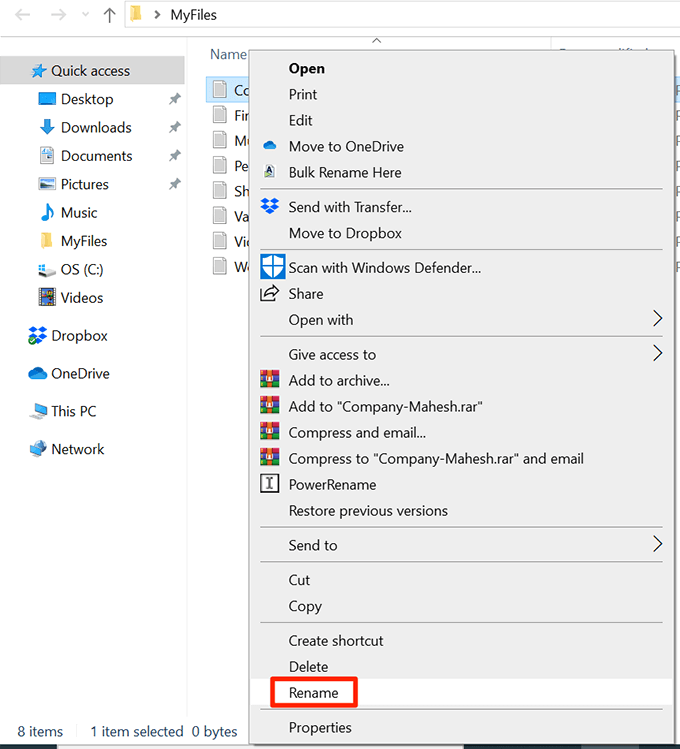
- Enter an easy name for your files and press Enter .
Use The Selective Sync Option In Dropbox
If your Dropbox sync is only missing certain files from your account , you may not have chosen those files or folders in the Selective Sync option.
- Click the Dropbox icon in your system tray.
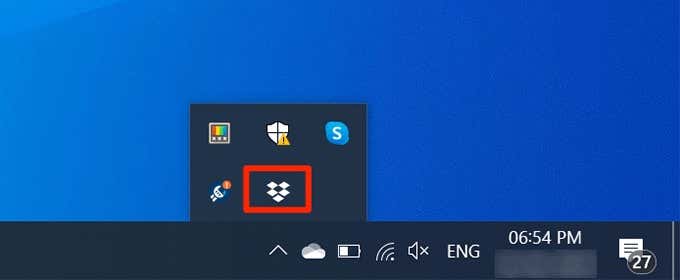
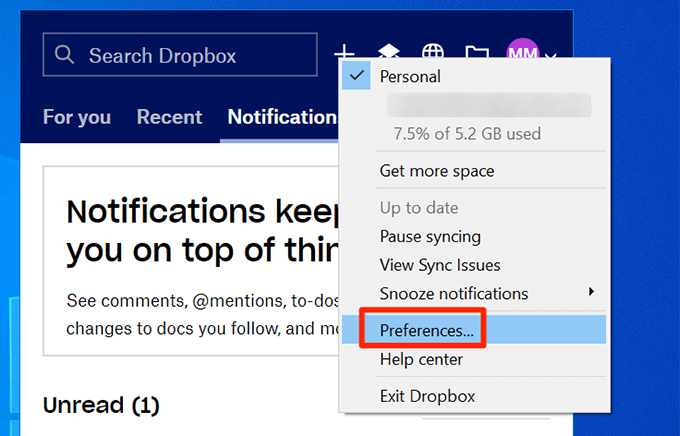
- Select your profile icon at the top and choose Preferences .
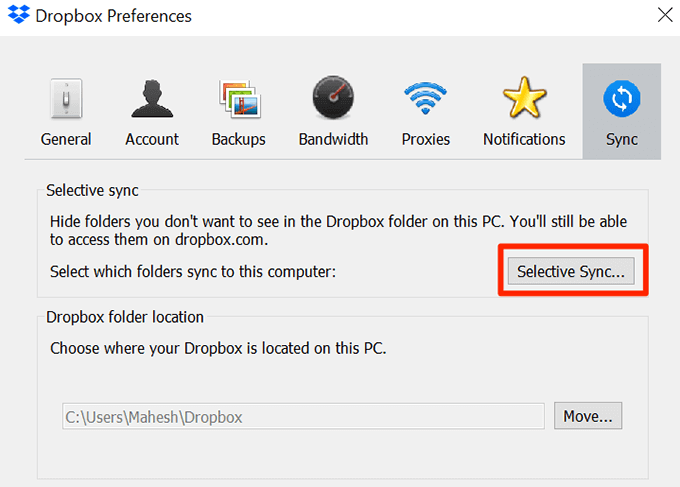
- Click the Sync tab.
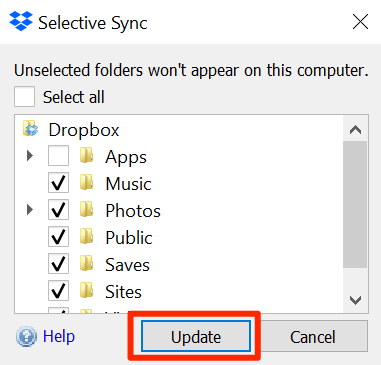
- Select the Selective Sync button.
- Select the folders that you want to sync from your Dropbox account and click Update .
Fix The Hardlinks In Dropbox On Your Computer
Dropbox suggests you use the option to fix your hardlinks to resolve the issue where your Dropbox files are not syncing.
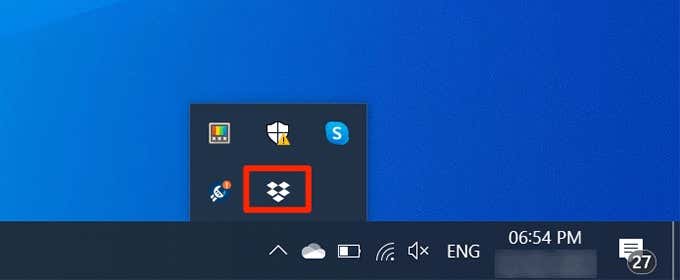
- Click the Dropbox icon in your system tray.
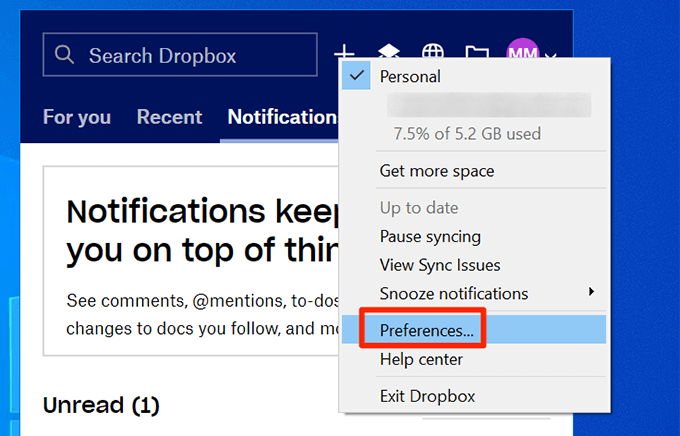
- Click your profile icon at the top and select Preferences .
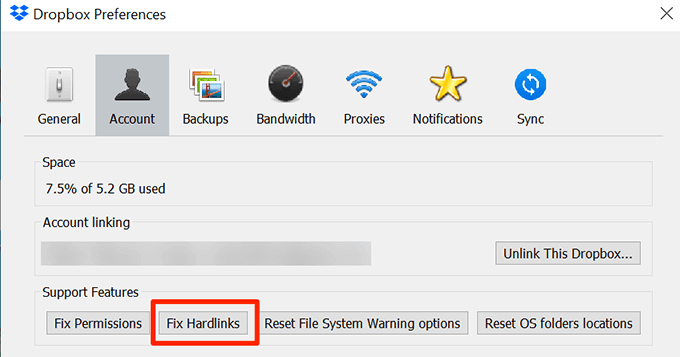
- Choose the Account tab.
- Press and hold the Alt + H keys on your keyboard and select the Fix Hardlinks button.
Remove The Dropbox Cache Files
The cache files are often the reason your Dropbox files are not syncing. Clearing these files from your computer will fix the sync issue.
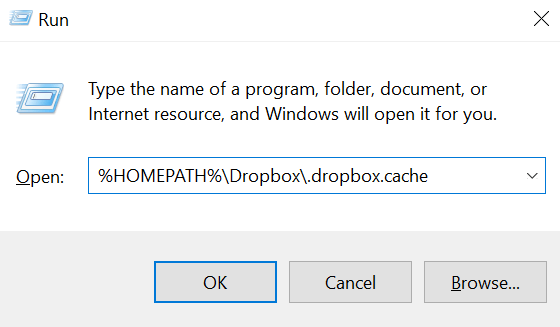
- Press the Windows + R keys, type the following into the Run box, and press Enter . %HOMEPATH%Dropbox.dropbox.cache
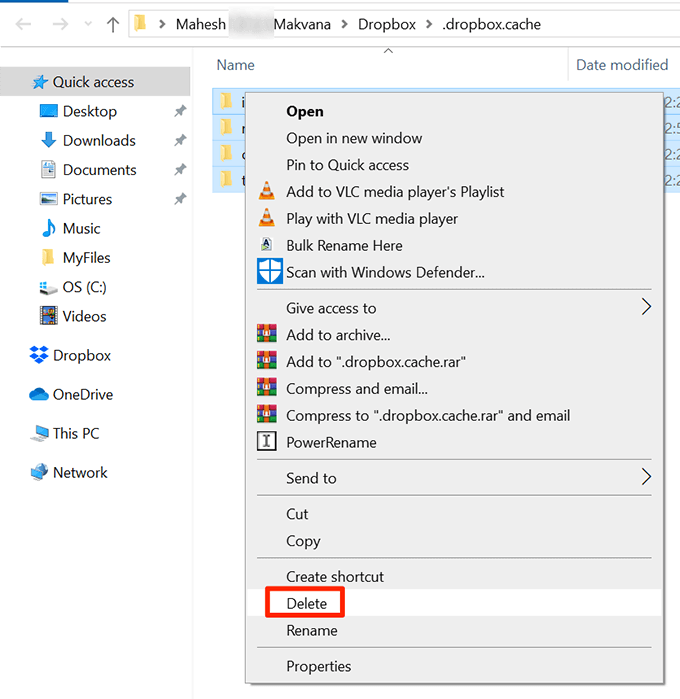
- Select all files, right-click any one file, and choose Delete .
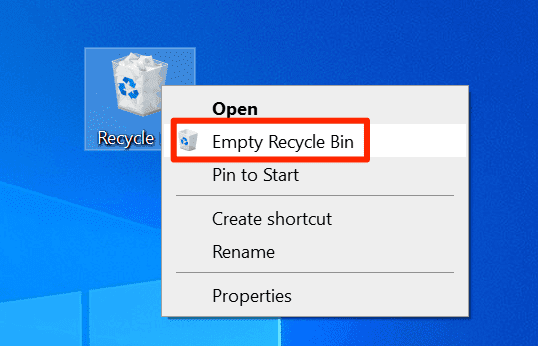
- Right-click the Recycle Bin on your desktop and choose Empty Recycle Bin .
Fix The Permission Issues With Dropbox
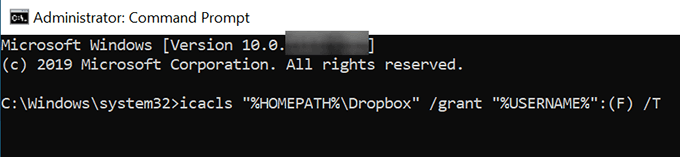
Dropbox can’t sync your files if it doesn’t have permission to do so. This may be why some of your Dropbox files are not syncing. You can fix this permissions issue with a command in CMD.
- Close Dropbox from the system tray on your PC.
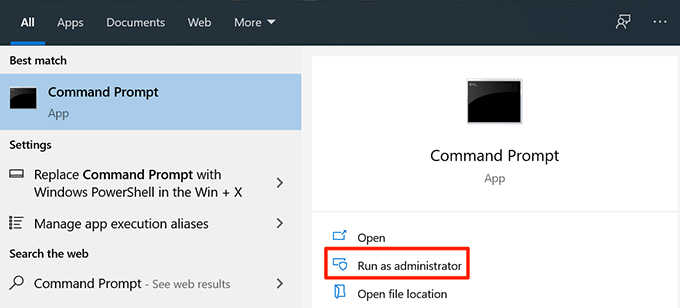
- Use Cortana search to search for Command Prompt and click Run as administrator .
- Type the following commands pressing Enter after each command. icacls “%HOMEPATH%Dropbox” /grant “%USERNAME%”:(F) /T icacls “%HOMEPATH%Dropbox” /grant “%USERNAME%”:(F) /T icacls “%APPDATA%Dropbox” /grant “%USERNAME%”:(F) /T
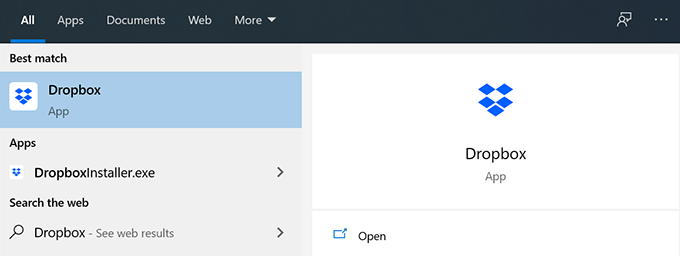
- Launch Dropbox on your computer.
Turn Off Your Antivirus Software
Most antivirus apps play just fine with Dropbox but some may cause issues with it. Therefore, it’s recommended to keep your antivirus tool turned off while you’re syncing your files with Dropbox.
Use The App Troubleshooter To Fix Dropbox Sync Issues
If you have downloaded Dropbox from the Microsoft Store , you can use the App Troubleshooter utility to fix issues with the Dropbox app.
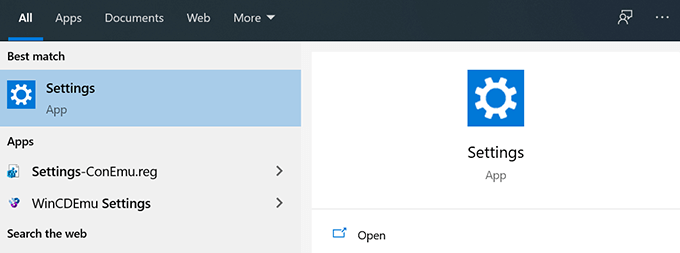
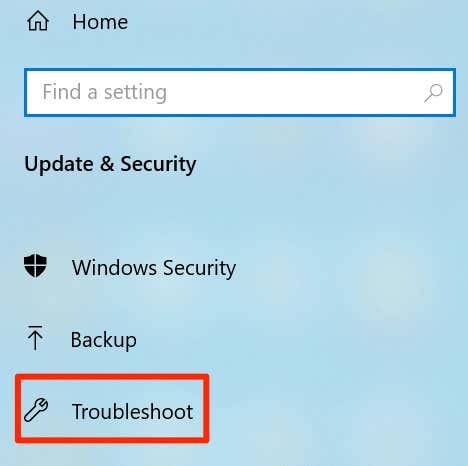
- Launch the Settings app.
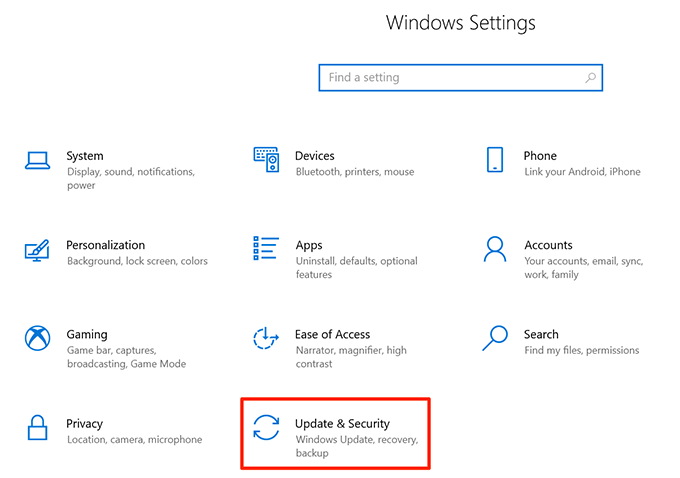
- Click Update & Security .
- Select Troubleshoot in the left sidebar.
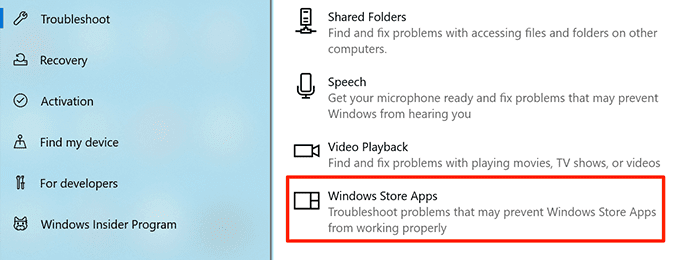
- Choose Windows Store Apps on the right-hand side pane.
Reinstall Dropbox On Your Computer
If no methods fixed your issue, your last option is to reinstall the Dropbox app on your computer. This’ll fix both minor and major issues with the sync procedure.
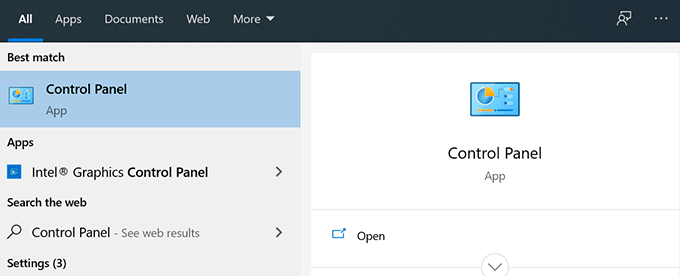
- Open Control Panel .
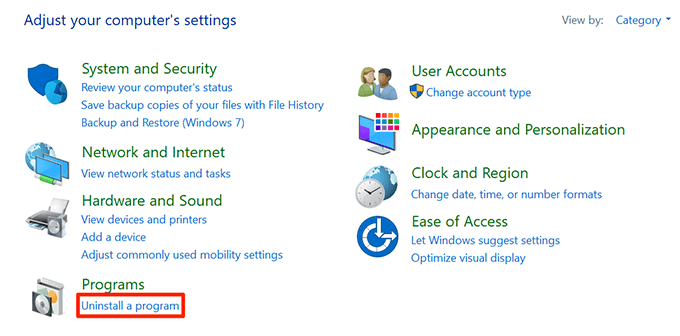
- Click Uninstall a program .
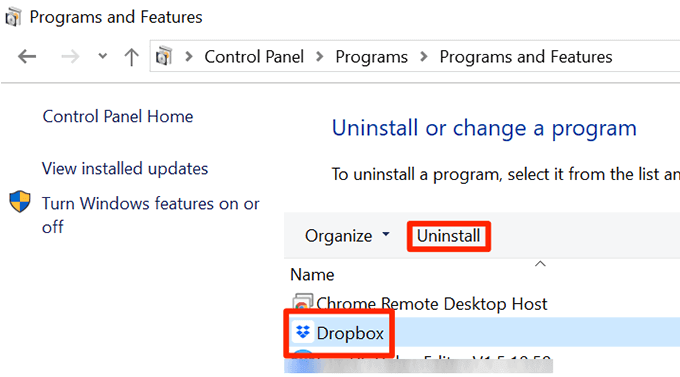
- Select Dropbox in the list and click Uninstall at the top.
- Redownload the Dropbox app and install it.
- How to Uninstall Dropbox on Mac, Windows, and Linux
- How to Backup an iPhone Without iCloud?
- Sluggish Windows 11 PC? Try These 5 Windows 11 Tricks to Free up Virtual Memory
- macOS Tahoe Privacy Settings You Need to Secure Your Mac
- How To Turn Off Notifications On Windows 11?
Mahesh has been obsessed with technology since he got his first gadget a decade or so ago. Over the last few years, he’s written a number of tech articles on various online publications including but not limited to MakeTechEasier and Android AppStorm. Read Mahesh’s Full Bio
