In Windows, you can use the Command Prompt and Windows PowerShell consoles for greater control and faster management of the operating system. Both CLIs (command-line interpreters) also help you troubleshoot serious issues with your PC.
The same goes for the Mac’s Terminal, but its UNIX-based nature requires that you enter a different set of commands.

If you recently switched to using a Mac, you’ll learn the Terminal equivalents to 15 helpful Command Prompt and Windows PowerShell commands below.
1. View System Information
Suppose you want to identify the various hardware and software components (processor, RAM, operating system version, etc.) on your computer. In that case, you can view the information in Command Prompt or Windows PowerShell with the systeminfo command.
system_profiler
You can also prompt Terminal to filter the information by data type. For example, you can get an overview of Mac’s hardware only by appending SPHardwareDataType to the end of the command—e.g. system_profiler SPHardwareDataType .
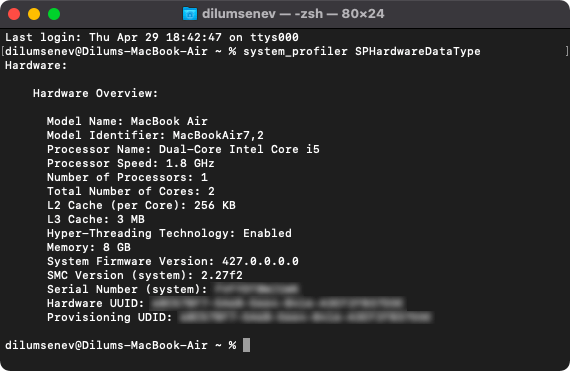
For a list of data types, run the system_profiler -listDataTypes command.
To view the information via the GUI (graphical user interface) on your Mac, hold down the Option key and go to Apple menu > System Information .
2. Ping Devices and Networks
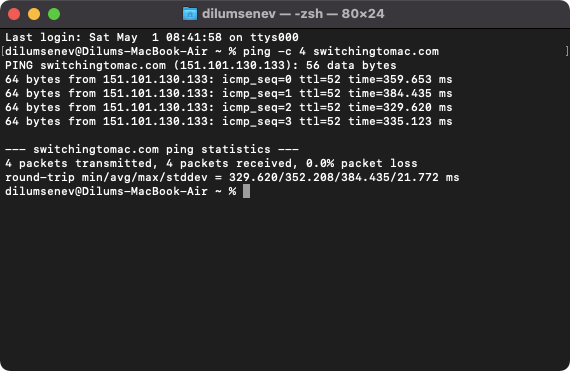
You can diagnose connectivity problems with websites and local devices by running the ping
The ping
ping -c
3. Check Network Configurations
On the PC, running ipconfig via Command Prompt loads the Internet Protocol Configuration utility. It allows you to identify TCP/IP network configurations along with information about IP addresses, subnet masks, default gateways, and so on.
The Terminal equivalent opens Interface Configuration and uses the following command:
ifconfig
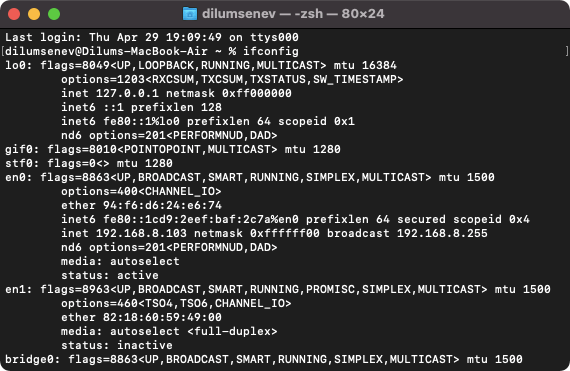
By default, ifconfig displays active networks only. To make it show all interfaces, run ifconfig -a instead.
4. Flush DNS Cache
An outdated Domain Name System (DNS) cache on your computer causes connectivity issues with websites. In Windows, running the ipconfig /flushdns command via an elevated Command Prompt console helps you clear your computer’s local DNS cache.
The Terminal equivalent to clearing the DNS cache on Mac is as follows:
sudo dscacheutil -flushcache;sudo killall -HUP mDNSResponder
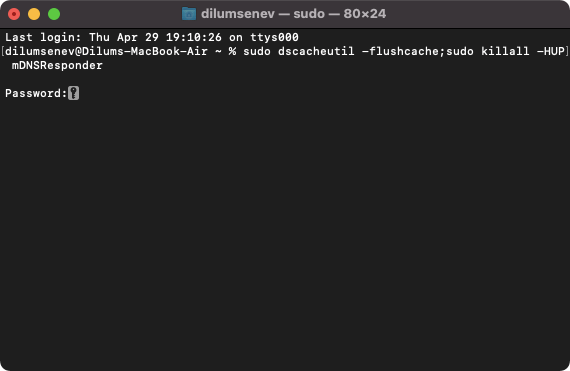
You must enter an administrator password to authorize the command.
5. View All Running Processes
Compared to the Windows Task Manager, typing tasklist into Command Prompt or Windows PowerShell allows for a clearer view of your PC’s background processes. It also contains information such as process IDs (PIDs) and memory usage stats for each task.
On the Mac, you can run one of the two commands below:
- top
- ps -ax
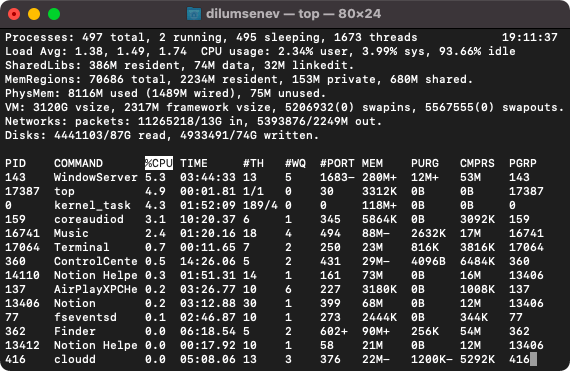
The top command displays a list of the most resource-intensive processes in real-time, while ps -ax shows you the complete task list on your Mac.
6. End Process
You can also use Command Prompt and Windows PowerShell to end running processes with the taskkill
The Mac’s Terminal equivalent is:
kill
Additionally, you can use the killall
7. Check Network Statistics
The netstat command in Windows lets you view a list of all active TCP connections and helps identify network-related problems.
On the Mac, running the same command yields similar results:
netstat
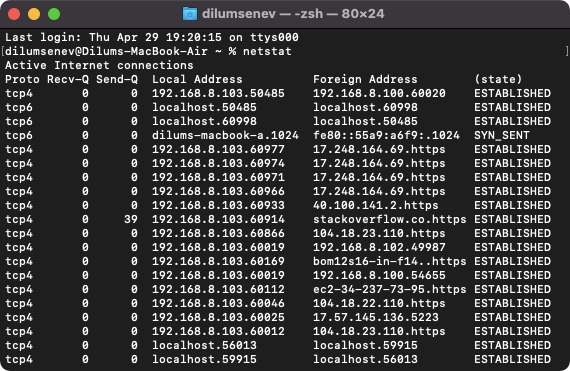
To view a list of flags and options specific to Terminal, type man netstat .
8. Repair Disk Errors
The Check Disk command-line utility on Windows, which you can invoke by running chkdsk in Command Prompt or Windows PowerShell, allows you to check for and repair disk-related errors.
The Terminal equivalent in macOS is the fsck (file system consistency check) command. Start by booting up your Mac in single-user mode—press Command + S at startup. Then, run the following:
/sbin/fsck -fy
9. Create Symbolic Link
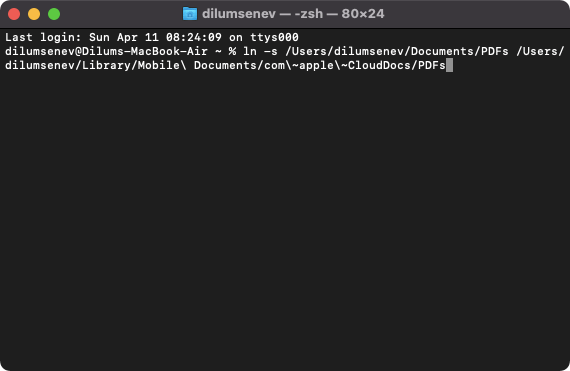
Symbolic links (symlinks) are crucial if you find it impossible to change locations that apps and programs use to store files.
For example, you can use a symlink to sync any folder to a cloud storage service by making it appear as if it’s inside the default sync directory. On Windows, you use the mklink /J command.
On macOS, the Terminal equivalent is:
In -s
10. Schedule Shut Down
If you want to shut down your PC after a specific amount of time has elapsed, you use the shutdown -f -t
sudo shutdown -h +
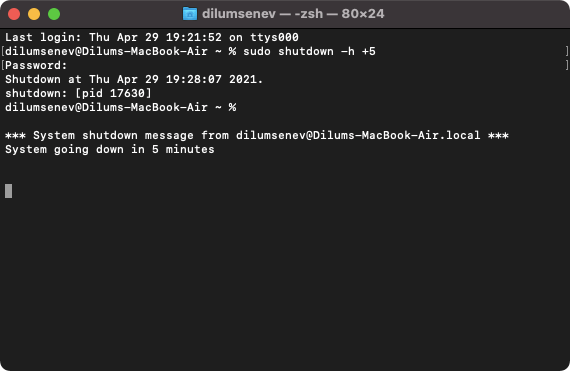
You can always use the sudo killall shutdown command to cancel a scheduled shutdown.
11. Compare File Differences
On Windows, you can compare the difference between two files using the fc command.
The Mac’s Terminal equivalent is:
diff
The diff command comes with multiple options. For example, you can use the -i switch to make it ignore case differences in text files. Run man diff to view a complete list of options.
12. Find Wi-Fi Password
Whenever you need to identify the password of a Wi-Fi connection quickly, you can use the netsh wlan show profile
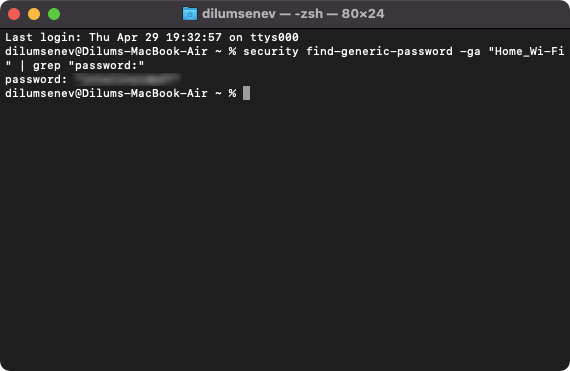
On the Mac, you must run the following command in Terminal:
security find-generic-password -ga “
13. Update Mac
In Windows, you can install operating system updates via Windows PowerShell with the Get-WindowsUpdate and Install-WindowsUpdate commands. It’s faster and less sluggish compared to using the GUI.
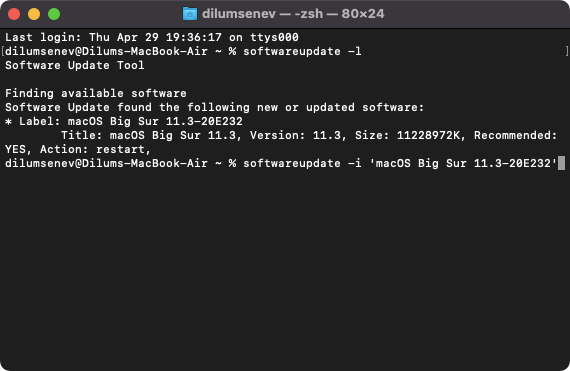
The Terminal equivalents to update macOS are:
- softwareupdate -l to scan for and view pending updates and identifiers.
- softwareupdate -i
to install an update.
14. Renew IP Lease
Releasing and renewing the IP (Internet Protocol) lease can fix connectivity-related issues on your computer. That involves running the ipconfig /release and ipconfig /renew commands via Command Prompt in Windows.
The Mac provides a GUI option via System Preferences > Network > Wi-Fi / Ethernet > Advanced > DHCP > Renew DHCP . However, you can also use the following Terminal command:
sudo ipconfig set
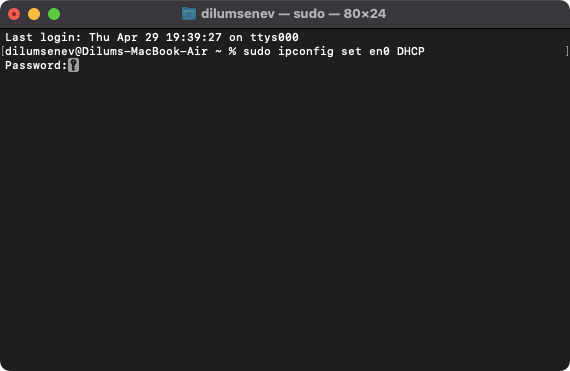
If you don’t know the network interface name, use the ifconfig command to identify it—e.g. en0 .
15. Check Uptime
You can check your PC’s uptime with the (get-date) – (gcim Win32_OperatingSystem).LastBootUpTime Windows PowerShell command.
uptime
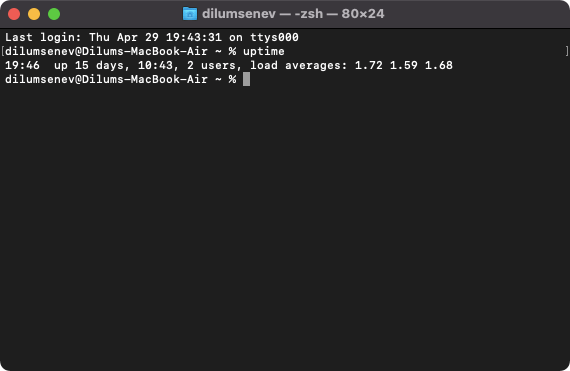
The uptime command helps you determine if it’s time to shut down or restart your Mac. That often helps resolve random technical glitches preventing macOS from working correctly.
Switching to Terminal
The Mac’s Terminal allows you to perform most tasks that you’ve gotten accustomed to with Command Prompt and Windows PowerShell on the PC. While the command equivalents above aren’t exhaustive, they should be handy always.
- How to Connect Xbox Controllers to Your Mac
- How to Chromecast From Mac to Your TV
- How to Install and Run Linux on Mac
- How to Turn Off or Delete Siri Suggestions (iPhone and Mac)
- How to Take Pictures on Mac
