Starting Safari 13, Apple changed how ad blocking extensions work. They no longer play an active role, but instead provide ‘rules’ that the browser then uses to block ads and trackers all by itself.

From a security standpoint, that is ideal since content blockers can’t see your browsing activity. But they aren’t as versatile compared to how things were before.
To make matters worse, most up-to-date ad blockers on the Mac App Store require an upfront payment or come with in-app purchases for basic content blocking features, which is unacceptable.
After scanning the Mac App Store and testing over a dozen content blockers, we eventually came up with a list of three Safari ad blocker extensions that are open source and completely free to use.
They performed well at sites such as Can You Block It and AdBlock Tester , and blocked nearly all ads during regular use. They are as follows:
- Ghostery Lite
- AdGuard for Safari
- Ka-Block!
Whitelist Sites That You Support
1. Ghostery Lite
As its name implies, Ghostery Lite is a lightweight ad blocker. But it’s also reasonably customizable. For starters, the extension comes with three separate filter lists instead of one, providing Safari with more rules for blocking ads and trackers than a typical content blocker.
The Ghostery Lite menu, which you can bring up from the right side of the Safari address bar, reveals how fast a site has loaded. If you want, you can select the Pause icon and reload the tab to check the difference in speed without the extension in play.
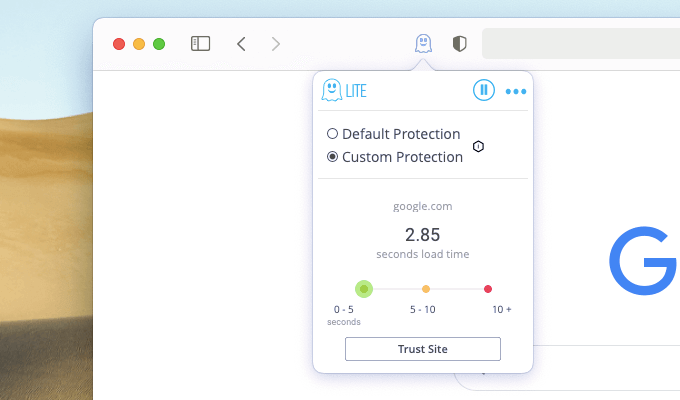
The Ghostery menu also sports a Trust Site button that you can select to whitelist any website you are viewing immediately. It also allows you to switch between two modes of content blocking settings— Default Protection and Custom Protection .
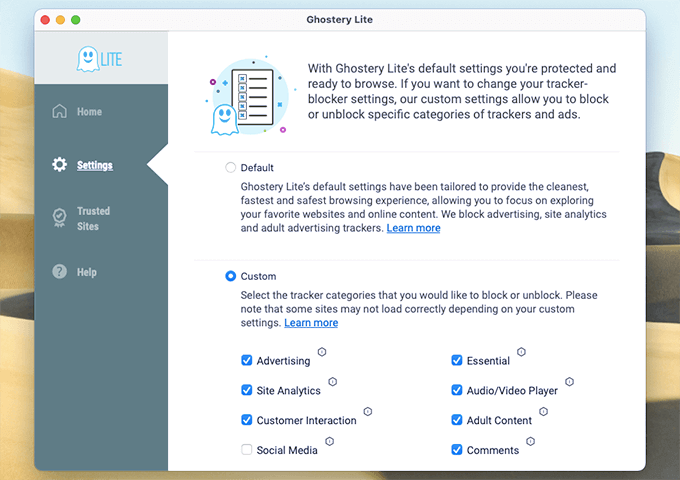
You can manage the Custom Protection settings by opening the Ghostery Lite control panel (select the three-dots on the Ghostery Lite menu) and switching to the Settings tab. You can, for example, choose to leave social media-related content intact while blocking everything else.
If you want to manage your whitelist, switch to the Trusted Sites tab. You can then add or remove websites directly.
2.AdGuard for Safari
That’s more than twice the number of filters compared to Ghostery Lite, although we didn’t notice a massive difference in the number of blocked ads while testing the extension.
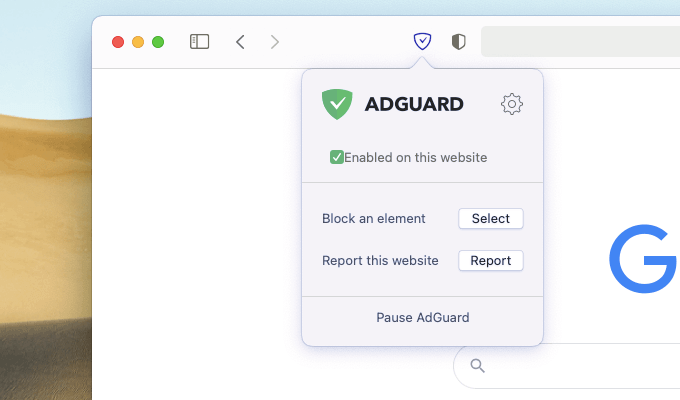
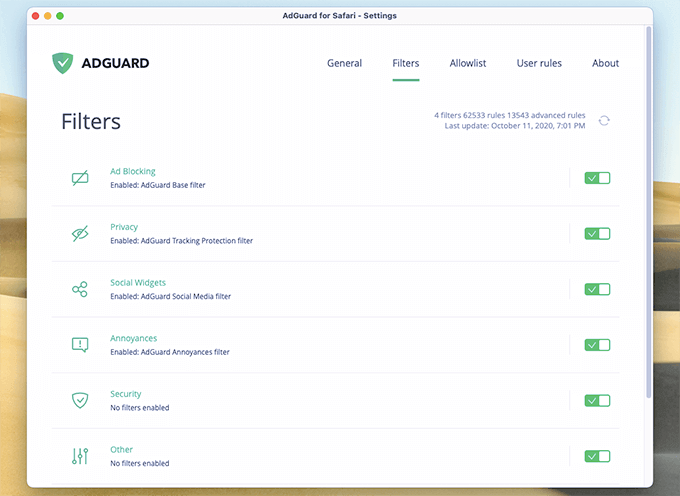
The AdGuard Settings pane lets you customize the extension. You can get to it by selecting the Settings icon on the AdGuard menu. The General tab enables you to manage various aspects such as notifications and update intervals, while the Filters tab allows you to toggle the multiple filter lists that AdGuard uses.
You can also use the Allowlist and User Rules tabs to manage the whitelist and custom site rules, respectively. If you are familiar with CSS or HTML, you can also enter your own rules without relying on AdGuard’s element picker.
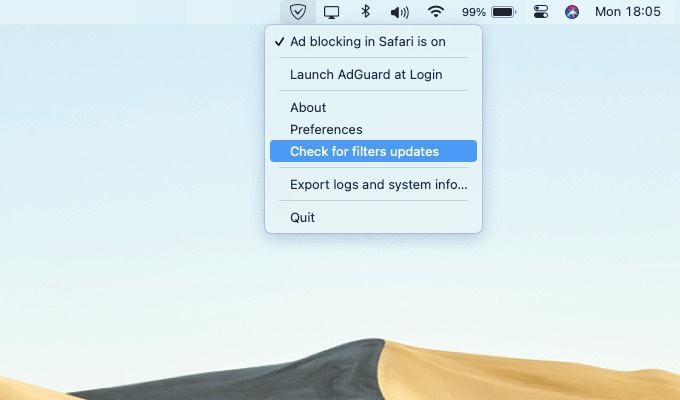
AdGuard runs in the background by design, so you will see an AdGuard icon on the Mac’s menu bar . You can use it to close the extension, check for updates to the filter lists, or get to the AdGuard Settings pane quickly.
3.Ka-Block!
If you want a simple Safari ad blocker that you can just set up and forget, Ka-Block!
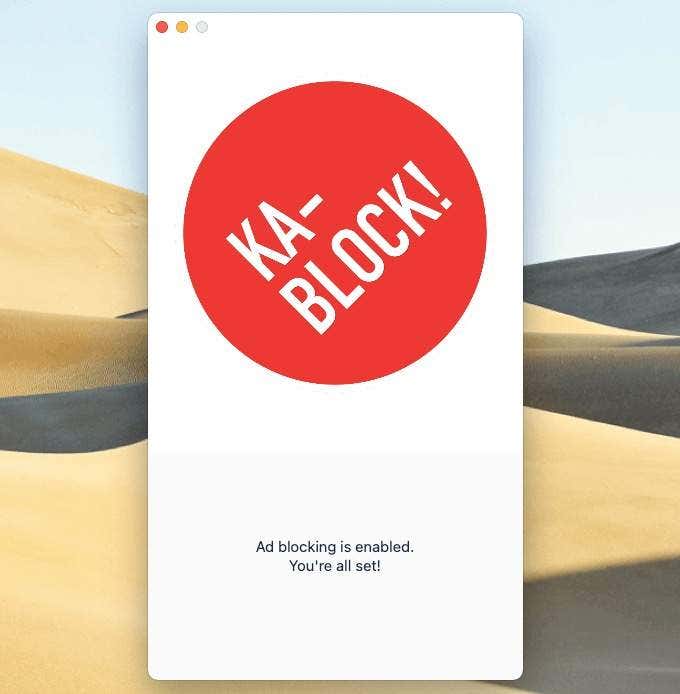
should do the job just fine. Install it, and you are good to go! There are no menus or extension menus to wade through. Even the Ka-Block! extension window is just one colossal splash screen.
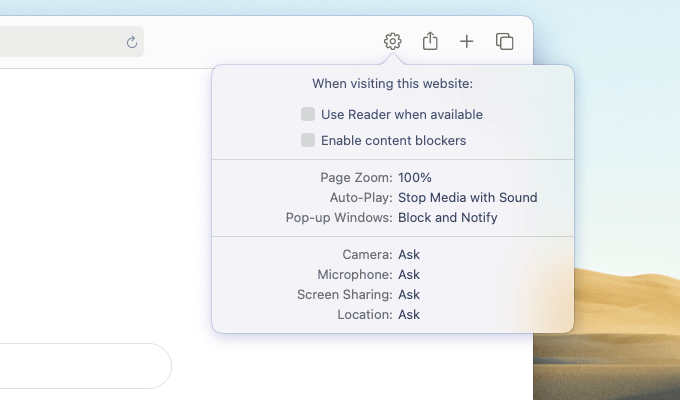
Ka-Block! doesn’t come with a built-in whitelist, but you can use Safari’s own Content Blockers exception list instead. Whenever you want to exclude a website, select the Website Preferences icon on the Safari toolbar and uncheck the box next to Enable content blockers .
If you want to manage the Content Blockers exceptions list, select Safari on the menu bar, choose Preferences , switch to the Websites tab, and select Content Blockers .
Make Your Pick
Each of the Safari ad blockers above comes with its unique trait. Choose AdGuard for Safari if you prefer a decent level of customization, Ka-Block! for pure convenience, or Ghostery Lite if you want a balance of both. Regardless of your pick, you should be able to avoid lots of annoying ads while browsing online.
- Top 10 Safari Experimental Features to Use on Your iPhone or Mac
- How to Delete Safari Bookmarks on Your Mac
- How to Delete or Disable Frequently Visited Sites in Safari
- How to Pin and Unpin Safari Tabs on Your iPhone
- What Does “Website Tinting” Mean in Safari?
