Microsoft OneNote is an automatic note-taking application that helps to save and sync your notes as you work. OneNote allows you to easily create templates, but you’re also able to import ready-made templates that are freely available on the internet.
In this article, we’ll let you know how to install OneNote templates and cover 5 of the best websites to source free OneNote templates for your projects.
How to Install Templates In OneNote
Installing a template in OneNote is incredibly easy.
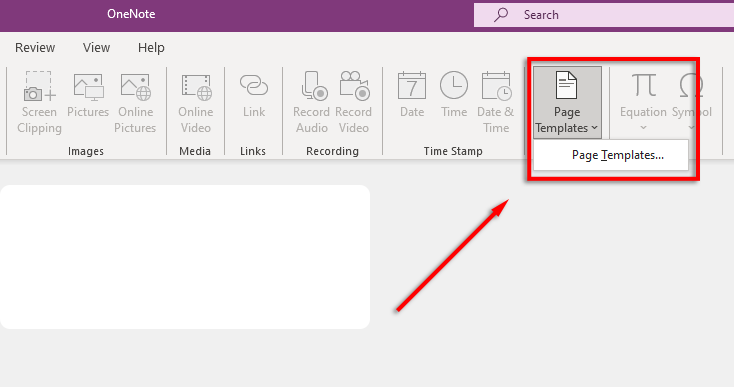
Next, select Insert > Page Templates.
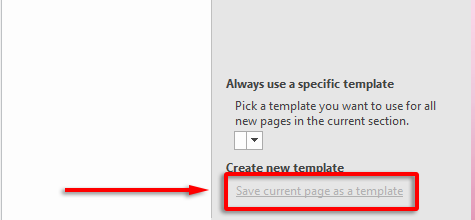
Next, select Save current page as a template . The template will now be available in My Templates .
If you’re interested in getting the most out of OneNote, check out our guide .
1.Auscomp
Auscomp offers 10 free OneNote templates. Additionally, Auscomp offers professional and work bundles as paid options. They also have a range of OneNote tutorials, which makes them a great place to start if you’re learning how to use the program.
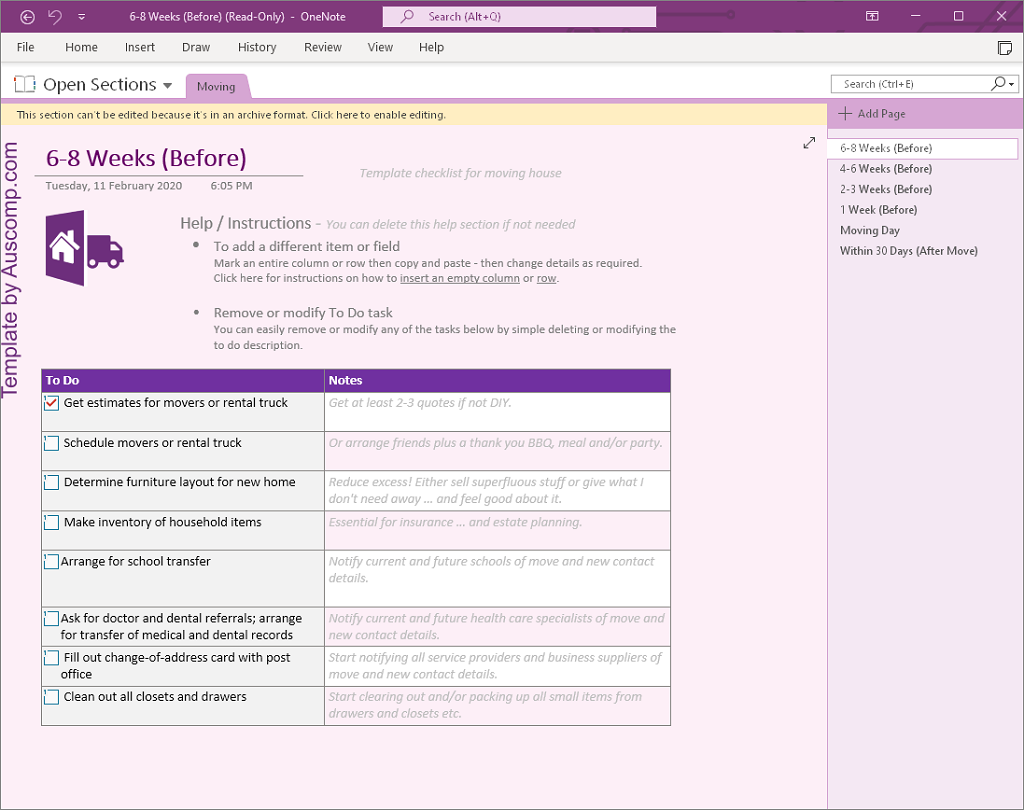
The 10 free templates they offer are:
- Diary/Journal
- Legal
- Cocktail Recipes
- Finance & Budget
- Family Tree
- Travel Checklist
- Moving House
- Insurance
- Cooking Recipes
- Fitness
These templates are freely available, however, Auscomp asks that you pay for them if they are used for work.
2.OneNote Gem
OneNote Gem is a website that offers several Microsoft add-ins and templates, both free and paid. They offer several free templates including:
- Weekly Homework Assignments (two templates)
- To-Do List (three templates)
- Birthday and Anniversary Calendar
- Weekly Appointment Calendar
- Daily Work Schedule (two templates)
- Pre-Travel Checklist
- Cornell Notes Template
- Four Quadrants of Time Management
- Stave (for music notation)
- I Read a Book Template
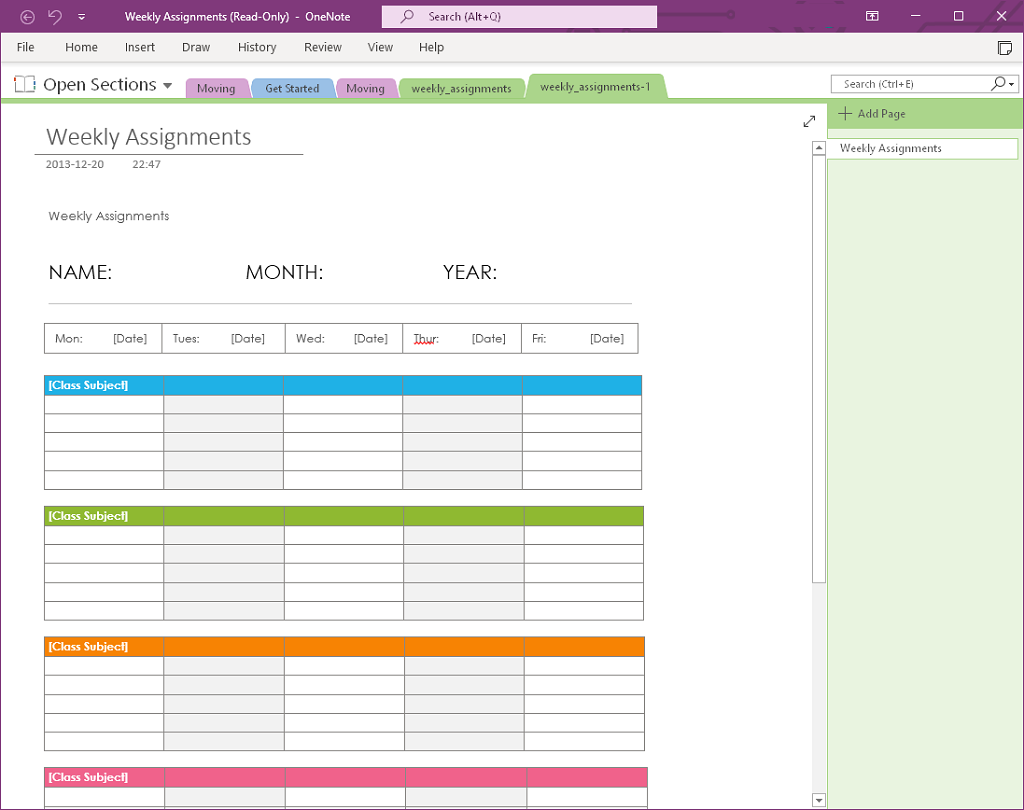
In addition to this, OneNote Gem also offers free notebook templates . These include work and student notebooks that provide sections for planners, meetings, classes, and so on. They also have free notebooks for group projects as well as a personal diary.
Finally, OneNote Gem also offers several free OneNote add-ins that can enhance the functionality of the app. It’s a great one-stop website to get everything you need to make the most out of OneNote.
3.Onetastic
Onetastic is a OneNote add-in that uses macros to perform repeatable tasks within OneNote. They provide hundreds of macros that can perform functions such as search & replace, sort, insert monthly calendar, and more.
To use Onetastic, you will have to download and install their freely available program . Once this is done, you can head to their Macroland tab and search for macros. Onetastic provides up to 20 macros free, after which you will have to purchase a yearly subscription at $15/year.
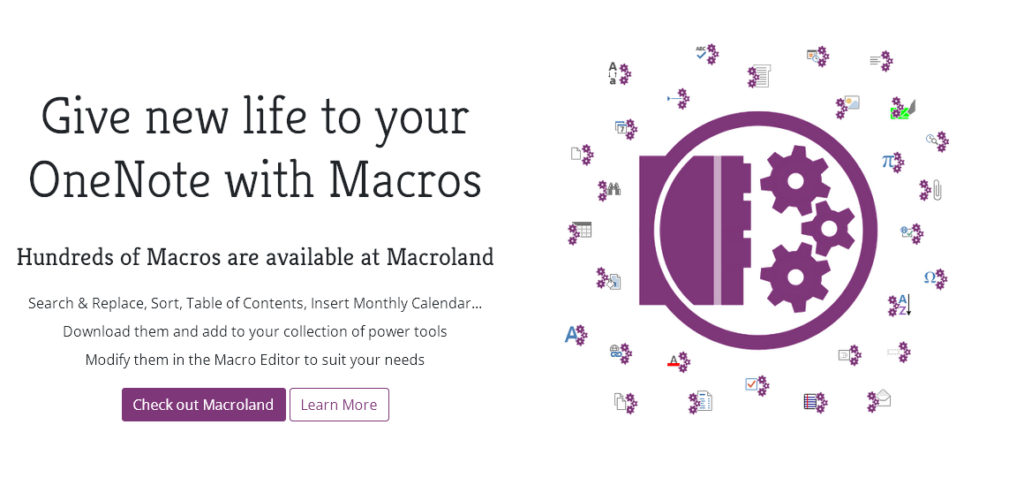
Their macros aren’t exactly templates, but used correctly they can act as templates and save you a lot of time. These include:
- Monthly Calendar
- Monthly Calendar With Task List
- Yearly Calendar
- Weekly Planner
- Daily Planner
To install these, select the macro you would like, then select Download .
You should receive a message to allow the site to open the onetastic link. Select Choose Application , ensure that Onetastic Macro Installer is highlighted, then select Open Link .
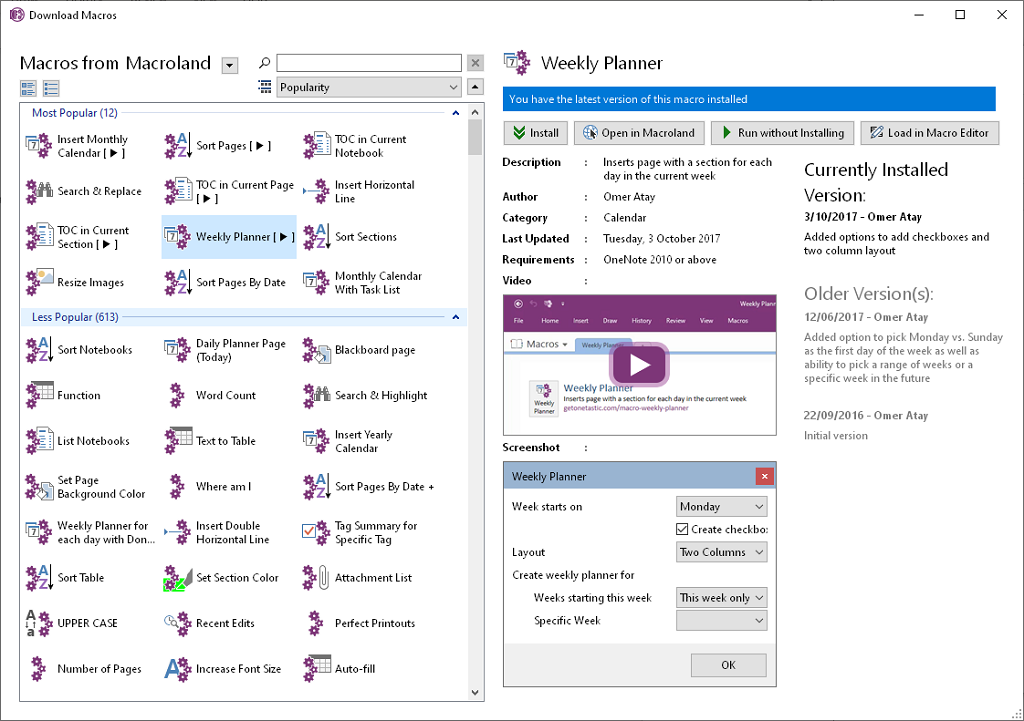
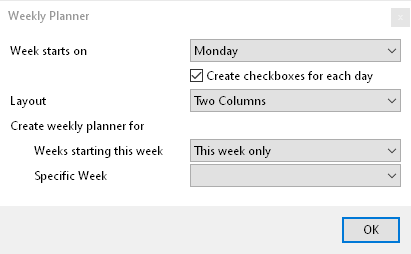
It should open in OneNote. Select Run without installing . A pop-up should appear in OneNote. Fill in the required fields to insert your template. Keep in mind you have to have a page open to add these templates to.
4.Notegram
Notegram allows you to quickly save template files via your Microsoft account. Simply sign in to Notegram with your Microsoft account, select the template you desire and select Save . It will now appear in your default notebook section.
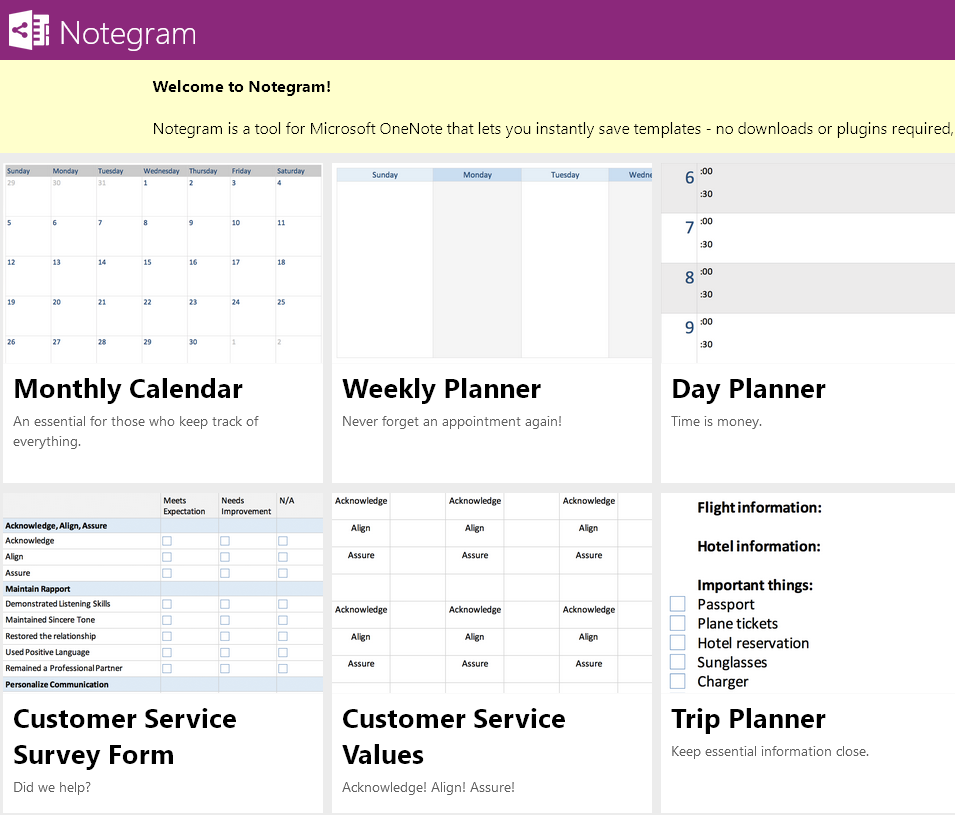
Notegram includes 11 free templates, including:
- Monthly Calendar
- Weekly Planner
- Day Planner
- To-Do List
- Accounting Journal
- Customer Service Survey Form
- Customer Service Values
- Trip Planner
- Journal Entry
- LA Hacks Checklist
- Document Annotation
5. Simplify Days
These templates include:
- Capsule Wardrobe Template
- Costco Grocery List Template
- Packing List Template
- Party Guide Template
- Work Order Template
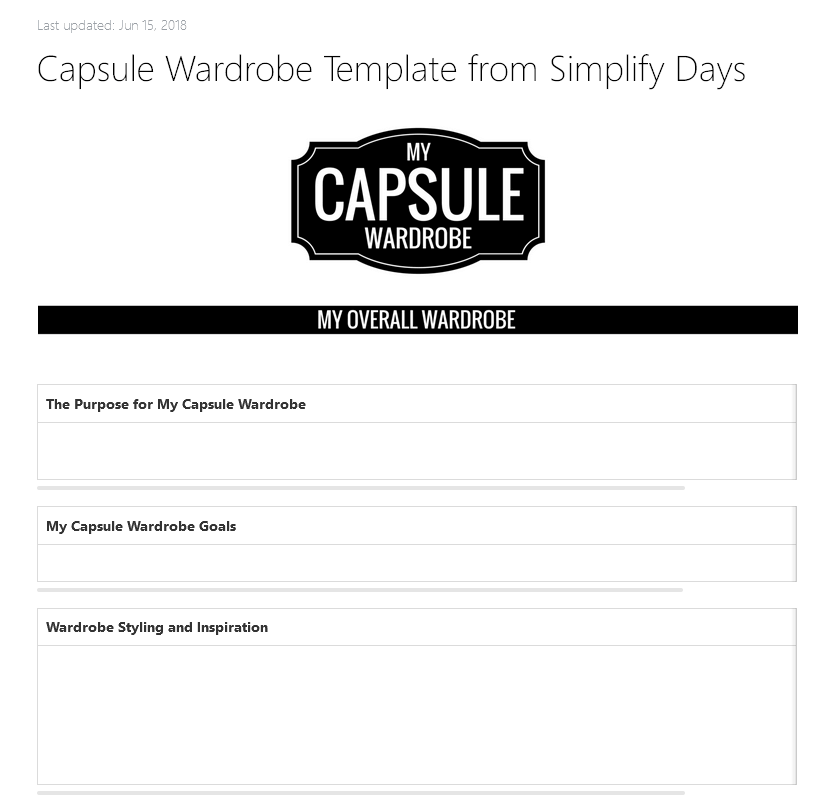
These are provided as Evernote templates , however, it’s easy enough to copy and paste the information into OneNote and create a template.
Getting Organized
OneNote is a fantastic solution to organizing your notes and keeping track of your life. Hopefully, the free templates we’ve listed can help you complete your goals and are helpful for your organization.
- How to Recover Deleted Notebooks in OneNote
- How to Delete a Notebook in Microsoft OneNote
- How to Use Microsoft OneNote: A Comprehensive Guide
- How to Sync a Notebook in OneNote for Windows
- 11 Hidden OneNote Features You Have to Try
Jake Harfield is an Australian freelance writer whose passion is finding out how different technologies work. He has written for several online publications, focusing on explaining what he has learned to help others with their tech problems. He’s an avid hiker and birder, and in his spare time you’ll find him in the Aussie bush listening to the birdsong. Read Jake’s Full Bio
