While Minecraft usually works without a hitch, there are a few errors that occasionally appear. One of these is the “Failed to download file, the file contents differ from what was expected” error message.
If you’re currently dealing with this glitch, you’ve come to the right place. In this article, we’ll discuss what causes this error and 5 ways to fix it.
What Causes the “Failed to Download File” Error
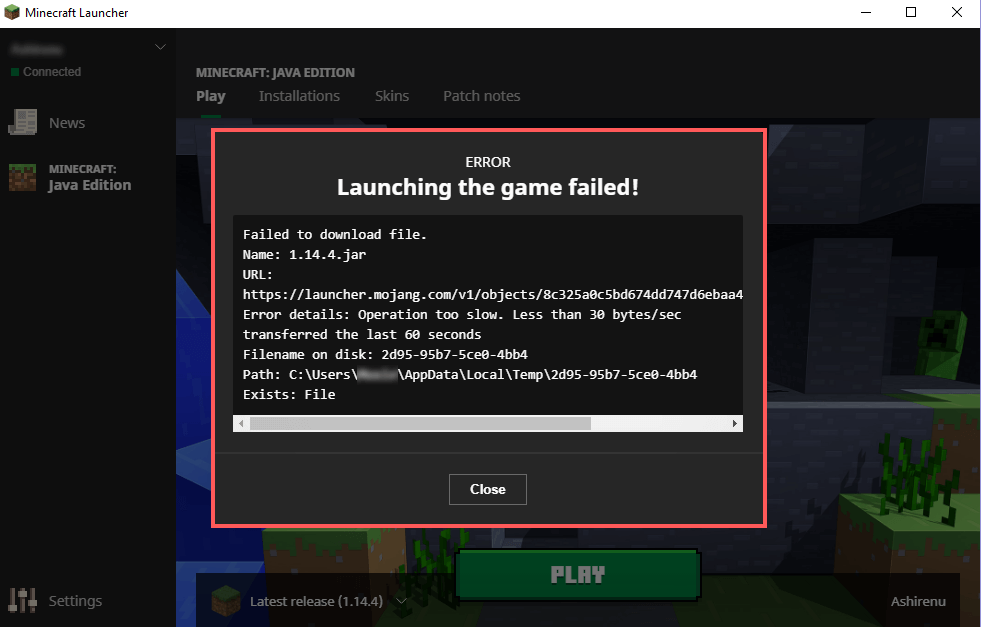
The “Failed to download file” error message sometimes appears when you open the Minecraft Launcher on a Windows PC. As the launcher tries to update Minecraft, a message pops up preventing you from playing the game.
As with every glitch, there are multiple things that might be to blame, and it may take some troubleshooting to find the exact cause. Potential causes include:
- An outdated launcher. The Java Edition of the Minecraft video game is opened via the Minecraft Launcher application. If this is out of date, or the files are corrupted, the download process may be hampered.
- Incompatible Minecraft mods. This Minecraft error occasionally appears after installing a mod. This may be due to incorrect installation, incompatibility with the version of Minecraft, or mod files that became corrupted during installation.
- Firewall restrictions. The firewall is designed to protect your system from suspicious network activity. Unfortunately, it can sometimes mistakenly identify legitimate apps as malicious. When this happens with the Minecraft Launcher, you get the “Failed to download file” error message.
Here are 6 ways to fix the “Failed to download file” glitch.
1. Manually Download the Missing File
The easiest way to fix Minecraft following this error is to follow the instructions in the error message itself.
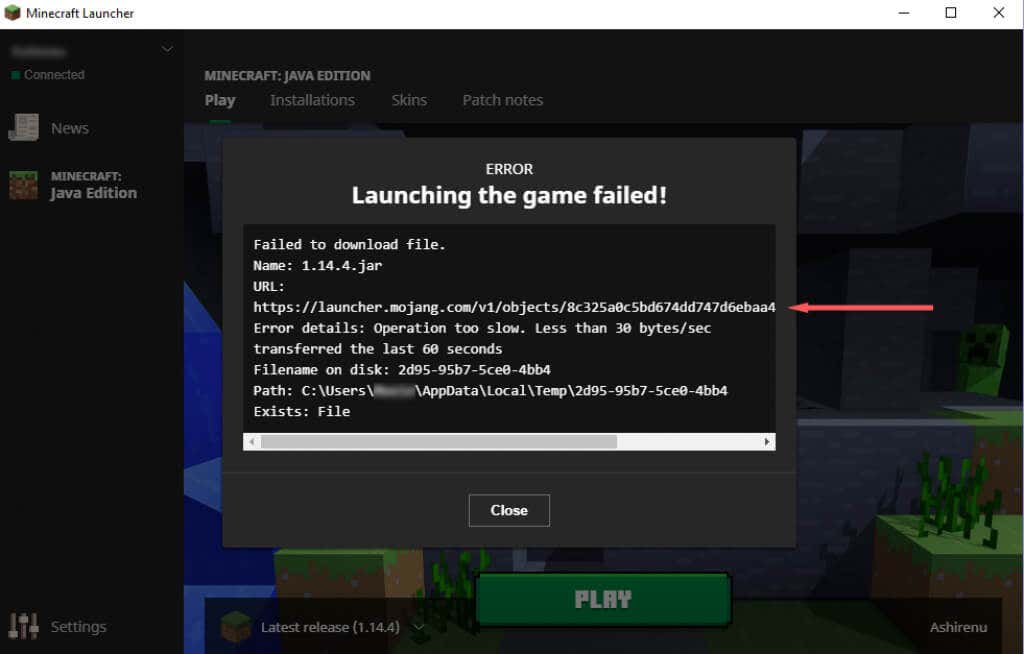
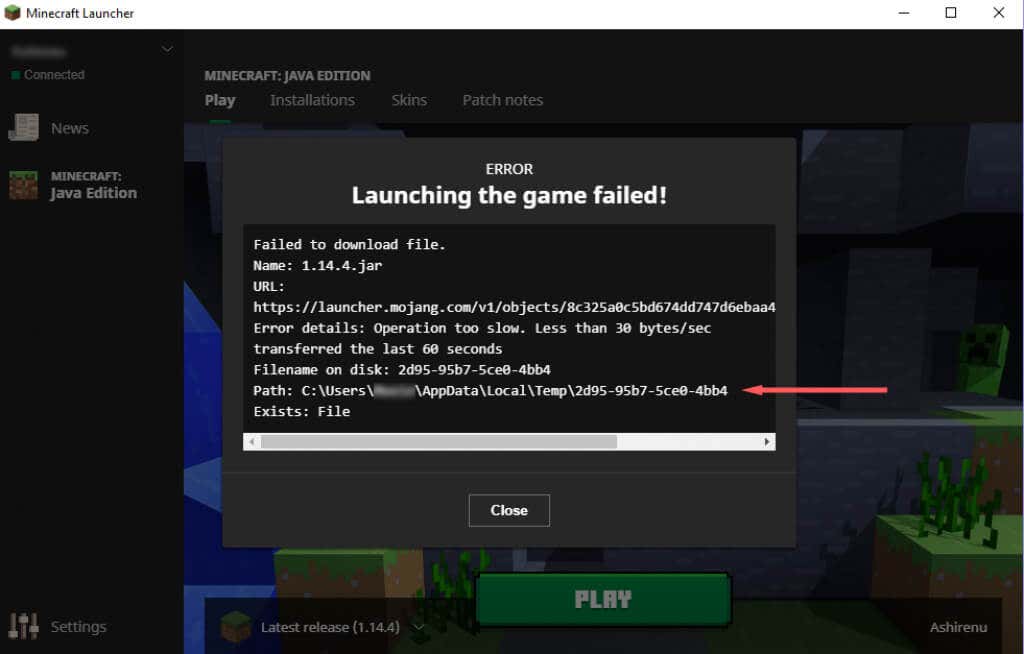
The “Failed to download file” error message contains the name of the missing file (next to “Filename on disk”), a URL from which you can download the file, and the location on your drive where the file needs to be.
To retrieve the file manually:
- Copy the URL from the error message and paste it into the address bar of your web browser.
- Let the file download automatically.
- Navigate to the File Explorer path specified in the error message. To do this, open File Explorer and copy and paste the path into the address bar.
- Transfer the file from your Downloads folder to the path in File Explorer , replacing the old file if necessary.
- Restart the Minecraft Launcher and see if the error is resolved. If not, leave the new file in place and try the following fixes.
- Remove Corrupted Mods
Since corrupt Minecraft mods are one of the main causes of this issue, it’s a good idea to rule this out. To do so:
- Head to the . minecraft folder located at the following path: C:Users%username%AppDataRoaming.minecraft.
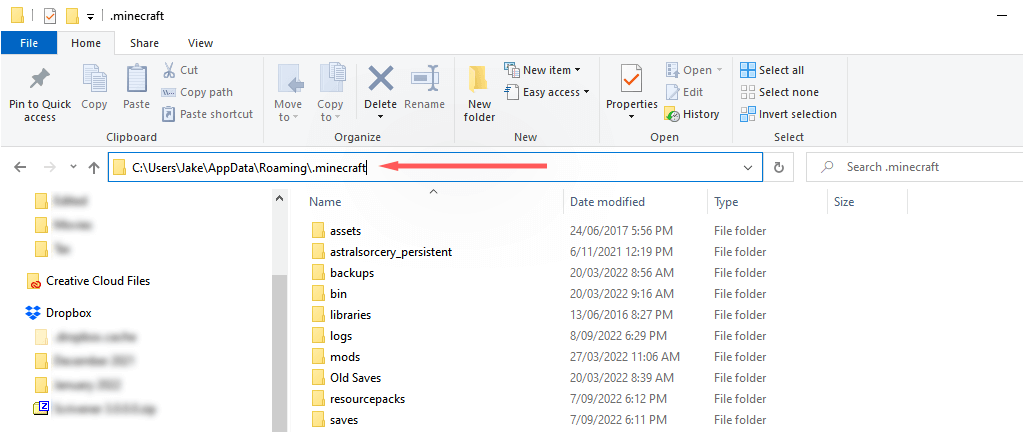
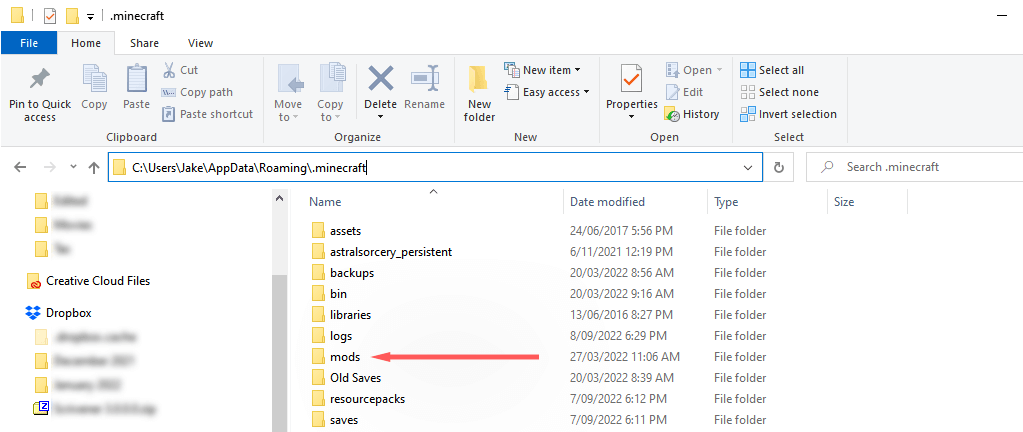
- Remove the mods folder from the .minecraft folder. Make sure to back it up in a different location if you want to keep your modpacks .
- Open the Minecraft Launcher and see if it works.
- If it does work, one of your mods is causing the error message. You can add each mod back one-by-one to see which is at fault.
Note: We recommend starting with the most recent mod, since that’s the one most likely to be causing the glitch.
2. Uninstall Non-Vanilla Minecraft Launchers
If you’re using a non-vanilla Minecraft Launcher to play Minecraft, it may be interfering with the download procedure. To check whether this is the case, uninstall the non-vanilla launcher (or find the installed files and delete them all manually).
With the other launcher out of the way, open the legitimate Minecraft Launcher and see if it works.
3. Reinstall Minecraft
If none of the above has worked for you, the next most likely cause of the error is that your Minecraft installation is corrupted. Since you’re no longer able to force update Minecraft, reinstalling is the easiest way to ensure that the files are correct and up-to-date. To do so:
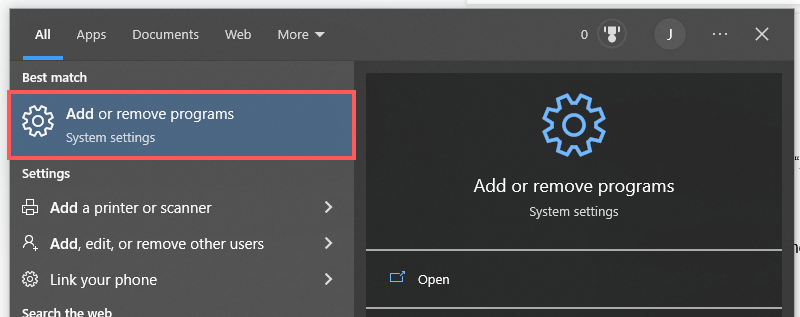
- Press Start and type Add or remove programs . Select it from the list.
- Scroll down and click Minecraft Launcher then Uninstall . Wait for the process to complete.
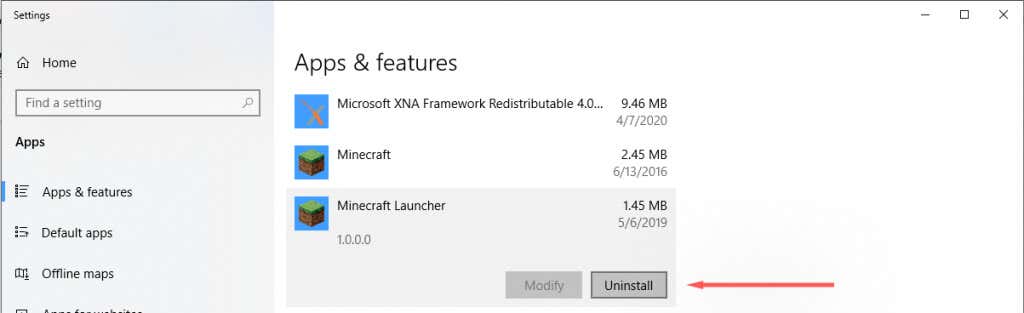
- Do the same for Minecraft .
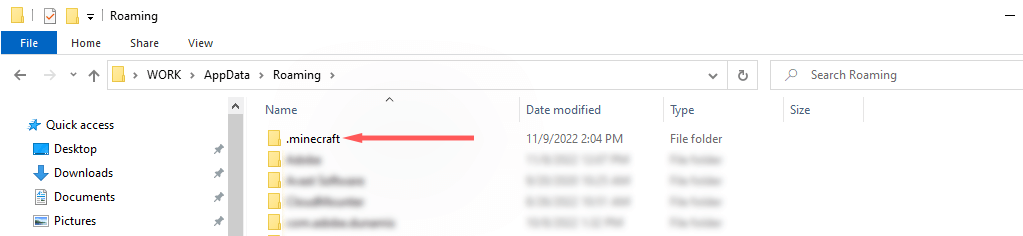
- Navigate to the Minecraft directory at C:/Users/%username%AppDataRoaming and delete the . minecraft folder. Don’t forget to back up your Save folder if you want to keep your existing game files.
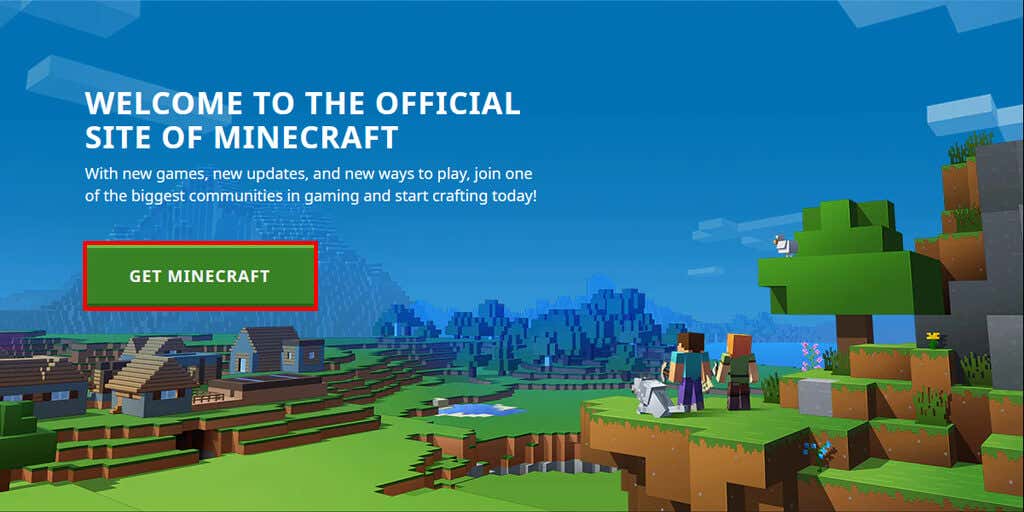
- Download and install Minecraft from the official Minecraft.net webpage.
- Open the launcher and check whether the error message still appears.
Note: Some users receive the “ Unable to update the Minecraft Native Launcher ” error. If this happens to you, you may have to troubleshoot that error before moving on.
4. Allow Minecraft Launcher Through Microsoft Defender
The Windows Firewall can also prevent the Minecraft Launcher from downloading files. To check whether the firewall is causing the error, temporarily disable it as follows:
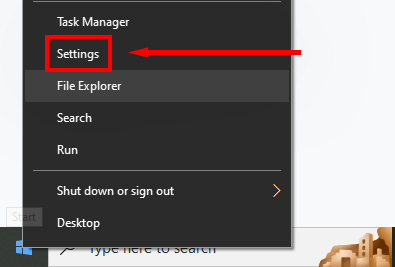
- Right-click Start and click Settings .
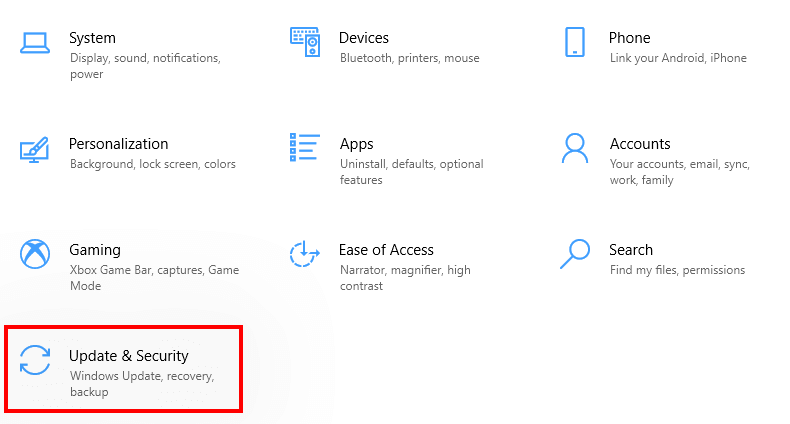
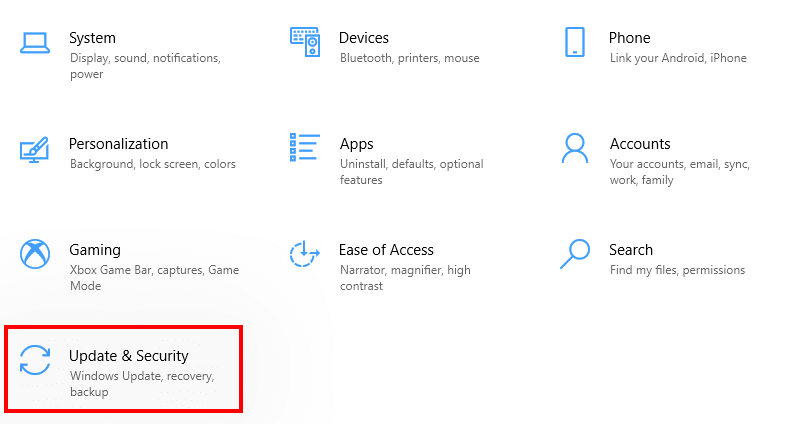
- Click Update & Security .
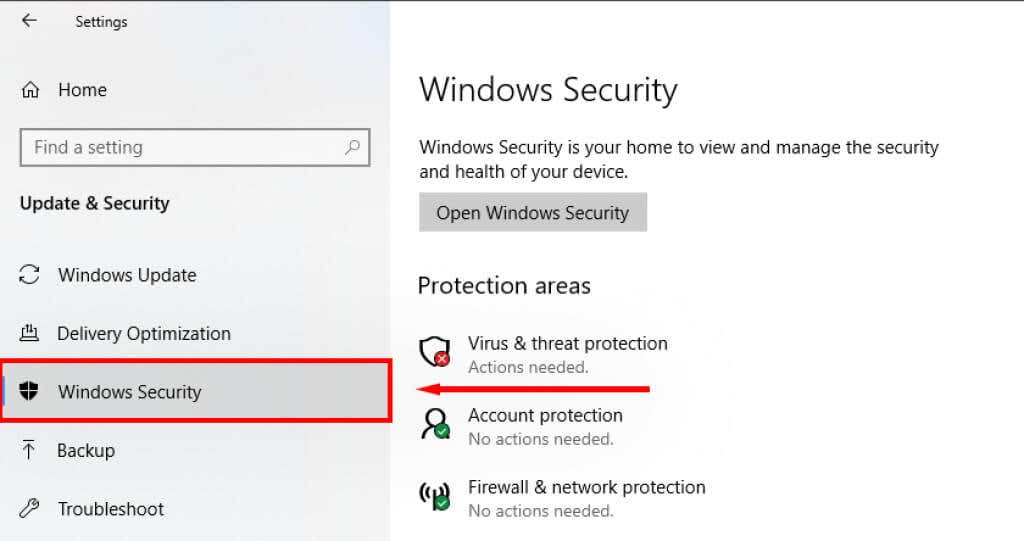
- Click Windows Security .
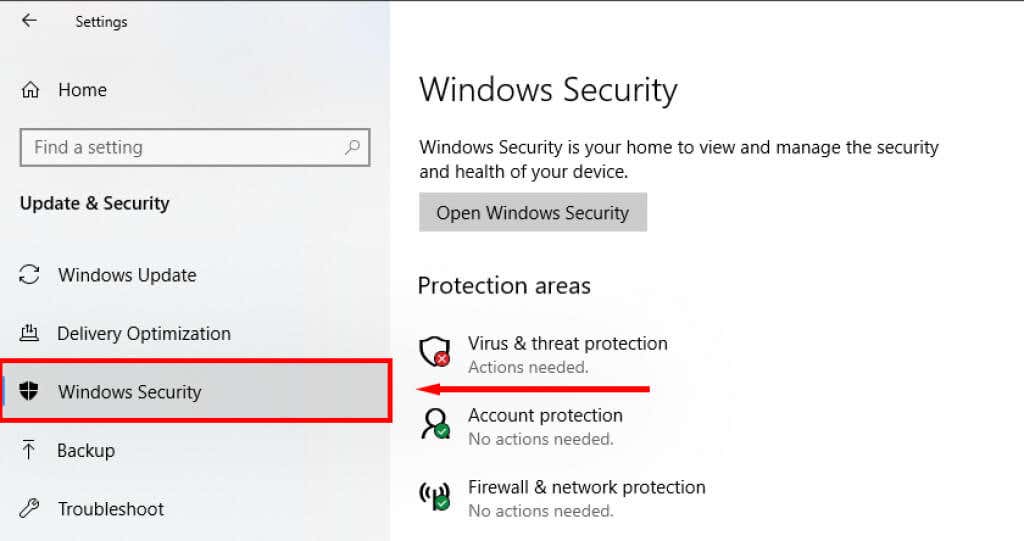
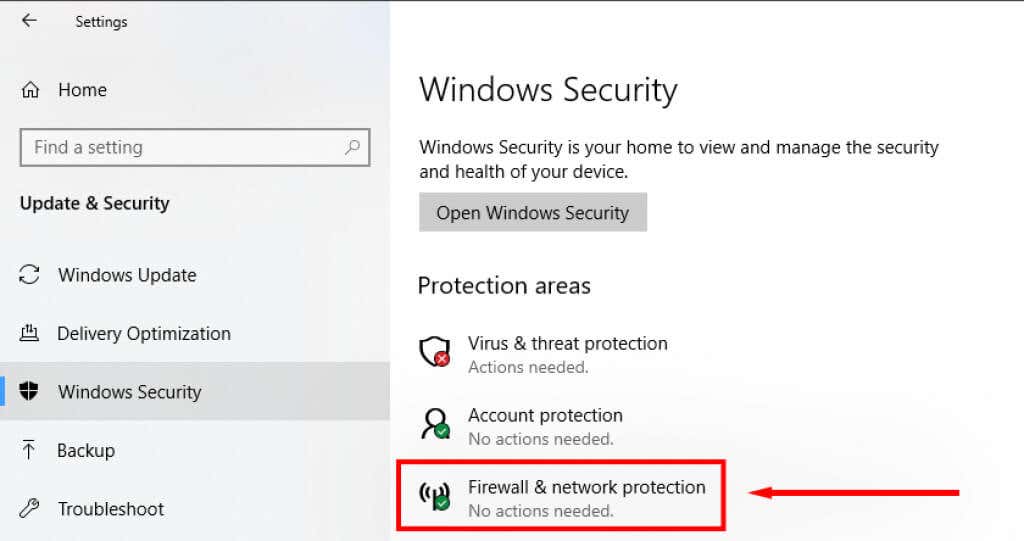
- Select Firewall & network protection .
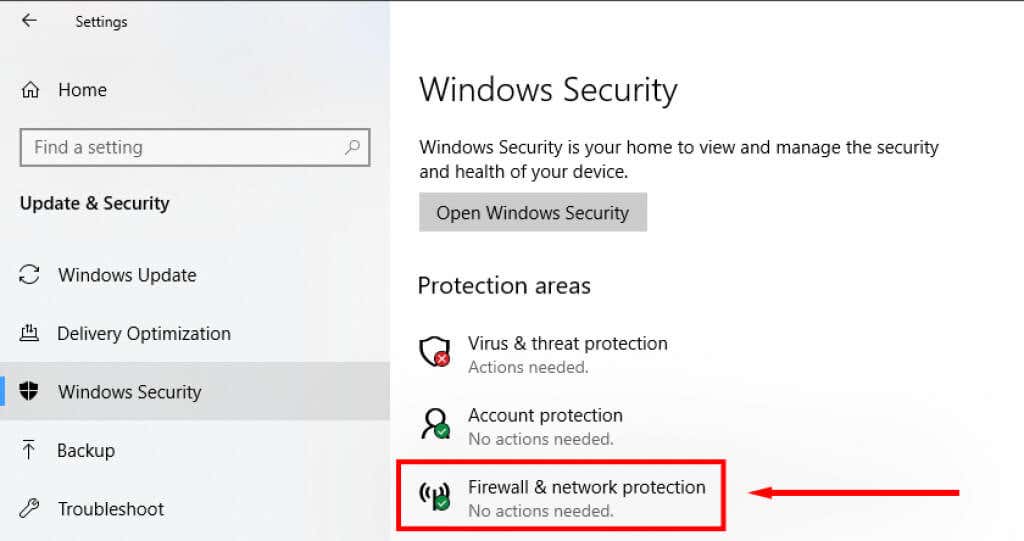
- Click Private Network .
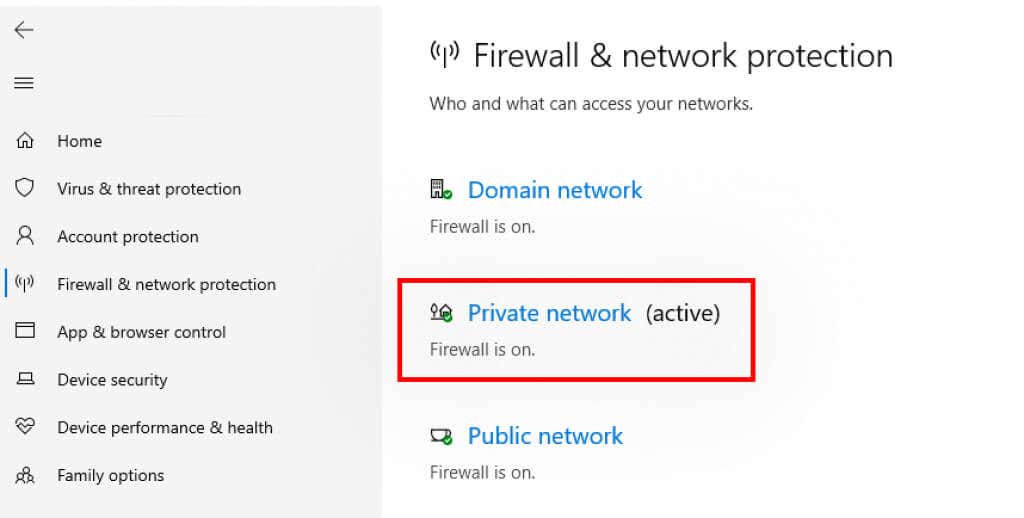
- Toggle Microsoft Defender Firewall Off , then check if the Minecraft Launcher is working as it should.
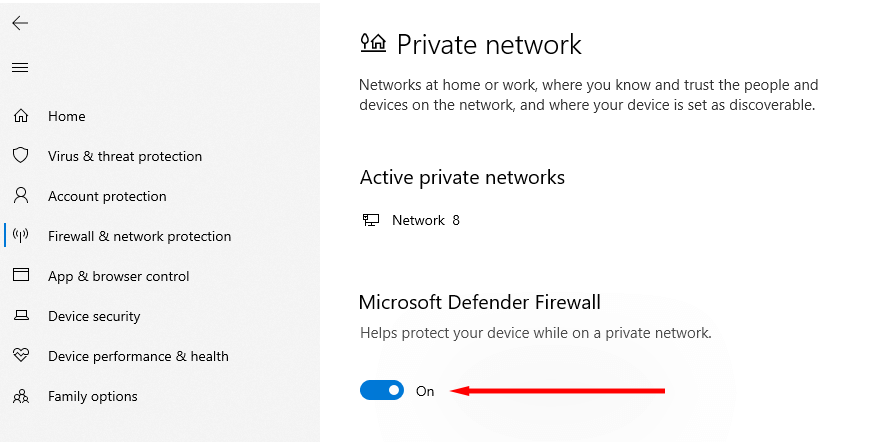
If the Launcher works properly, Defender is at fault. The next step is to whitelist the Minecraft Launcher in the app’s settings:
- Right-click Start and click Settings .
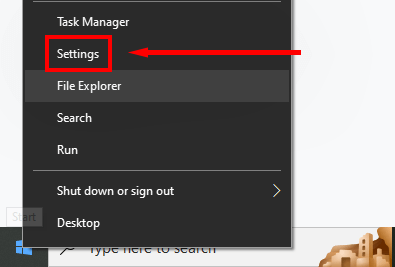
- Click Update & Security .
- Click Windows Security .
- Select Firewall & network protection .
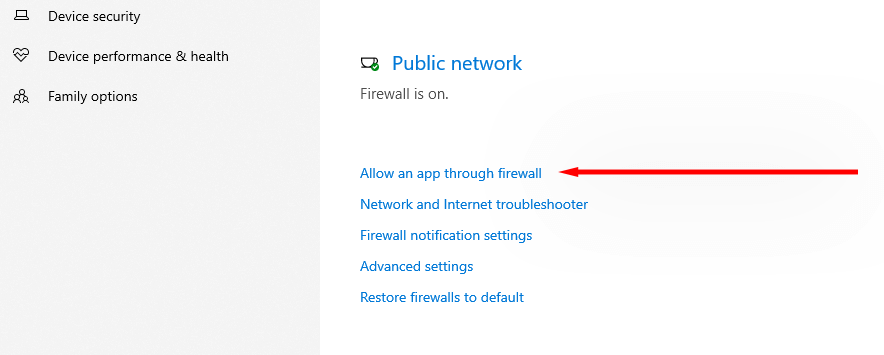
- Click Allow an app through the firewall .
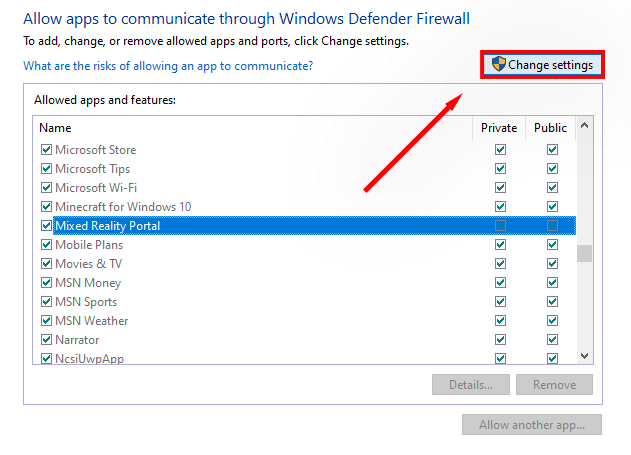
- Select Change settings .
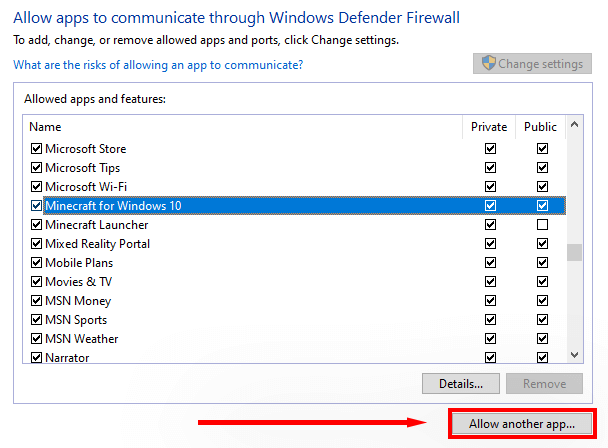
- Click Allow another app .
- Click Browse , find and select the Minecraft Launcher , and click Add .
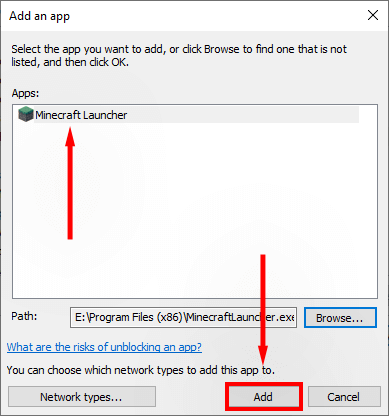
- Check the box next to Private then click OK .
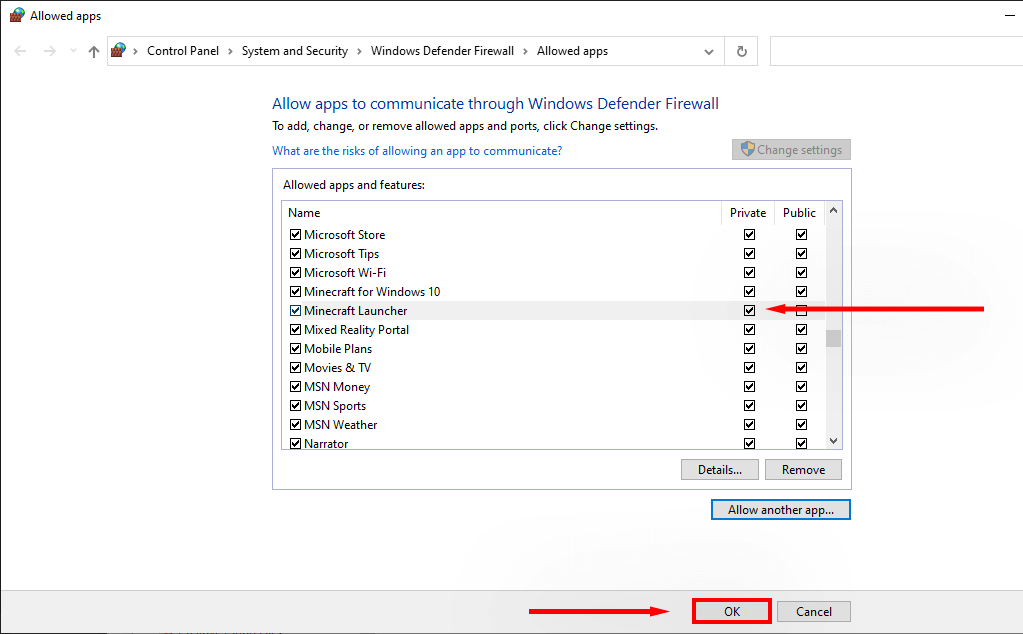
- Try to launch Minecraft and see if it’s able to download files.
Note: If you use an antivirus other than Windows Defender , disable it by right-clicking the icon in the system tray and selecting the “disable” option. Next, see if the launcher works correctly. If it does, the third-party antivirus is likely blocking Minecraft from downloading new files.
5. Ensure Java is Set Up Correctly
Minecraft relies on a Java runtime environment to open .JAR files and run the game correctly. Occasionally, something will go wrong with Java and the opening preferences will be set up incorrectly. To fix this:
- Navigate to C:Users %username% AppdataRoaming.minecraft .
- Right-click a file with the . JAR extension and select Properties .
- Next to “Opens With”, click Change .
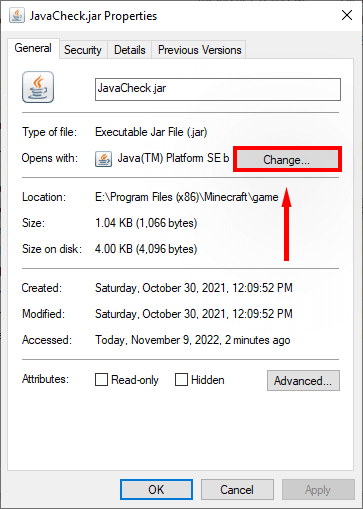
- Depending on your version, select Java , Java(™) Platform SE Binary , or OpenJDK Platform Binary . To find these, you may have to select More Apps .
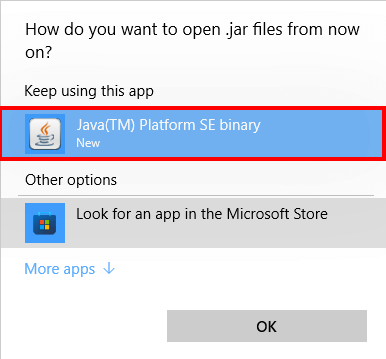
- Check whether the launcher is able to download files once more.
Time to Get Back to Mining
- How to Backup an iPhone Without iCloud?
- Sluggish Windows 11 PC? Try These 5 Windows 11 Tricks to Free up Virtual Memory
- macOS Tahoe Privacy Settings You Need to Secure Your Mac
- How To Turn Off Notifications On Windows 11?
- How to Recover Lost Files After Windows Update?
Jake Harfield is an Australian freelance writer whose passion is finding out how different technologies work. He has written for several online publications, focusing on explaining what he has learned to help others with their tech problems. He’s an avid hiker and birder, and in his spare time you’ll find him in the Aussie bush listening to the birdsong. Read Jake’s Full Bio
