Your Mac’s pointer changes to a spinning rainbow wheel when a program stops responding. Sometimes, waiting a bit is enough to fix the problem. If waiting doesn’t resolve a frozen program, you may need to take additional steps. Here’s how to close unresponsive programs on Mac .
Note: The instructions in this guide apply to all Mac notebooks and computer models, as well as all macOS versions.

Quit vs. Force Quit: What’s the Difference?
You’ll come across the terms “Quit” and “Force-Quit” (or “Force Quit”) a lot in this post. Some Mac users assume both terms to mean the same thing. But when you “quit” and “force quit” an app, macOS handles the termination of the app quite differently.
What Does Quitting an App Do?
When you quit an app or click the Close button on the app window, you’re closing it the normal way. However, macOS may not close the app immediately. Instead, the app is left to run its shutdown routines—if it has any. An app’s shutdown routine may include completing ongoing tasks and storing unsaved changes or settings on the disk.
Additionally, macOS may not quit an app if its closure will interfere with another app or lead to data loss.

You may need to wait some seconds or a few minutes for an app to close normally. The waiting period will depend on the shutdown routines running in the background.
What Happens When You Force Quit an App?
Force Quitting an app may result in data loss. You should always close an app normally. It’s safe and highly recommended as it reduces the possibility of data loss. Force quit an app only when it’s freezing or unresponsive.
Now, let’s show different ways to deal with an unresponsive application on your Mac notebook or computer.
1. Use Keyboard Shortcuts
Keyboard shortcuts offer the fastest way to fix a frozen Mac or Mac applications when they become unresponsive.

Press Command + Q on your keyboard and wait for a few seconds for the app to close normally. Force Quit the app if it remains on the screen.
Press Shift + Option + Command + Esc to immediately Force Quit the unresponsive app.
Alternatively, press Command + Option + Esc . That’ll open a new window where you can Force Quit unresponsive applications. Select the app and select the Force Quit button.

2. From the Apple Menu
There’s an alternative way to open the “Force Quit Applications” window if your Mac’s keyboard isn’t working .
Select the Apple logo on the menu bar—see the upper-left corner of your screen. Afterward, select Force Quit in the Apple menu to open the Force Quit window.
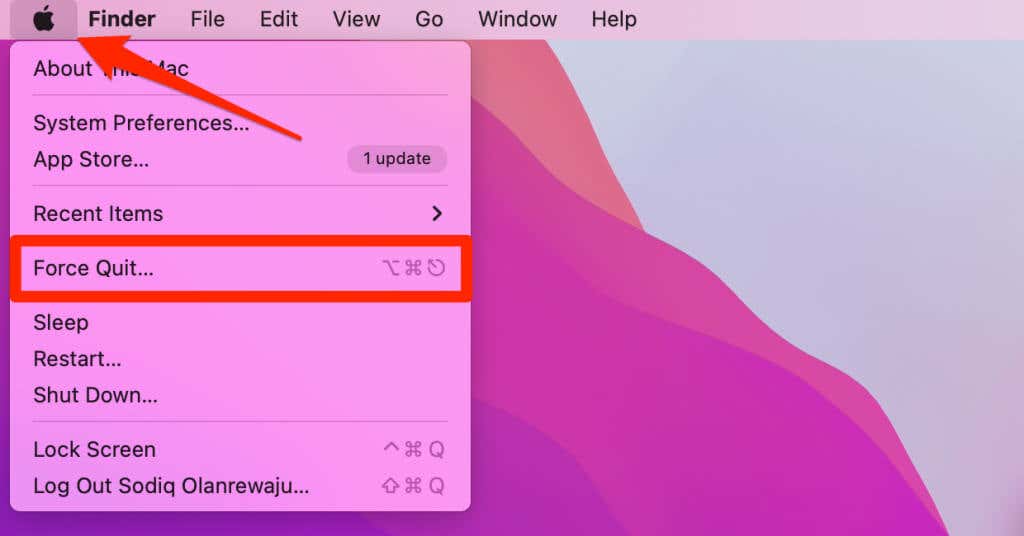
Afterward, select the app and select the Force Quit button.
You can instantly close an unresponsive program from the Apple menu without opening the “Force Quit Applications” window.
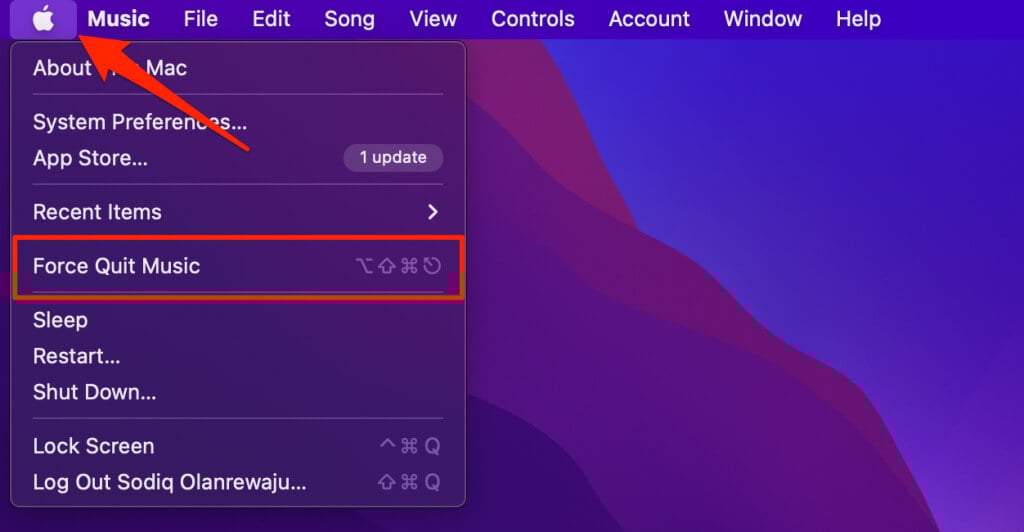
When the program becomes unresponsive, open the Apple menu, hold the Shift key , and select Force Quit [App Name] .
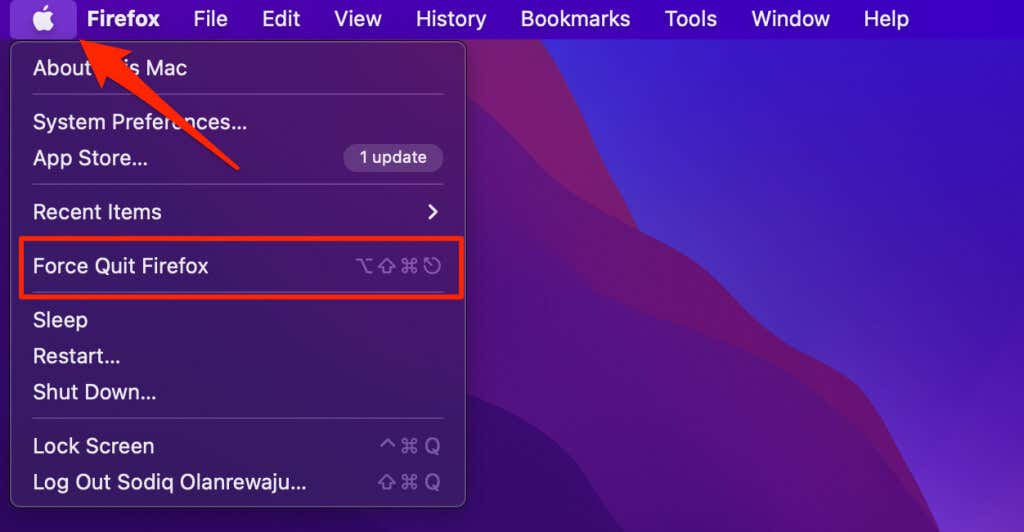
To close Apple Music, for instance, select the Apple logo on the menu bar , hold the Shift key , and select Force Quit Music .
3. From the Dock
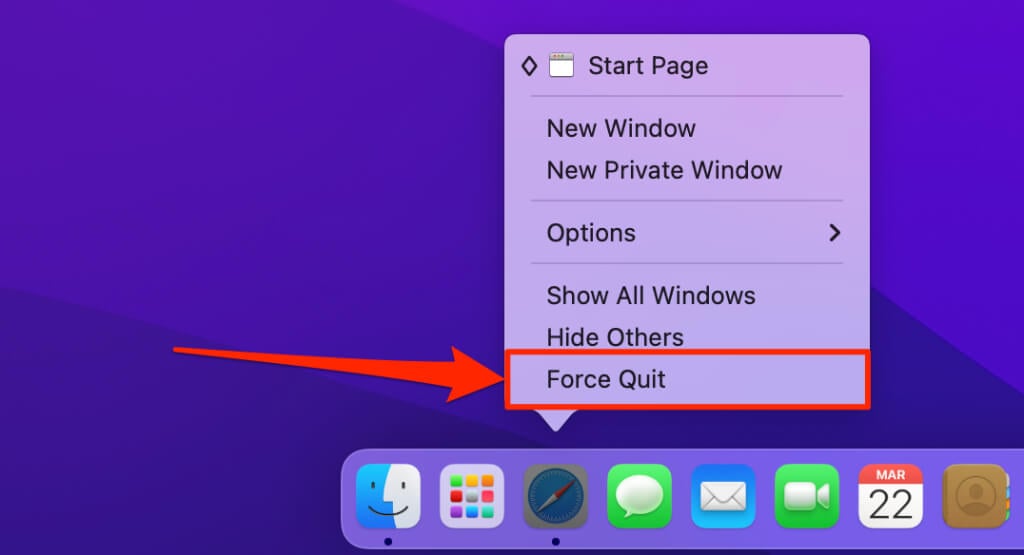
Close the app from the Dock if it remains unresponsive after quitting it using the keyboard shortcut. Or if the window closes, but the app stays open in the background. A small dot below an app in the Dock means the app is still running in the background.
Right-click or Control-click the app’s icon in the Dock and select Quit .
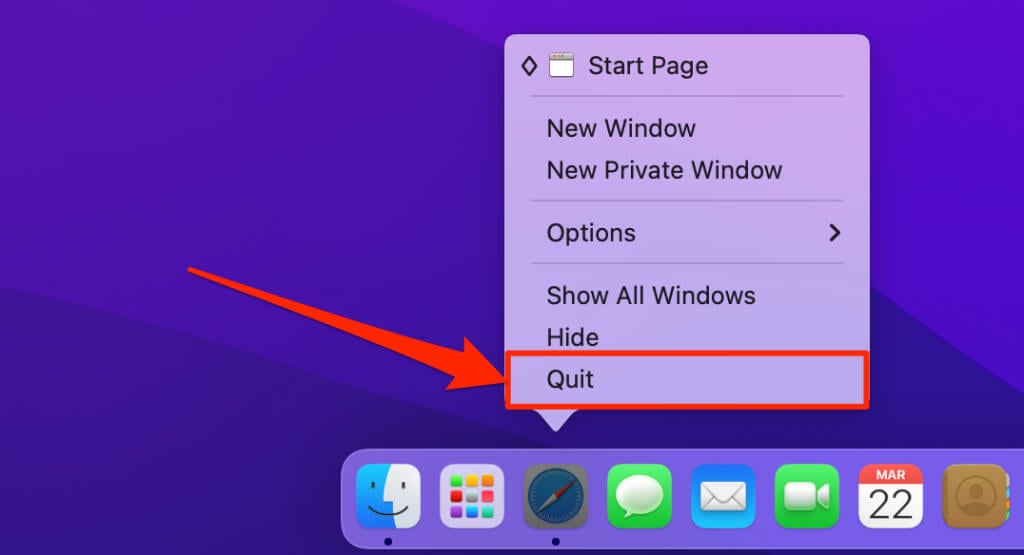
Wait for a minute and reopen the app. Force-quit the app if it’s still misbehaving or unresponsive. Press and hold the Option key , right-click the app icon , and click Force Quit .
4. Force Quit App from the Activity Monitor
Activity Monitor is the macOS version of Task Manager on Windows devices. In addition to monitoring your Mac’s CPU, memory, power, and network usage, Activity Monitor can force-quit unresponsive applications and processes.
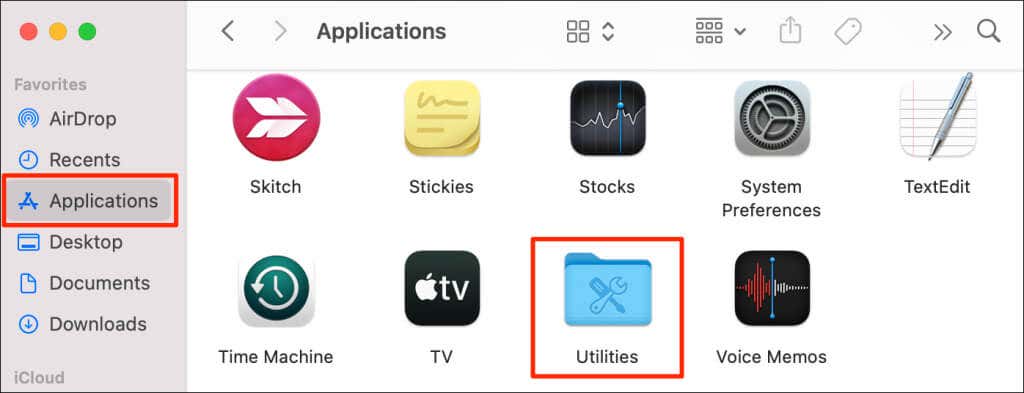
- Launch Finder , select the Applications on the sidebar, and open the Utilities folder.
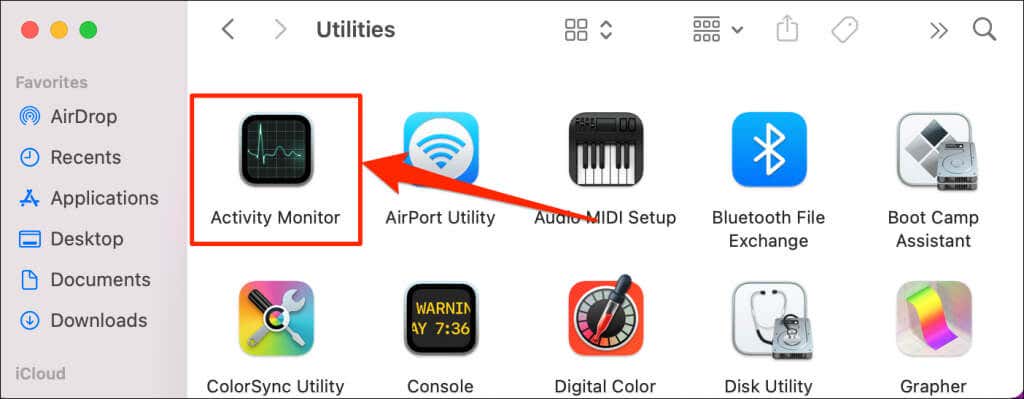
- Double-click Activity Monitor .
- In the “CPU” tab, select the unresponsive app, and select the Stop (x) icon on the toolbar.
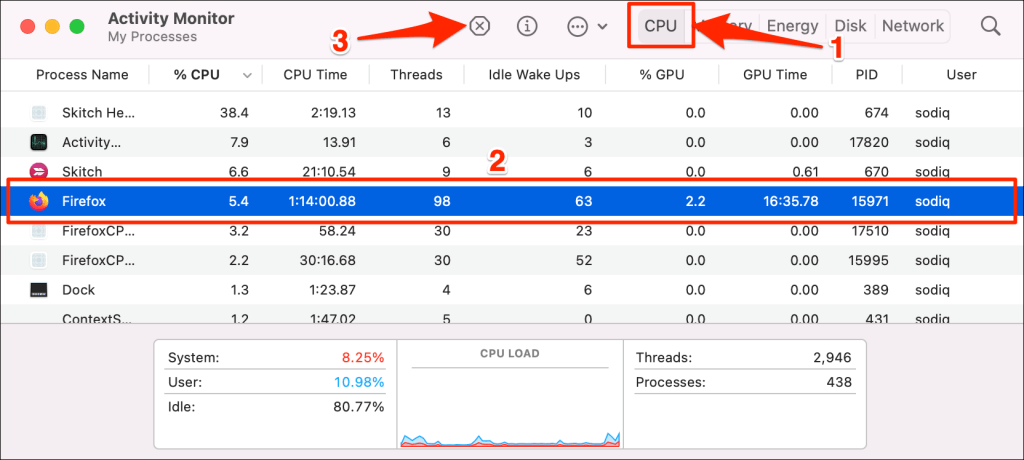
Pro Tip: Can’t find the unresponsive app in the long list of processes? Enter the app name in the Activity Monitor’s search bar —see the top-right corner.

- Select Quit to close the frozen application.
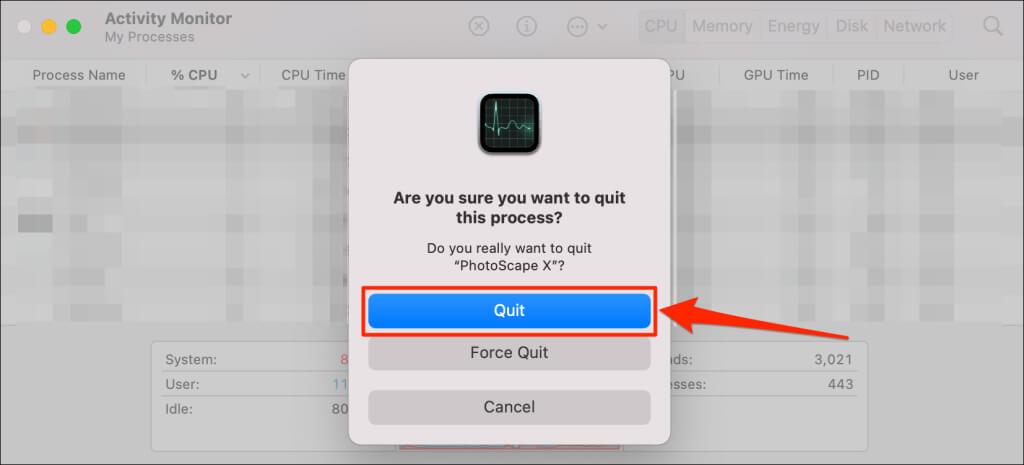
Reopen the app without closing the Activity Monitor window. If the app freezes again, select Force Quit to kill the app and all dependent or helper processes.

5. Use Terminal
Terminal is a multipurpose utility in the Mac operating system. You can use the tool to open files/folders, update your Mac , terminate unresponsive apps , et cetera.
Here’s how to use Terminal to close frozen apps:
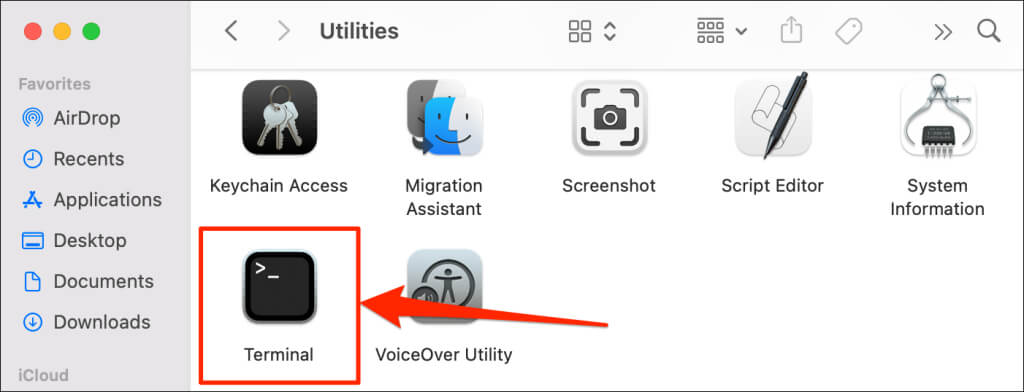
- Go to Finder > Applications > Utilities and double-click Terminal .
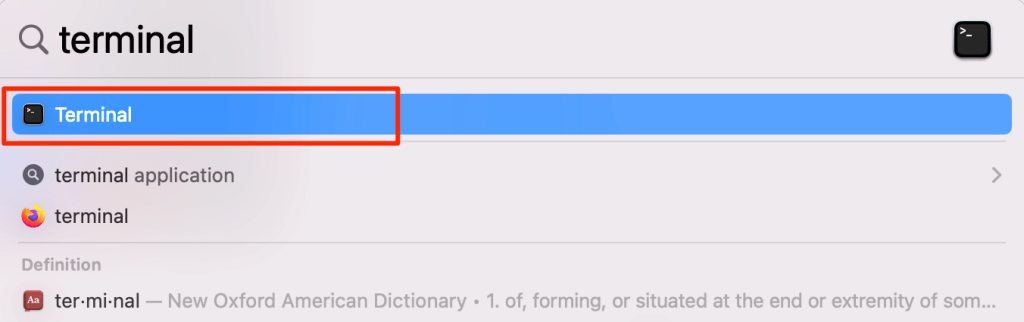
Alternatively, open the Spotlight Search ( Command + Space ), type terminal in the search bar, and select Terminal .
The next step is to locate the Process Identifier (or Process ID or PID ) of the unresponsive app. PID is a unique identifier (think: fingerprint) assigned to active or running applications on your Mac computer. No two apps have the same process ID.
- Type top in the Terminal console and press Return on the keyboard.

That will open a table of running programs and processes on your Mac. Check the “COMMAND” and “PID” columns and note the name and process identifier of the unresponsive program.
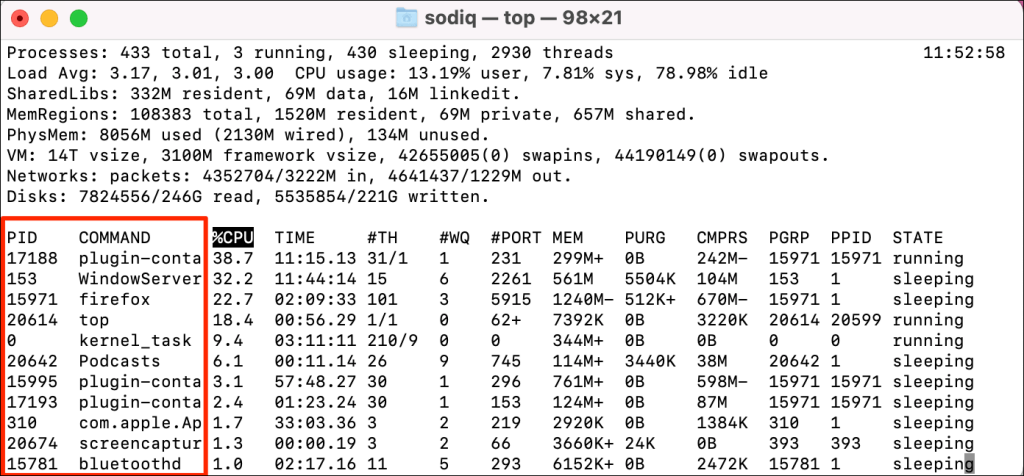
- Press q on your keyboard to close the table.
- Afterward, type kill , press the Spacebar , type the app’s PID, and press Return . The command should look like this: kill PID , where PID is the app’s process identifier.

That’ll immediately terminate the app and its processes on your Mac.
Last Resort: Close and Reopen All Applications
Log out of your macOS account if the app still freezes intermittently or if all open apps are unresponsive.
Press Shift + Command + Q , check the Reopen windows when logging back in the box , and select Log Out on the pop-up.
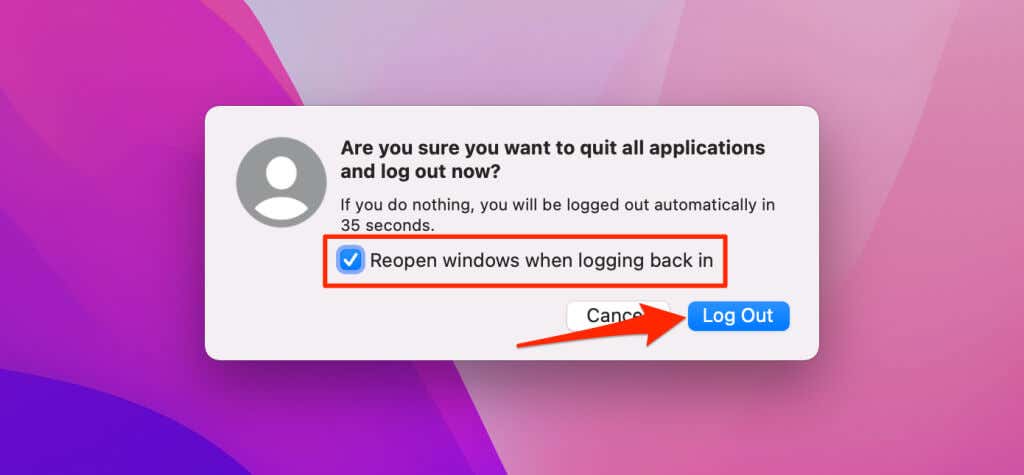
Sign in to your Mac and check if the app(s) run smoothly when reopened. Restart your Mac computer if the app(s) issue persists. Some third-party cleaning and optimization tools can also help close unresponsive programs on your Mac.
- How to Connect Xbox Controllers to Your Mac
- How to Chromecast From Mac to Your TV
- How to Install and Run Linux on Mac
- How to Turn Off or Delete Siri Suggestions (iPhone and Mac)
- How to Take Pictures on Mac
