Your Apple Watch works best if it has an active connection to your iPhone. Thankfully, you don’t usually have to worry about that because both devices automatically communicate over Bluetooth so long as you keep them in close range.
1. Check Bluetooth Status
Your Apple Watch and iPhone require Bluetooth for connectivity, so it’s good to kick things off by checking if Bluetooth is operational on both devices.
Check Apple Watch Bluetooth Status
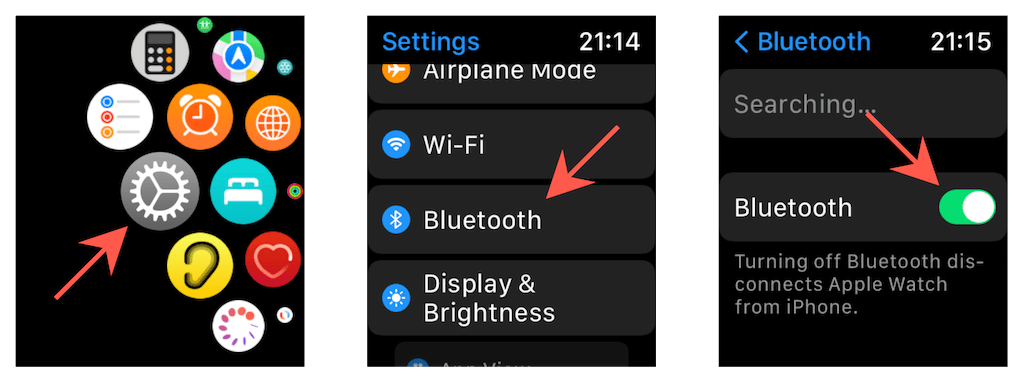
Press the Digital Crown and open the Settings app (tap the gear-shaped icon).
Scroll down and tap Bluetooth .
Make sure that the switch next to Bluetooth is on.
Check iPhone Bluetooth Status
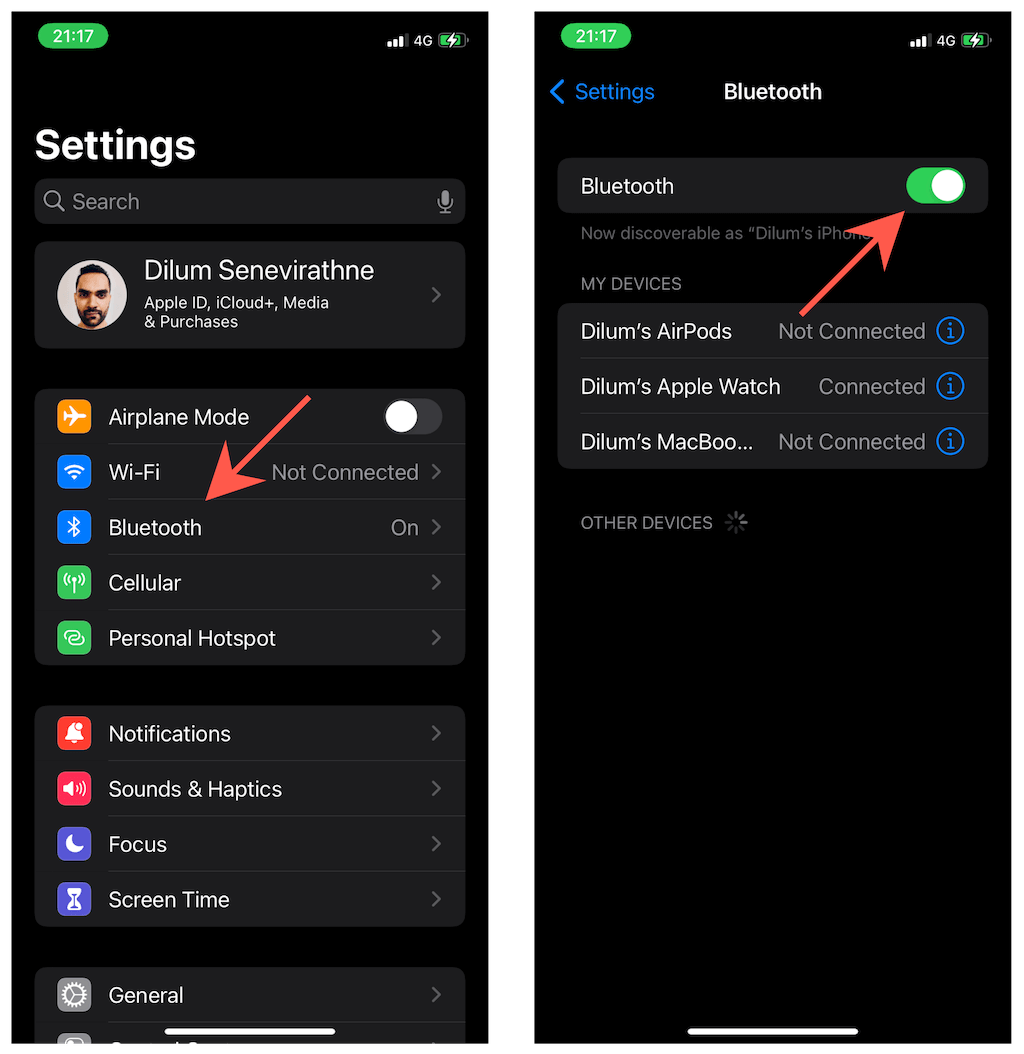
Open the Settings app on your iPhone.
Tap Bluetooth to access your Bluetooth settings.
Make sure that the switch next to Bluetooth is on.
2. Toggle Airplane Mode
Turning Airplane Mode on and off restarts Bluetooth on your Apple Watch and iPhone. That usually ends random connectivity issues preventing Bluetooth devices from communicating.
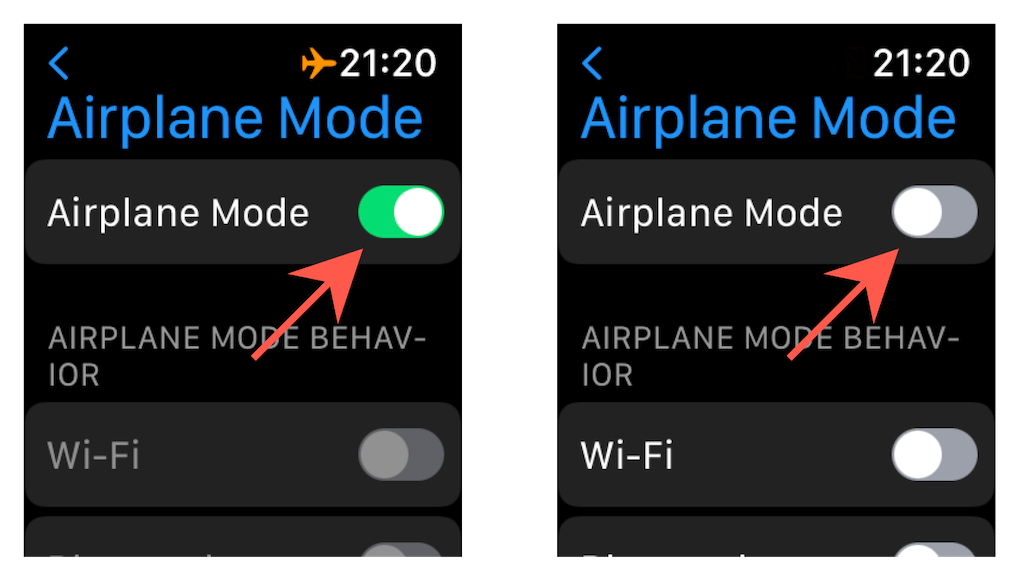
Toggle Airplane Mode on Apple Watch
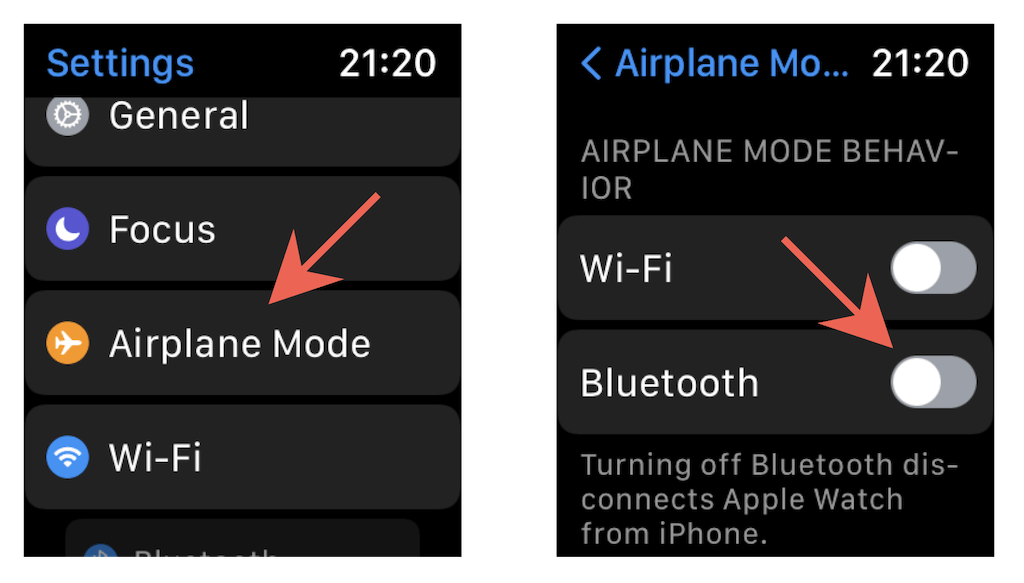
Open the Settings app on your Apple Watch.
Scroll down and tap Airplane Mode .
Under the Airplane Mode Behavior section, turn Bluetooth off.
Activate the switch next to Airplane Mode .
Wait for 10 seconds and deactivate Airplane Mode .
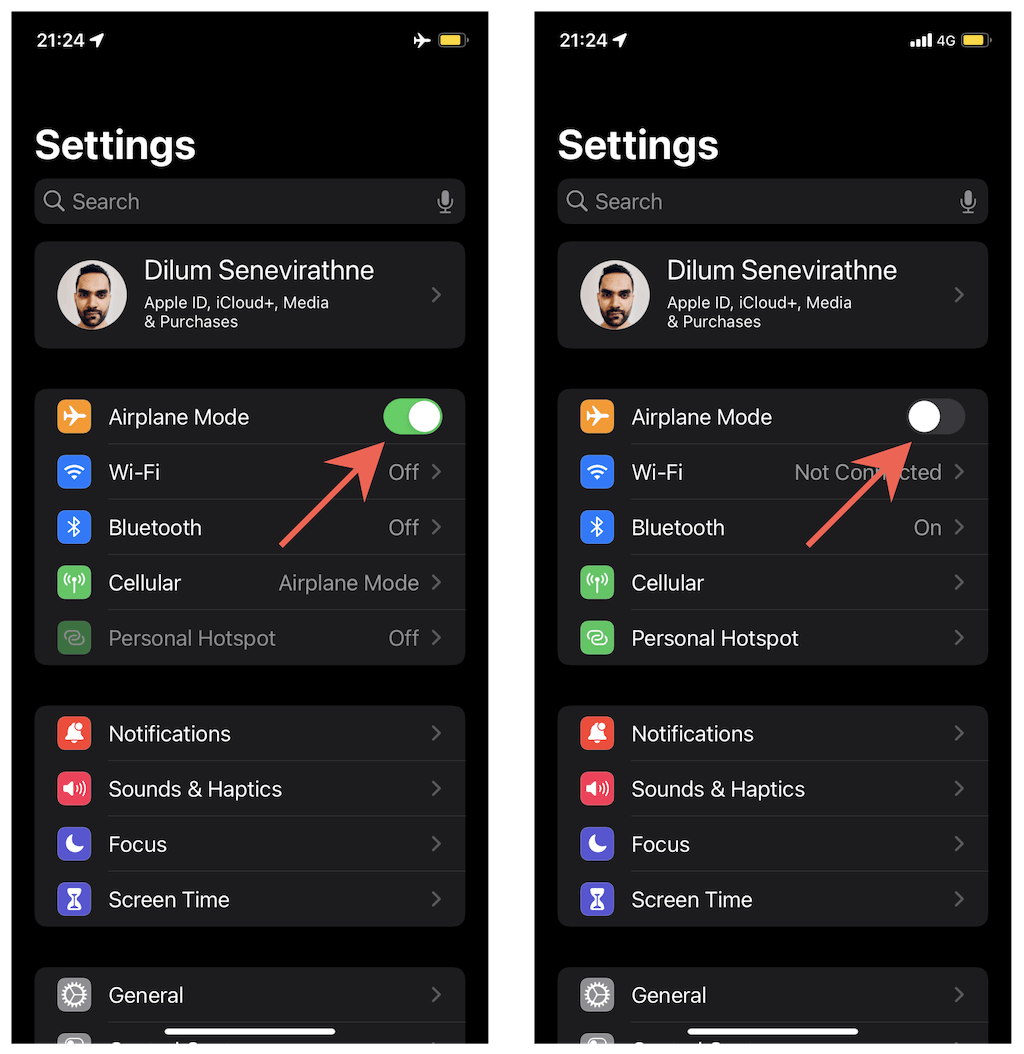
Toggle Airplane Mode on iPhone
Open the Settings app on your iPhone.
Turn on the switch next to Airplane Mode . If that doesn’t change the status next to Bluetooth to Off , tap Bluetooth , disable Bluetooth , and head back to the previous screen.
Wait for 10 seconds and deactivate Airplane Mode . If you had to disable Bluetooth manually in the previous step, the status next to Bluetooth should automatically change to On .
3. Restart Devices
If Bluetooth isn’t a factor, try restarting your Apple Watch and iPhone. It’s another quick fix that can resolve issues caused by random bugs and glitches with the system software.
Restart Apple Watch
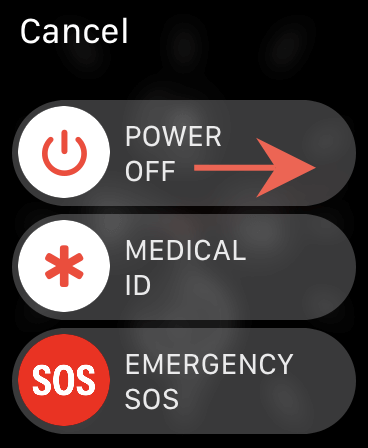
Press and hold the Side button until you see the Power Off screen.
Drag the Power icon to the right and wait for 30 seconds.
Hold down the Side button again until you see the Apple logo to turn your watch back on.
Restart iPhone
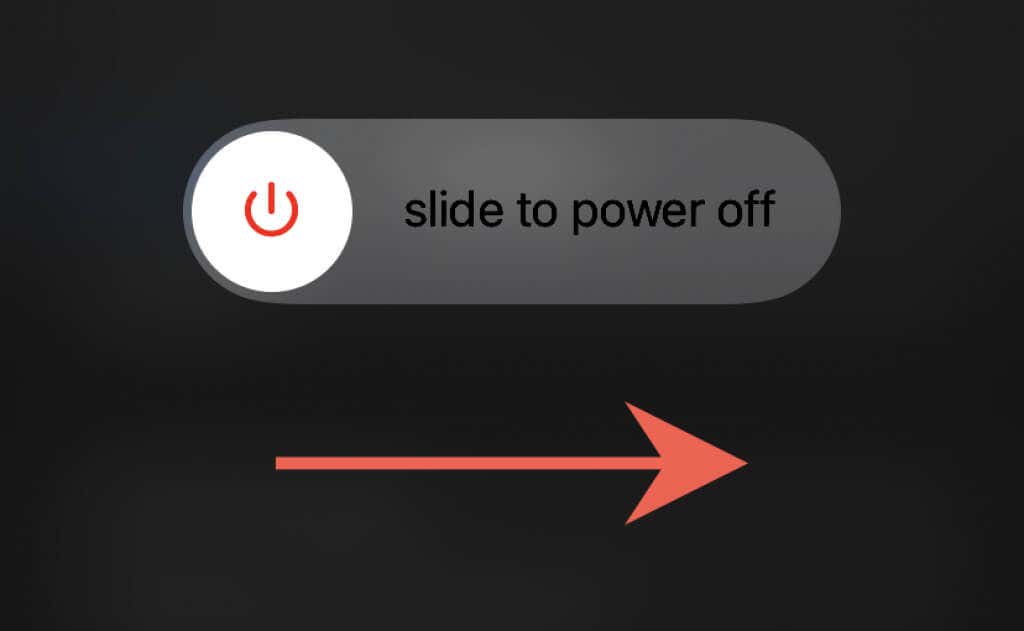
Open the Settings app and tap General > Shut Down .
Drag the Power icon to the right and wait for 30 seconds.
Hold down the Side / Power button until you see the Apple logo to turn your iPhone back on.
4. Update System Software
Updating the Apple Watch and iPhone system software could also resolve persistent communication issues. As long as you have access to Wi-Fi, you can update both Apple devices using the following steps.
Update System Software on Apple Watch
Place your Apple Watch on its magnetic charger. You’ll also need it to be charged to at least 50% to start the update.
Swipe up from the bottom of the watch face to open the Control Center. Then, tap and hold the Wi-Fi icon and connect it to an available Wi-Fi network (if it isn’t connected already).
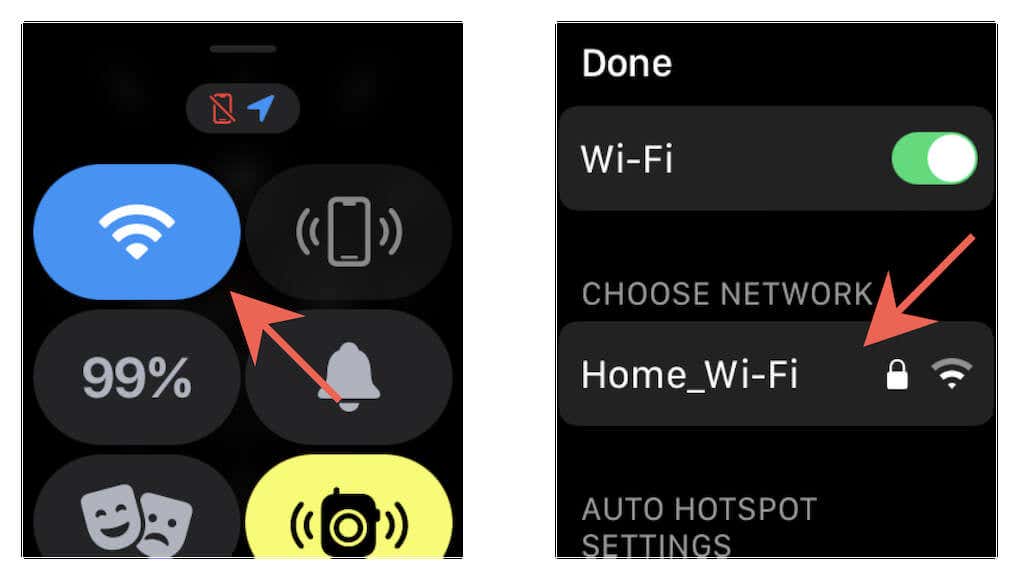
Press the Digital Crown and tap Settings .
Scroll down and tap Software Update .
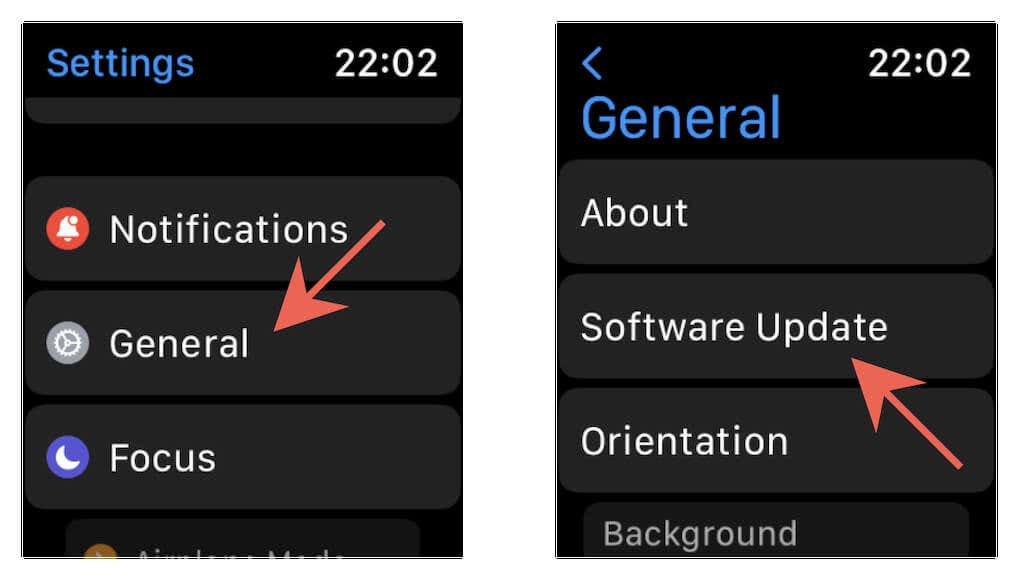
Wait until your smartwatch scans for newer updates.
Tap Download and Install to update watchOS to its latest version.
Update System Software on iPhone
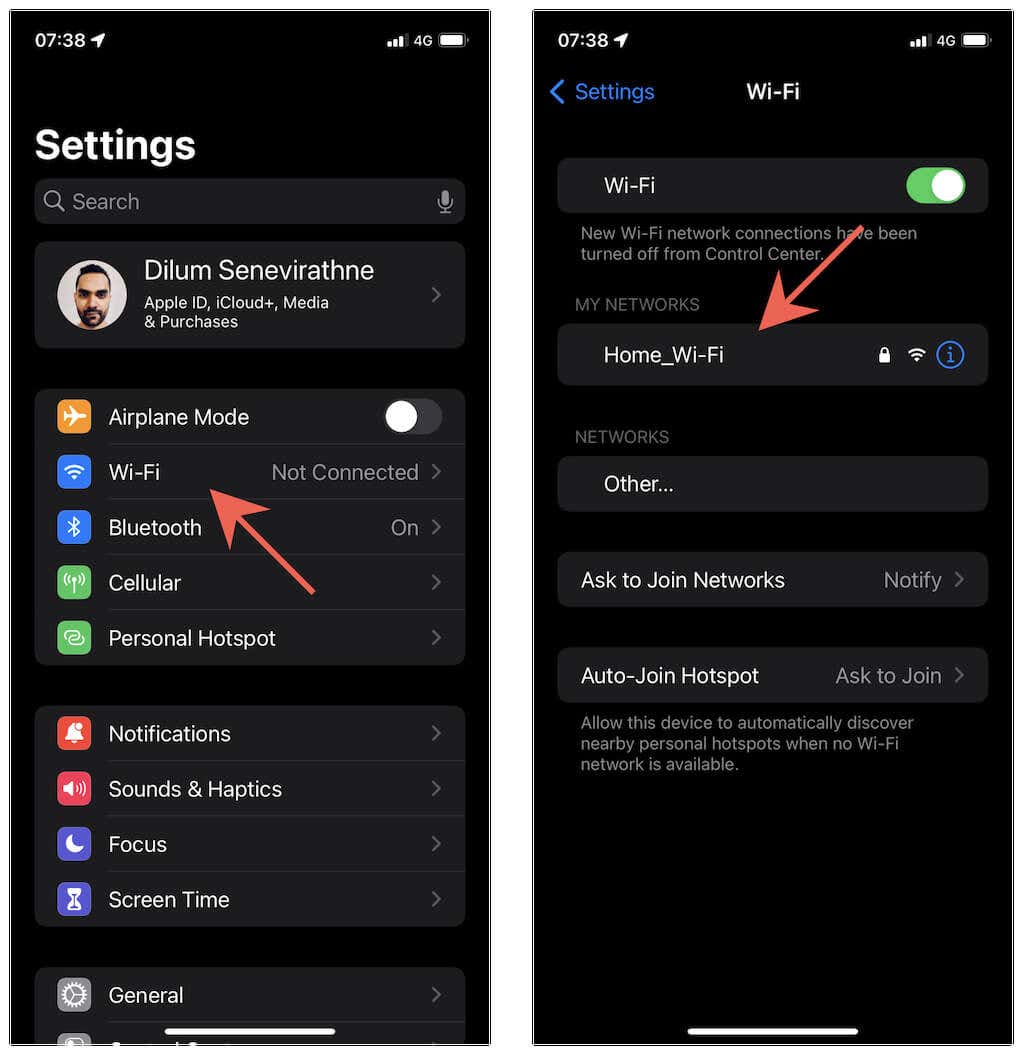
Open the Settings app on your iPhone.
Tap Wi-Fi and connect to an available Wi-Fi network (if it isn’t connected already). Then, head back to the previous screen.
Tap General .
Tap Software Update .
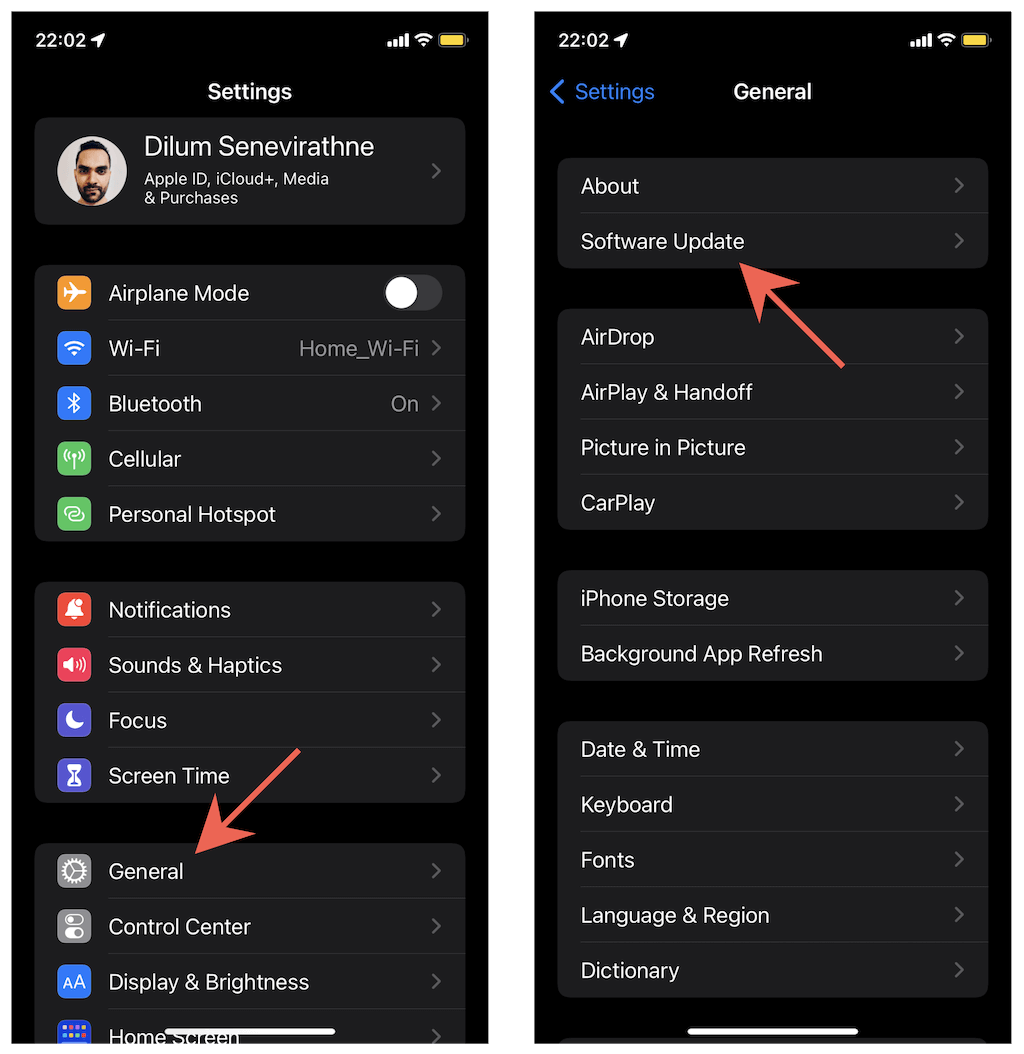
Wait until your phone scans for newer updates.
Tap Download and Install to update iOS. If the battery level is below 50%, you must connect your iPhone to a charging source to complete the update.
Related : Do operating system updates fail on your Apple Watch or iPhone? Learn how to fix stuck watchOS or iOS updates .
5. Reset Network Settings on iPhone
If connectivity problems persist between your Apple Watch and iPhone, try resetting the network settings on the iOS device. That could rectify a potentially corrupt Bluetooth configuration.
Note: This process will disconnect you from any Wi-Fi networks as well, so make sure you know the password to your Wi-Fi before you start so you can connect it again.
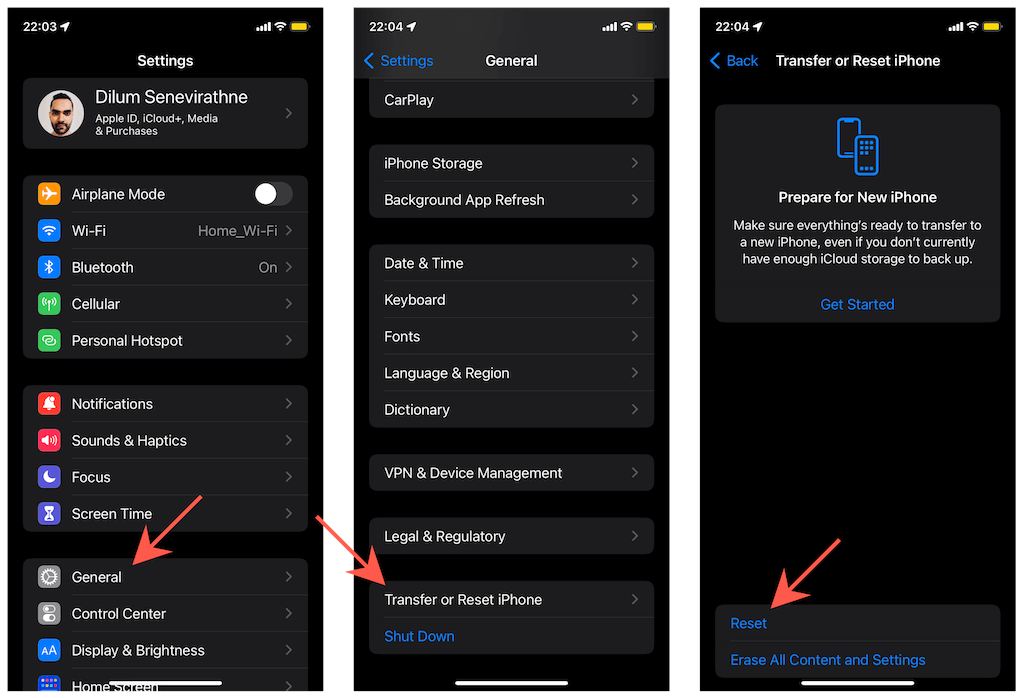
Open the Settings app on your iPhone.
Go to General > Transfer or Reset iPhone > Reset .
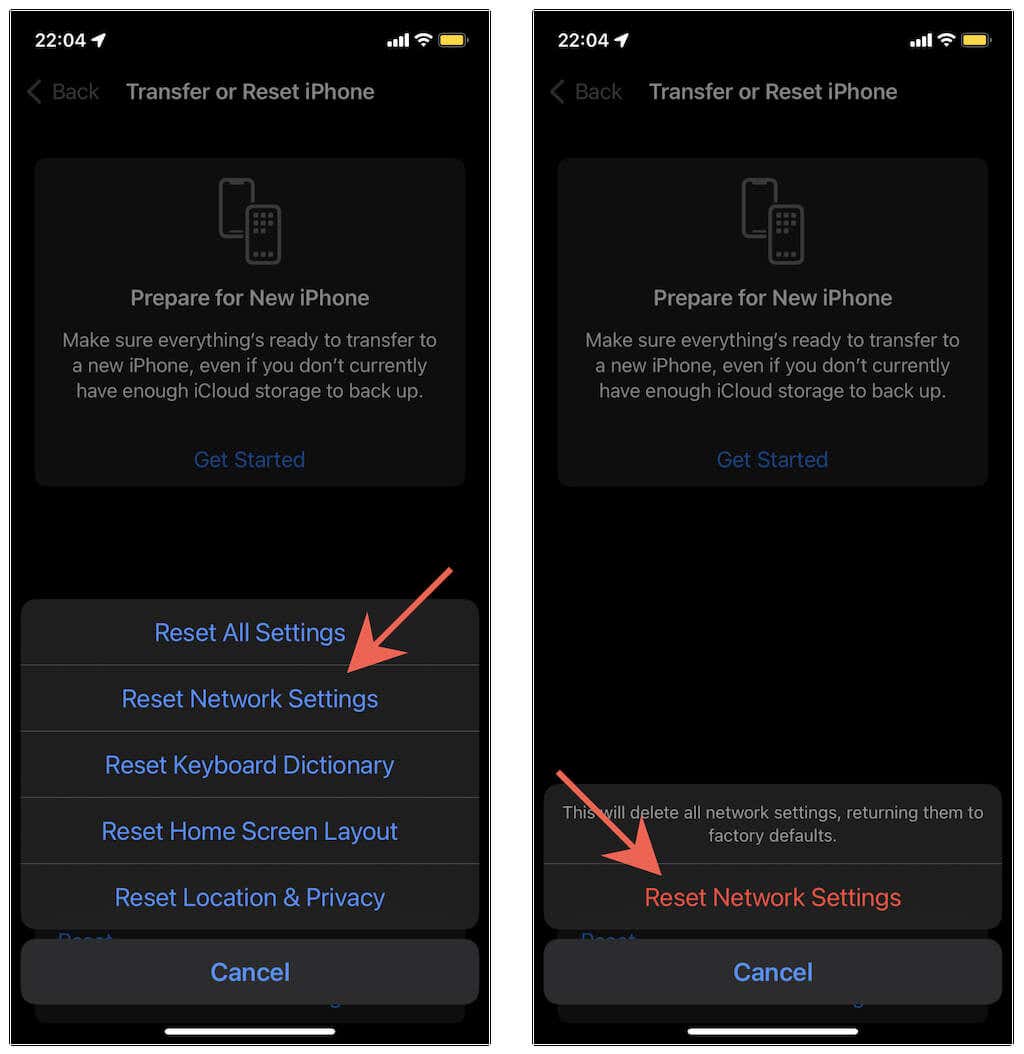
Tap Reset Network Settings .
Enter your device passcode.
Tap Reset Network Settings again.
6. Unpair and Reconnect Watch
If none of the fixes above help, the next logical step is to reset your Apple Watch to factory defaults . We recommend that you do that through the Apple Watch app on the iPhone because that creates an up-to-date backup of your data that you can restore later.
Reset Apple Watch Using iPhone
If your Apple Watch has an active connection to the paired iPhone:
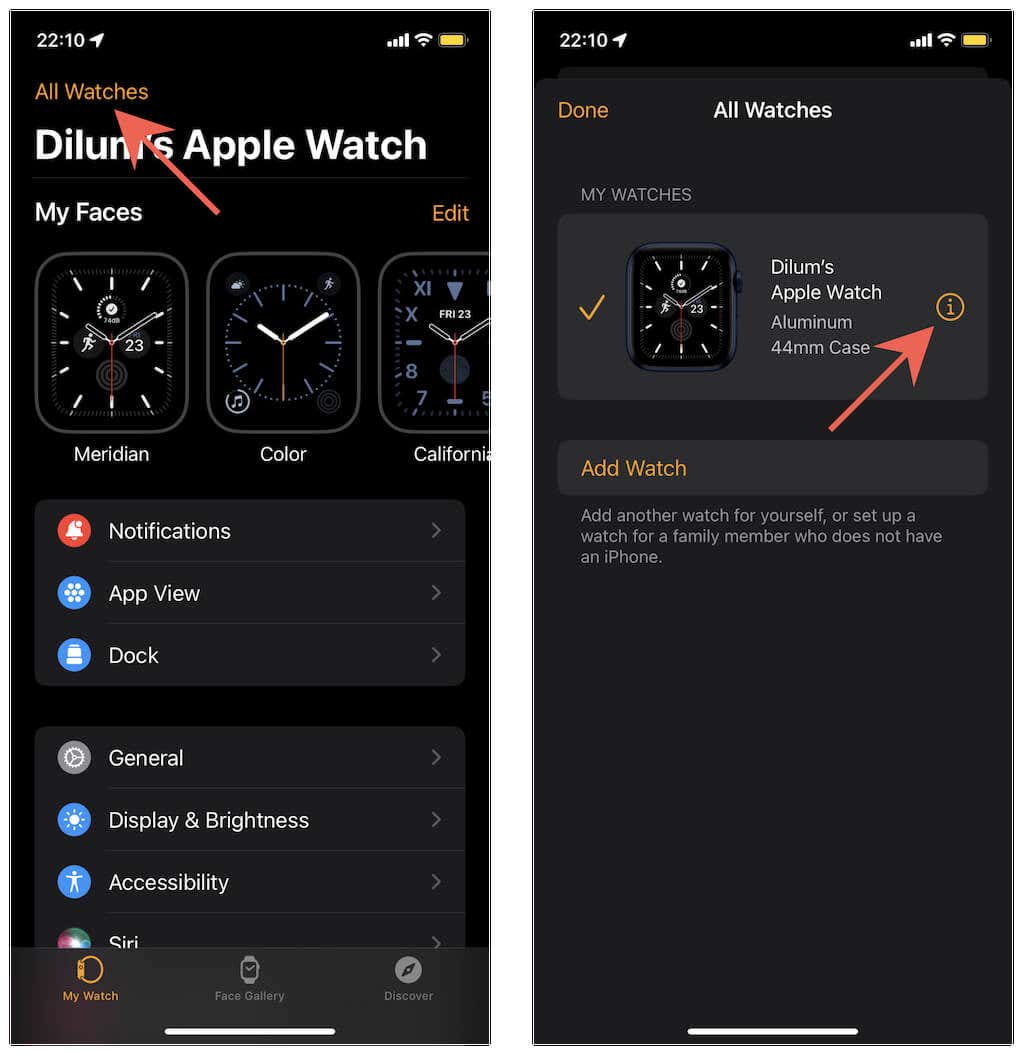
Open the Apple Watch app and switch to the My Watch tab.
Tap the All Watches option at the top left corner of the screen.
Tap the Info icon next to your Apple Watch.
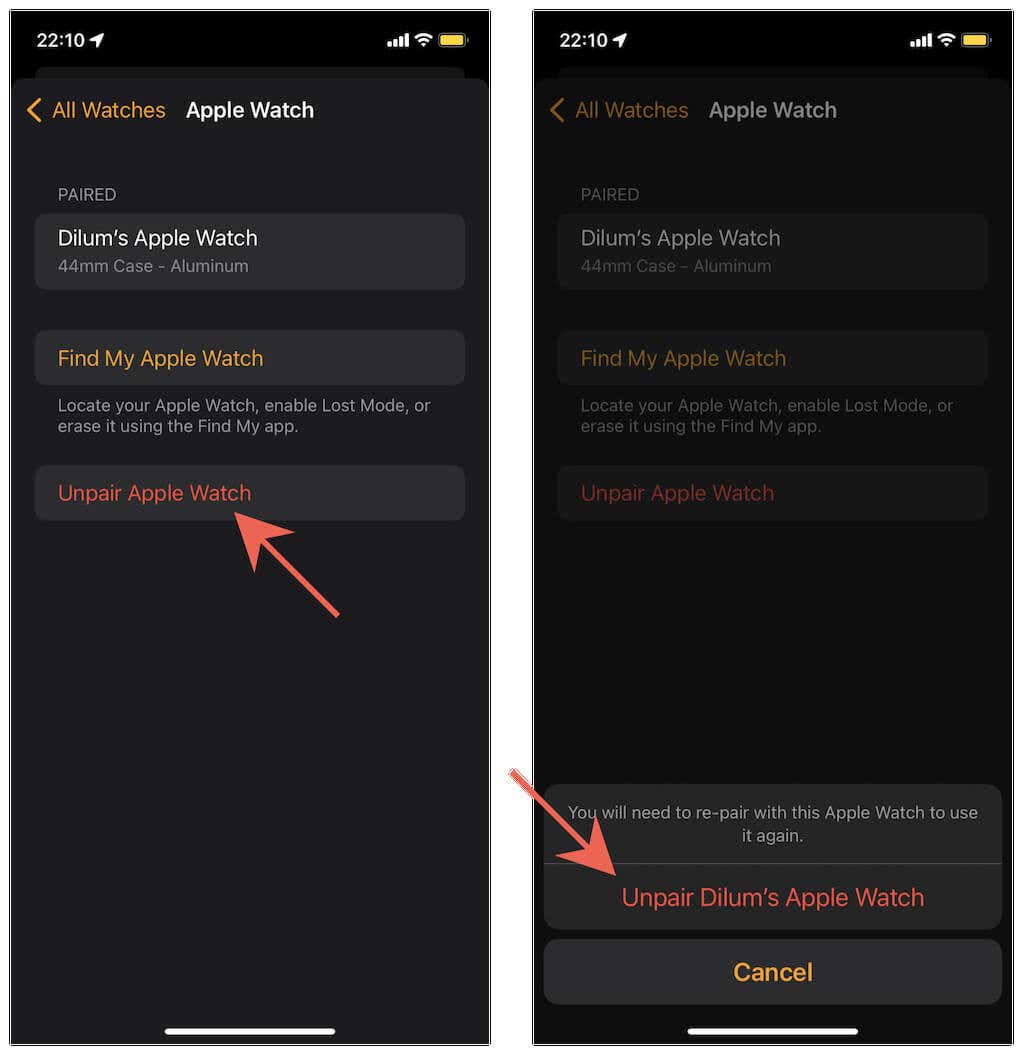
Tap Unpair Apple Watch .
Tap Unpair [Your Name’s] Apple Watch to confirm.
Reset Apple Watch via watchOS
If your Apple Watch does not have an active connection to your iPhone:
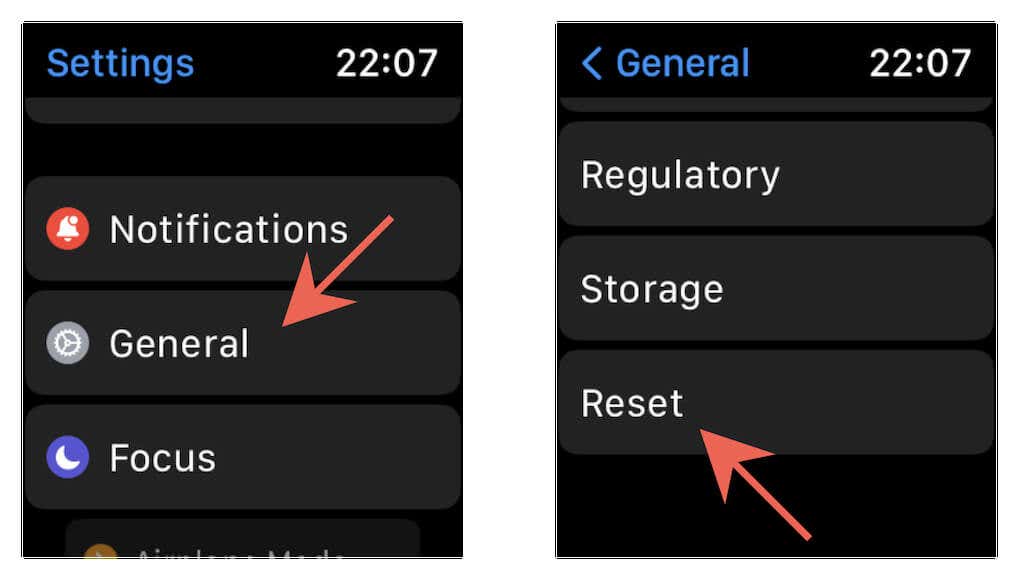
Press the Digital Crown and tap Settings .
Tap General .
Scroll down and tap Reset .
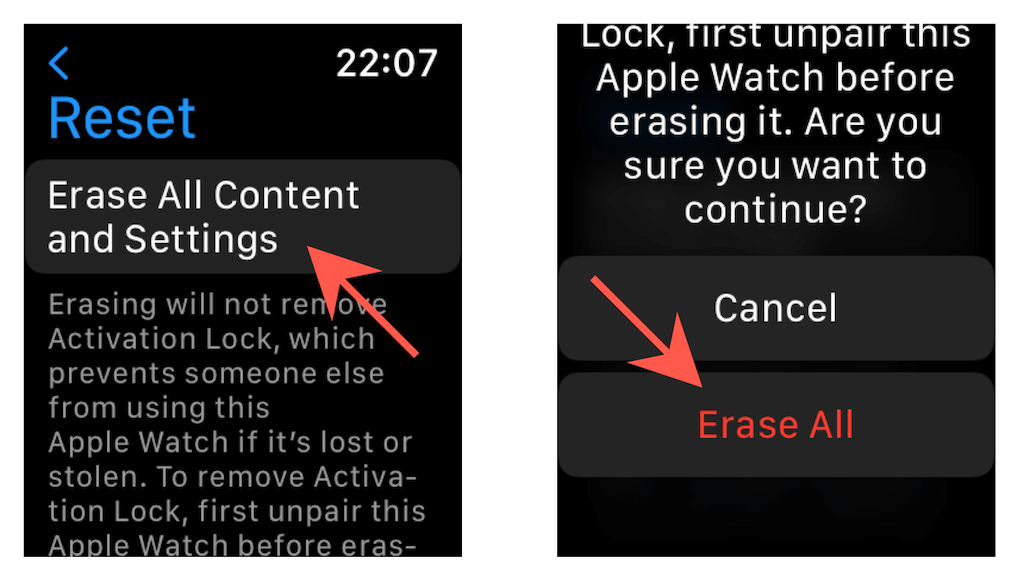
Tap Erase All Content and Settings .
Enter your device passcode and tap Erase All to confirm.
Follow that by reconnecting the Apple Watch to your iPhone . If your iOS device has a backup of your Apple Watch data, you can restore it .
Strong Relationship
Toggling Airplane Mode or rebooting the system software is all it usually takes to resolve communication issues between the Apple Watch and iPhone. Only resort to advanced troubleshooting if the problem occurs again and again. If nothing works and the Apple Watch keeps disconnecting, contact Apple Support to figure out what to do next.
- Fix Apple Watch Charging Problems (All Models)
- How to Set Your Apple Watch to Vibrate Only
- How to Delete a Workout on Apple Watch
- How to Delete Messages on Apple Watch
- Why Your Apple Watch Keeps Locking When on Wrist (And How to Fix It)
