The macOS Applications folder is the go-to spot for all of your apps. We’ll show you several ways to open the Applications folder on your Mac.
1. View the Finder Sidebar
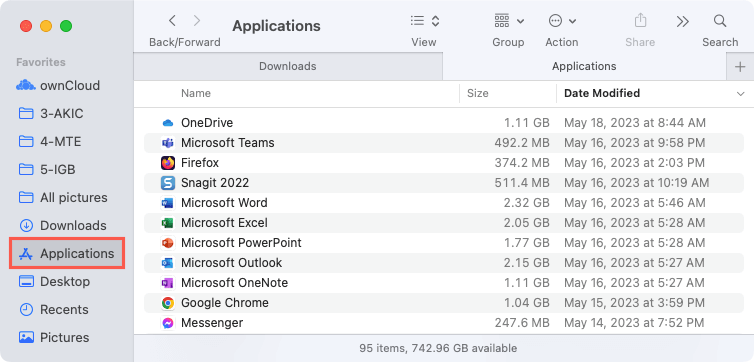
The fastest way to open the Mac Applications folder is from your Finder sidebar .
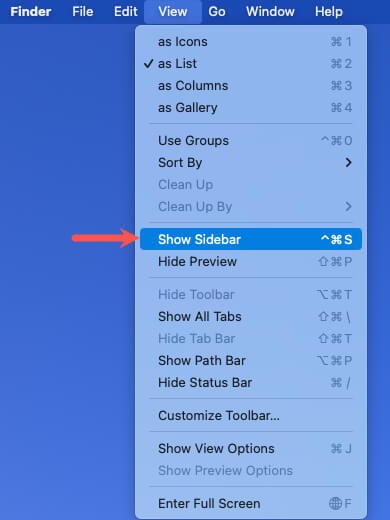
Open a new Finder window and display the sidebar. You can do this by selecting View > Show Sidebar if it’s hidden.
Select Applications in the Favorites section below the Downloads folder and you’ll see it open right up.
2. Open the Finder Go Menu
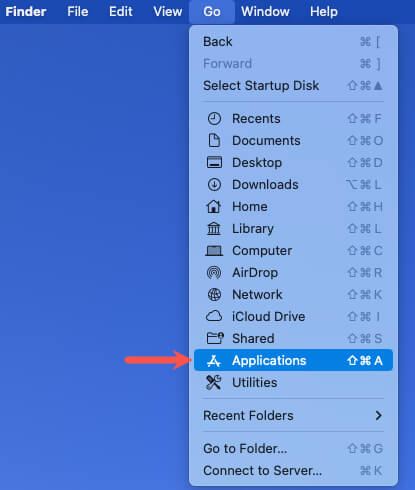
Another quick way to open the Applications folder is using the Finder Go menu. With Finder active, select Go in the menu bar and choose Applications .
3. Use a Keyboard Shortcut
One more way to use Finder to open the Applications folder is with a Mac keyboard shortcut . With Finder active, use the shortcut Shift + Command + A and you’ll see the folder open.
4. Open Spotlight Search
If you use the Spotlight Search feature to locate items on your Mac, you can also use it to open the Applications folder.
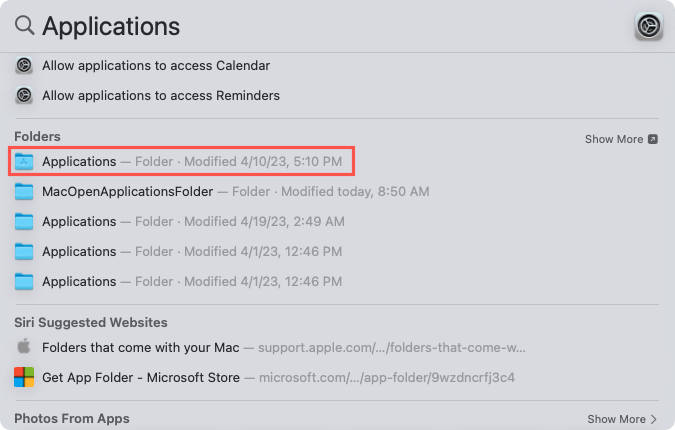
Select the Search button in your menu bar , enter “Applications,” and hit Return .

You’ll see various results for your search term. Scroll down until you see the Applications folder and select it to open the folder.
5. Access Launchpad
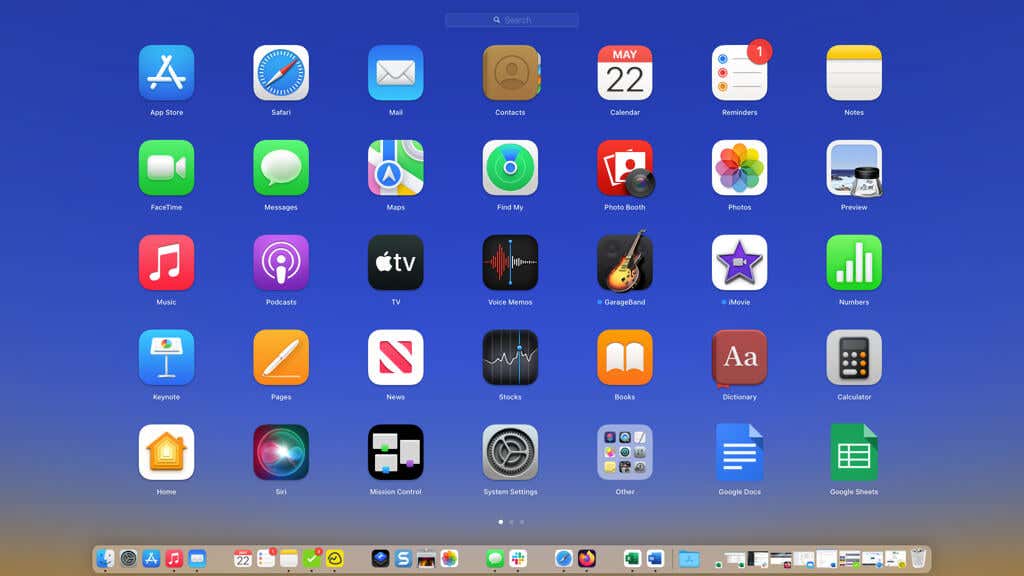
An easy way to get to the app you want without technically opening the Applications folder is with Launchpad.
Select the Launchpad icon in your Dock. You’ll then see all of your Apple apps, third-party applications, and subfolders. You can choose one to open it or use the Search field to find the one you want.
6. Add the Applications Folder to Your Dock
If you find yourself opening the Applications folder several times a day, you can place it in your Dock for the easiest access of all.
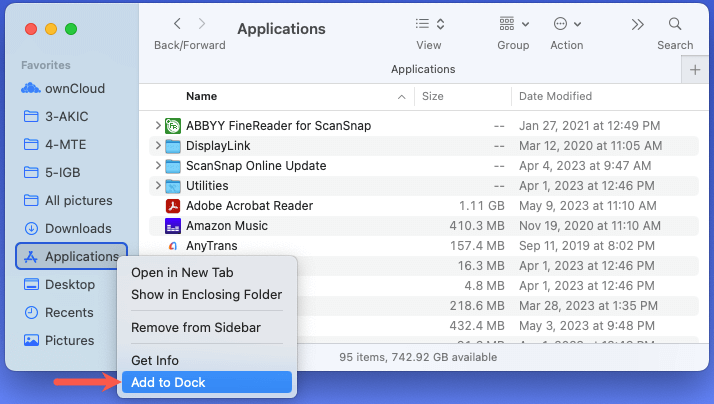
Open Finder , drag the Applications folder to the right side of your Dock, and release. You can also right-click Applications in the Finder sidebar and choose Add to Dock in the drop-down menu.
You’ll then see the Applications icon in your Dock.
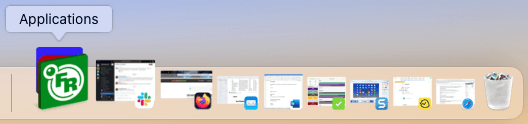
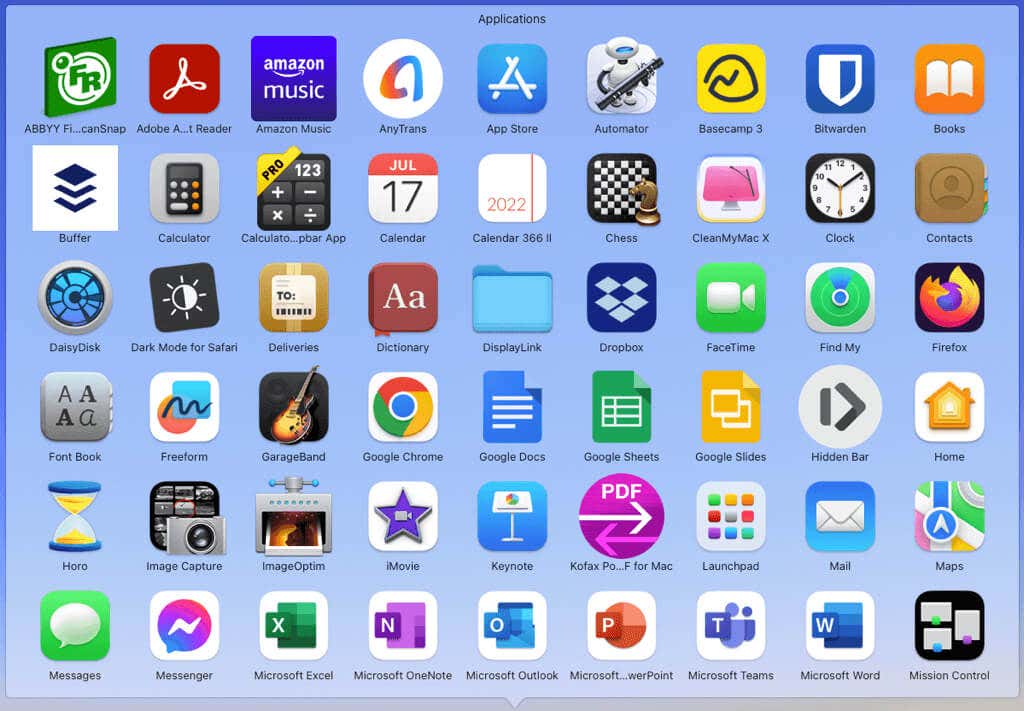
Simply click to open and view all of your Mac apps and third-party tools and select one to launch it.
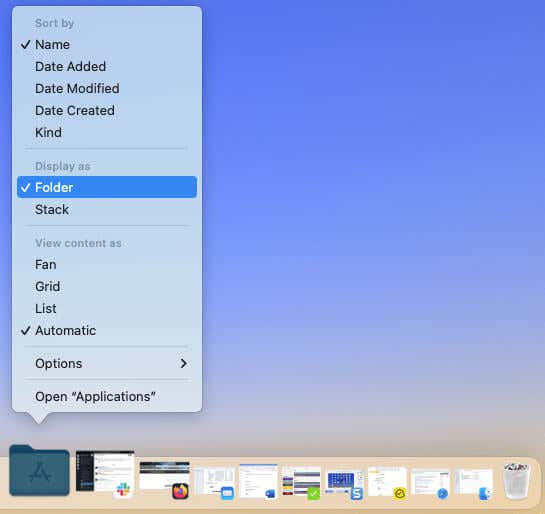
You can also right-click the icon to do things like sort the contents, display the icon as a folder, and view the content in a different layout.
If you decide to remove the folder from this spot later, right-click, move to Options , and pick Remove from Dock .
With these simple ways to open your Applications folder on Mac, you’ll always have the apps you need at your fingertips.
- How to Connect Xbox Controllers to Your Mac
- How to Chromecast From Mac to Your TV
- How to Install and Run Linux on Mac
- How to Turn Off or Delete Siri Suggestions (iPhone and Mac)
- How to Take Pictures on Mac
