If you play video games on a PC, chances are you’ve heard all about 144Hz and 240Hz monitors. If you’ve used a standard 60Hz monitor for all of your life so far, it can be hard to know whether moving to 144Hz or 240Hz will be a good idea or not.
In this article, we’ve laid out the basic differences between 60Hz, 144Hz, and 240Hz and have given some tips on when it’s best to upgrade. For those who are keeping track of these monitors for a future purchase, make sure to check out 144Hz Monitors and GamingScan for the latest news.
60Hz vs 144Hz vs 240Hz Monitors – What’s the Difference?

The ‘HZ’ used in a monitor’s description is used to describe its refresh rate. The higher the Hz, the more often the screen will refresh. For example, a 60Hz monitor will refresh its image 60 times per second, while a 144Hz monitor will refresh its image 144 times per second.
But what does that mean for real world use?
Essentially, a higher refresh rate will mean that the image you see is updated quicker. This can be very useful for action games or competitive games where every millisecond counts.
The refresh rate works similarly to how frames per second in a video game work, but there are differences.
Frames per second explain how many frames are rendered on your graphics card per second, while the monitor refresh rate explains how many times your image is actually updated on your monitor.
So, if you have 300 frames per second in a game but use a 60Hz monitor, what’s displayed to you will essentially have 5 times less frame ‘updates’ than could potentially be possible.
For this reason, moving to a new monitor with better refresh rate isn’t really worth it unless your graphics card can reliably run at 60 frames or higher. You can easily check the frames per second for a game on your system using different utilities.
Some people exclaim that the eye can only see up to a certain number of frames per second. This isn’t true whatsoever and has mostly been debunked as a myth. Our eyes don’t quite work the same ways as displays do, so it’s hard to measure how many ‘frames’ per second we can see.
What we do know is that those have used 144Hz monitors can agree that they can see and feel a difference when playing games.
In fact, the most notable difference is when a 144Hz user moves to a 60Hz display – many ongoing 144Hz display users mention that they can see everything from video games to the cursor speed on their desktop feel sluggish when going back to 60Hz.
Another important thing to keep in mind is that the display technology that’s usually used for higher refresh rate monitors is not the best option for overall display quality and color accuracy.
If you care about looks, go for a high quality 60Hz monitor. If you care about performance, frame rate, and getting a competitive edge, you should go for a higher refresh rate monitor.
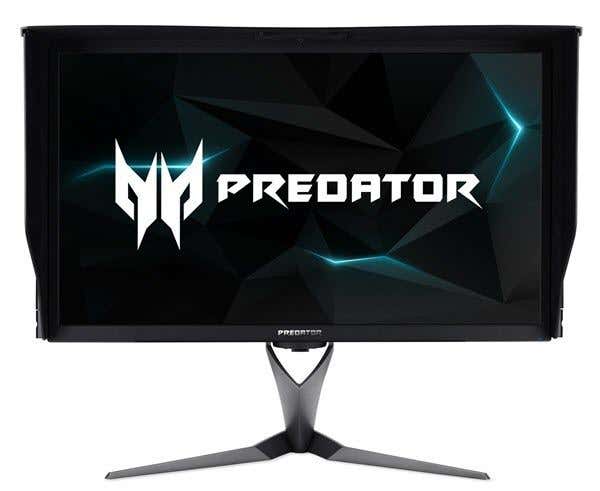
If you want both features in a single monitor, be ready to pay a hefty price. The newest Acer Predator X27 monitor has all the high-end features: 4K resolution, Nvidia G-sync, 144hz refresh rate, HDR, 1000 nits brightness, etc., but costs a whopping $2K right now. The Asus ROG Swift PG27UQ is similarly equipped and similarly priced.
Should You Upgrade From 60Hz To 144Hz?
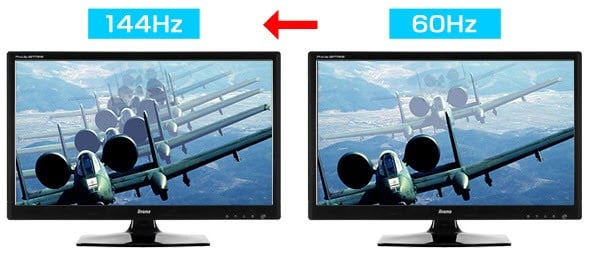
We’re now reaching a point where it’s quite easy to purchase or build a computer that’s capable of running 120 or fps or more in a video game. In fact, most of the esports games available on PC can receive up to 300 frames per second on high end machines.
If you can reliably run the games you play on more than 120 frames per seconds, then upgrading to 144Hz is worth it, but it should only be considered an option if you care about improving performance.
144Hz monitors are used most often in games like Counter Strike: Global Offensive or League of Legends where every extra frame and micromovement counts for something.
Here’s a checklist to consider before upgrading:
● You want a competitive edge ● You don’t mind losing a bit of color accuracy or display quality in movies and games for better performance ● Your computer is capable of running games at 100 frames or more.
Obviously, the higher the resolution of your monitor, the beefier graphics card you will need to get those higher frame rates. Currently, no graphics card can pump over 60 fps on a 4K monitor with ultra settings. You’ll have to wait till the new NVIDIA GTX 11xx series cards come out at the end of 2018.
Still, you can future-proof your purchase by getting a monitor that can handle higher frame rates so that your gaming will greatly benefit if you decide to upgrade your graphics card later.
Should You Upgrade from 144Hz to 240Hz?
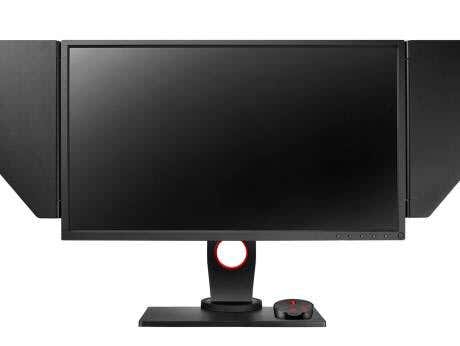
240Hz monitors are far newer than 144Hz monitors, but they’re starting to become more commonplace.
The general consensus for 240Hz monitors seems to be that if your computer can reliably handle 240 frames in a game, it can be a worthwhile upgrade. This is only appropriate for 1920×1080 monitors at this point. It’ll be a long time before you’ll see 240hz 4K monitors.
Many consumer reviews and reports on 240Hz monitors suggest that the upgrade from 144Hz to 240Hz doesn’t quite offer that same jump in performance that going from 60Hz to 144Hz offers, but there is a noticeable difference.
It’s also worth noting that there are some monitors that have a 200Hz refresh rate that have higher resolutions like 2560×1080 or 3440×1440 (ultrawide). Some examples include the Acer Predator x35 and the Asus ROG Swift PG35VQ . Neither have been released yet.
We’ve provided a checklist below to help you decide whether upgrading to 240Hz is worth it:
● You compete in video games at a high level ● You want the absolute best edge you can get against other players ● Your computer can reliably run the games you play competitively at 240 frames or more ● You don’t mind paying out a lot for a monitor and are aware that the price for the 240Hz monitors may drop as the technology becomes more popular
That wraps up our comparison on 60Hz, 144Hz, and 240Hz monitors. What are your thoughts? Will you be upgrading your monitor any time soon? Enjoy!
- Tribit StormBox 2: The Under $70 Portable Speaker that Stands Out
- ENGWE L20 2.0 Review: The Best Budget-Friendly Foldable E-Bike?
- TopDon TC004 – a Thermal Imaging Camera That Will Give You Predator Vision
- Newyes Portable Wireless Thermal A4 Printer Review
- Eskute Star Folding Fat Tire Electric Bike Review
If you don’t have a full-sized printing machine at home and often need to print a document on the go, check out the Newyes portable printer . This wireless printer is lightweight and small enough to fit in your bag. Not to mention it’s environmentally friendly, since it uses thermal paper instead of ink.
Follow our review of the Newyes portable wireless thermal printer to see if it suits your printing needs.
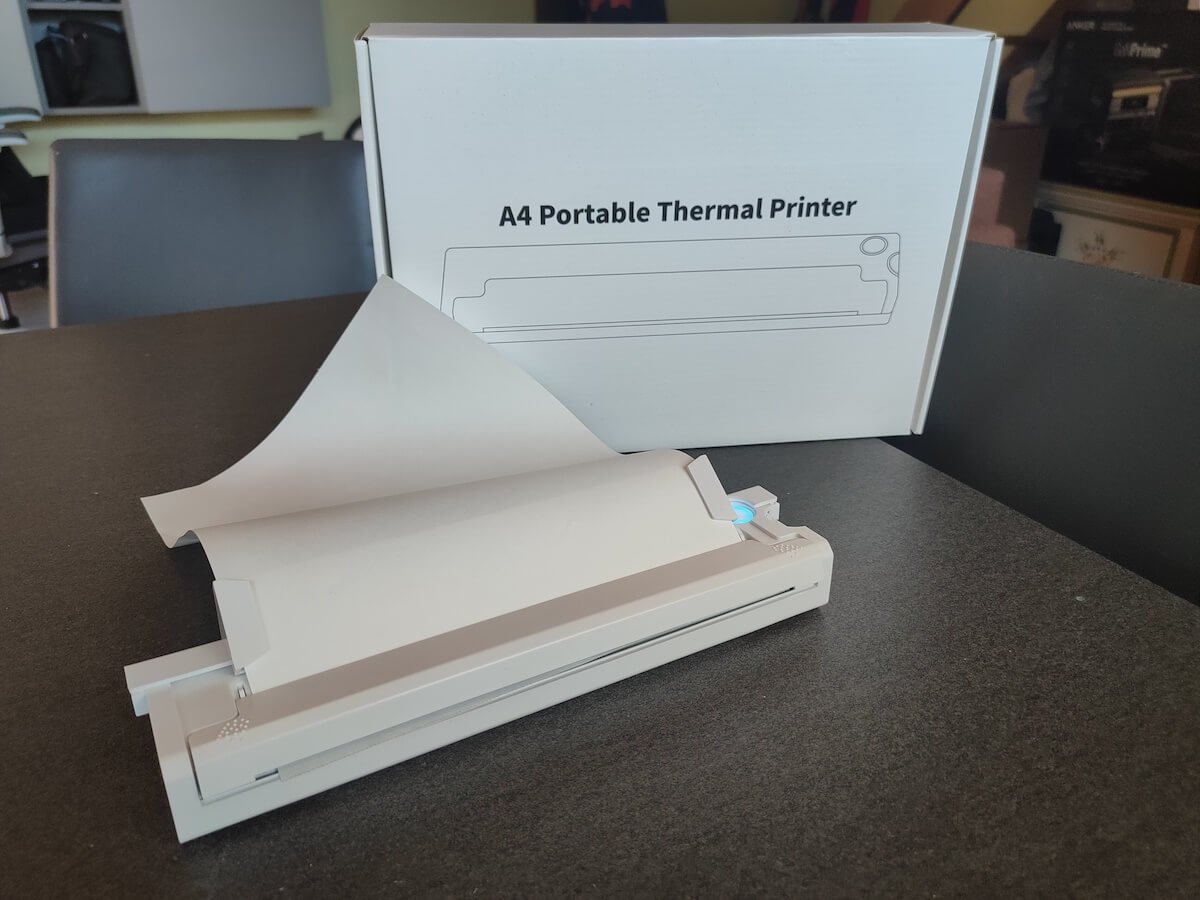
Newyes Portable Wireless Thermal A4 Printer: First Impressions & Specs
When I was a student, I remember my university always required hard copies of documents. Luckily, there was a print shop on campus where I could always pop in to print something.
Then I became a professional, and to my surprise many life spheres still required me to have printed versions of documents with me. Of course you can get your own full-sized machine to print things at home, but if like me you live in a small apartment, you value every extra bit of space and don’t want a massive printer to take it up.
One day, when I was looking for a neighbor with a printer to help me with my event tickets, they introduced me to the concept of a portable printer. Seeing how easy it is to use, I immediately wanted to get my hands on one of those. So here I am, reviewing one of the most useful gadgets I received recently – the Newyes portable thermal printer.
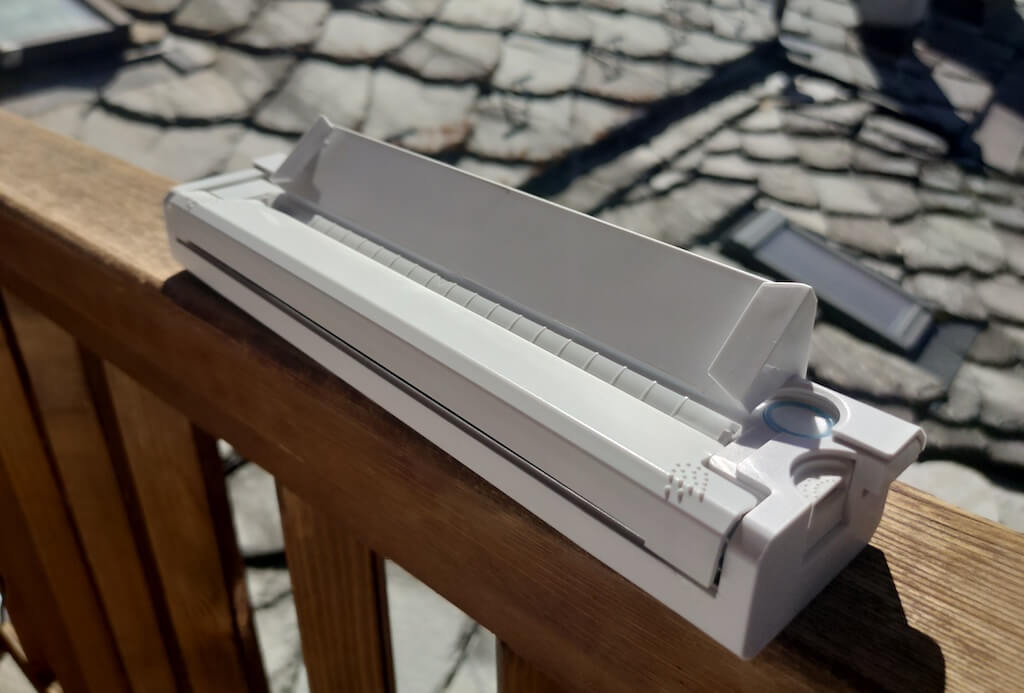
Before we continue with this review, here is the full list of specs of this printer.
- Model: Newyes LD0801
- Dimensions: 10.4 x 1.2 x 2.28 in (265 x 58 x 30.5 mm)
- Weight: 16.8oz (475g)
- Paper format: A4
- Paper width: 210mm or 218mm
- Printing Type: thermal paper
- Resolution: 203DPI
- Connectivity: Bluetooth
- Charging port: USB type-C port
- Input Voltage: DC 5V / 2A
- Battery: 1200mAh lithium battery
- Charging time: 75 min
- Automatic shut down: after 30 minutes
- Stand-by: about 30 days
- Extra features: LED light, reset, on / off switch button
- Color: white, black
- Warranty: limited one year warranty
- Price: $199 on the Newyes website
If you find yourself in need of hard copies of important documents while on the move, the Newyes portable wireless thermal printer will become your go-to gadget. Newyes calls it “the world’s smallest printer”, and with the weight of under 500g this seems plausible. This mini printer offers a handy solution for those moments when you need to quickly print an important document but don’t have access to an office setup.
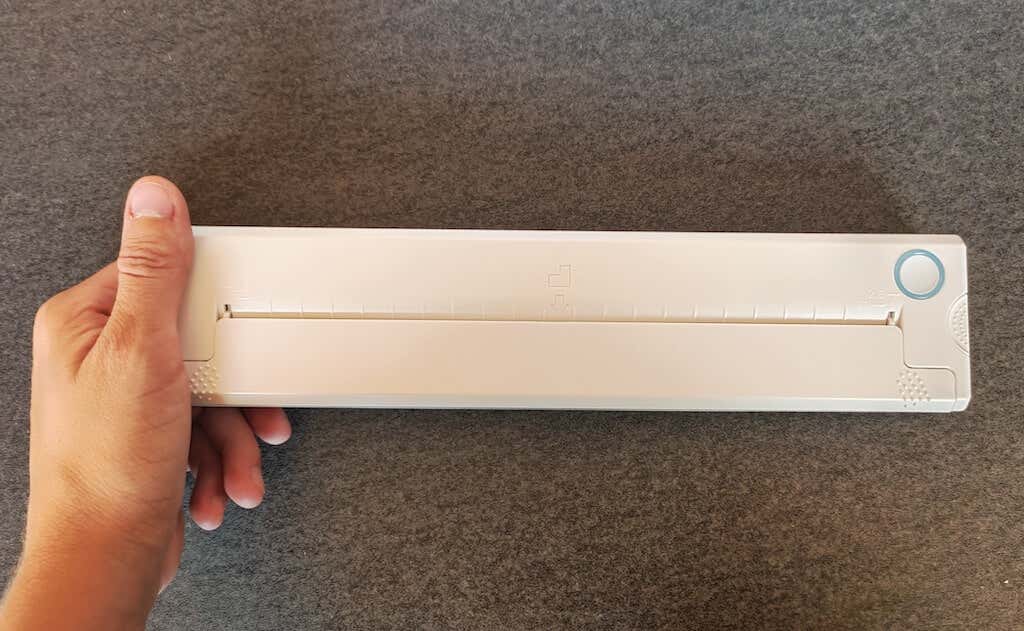
Operating this printer is a breeze – a simple Bluetooth connection is all that’s required. Once connected, just fire up the app, choose the file you want to print, and send it over. Efficiency is at the forefront, and you can easily print multiple sheets by inserting new pages back to back.
The only limitation this printer has is that it can only print in black. So even if your original file is in color, the printed document will still come out in black and white. Other than that – you can print a variety of file types including Excel, Word, PDF, JPG, PNG, and web pages – and it only takes seconds.
The Newyes portable wireless printer combines convenience, portability, and efficiency – all the things I appreciate in a modern gadget.
Design and Unpacking
Let’s have a closer look at the design and build of this smart printer, as well as what you get included in the package when you purchase it.
What’s in the Box
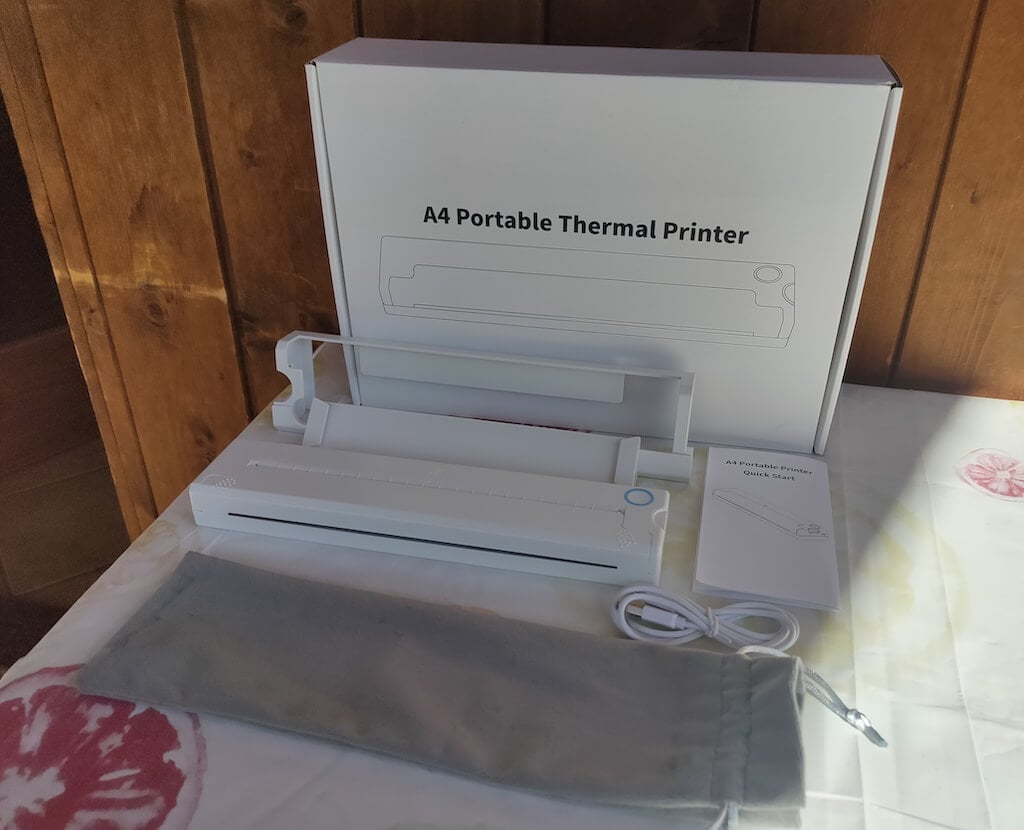
Here’s everything you’ll find when unpacking your Newyes portable thermal printer:
- The Newyes portable wireless thermal printer
- Bracket
- USB type-C cable
- Storage/carrying pouch
- 100pcs thermal printing paper
- User manual
You can use the Newyes portable printer right out of the box, as you’re all set with essential accessories. Aside from the printer itself, the package includes a bracket which will make printing more than one page smoother, a convenient storage bag for carrying your printer with you, a USB-C cable for charging, and a supply of 100 pieces of thermal paper to get you started.
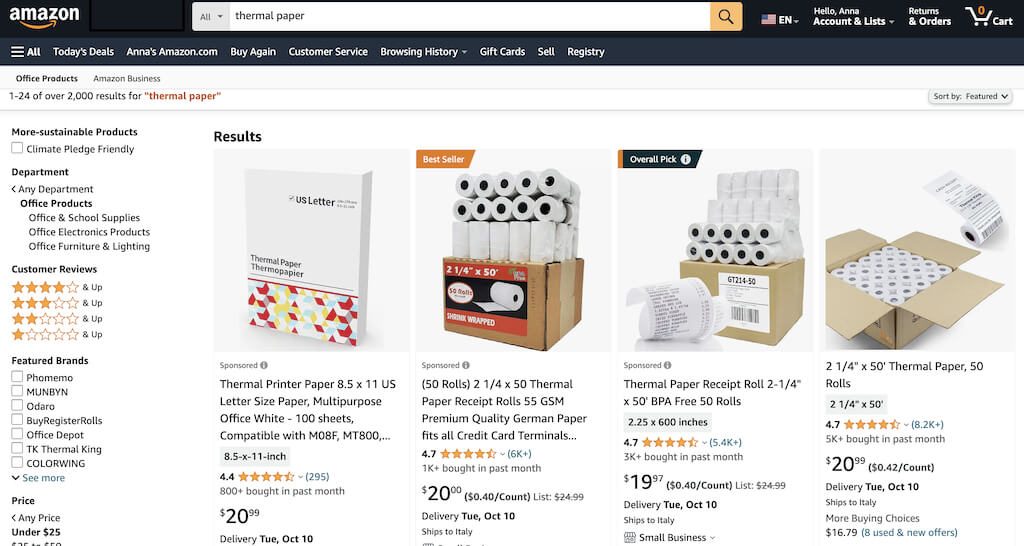
One important thing to remember is that this printer only works with thermal paper. While thermal paper is significantly more expensive than normal paper, this printer also uses inkless printing and works without a ribbon and toner. Since you don’t have to spend money on ink, carbon ribbons or toner cartridges, you ultimately end up saving money with thermal paper.
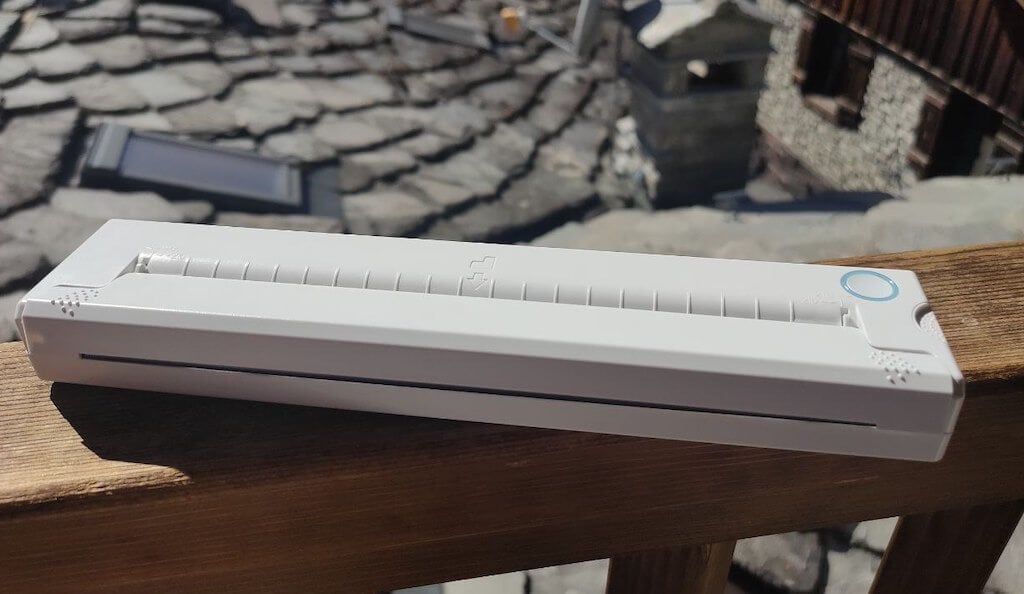
The Newyes LD0801 is a pocket-sized printer that features straightforward design. For the purpose of this review, I had a printer in white color. The printer looks like a small white brick with just two pressable buttons on top – one for switching it on and off, and another for opening the printer’s cover. You’ll also see the paper entry slot on top of the printer.
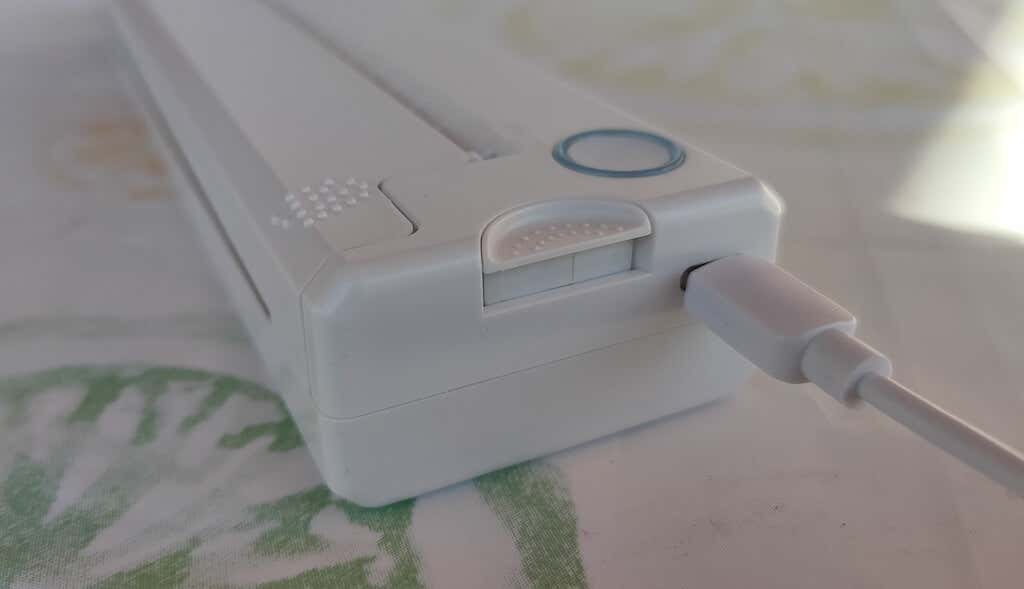
On the side of the printer, you’ll find a single charging port.
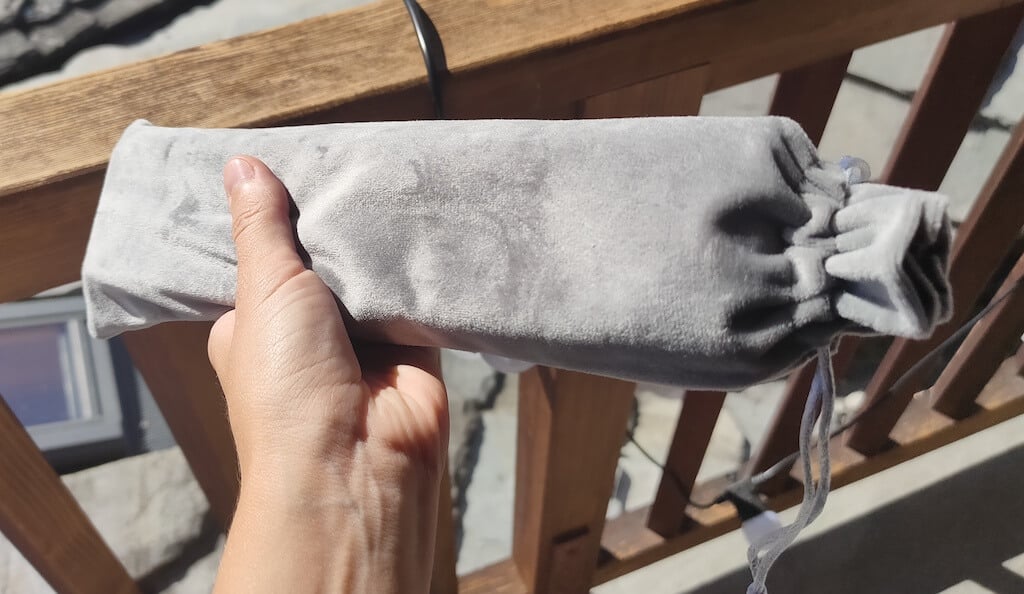
The printer is made of plastic, but the build feels sturdy. I never have to worry about throwing it into my bag or damaging it when traveling. Besides, you can use a nice carrying pouch included in the package for protection.
Performance & Features
According to Newyes, the portable printer has a “handheld size and two times the weight of an iPhone”. This can give you an idea of how portable and convenient this little gadget is. In a month of testing, I used it at home, in a store, and even in a car while on the road.
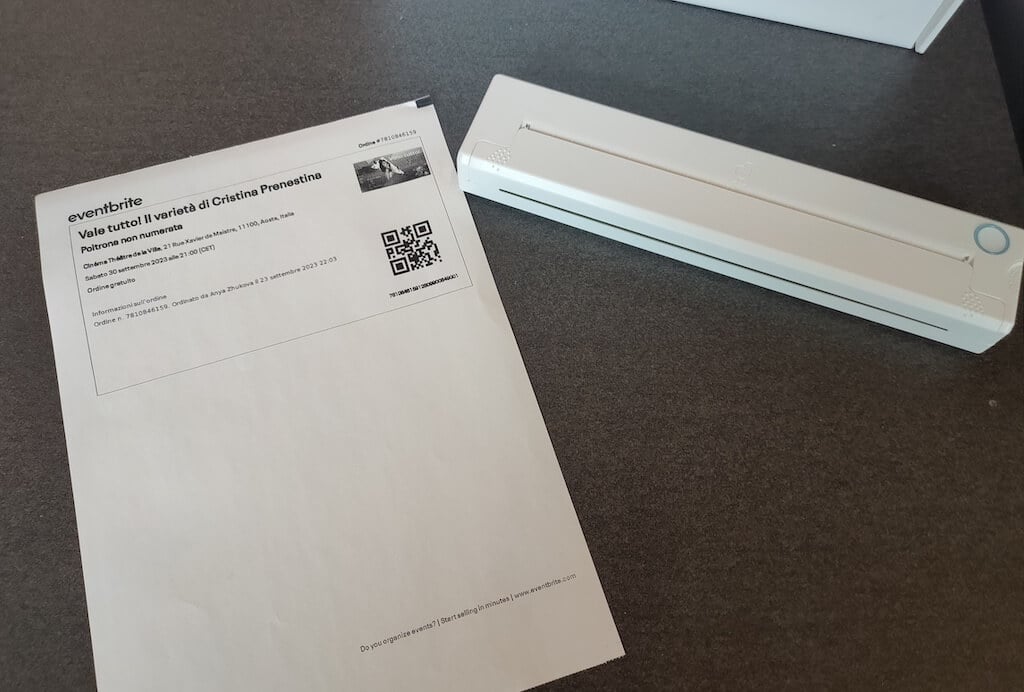
Using the printer is unbelievably easy. Connect it to your mobile phone via Bluetooth, press the button to turn the printer on and put a sheet of thermal paper into the paper entry slot. Make sure to use thermal paper and not standard paper, and put it with the black marks facing down. Bear in mind that the thermal printer can only print in black and white and only on one (marked) side of the thermal paper sheet.
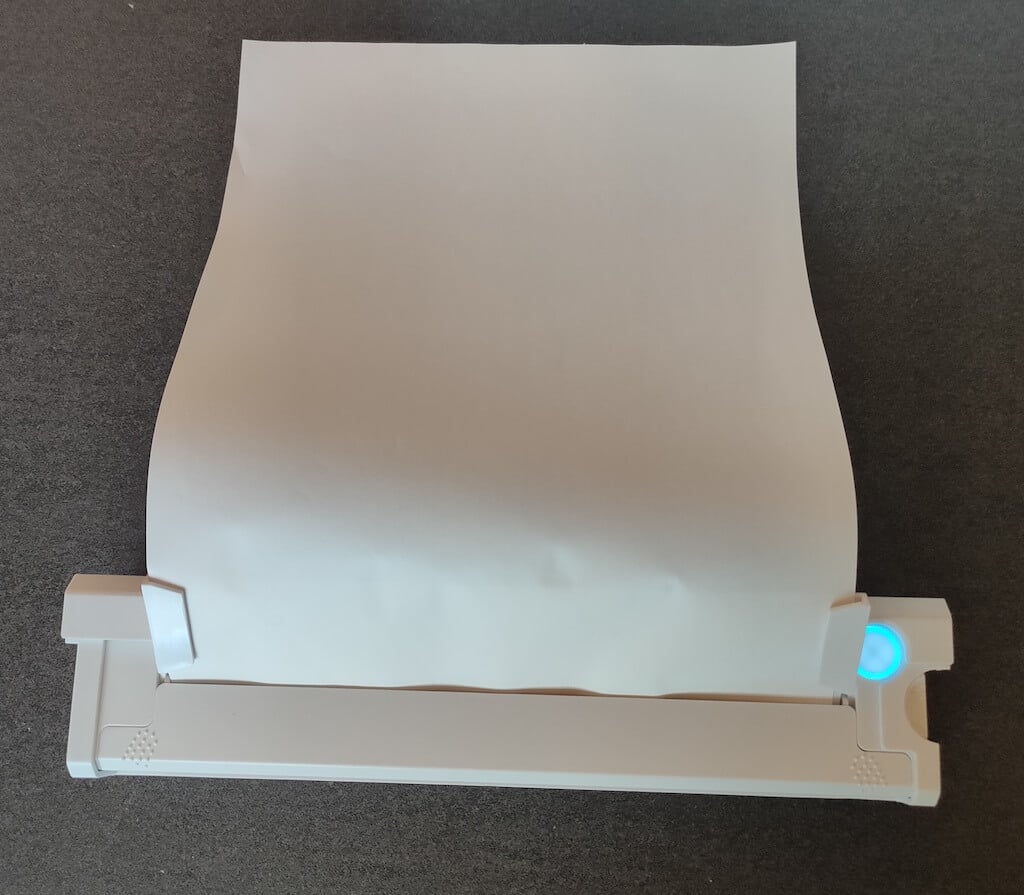
Then open the iPrint app on your smartphone. If you’re printing an A4 document, you can select one of two options – Photo Printing and Document Printing . Then choose the document from your phone’s files and print it.
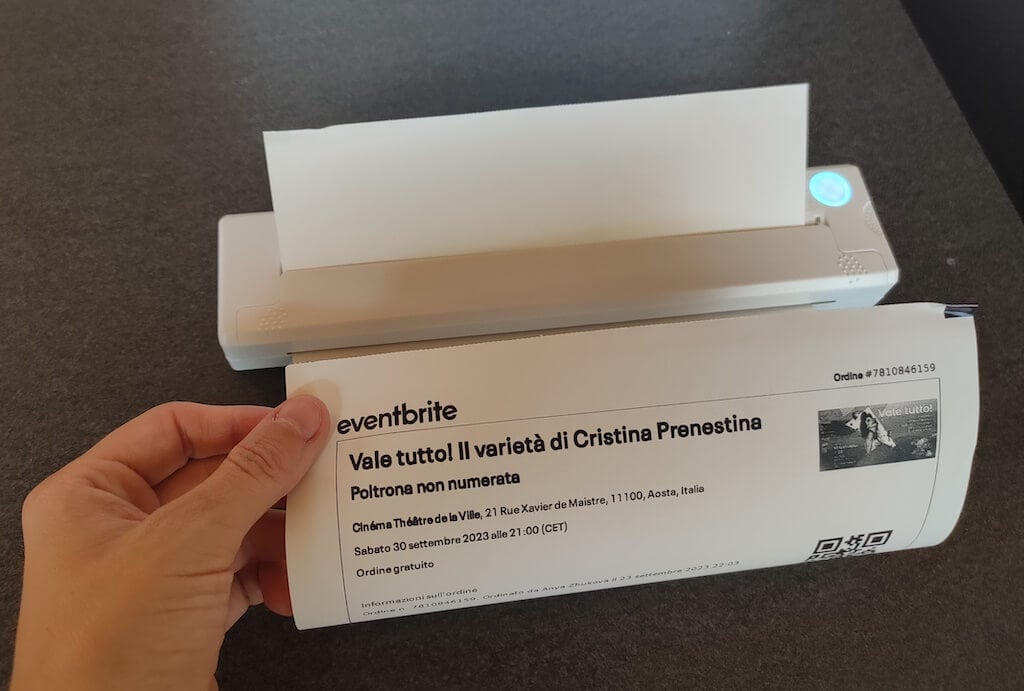
The printer is reliable and in the time that I used it the Newyes LD0801 never let me down. The printing quality will surprise you, as it’s sometimes better than what you get from a full-sized printer. The printer supports printing in various formats, and you can use it to print documents from your smartphone (Android and iPhone), iPad, and Android tablet.
When fully charged, the printer can support up to 90 pieces of paper continuously, which is very impressive for a gadget of such a small size.
Software
The Newyes portable printer requires an iPrint app to operate. The app is available for free on iOS and Android. You’ll need to download the app on your device from the App Store or Google Play before you begin printing your documents.
The app has a simple and user-friendly design. You’ll need to pair your device with the printer on the first use via Bluetooth.
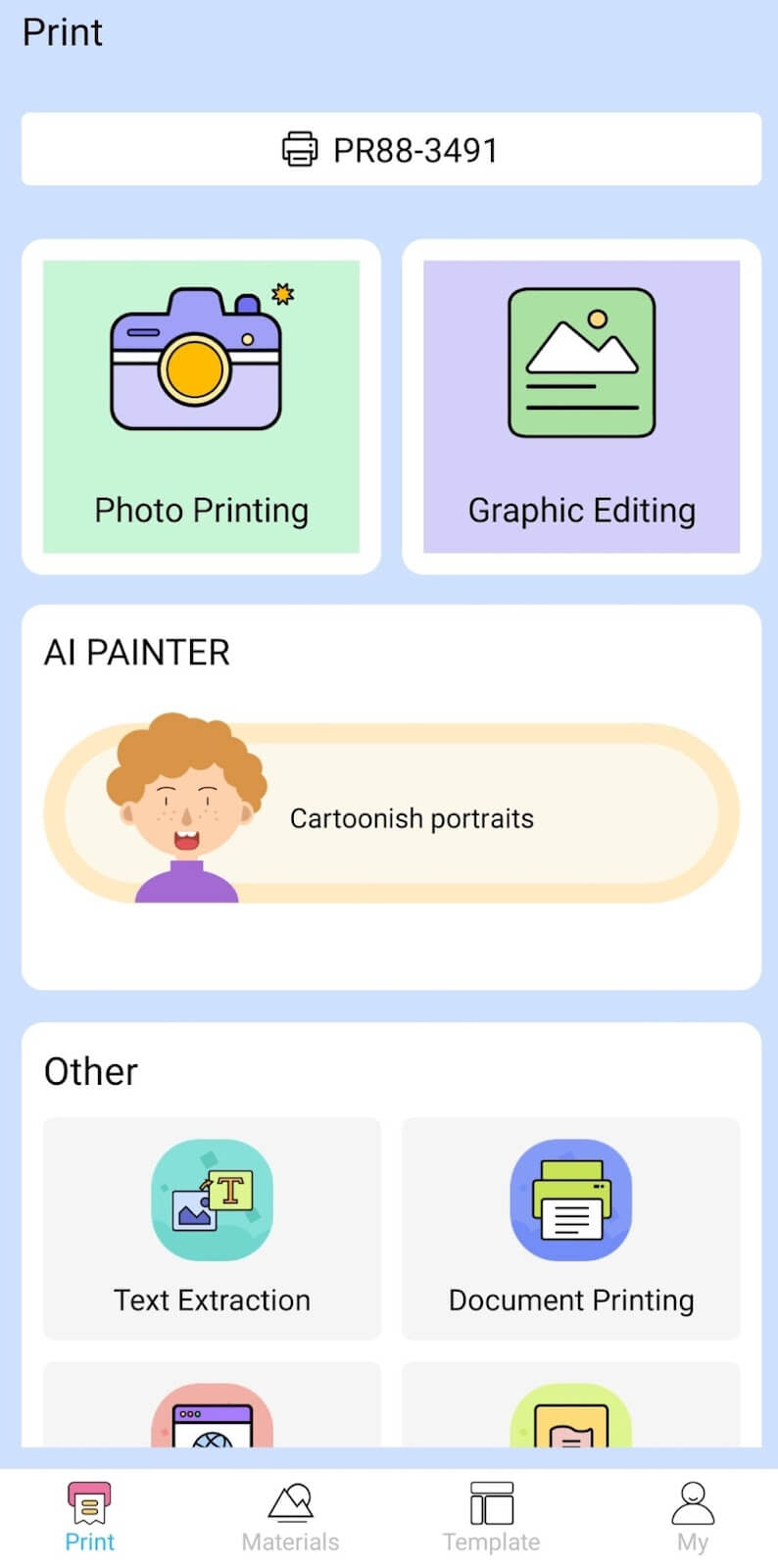
Depending on the type of document you want to print, you can choose different options from the app. There’s photo printing, document printing, web printing, and banner printing.
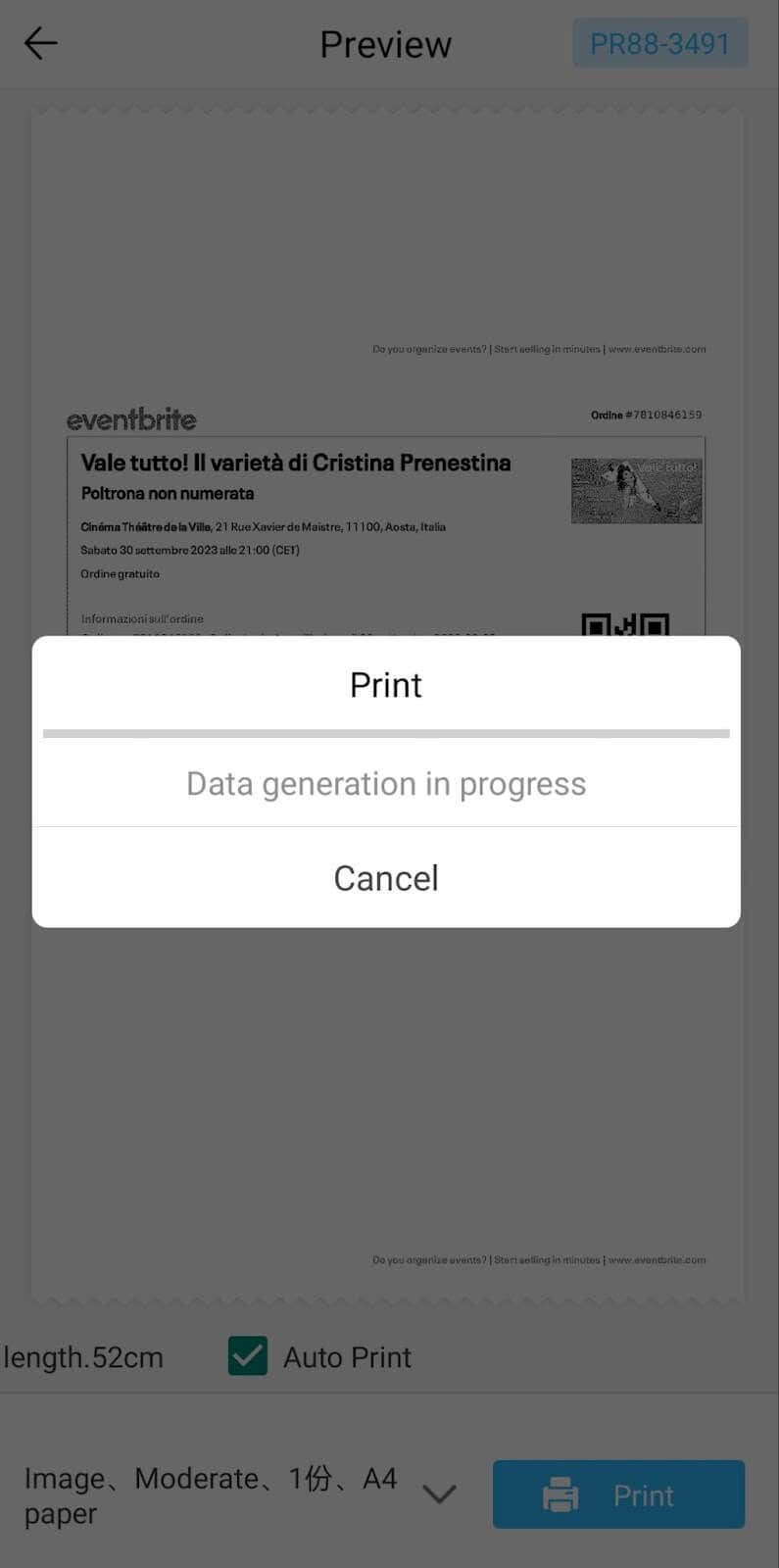
The app also has Materials and Template sections, where you can find various pictures and templates for printing to-do lists, post-its and holiday cards. You can also use the Newyes LD0801 as a label printer using these templates.
Battery Life
The Newyes portable wireless thermal printer is equipped with a decent 1200mAh lithium battery. This high-capacity battery allows you to print on the go without constantly worrying about running out of charge. When I received the printer, I charged it fully once, and it still hasn’t run out of battery after one month of use (I use it to print something almost every other day).
Charging this printer is quick and takes just over an hour to charge the printer from zero to full. The type-C charging cable facilitates a rapid charging experience. And if you run out of battery while on the go, you can quickly charge the printer from a portable power station or a power bank to continue printing.
The printer doesn’t support wireless charging, so I’d recommend always bringing the usb-c cable with you just in case.
Should You Buy the Newyes Portable Wireless Thermal Printer?
The Newyes portable thermal printer ensures high-quality wireless printing while on the go and easy operation. It’s not the most budget-friendly option, but this purchase will save you money and nerves in the long run thanks to its versatility and portable nature.
Personally, I can say that this printer made my life easier. So much that it’s probably my favorite smart gadget of the year. If you’re looking for a portable printer that won’t take any space in your house, I’d certainly recommend considering the Newyes LD0801 model.
- Tribit StormBox 2: The Under $70 Portable Speaker that Stands Out
- ENGWE L20 2.0 Review: The Best Budget-Friendly Foldable E-Bike?
- TopDon TC004 – a Thermal Imaging Camera That Will Give You Predator Vision
- Eskute Star Folding Fat Tire Electric Bike Review
- The 70mai Power Station Tera 1000 Review
