Alexa is jam-packed with a ton of entertainment options that you can play alone or with friends and family. If you’re tired of the same stack of board games and in the mood to try something new, give Alexa a shot. From Deal or No Deal to Song Quiz, there are tons of games to play with Alexa.
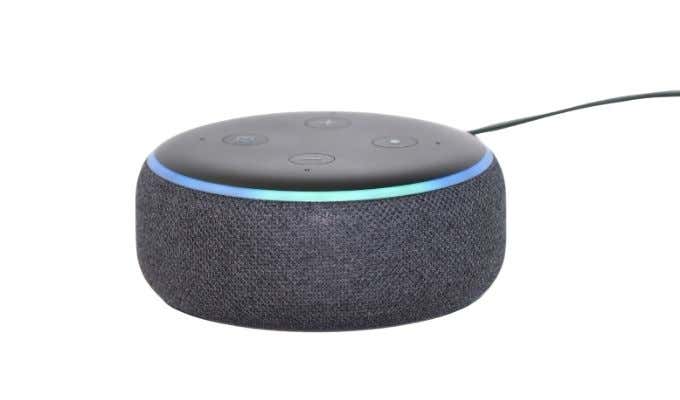
The Best Games to Play with Alexa
There are many games officially included with Alexa, but you can also find more through the Alexa Skills options . Just open the Alexa app and tap the More option in the bottom-right corner, then choose Categories > Games & Trivia and look at the list of Skills available. This article is a guide to some of the best games we’ve encountered on Alexa.
Earplay
Earplay places you into the role of a character in a radio drama. You can interact with other characters in the story and watch how the tale unfolds, with numerous stories to choose from. Be aware that not all of the stories are appropriate for children.

There are numerous options that are available for children too, including “You and the Beanstalk,” or “Jurassic World Revealed.” Adults may enjoy “Mr. Robot” or “Codename Cygnus.” There are also previews users can try out of upcoming stories, such as “Pugmire.”
WhereInTheWorld
WhereInTheWorld is a fun trivia game based entirely around geography. It ranges in difficulty from easy questions about the capital cities of countries to significantly harder questions such as what language is spoken where.

The game is easily approachable for anyone and ensures all players have fun while learning a little bit more about the fascinating planet we call home. It’s appropriate for all ages, with a decidedly educational slant to it.
Escape the Room
Have you ever done an Escape Room before? Think of Escape the Room as an audio-only version of the game for Alexa. There are multiple levels and stages to try, each ranging in degree of difficulty. The game offers you contextual hints when you ask for them.

The premise is that you are stuck in a room. It’s up to you to escape by searching for useful items and solving puzzles that will help you find your way out. While it’s primarily a single-player game, any number of people can join in to help you solve the clues and find your way out.
There are five levels right now, but more will be added in the future. Best of all, Escape the Room supports English, French, German, Italian, and Spanish language options.
Song Quiz
Song Quiz is the best game for music lovers on Alexa. If you fancy yourself a bit of a music historian, give this game a shot. The way it works is simple: Alexa will play a song from sometime in the past 60 years and challenge you to guess the name. You have to provide the correct title and artist for points.
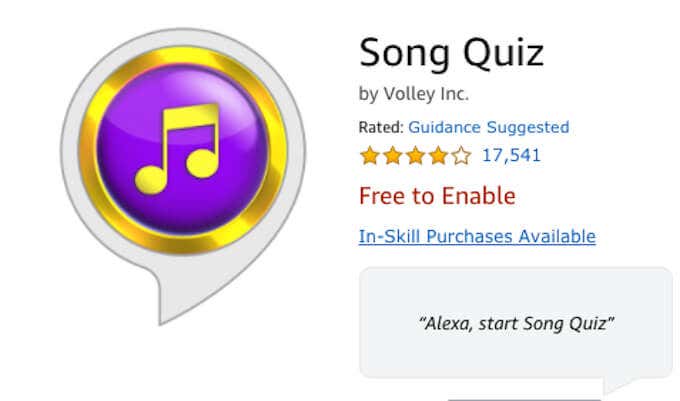
Song Quiz includes pop music from every decade, with more music added on a regular basis. You can challenge your friends and family to live competitions or compete with players from across the country.
If you master the base game, there is a subscription service that provides you with thousands of additional songs, exclusive playlists, and new music added every month. It also gives you the option to sort music by much narrower terms, such as “2019 hits.”
Are You Smarter Than a 5th Grader?
Are You Smarter Than a 5th Grader? Is a classic television game show, and one that has humbled many a viewer. Either fifth grade students are geniuses, or education has gotten significantly more difficult than it used to be. If you’d like to take on the challenge yourself, Alexa has the perfect game for it.

You start answering questions from the first grade and then work your way up through the categories. Questions come from five school subjects: English, Math, Animal Science, Social Studies, and US Geography. You can play the game by yourself or team up with friends and family to find out who is the best at trivia.
If you get stuck, there is the option to cheat–but you can only do it once per game, so choose carefully.
Akinator
Akinator is a bit like 20 questions. You will be challenged to think of a character, and Akinator will attempt to guess who you are thinking of by narrowing down the options. The questions will be yes or no answers, and after a certain number of questions the game will guess the character you have in mind.

Don’t be surprised if it gets the questions right. The Skill is surprisingly adept, and thanks to a clever bit of programming–and access to a massive database of knowledge–Akinator could guess nearly every character we thought of.
Solo Blackjack
Solo Blackjack is exactly what it sounds like: a voice-powered round of Blackjack. Try your hand at beating the dealer. Alexa will narrate what’s going on at the table, including what cards are currently dealt. There are three stages of each game, including the betting stage, the hand stage, and settling the bet.

It’s definitely a solo game, but it’s a fun way to spend a few minutes when you need something to pass the time. You can even change the amount Alexa speaks by changing the “verbosity level.”
Alexa is a powerhouse of games. These seven options are just a few examples, but there are dozens of options available. Take the time to explore what Alexa can do and find games you can play with your entire family.
- How to Create Alexa Skills for Your Business or Employees
- How to Create Skills With Alexa Blueprints
- How to Shop With Alexa for All Your Shopping
- 10 Cool Alexa Tricks to Try With Your Amazon Echo
- How to Change Alexa Language to Spanish and Other Languages
However, you may be looking for something in particular. Maybe you want a trivia game about your family, a fairy tale where your child is the star character or a guide to your home and neighborhood for a houseguest.

Well, guess what? You can make your own skill using Alexa blueprints. Here’s how!
Browse Alexa Skill Blueprints
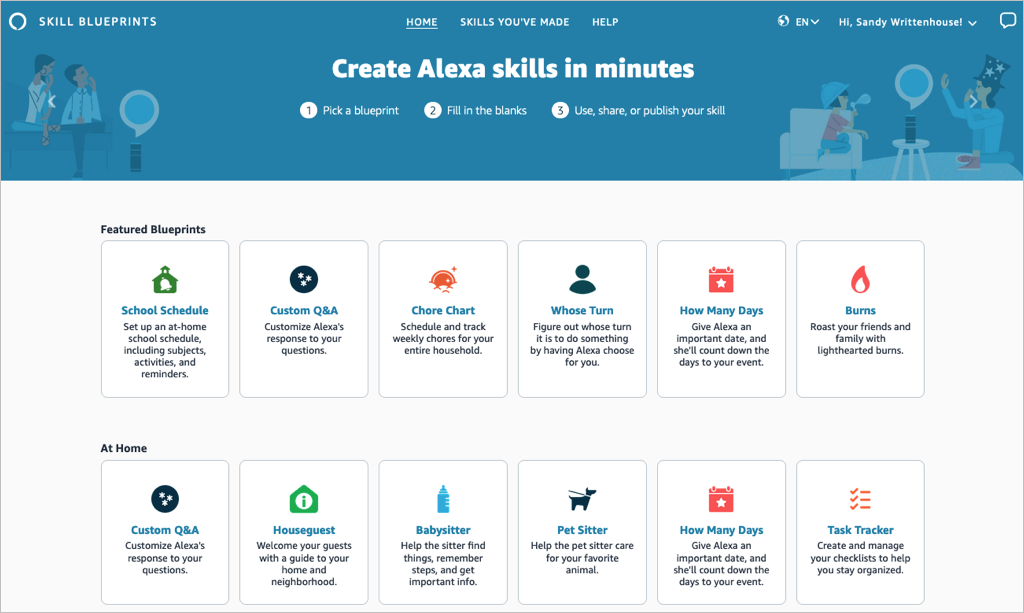
Select a blueprint to view more details and check out examples. This helps you see how the babysitter blueprint can help when you’re away, or the family jokes blueprint can liven up quality time.
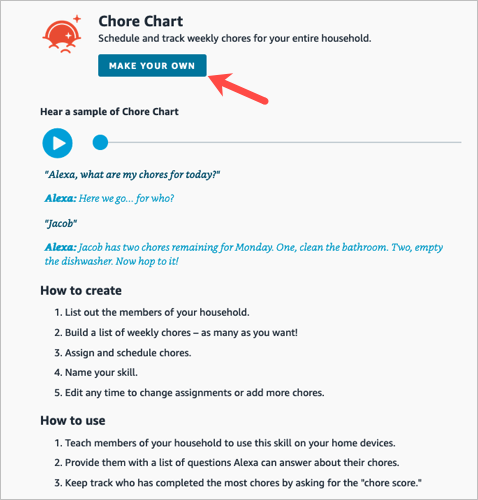
If you find one you want, pick Make Your Own on the skill information screen.
Create a Skill
The steps are the same whether you’re creating a skill with a blueprint on the web or on your mobile device. However, those steps may differ depending on the type of blueprint you select.
For instance, you’ll enter different information for a birthday trivia skill compared to one for flashcards, the pet sitter, or bedtime stories. You can see these steps when you select a blueprint to view its details.
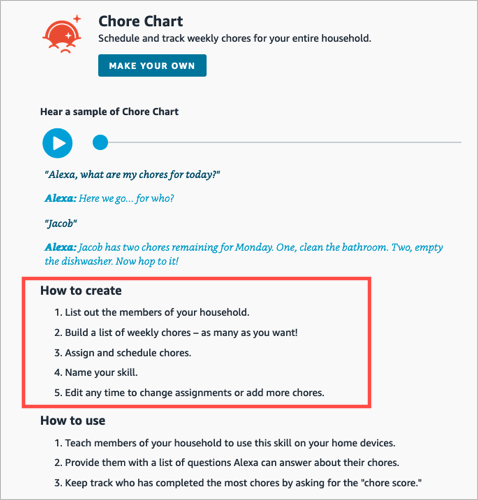
To show you just how easy it is, we’ll create one on each device.
Make a Chore Chart Skill on the Web
For this first example, we’ll use the Chore Chart blueprint to create a skill on the website. This skill helps keep track of household chores and who is responsible for each one.
- Visit the Alexa Blueprints website, sign into your Amazon account, and choose a blueprint.
- As described above, select Make Your Own directly below the skill name. If you see a short tutorial for building the skill, choose Start Now when you get to the end.
- Next, you’ll be prompted to replace the details for the skill with your own. For the Chore Chart, we’ll fill in the names of our household members and chores.
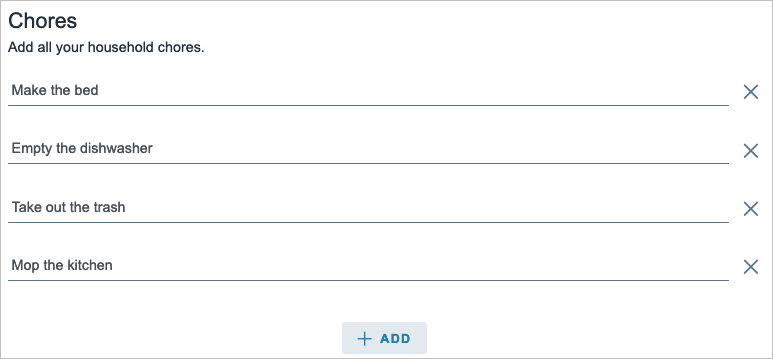
- Select Next on the top right to move to the next step.
- Here again, you may be asked to enter more details for the skill. For the Chore Chart blueprint, we assign the chores to the household members. Just keep in mind that the number of prompts and requested details depend on the exact skill and blueprint.
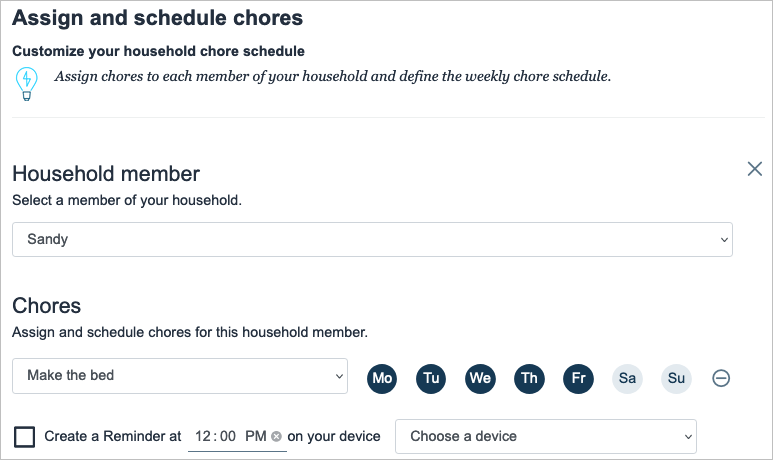
- Select Next to continue.
- One step that you’ll find in most blueprints is for customizing the experience. This refers to how you interact with Alexa for that particular skill. For instance, you can enter introduction phrases for when someone opens the skill and then other phrases for when someone completes a chore. These are the phrases Alexa uses for that specific skill.
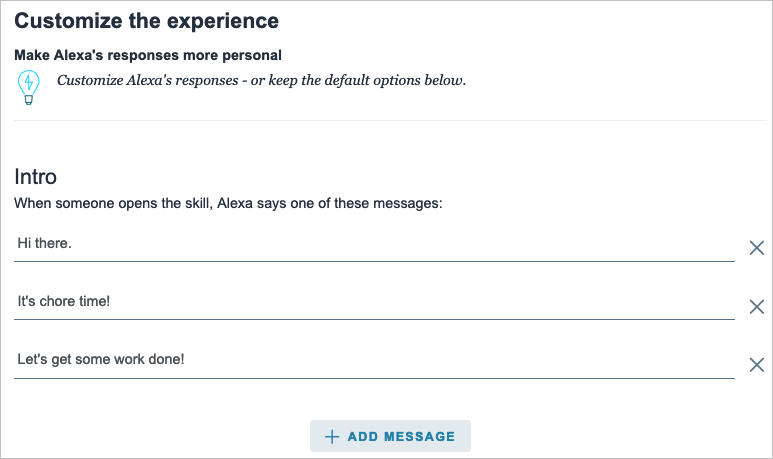
- Select Next to finish entering the details.
- The final step in creating a skill is to give it a name. Try to use something meaningful that you’ll remember but also something simple enough for Alexa to recognize.

- Select Next one last time to create the skill.
After a few moments to process all the information, your skill should be ready to use!

Make a Whose Turn Skill in the Mobile App
For this next example, we’ll use the Whose Turn blueprint to create a skill in the Alexa app. This skill prompts Alexa to choose whose turn it is to do something.
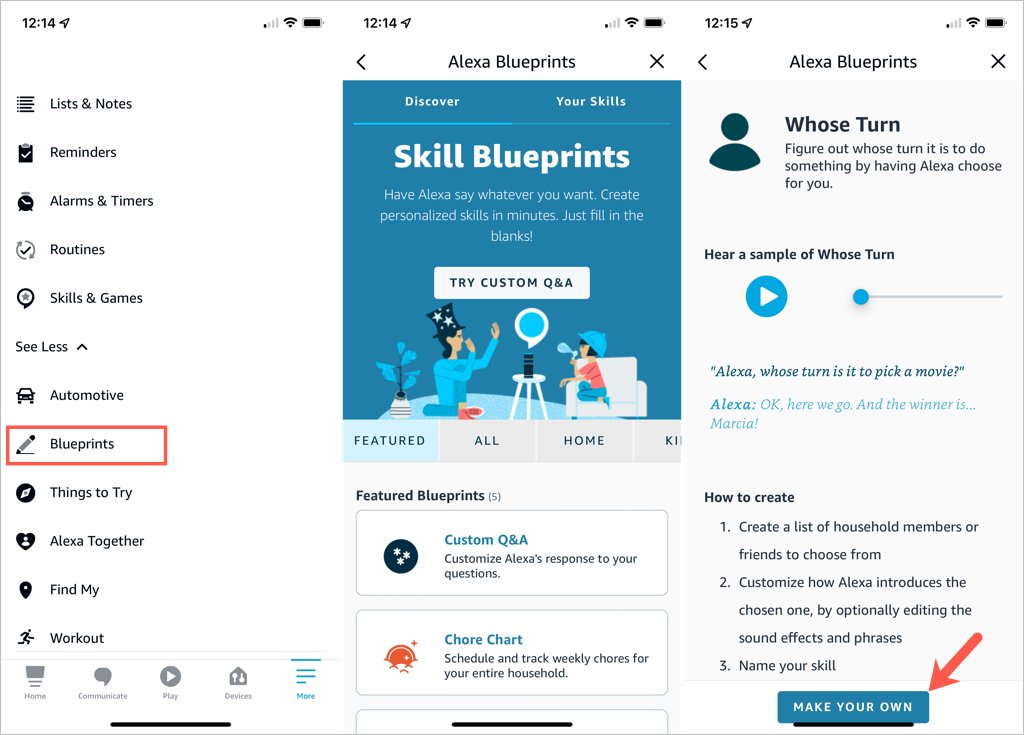
- Open the Alexa app on Android or iOS and select the More tab.
- Pick See More in the top section and choose Blueprints .
- Browse the options by category, just like on the website. Then, select the one you want to use and tap Make Your Own .
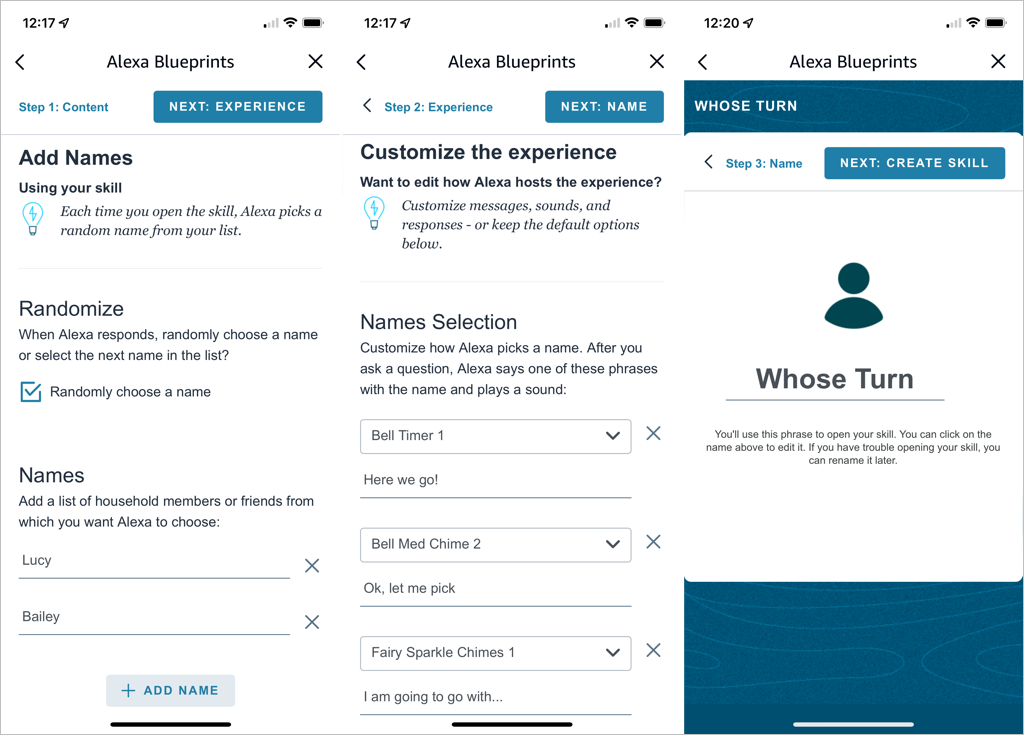
- Replace the details for the skill with your own. For the Whose Turn skill, we’ll add the names for Alexa’s choices.
- Tap Next on the top right to continue.
- The next step for the Whose Turn skill is to personalize the experience. This allows you to customize how Alexa picks a name. After you ask a question, Alexa uses the phrases and sound effects you select in this section. Optionally, you can scroll down for additional customization options.
- Tap Next to name your custom skill.
- Select the text on the name line to edit it or enter your own. Again, pick a meaningful name and one that’s easy for Alexa to recognize.
- Tap Next to create the skill.
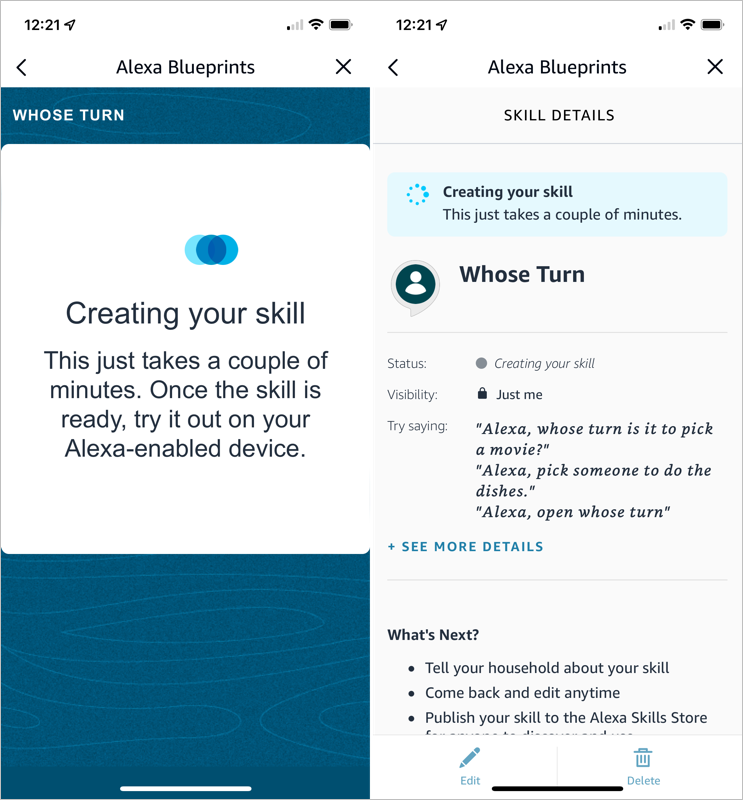
You’ll see the progress as your skill is created and a confirmation when the process completes. You can tap the X on the top right to exit when you finish reviewing your skill.
Edit Skills You Create
Once you create a skill using Alexa Blueprints, you may want to make adjustments to it. You can do this on the web and in the mobile app too.
Your Skills on the Web
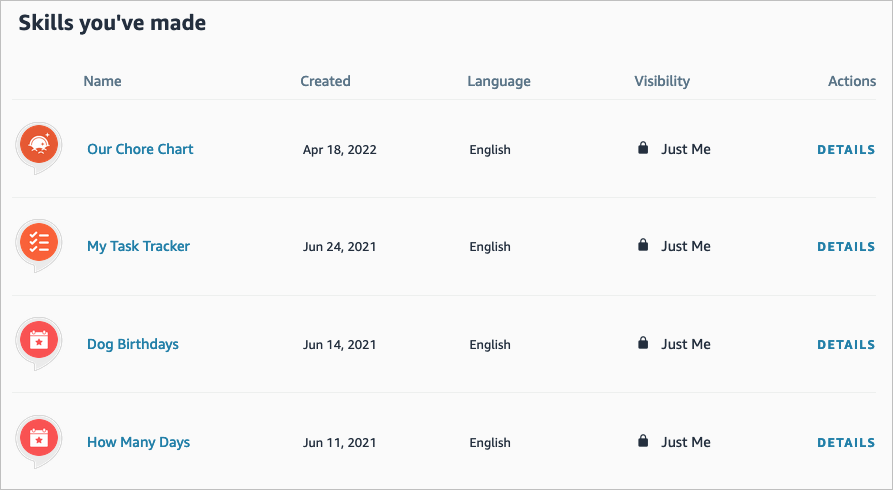
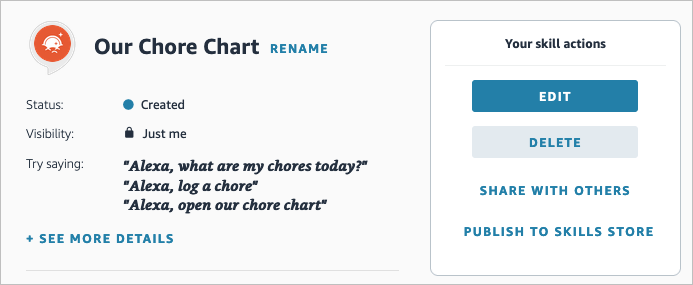
- Visit the Alexa Blueprints website and sign in. Select Skills You’ve Made at the top.
- You’ll see a list of your skills. Choose Details to the right to open the one you want to edit.
- On the right side, select Edit or Delete . You’ll notice you can also pick Share With Others to make it easy for your family or friends to access or Publish to Skills Store for other Alexa users.
Your Skills in the Mobile App
You can edit your custom skills easily in the Alexa mobile app as well.
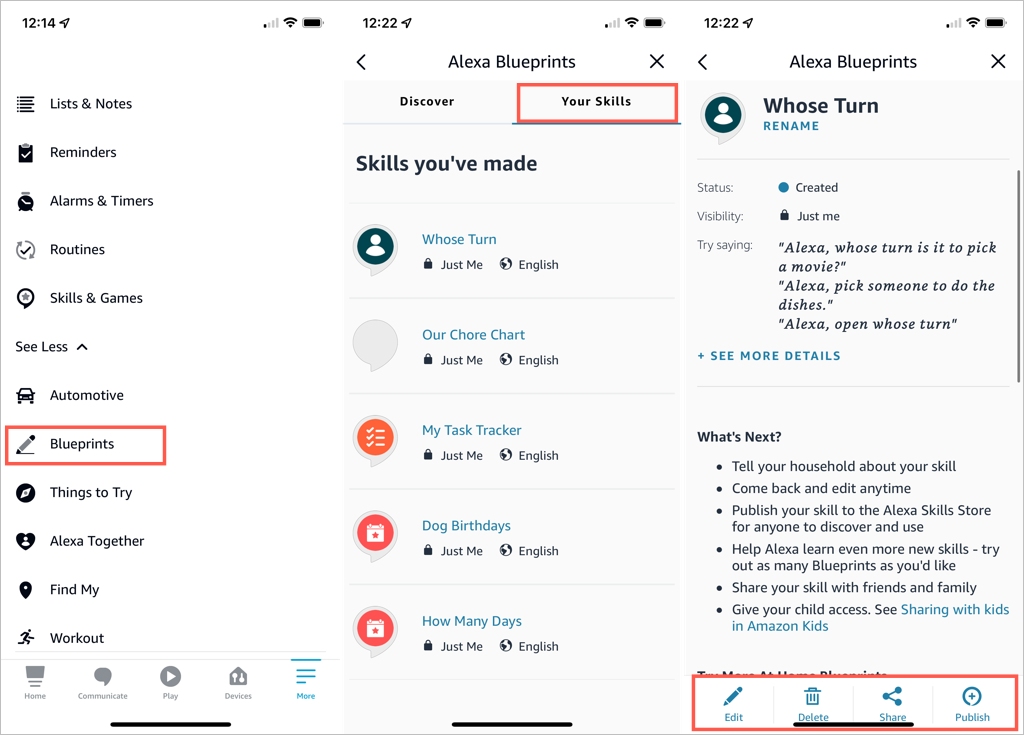
- Go to the Menu tab.
- Select See More > Blueprints .
- On the Your Skills tab, select the blueprint you want to edit.
- Use the buttons at the bottom to make your changes.
Take Advantage of Alexa Blueprints
Even though there are many premade skills you can pick from, creating your own Alexa skills gives you great ways to personalize the experience on your Alexa devices, get tasks done, or have a little fun !
- How to Create Alexa Skills for Your Business or Employees
- How to Shop With Alexa for All Your Shopping
- 10 Cool Alexa Tricks to Try With Your Amazon Echo
- How to Change Alexa Language to Spanish and Other Languages
- Why Alexa Is Flashing Yellow, Green, and What Does it Mean?
