Printing your own checks can save time and money. Despite all the digital payment options you have today, checks still make up a significant proportion of transactions. The main problem with checks is that once you exhaust your checkbook, you need to go to the bank to get a new one. This can be time-consuming. To save time and money, you need to get one of the best printers for printing checks.
Printing your own checks is a simple process but you’ll need a special printer with a MICR toner. Here’s what you need to know about toner and ink, and what printer to get for the best results.
A Few Words on Toner and Ink
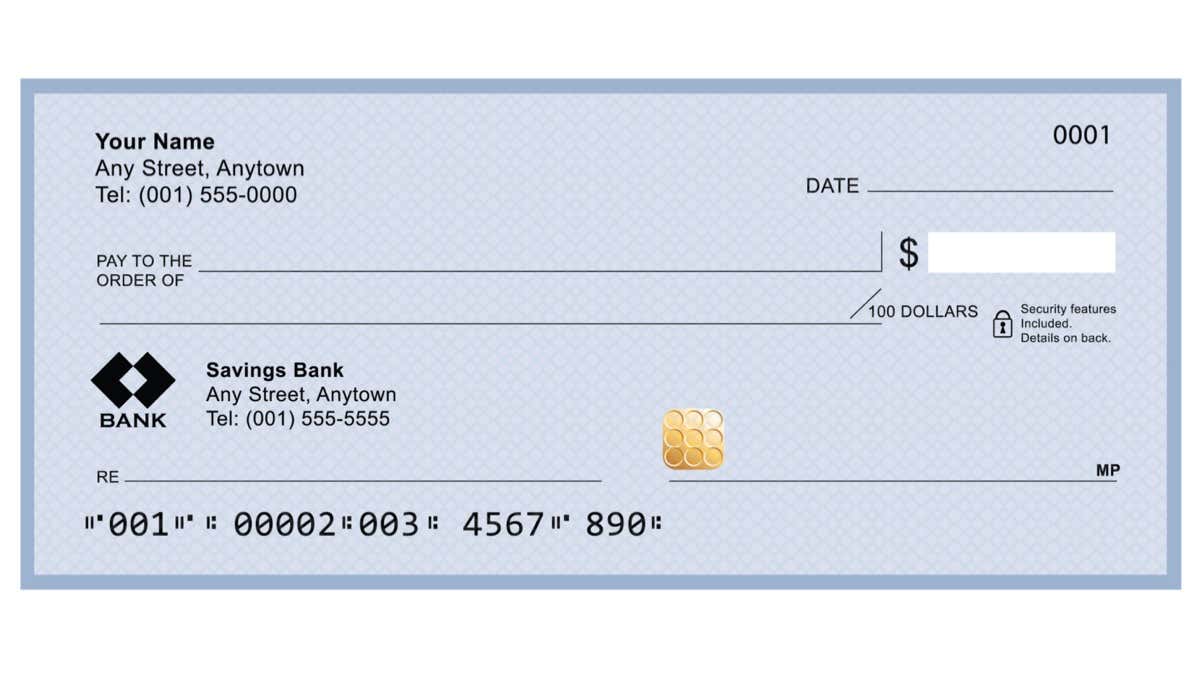
MICR stands for Magnetic Ink Character Recognition. The Federal Reserve requires all checks to have their routing, account, and check numbers printed with MICR. Why? The checks are read not only optically, but also magnetically. If these special numbers are not printed with magnetic ink, you’re risking financial fraud and will be legally and financially vulnerable.
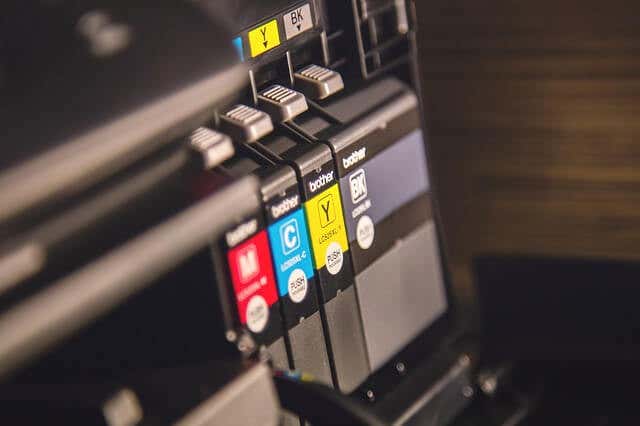
Depending on the type of printer you use for printing checks, you will either have to go with MICR ink or MICR toner. Inkjet printers use ink , while laser printers use toners. The American National Standard Institute regulates MICR printing and both inkjet and toner are valid for printing checks. You can print your checks with regular printers, or use a regular laser printer loaded with MICR toner. But to meet the ANSI standards, you should always use either a MICR inkjet printer or a MICR laser printer loaded with MICR toner.
Aside from the MICR toner, you’ll need fraud-resistant blank check paper to print quality checks.
Top 7 Printers for Printing Your Checks
If you wonder which type of printer to use here is a quick tip: small businesses that print several checks a month typically use an inkjet printer for their checks. This is a cheaper option, but much slower. Larger companies that print a high volume of checks typically go with laser printers. They are much faster and have additional security features that prevent multiple people from printing checks, or printing checks without MICR toner and without encrypting the data while it’s being printed.
Choose your printer based on how often you need to print something. With that said, if you print very rarely, an ink printer isn’t ideal because the ink will dry if it’s not used.
1.Brother HL-L2530DW
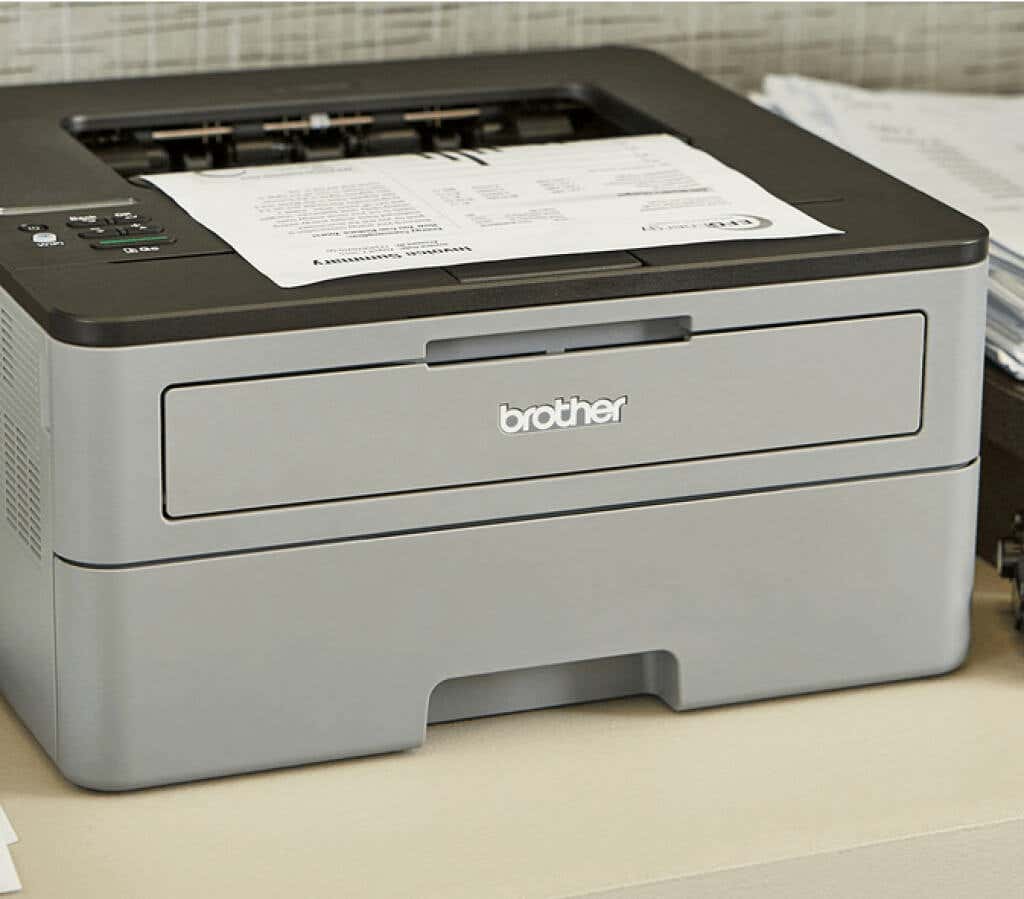
A decent printer overall, Brother HL-L2530DW performs excellently as a MICR check printer. Although it prints only black, it’s also good for printing any kind of text. That makes it very cost-efficient in the long run as you won’t have to buy expensive ink cartridges. It also has a great cost per print yield.
Brother HL-L2530DW is a small printer and will fit easily into any small office. It has a sturdy, and professional design. But most importantly, it offers great printing speed, and Brother printers are known for accepting a wide range of compatible toners.
2.VersaCheck HP DeskJet 3755 MX MICR
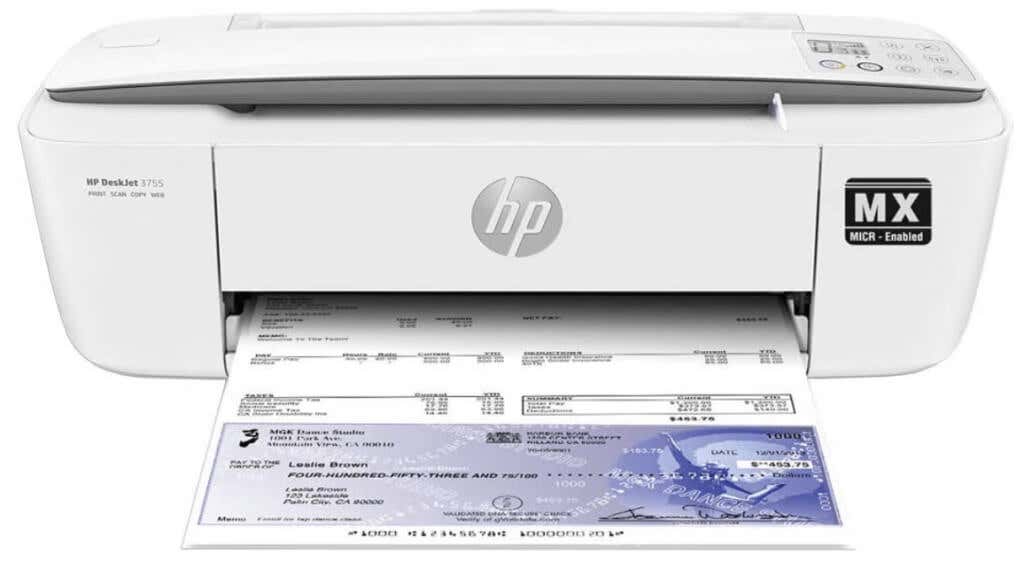
This printer is specifically made for printing checks. As it is a dedicated printer, it’s also very compact and it comes with a scanner. You may not be able to print other documents, but you will be able to scan them.
That said, the VersaCheck from HP is a very slow inkjet printer. It prints black only text with a speed of 5 PPM (pages per minute) which is extremely slow compared to laser printers. On top of that, color printing that includes graphics brings the printing speed down to 3 PPM. Even with this downside, the 3755 MX MICR has great printing quality and color accuracy, so your checks will turn out great.
3.Canon PIXMA MG3620
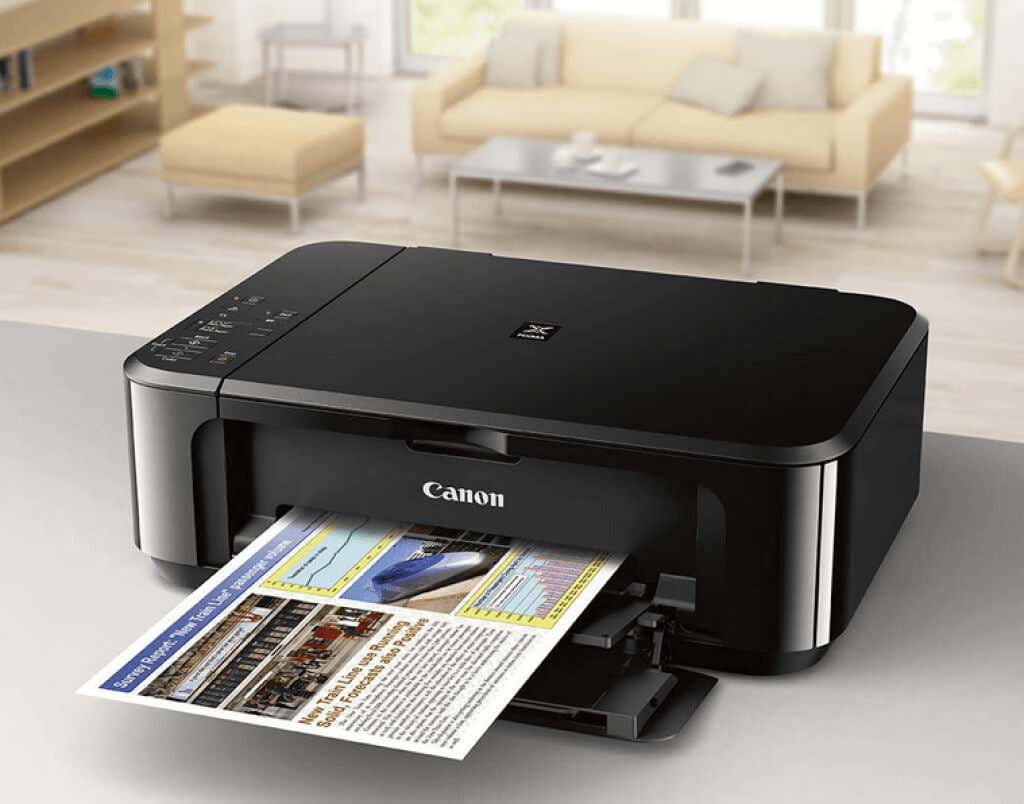
The Canon Pixma MG3620 is an all-in-one printer compatible with Windows and Mac, and it performs well when it comes to printing your own checks. It isn’t one of the fastest options out there, but the print speed of the MG3620 is more than acceptable, especially for checks. The printer is also equipped with a decent scanner, but you will have to feed it documents manually as it doesn’t have an automatic document feeder. Duplex printing is also impossible with it.
This is mainly a photo printer and this is the area where it excels. It has a very good dynamic range and color accuracy and it can produce rich details. The only downside of the Canon Pixma MG3620 is that it’s an inkjet printer, so you’ll have to change the cartridges often.
4.HP OfficeJet 200 MX
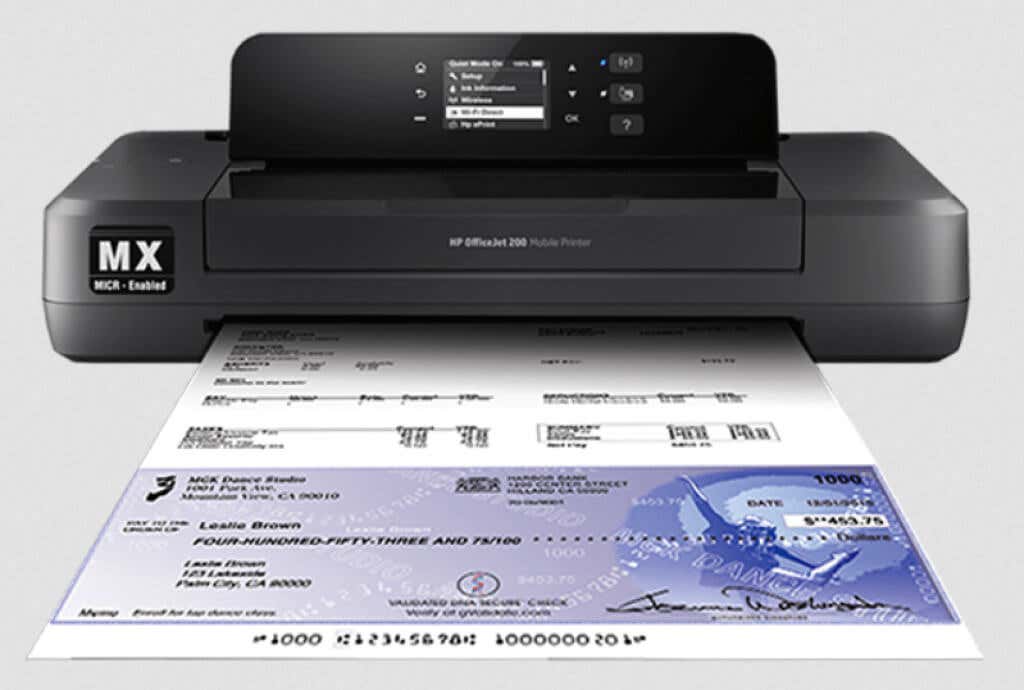
This is a portable printer, for all those who need to print checks on the go. HP OfficeJet 200 MX comes with a rechargeable battery and it weighs less than other portable inkjet printers. Although it has a USB port, it comes without a USB cable that you can use to connect it to your devices. But it does have Wi-Fi and Wi-Fi Direct connectivity, so you can go wireless.
The printing speed of HP OfficeJet 200 MX is 9.5 PPM which is not bad for a small, portable check printer. It is capable of retaining the same speed when you switch it to battery power. The output quality of this inkjet printer is great and it can print high-quality text, graphics, and photos. If you need to print checks while on a business trip, or office reports while traveling, the HP OfficeJet 200 MX is a perfect choice.
5.Epson ST-1000 MX MICR
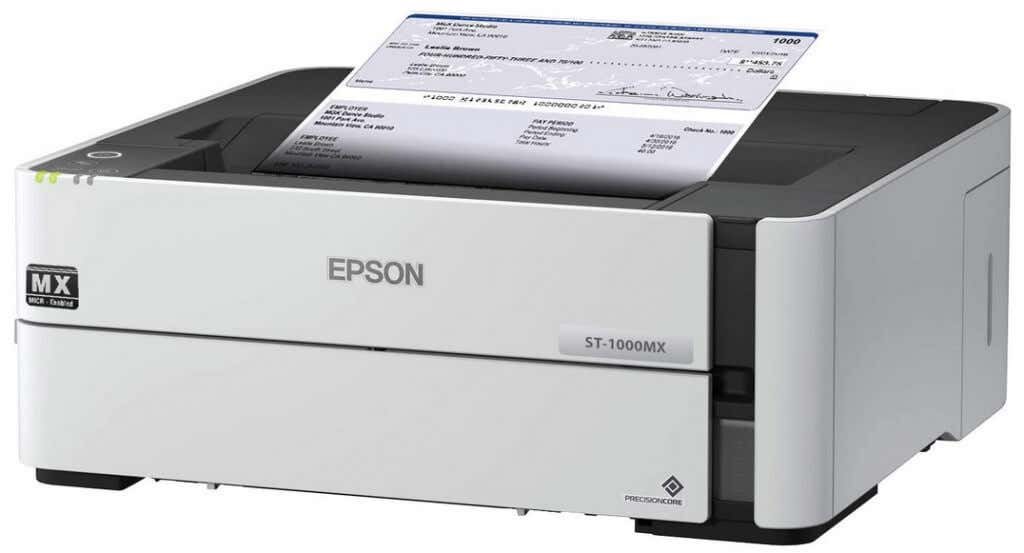
The VersaCheck’s Epson ST-1000 MX MICR printer is dedicated to printing checks, but you can use it to print other business documents and barcodes. The printer is a bit pricey at $499, but in the long run, it pays for itself. The new VersaCheck eco-friendly, cartridge-free printers come with an ink tank that you can easily fill by yourself. The ink itself costs much less than buying separate cartridges.
The printing speed of the Epson ST-1000 MX is quite impressive for an ink printer, churning out 20 PPM. It can also print two sides at once. You can connect it to your computer with cables, or you can print wireless with your tablet or smartphone.
6.HP Color LaserJet Pro MFP283fdw
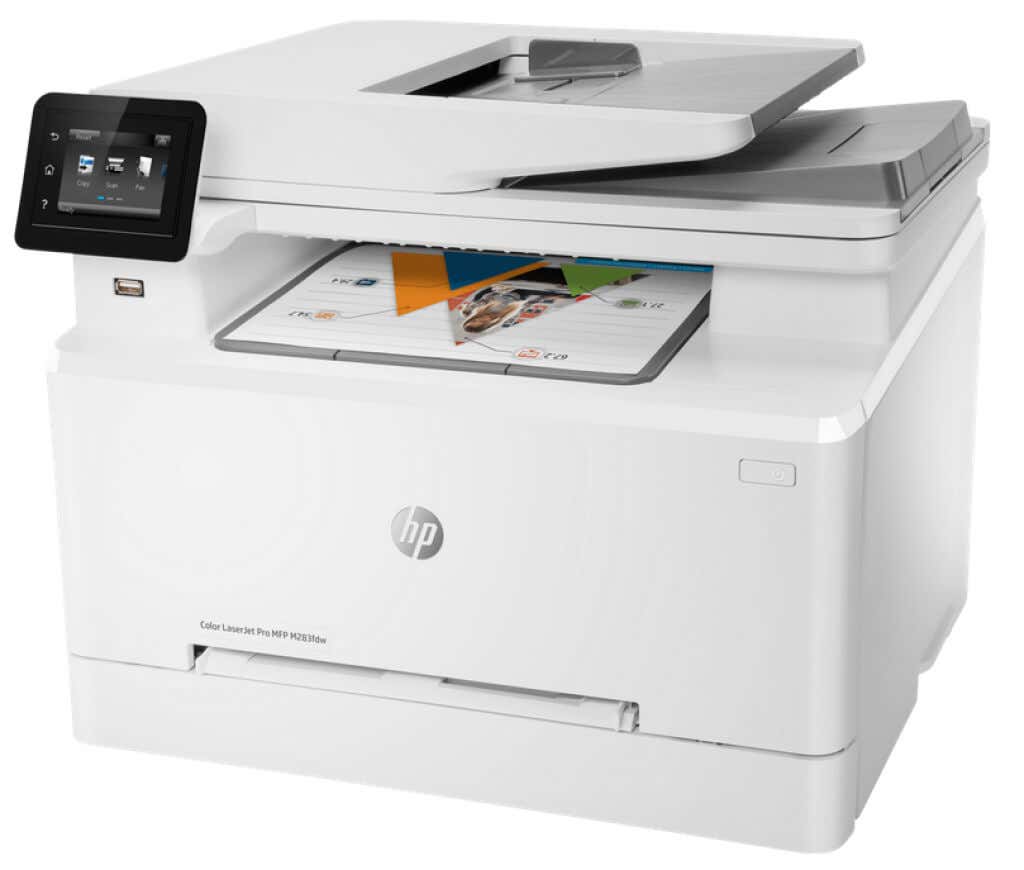
If you need to print high volumes, the HP Color LaserJet Pro MFP283fdw is the printer for you. Its printing speed is solid with 22 PPM for black and white and color prints. It comes with an automatic document feeder so you won’t have to feed it manually. It also has duplexing functionalities which means it can print both sides simultaneously.
Laser printers will never print photos professionally, but as a document and check printer, the MFP283fdw is an excellent choice. This is an all-in-one printer and it has a scanner on top capable of capturing fine details of documents with lots of graphics. Also, you can print remotely with the HP smart app for mobile devices.
7.Canon ImageCLASS LBP6230dw
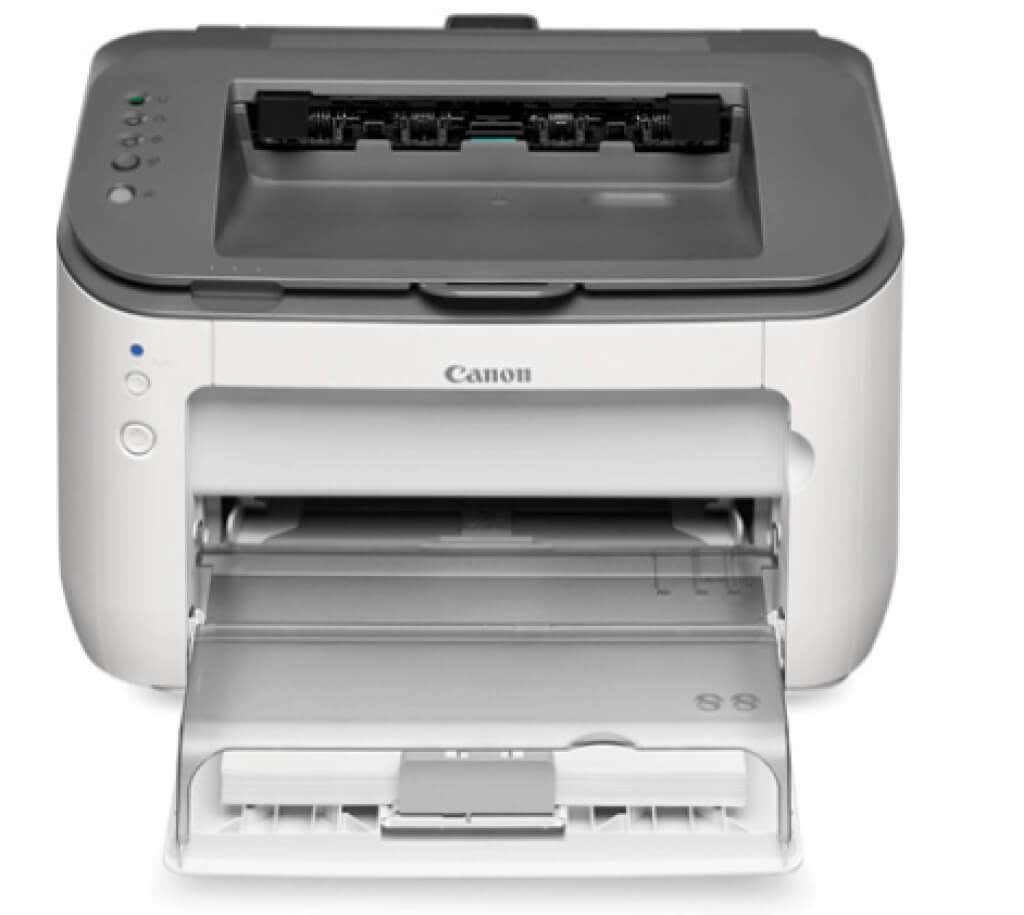
Do you need a compact, fast, and reliable laser printer that can fit in your home office? Canon imageCLASS LBP6230dw is an excellent choice, especially if you need to print large volumes of checks and documents. It has an impressive printing speed of 26 PPM, it can print on both sides automatically, and you can print from your iOS or Android devices with wireless connectivity.
It has a front-loading paper tray perfect for saving space on your desk. But this printer performs best with its laserjet cartridge produced by Canon. Unfortunately, this is not a MICR cartridge and you will have to replace it with a compatible toner cartridge that is MICR.
- The Best Free AI Courses to Boost Your Skills
- 6 Best Procreate Alternatives for Windows PC
- 5 Best Podcast Apps for Windows
- Best 10 Free PDF Editors for Windows
- 5 Best Audiobook Players for Windows
Nicolae is a Jack of all trades technology writer with a focus on hardware, programming languages, and AI image-processing software. Over the last five years, he has ghostwritten numerous tech how-to guides and books on a variety of topics ranging from Linux to C# programming and game development. Nicolae loves everything that has to do with technology and his goal is to share his knowledge and experience with others. Read Nicolae’s Full Bio
Nothing can be more frustrating than carefully compiling your work and pressing print, only for your printer to randomly produce blanks. The printer may be new or in good working condition, but the printout is blank or missing ink.
While an empty ink cartridge is a common reason for this problem, it’s not always the case. You may replace your printer’s ink cartridges with new ones and still encounter the same problem.
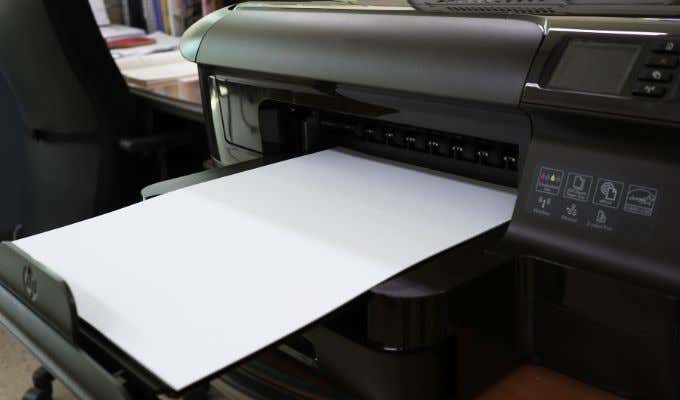
In this guide, we’ll look at some other possible reasons why your printer is printing blank pages and how you can resolve them.
Why Is My Printer Printing Blank Pages?
If you’ve checked your ink cartridges and they still have enough ink to print, chances are that your printer might still randomly produce blanks. Some of the reasons why you still get blank printouts include:
- Congested nozzles
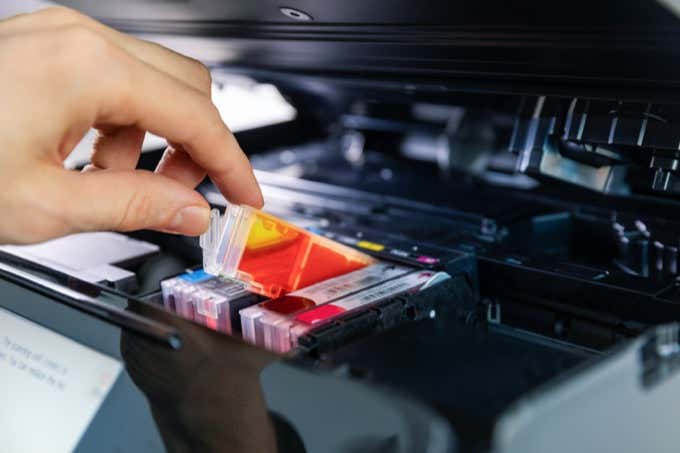
- Improper cartridge installation
- Cartridges dislodged from their proper place
- Driver and software issues
- Wrong paper size
- Blank pages in the document you’re printing
If you’re trying to print an Excel document and you’re getting blank printouts, there are several conditions in which this behavior can occur including:
- An error on a cell on the page you’re trying to print
- Errors selected to print as blank
- Data on a page is only in cells formatted in such a way that they’re blank
- Worksheet contains hidden columns with manual page breaks
- Worksheet contains drawing objects in unexpected areas
- Completely blank pages ahead of any pages containing data, which print as blank
What to Do When Your Printer Is Printing Blank Pages
No matter the cause of the problem, we’ll give you some solutions you can try to stop your printer from printing blank pages.
Preliminary Checks
- Place your printer on a flat, stable surface as any slight tilt can lead to printing issues.
- Replace the old ink cartridge if it’s low on ink. Make sure you’re using genuine ink or toner supplies for your printer.
- Ensure that you have removed the tape from your ink cartridge when installing it in your printer.
- Print a nozzle check pattern or test page to check whether the nozzles may be clogged. Use the Print Head Nozzle Check if your printer has that option and clean the print head if necessary.
- Check that the printing paper you’re using fulfills the printer’s specifications. For example, vellum or transparent paper isn’t supported by some printers.
- Ensure that your document has the correct paper size, orientation, layout and other printing settings.
Select Skip Blank Page
Make sure there’s no blank page in the document you’re trying to print. You can use the Print Preview function to check for any blank pages and remove them before printing. Alternatively, select Skip Blank Page in your printer software.
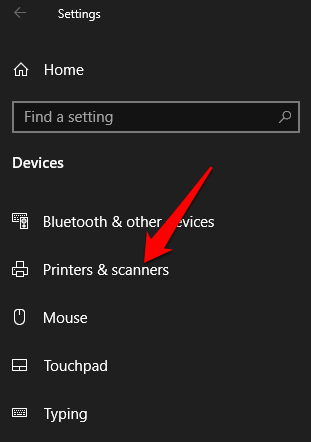
- In Windows 10, select Start > Settings > Devices > Printers & Scanners .
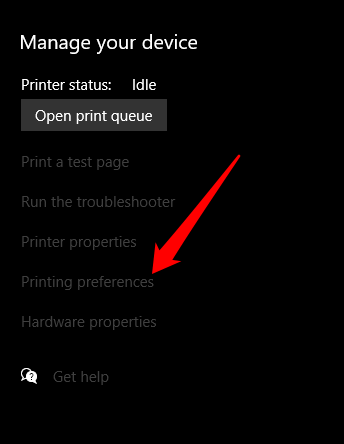
- Select your printer and then select Manage > Printing Preferences and then select Skip Blank Page .
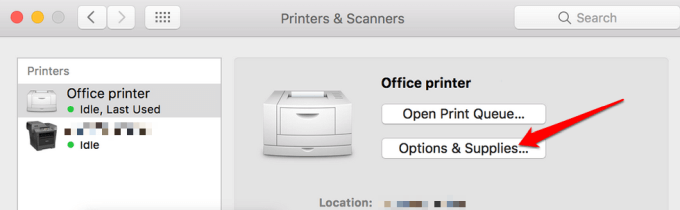
- On your Mac, select menu > System Preferences > Printers & Scanners > Options & Supplies .
- Select the Driver or Options tab and then set Skip Blank Page to On .
Restart the Printer
For most devices, a restart usually resolves minor glitches so you can try and restart your printer and check if the blank printout issue goes away. Open your printer, remove both cartridges and unplug the power cord plus other cables from the printer.
After 10-15 minutes, plug the power cord and other cables back into the printer, reinstall both cartridges, switch the printer on and print a test page.
Align the Printer
If you just replaced your old ink cartridges, it’s imperative that you align them and calibrate the printer. This way, the cartridges won’t become misaligned and cause blank printouts or misaligned text.
For this guide, we’re using a HP printer so the steps may differ depending on your printer model.
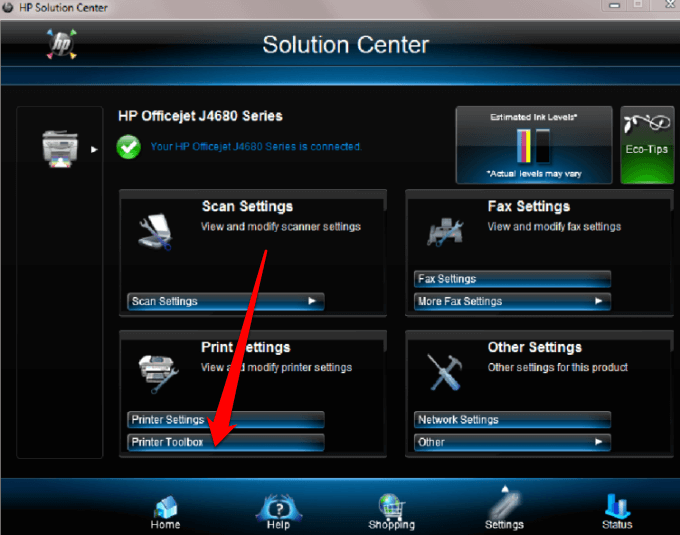
- Turn on your printer, load some paper and go to the HP Solution Center. Select Settings > Print Settings .
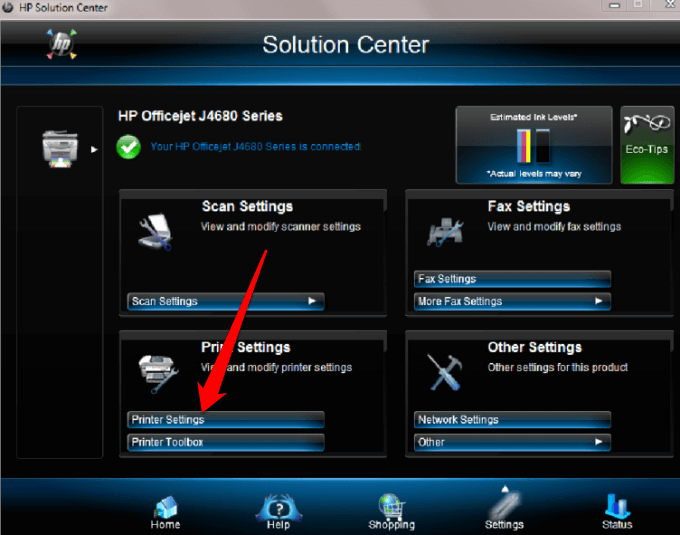
- Next, select Printer Toolbox .
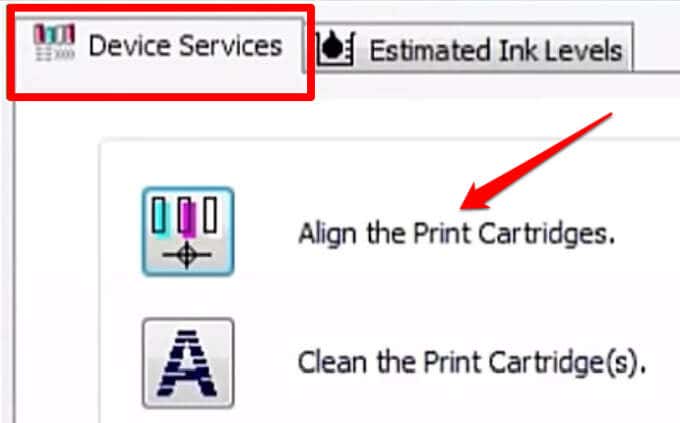
In the Printer Toolbox window, select Align the print cartridges under Device Services and then select Align . Follow the on-screen instructions to complete the process.
Run the Windows Printer Troubleshooter
If you’re still getting blank printouts, you can use the built-in printer troubleshooter utility to automatically detect and resolve printer issues.
- Right-click Start > Settings > Update & Security .
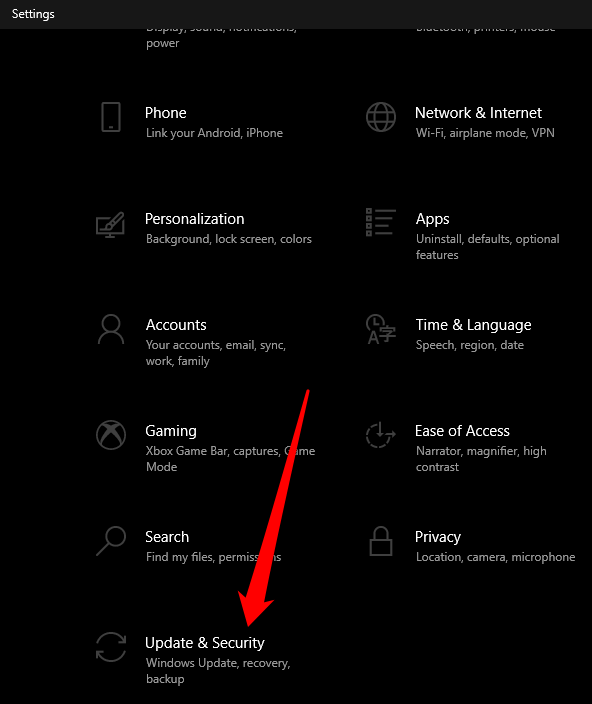
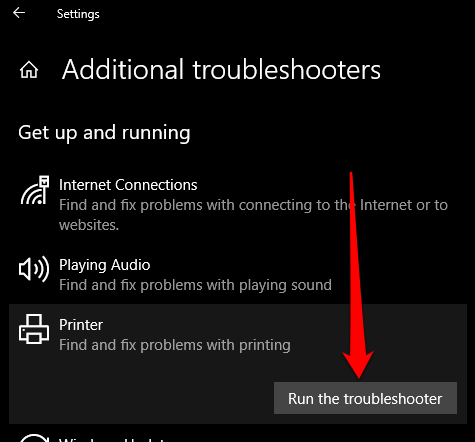
- Select Troubleshoot > Additional Troubleshooters and then select Printer under the Get up and running section.
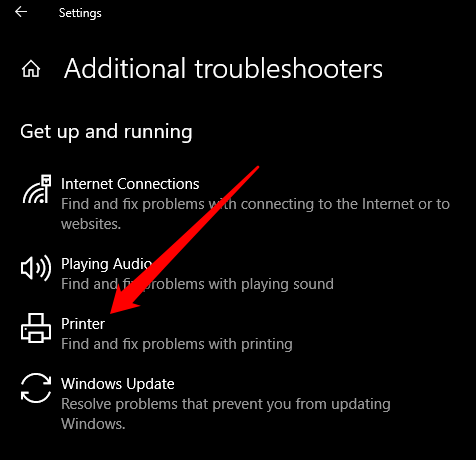
- Next, select Run the troubleshooter to begin.
Update the Printer Driver
Printer driver issues may also cause your printer to print blank pages.
To resolve this, you may need to update the printer driver or uninstall and reinstall it back so as to get the newest version of the driver. You can update your printer’s drivers by visiting the device manufacturer’s official page and downloading the available driver updates.
You can also update your printer driver via the Device Manager in Windows 10.
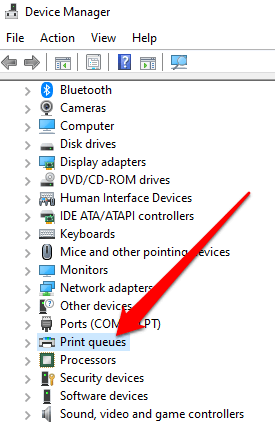
- Right-click Start > Device Manager and select the Print queue section to expand it.
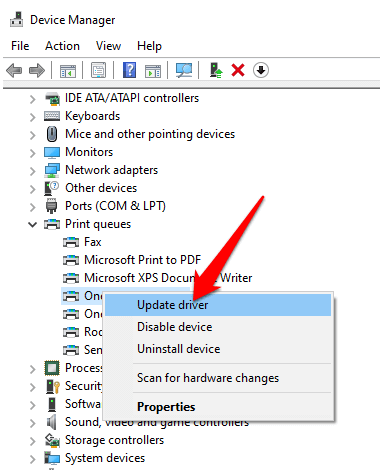
- Right-click your printer’s name and select Update driver .
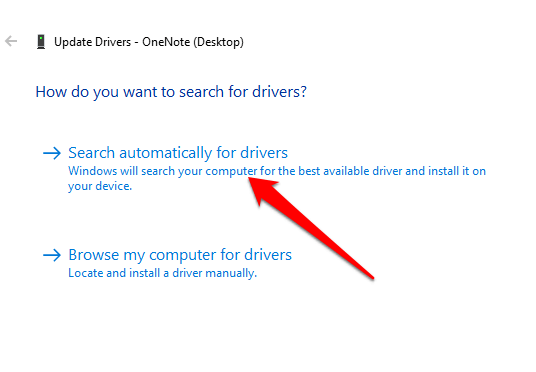
- Select Search automatically for updated driver software .
Print in Backup Mode
If you’ve completed all the preceding steps and you’re still getting blank printouts, you can try to print in backup mode. This workaround is useful when your printer has two cartridges such that you can remove the problem cartridge and print with the remaining one. For instance, you can remove the black cartridge and print with the remaining color cartridge.
Stop Printing Only Data
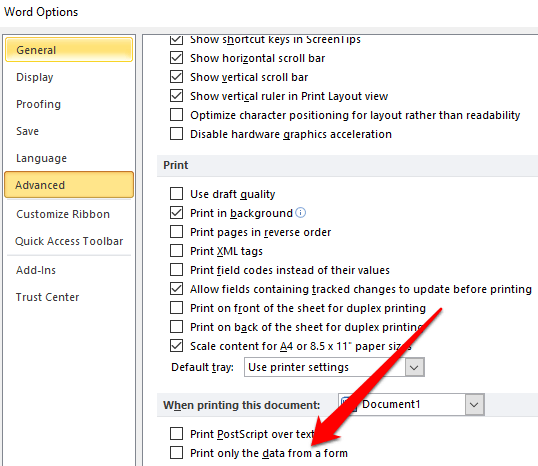
Sometimes you may see your document normally in Print Preview mode, but you get blank printouts or the pages contain data and nothing else. In such cases, you may have enabled the Print only the data from a form option.
- To uncheck this option, select File > Options > Advanced .
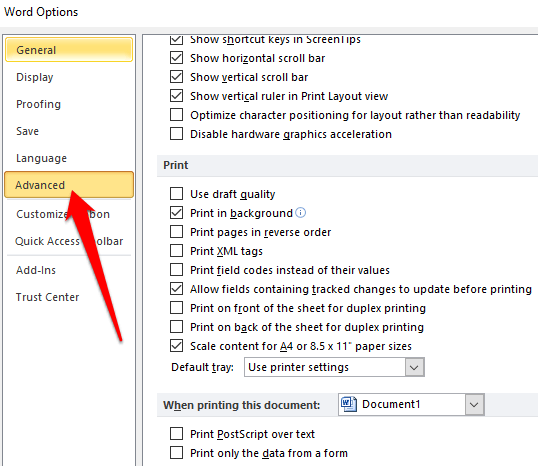
- Scroll down to Print and uncheck the box next to Print only the data from a form . Select OK and try to print your document again.
Print Directly to the Printer
By default, the Spool prints documents so the program finishes printing faster option is selected on your printer. This may be the reason you’re getting blank printouts, but you can uncheck the option and choose to print directly to the printer.
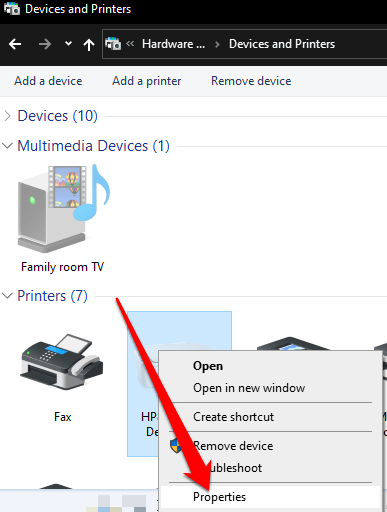
- Open Control Panel and select Hardware and Sound .
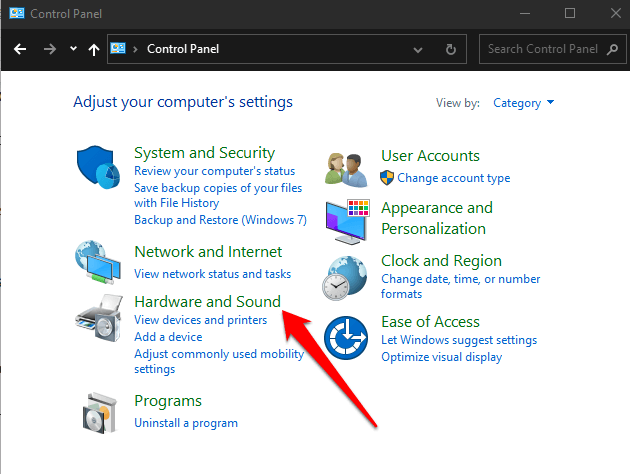
- Select Devices and Printers .
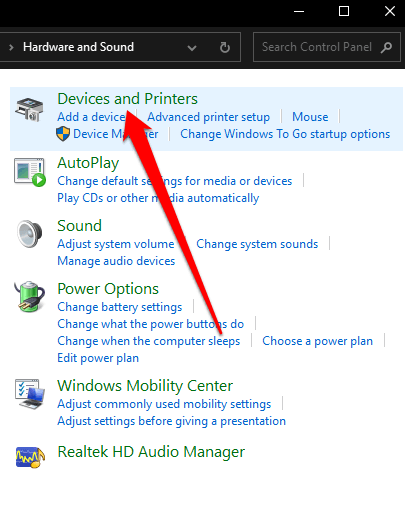
- Right-click your printer, select Properties > Advanced tab. Check the box next to Print directly to the printer and try printing your document again.
Why Is My Printer Printing Blank Pages in Excel?
If you’re having the same issue on Excel documents, try the following workarounds.
Use a Shortcut to Find Cells with Formulas that Return Blank Values
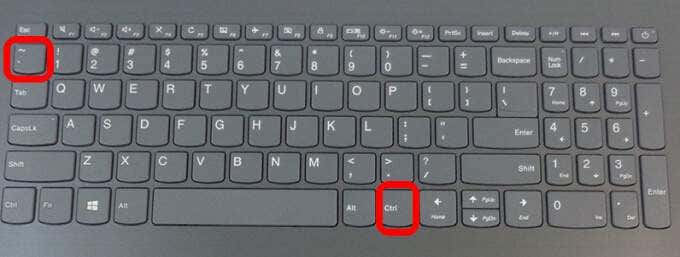
If your worksheet is still blank when printing it out, check whether there are formulas returning a blank value to a cell or cells. Press CTRL + ~ keys on your keyboard to see all the formulas on your worksheet. If you see any blank value formulas, delete the ones you don’t need and try to print again.
Set a Specific Area to Print
You can also set a printing selection on your worksheet so that you print a specific range. If you don’t set a specific area to print, pages that are completely blank may be unexpectedly printed.
Excel prints out cells shown in Print Preview mode. If you’re still getting blank printouts, chances are that you have a row or column that’s stretching past the Print Preview boundary.
Excel would see this as several blank pages that need to be printed to link the filled cells together. You can select Page Layout > Margins > Narrow to reduce the margins so they fit within the Print Preview boundary or set a specific area to print.
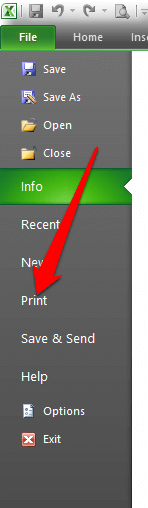
- Select File > Print .
- Under the Settings dropdown, select Print Selection .
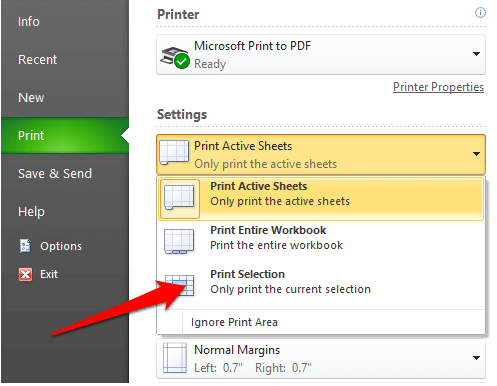
- Select the range of pages you want to print and then select Print .
Print Documents Normally Again
We hope one of these solutions helped you fix the printer printing blank pages.
If the printing problem persists, contact your printer manufacturer’s customer support and schedule a repair or replacement if the warranty is still valid.
We’ve covered how to troubleshoot common printer problems in Windows 10 , but if you’re using a wireless printer, turn to our guide on how to troubleshoot WiFi printers .
Let us know what worked for you by leaving a comment below.
- How to Fix the “Error – Printing” Status Error in Windows
- HP Printer Not Printing Black? 10 Fixes to Try
- How to Fix Missing or Failed Printhead Error on HP Printers
- How to Add a Printer to Your Chromebook
- How to Fix the Printer Error “0x0000011b” on Windows
Elsie is a technology writer and editor with a special focus on Windows, Android and iOS. She writes about software, electronics and other tech subjects, her ultimate goal being to help people out with useful solutions to their daily tech issues in a simple, straightforward and unbiased style. She has a BCom degree in Marketing and currently pursuing her Masters in Communications and New Media. Read Elsie’s Full Bio
Printers experience several forms of malfunctions, some of which are easy to fix. Fixing printer issues can be a headache—especially on Windows devices—because there’s a wide range of things that could be wrong.
The problem could stem from your PC, the printer, or the connection between both devices. This tutorial highlights ten likely troubleshooting measures for printers that won’t print.
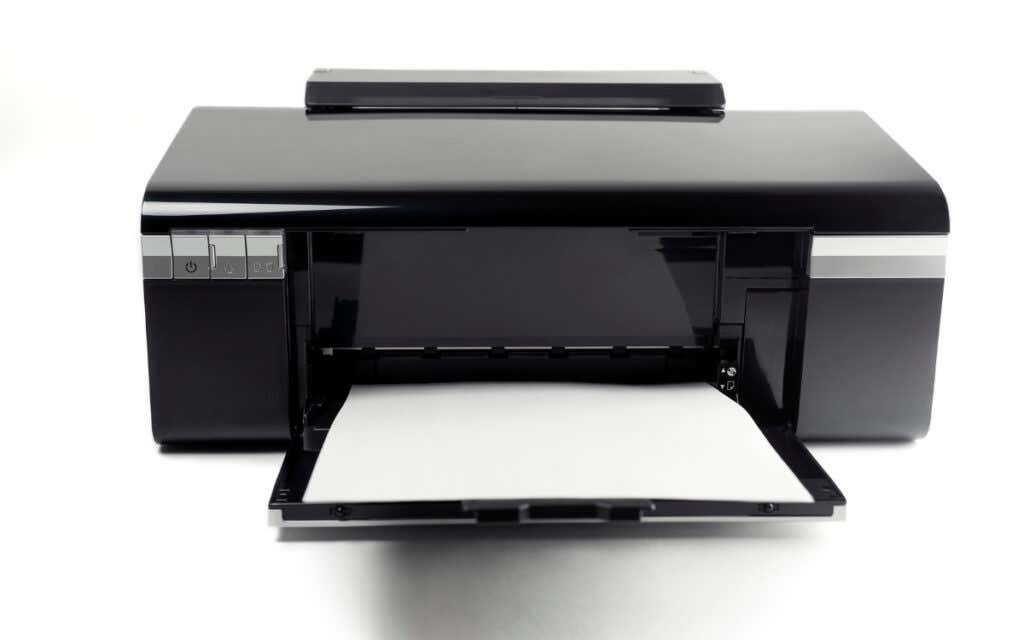
1. Check Paper Tray and Printer Connection
Many printer models won’t print if there’s a loose USB connection or if they’re out of ink or paper. Verify your printer’s ink levels, clean the printhead, fill the paper tray, and avoid using substandard paper. Low-quality paper can cause “Ghost Paper Jams” and other issues that stop your printer from printing documents.
For printers using a wired connection, ensure both cable ends are plugged firmly into your printer and computer. Go through the printer’s manual for instructions on connecting the device to your Windows or Mac computer.
Wireless printers won’t print documents if connected to the wrong Wi-Fi network. Make sure your printer and computer are on the same wireless network. Likewise, check your router settings, disable VPN connections, and make the printer’s IP address static. Refer to our tutorial on troubleshooting Wi-Fi (wireless) printers for more fixes.
2. Run the Printer Troubleshooter
Windows has a suite of troubleshooting tools that diagnoses and resolves hardware and software problems. We recommend running the Printer Troubleshooter before trying other more complex measures.
- Go to Settings > Bluetooth & devices > and select Printers & scanners .
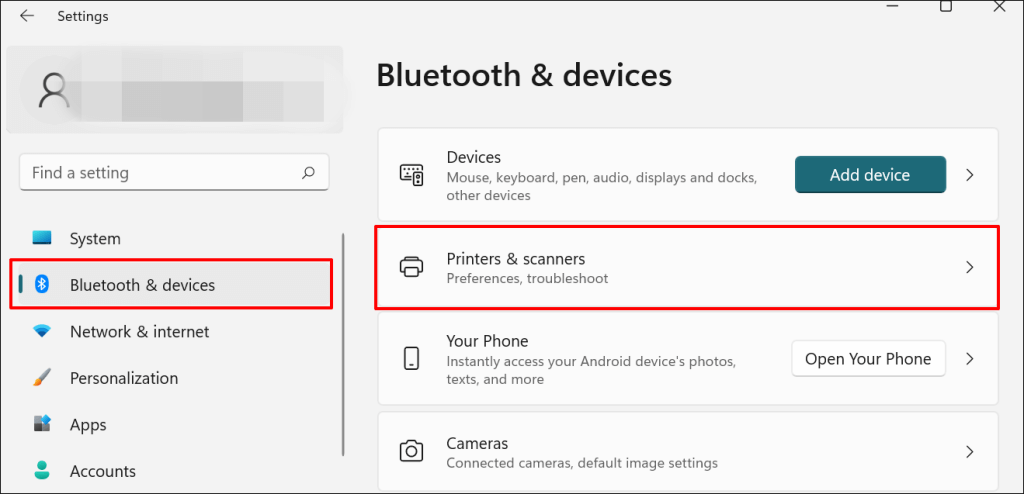
In Windows 10, go to Settings > Devices > Printers & scanners .
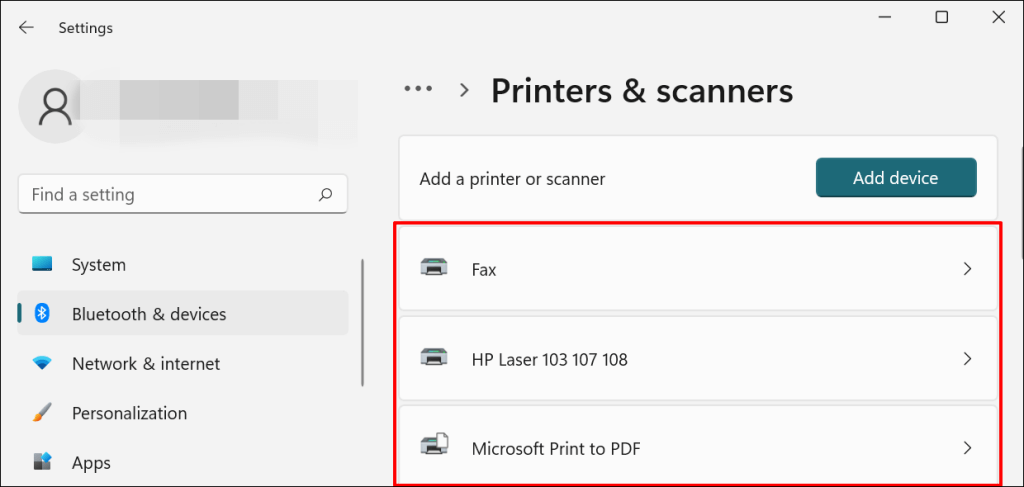
- Select the problem printer from the list of connected devices.
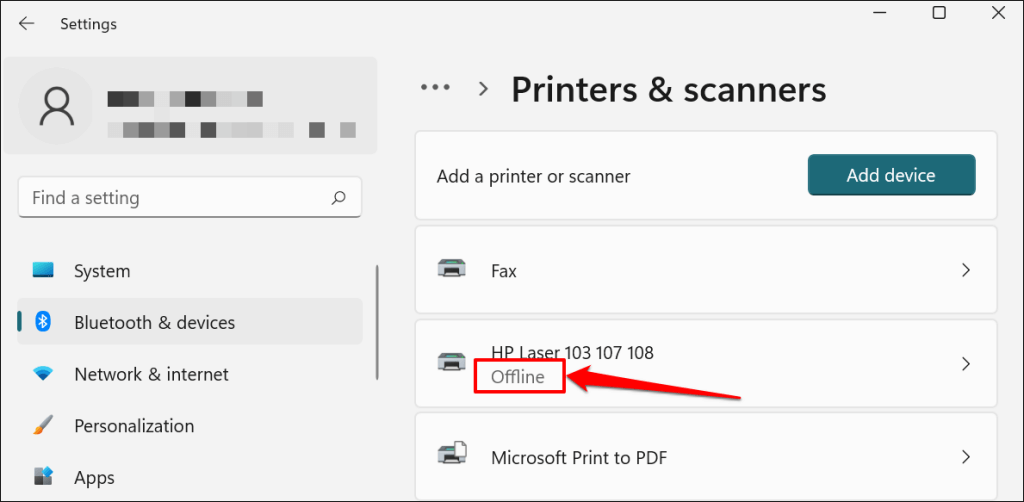
Note: If your printer status reads “Offline,” refer to our troubleshooting tutorial on getting an offline printer back online . Proceed to the next step if your printer is online.
- Select Run the troubleshooter in the “Printer settings” tab.
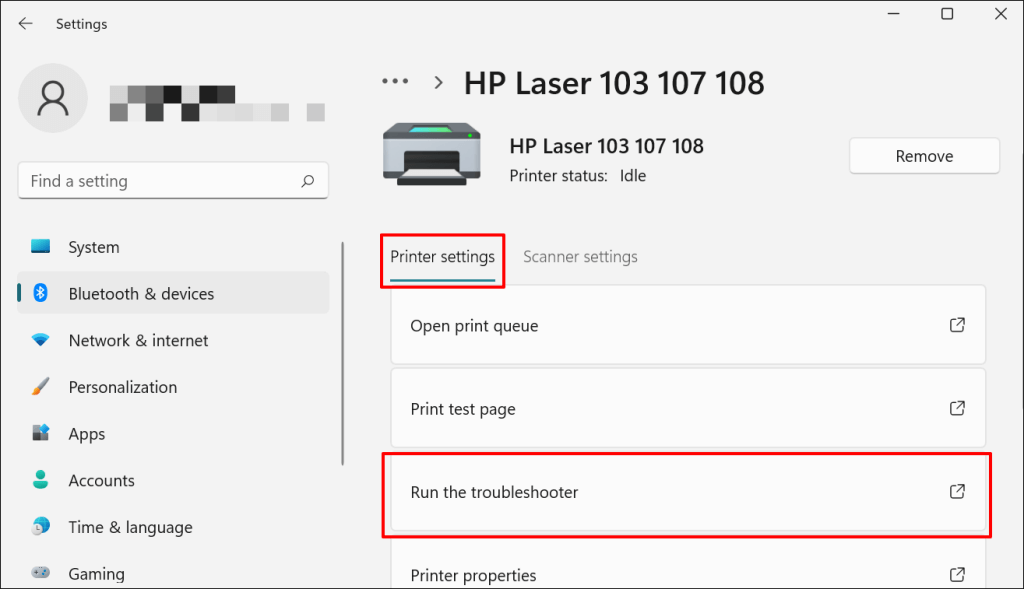
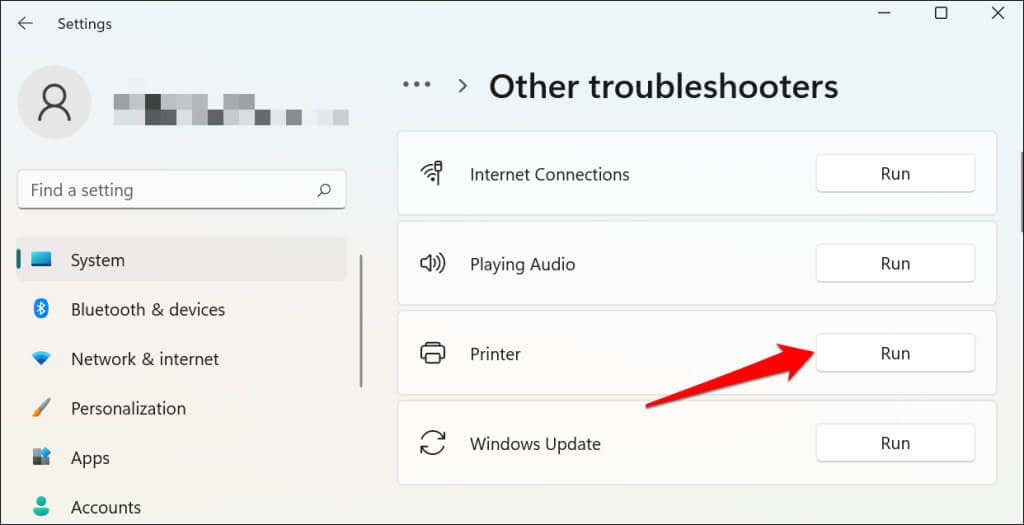
There’s another way to access the printer troubleshooter in Windows 11. Go to Settings > System > Troubleshoot > Other troubleshooters and select Run next to “Printer.”
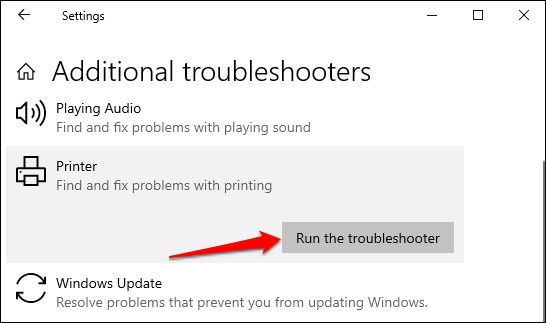
In Windows 10, go to Settings > Update & Security > Troubleshoot and select Additional troubleshooters > Printer > and select Run the troubleshooter .
Wait for the troubleshooter to run the necessary check on the printer, its drivers, and other associated processes.
3. Set the Printer As Default
Windows has a feature that dynamically changes your PC’s default printing device based on your location and other factors. The feature is near-perfect but not failproof. If your PC doesn’t print documents, it might be that an inactive printer is the default printing device.
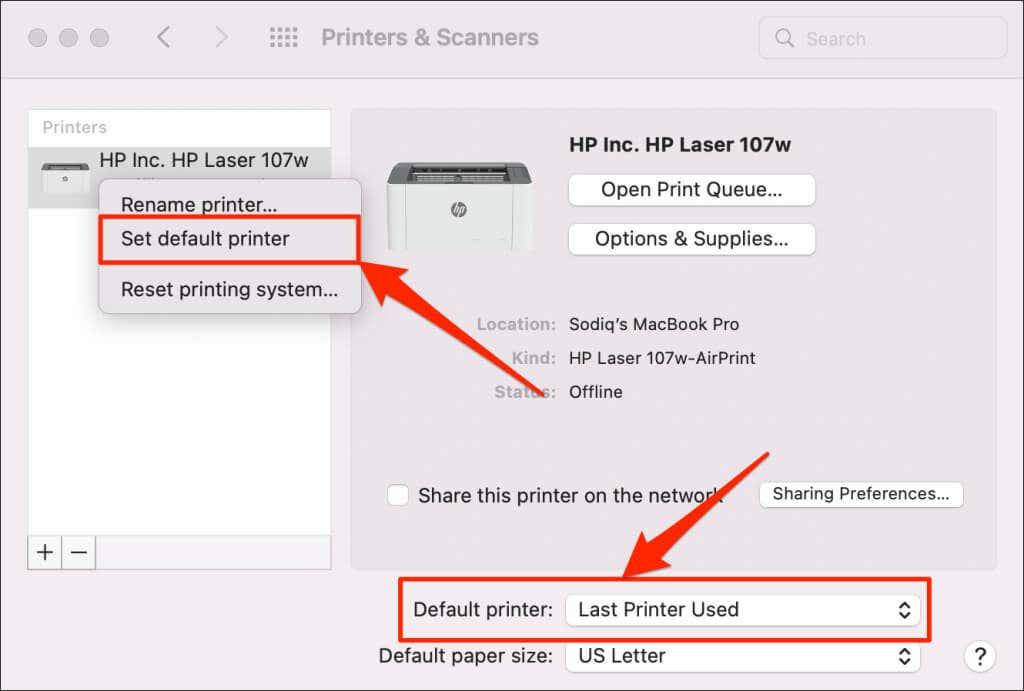
macOS also sets the last printer connected as your Mac’s default printer. Check your computer settings and ensure the active printer is the default device.
In Windows, go to Settings > Bluetooth & devices > Printers & scanners , select the printer, and select the Set as default button.
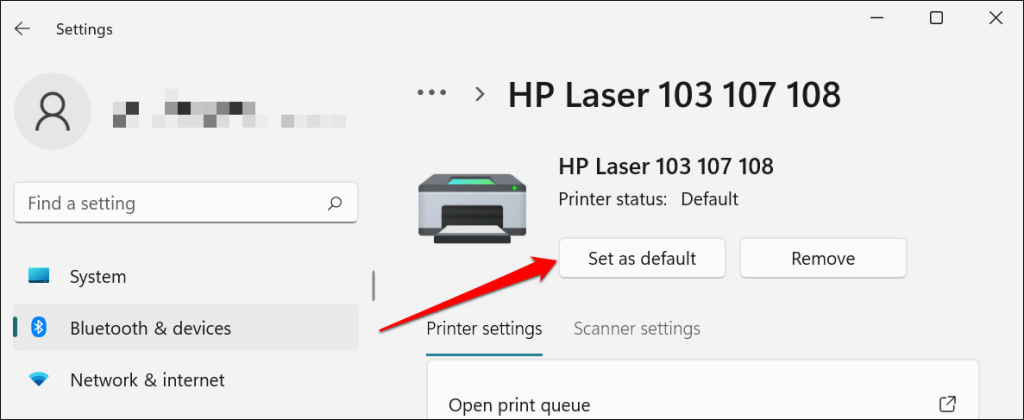
On Mac computers, go to System Preferences > Printers & Scanners on Mac computers , right-click the printer, and select Set default printer . Alternatively, open the Default printer drop-down menu and select the printer as the default.
4. Clear Your Computer’s Print Queue
When you send a document for printing, your computer first sends the “print job” to the print queue. The print job is immediately removed from the print queue when the printer prints the document. It’s usually a seamless process, but there are times when completed print jobs remain in the queue.
If that happens, subsequent print jobs will also get stuck in the queue and prevent your printer from printing files. Clearing your computer’s print queue might resolve the problem.
Clear Print Queue in Windows
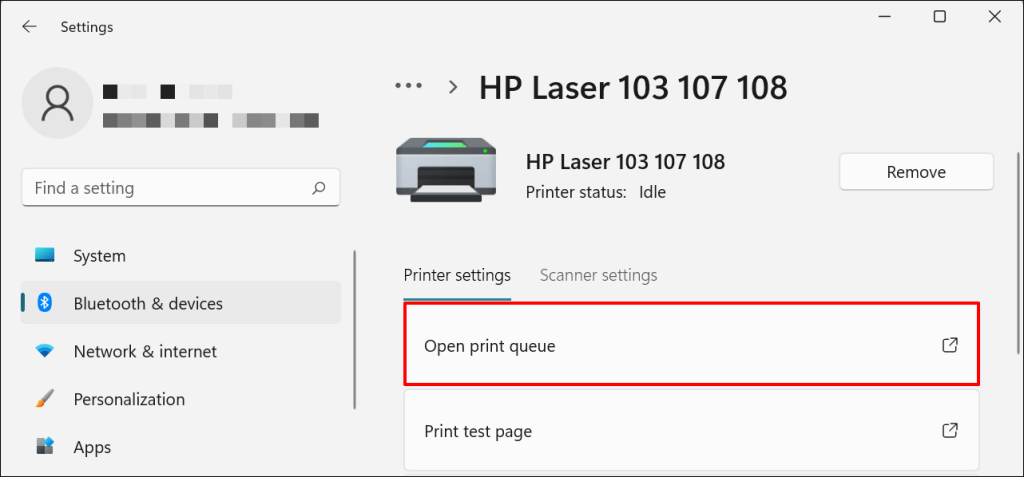
- Go to Settings > Bluetooth & scanners > Printers & scanners and select your printer.
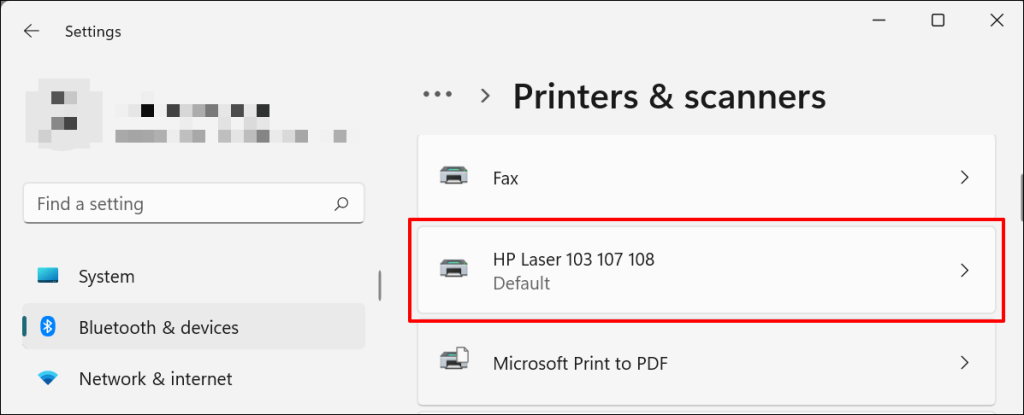
- Select Open print queue .
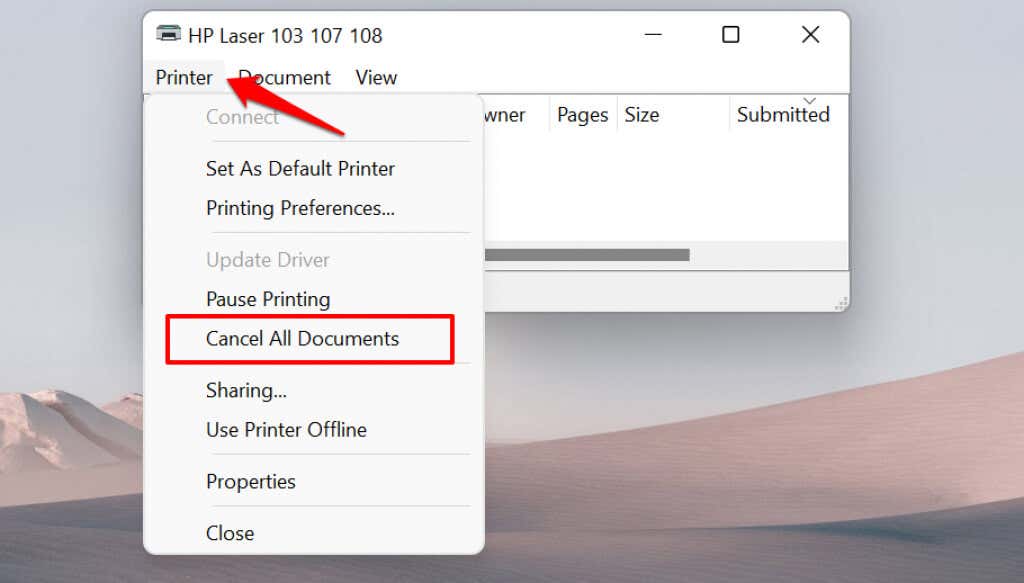
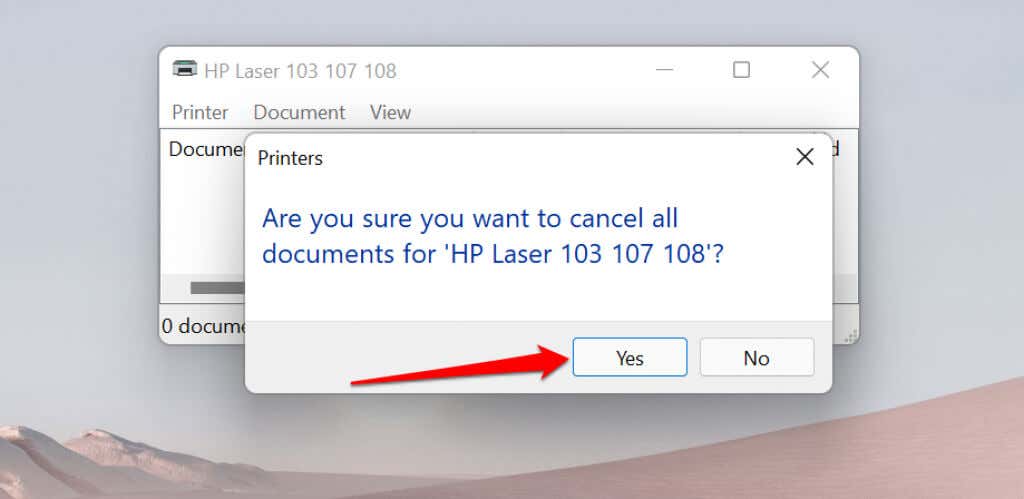
- Select Printer on the menu bar and select Cancel All Documents .
- Select Yes on the confirmation prompt.
[14-why-windows-pc-wont-print-documents]
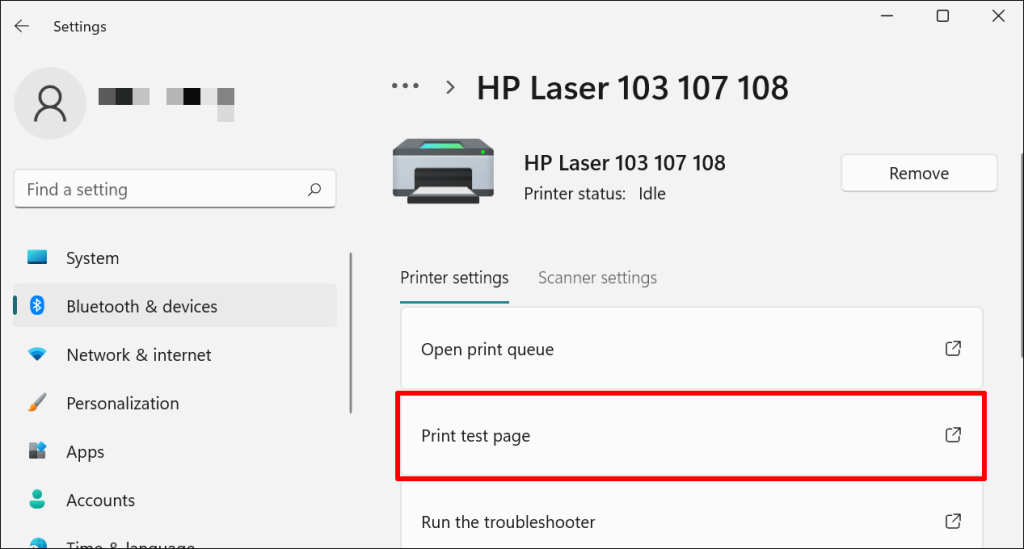
Try printing any document or a test page and check if clearing the queue fixed the problem. Open the printer menu and select Print test page .
If completed documents remain in the print queue, refer to our troubleshooting tutorial on deleting stuck print jobs in Windows .
Clear Print Queue in macOS
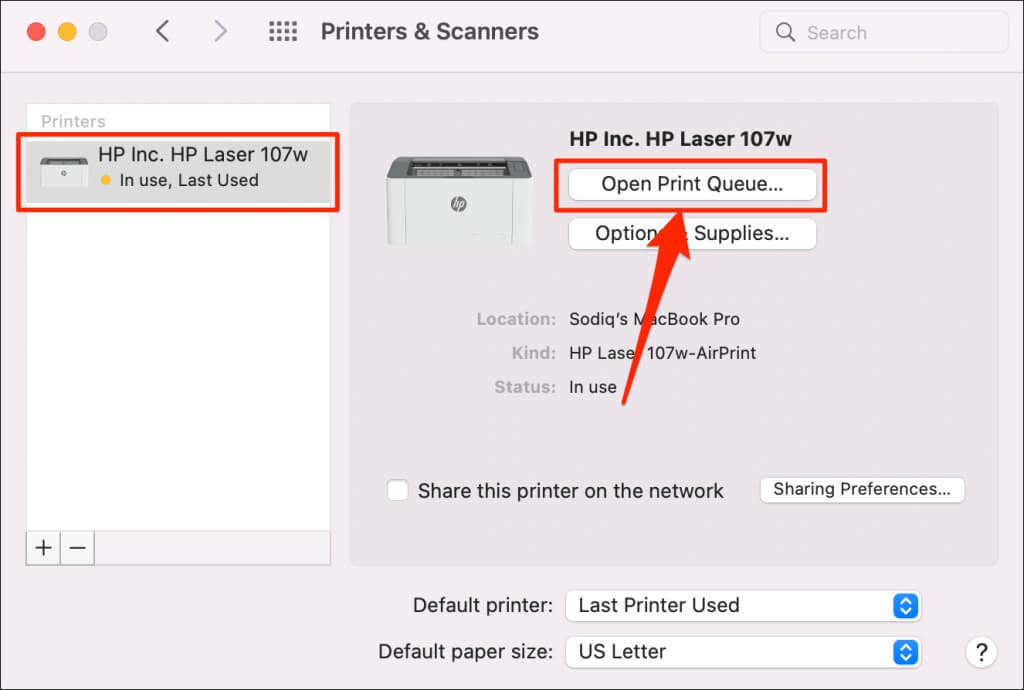
- Go to System Preferences > Printers & scanners , select the printer on the sidebar, and select Open Print Queue .
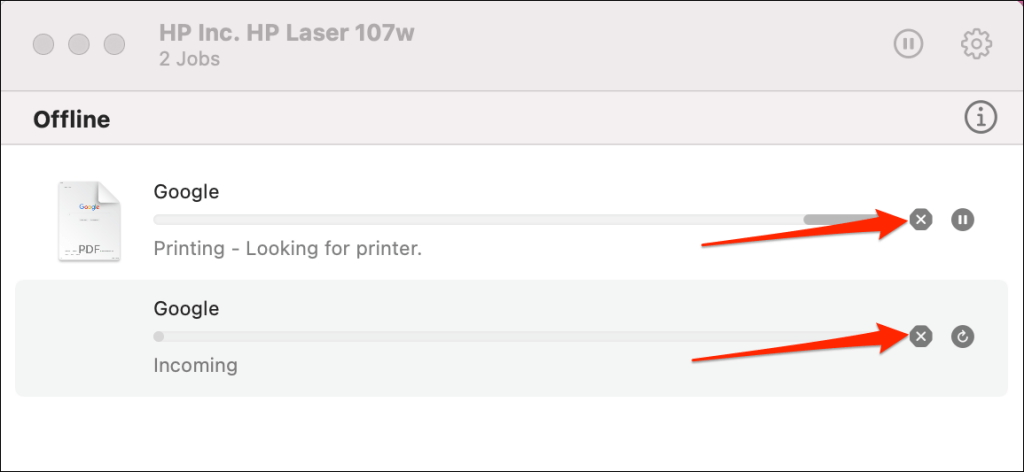
- Select the x icon next to the pending print jobs to remove them from the queue.
5. Update Printer Driver
Your printer might not receive print jobs from your PC if its driver is corrupt or outdated. Although Windows automatically installs driver updates, some factors (e.g., a metered internet connection) may prevent that from happening. Here’s how to manually install a driver from your computer or the internet.
Check the printer’s manufacturer website and download the latest driver updates for your printer model. Plug the printer into your computer and follow the steps below.
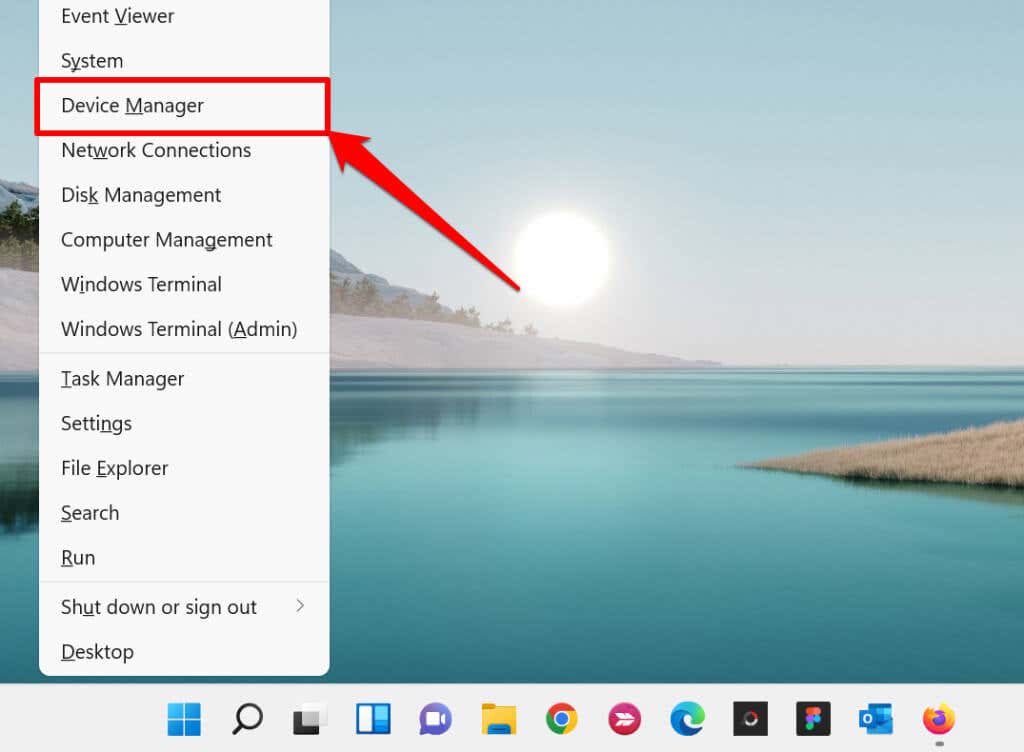
- Right-click the Start Menu or press the Windows key + X to open the Quick Access Menu. Select Device Manager to proceed.
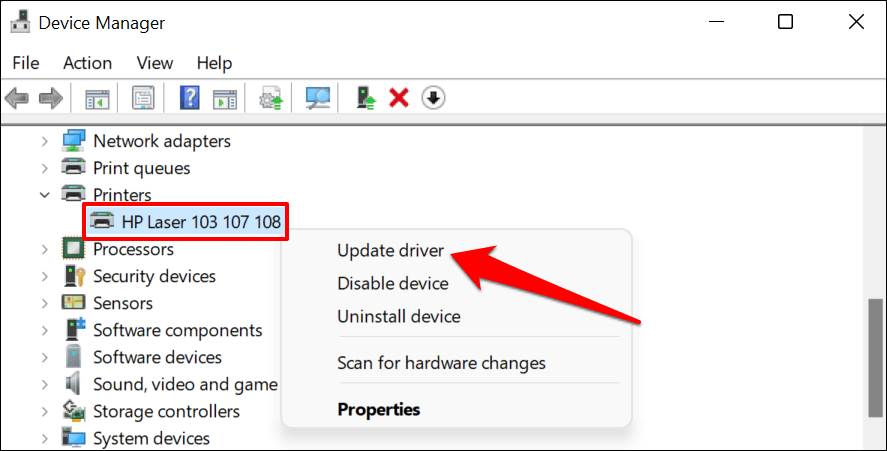
- Expand the “Printers” category, right-click the printer’s driver, and select Update driver .
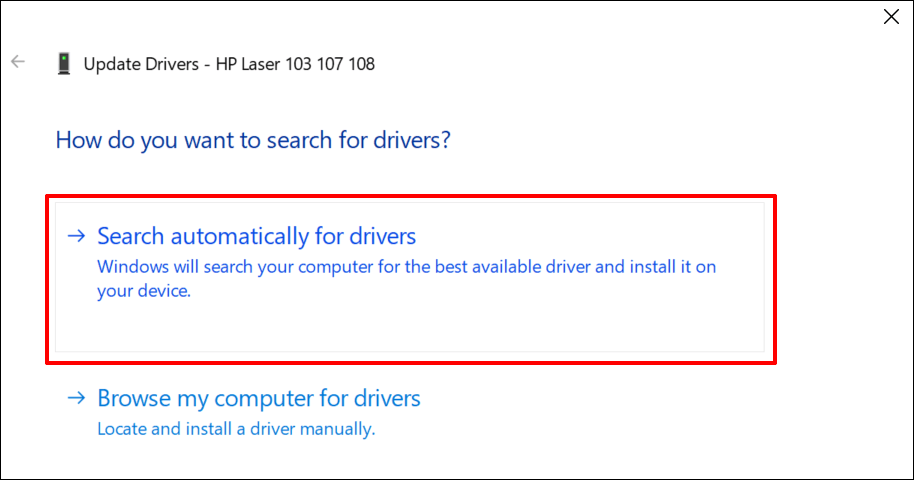
- Select Search automatically for drivers and wait for Windows to search for the best driver available for the printer. The process requires an internet connection, so ensure your PC is connected to a Wi-Fi or Ethernet network.
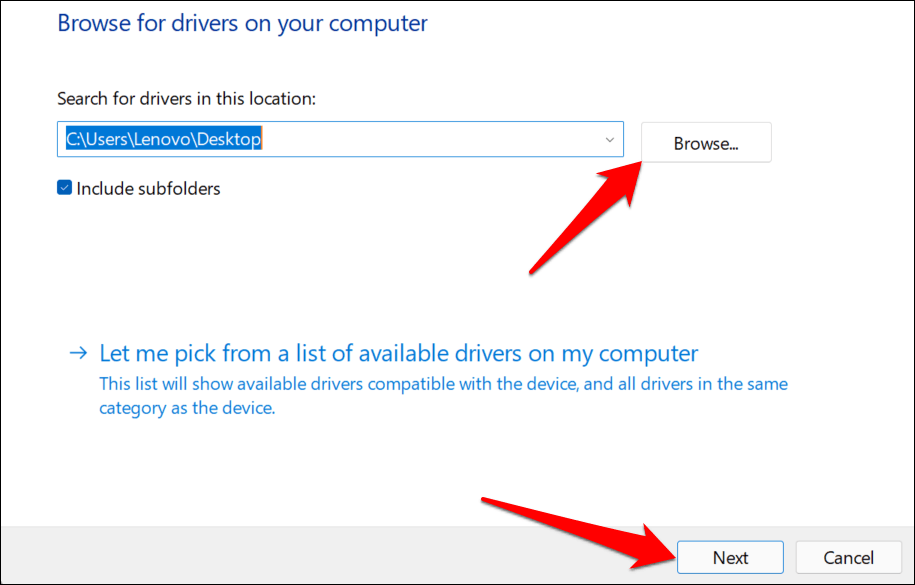
Alternatively, select Browser my computer for drivers to manually install a driver you downloaded from the printer manufacturer’s website. Afterward, choose Browse , navigate to the driver’s location on your PC, and select Next to install the update.
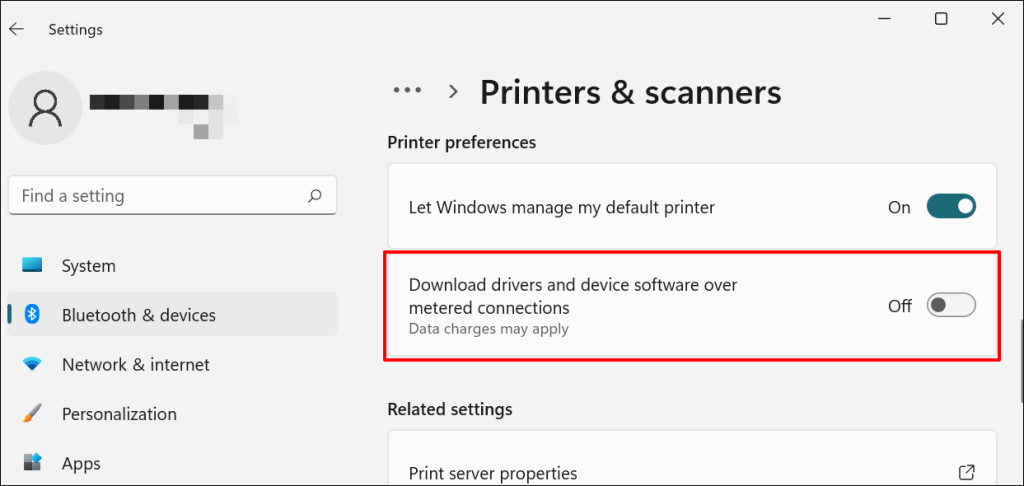
We recommend configuring Windows to automatically download drivers for your printer, especially if you’re using a metered connection.
Go to Settings > Bluetooth & devices > Printers & scanners and toggle on Download drivers and device software over metered connections .
If the Device Manager says the printer’s driver is up-to-date, check the manufacturer’s website for confirmation. You’ll find driver update history in the “Download,” “Software,” or “Drivers” section of the printer manufacturer’s website. Contact the manufacturer if you don’t know how to find, install, or update your printer’s driver update.
6. Reboot Your Devices
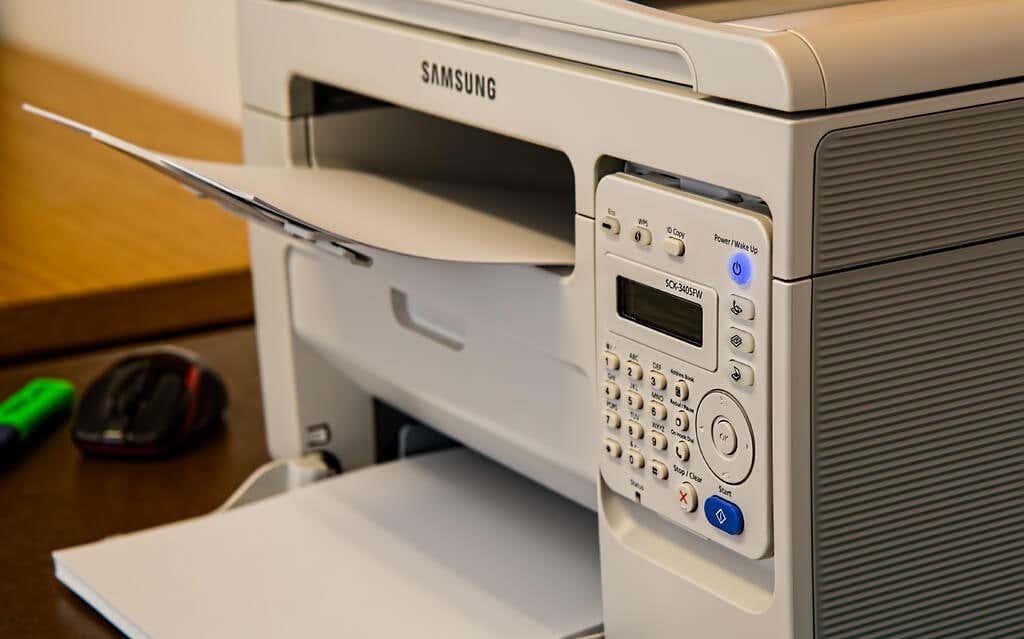
Power-cycling your printer and computer can help both devices re-establish a connection. Unplug your printer’s power cord and shut down your computer. Remember to close any open apps or documents so you don’t lose unsaved changes.
Restart both devices, connect your printer to your PC, and check if you can now print documents.
7. Reinstall Printer Driver
Reinstalling a faulty or corrupt driver can resolve issues causing your printer to malfunction. The operation entails deleting or uninstalling the printer driver , restarting your computer, and installing it from scratch. Note that this operation may affect any customizations made on the printer’s settings and preferences on your computer.
- Type device manager into Windows Search and select Device Manager .
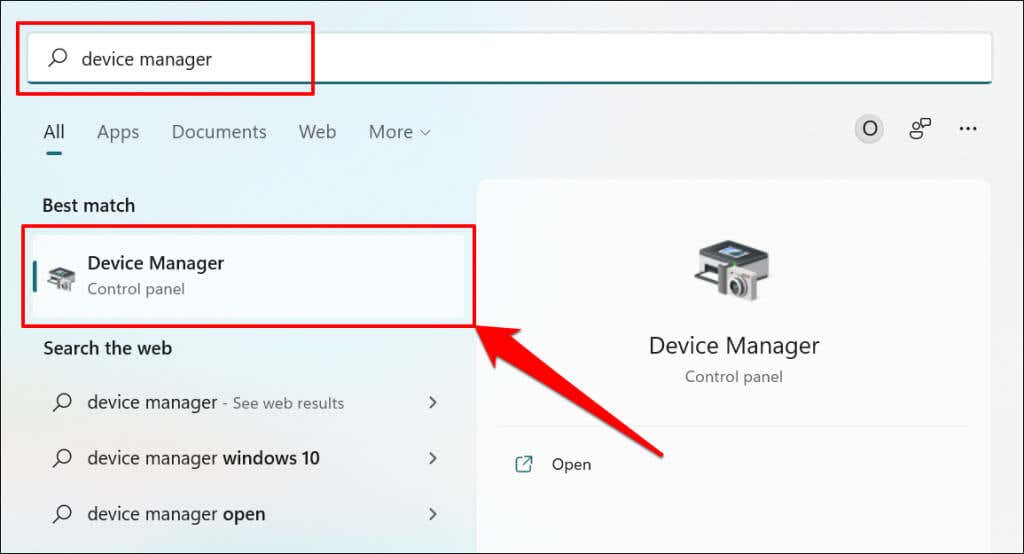
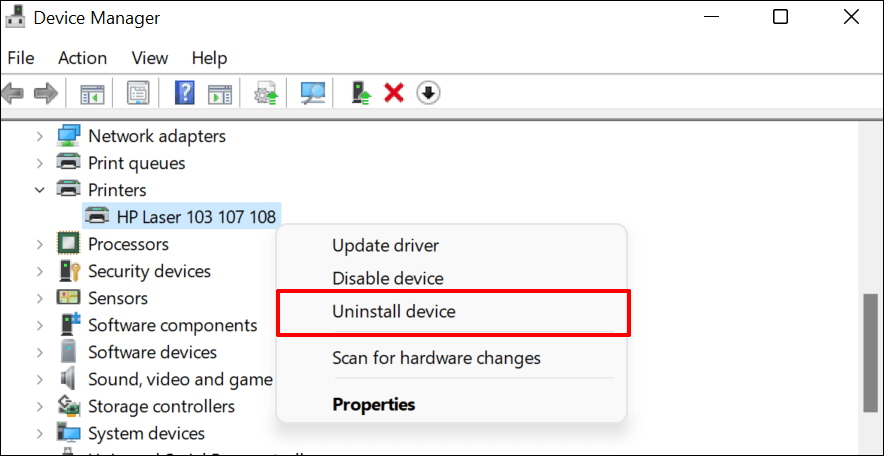
- Expand the “Printer” section, right-click the printer’s driver, select Uninstall device , and select Uninstall on the pop-up.
You should also remove the printer from your PC’s memory.
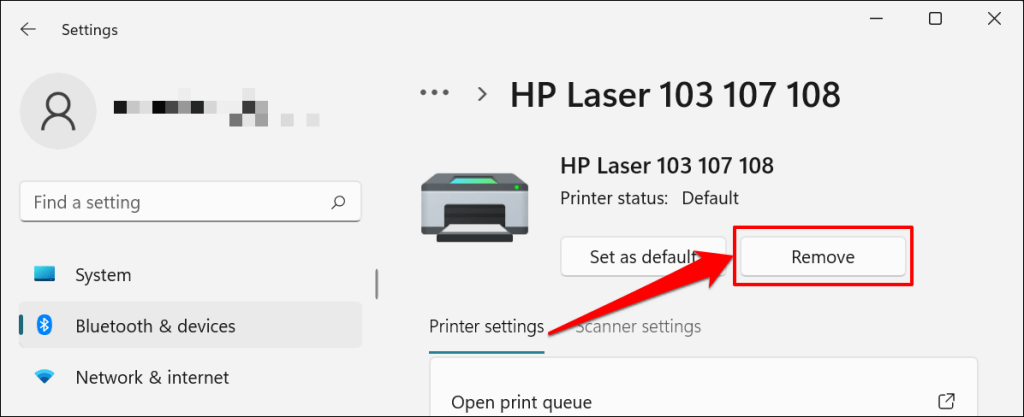
- Go to Settings > Bluetooth & devices > Printers and scanners , select the printer, and select the Remove button.
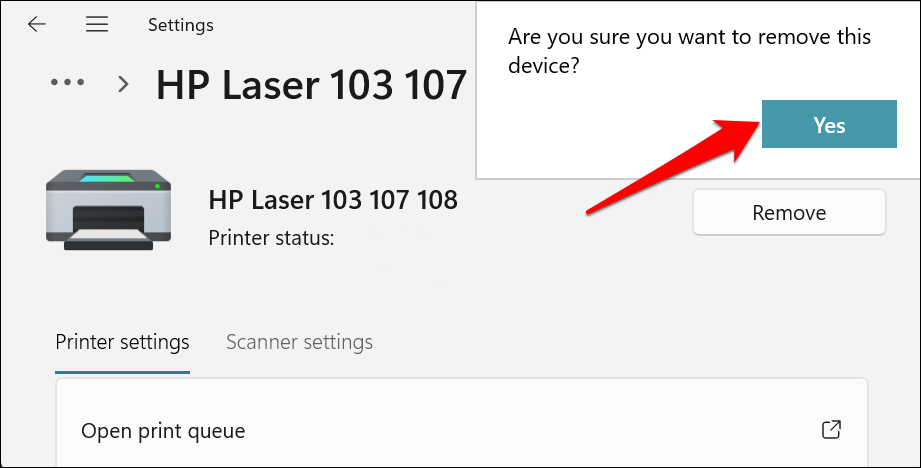
- Select Yes on the confirmation prompt.
Restart Windows and reconnect the printer to your computer. Windows should automatically install the printer’s driver when it connects to your PC.
8. Restart the Printer Spooler
Printer Spooler is the system service that manages printers and print jobs on Windows devices. Temporary system glitches can affect the Printer Spooler’s performance and trigger printing-related problems. Restarting the print spooler service can restore the service to normalcy.
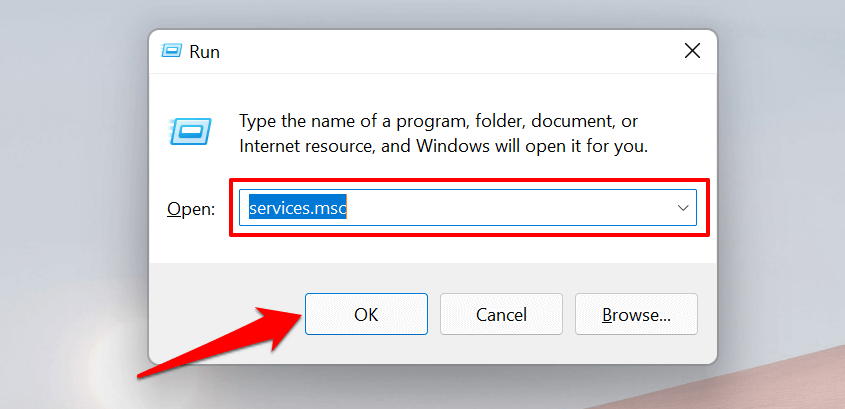
- Open the Windows Run box (press Windows key + R ), type services.msc in the dialog box, and press Enter .
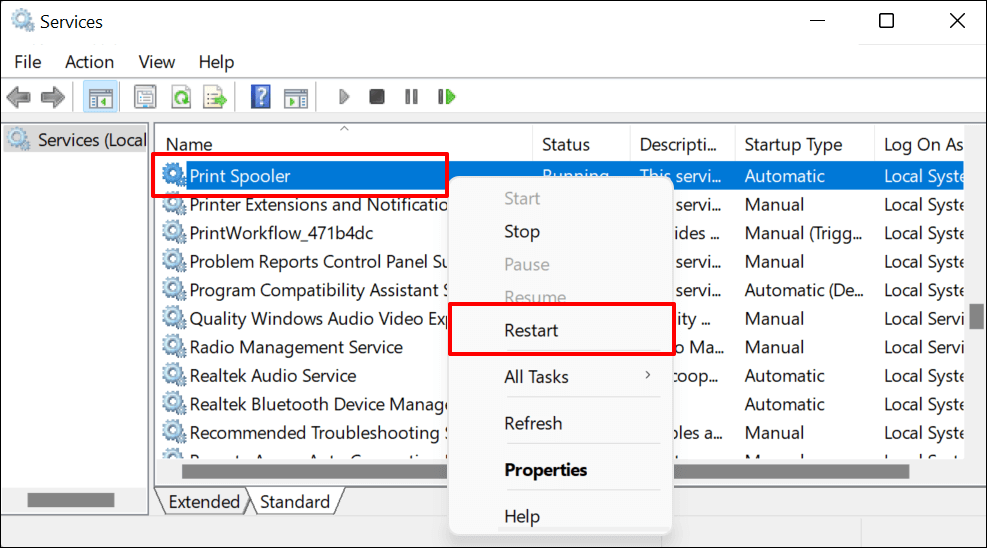
- Right-click Printer Spooler and select Restart .
9. Update Your Computer
Asides from fixing software bugs, Windows Updates also updates outdated or buggy drivers. Head to the Windows Updates menu and install the latest Windows build or security patches available for your computer.
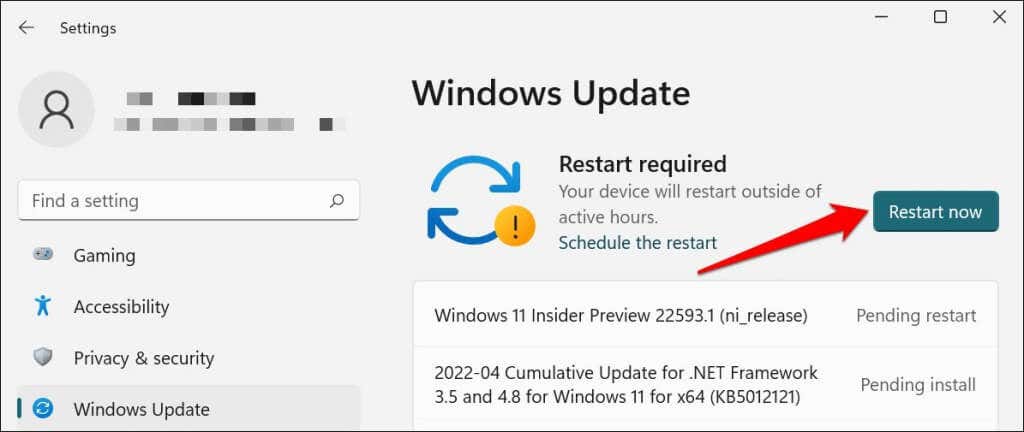
In Windows 11, go to Settings > Windows Update and wait for Windows to check for updates. You may need to restart your computer if Windows has already downloaded the update. Select Restart now to update and reboot your computer.
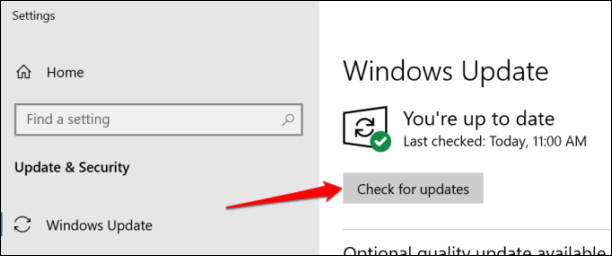
In Windows 10, head to Settings > Updates & Security > Windows Update and select Check for updates . Make sure your computer has an internet connection.
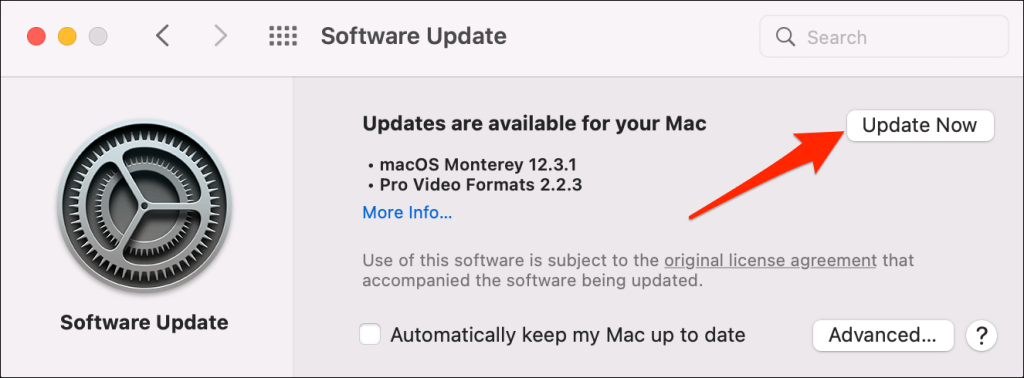
In macOS, go to System Preferences > Software Updates and select Update Now (or Upgrade Now ).
[32-update-mac-computer]
10. Run the Printer’s Utility Software
HP has a Print and Scan Doctor utility (HP Smart for Mac) that diagnoses problems with HP printers. The tool can detect empty ink cartridges, outdated driver software, blocked nozzles, print feed errors, and other printer problems.
Samsung Printer Experience is the utility that manages Samsung printers. The app has loads of troubleshooting guides for printing problems on Samsung printers. The Canon Inkjet Print Utility is also available for Canon inkjet printers.
Download and install your printer’s utility software on your computer and run the tool according to the manufacturer’s instructions.
Pay Attention to Physical Indicators
Printers have status lights or LCD screens that display error codes. These lights point out the root cause of some printing issues. Check the printer’s instruction manual to learn what the indicator lights and error codes mean and their respective solutions. Contact the printer manufacturer if your printer still won’t print after running these troubleshooting measures.
- How to Fix the “Error – Printing” Status Error in Windows
- HP Printer Not Printing Black? 10 Fixes to Try
- How to Fix Missing or Failed Printhead Error on HP Printers
- How to Add a Printer to Your Chromebook
- How to Fix the Printer Error “0x0000011b” on Windows
Sodiq has written thousands of tutorials, guides, and explainers over the past 4 years to help people solve problems with Android, iOS, Mac, and Windows devices. He also enjoys reviewing consumer tech products (smartphones, smart home devices, accessories, etc.) and binge-watching comedy series in his spare time. Read Sodiq’s Full Bio
