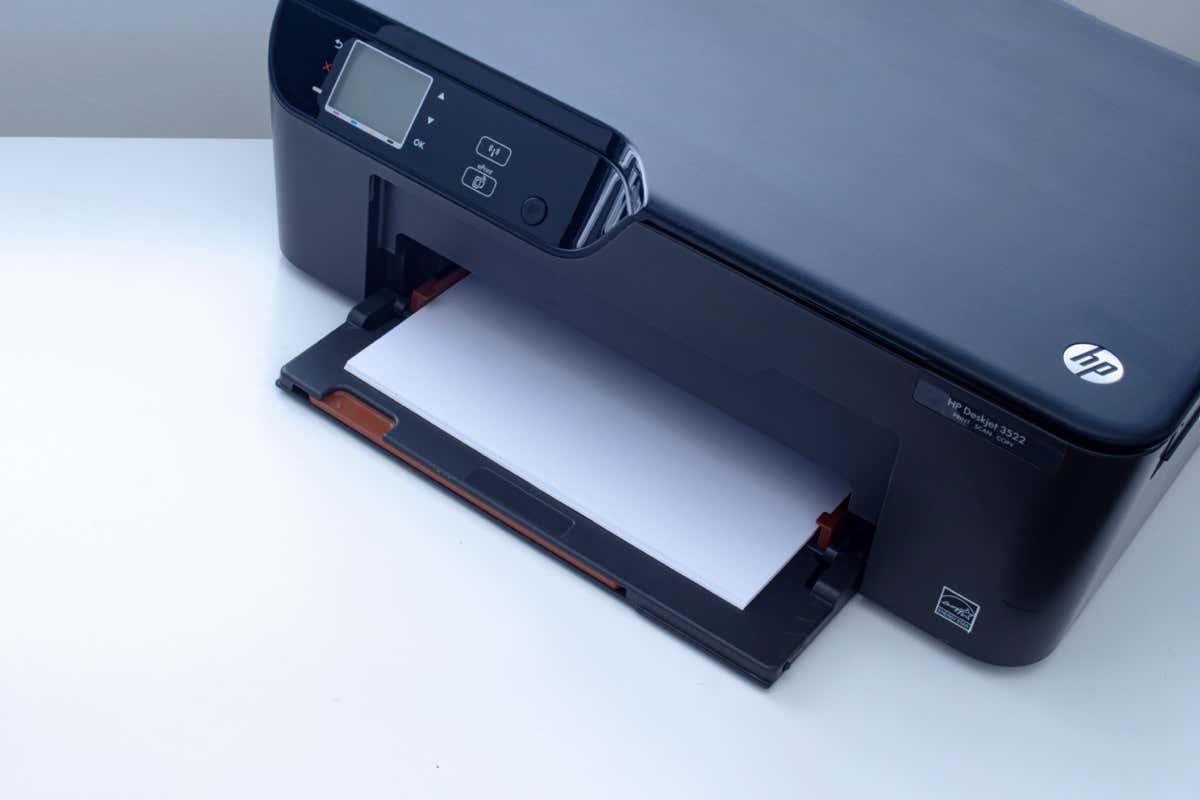
Do you see a “Driver is unavailable” error for your HP printer in the Windows Settings app or Control Panel? This occurs when Windows encounters a corrupt or incompatible HP printer driver. We’ll show you how to fix that.
When Does the “Driver Is Unavailable” Error Happen?
The “Driver is unavailable” error shows up for an HP printer in instances where Windows has trouble loading the relevant printer driver. Various reasons—such as outdated driver software or an incomplete printer setup—often cause that. Work through the fixes below to resolve the HP printer issue in Windows 10 and 11.
1. Run the Printer Troubleshooter
Windows has a built-in Printer troubleshooter that can fix most printer driver issues and other common printer problems . Run it before moving on to the rest of the fixes.
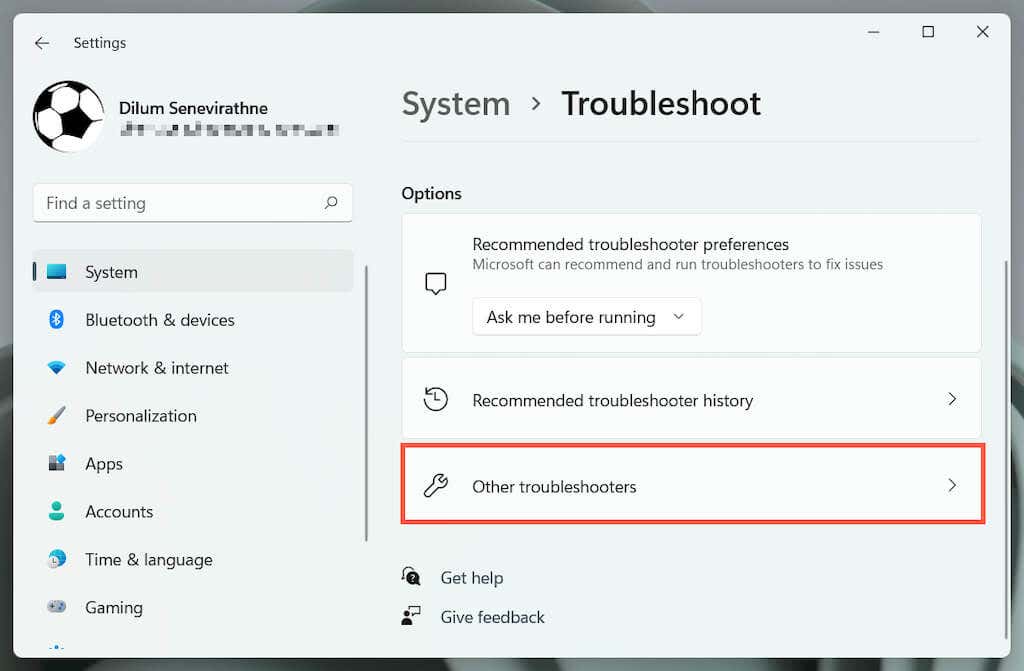
- Press Windows Key + S , type Troubleshoot Settings , and press Enter . On the Settings window that shows up, select Other / Additional troubleshooters .
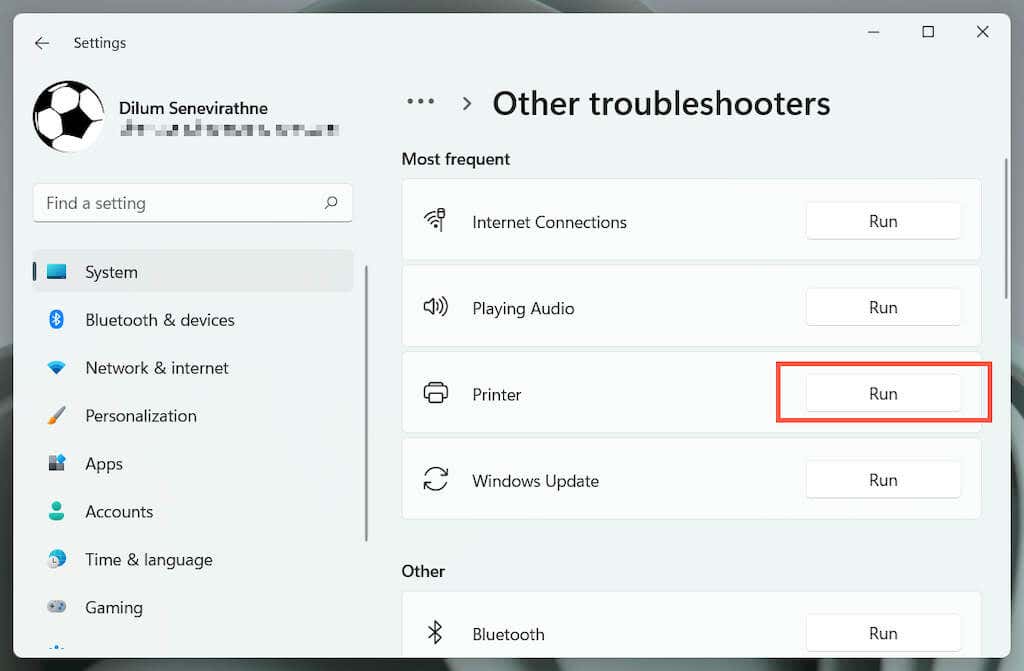
- Locate the Printer troubleshooter and select Run / Run the troubleshooter .
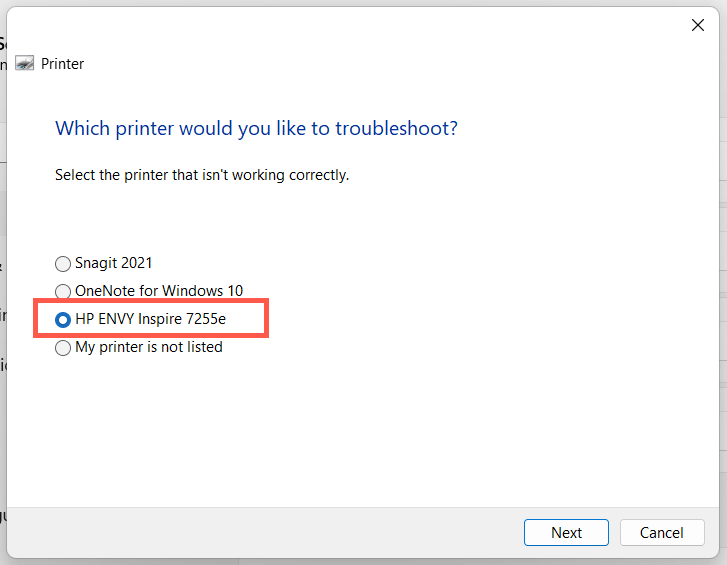
- Select your HP printer and follow the on-screen instructions to fix issues the Printer troubleshooter detects.
2. Run the HP Print and Scan Doctor App
Next, run the HP Print and Scan Doctor app on your PC. It’s a dedicated troubleshooter by HP that can diagnose and fix issues specific to HP printers. You can download the HP Print and Scan Doctor from the HP website.
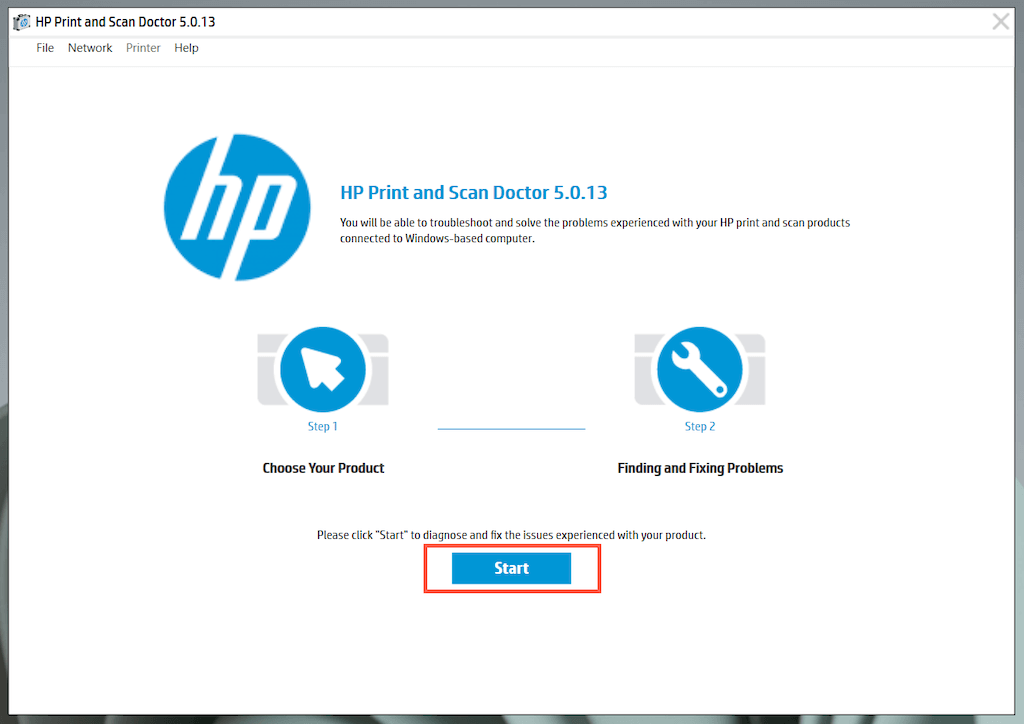
If the HP Print and Scan Doctor detects issues with your HP printer, let the tool automatically fix them for you or follow any suggestions to do that yourself.
3. Update Your HP Printer
Visit HP’s Software and Driver Downloads portal and search for your HP printer model. Then, download and install any recommended support software (e.g., HP Smart or HP Easy Start) that you don’t already have on your computer. Also, install any firmware or device driver updates.
If you have trouble installing device drivers via HP’s driver updater tool, try using the Device Manager in Windows instead. To do that:
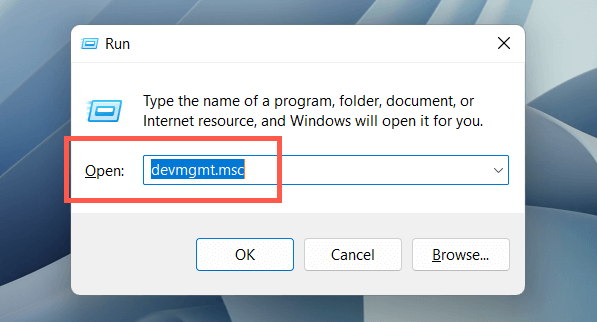
- Press Windows + R to open a Run box. Then, type devmgmt.msc and select OK to open the Device Manager.
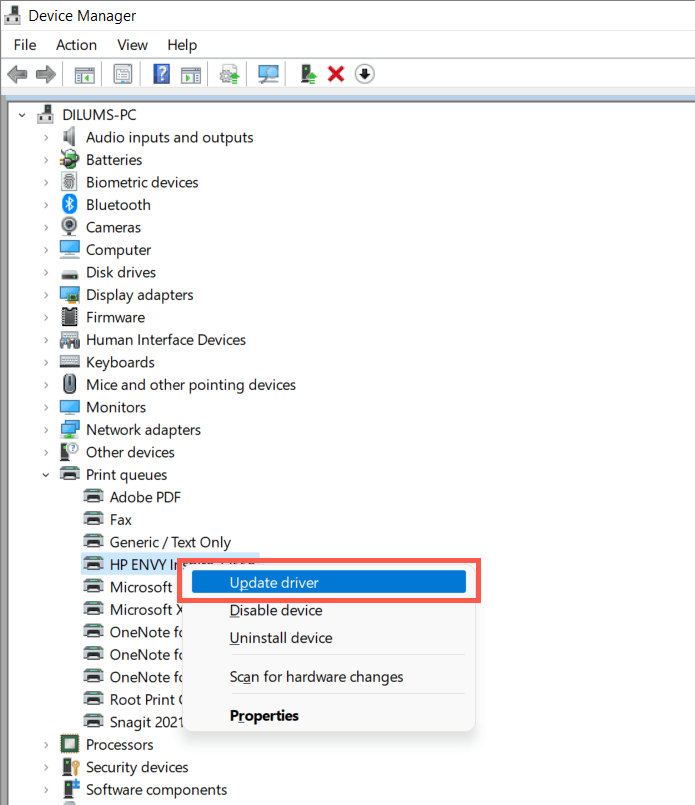
- Expand Print queues , right-click your printer hardware (e.g., HP ENVY ), and select Update driver .
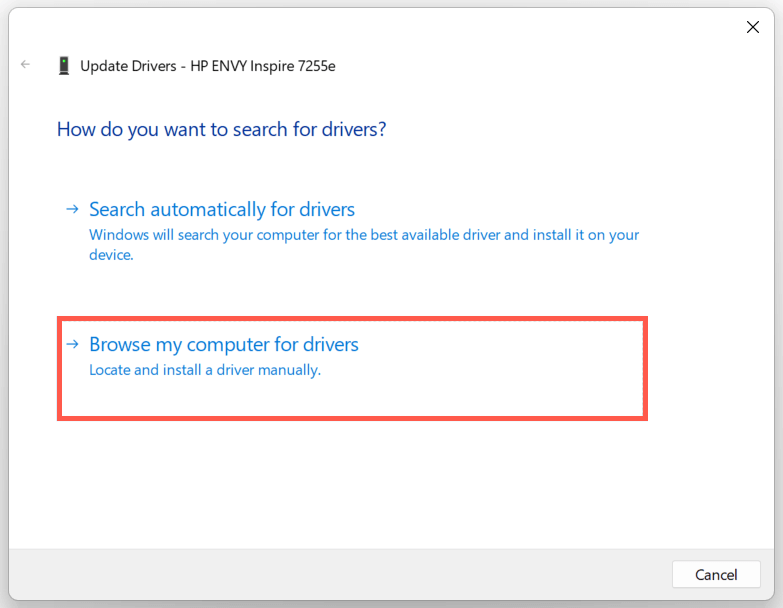
- Select Browse my computer for drivers on the Update Drivers dialog.
- Check the box next to Include subfolders . Then, select Browse and pick the downloaded driver file or folder.
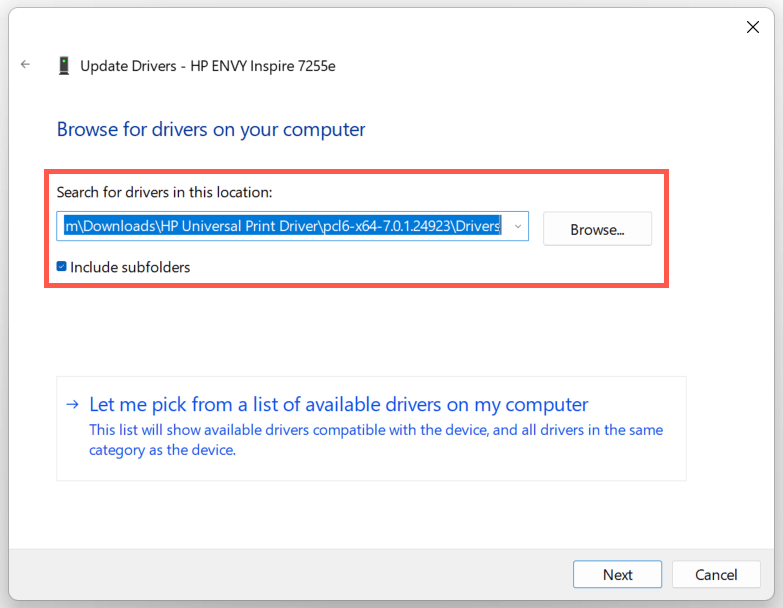
Note : If the driver file is in the ZIP format, Windows may not detect it unless you extract it first.
- Select Next to update the HP printer driver. Once that’s done, select Close to exit the Update Drivers window.
4. Install New Windows Updates
If your PC runs on an early build of Windows 10 or 11, your HP printer driver or support software may encounter compatibility issues unless you update the operating system .
To do that, open the Start menu and select Settings . Then, select Windows Update > Check for updates > Download and install to install available Windows updates.
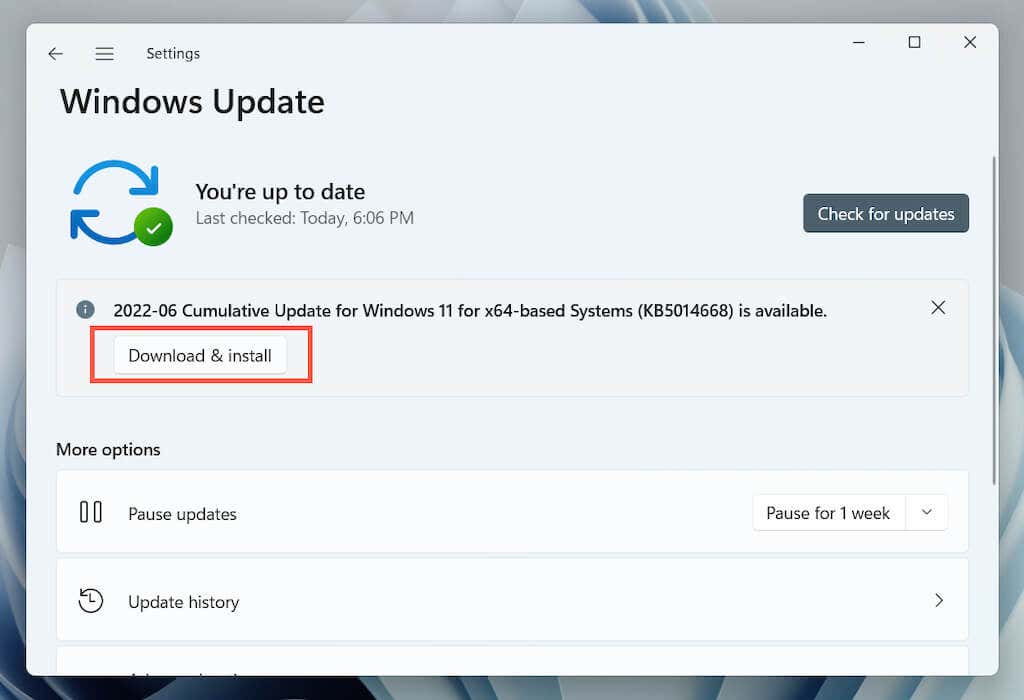
Also, select Advanced options > Optional updates or View optional updates within the Windows Update pane and install any Microsoft-verified printer updates if available.
5. Remove and Re-install Drivers for HP Printer
If the “Driver is unavailable” error persists, try removing and re-adding the printer to your computer. That also involves deleting and reinstalling the relevant HP drivers and support software.
Open the Settings app and go to Bluetooth & devices > Printers & scanners .
Choose your HP printer and select the Remove button to confirm. Then, select Remove device on the pop-up to confirm.
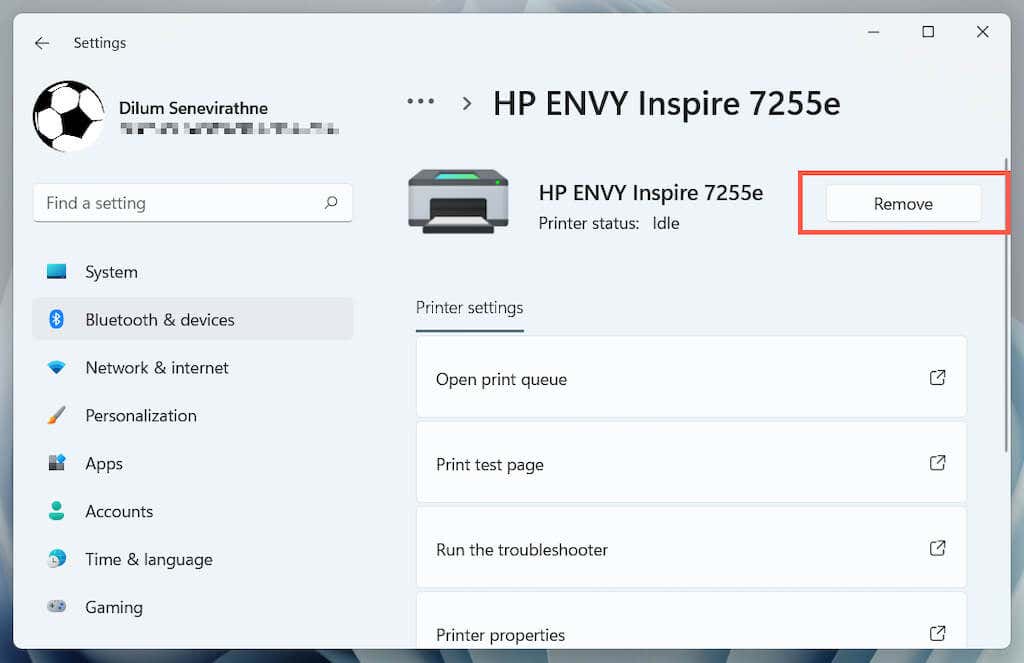
Open the Device Manager.
Expand Printer queues , right-click your HP printer, and select Uninstall device .
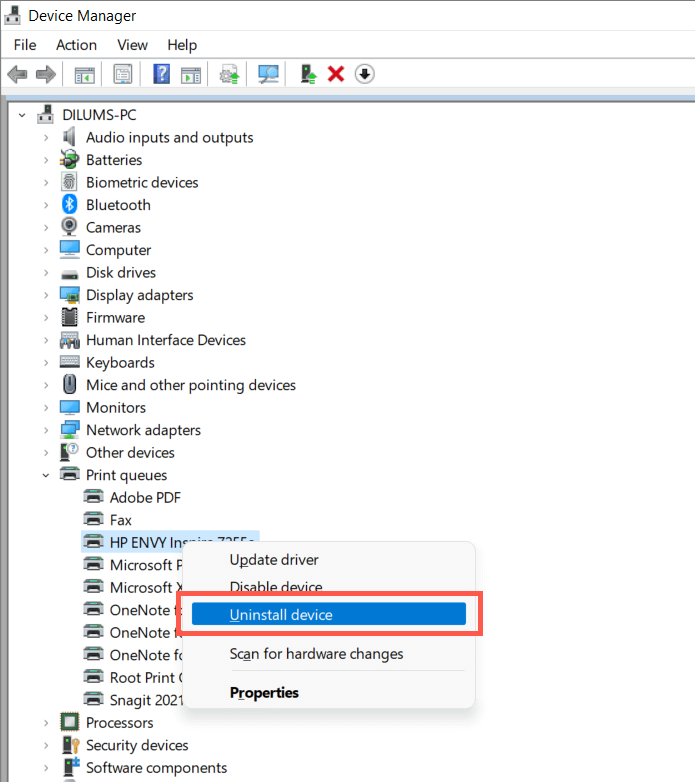
Right-click the Start button and select Apps and Features .
Locate and uninstall any HP drivers or support software.
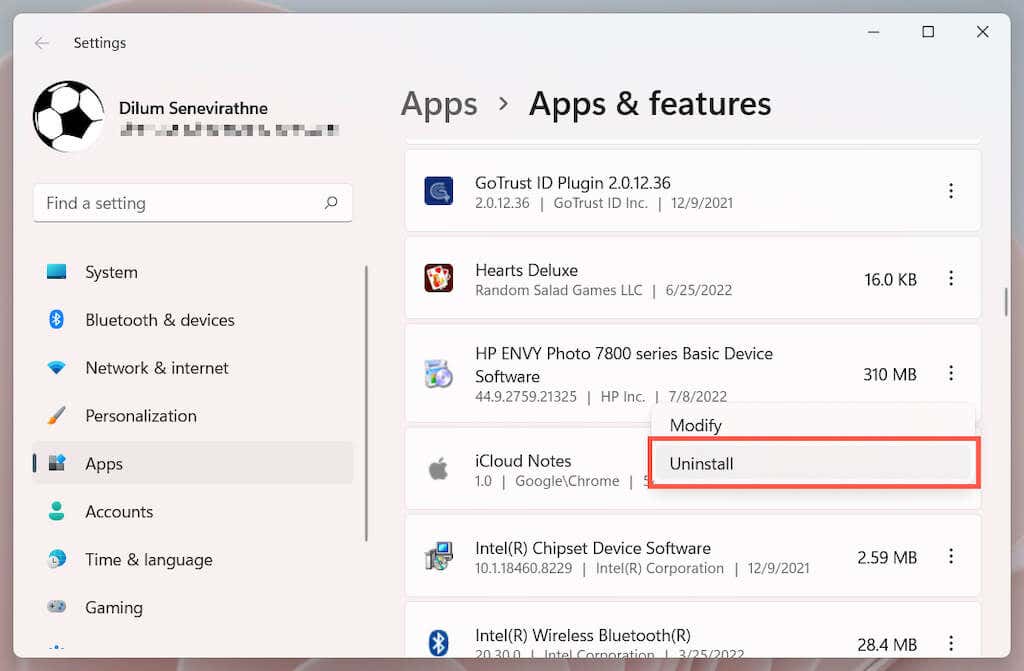
Restart your computer.
Re-open the Settings app and go to Bluetooth & devices > Printers & scanners .
Select Add device and set up the HP printer from scratch.
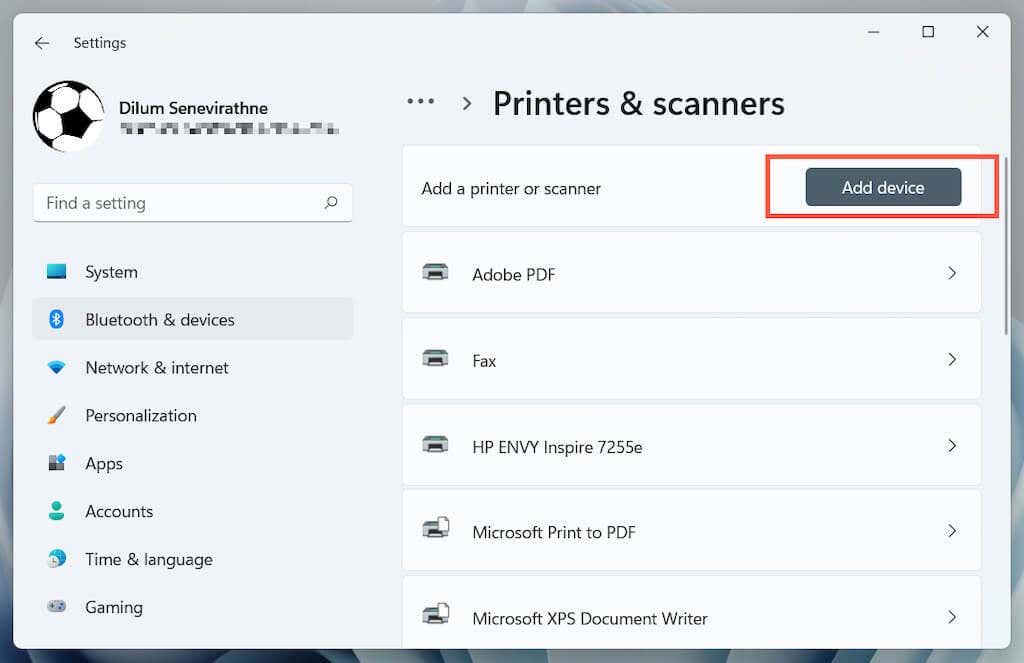
- Reinstall the latest drivers and support software for the device. Again, search for the printer model on HP’s Software and Driver Downloads portal to ensure you install everything.
6. Switch to the Generic Printer Driver
Switch to the generic printer driver in Windows. That will likely resolve the “Drive is unavailable” error but at the expense of losing various features specific to your HP printer. Regardless, it’s a good idea to try that if the issue persists.
- Open the Device Manager and select the problematic HP printer under Printer queues . Then, right-click and choose Update driver .
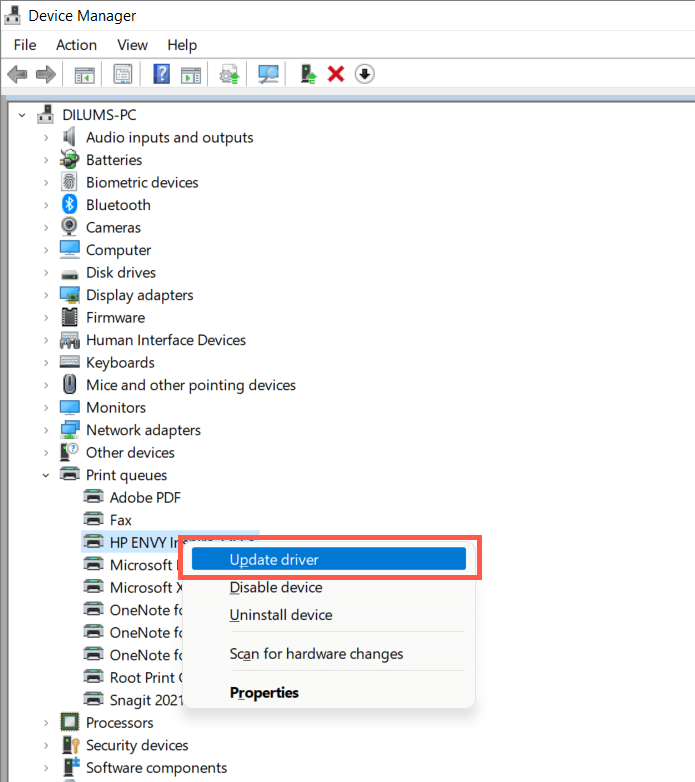
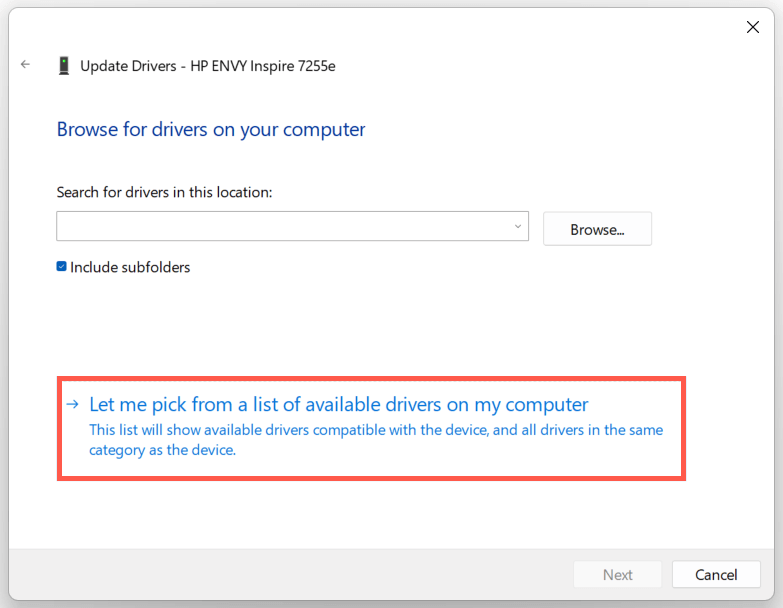
- Select Browse my computer for drivers.
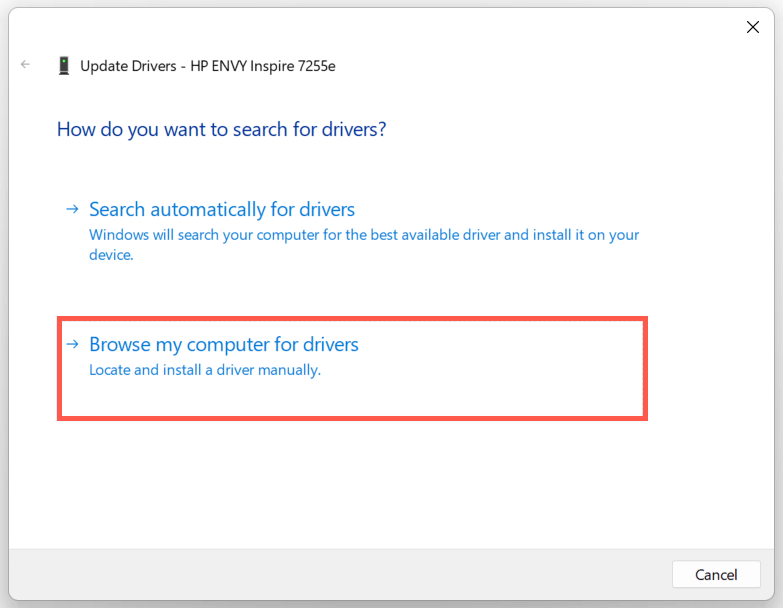
- Select Let me pick from the list of available drivers .
- Check the box next to Show compatible hardware . Then, select Generic software device > Next.
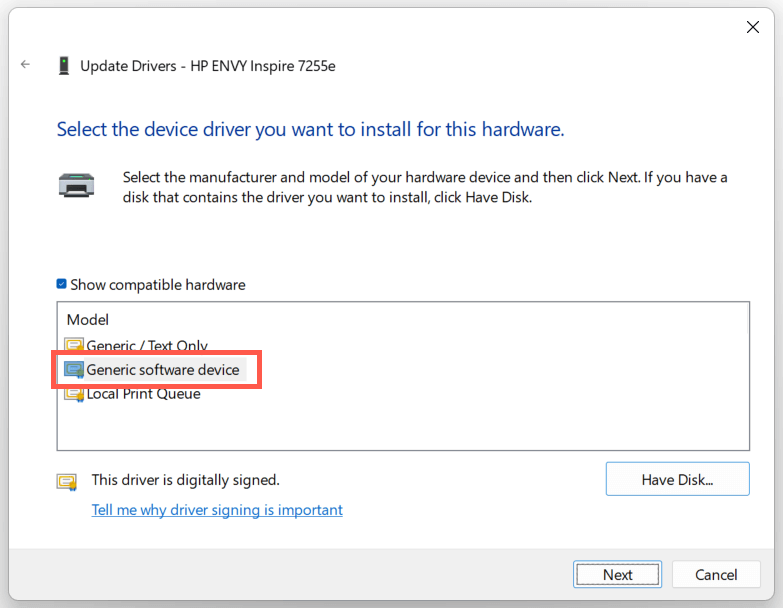
- Select Finish to install the generic printer driver for your PC.
7. Perform an SFC and DISM Scan
System file corruption can be another reason for your HP printer’s “Driver is unavailable” error. Running the SFC and DISM command-line tools usually helps fix that.
To initiate an SFC (or System File Checker) scan, right-click the Start button and select Windows PowerShell / Terminal (Admin) . Then, type sfc /scannow and press Enter .
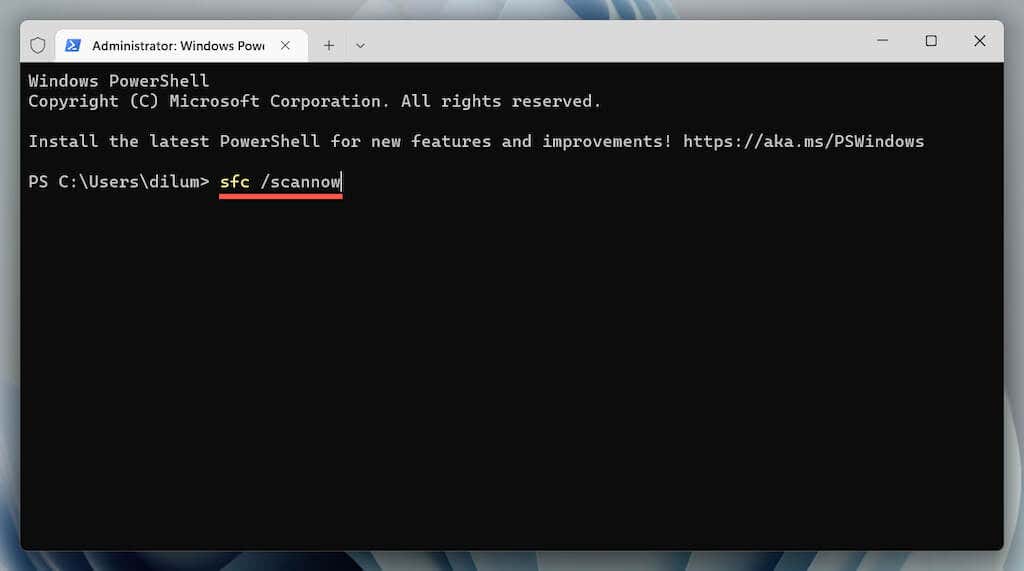
Once the System File Checker finishes scanning your computer, launch the DISM (Deployment Image Servicing and Management) tool with the following command:
DISM.exe /Online /Cleanup-Image /Restorehealth
The DISM tool takes a long time to complete and may appear to get stuck. However, keep the Windows PowerShell window open, and it should end eventually.
HP Printer Driver Unavailable Error Fixed
Did you manage to fix your HP printer’s “Driver is unavailable” error on your computer? If you did, try keeping the printer drivers and the operating system up-to-date to minimize the chances of running into the same problem going forward. If not, contact HP Support for model-specific fixes that could help resolve the driver issue.
- How to Fix the “Error – Printing” Status Error in Windows
- How to Fix Your Printer’s “Driver is unavailable” Error on Windows
- 7 Ways to Fix ”Windows Cannot Connect to the Printer”
- Print Job Won’t Delete in Windows? 8+ Ways to Fix
- Preparing for Windows 10 End of Support: Upgrading to Windows 11
Dilum Senevirathne is a freelance tech writer and blogger with three years of experience writing for online technology publications. He specializes in topics related to iOS, iPadOS, macOS, and Google web apps. When he isn’t hammering away at his Magic Keyboard, you can catch him binge-watching productivity hacks on YouTube. Read Dilum’s Full Bio
Printers experience several forms of malfunctions, some of which are easy to fix. Fixing printer issues can be a headache—especially on Windows devices—because there’s a wide range of things that could be wrong.
The problem could stem from your PC, the printer, or the connection between both devices. This tutorial highlights ten likely troubleshooting measures for printers that won’t print.
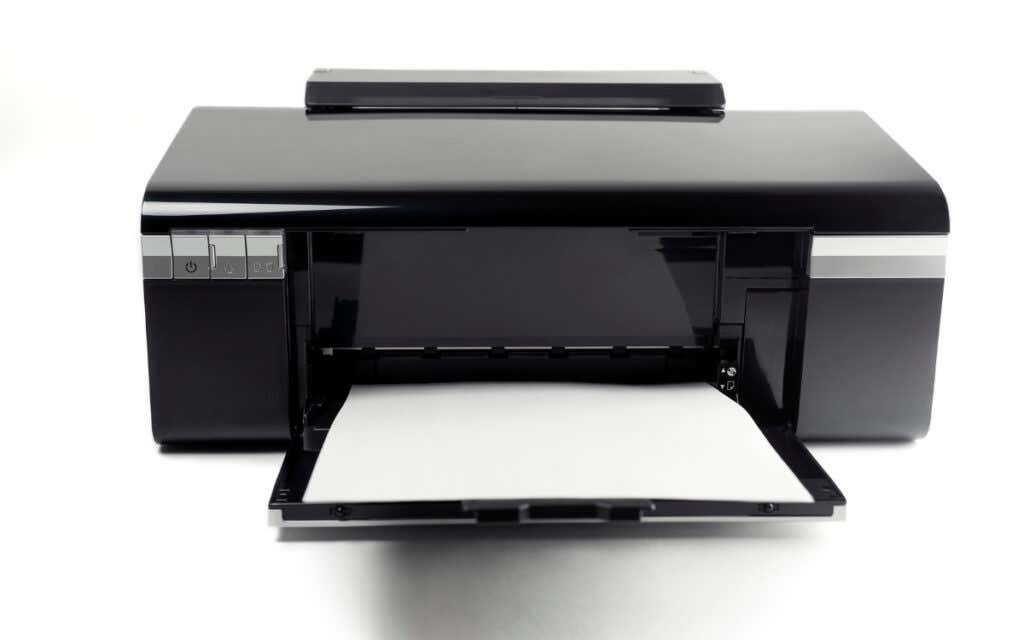
1. Check Paper Tray and Printer Connection
Many printer models won’t print if there’s a loose USB connection or if they’re out of ink or paper. Verify your printer’s ink levels, clean the printhead, fill the paper tray, and avoid using substandard paper. Low-quality paper can cause “Ghost Paper Jams” and other issues that stop your printer from printing documents.
For printers using a wired connection, ensure both cable ends are plugged firmly into your printer and computer. Go through the printer’s manual for instructions on connecting the device to your Windows or Mac computer.
Wireless printers won’t print documents if connected to the wrong Wi-Fi network. Make sure your printer and computer are on the same wireless network. Likewise, check your router settings, disable VPN connections, and make the printer’s IP address static. Refer to our tutorial on troubleshooting Wi-Fi (wireless) printers for more fixes.
2. Run the Printer Troubleshooter
Windows has a suite of troubleshooting tools that diagnoses and resolves hardware and software problems. We recommend running the Printer Troubleshooter before trying other more complex measures.
- Go to Settings > Bluetooth & devices > and select Printers & scanners .
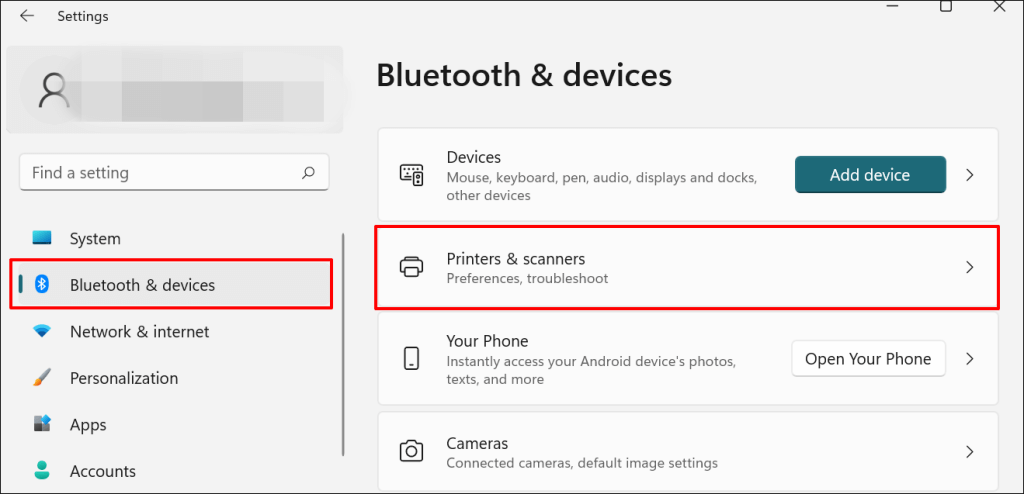
In Windows 10, go to Settings > Devices > Printers & scanners .
- Select the problem printer from the list of connected devices.
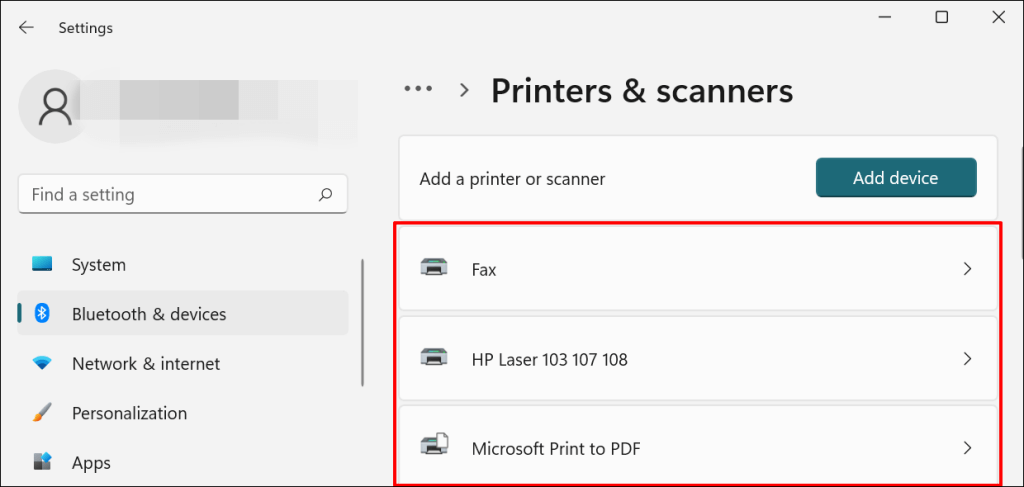
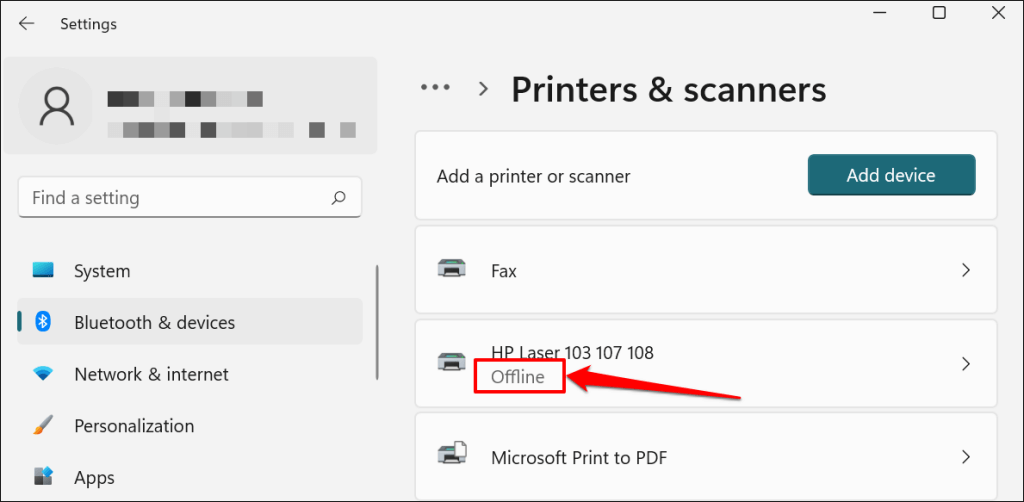
Note: If your printer status reads “Offline,” refer to our troubleshooting tutorial on getting an offline printer back online . Proceed to the next step if your printer is online.
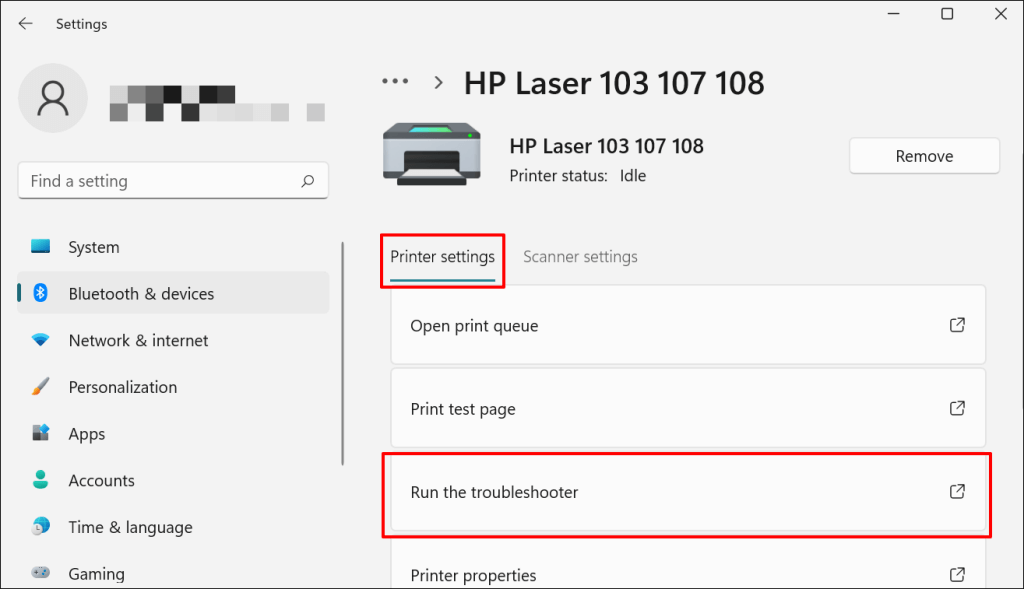
- Select Run the troubleshooter in the “Printer settings” tab.
There’s another way to access the printer troubleshooter in Windows 11. Go to Settings > System > Troubleshoot > Other troubleshooters and select Run next to “Printer.”
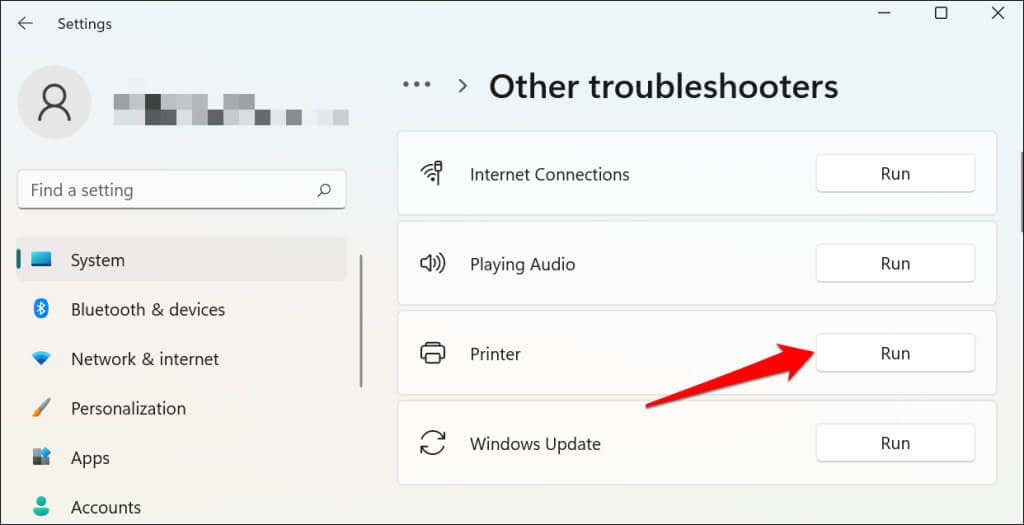
In Windows 10, go to Settings > Update & Security > Troubleshoot and select Additional troubleshooters > Printer > and select Run the troubleshooter .
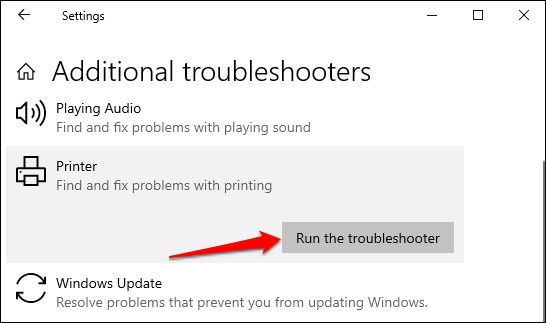
Wait for the troubleshooter to run the necessary check on the printer, its drivers, and other associated processes.
3. Set the Printer As Default
Windows has a feature that dynamically changes your PC’s default printing device based on your location and other factors. The feature is near-perfect but not failproof. If your PC doesn’t print documents, it might be that an inactive printer is the default printing device.
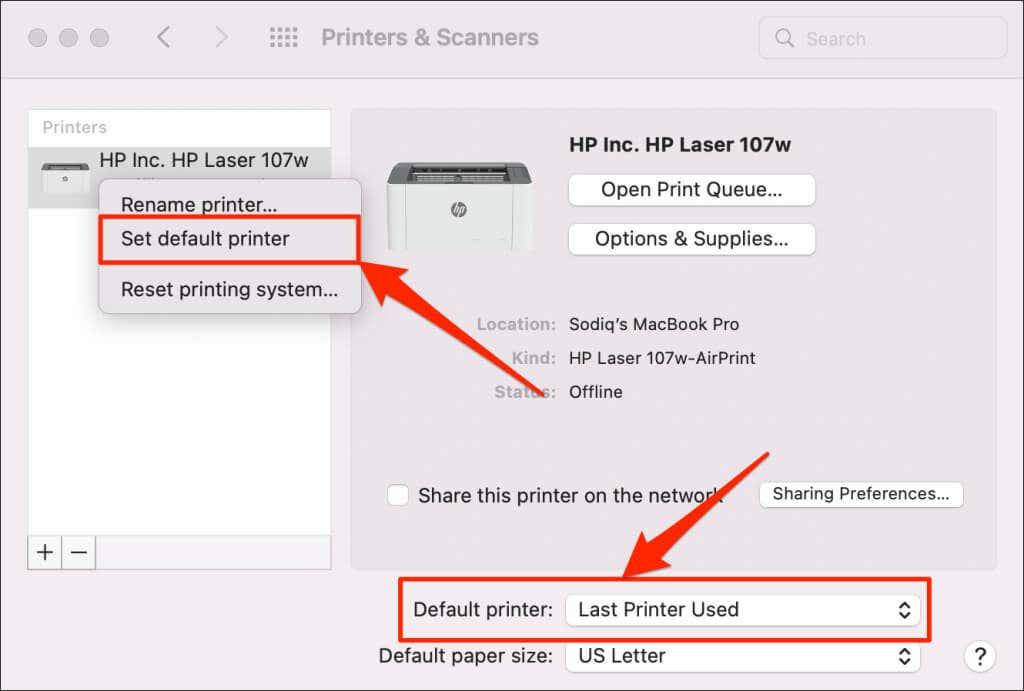
macOS also sets the last printer connected as your Mac’s default printer. Check your computer settings and ensure the active printer is the default device.
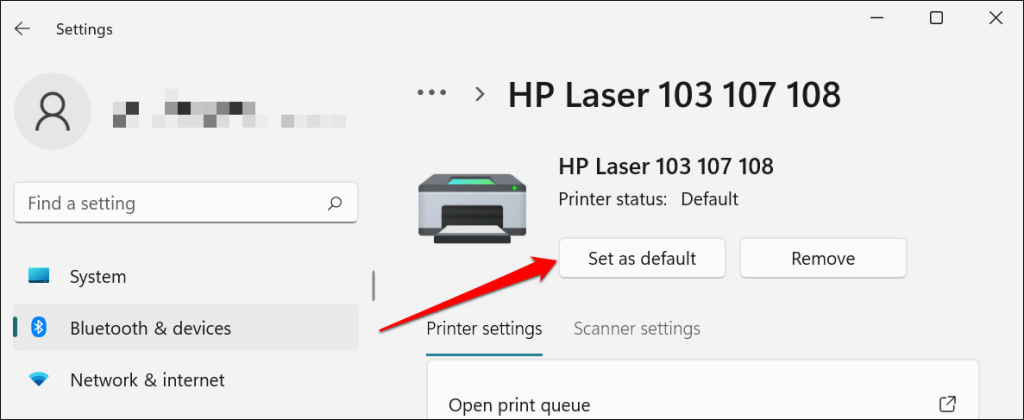
In Windows, go to Settings > Bluetooth & devices > Printers & scanners , select the printer, and select the Set as default button.
On Mac computers, go to System Preferences > Printers & Scanners on Mac computers , right-click the printer, and select Set default printer . Alternatively, open the Default printer drop-down menu and select the printer as the default.
4. Clear Your Computer’s Print Queue
When you send a document for printing, your computer first sends the “print job” to the print queue. The print job is immediately removed from the print queue when the printer prints the document. It’s usually a seamless process, but there are times when completed print jobs remain in the queue.
If that happens, subsequent print jobs will also get stuck in the queue and prevent your printer from printing files. Clearing your computer’s print queue might resolve the problem.
Clear Print Queue in Windows
- Go to Settings > Bluetooth & scanners > Printers & scanners and select your printer.
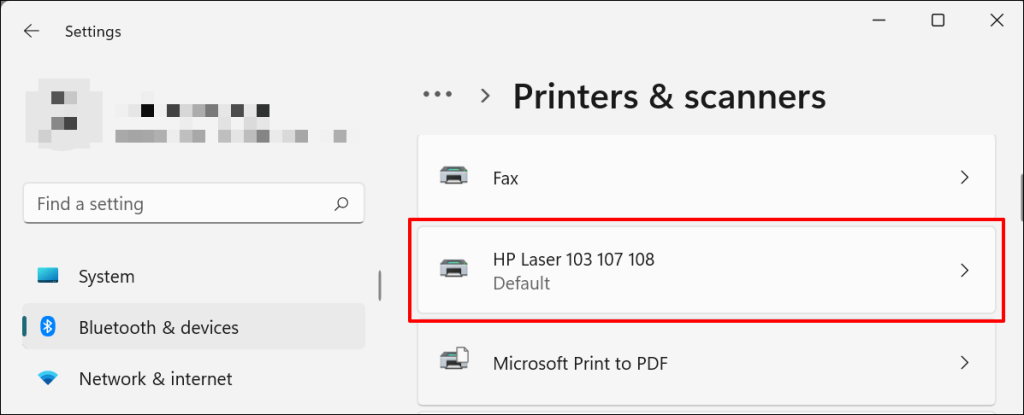
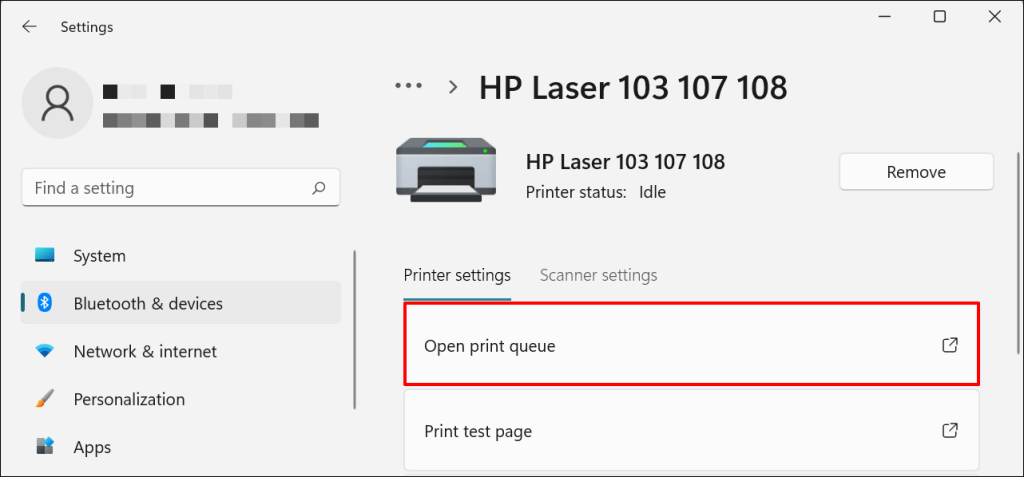
- Select Open print queue .
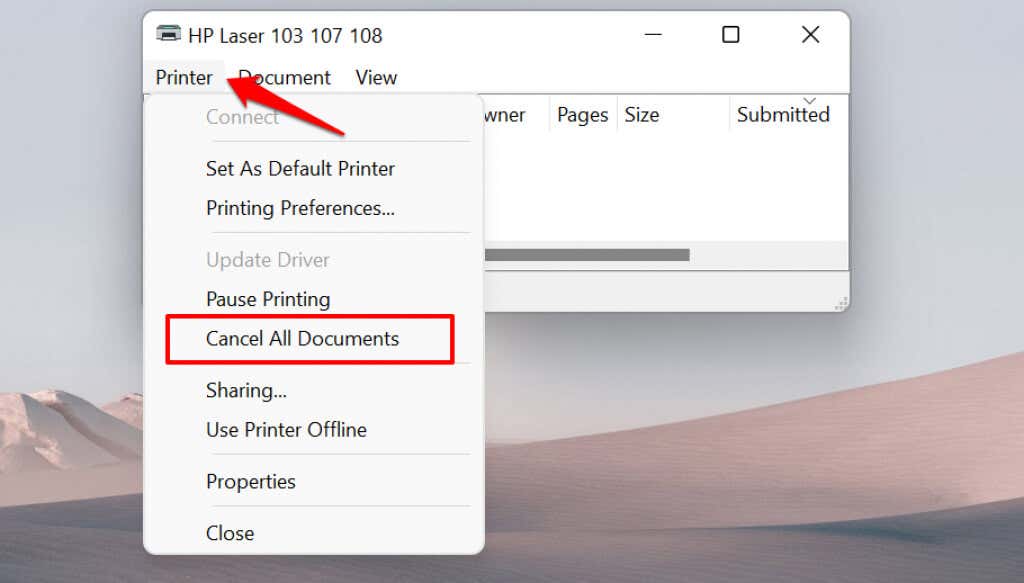
- Select Printer on the menu bar and select Cancel All Documents .
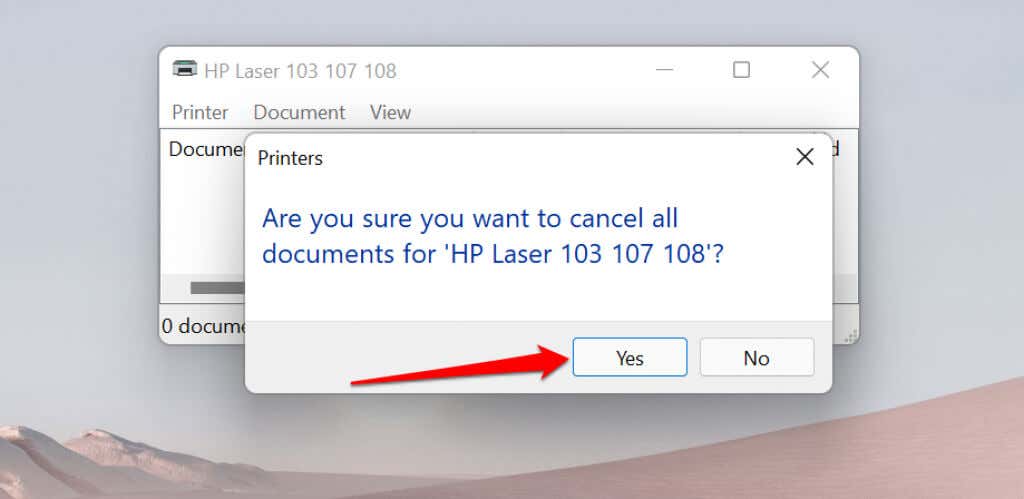
- Select Yes on the confirmation prompt.
[14-why-windows-pc-wont-print-documents]
Try printing any document or a test page and check if clearing the queue fixed the problem. Open the printer menu and select Print test page .
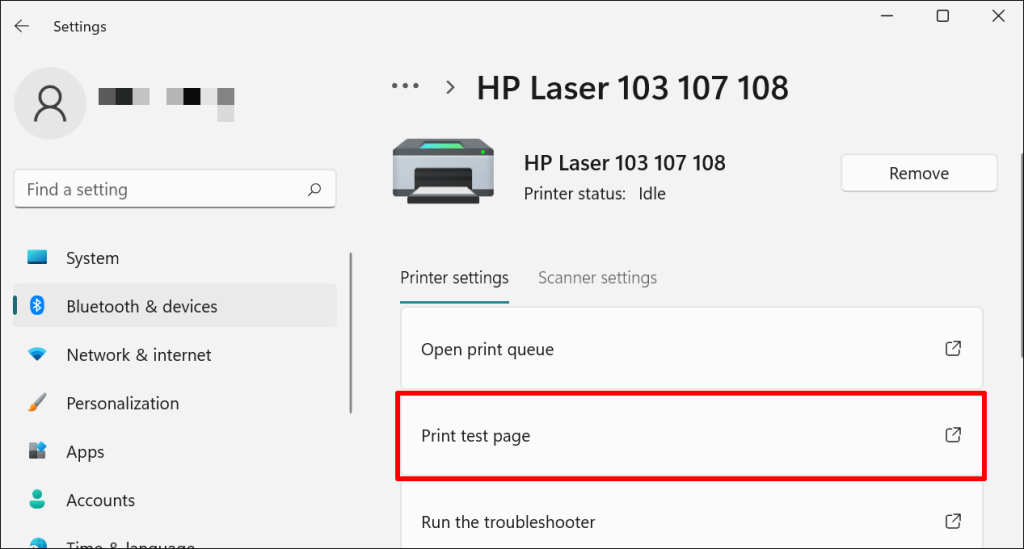
If completed documents remain in the print queue, refer to our troubleshooting tutorial on deleting stuck print jobs in Windows .
Clear Print Queue in macOS
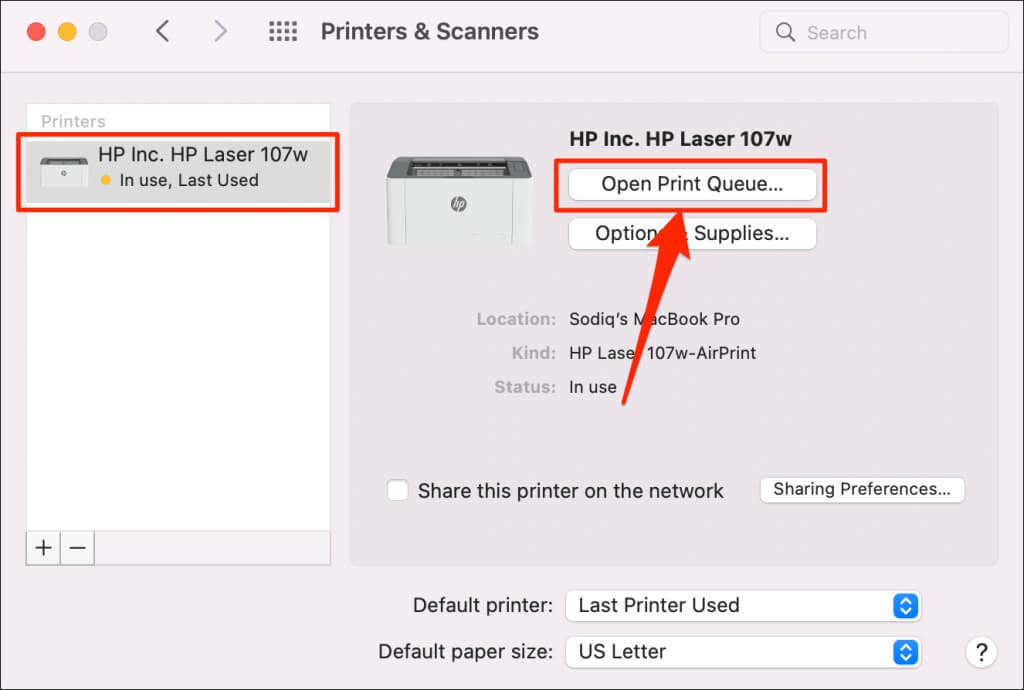
- Go to System Preferences > Printers & scanners , select the printer on the sidebar, and select Open Print Queue .
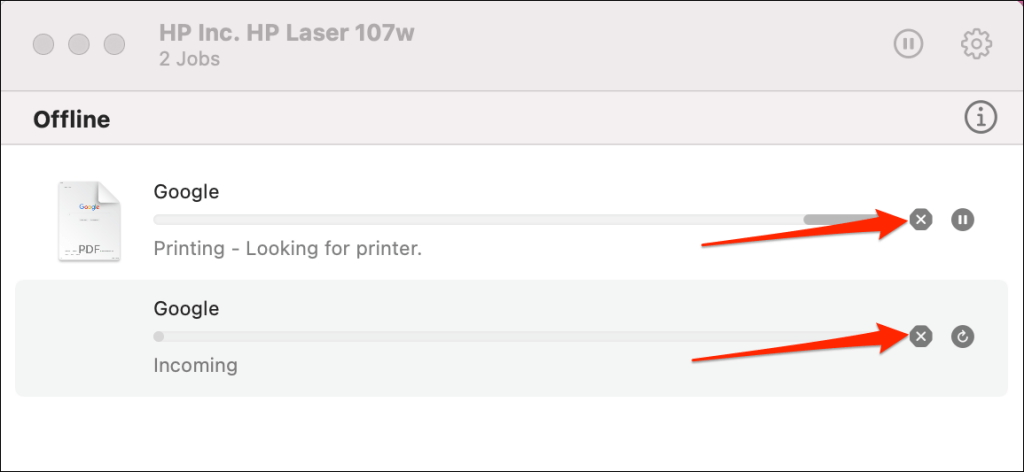
- Select the x icon next to the pending print jobs to remove them from the queue.
5. Update Printer Driver
Your printer might not receive print jobs from your PC if its driver is corrupt or outdated. Although Windows automatically installs driver updates, some factors (e.g., a metered internet connection) may prevent that from happening. Here’s how to manually install a driver from your computer or the internet.
Check the printer’s manufacturer website and download the latest driver updates for your printer model. Plug the printer into your computer and follow the steps below.
- Right-click the Start Menu or press the Windows key + X to open the Quick Access Menu. Select Device Manager to proceed.
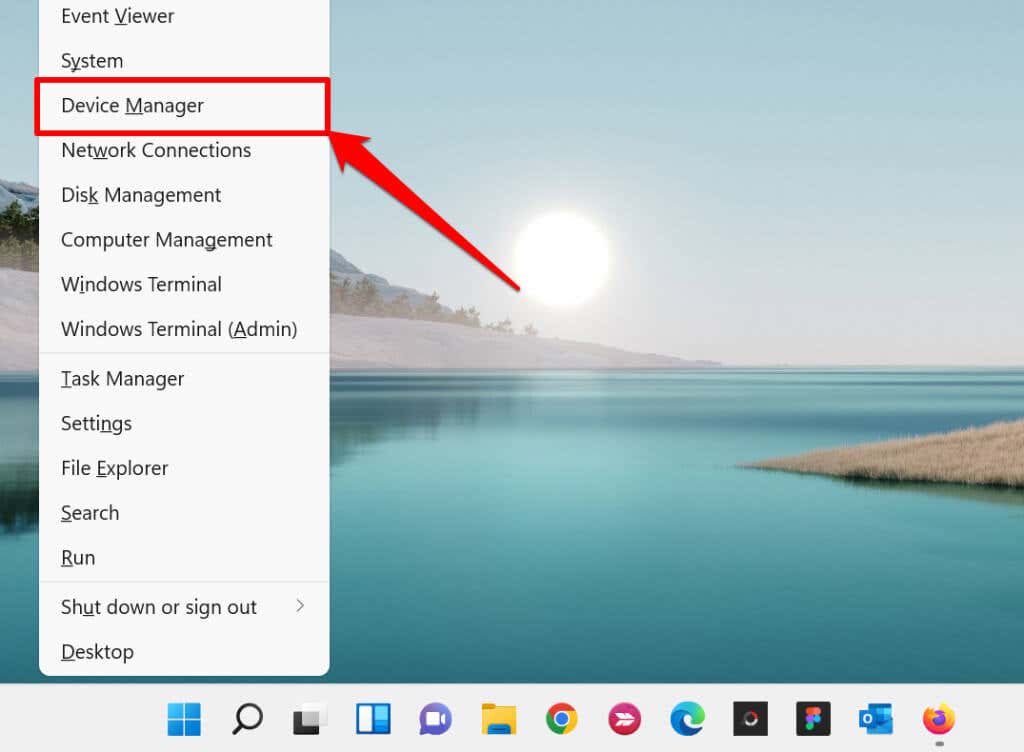
- Expand the “Printers” category, right-click the printer’s driver, and select Update driver .
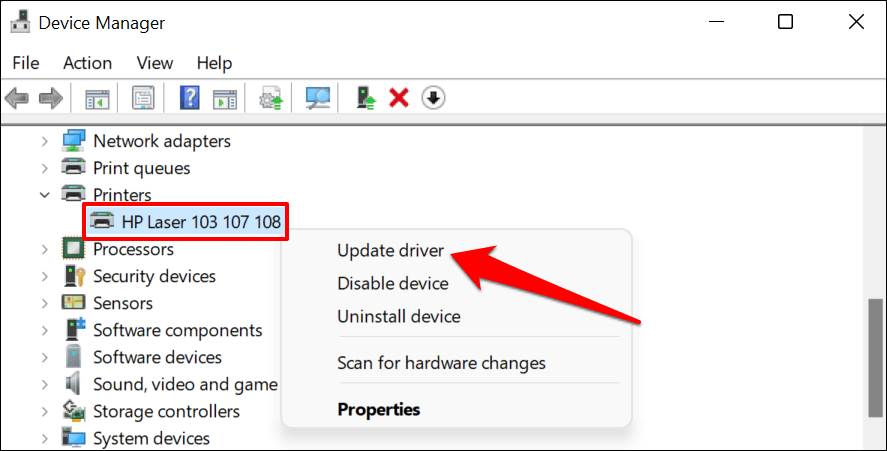
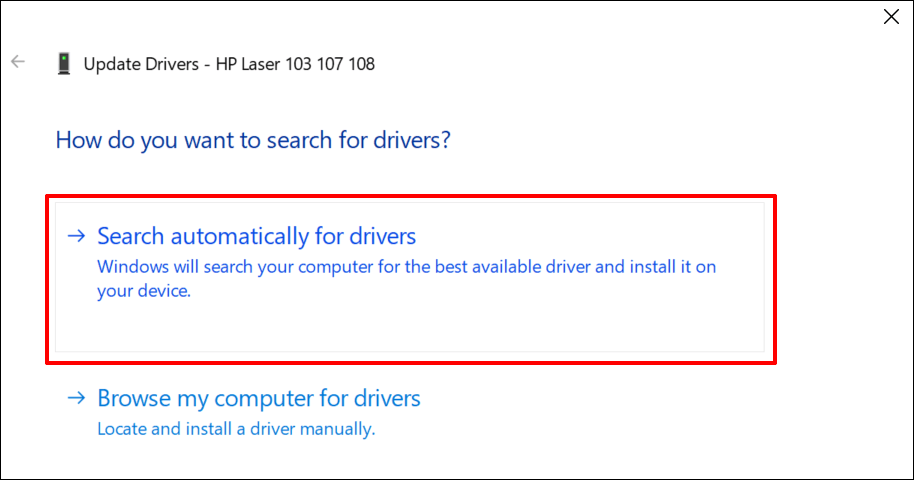
- Select Search automatically for drivers and wait for Windows to search for the best driver available for the printer. The process requires an internet connection, so ensure your PC is connected to a Wi-Fi or Ethernet network.
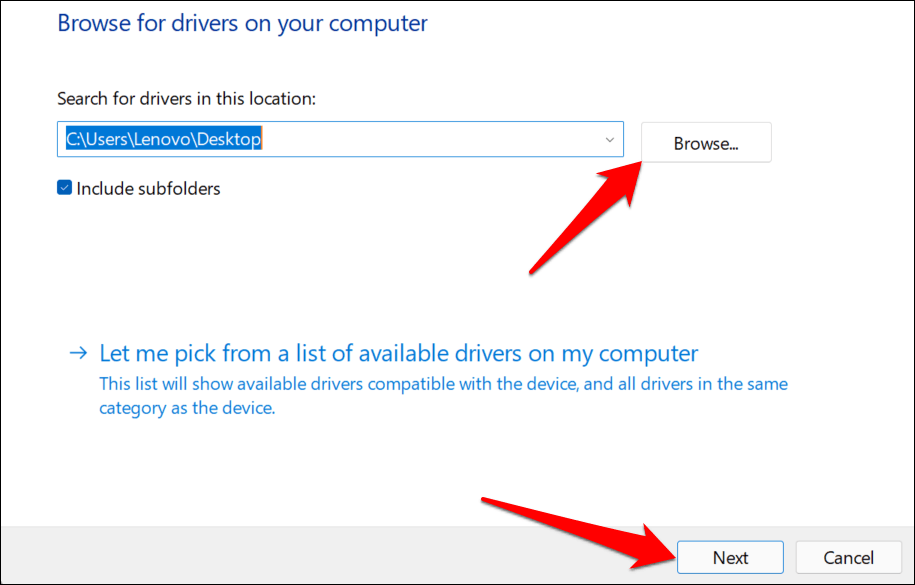
Alternatively, select Browser my computer for drivers to manually install a driver you downloaded from the printer manufacturer’s website. Afterward, choose Browse , navigate to the driver’s location on your PC, and select Next to install the update.
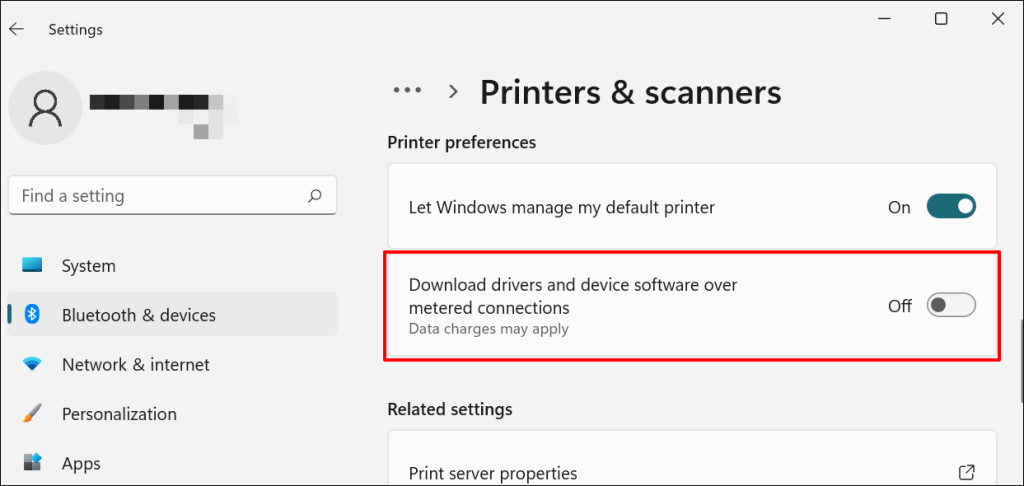
We recommend configuring Windows to automatically download drivers for your printer, especially if you’re using a metered connection.
Go to Settings > Bluetooth & devices > Printers & scanners and toggle on Download drivers and device software over metered connections .
If the Device Manager says the printer’s driver is up-to-date, check the manufacturer’s website for confirmation. You’ll find driver update history in the “Download,” “Software,” or “Drivers” section of the printer manufacturer’s website. Contact the manufacturer if you don’t know how to find, install, or update your printer’s driver update.
6. Reboot Your Devices
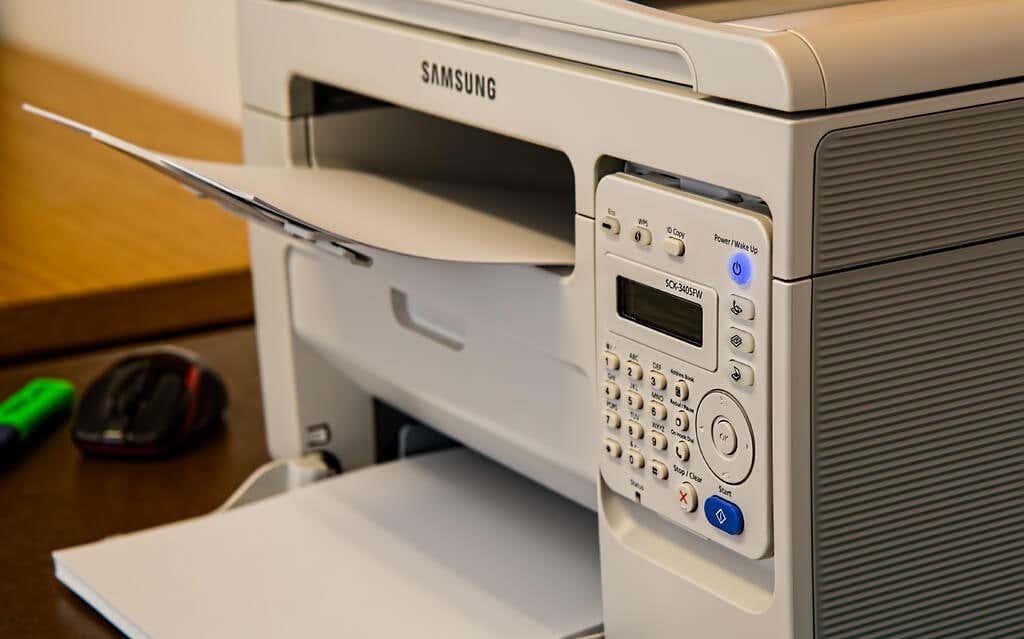
Power-cycling your printer and computer can help both devices re-establish a connection. Unplug your printer’s power cord and shut down your computer. Remember to close any open apps or documents so you don’t lose unsaved changes.
Restart both devices, connect your printer to your PC, and check if you can now print documents.
7. Reinstall Printer Driver
Reinstalling a faulty or corrupt driver can resolve issues causing your printer to malfunction. The operation entails deleting or uninstalling the printer driver , restarting your computer, and installing it from scratch. Note that this operation may affect any customizations made on the printer’s settings and preferences on your computer.
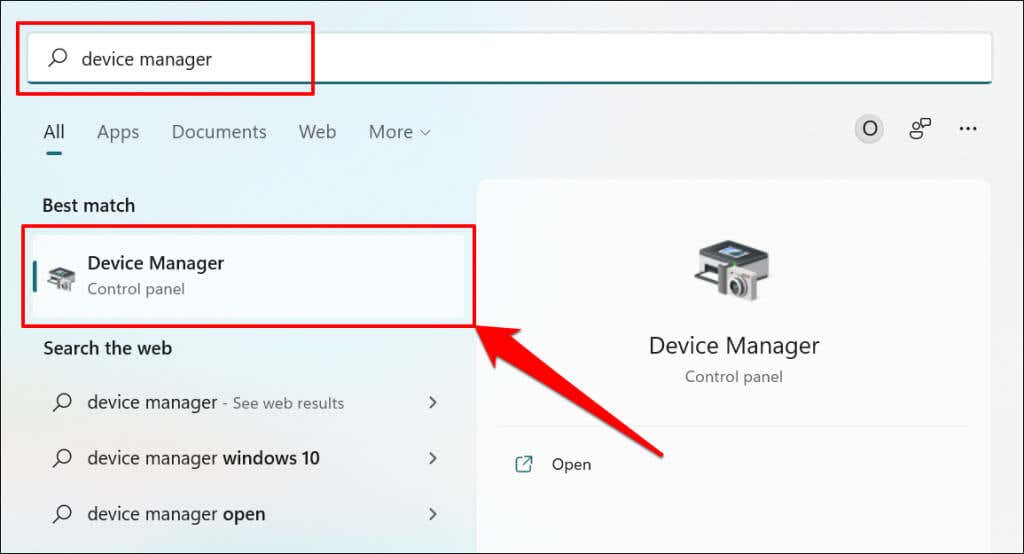
- Type device manager into Windows Search and select Device Manager .
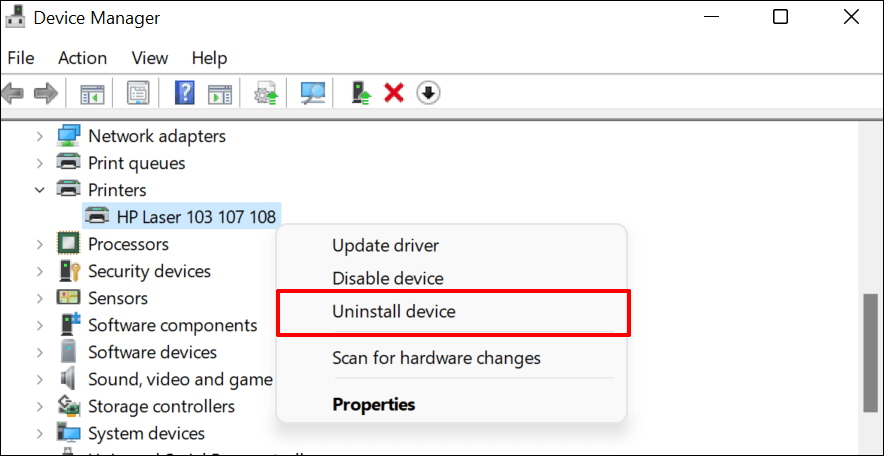
- Expand the “Printer” section, right-click the printer’s driver, select Uninstall device , and select Uninstall on the pop-up.
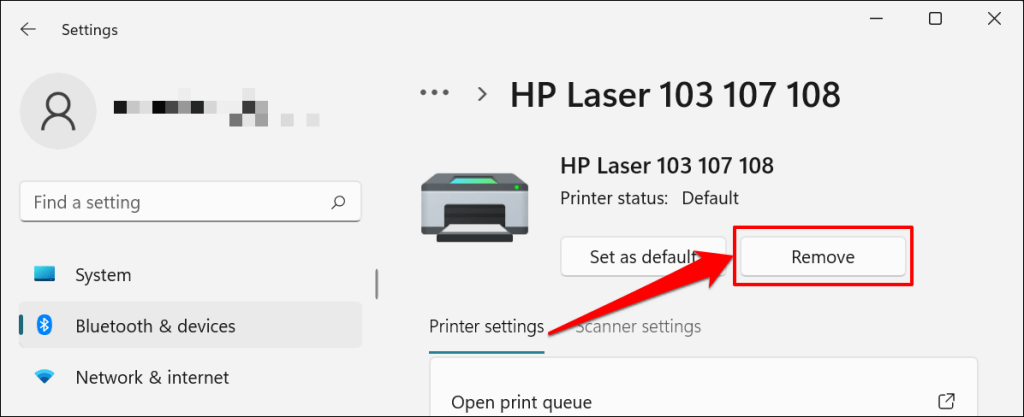
You should also remove the printer from your PC’s memory.
- Go to Settings > Bluetooth & devices > Printers and scanners , select the printer, and select the Remove button.
- Select Yes on the confirmation prompt.
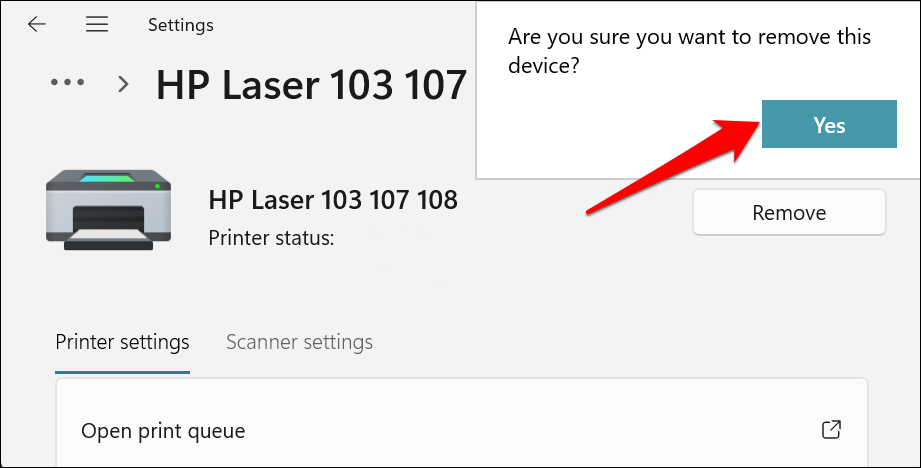
Restart Windows and reconnect the printer to your computer. Windows should automatically install the printer’s driver when it connects to your PC.
8. Restart the Printer Spooler
Printer Spooler is the system service that manages printers and print jobs on Windows devices. Temporary system glitches can affect the Printer Spooler’s performance and trigger printing-related problems. Restarting the print spooler service can restore the service to normalcy.
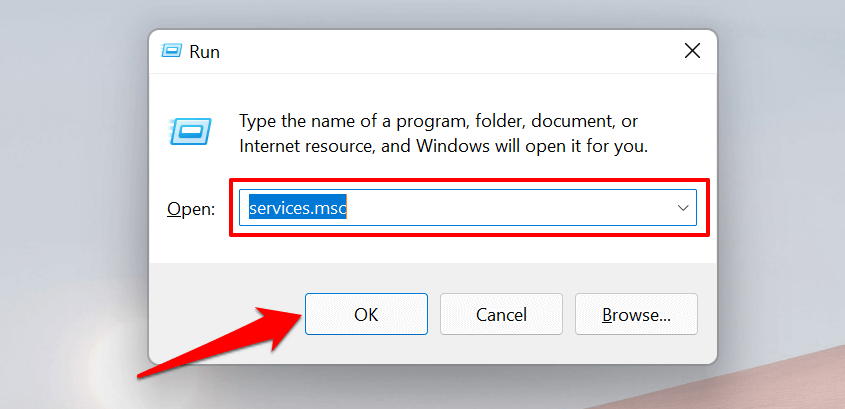
- Open the Windows Run box (press Windows key + R ), type services.msc in the dialog box, and press Enter .
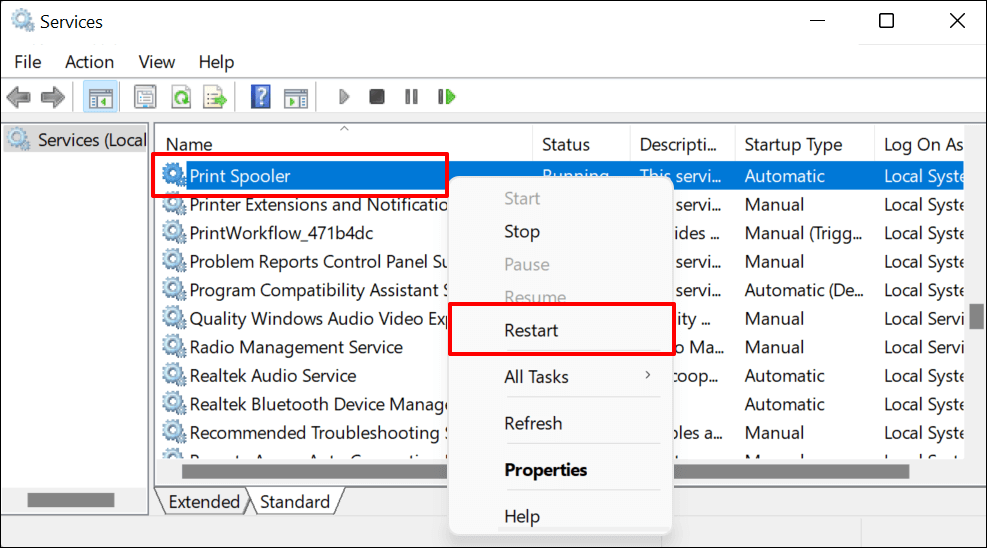
- Right-click Printer Spooler and select Restart .
9. Update Your Computer
Asides from fixing software bugs, Windows Updates also updates outdated or buggy drivers. Head to the Windows Updates menu and install the latest Windows build or security patches available for your computer.
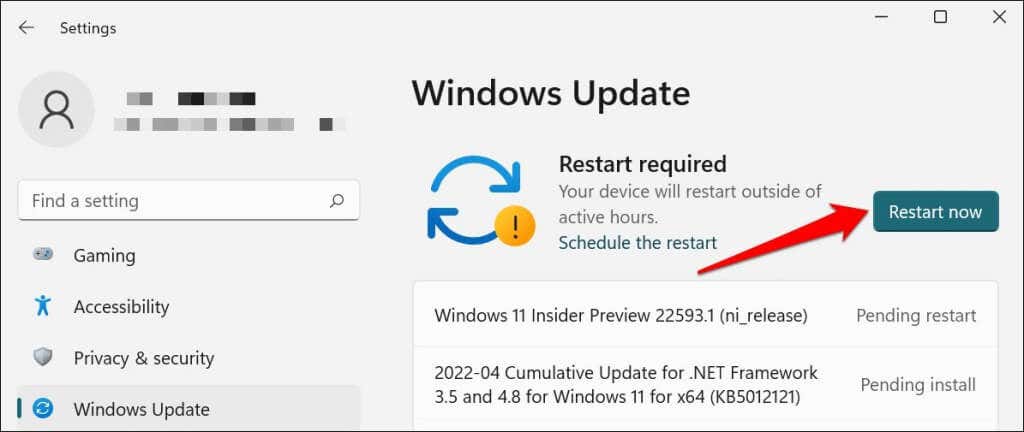
In Windows 11, go to Settings > Windows Update and wait for Windows to check for updates. You may need to restart your computer if Windows has already downloaded the update. Select Restart now to update and reboot your computer.
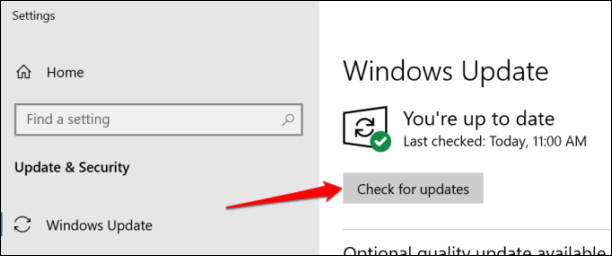
In Windows 10, head to Settings > Updates & Security > Windows Update and select Check for updates . Make sure your computer has an internet connection.
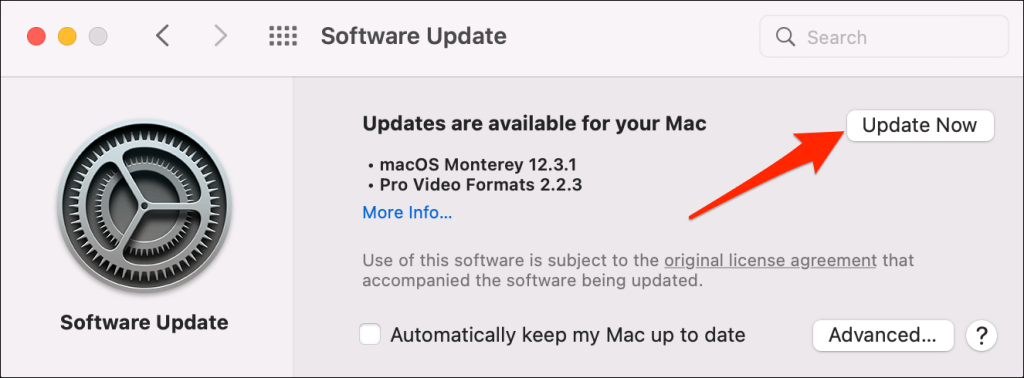
In macOS, go to System Preferences > Software Updates and select Update Now (or Upgrade Now ).
[32-update-mac-computer]
10. Run the Printer’s Utility Software
HP has a Print and Scan Doctor utility (HP Smart for Mac) that diagnoses problems with HP printers. The tool can detect empty ink cartridges, outdated driver software, blocked nozzles, print feed errors, and other printer problems.
Samsung Printer Experience is the utility that manages Samsung printers. The app has loads of troubleshooting guides for printing problems on Samsung printers. The Canon Inkjet Print Utility is also available for Canon inkjet printers.
Download and install your printer’s utility software on your computer and run the tool according to the manufacturer’s instructions.
Pay Attention to Physical Indicators
Printers have status lights or LCD screens that display error codes. These lights point out the root cause of some printing issues. Check the printer’s instruction manual to learn what the indicator lights and error codes mean and their respective solutions. Contact the printer manufacturer if your printer still won’t print after running these troubleshooting measures.
- How to Fix the “Error – Printing” Status Error in Windows
- HP Printer Not Printing Black? 10 Fixes to Try
- How to Fix Missing or Failed Printhead Error on HP Printers
- How to Add a Printer to Your Chromebook
- How to Fix the Printer Error “0x0000011b” on Windows
Sodiq has written thousands of tutorials, guides, and explainers over the past 4 years to help people solve problems with Android, iOS, Mac, and Windows devices. He also enjoys reviewing consumer tech products (smartphones, smart home devices, accessories, etc.) and binge-watching comedy series in his spare time. Read Sodiq’s Full Bio
