When your Microsoft Windows PC fails to connect to your printer, you get an error message: ”Windows Cannot Connect to the Printer.” You can’t print your documents or perform printer-related tasks when this happens.
Some common reasons you get this error is that your printer is turned off, you don’t have the correct printer drivers installed, or your PC has a minor glitch. Once you fix these issues, your PC successfully connects to your printer, allowing you to print your documents.
1.Turn On Your Printer
One commonly overlooked reason your PC can’t make a connection with your printer is that your printer is turned off. Check that the printer is plugged in and turned on, and if you’re using a power strip, make sure that’s turned on, too.
2.Use the Windows 10/11 Printer Troubleshooter
Windows includes many troubleshooters to help you find and fix problems. One is a printer troubleshooter that helps identify and resolve any printer-related issues .
This troubleshooter detects and resolves most issues on its own, requiring minimal interaction from you.
- Open Settings by pressing Windows + I at the same time.
- Select Update & Security in Settings.
- Choose Troubleshoot in the sidebar on the left.
- Select Additional troubleshooters on the right.
- Select Printer and choose Run the troubleshooter .
- Wait for the troubleshooter to find and fix your printer issues.
3.Restart the Print Spooler Service
Windows’ print spooler service stores your print jobs until your printer is ready to print them. It’s worth stopping and restarting this service when you experience issues like ”Windows Cannot Connect to the Printer.”
It only takes a minute to turn this service off and back on.
- Launch Run by pressing Windows + R at the same time.
- Type the following in the Run box and press Enter : services.msc
- Double-click Print Spooler on the right to open the Properties menu.
- Select Stop to temporarily stop the spooler service.
- Wait for about ten seconds.
- Reactivate the service by selecting Start .
4.Update Your Printer’s Drivers
When you install a printer on your PC, Windows installs the required drivers to allow your printer to communicate with your machine. Over time, these drivers become outdated and cause various issues with your printer.
Your ”Windows Cannot Connect to the Printer” error may result from outdated printer drivers. In this case, you can fix the issue by updating the installed drivers. Windows’ Device Manager automates the process, so you don’t have to find and install the latest drivers manually.
- Open Device Manager by right-clicking the Start menu icon and choosing Device Manager .
- Expand the Print queues section, right-click your printer, and choose Update driver .
- Select Search automatically for drivers to let Windows find the latest printer drivers.
- Wait for Windows to find and install the updated drivers.
- If newer drivers aren’t available, you’ll see a message saying the best drivers for your device are already installed. In this case, you can still force your system to check for the latest drivers by selecting Search for updated drivers on Windows Update .
5.Remove and Reinstall Your Printer
If you continue to see the ”Windows Cannot Connect to the Printer” error message, your printer may not be properly installed on your PC. This usually happens if you had minor issues when you installed the printer.
You can get around this printer error by removing and reinstalling the printer.
- Access Settings by pressing Windows + I at the same time.
- Select Devices on the Settings window.
- Choose Printers & scanners from the sidebar on the left.
- Select your printer name on the right pane and choose Remove device .
- Select Yes in the prompt to uninstall your printer.
- Unplug and replug your printer into your PC.
- Follow your printer’s driver installation wizard.
6.Make Your Problematic Printer the Default Printer
If you’ve installed multiple printers on your PC, make your faulty printer the default and see if that fixes the ”Windows Cannot Connect to the Printer” issue.
Later, you can make any other printer the default if you want.
- Open Settings by pressing Windows + I .
- Select Devices .
- Choose Printers & scanners on the left.
- Disable the Let Windows manage my default printer option on the right.
- Select your printer on the list and choose Manage .
- Select Set as default to set the selected printer as the default.
7. Fix Windows Issues by Installing Software Updates
When you update your Windows PC, you get various bug fixes that help you resolve problems on your computer. Your ”Windows Cannot Connect to the Printer” error may be a system error, and updating Windows should likely fix that for you.
It’s free and easy to install Windows updates, as explained below.
- Launch Settings by right-clicking the Start button and choosing Settings .
- Select Update & Security .
- Choose Windows Update in the sidebar on the left.
- Select Check for updates in the pane on the right.
- Download and install the latest updates.
- Restart your PC when you’ve installed the updates.
The ”Windows Cannot Connect to the Printer” error is usually the result of a technical glitch, which you can fix by following the methods outlined above. Once you’ve applied those fixes, your printer should work with your PC, allowing you to resume your pending print jobs .
- How to Fix the “Error – Printing” Status Error in Windows
- 7 Ways to Fix HP Printers ”Driver Is Unavailable” Error on Windows PC
- How to Fix Your Printer’s “Driver is unavailable” Error on Windows
- Print Job Won’t Delete in Windows? 8+ Ways to Fix
- Preparing for Windows 10 End of Support: Upgrading to Windows 11
Mahesh has been obsessed with technology since he got his first gadget a decade or so ago. Over the last few years, he’s written a number of tech articles on various online publications including but not limited to MakeTechEasier and Android AppStorm. Read Mahesh’s Full Bio
Printers experience several forms of malfunctions, some of which are easy to fix. Fixing printer issues can be a headache—especially on Windows devices—because there’s a wide range of things that could be wrong.
The problem could stem from your PC, the printer, or the connection between both devices. This tutorial highlights ten likely troubleshooting measures for printers that won’t print.
1. Check Paper Tray and Printer Connection
Many printer models won’t print if there’s a loose USB connection or if they’re out of ink or paper. Verify your printer’s ink levels, clean the printhead, fill the paper tray, and avoid using substandard paper. Low-quality paper can cause “Ghost Paper Jams” and other issues that stop your printer from printing documents.
For printers using a wired connection, ensure both cable ends are plugged firmly into your printer and computer. Go through the printer’s manual for instructions on connecting the device to your Windows or Mac computer.
Wireless printers won’t print documents if connected to the wrong Wi-Fi network. Make sure your printer and computer are on the same wireless network. Likewise, check your router settings, disable VPN connections, and make the printer’s IP address static. Refer to our tutorial on troubleshooting Wi-Fi (wireless) printers for more fixes.
2. Run the Printer Troubleshooter
Windows has a suite of troubleshooting tools that diagnoses and resolves hardware and software problems. We recommend running the Printer Troubleshooter before trying other more complex measures.
- Go to Settings > Bluetooth & devices > and select Printers & scanners .
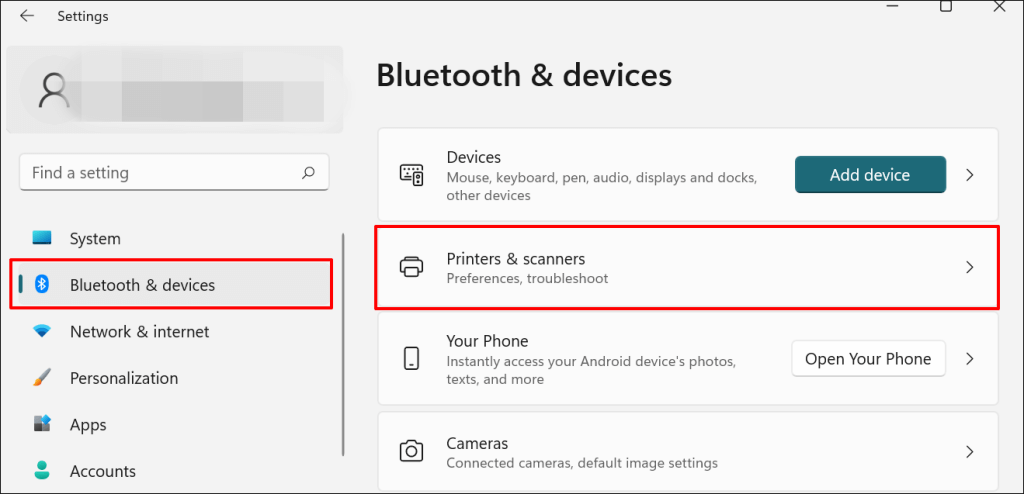
In Windows 10, go to Settings > Devices > Printers & scanners .
- Select the problem printer from the list of connected devices.
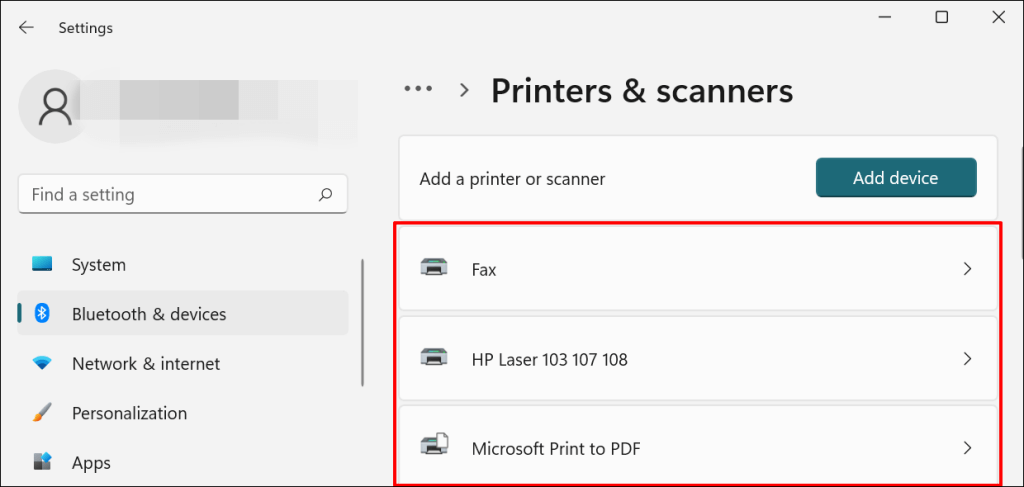
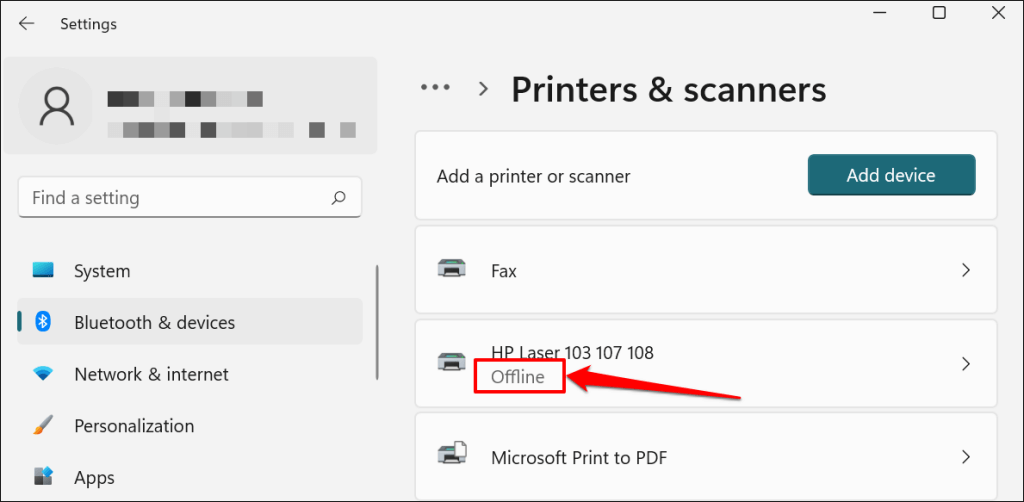
Note: If your printer status reads “Offline,” refer to our troubleshooting tutorial on getting an offline printer back online . Proceed to the next step if your printer is online.
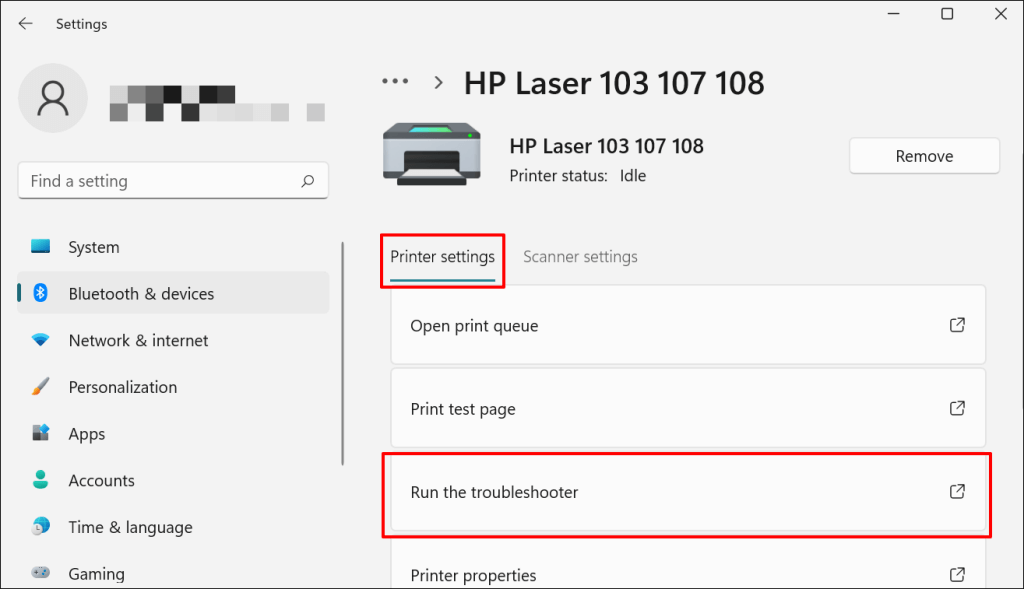
- Select Run the troubleshooter in the “Printer settings” tab.
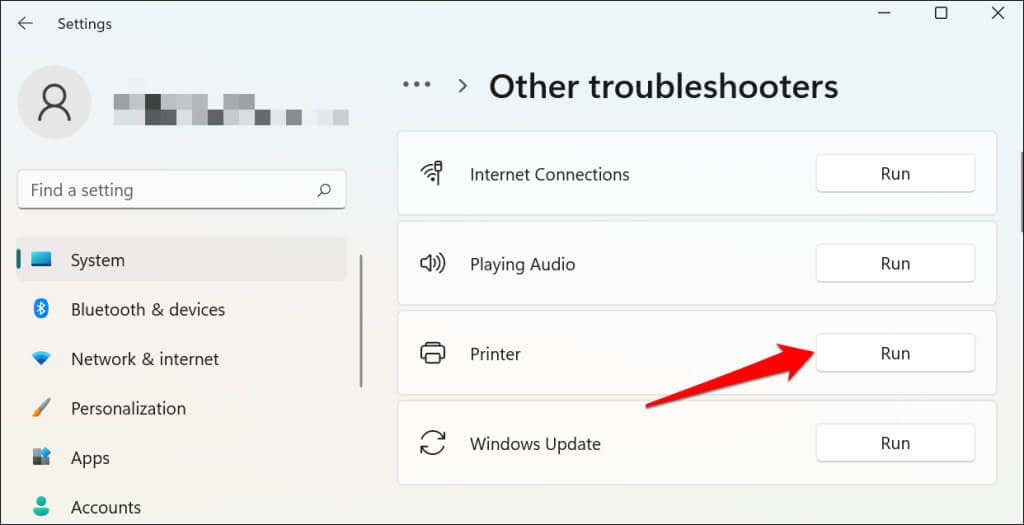
There’s another way to access the printer troubleshooter in Windows 11. Go to Settings > System > Troubleshoot > Other troubleshooters and select Run next to “Printer.”
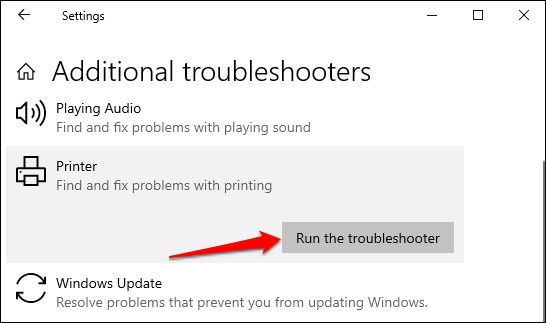
In Windows 10, go to Settings > Update & Security > Troubleshoot and select Additional troubleshooters > Printer > and select Run the troubleshooter .
Wait for the troubleshooter to run the necessary check on the printer, its drivers, and other associated processes.
3. Set the Printer As Default
Windows has a feature that dynamically changes your PC’s default printing device based on your location and other factors. The feature is near-perfect but not failproof. If your PC doesn’t print documents, it might be that an inactive printer is the default printing device.
macOS also sets the last printer connected as your Mac’s default printer. Check your computer settings and ensure the active printer is the default device.
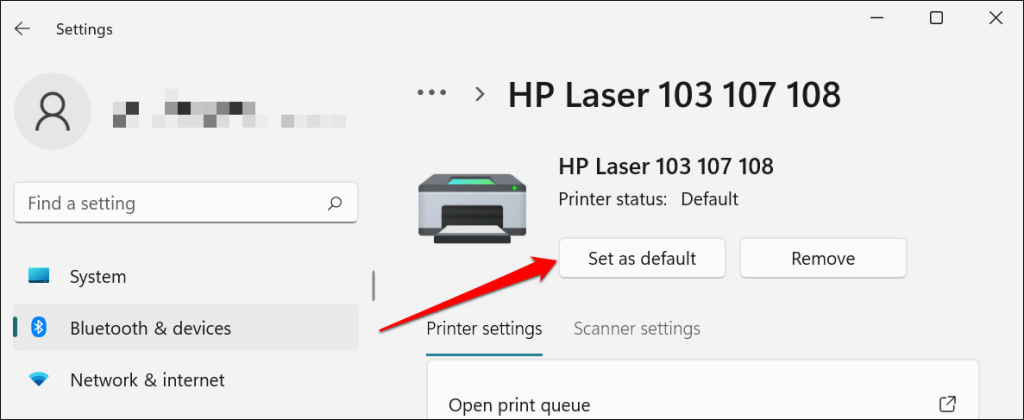
In Windows, go to Settings > Bluetooth & devices > Printers & scanners , select the printer, and select the Set as default button.
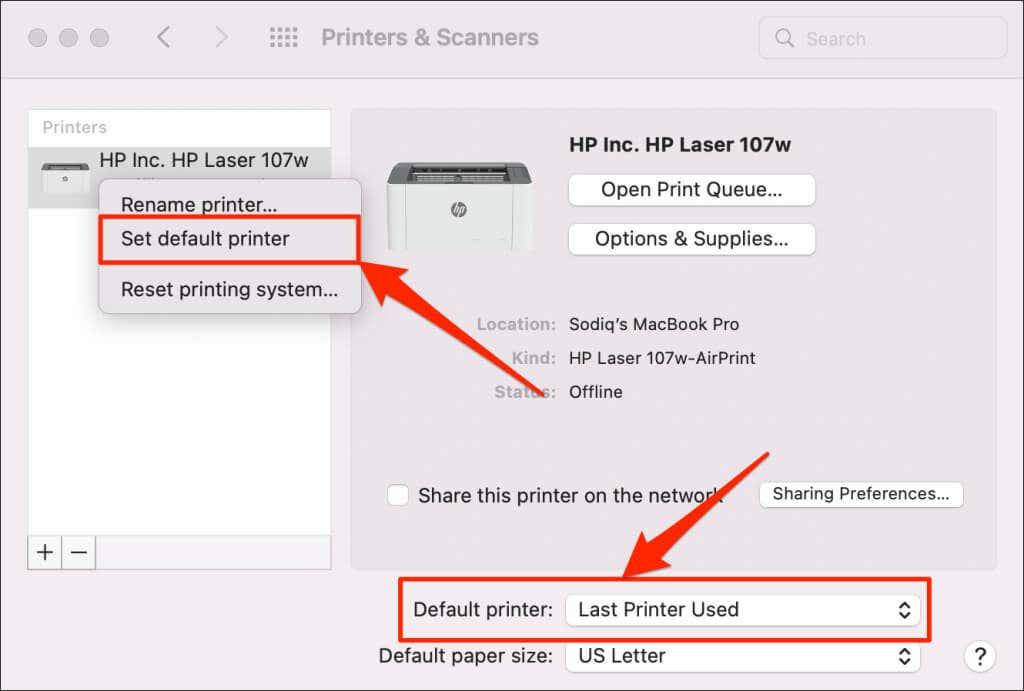
On Mac computers, go to System Preferences > Printers & Scanners on Mac computers , right-click the printer, and select Set default printer . Alternatively, open the Default printer drop-down menu and select the printer as the default.
4. Clear Your Computer’s Print Queue
When you send a document for printing, your computer first sends the “print job” to the print queue. The print job is immediately removed from the print queue when the printer prints the document. It’s usually a seamless process, but there are times when completed print jobs remain in the queue.
If that happens, subsequent print jobs will also get stuck in the queue and prevent your printer from printing files. Clearing your computer’s print queue might resolve the problem.
Clear Print Queue in Windows
- Go to Settings > Bluetooth & scanners > Printers & scanners and select your printer.
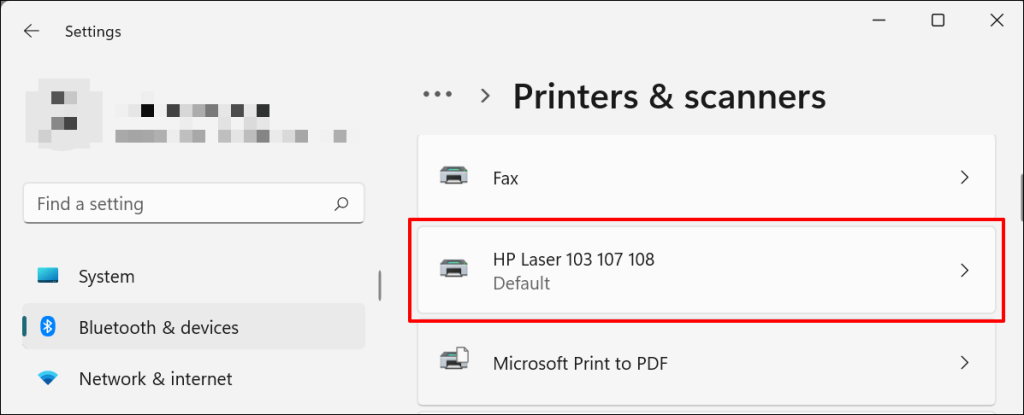
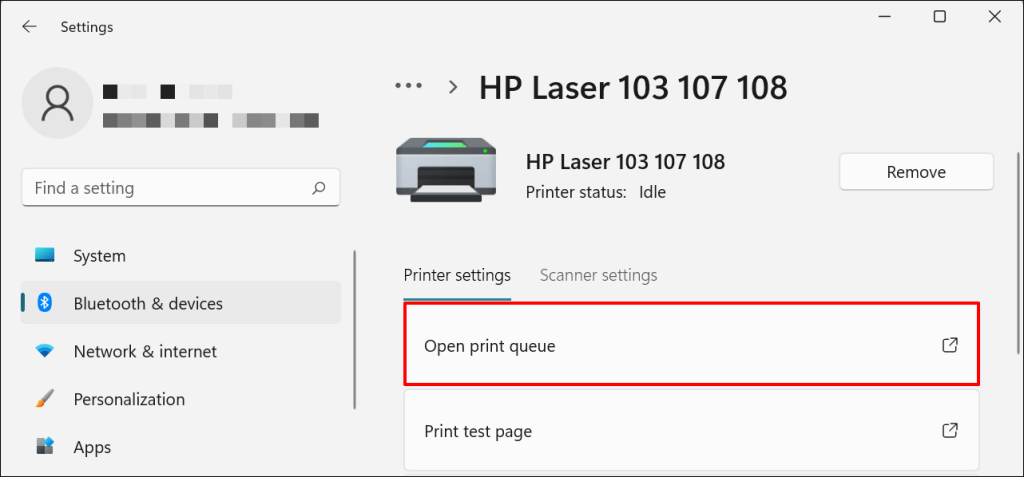
- Select Open print queue .
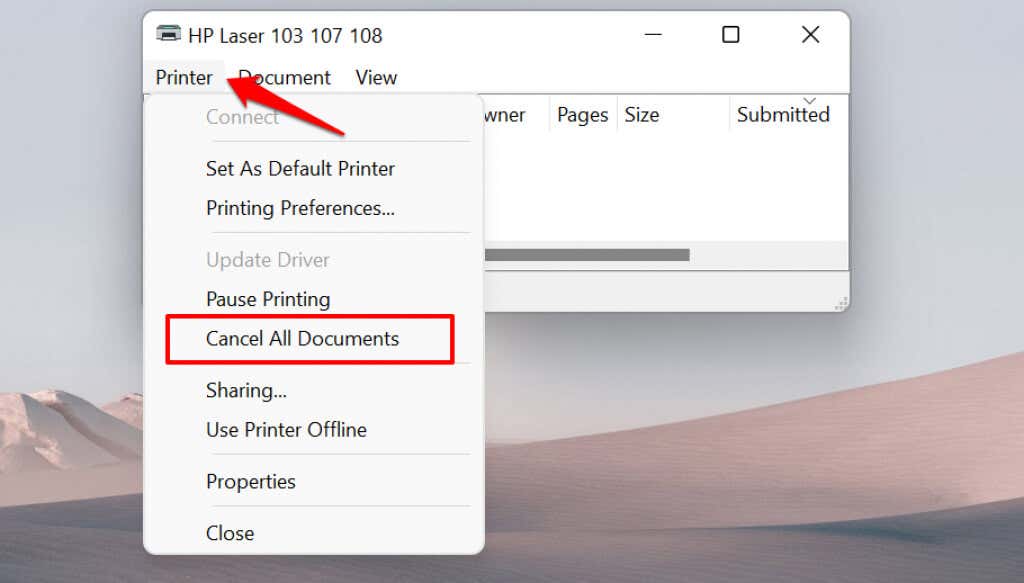
- Select Printer on the menu bar and select Cancel All Documents .
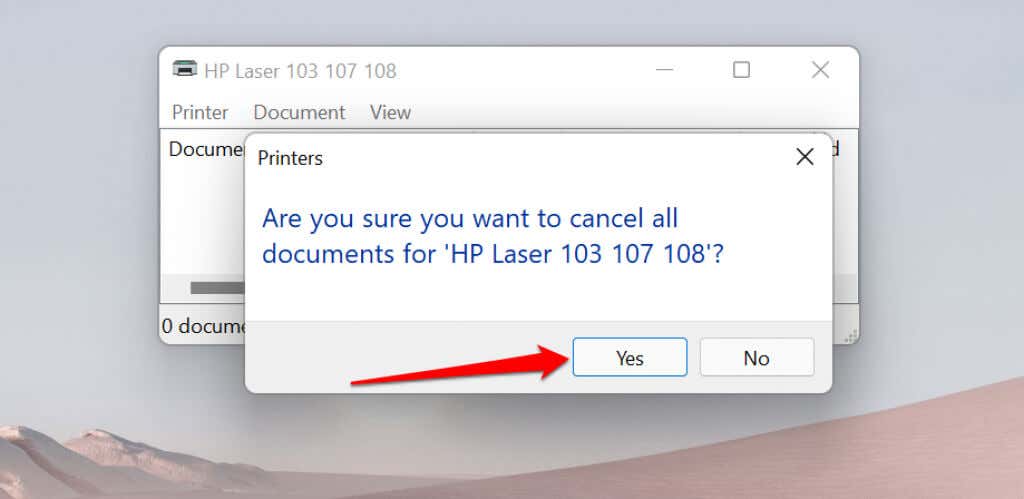
- Select Yes on the confirmation prompt.
[14-why-windows-pc-wont-print-documents]
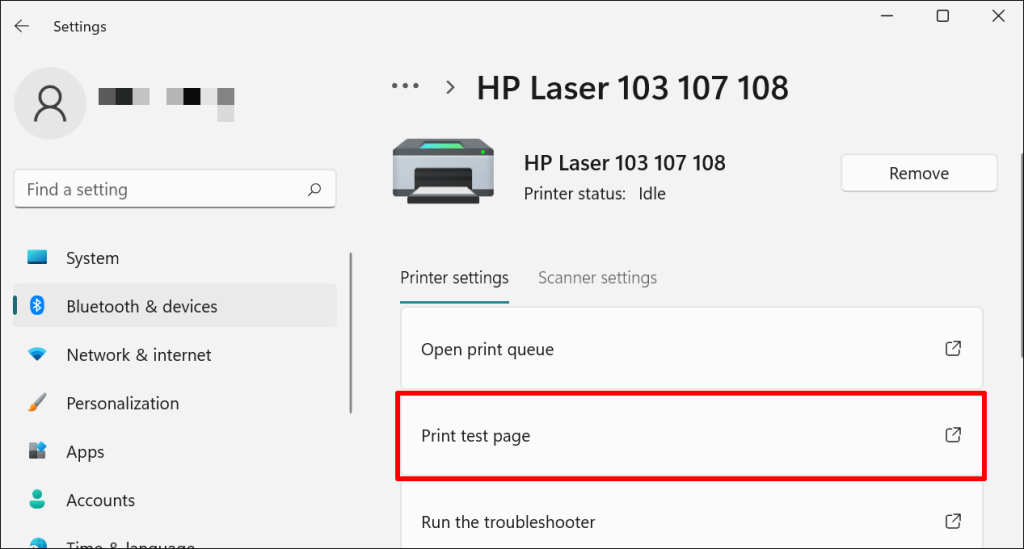
Try printing any document or a test page and check if clearing the queue fixed the problem. Open the printer menu and select Print test page .
If completed documents remain in the print queue, refer to our troubleshooting tutorial on deleting stuck print jobs in Windows .
Clear Print Queue in macOS
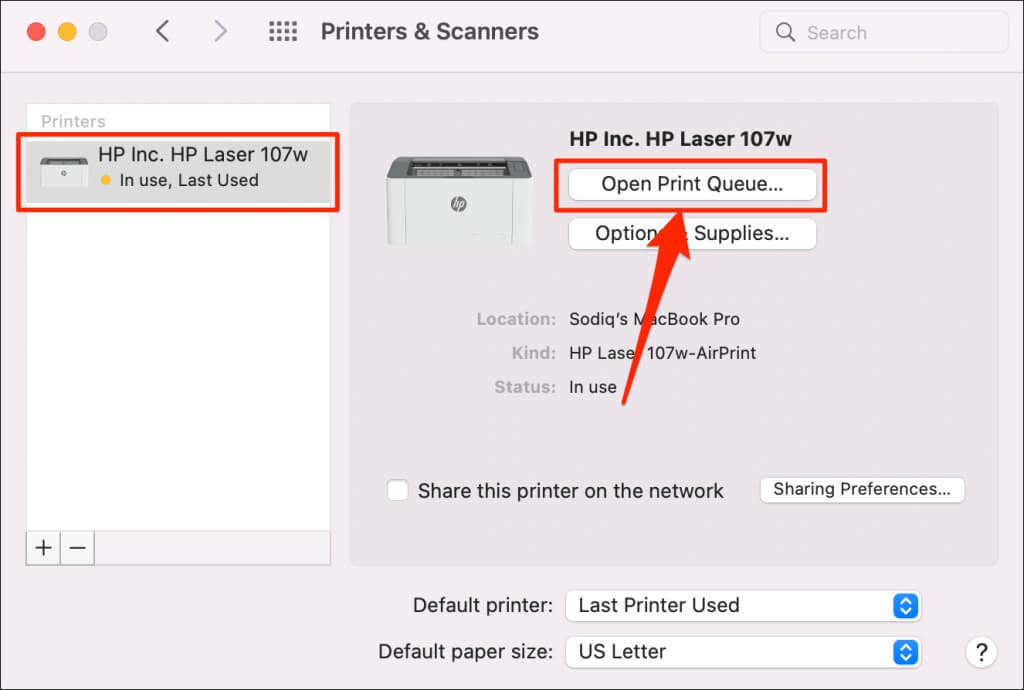
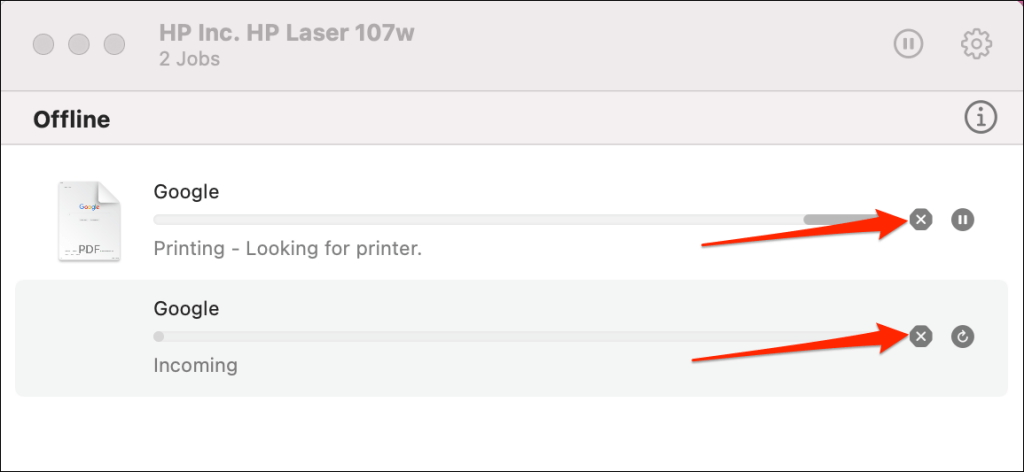
- Go to System Preferences > Printers & scanners , select the printer on the sidebar, and select Open Print Queue .
- Select the x icon next to the pending print jobs to remove them from the queue.
5. Update Printer Driver
Your printer might not receive print jobs from your PC if its driver is corrupt or outdated. Although Windows automatically installs driver updates, some factors (e.g., a metered internet connection) may prevent that from happening. Here’s how to manually install a driver from your computer or the internet.
Check the printer’s manufacturer website and download the latest driver updates for your printer model. Plug the printer into your computer and follow the steps below.
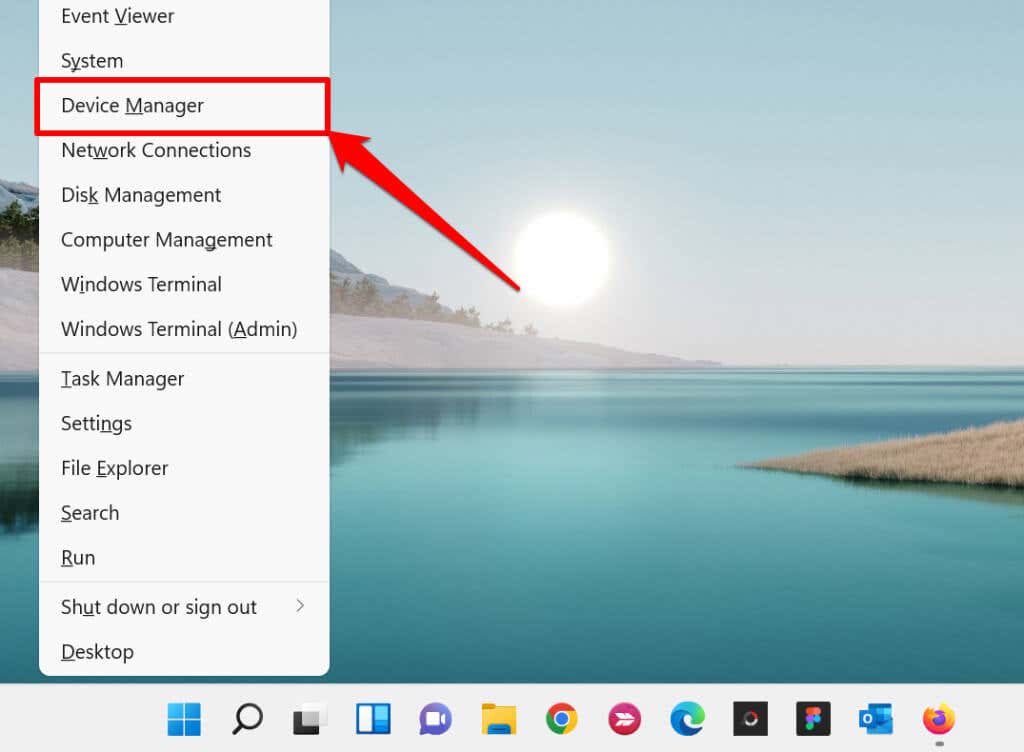
- Right-click the Start Menu or press the Windows key + X to open the Quick Access Menu. Select Device Manager to proceed.
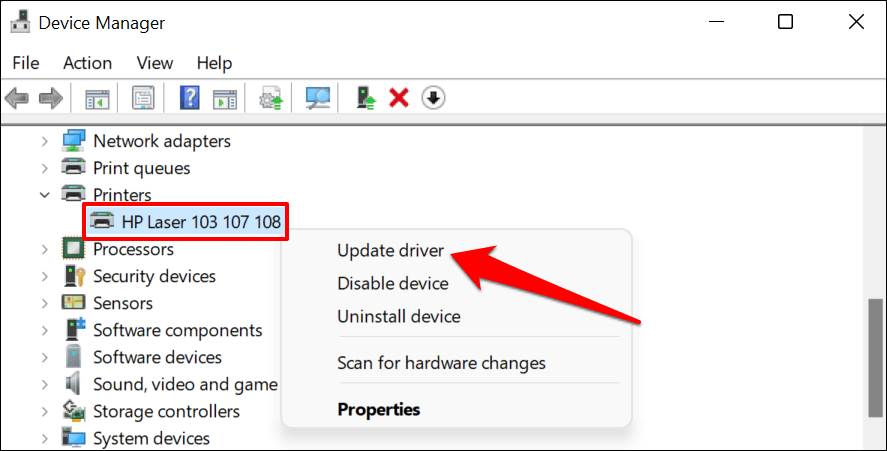
- Expand the “Printers” category, right-click the printer’s driver, and select Update driver .
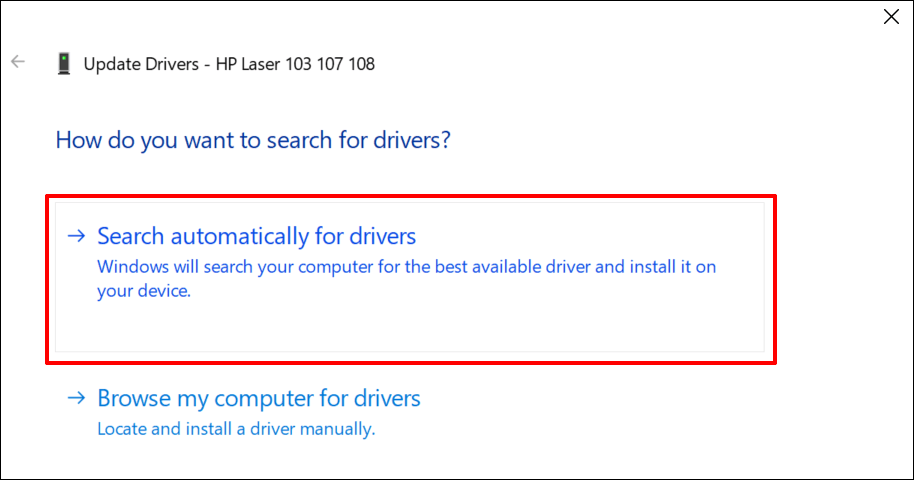
- Select Search automatically for drivers and wait for Windows to search for the best driver available for the printer. The process requires an internet connection, so ensure your PC is connected to a Wi-Fi or Ethernet network.
Alternatively, select Browser my computer for drivers to manually install a driver you downloaded from the printer manufacturer’s website. Afterward, choose Browse , navigate to the driver’s location on your PC, and select Next to install the update.
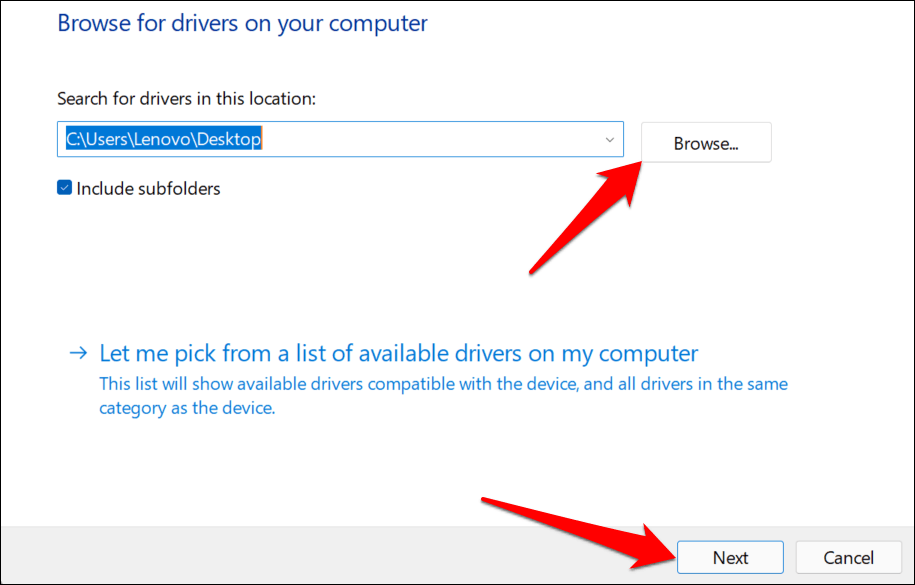
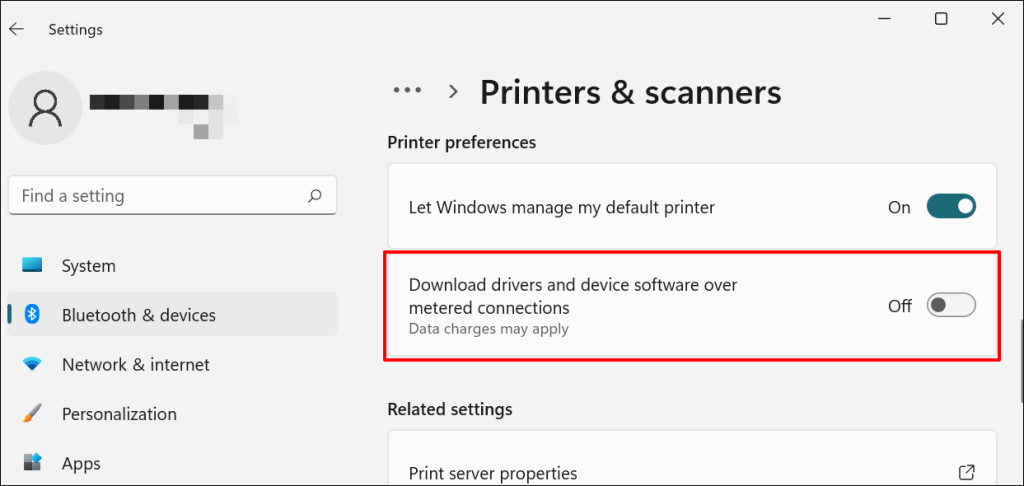
We recommend configuring Windows to automatically download drivers for your printer, especially if you’re using a metered connection.
Go to Settings > Bluetooth & devices > Printers & scanners and toggle on Download drivers and device software over metered connections .
If the Device Manager says the printer’s driver is up-to-date, check the manufacturer’s website for confirmation. You’ll find driver update history in the “Download,” “Software,” or “Drivers” section of the printer manufacturer’s website. Contact the manufacturer if you don’t know how to find, install, or update your printer’s driver update.
6. Reboot Your Devices
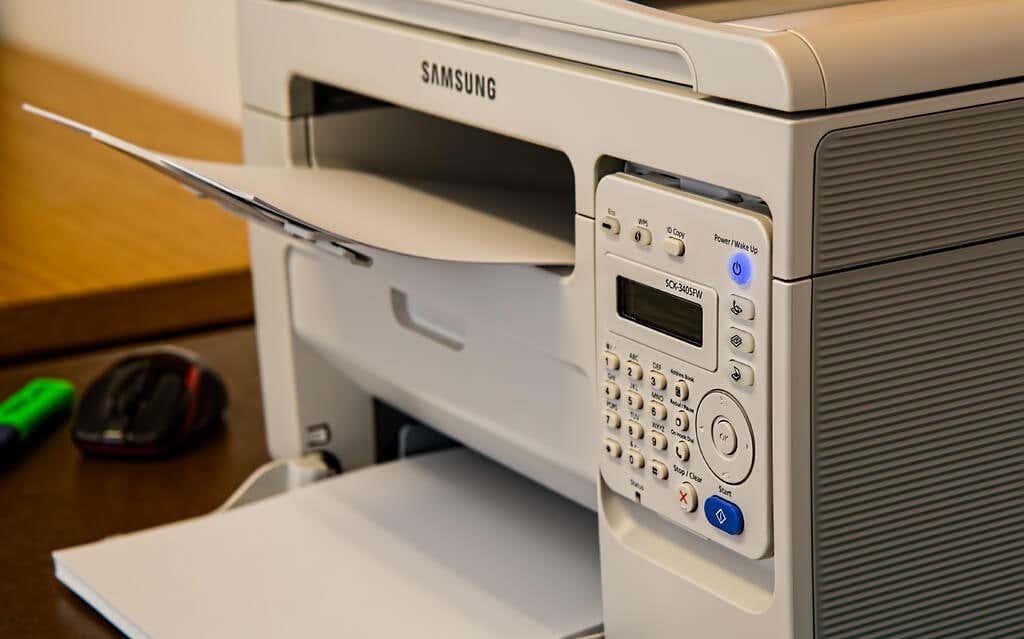
Power-cycling your printer and computer can help both devices re-establish a connection. Unplug your printer’s power cord and shut down your computer. Remember to close any open apps or documents so you don’t lose unsaved changes.
Restart both devices, connect your printer to your PC, and check if you can now print documents.
7. Reinstall Printer Driver
Reinstalling a faulty or corrupt driver can resolve issues causing your printer to malfunction. The operation entails deleting or uninstalling the printer driver , restarting your computer, and installing it from scratch. Note that this operation may affect any customizations made on the printer’s settings and preferences on your computer.
- Type device manager into Windows Search and select Device Manager .
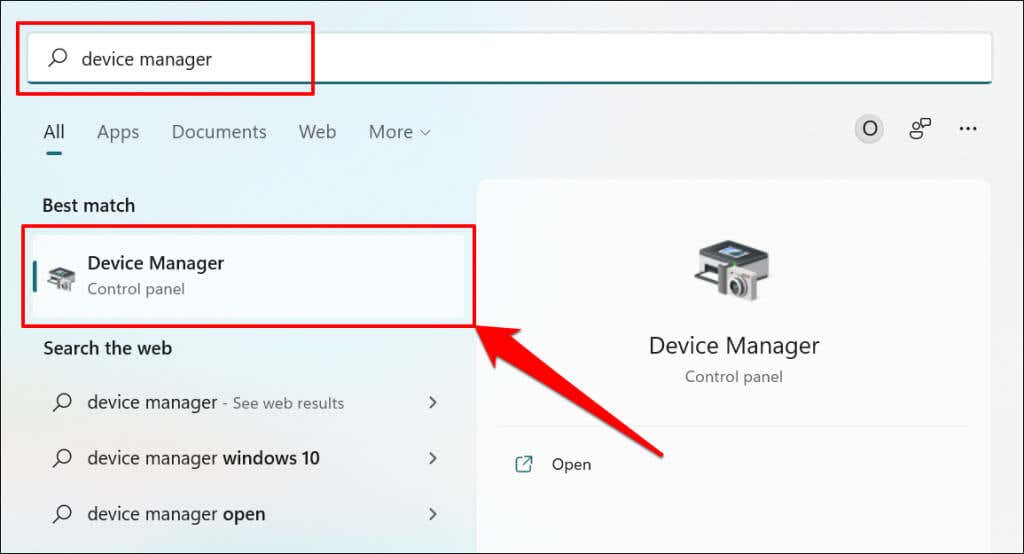
- Expand the “Printer” section, right-click the printer’s driver, select Uninstall device , and select Uninstall on the pop-up.
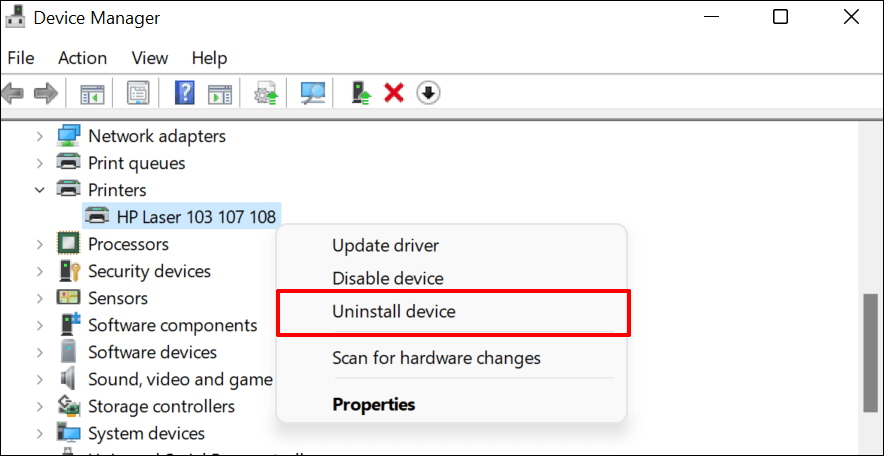
You should also remove the printer from your PC’s memory.
- Go to Settings > Bluetooth & devices > Printers and scanners , select the printer, and select the Remove button.
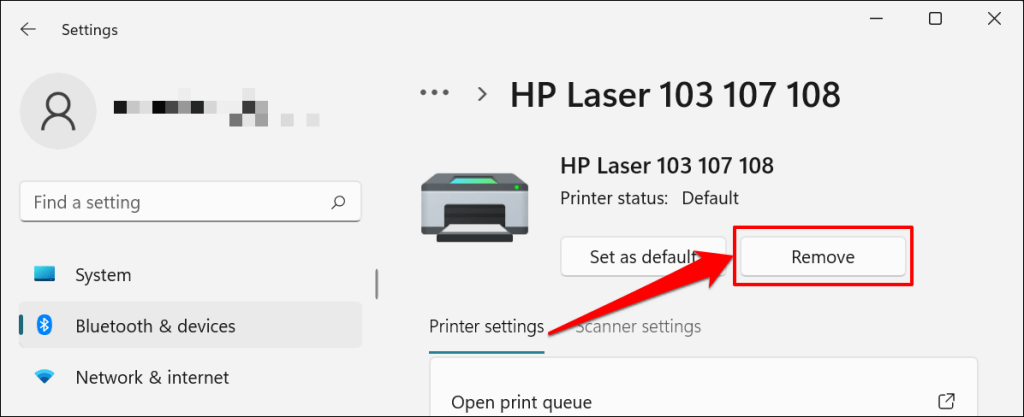
- Select Yes on the confirmation prompt.
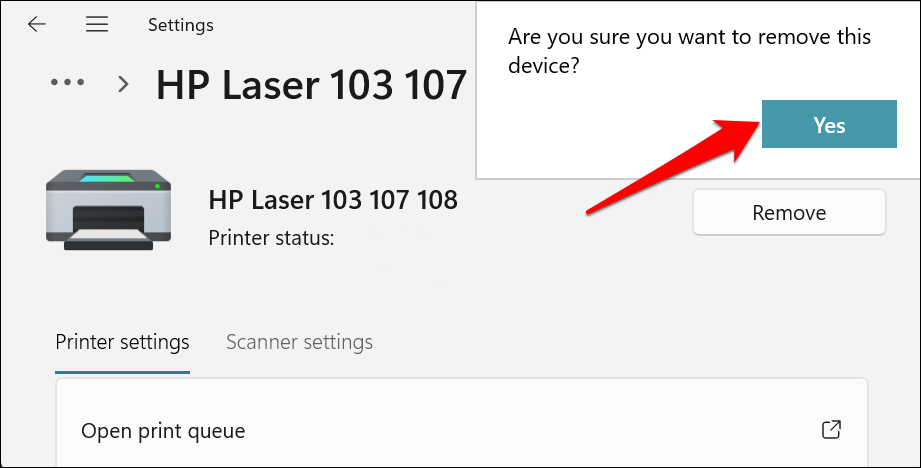
Restart Windows and reconnect the printer to your computer. Windows should automatically install the printer’s driver when it connects to your PC.
8. Restart the Printer Spooler
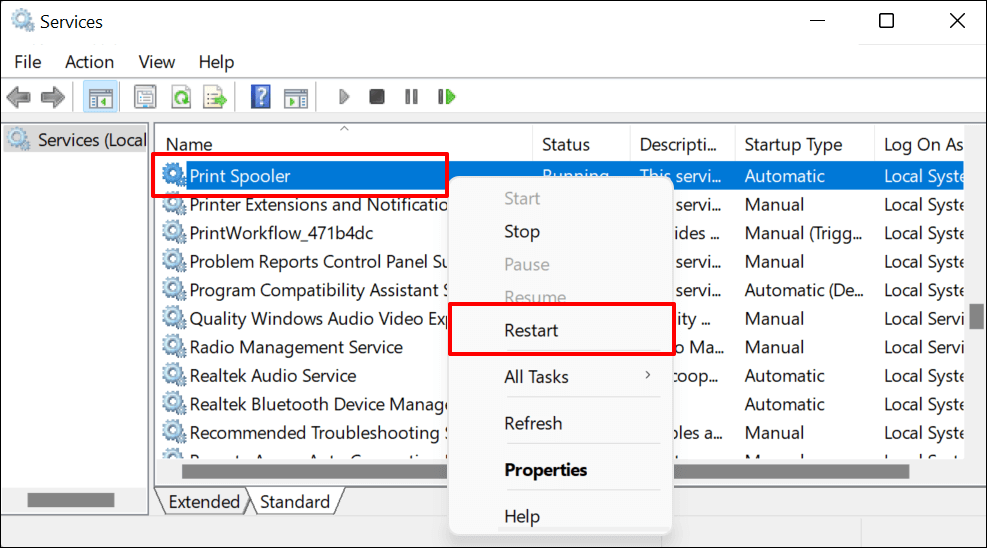
Printer Spooler is the system service that manages printers and print jobs on Windows devices. Temporary system glitches can affect the Printer Spooler’s performance and trigger printing-related problems. Restarting the print spooler service can restore the service to normalcy.
- Open the Windows Run box (press Windows key + R ), type services.msc in the dialog box, and press Enter .
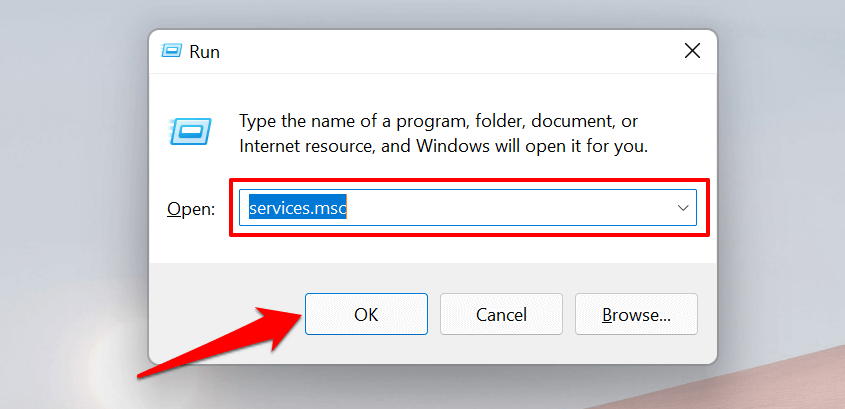
- Right-click Printer Spooler and select Restart .
9. Update Your Computer
Asides from fixing software bugs, Windows Updates also updates outdated or buggy drivers. Head to the Windows Updates menu and install the latest Windows build or security patches available for your computer.
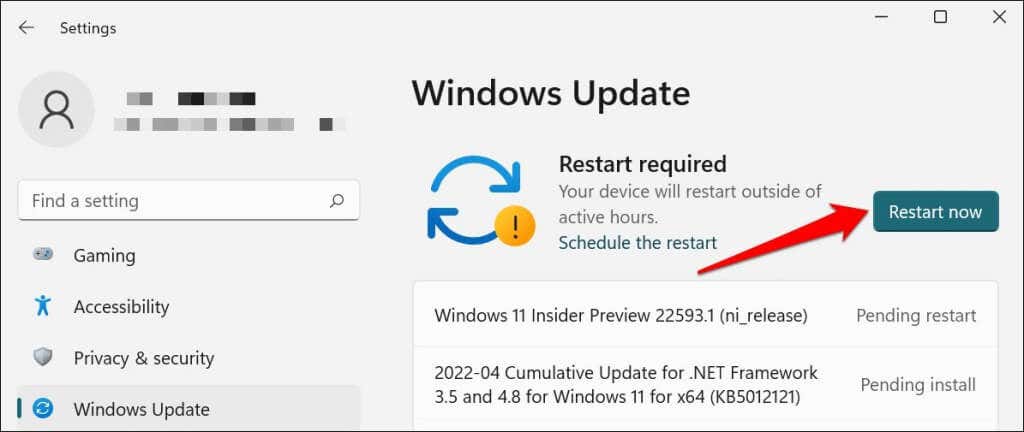
In Windows 11, go to Settings > Windows Update and wait for Windows to check for updates. You may need to restart your computer if Windows has already downloaded the update. Select Restart now to update and reboot your computer.
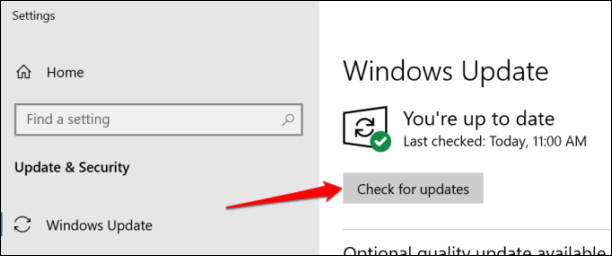
In Windows 10, head to Settings > Updates & Security > Windows Update and select Check for updates . Make sure your computer has an internet connection.
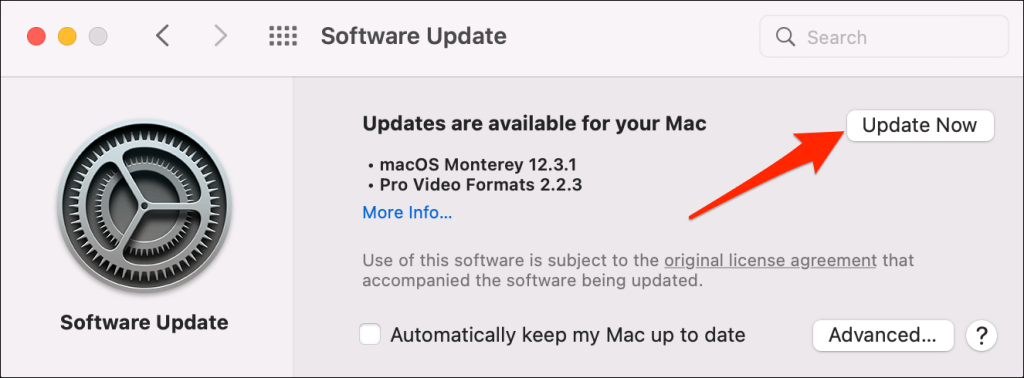
In macOS, go to System Preferences > Software Updates and select Update Now (or Upgrade Now ).
[32-update-mac-computer]
10. Run the Printer’s Utility Software
HP has a Print and Scan Doctor utility (HP Smart for Mac) that diagnoses problems with HP printers. The tool can detect empty ink cartridges, outdated driver software, blocked nozzles, print feed errors, and other printer problems.
Samsung Printer Experience is the utility that manages Samsung printers. The app has loads of troubleshooting guides for printing problems on Samsung printers. The Canon Inkjet Print Utility is also available for Canon inkjet printers.
Download and install your printer’s utility software on your computer and run the tool according to the manufacturer’s instructions.
Pay Attention to Physical Indicators
Printers have status lights or LCD screens that display error codes. These lights point out the root cause of some printing issues. Check the printer’s instruction manual to learn what the indicator lights and error codes mean and their respective solutions. Contact the printer manufacturer if your printer still won’t print after running these troubleshooting measures.
- How to Fix the “Error – Printing” Status Error in Windows
- HP Printer Not Printing Black? 10 Fixes to Try
- How to Fix Missing or Failed Printhead Error on HP Printers
- How to Add a Printer to Your Chromebook
- How to Fix the Printer Error “0x0000011b” on Windows
Sodiq has written thousands of tutorials, guides, and explainers over the past 4 years to help people solve problems with Android, iOS, Mac, and Windows devices. He also enjoys reviewing consumer tech products (smartphones, smart home devices, accessories, etc.) and binge-watching comedy series in his spare time. Read Sodiq’s Full Bio
If you have tried to print a document in Windows 10, you know that it won’t print unless the printer is online. Usually, this just involves turning on your printer and waiting a few seconds for the status to change from offline to online.
Unfortunately, this doesn’t happen all the time. Instead, the printer will remain in offline status even though your printer is on and connected to your computer or to the network. There are quite a few reasons why Windows may not detect that the printer is online and I’ll do my best to cover as many solutions as possible.
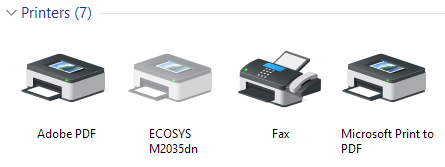
Step 1: Power Cycle Devices
The first thing to do before you get deep into settings and tools is to simply try power cycling your printer and computer. A lot of times that fixes the problem. Turn off your printer and turn off your computer. Then power on your printer and wait until it is connected to the network. If you’re using a USB cable, just wait till the printer is finished starting up.
Now turn on your computer and see if the printer is still showing up offline or not. Make sure the printer is fully turned off and not just in power saving mode. If you’re not sure, the best thing to do is to unplug the printer completely for about 30 seconds.
Step 2: Use Printer Software
If your printer is still showing offline, then you can try to use the printer software that came with your printer. These printer utilities can usually detect the printer on the network and fix any issues that are causing the printer to appear offline.
This pretty much applies to all printer manufacturers. If you have a Dell printer , go to the Dell drivers and downloads page, search for your printer and then download the printer application.
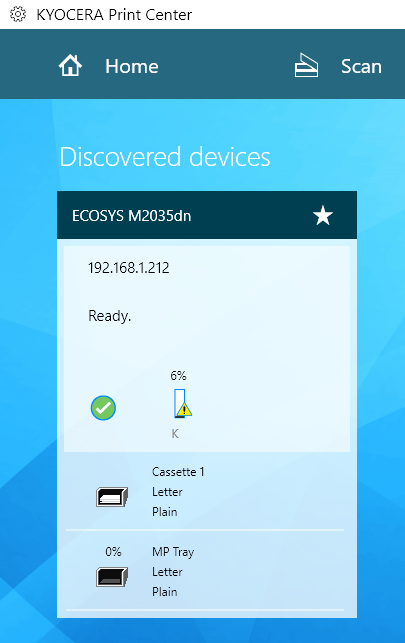
Above is an example of Kyocera Print Center software running on my Windows 10 machine. It will show you the status of the printer and give you additional details like ink levels, etc. If you’re not sure whether or not printer software is installed on your machine, you can check by going to Settings , then clicking on Devices and finally clicking on Printers & Scanners .
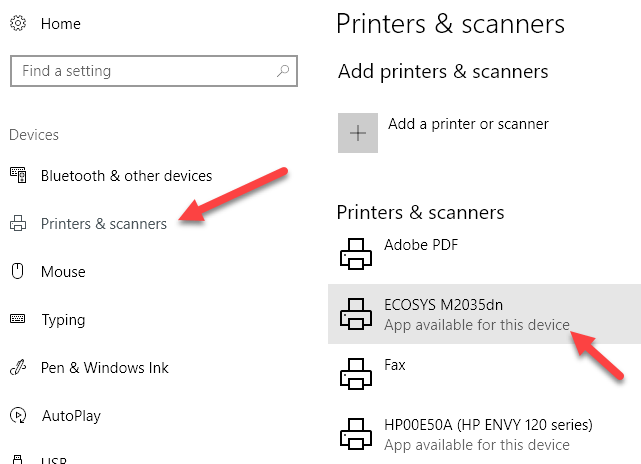
Windows 10 will list out the printers on the right-hand side and if there is a software package installed to manage the printer, it will say App available for this device . If you click on the printer, then click on Manage , you’ll see an Open printer app button.
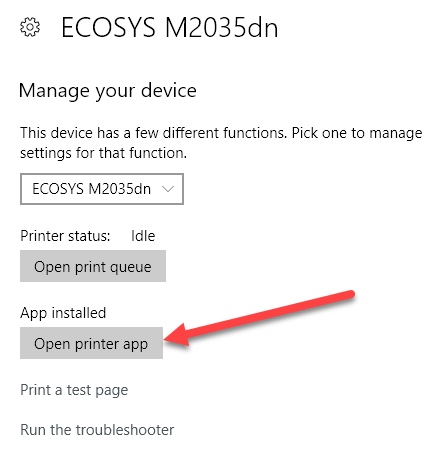
In my case, I didn’t even know I had the software already installed on my system, so this was helpful.
Step 3: Set Printer Online
Sometimes, even though the printer is online and connected, the settings are incorrectly configured. Open the printer queue by going to Devices and Printers in Control Panel and double-clicking on the printer.
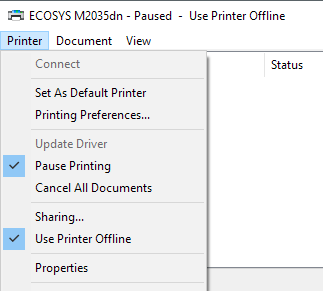
Here you want to click on Printer in the menu bar and then make sure to uncheck Pause Printing and Use Printer Offline .
Step 4: Run the Troubleshooter
If the problem is with the Windows printing subsystem, then running the troubleshooter might help. You can run the troubleshooter by following the steps in Step 2 to get to the Manage your device screen for the printer. Once there, you’ll see the Run the troubleshooter link. Click on that and it will check the spooler service, the network settings, etc.
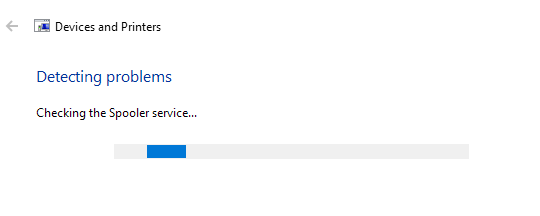
The troubleshooter usually works if the problem is related to Windows.
Step 5: Check Printer Port
If nothing has worked till now, the problem is probably related to the port configuration. This will most likely only apply to a networked printer, which has an IP address. The most likely cause is that the IP address of the printer has changed, but the port configuration still points to the old IP address.
Once you have the IP address, go to Control Panel, Devices and Printers and right-click on the printer. Make sure to select Printer Properties , not Properties at the bottom.
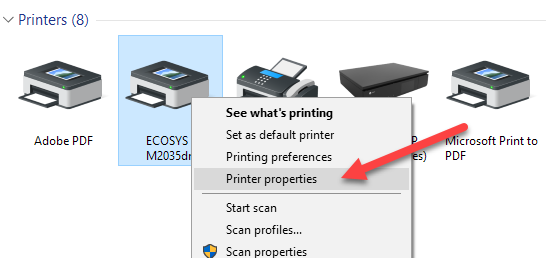
Click on the Ports tab and then scroll down the list until you see the one port that is checked. Select it and then click on Configure Port .
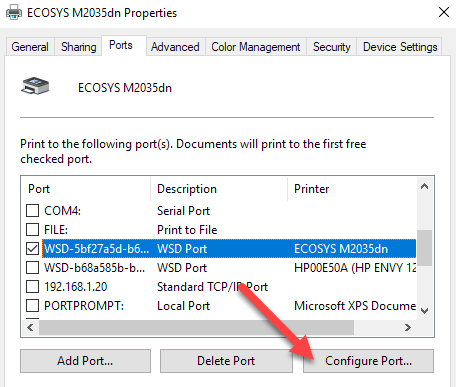
This dialog will tell you the current IP address that it thinks the printer has. If the IP address of the printer is different than the one listed here, then that’s your problem. Simply update the IP address here and you should be good to go.
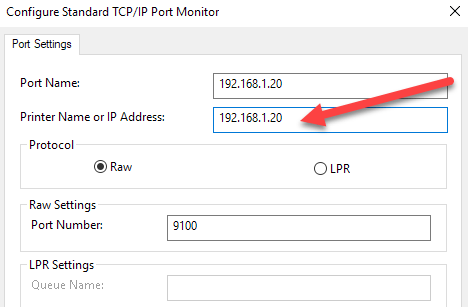
If you get any kind of error, like the one shown below, when trying to configure the port, then it’s probably because it’s configured as a WSD port.
An error occurred during port configuration. This operating is not supported.
The other less technical option is to follow Step 6, which is to delete the printer and then re-add it, thereby automatically using the new IP address.
Step 6: Remove and Re-Add Printer
If you can’t get the printer working yet, then your best option might be to remove it and then re-install it. When Windows installs a printer, it will detect it, check all the settings, and make sure the driver for the printer is installed properly.
You can remove the printer by going to Control Panel, Devices and Printers, right-clicking on the printer and choosing Remove Device .
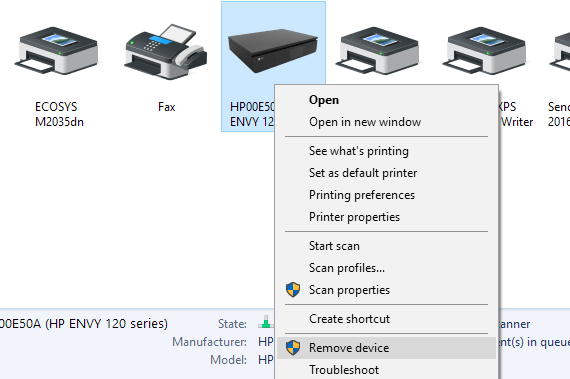
It’s also a good idea to restart the computer once before you reinstall the printer. Note that this will not remove the driver for the printer from your system. If there is some issue with the driver, follow Step 7.
Once you have restarted, click Add Printer and Windows should automatically detect the printer connected locally on connected to your network.
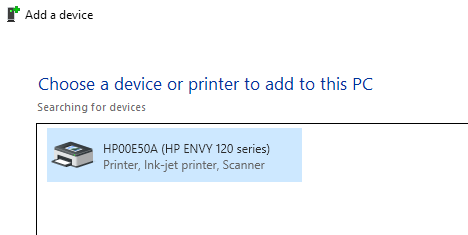
Step 7 – Reinstall Printer Driver
Sometimes the issue can be associated with the current print driver. If this is the case, you should download the latest driver for your printer from the manufacturer’s website. However, before you do that, it’s a good idea to remove the current print driver.
Read my guide on how to remove a printer driver from Windows . Note that the article still applies to Windows 10.
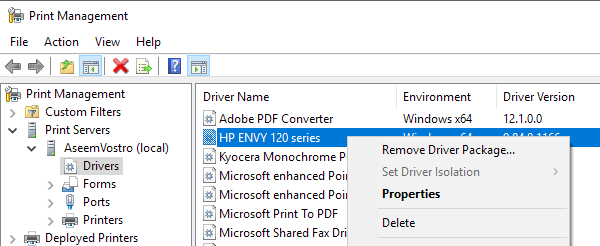
Hopefully, you’ve been able to print by now. If not, I recommend reading my other general guide to troubleshooting printers . In addition to everything above, it’s always a good idea to install the latest Windows updates as those usually contain newer print drivers, which could make your printer work better with Windows 10. If you have any questions, post a comment. Enjoy!
- Preparing for Windows 10 End of Support: Upgrading to Windows 11
- How to Fix a “This file does not have an app associated with it” Error on Windows
- How to Fix an Update Error 0x800705b4 on Windows
- How to Resolve “A JavaScript error occured in the main process” Error on Windows
- How to Fix the Network Discovery Is Turned Off Error on Windows
Founder of Help Desk Geek and managing editor. He began blogging in 2007 and quit his job in 2010 to blog full-time. He has over 15 years of industry experience in IT and holds several technical certifications. Read Aseem’s Full Bio
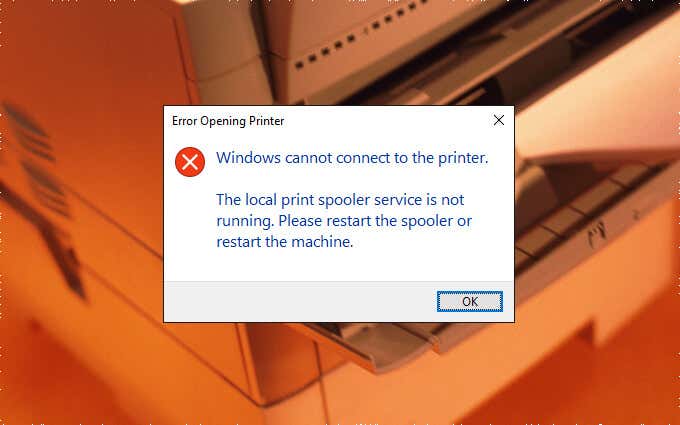
The Print Spooler is a service that handles printers and print jobs in Windows 10. But multiple things—such as corrupt files, obsolete drivers, and insufficient permissions—can stop it from functioning correctly.
So if the Print Spooler crashes, fails to start, or keeps stopping as you perform a printer-related action on your PC, the fixes and suggestions below should let you get it working again.
Run Printer Troubleshooter
Windows 10 comes with a built-in troubleshooter that can automatically sort printer issues on your computer. So it’s best to kick things off by running it.
Open the Start menu and select Settings .
Select Update & Security .
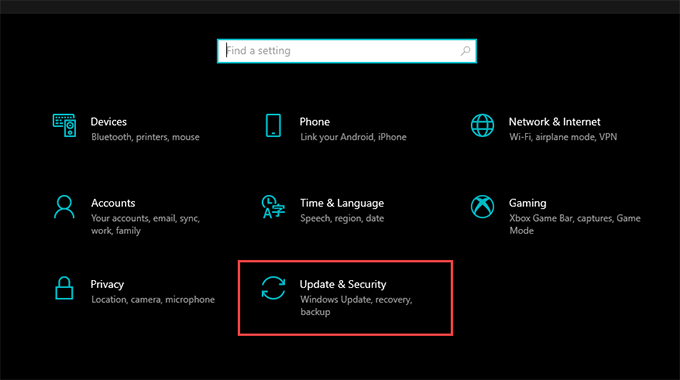
- Switch to the Troubleshoot tab and select the option labeled Additional troubleshooters .
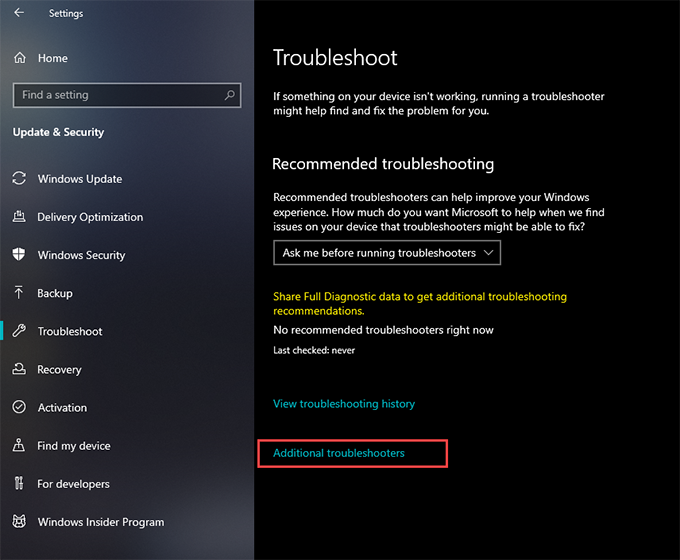
- Select Printer > Run the troubleshooter .
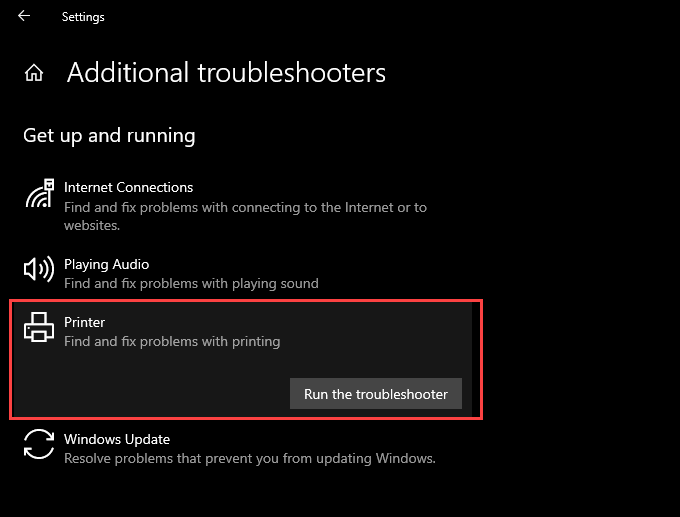
- Follow all prompts on the Printer troubleshooter to find and fix problems with printing.
Check Print Spooler Configuration
If running the Printer troubleshooter didn’t help, follow up by double-checking the configuration of the Print Spooler. Then, make any changes to match the steps that follow.
Press Windows + R to open the Run box.
Type services.msc and select OK . The Services app should load momentarily.
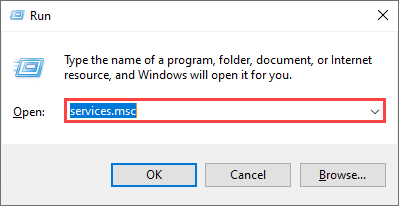
- Double-click the service labeled Print Spooler .
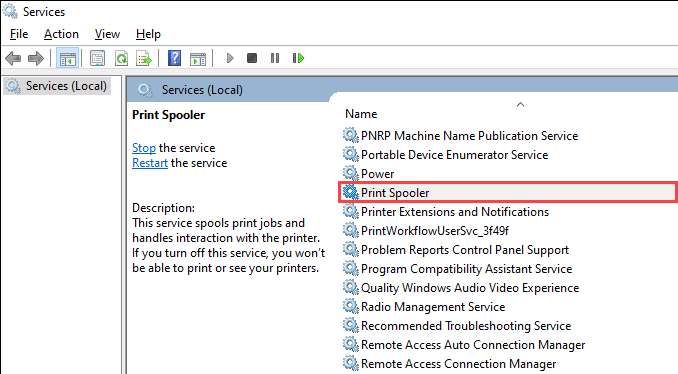
Set Startup type to Automatic .
Select Start to set Service status to Running .
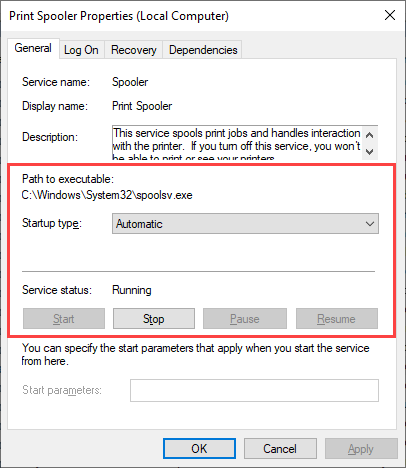
- Select Apply , then OK .
Check the Print Spooler Recovery Response
Should the issue recur, you must follow by tweaking the Print Spooler’s recovery response in a way that restarts the service even after it fails.
Re-open the Services app.
Double-click the Print Spooler service.
Switch to the Recovery tab.
Select Restart the Service on the drop-down menus next to First failure , Second failure , and Subsequent failures .
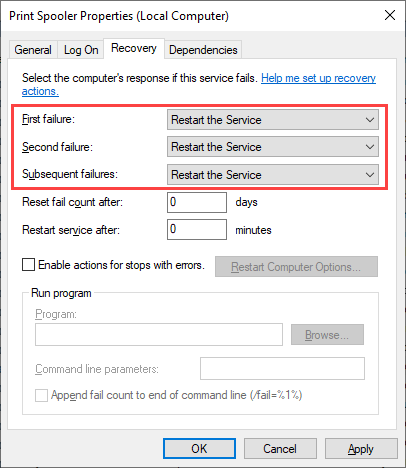
- Select Apply , then OK .
Delete the Print Spooler Cache
An obsolete or corrupt Print Spooler cache can cause it to crash repeatedly. Try deleting them to check if that helps. However, before you do that, you must manually stop the service from running.
Open the Services app.
Right-click Print Spooler and select Stop .
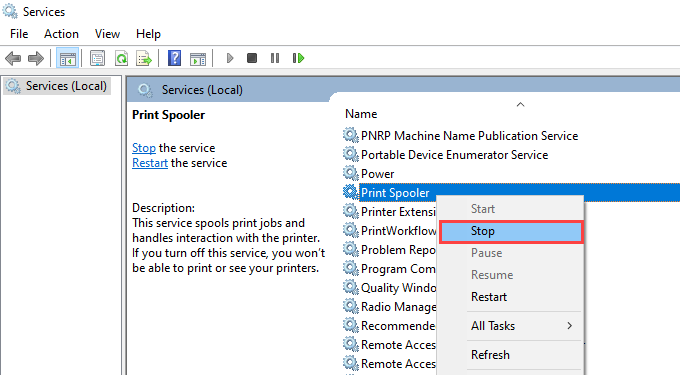
Open File Explorer and go to Local Disk (C:) > Windows > System32 > spool > PRINTERS .
Delete all files inside the directory. However, leave folders (if you see any) intact.
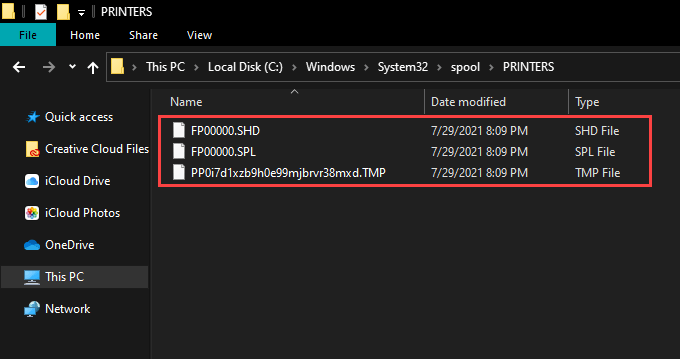
- Restart your computer.
Delete Temporary Files in Windows 10
Temporary files that belong to applications and the operating system can also create conflicts and prevent the Print Spooler from working correctly. Try deleting them.
Press Windows + R to open the Run box.
Type %temp% and select OK .
Delete all files within the folder.
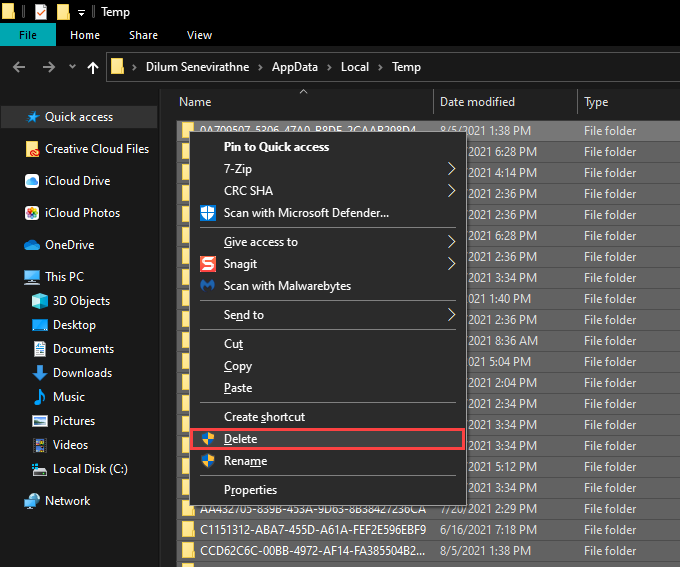
Open another Run box, type temp , and select OK .
Delete all files within that folder as well.
Restart your computer.
For additional instructions, check out this guide to deleting temporary files in Windows 10 .
Reinstall Printer Drivers
Corrupt or broken printer drivers can also cause the print spooler to keep stopping. If the service stops working while interacting with a specific printer, try reinstalling it.
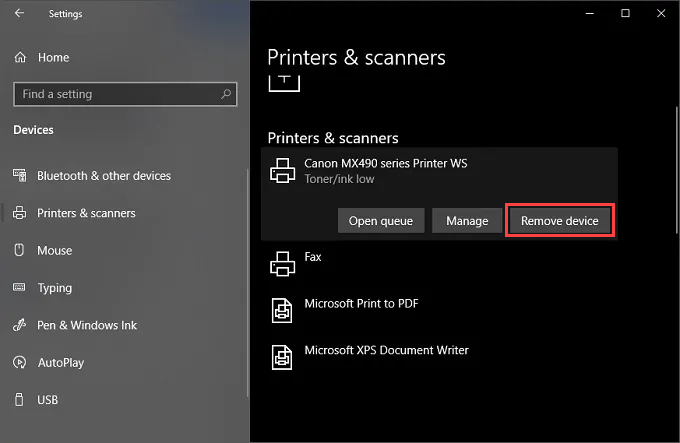
Open the Start menu and go to Settings > Devices > Printers & scanners .
Select a printer under the Printers & scanners section.
Select Remove device .
Select Home and go to Apps > Apps & features .
Select and remove any printer-related support software.
Restart your computer.
Re-open the Settings app and go to Devices > Printers & scanners . Then, choose the Add a printer or scanner option and select Add device .
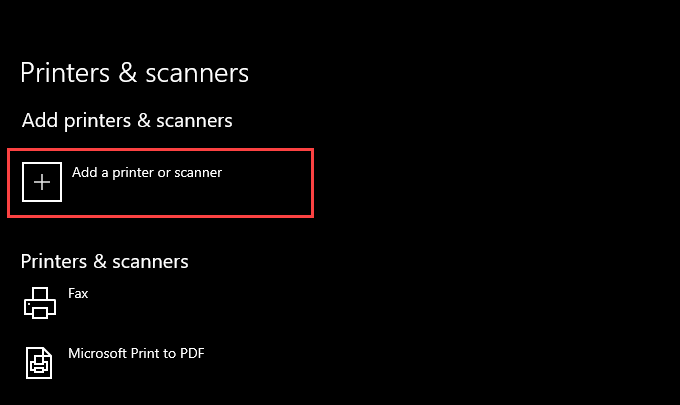
Select the printer and follow all on-screen prompts to reinstall it.
Reinstall any support software for the printer.
If you run into issues while following the steps above, you may want to learn about additional ways to remove printer drivers in Windows 10 .
Update Printer Drivers
Newer printer drivers contain fixes that resolve bugs and compatibility issues with the operating system. So it’s always a good idea to download and install the latest drivers or support software from your printer manufacturer’s website. Also, consider using a driver updater tool if you have any trouble procuring drivers manually.
Update Windows 10
Updating Windows 10 helps fix any persistent bugs and glitches preventing the Print Spooler from working correctly. Check for any pending updates and apply them now.
Open the Start menu and go to Settings > Update & Security .
Select Check for updates .
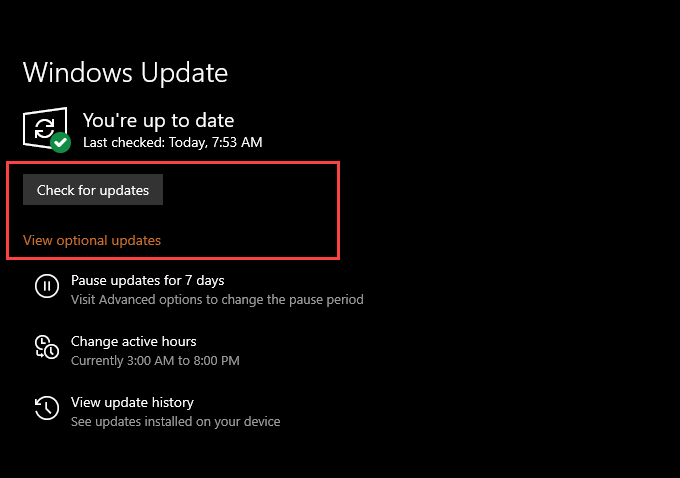
- Select Download and install to apply all pending updates.
If you see the View optional updates option within the Windows Update screen, select it and apply any Microsoft-verified driver updates for your printer.
Fix Broken Registry Keys
Broken registry keys in Windows 10 can also result in Print Spooler-related issues. A free registry cleaning application such as Wise Registry Cleaner should help you both scan and fix errors automatically.
Scan for Malware
Computer viruses and malicious programs often cause essential functions in Windows 10 to stop working. However, you can use Windows Security to rule that out by performing a comprehensive scan for malware.
Select the Windows Security icon on the system tray.
Select Virus & threat protection .
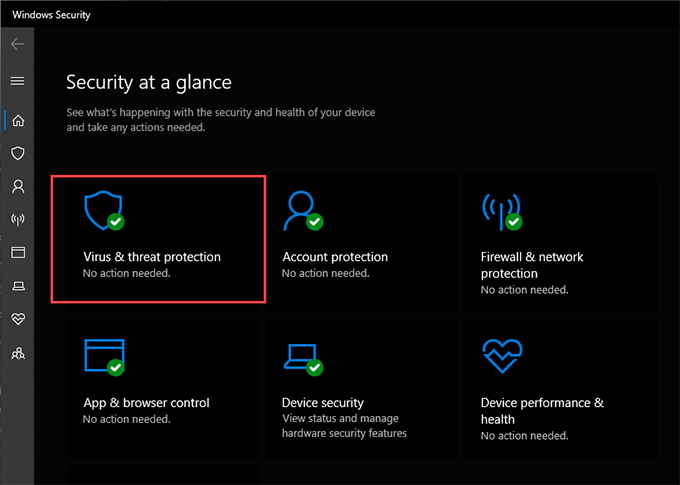
Select Scan options .
Select the radio button next to Full scan .
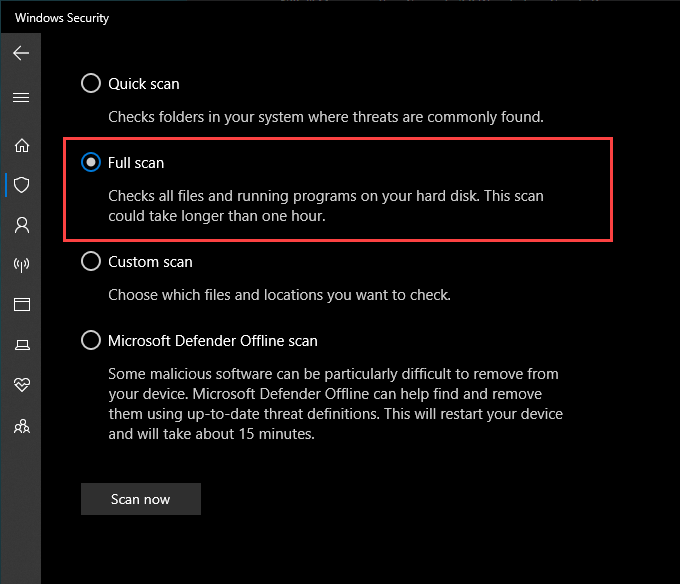
- Select Scan now .
Run the System File Checker
The System File Checker is a command-line tool that can help you fix file corruption and stability issues in Windows 10. You can run it via an elevated Windows PowerShell console.
- Right-click the Start button and select Windows PowerShell (Admin) .
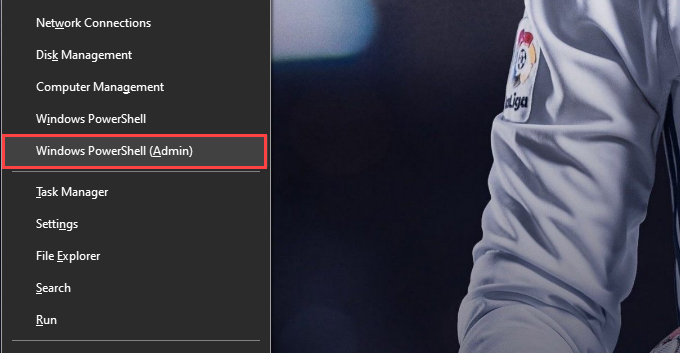
- Type the following command:
sfc/ scannow
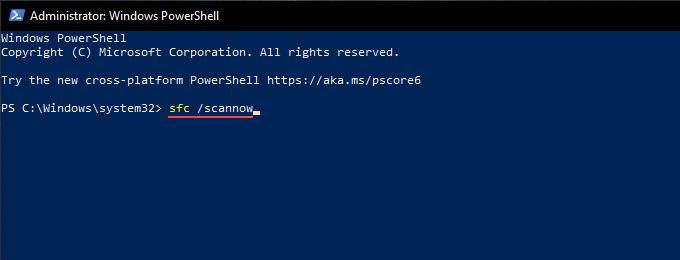
- Press Enter .
Take Ownership of Spoolsv
Taking ownership of the executable file that runs the Print Spooler can also help stop crashes and other issues with the service.
Open File Explorer and go to Local Disk (C:) > Windows > System32 .
Right-click the file labeled spoolsv and select Properties .
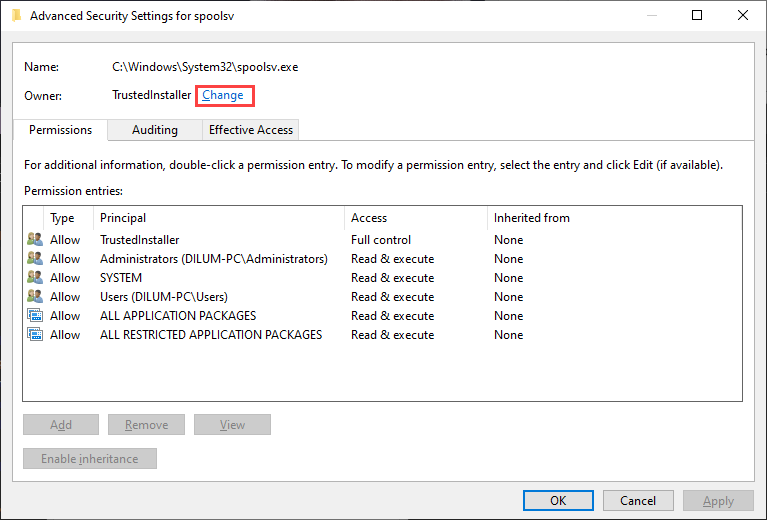
Switch to the Security tab and select Advanced .
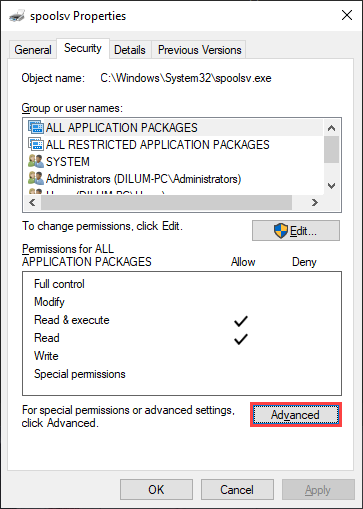
- Select Change .
- Type in your Windows username and select Check Names . If you typed it correctly, you should see the path to your user account listed automatically.
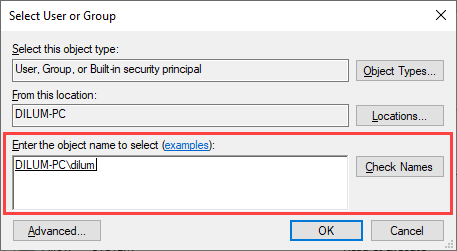
Select OK .
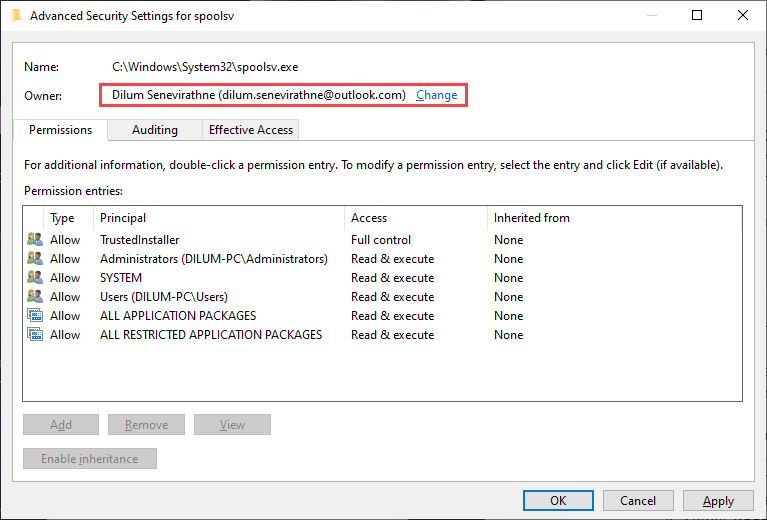
Confirm that you see your username next to Owner . Then, select Apply , then OK .
- Restart your computer.
Perform a System Restore
If your print spooler still keeps stopping, you can choose to revert your computer to an earlier state when the Print Spooler worked without problems. However, you can only do that if you took the time to activate the System Restore functionality in Windows 10 previously.
Open the Run box.
Type sysdm.cpl and select OK .
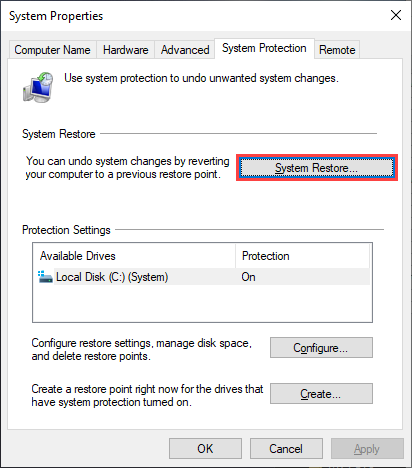
Switch to the System Protection tab.
Select System Restore .
- Select Recommended restore or Choose a different restore point and select Next .
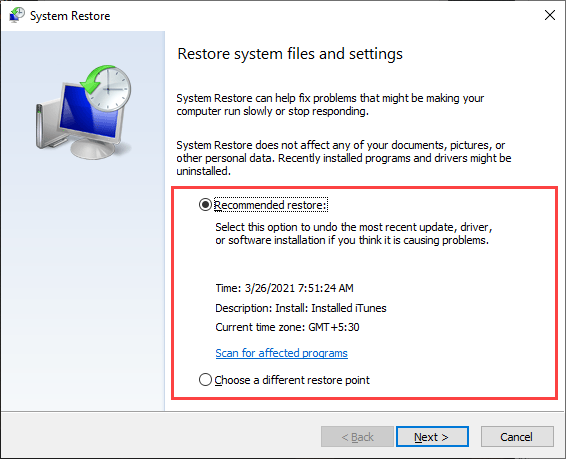
- Follow all on-screen instructions to reset your computer.
Print Spooler Working Non-Stop
Any of the fixes above should’ve helped get the Print Spooler up and running correctly. But if none of them worked and you keep receiving errors frequently, you must consider restoring Windows 10 to factory settings . You might be dealing with a severe underlying issue that only setting up the operating system from scratch can fix.
- Preparing for Windows 10 End of Support: Upgrading to Windows 11
- How to Fix a “This file does not have an app associated with it” Error on Windows
- How to Fix an Update Error 0x800705b4 on Windows
- How to Resolve “A JavaScript error occured in the main process” Error on Windows
- How to Fix the Network Discovery Is Turned Off Error on Windows
Dilum Senevirathne is a freelance tech writer and blogger with three years of experience writing for online technology publications. He specializes in topics related to iOS, iPadOS, macOS, and Google web apps. When he isn’t hammering away at his Magic Keyboard, you can catch him binge-watching productivity hacks on YouTube. Read Dilum’s Full Bio
If you connect to different printers across several locations all the time, you’ll probably not use all of the printers installed on your device – probably just once or twice. However, your device ends up with many printers installed on it without you realizing it.
Thankfully, you can remove any printer you’re no longer using, except it doesn’t completely get erased from your device – the printer driver remains in your device’s inventory in case you need it again.
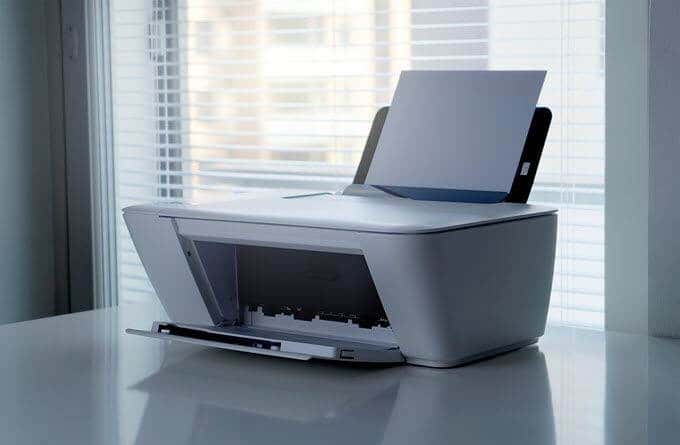
If you’re sure you won’t need it, you can remove or uninstall old, obsolete or uninstalled printer drivers , and leftover driver packages or registry entries from your device.
We’re going to walk you through five ways to completely uninstall printer drivers in Windows 10.
How To Remove Or Uninstall Printer Drivers In Windows 10
These are a few of the ways you can remove printer drivers in Windows 10:
- Uninstall printer software using Settings.
- Remove printer driver from Print Server Properties.
- Uninstall printer driver using Control Panel.
- Use Print Management to remove old printers.
- Delete old printers via Registry Editor.
- Uninstall printer using Command Prompt.
- Remove a printer using PowerShell.
- Delete remnants from Windows driver store.
Uninstall Printer Software Using Settings
If you don’t need a particular printer anymore, you can follow the usual steps to uninstall a printer from Settings and then uninstall its software, especially if using a third-party utility.
If the Settings app installed other tools to manage your printer automatically, you’ll have to manually remove the leftover software.
- Open Settings>Devices.
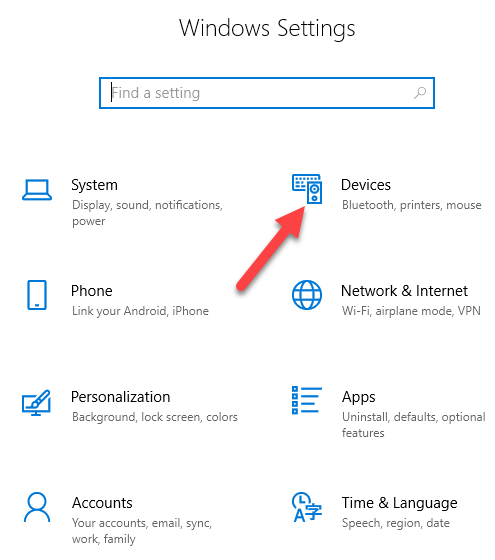
- Click Printers & Scanners .
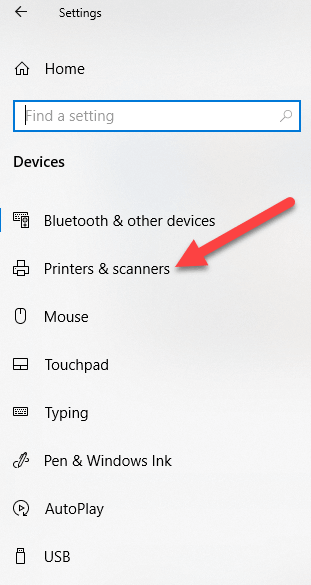
- Select your printer, click Remove device , and click Yes when asked to confirm the deletion.
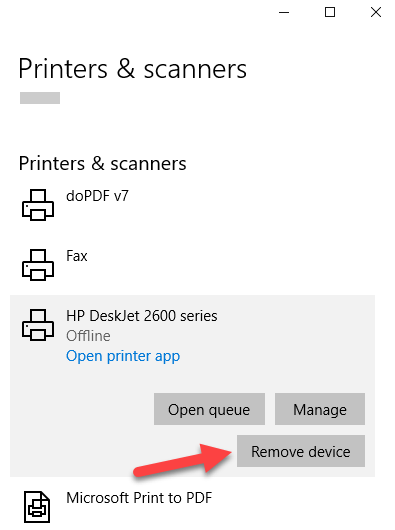
Note: The steps above only remove the printer from the list, so you’ll need to remove any leftover printer software or related applications.
- Open Settings>Apps .
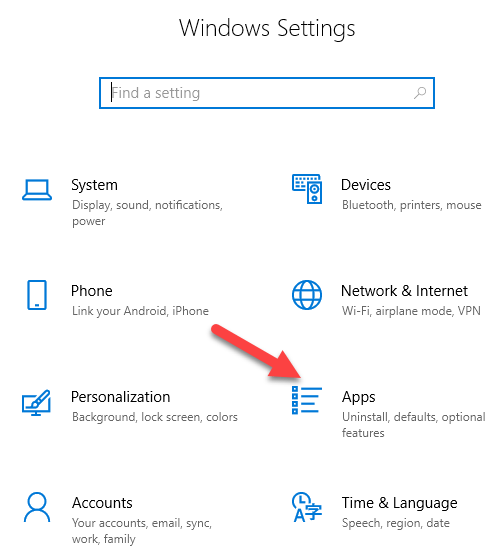
- Click Apps & Features and select the printer software you’d like to remove.
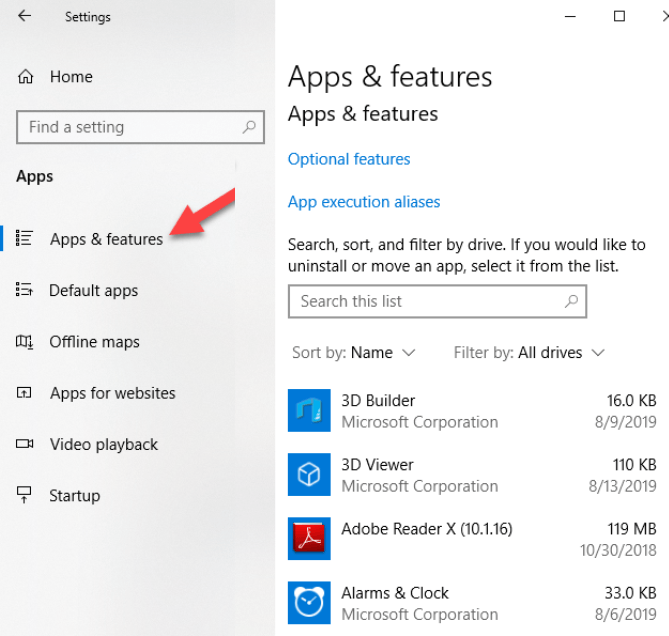
- Click Uninstall and follow the steps to completely remove any leftover printer-related applications.
Remove Printer Driver From Print Server Properties
If you’re still seeing an old printer, or one that you previously uninstalled, appearing on the Printers & Scanners page, you can remove or uninstall the printer driver and driver packages.
- Open Settings>Devices>Printers and Scanners on the left pane.
- Scroll down to Related settings and click Print Server Properties . Alternatively, you can right-click Start>Run and type printui /s /t2 to go to the Print Server properties page directly.
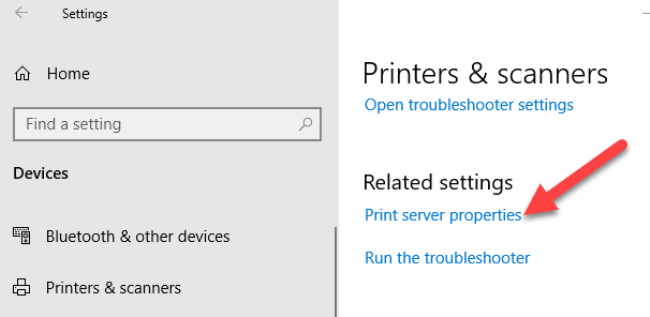
- Select the Drivers tab. From the list, click on the old printer entry and select Remove .
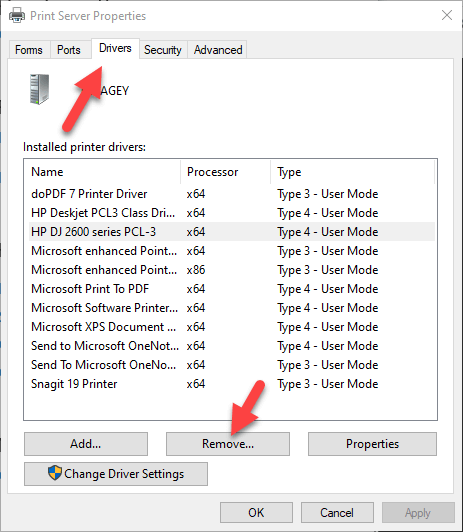
- You’ll get two options in a popup – Remove driver or Remove driver and driver package . Select the latter and click OK .
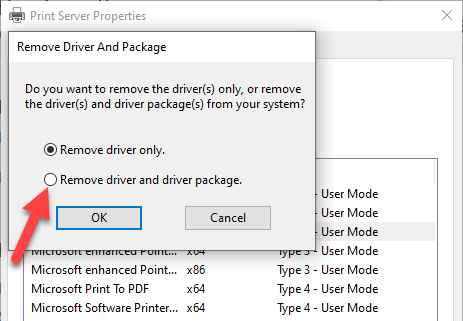
- If you get a confirmation prompt to Remove Driver Package , click Delete .
Uninstall Printer Driver Using Control Panel
You can remove and uninstall your printer and leftover printer driver or related apps from Control Panel using these steps.
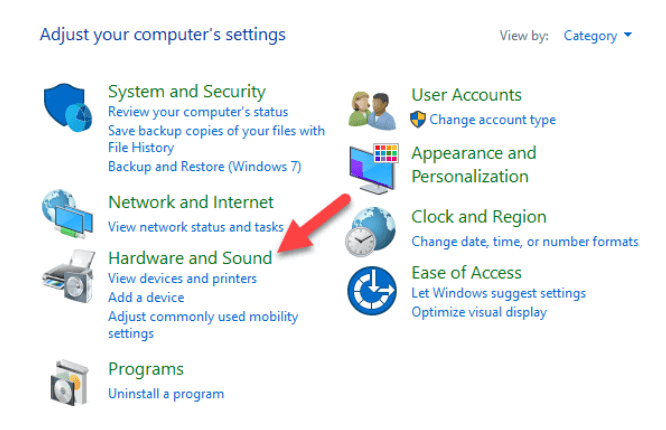
- Open Control Panel>Hardware and Sound .
- Click Devices and Printers .
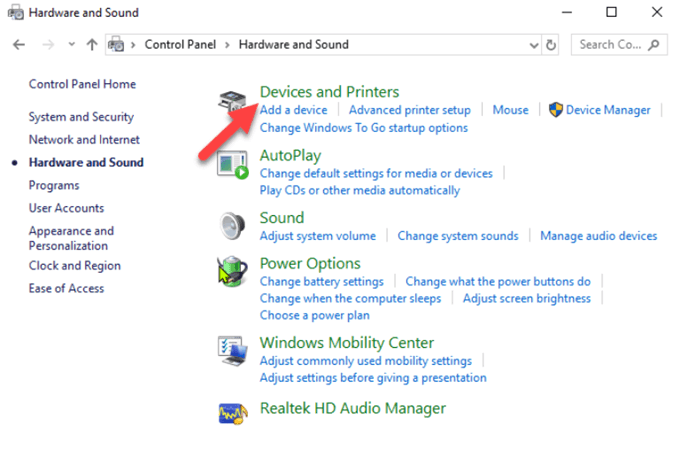
- Under Printers , right-click your device and click Remove device . Click Yes to confirm the action.
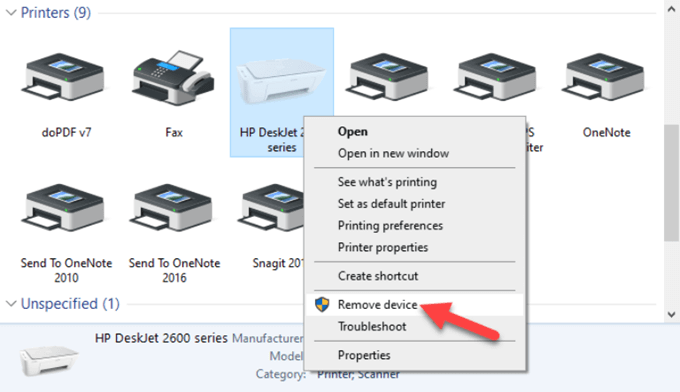
- Next, go to Settings>Apps>Apps & Features and select the software you want to remove.
- Click Uninstall and follow the on-screen steps to completely remove the printer software.
Use Print Management To Remove Old Printers
Ideally, if you used the Print Server properties method above, it should remove and uninstall the printer driver. However, you can use the Print Management console to completely remove printers you no longer use, and their drivers.
The Print Management dialog shows you the printers and current print jobs on your device. Before you delete the old printer driver though, make sure it’s not being used by any other printer.
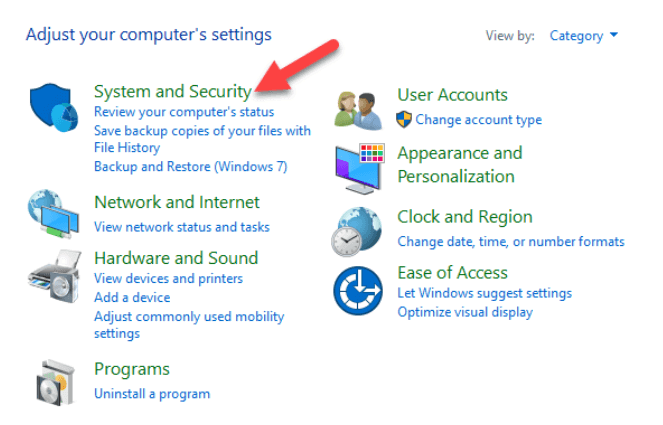
- Open Control Panel>System and Security .
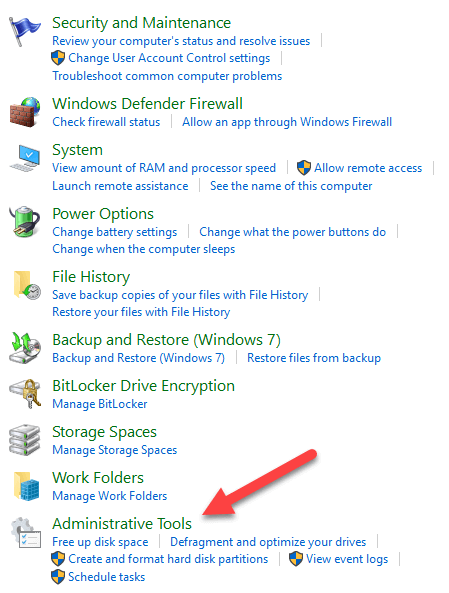
- Click Administrative Tools .
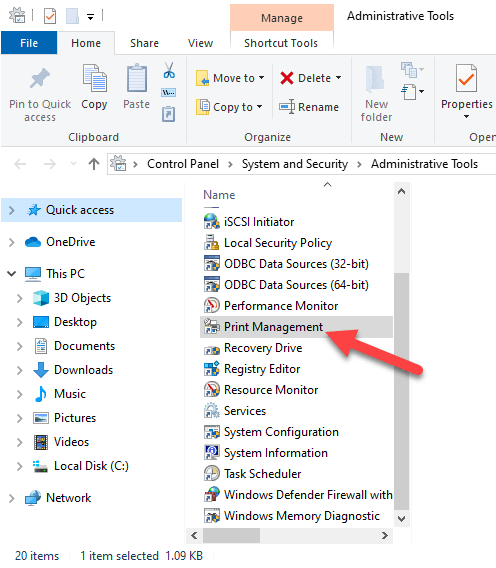
- Double-click the Print Management shortcut.
- Under Custom Filters , select All Printers .
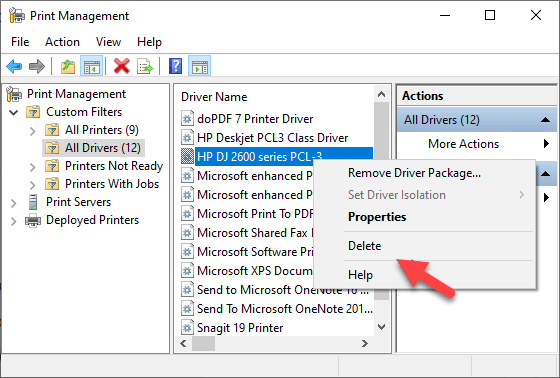
- Right-click the printer you want to remove.
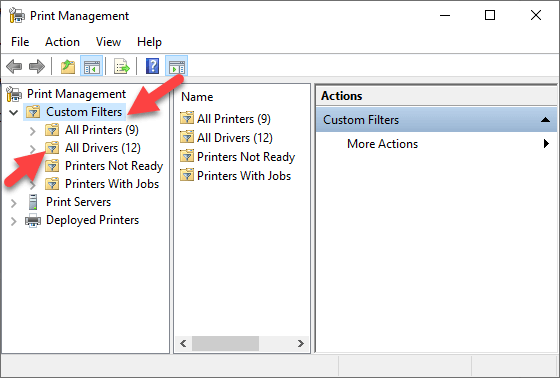
- Click Delete and Yes to confirm the action.
- Open Settings>Apps>Apps & Features and click the printer software you want removed.
- Click Uninstall and follow on-screen instructions to completely remove the printer driver.
Delete Old Printers Via Registry Editor
If you open the Add a printer page and find old printers still listed there, edit the registry to remove leftover entries. To do this, start by creating a system restore point, and then follow the steps below.
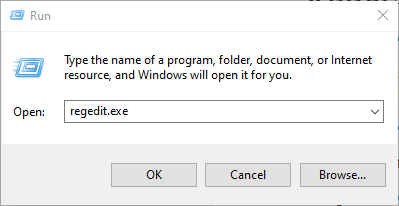
- Right-click Start>Run .
- Type regedit.exe and click OK (or press Enter on your keyboard) to open the Registry Editor.
Find the registry key:
HKEY_CURRENT_USERSOFTWAREClassesLocal SettingsPrintersRoamed
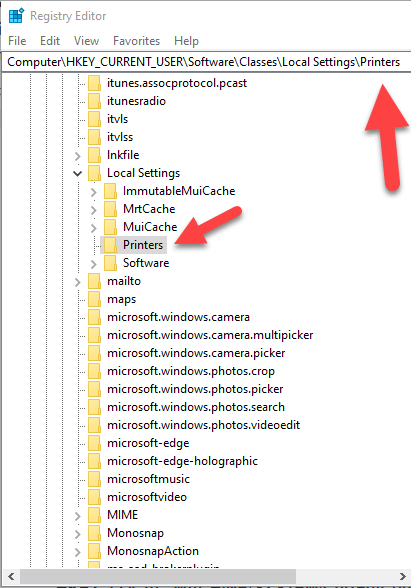
- Right-click the printer from the right pane, and select Delete .
- Check printer entries and delete unwanted items by going to this key: HKEY_CURRENT_USERPrintersConnections
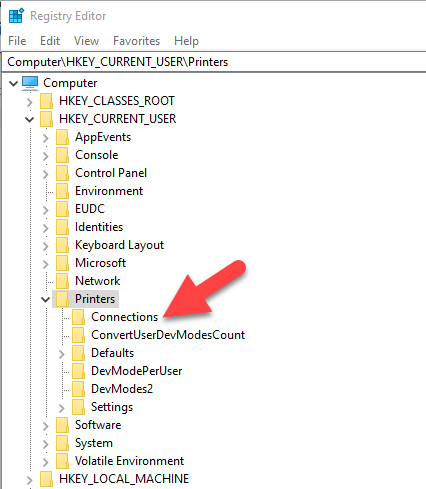
Next, go to this key:
HKEY_LOCAL_MACHINESYSTEMCurrentControlSetControlPrintPrinters
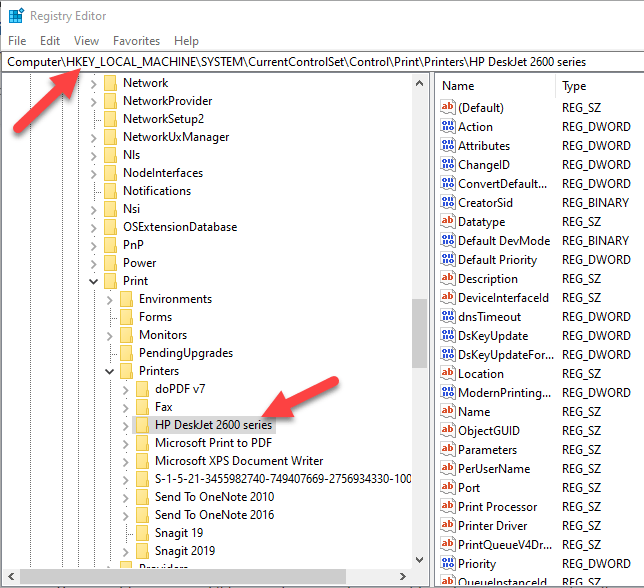
- Click to expand the key, right-click your printer and select Delete .
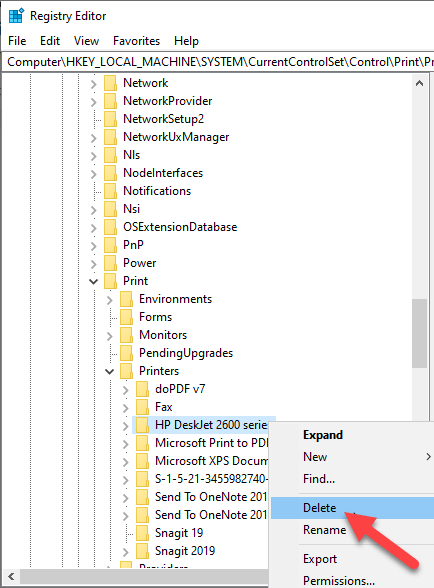
Some subkeys may still have references to your old printer, so you can clear the following as well:
HKEY_LOCAL_MACHINESYSTEMCurrentControlSetControlPrintEnvironmentsWindows NT x86DriversVersion-3 HKEY_LOCAL_MACHINESYSTEMCurrentControlSetControlPrintEnvironmentsWindows x64DriversVersion-3 HKEY_LOCAL_MACHINESYSTEMCurrentControlSetControlPrintEnvironmentsWindows x64DriversVersion-4
Once this is done, exit the Registry Editor.
Uninstall Printer Using Command Prompt
If you’re a fan of command lines, the Command Prompt is another tool you can use to delete a printer and remove related drivers and apps.
- Click Start and type CMD in the search bar.
- Click Command Prompt and select Run as administrator from the right pane.
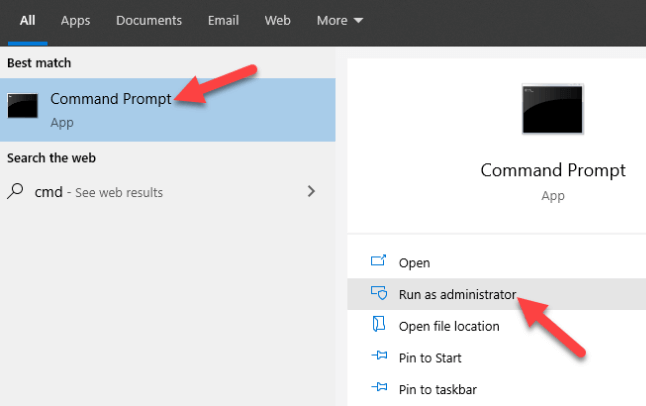
- In the Command Prompt window, type this command: wmic printer get name and press Enter to see the list of printers on your device.
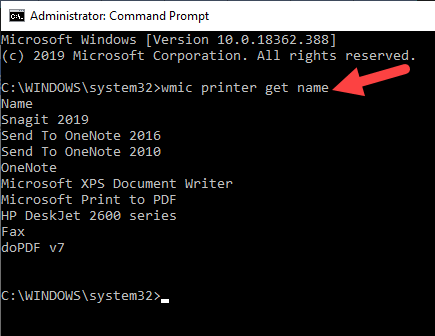
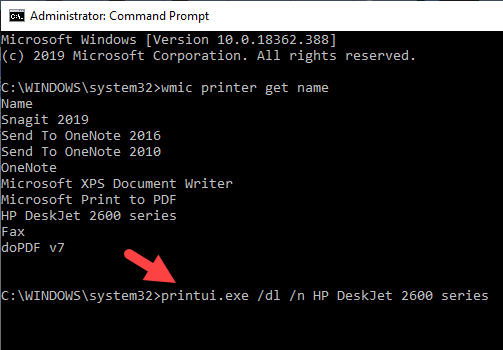
- To uninstall the printer, type printui.exe /dl /n “YOUR-PRINTER-NAME” and press Enter. Remember to replace YOUR-PRINTER-NAME with your printer’s full name. For example, printui.exe /dl /n HP DJ 2600 Series CL3 .
- To uninstall the printer software, open Settings>Apps>Apps & Features and select the printer software you want to remove. Click Uninstall and follow the on-screen instructions to complete the process.
Remove a Printer Using PowerShell
If you prefer PowerShell over Command Prompt, here are the steps to take to remove the printer and related software.
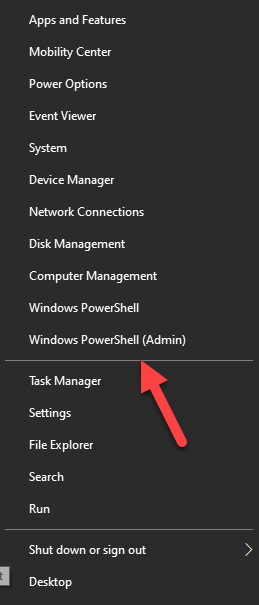
- Right-click Start > Windows PowerShell (Admin) .
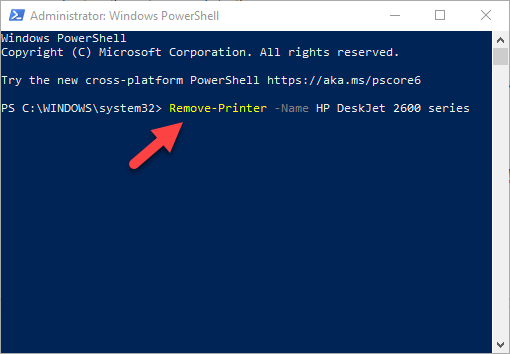
- Type this command: Remove-Printer –Name “YOUR-PRINTER-NAME” .
- Open Settings > Apps > Apps & Features , and click the software you want removed.
- Click Uninstall and follow the directions to remove it completely.
Delete Remnants From The Windows Driver Store
This solution is meant to remove any remnants of drivers that may still be on your device even after deleting driver packages.
In the driver store, you’ll find inbox and third-party driver packages, which were installed and stored in the folder even before the driver itself got installed.
Each of the subfolders in the store holds a driver package and corresponding .inf file , but it’s a bit difficult to find the specific driver package you’d like to remove.
The good news is you can use a third-party tool to explore the Windows driver store and completely remove the old printer driver once for all. It’ll also save you lots of space that would otherwise have been occupied by junk files.
What Happens When Drivers Are Deleted?
A device driver is a piece of software that tells your computer’s operating system how to communicate with the device it’s connected to.
For example, to connect to your printer and execute the print command, a printer driver is needed to bridge the gap between the two devices, and deliver the print job to you.
Without the printer driver, your printer is just hardware that doesn’t work. Similarly, deleting the printer driver after deleting the printer from your computer renders it inoperative.
However, if you delete the driver, you can undo the deletion using System Restore , from the previous restore point created when you deleted the driver from your computer.
Alternatively, Windows will automatically install the driver on your operating system by searching for it from its extensive library of drivers. If it doesn’t find a suitable driver, it’ll search for a driver online through Windows Update. Otherwise, you can visit the device manufacturer’s website to find the specific driver for your printer.
- Preparing for Windows 10 End of Support: Upgrading to Windows 11
- How to Fix a “This file does not have an app associated with it” Error on Windows
- How to Fix an Update Error 0x800705b4 on Windows
- How to Resolve “A JavaScript error occured in the main process” Error on Windows
- How to Fix the Network Discovery Is Turned Off Error on Windows
Elsie is a technology writer and editor with a special focus on Windows, Android and iOS. She writes about software, electronics and other tech subjects, her ultimate goal being to help people out with useful solutions to their daily tech issues in a simple, straightforward and unbiased style. She has a BCom degree in Marketing and currently pursuing her Masters in Communications and New Media. Read Elsie’s Full Bio
Times change and so does Windows. If you’ve recently moved from a Windows Server 2012 and Windows 7 or 8 environments into Windows Server 2019 and Windows 10 , things are a little different.
The old ways to connect to a network printer are still there. They may look a little different, too. So we’ll show you how to connect to a network printer in Windows 10 or Server 2019. Our favorite way is the last method.
Use Add Printers & Scanners
The new Windows Settings world works the same as in the Control Panel , but it looks different enough to cause confusion for some. Note that if this is at work and you’re not an administrator, the printer must be on the network and the driver already installed. If it’s not installed, you’ll get a prompt to enter the administrator account name and password.
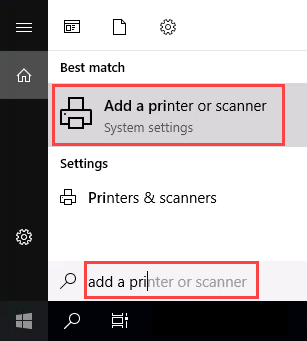
- In the Start menu, type add printers . When the result Add a printer or scanner shows, select it.
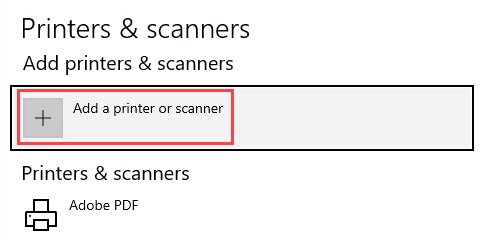
- When the Printers & scanners window opens, select Add a printer or scanner . It will start searching for available printers.
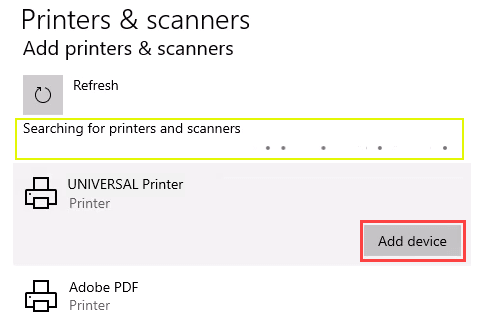
- It may look like it’s still searching, even though all the printers available are showing. Find the printer needed, select it, and then the Add device button will show. Select it.
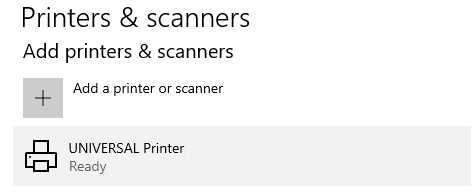
- The printer will install. There’ll be a progress bar and when it’s done, it’ll say Ready .
Connect to a Network Printer Through a Network Share
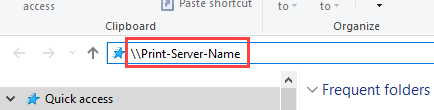
Here’s a way to install a printer that’s different from what you may be used to. It requires that the printer is shared and on the network. Unless you’re the administrator, the driver needs to be installed on your local machine or server. You need to know the path to the share as well. It will look something like Print-Server-Name , where Print-Server-name is the name of the server.
- Open File Explorer . In the location bar, enter the printer share path and then press the enter key. File Explorer will find the share.
All the shared printers will show.
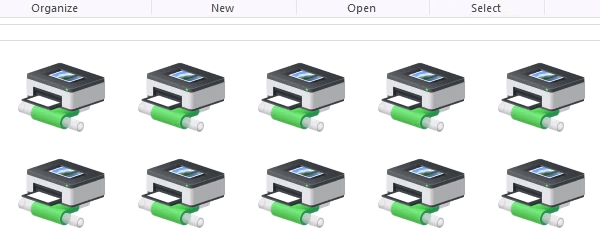
- There are two options: Install a single printer Install several printers at one time
To install a single printer, double-click on it.
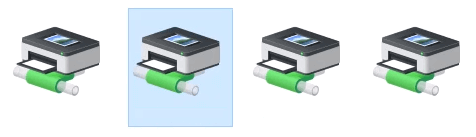
When the installation finishes, you’ll see the newly installed printer’s print queue window.
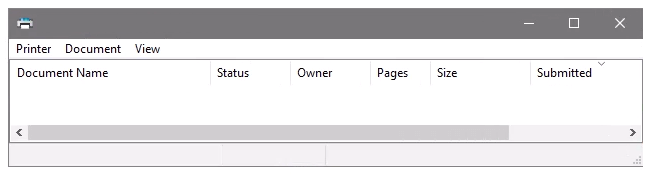
- To install several printers at once, select printers by clicking and dragging a rectangle around them, or hold down the Ctrl key while selecting printers individually. Either right-click and select Open or simply press the Enter key.
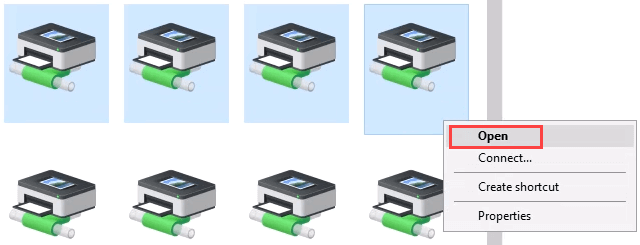
Connect to Network Printer via Control Panel
The good old control panel is still there. If you’ve used it before, you know what to do. If not, it’s almost the same as adding a printer through Settings.
- Open the Start menu and select Control Panel . If it’s not there, start typing control and it will show.
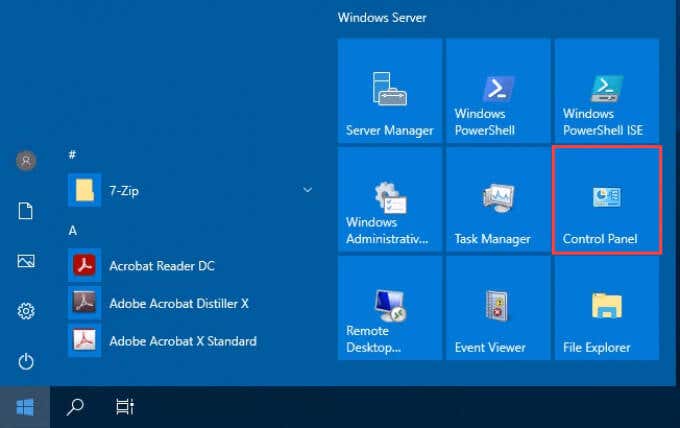
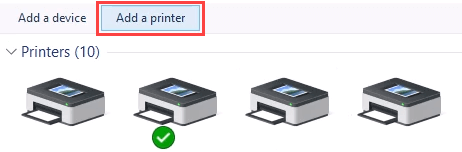
- Select Add a device in the Hardware category.
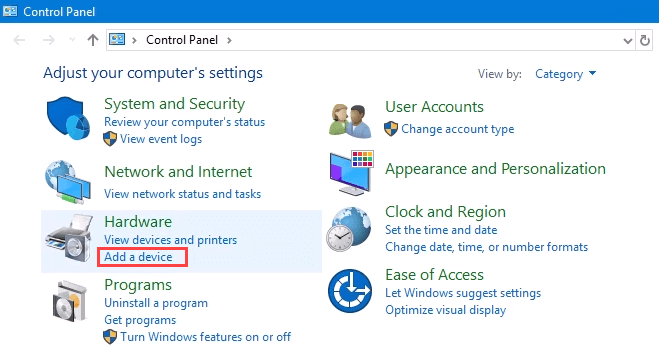
- Select Add a printer .
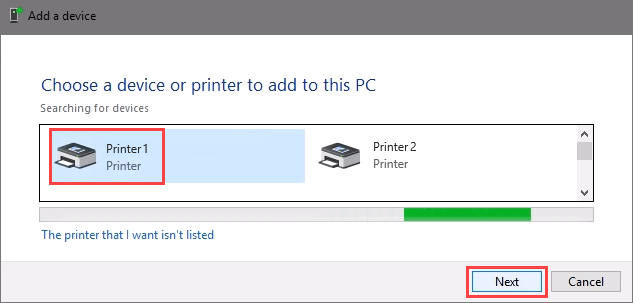
- It will show a selection of printers. Select the one needed and then select Next .
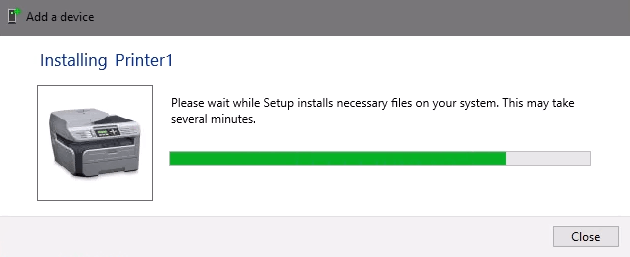
The printer will start installing. It may take a few seconds or minutes.
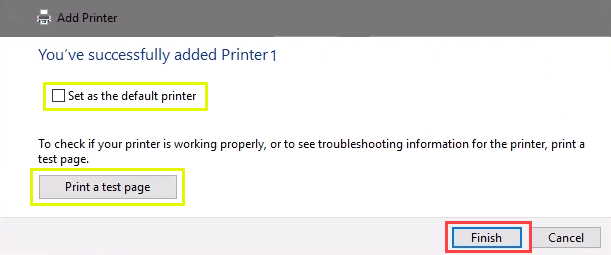
- Once the success window opens, there are options to Set as the default printer and Print a test page . Set the printer as default if needed. It’s always a good idea to print a test page. To exit, select Finish .
Connect to Network Printer via IP Address
The printer you want to install might not be easily visible, but if you have the IP address for it you can use that to connect with the printer. Administrator rights may be required. The first part is the same as adding a printer through the Control Panel until you get to the step to choose the printer. Let’s pick it up from there.
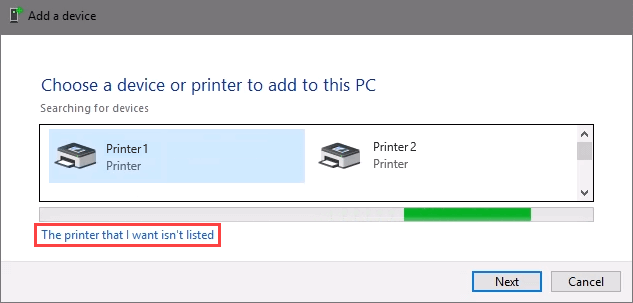
- At the Add a device window, select The printer that I want isn’t listed .
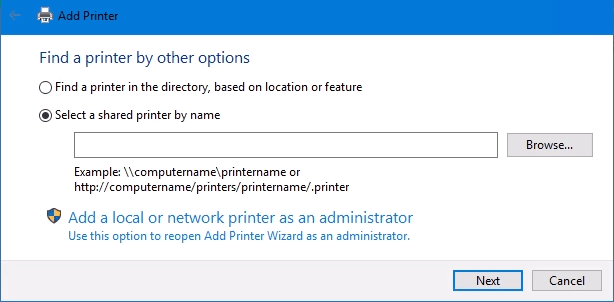
- If administrator rights are required, select Add a local or network printer as an administrator .
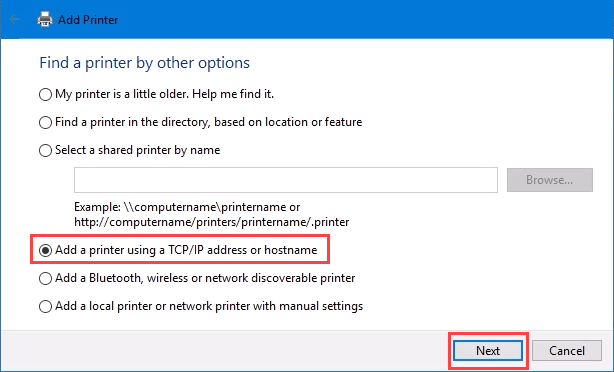
Otherwise, the window below will show. Select Add a printer using TCP/IP address or hostname then select Next .
- For Device type: there are several choices. Web Services Device and Web Services Secure Print Device are used for special cases. If you don’t know what those mean, you probably don’t need them. Autodetect may make the wrong choice as well. Select TCP/IP Device .
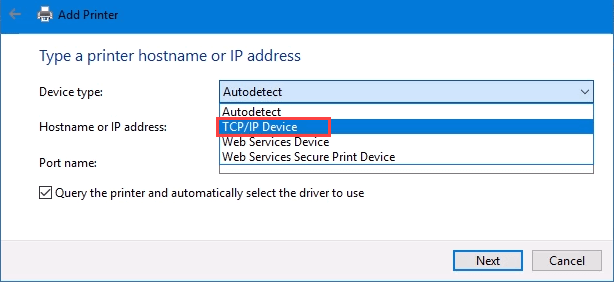
Enter the IP address in the Hostname or IP address: field. Notice how the Port name: field auto-populates with whatever is entered. The port name can be left as is or changed. In most cases, Query the printer and automatically select the driver to use remains checked.
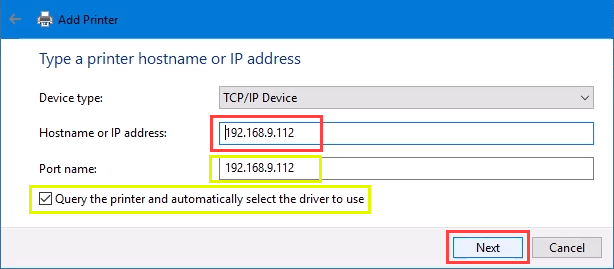
Sometimes an organization will use a universal printer driver to keep things simpler and use less storage. It also keeps the registry small and login times faster. The HP Universal Print Driver works well for HP and many other printers. Select Next .
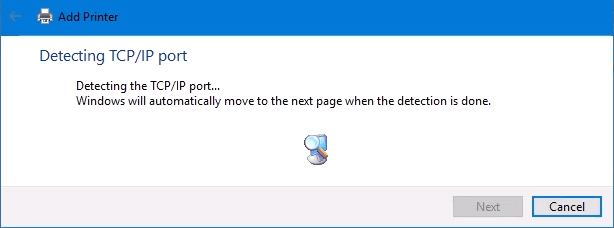
It detects the TCP/IP port to see if it exists.
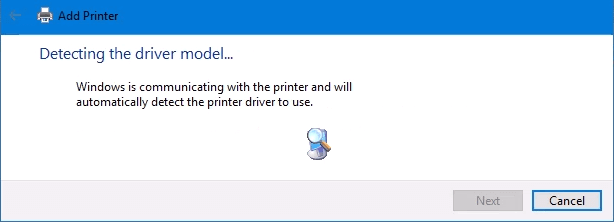
Then it detects the driver model needed.
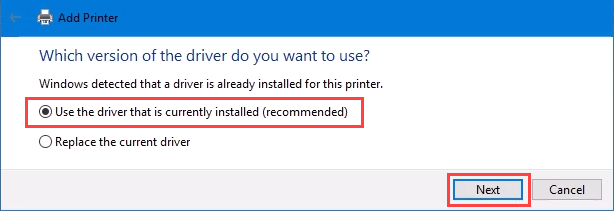
- Normally, Windows will find a driver already installed, offer the option to replace the driver, or ask to install a driver. If it’s on the network already, it probably installed the driver already. Select Use the driver that is currently installed and select Next .
- It will auto-select a name for the printer. That can change as needed. Select Next .
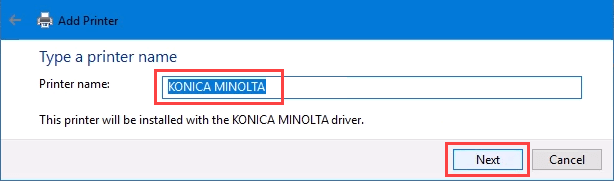
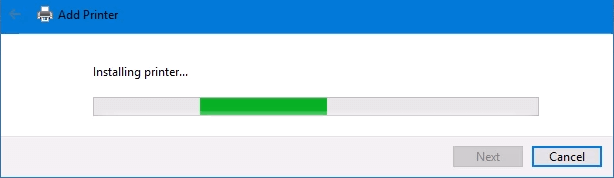
The real installation begins.
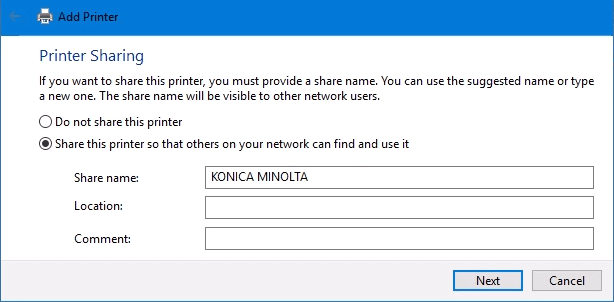
- If sharing the printer, add a location so others can see where the printer is located.
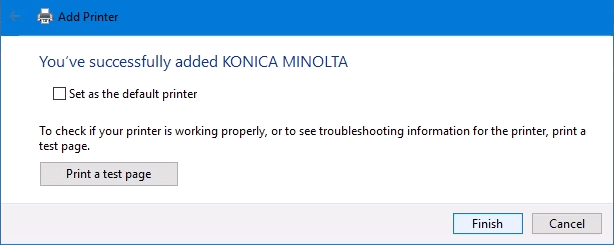
It successfully installed the printer. Set it as the default or not as needed. As always, it’s a good idea to Print a test page . Select Finish closes out the window.
Connect to a Network Printer via PowerShell
Finally, the last, and possibly best, way to connect network printers is with PowerShell . Why is this best? If you’re a System Administrator and have dozens of printers to connect, or if you need to make sure the printer is connected every time the server starts or someone logs in, a PowerShell script is best. It’s fast, done once, and easy to call many times.
You will need to know:
- Printer IP address
- Printer driver name
- What to name the printer
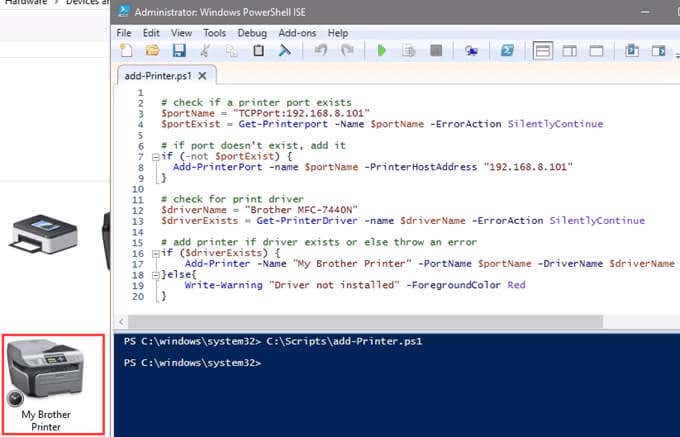
Following is a sample script. Make it into a looping script to install several printers at a time, or make it a function to call from other processes.
check if a printer port exists
$portName = “TCPPort:192.168.8.101”
$portExist = Get-Printerport -Name $portName -ErrorAction SilentlyContinue
if port doesn’t exist, add it
if (-not $portExists) { Add-PrinterPort -name $portName -PrinterHostAddress “192.168.8.101” }
check for print driver
$driverName = “Brother MFC-7440N”
$driverExists = Get-PrinterDriver -name $driverName -ErrorAction SilentlyContinue
add printer if driver exists or else throw an error
if ($driverExists) { Add-Printer -Name “My Brother Printer” -PortName $portName -DriverName $driverName } else { Write-Warning “Driver not installed” -ForegroundColor Red }
When the script is run, it takes maybe 3 seconds. Then you’ll see the printer installed.
Any Other Ways to Connect to a Network Printer?
We’ve given you several ways to connect to a network printer or several printers. One of them will be the best way for you. There is at least one other way, and that’s by the Command Prompt.
- Preparing for Windows 10 End of Support: Upgrading to Windows 11
- How to Fix a “This file does not have an app associated with it” Error on Windows
- How to Fix an Update Error 0x800705b4 on Windows
- How to Resolve “A JavaScript error occured in the main process” Error on Windows
- How to Fix the Network Discovery Is Turned Off Error on Windows
Guy has been published online and in print newspapers, nominated for writing awards, and cited in scholarly papers due to his ability to speak tech to anyone, but still prefers analog watches. Read Guy’s Full Bio
There are several kinds of printer problems including paper jams or low ink but few are more annoying than when a print job won’t delete.
Often, simply canceling the print job can fix the problem, but there are certain instances that may require you to remove the offending items from the print queue using different solutions.
Whether you’re using a local or network printer, and it fails to delete one or more print jobs, we’ll show you some proven fixes that can help you delete the stuck print job and start over.
Why Your Print Job Won’t Delete in Windows
It’s bad enough when your printer is physically jammed up.
What’s more frustrating is if the document you’re printing gets stuck in the queue preventing further documents from being printed, or the printer continually prints the same job over and over. Whatever the case may be, you’d want to cancel or delete the print job to save on paper and ink.
However, the printing process works differently in Windows. When you send a print job to the print queue, the print files don’t go directly to your printer but arrive in the spooler, which manages all print jobs.
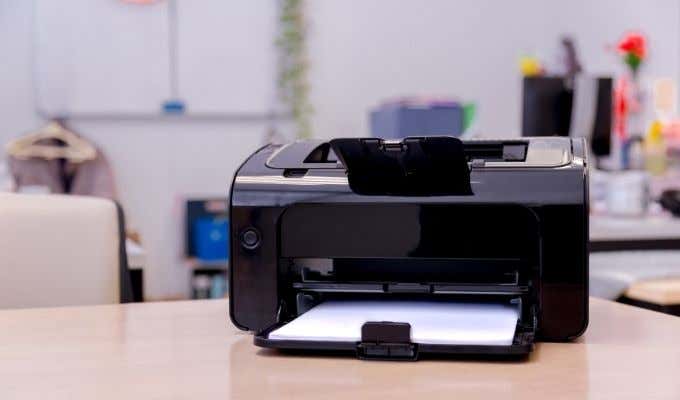
The spooler also lets you change the order of pending print jobs or remove them altogether. If a problem occurs, the print files remain in the queue as none of the files can be printed.
When that happens, the first solution would be to delete the print job to allow other print jobs that accumulated to print. But this won’t work if you can’t delete the print job.
To unglue the queue and get things going again, here are some fixes to try when conventional methods won’t work.
8 Fixes to Delete a Stuck Print Job in Windows
There are different methods you can use to delete a print job besides canceling the print job or restarting your printer and computer. We’ll walk you through the steps you need to take to fix a print job that won’t delete in Windows.
1. Delete a Print Job through Your Printer Settings or Buttons
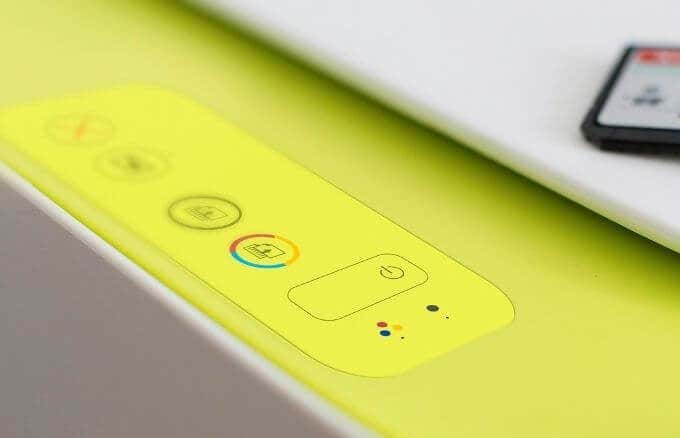
If a print job won’t delete from your PC, you can use your printer’s buttons or settings to do it. Most printers have a Cancel, Stop or Reset button, which if used in combination can help delete the print job or clear the queue.
You can also remove the paper tray to delay the print job and then delete it to avoid paper wastage. You can also power off your printer, unplug and let it reset fully before turning it back on again to clear the print job.
2. Use Windows Settings to Delete a Print Job
You can also access the print queue via Windows Settings to quickly delete a print job.
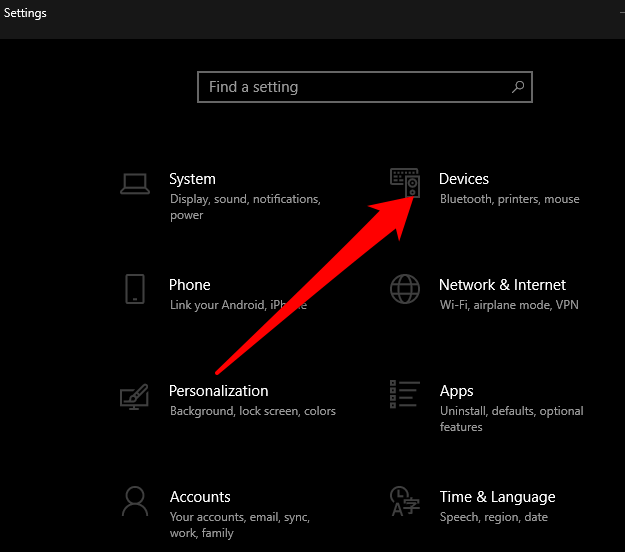
- To do this, select Start > Settings > Devices .
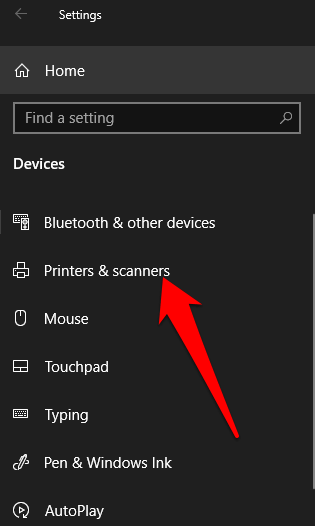
- Select Printers & Scanners on the left hand pane.
- Next, select the printer with the print job you want to delete and then select Open queue .
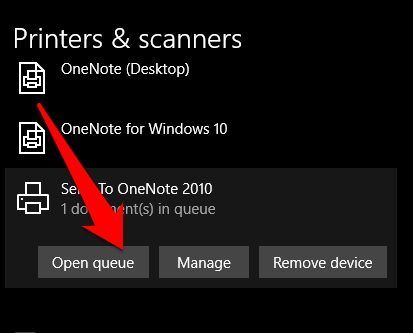
- You’ll see all the print jobs in the print queue for the printer you selected. Select the document you want to delete and then select Document > Cancel . Alternatively, right-click the print job and select Cancel . Select Yes and the print job will be removed.
Note : If you want to cancel all print jobs in the queue, select Printer > Cancel All Documents .
3. Use Control Panel to Delete a Print Job in Windows
The Control Panel isn’t very visible in Windows 10, but you can access it by selecting Start, enter Control Panel in the search box that appears and select Control Panel from the list.
- To clear or remove a print job that won’t delete from the Control Panel , select Hardware and Sound > Devices and Printers .
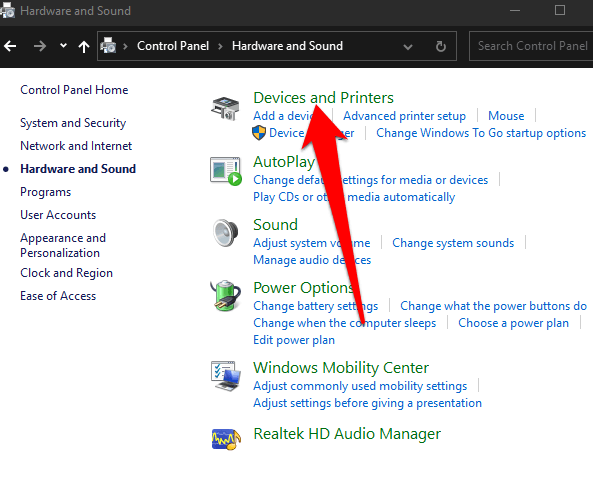
- Select the printer you want to clear or delete a print job from and then select See what’s printing . Alternatively, you can right-click the printer, select Open in a new window and then select See what’s printing .
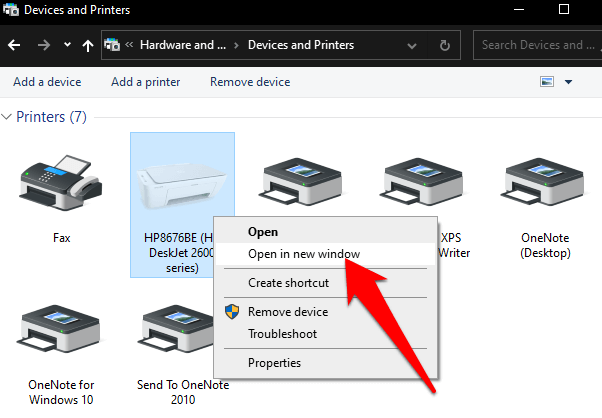
- Cancel the print job to clear the queue or delete it.
4. Use Command Prompt to Delete a Print Job
Command Prompt can help you stop and start the Print Spooler when you want to delete a print job.
- To do this, select Start and enter CMD in the search box, and then select Run as administrator under the Command Prompt search result.
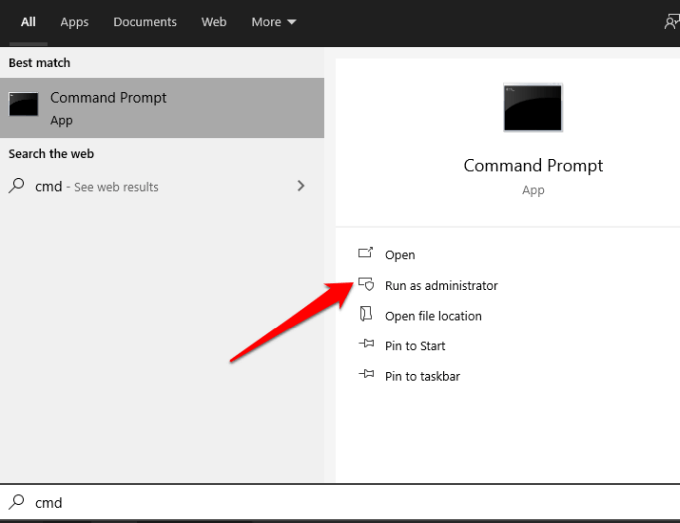
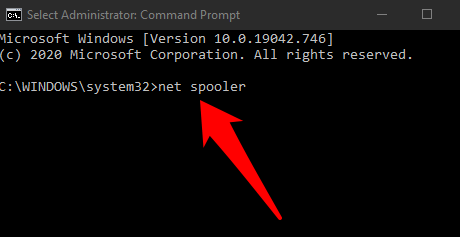
- In the Command Prompt box, enter this command: net spooler and press Enter .
- Open File Explorer and click the address bar. Type C:WindowsSystem32SpoolPrinters and press Enter .
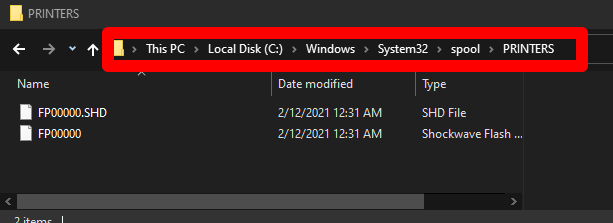
- Highlight the files, right-click on them and select Delete .
- Go back to Command Prompt , type net start spooler and then press Enter to restart the Print Spooler.
5. Use Windows Services to Delete a Print Job
You can also stop and start the Print Spooler in the Services window.
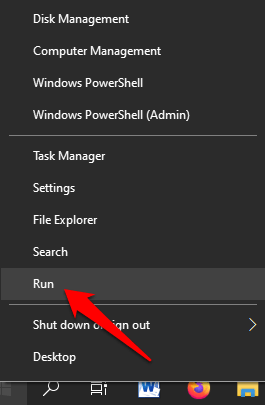
- To do this, right-click Start > Run and type services.msc in the run dialog box. Press Enter .
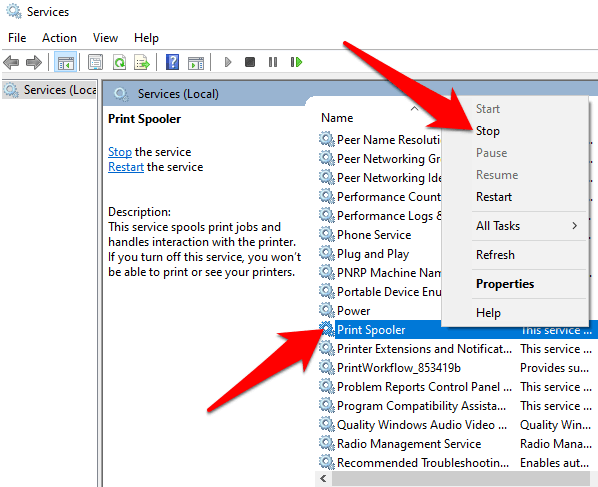
- Scroll down to find Print Spooler , right-click on it and select Stop .
- With the Services window still open, go to the Printers directory and delete the files in it to remove the print job that won’t delete and any other pending print jobs in the queue.
- Next, open File Explorer , select the address bar and type C:WindowsSystem32SpoolPrinters . Press Enter .
- Highlight and right-click the selected files, and then select Delete . Go back to the Services window and restart the Printer Spooler service to complete the process by right-clicking Print Spooler > Start .
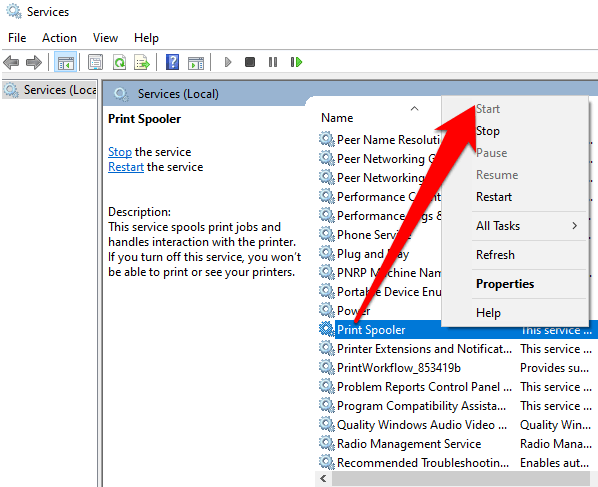
6. Reset the Print Spooler
If all else fails, you can reset the Print Spooler when the print job won’t delete in Windows.
- To do this, right-click Start > Run and enter services.msc in the run dialog box.
- Find Print Spooler , right-click and select Stop .
- Right-click Print Spooler again and select Restart to restart the service.
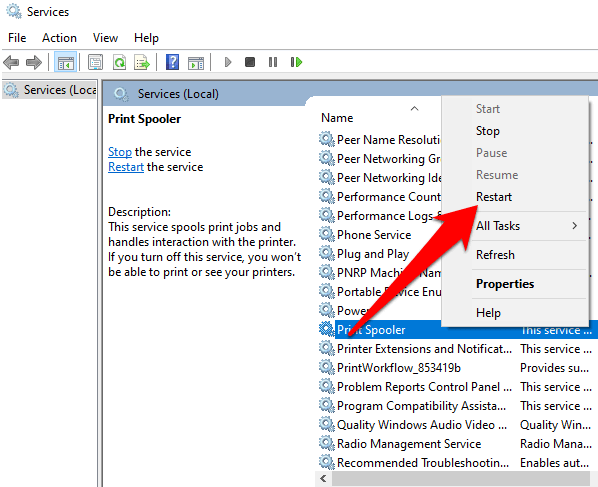
A dialog box will appear about restarting the service, meaning you’ve successfully reset the print spooler.
7. Reinstall the Print Driver
If you still can’t delete the print job in Windows, you can remove and reinstall the print drivers. Doing this will reset the printing software system.
- To reinstall the print driver, disconnect any cables from your printer, and then go to Control Panel > Hardware and Sound > Devices and Printers in Windows.
- Right-click your printer’s icon and select Remove Device to uninstall the printer software.
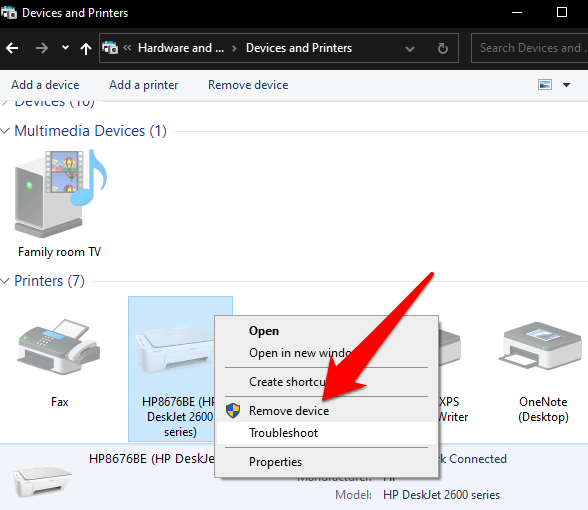
- Restart your computer, go to your device manufacturer’s website and download the printer driver for your printer’s model. Install it based on the instructions on the website. Once done, check if the print job is still there and try deleting it again.
8. Clear and Restart Print Spooler Manually
If you want to delete a print job because it’s affecting the rest of the items in the queue, you can manually clear and restart the print spooler to respool all documents and delete that print job.
- To do this, right-click Start > Run and enter services.msc in the run dialog box.
- Find the Print Spooler service in the Services window, double-click on it and select General tab in the Properties window.
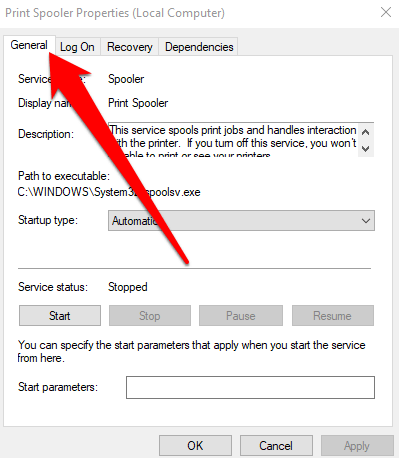
- Next, select the Stop button and then open File Explorer .
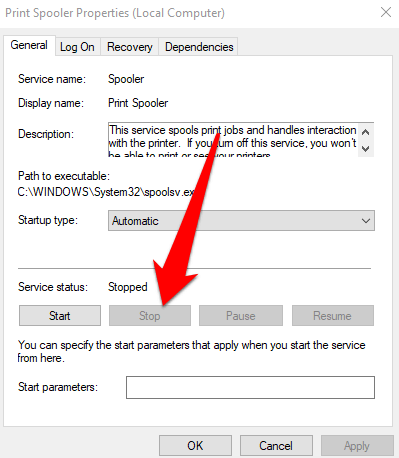
- Go to the address bar, type %windir%System32spoolPRINTERS and press Enter .
- Delete all the files and go back to the Services window. Select Start to restart the Print Spooler service and then select OK to close and exit the window.
All the print jobs in your queue will be re-spooled and sent to your printer and you can delete the print job you want.
Other Things to Try When Print Job Won’t Delete in Windows 10
- Check if the printer is offline or paused as this will keep the print jobs in queue until your printer is active again. You can check whether the Pause Printing or Use Printer Offline options are selected in the print queue window. If they are, clear the selection.
- Disable your firewall software temporarily. Your Windows firewall software may interfere with the print job but you can temporarily disable it to clear the print queue and see if the print job is deleted. If it’s not deleted, then the firewall isn’t the problem. However, if the print job is deleted, adjust the firewall settings to allow the print spooler service to access your computer’s system.
- Sign in with a different Windows account. If you’re still struggling with deleting a print job, restart your PC and sign in using a different user account. If you can delete the print job in the new account, check whether the old one is corrupted or has the required permissions to print.
- Scan your PC using System File Checker to determine whether there are any issues with system files and repair them. To do this, open a Command Prompt, enter SFC /scannow and press Enter .
- Confirm that the printer’s IP address in Windows port settings matches your printer’s actual IP address. If it doesn’t match, enter the correct IP address and try to delete the print job again.
Clear Stuck Print Jobs
Regardless of the printer you use, you’re likely to encounter situations where you need to delete a print job. Windows 10 makes it easy for you to do so, but if the print job is stuck in the queue, you may not be able to cancel or delete it altogether further preventing other print jobs from printing.
Try the fixes and tips in this guide and let us know in a comment what worked for you.
- How to Fix the “Error – Printing” Status Error in Windows
- 7 Ways to Fix HP Printers ”Driver Is Unavailable” Error on Windows PC
- How to Fix Your Printer’s “Driver is unavailable” Error on Windows
- 7 Ways to Fix ”Windows Cannot Connect to the Printer”
- Preparing for Windows 10 End of Support: Upgrading to Windows 11
Elsie is a technology writer and editor with a special focus on Windows, Android and iOS. She writes about software, electronics and other tech subjects, her ultimate goal being to help people out with useful solutions to their daily tech issues in a simple, straightforward and unbiased style. She has a BCom degree in Marketing and currently pursuing her Masters in Communications and New Media. Read Elsie’s Full Bio
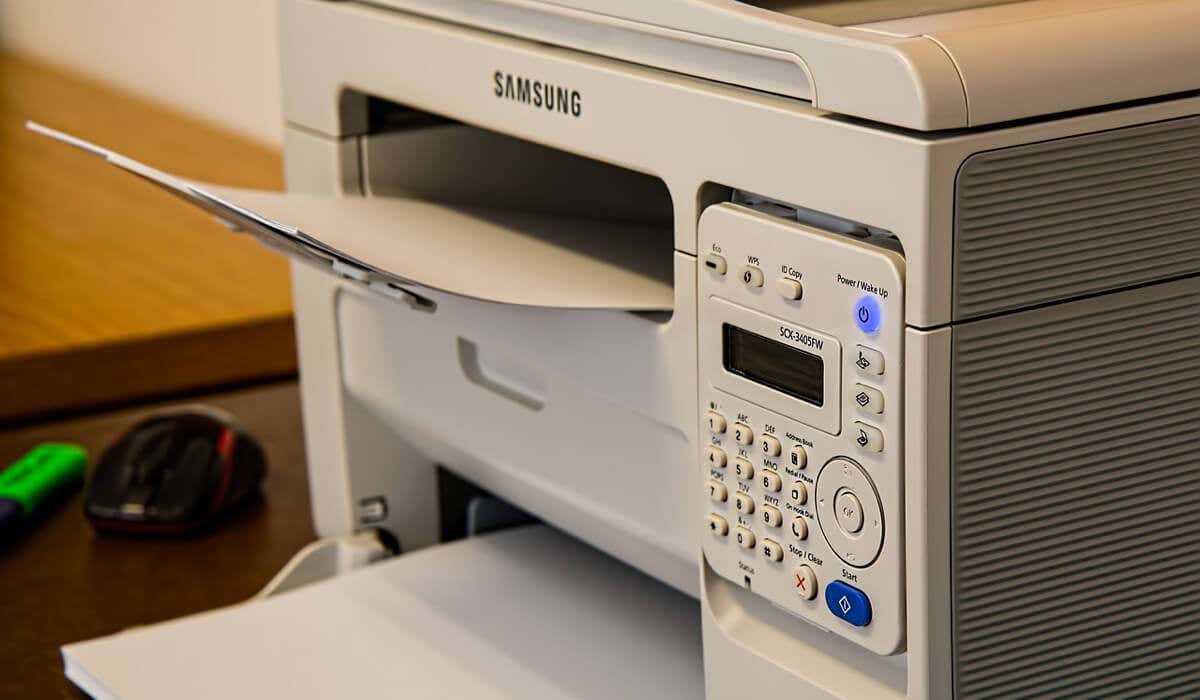
As a Windows user, a non-working printer could be a simple fix or a time-consuming disaster. If you see the “Error – Printing” status error on Windows, you won’t have much to go on to try and troubleshoot the problem, which can be frustrating and inconvenient to resolve.
Several factors might cause the “Error – Printing” status error, but, in most cases, simple troubleshooting steps like restarting your printer or checking your printer connections may do the trick. To fix the “Error – Printing” status error on Windows, follow the steps below.
Understanding the “Error – Printing” Status Error on Windows
The “Error – Printing” status is a simple, catch-all error code that appears when your Windows PC can’t successfully print . It can be caused by several factors, such as missing paper, outdated or corrupted printer drivers, incorrect printer settings, or issues with the Print Spooler service on your Windows PC.
It can appear in a few different ways, such as “Error – Printing,” “Printer in error state,” or “Print Spooler service not running.” The message may differ, but the result is the same—your printer can’t process or complete the print job.
If you see this error, try some of the troubleshooting fixes below.
Restart Printer and PC
First, restart your devices to see if this resolves the problem.
It’s a good idea to turn off your printer and disconnect its power cord. Next, shut down your PC and unplug its power cable as well. Wait for at least 30 seconds before plugging everything back in.
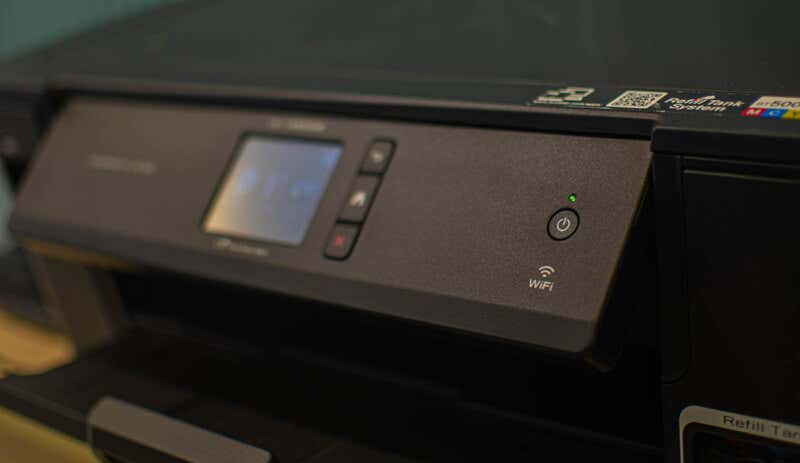
After the waiting period, reconnect the printer and PC’s power cords. Turn on your printer first, ensuring it’s up and running. Next, turn on your PC. Finally, try printing a test page to see if the “Error – Printing” status error has been resolved.
This restart process might seem obvious, but a clear shutdown and restart can often resolve minor (and unexpected) issues.
Check Printer Hardware and Connection
Printer still not working? It’s a good idea to look more closely at your printer hardware and its connection with your PC.
First, verify that your printer is turned on. Look for an LED or display indicating power, and ensure it’s connected to an electrical outlet. If you have a wired printer, inspect the USB cable connecting the printer to your PC. Make sure it’s properly secured at both ends.
If the USB connection isn’t recognized, try a different USB port or a new cable. Likewise, if the printer is connected over a network, ensure the ethernet cable is connected and the connection is active.
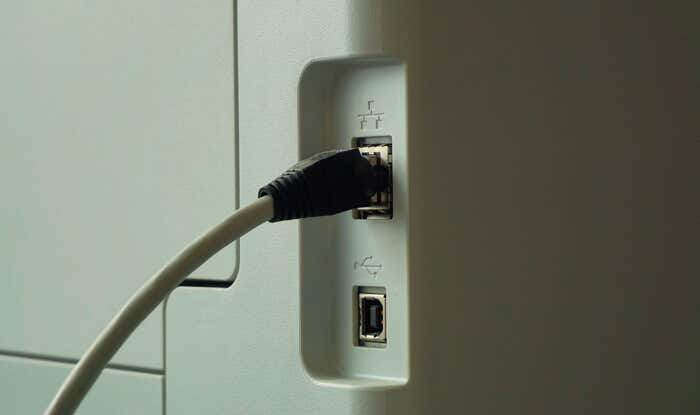
For wireless printers, double-check your Wi-Fi connection. Ensure that your printer connects to the same network as your PC. Most printers have a display or indicator light to show a successful wireless connection. If your wireless printer isn’t connecting , consult your printer’s manual for specific steps to connect to Wi-Fi.
Also, check your printer for issues such as low paper or ink. Without paper or ink, you can’t print, so replenishing the paper or ink should resolve the issue.
Clear Paper Jams
A paper jam may be causing the “Error – Printing” status message on your PC. If your printer can’t push through paper, it can’t continue the printing process.

To resolve this issue, you’ll need to clear any jams from your printer. Depending on your device, this might be difficult to do, so you may need to consult your manual first.
Start by checking the areas where paper enters and exits the printer, then remove any jammed paper. If your printer has an automatic document feeder, open the ADF cover (Automatic Document Feeder) and remove any jammed paper.
Restart Print Spooler Service and Clear Print Queue
After clearing a printer jam, it’s also a good idea to clear your print queue and restart the Print Spooler service (which your printer needs to be able to print). It’s a good idea to do this if your print queue won’t clear after an error occurs during printing.
You can also do this at any point to try and resolve printer errors like the “Error – Printing” message.
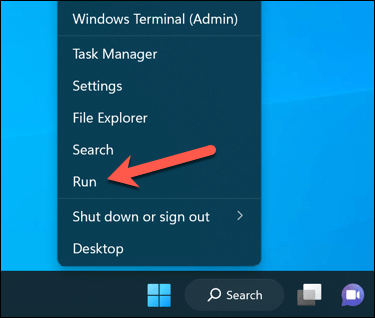
- To begin, right-click the Start menu, select Run, or press the Windows Key + R to open the Run command box.
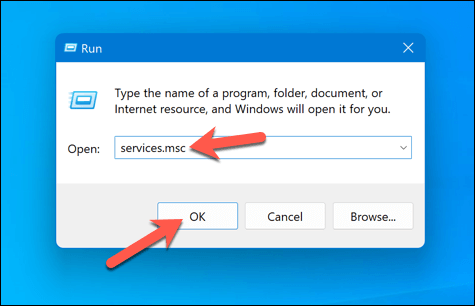
- In Run , type services.msc and press OK .
- In the Services window, look for the Printer Spooler service and double-click it.
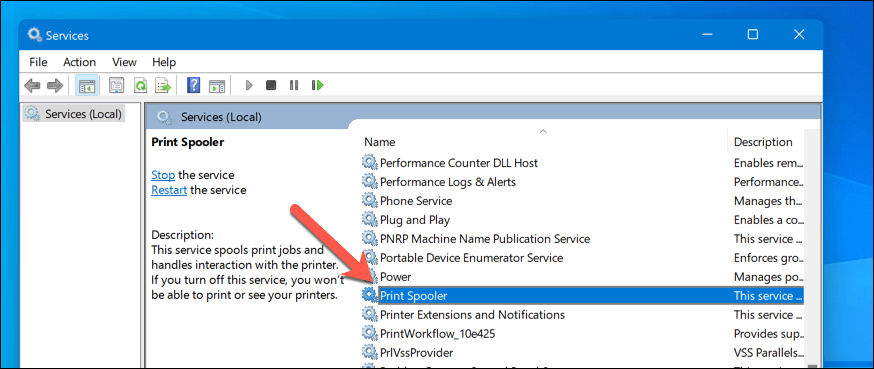
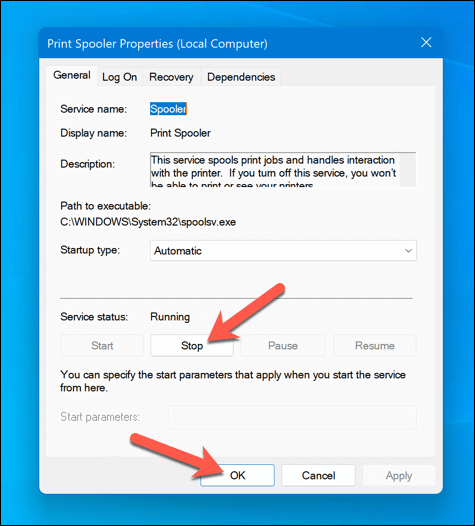
- Press Stop and OK . This will stop the print spooler service, allowing you to clear any leftover print jobs.
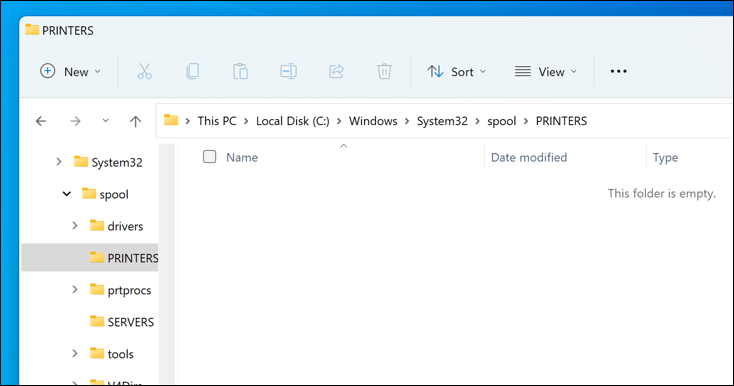
- Next, open File Explorer and navigate to the C:\Windows\System32\spool\PRINTERS folder using the address bar. Delete all files in this folder to completely clear the print queue.
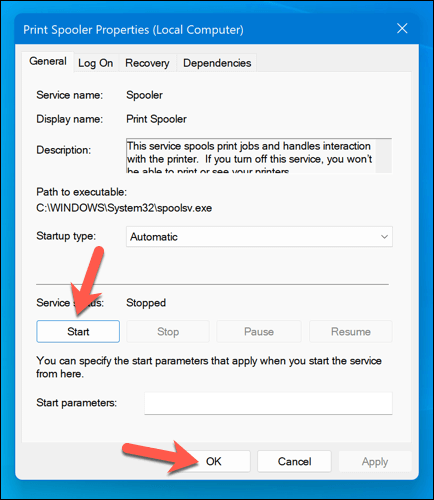
- Return to the Printer Spooler service in the Services window and click Start to restart the spooler.
With the paper jams cleared and the print queue emptied, your printer should now return to a ready state, and you can resume printing your documents without any errors.
Update or Reinstall Printer Drivers and Software
Outdated driver software can sometimes lead to the “Error – Printing” status error in Windows. To fix this issue, you should check for new printer software (including new printer drivers) from the manufacturer.
Follow these steps to ensure your printer driver and manufacturer software are up-to-date. It may be a good idea to uninstall existing printer software before proceeding.
- Visit the printer manufacturer’s website and search for your specific printer model in the support or downloads section.
- Find any available updates or new versions of the printer driver software. Ensure the software is compatible with your version of Windows.
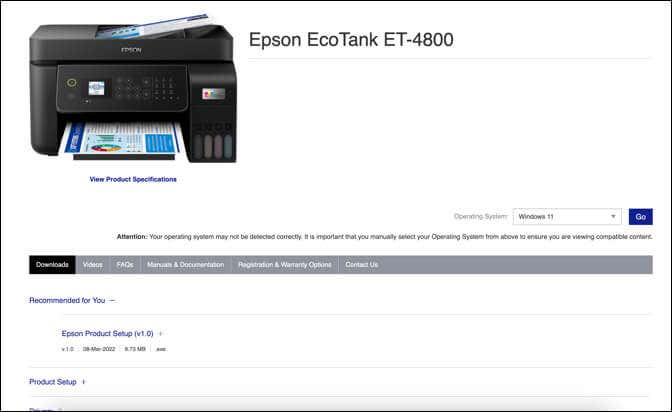
- Next, download the latest driver and printer software. If new software is available, download and save the installer to your computer.
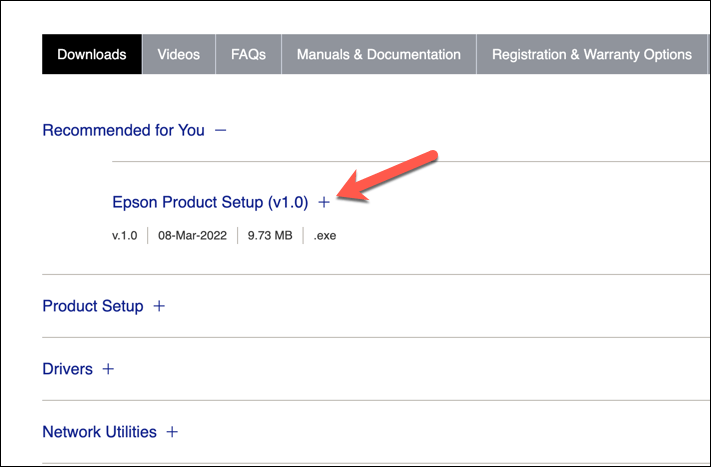
- Run the installer and follow the on-screen instructions to complete the installation.
After completing these steps, your printer should begin to start working. However, you may need to restart your PC for any changes to take effect.
Check for New Windows Updates
A new Windows update can fix bugs, and new updates can help resolve common printing issues. You can manually check for new Windows updates to try and resolve the “Error – Printing” status error on your PC.
To check for new Windows updates, follow these steps.
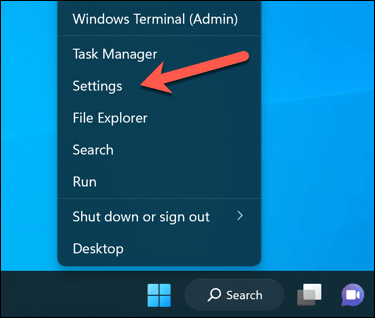
- Right-click the Start menu and select Settings .
- In the Settings window, select Windows Update from the sidebar.
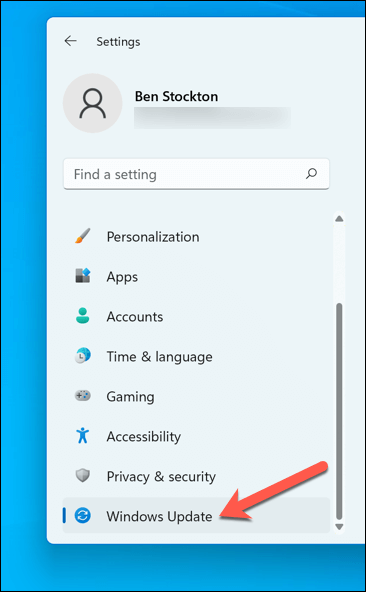
- Next, click the Check for updates button. If there are any pending updates, Windows will automatically start downloading and installing them.
- If it doesn’t, press Download Now to begin the installation.
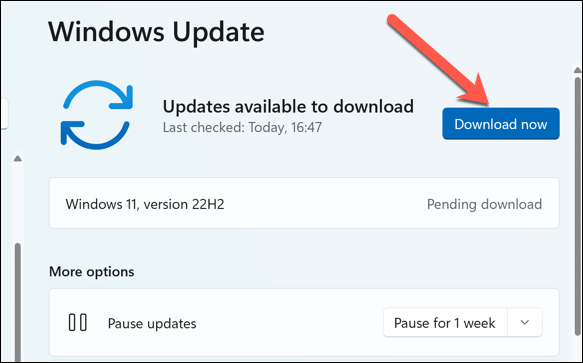
After updating your PC, restart your computer and try printing again to see if the error is resolved.
Use the Printer Troubleshooting Tool
If you’re still struggling to resolve the “Error – Printing” status error in Windows, you can use the Printer Troubleshooter . This built-in tool helps to identify and fix common hardware and device-related issues.
Follow these steps to run the troubleshooter on your Windows PC.
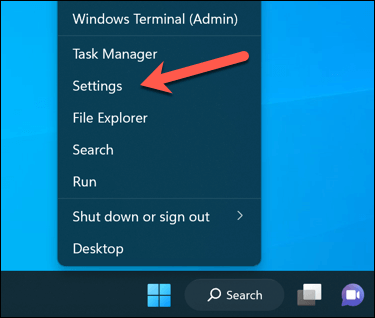
- Right-click the Start menu and select Settings .
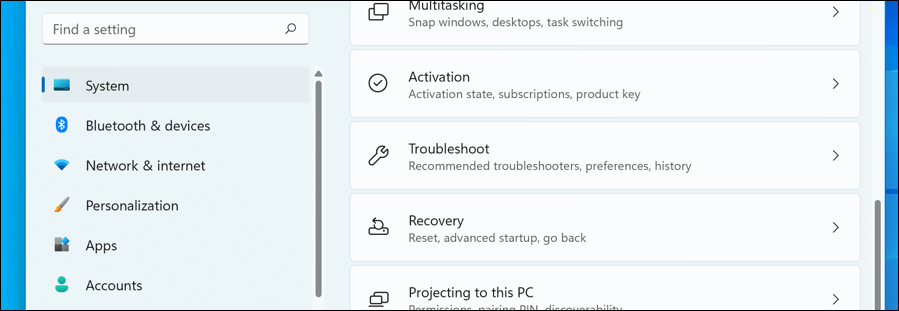
- In Settings , select System > Troubleshoot .
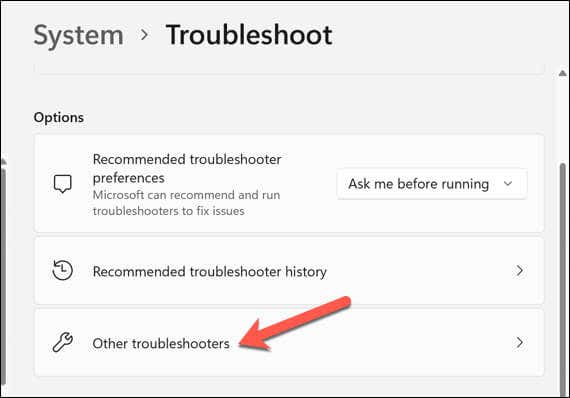
- Select the Other troubleshooters option.
- Next, select the Printer troubleshooter to begin running the printing troubleshooting tool.
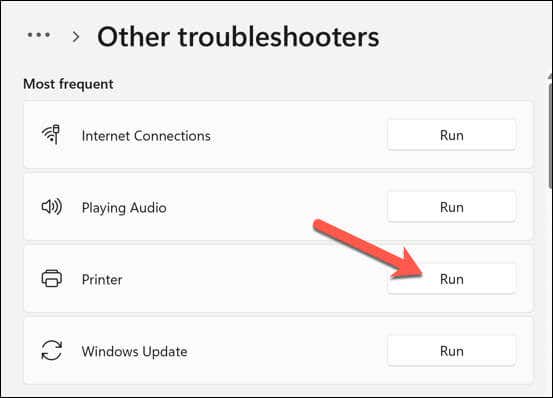
- Click Next and follow the on-screen instructions to detect and fix any problems.
After completing the troubleshooter and resolving any issues it detects, restart your computer, and then check if the “Error – Printing” issue is resolved.
Resolving Common Printer Issues on Windows 11
There isn’t a one-size-fits-all fix for resolving the “Error – Printing” status error on your Windows PC. Most of the time, however, one of the troubleshooting fixes above will resolve the problem.
However, there could be deeper problems with your printer, which means you can’t connect to your printer or print properly. For instance, if you see the error code “0x0000011b” on your PC, there could be a problem with your network that’s preventing you from printing—you’ll need to dig deeper to find and fix the problem.
- 7 Ways to Fix HP Printers ”Driver Is Unavailable” Error on Windows PC
- How to Fix Your Printer’s “Driver is unavailable” Error on Windows
- 7 Ways to Fix ”Windows Cannot Connect to the Printer”
- Print Job Won’t Delete in Windows? 8+ Ways to Fix
- Preparing for Windows 10 End of Support: Upgrading to Windows 11
Ben Stockton is a freelance technology writer based in the United Kingdom. In a past life, Ben was a college lecturer in the UK, training teens and adults. Since leaving the classroom, Ben has taken his teaching experience and applied it to writing tech how-to guides and tutorials, specialising in Linux, Windows, and Android. He has a degree in History and a postgraduate qualification in Computing. Read Ben’s Full Bio
Do you see a “Driver is unavailable” error for your HP printer in the Windows Settings app or Control Panel? This occurs when Windows encounters a corrupt or incompatible HP printer driver. We’ll show you how to fix that.
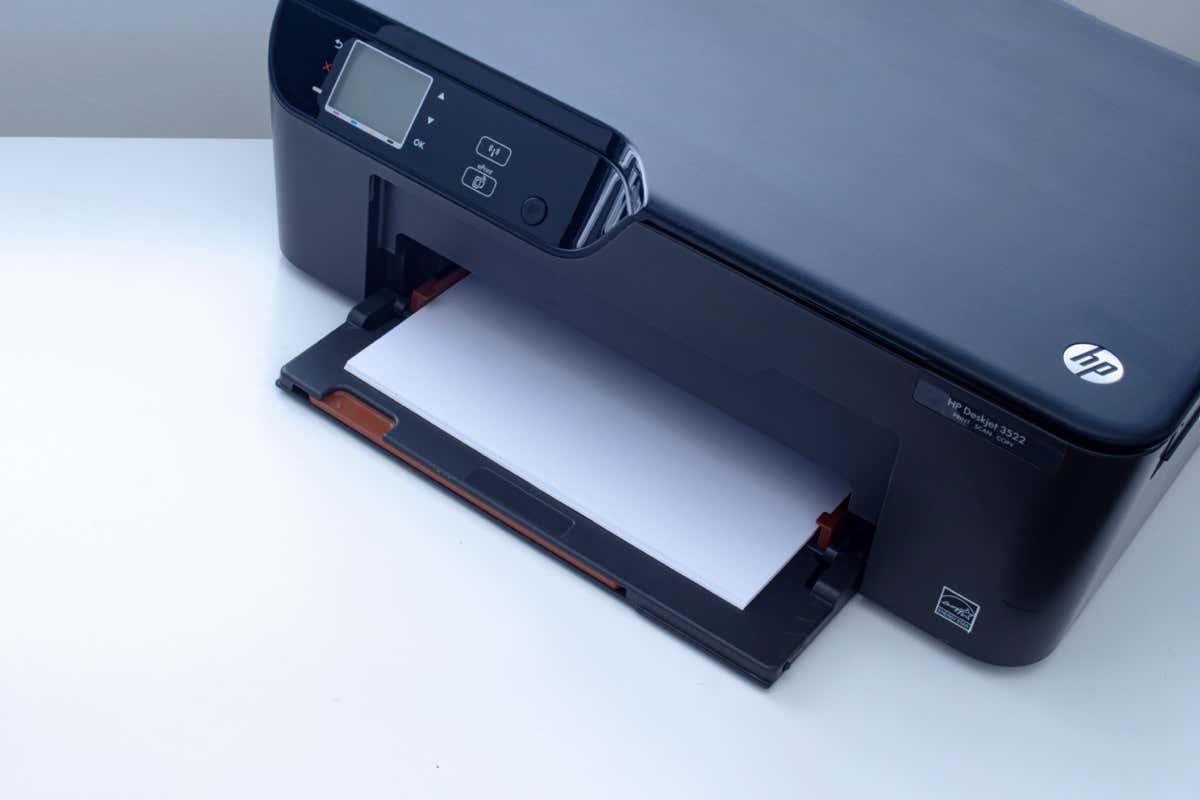
When Does the “Driver Is Unavailable” Error Happen?
The “Driver is unavailable” error shows up for an HP printer in instances where Windows has trouble loading the relevant printer driver. Various reasons—such as outdated driver software or an incomplete printer setup—often cause that. Work through the fixes below to resolve the HP printer issue in Windows 10 and 11.
1. Run the Printer Troubleshooter
Windows has a built-in Printer troubleshooter that can fix most printer driver issues and other common printer problems . Run it before moving on to the rest of the fixes.
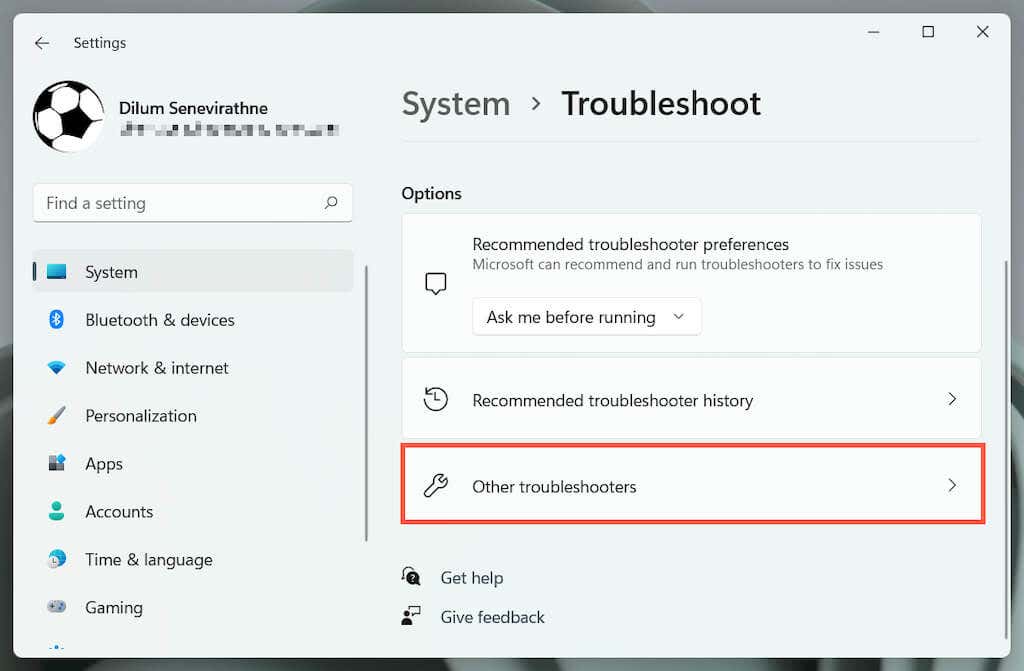
- Press Windows Key + S , type Troubleshoot Settings , and press Enter . On the Settings window that shows up, select Other / Additional troubleshooters .
- Locate the Printer troubleshooter and select Run / Run the troubleshooter .
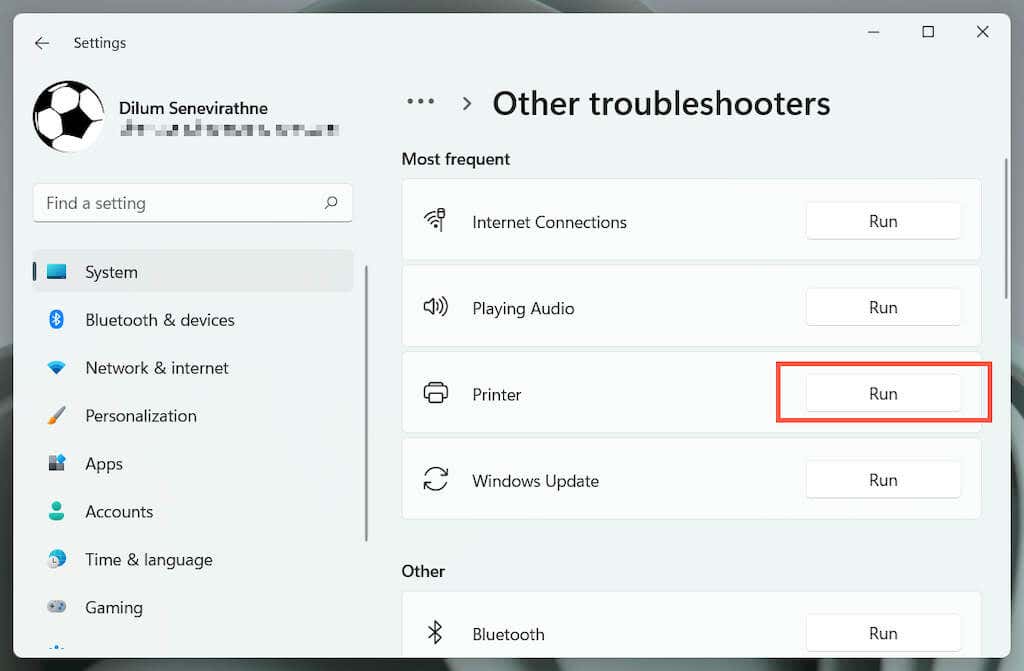
- Select your HP printer and follow the on-screen instructions to fix issues the Printer troubleshooter detects.
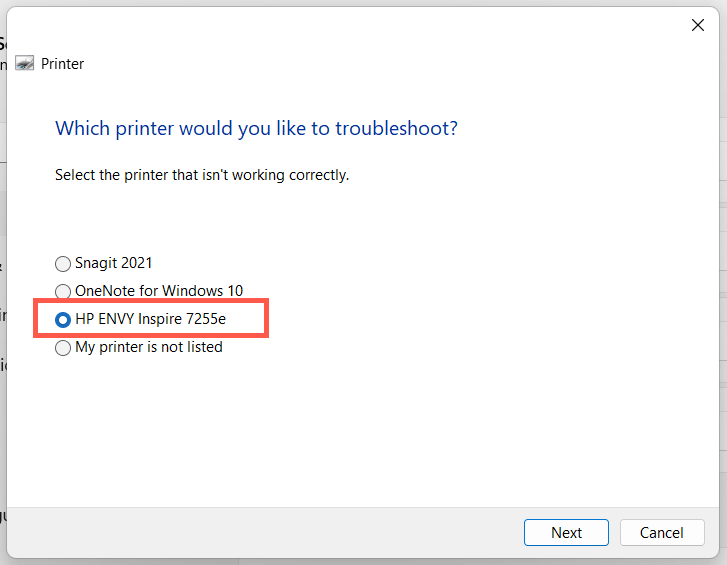
2. Run the HP Print and Scan Doctor App
Next, run the HP Print and Scan Doctor app on your PC. It’s a dedicated troubleshooter by HP that can diagnose and fix issues specific to HP printers. You can download the HP Print and Scan Doctor from the HP website.
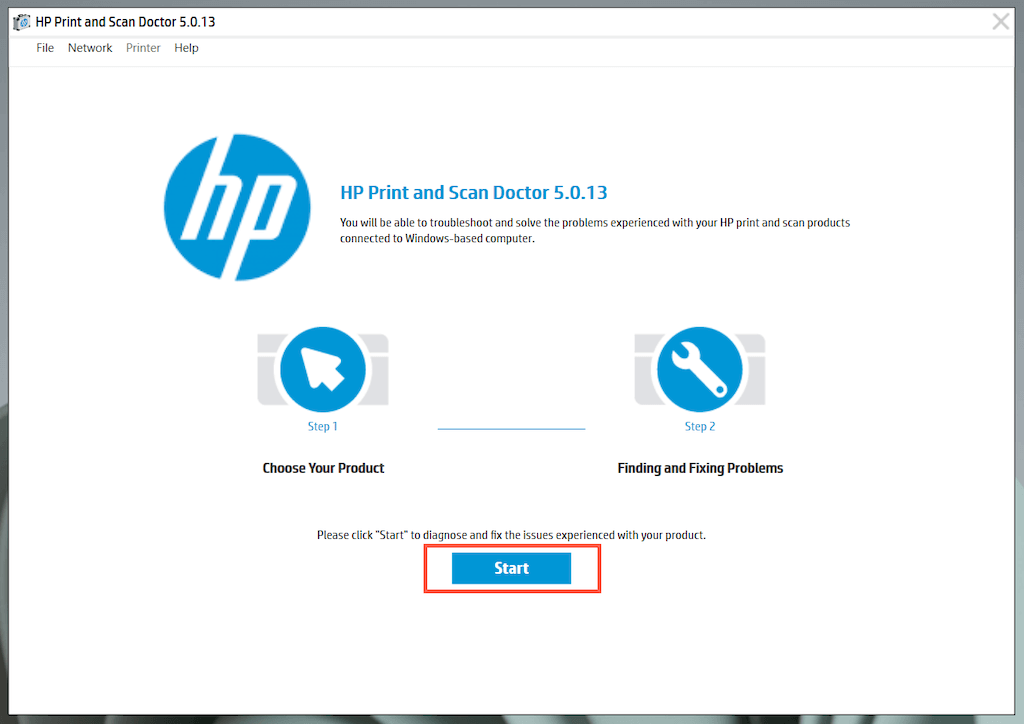
If the HP Print and Scan Doctor detects issues with your HP printer, let the tool automatically fix them for you or follow any suggestions to do that yourself.
3. Update Your HP Printer
Visit HP’s Software and Driver Downloads portal and search for your HP printer model. Then, download and install any recommended support software (e.g., HP Smart or HP Easy Start) that you don’t already have on your computer. Also, install any firmware or device driver updates.
If you have trouble installing device drivers via HP’s driver updater tool, try using the Device Manager in Windows instead. To do that:
- Press Windows + R to open a Run box. Then, type devmgmt.msc and select OK to open the Device Manager.
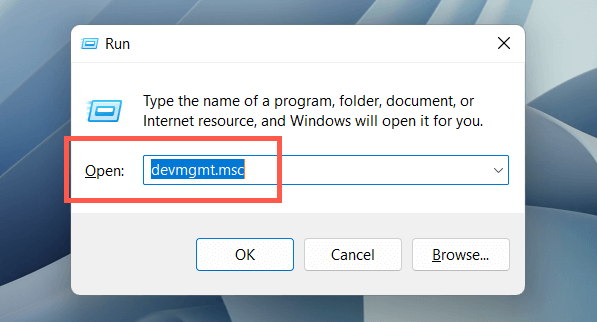
- Expand Print queues , right-click your printer hardware (e.g., HP ENVY ), and select Update driver .
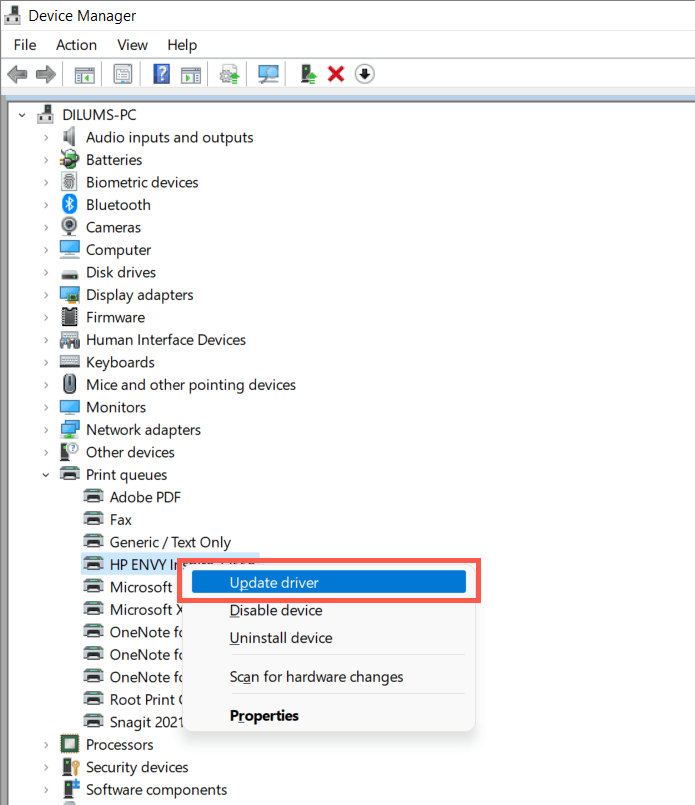
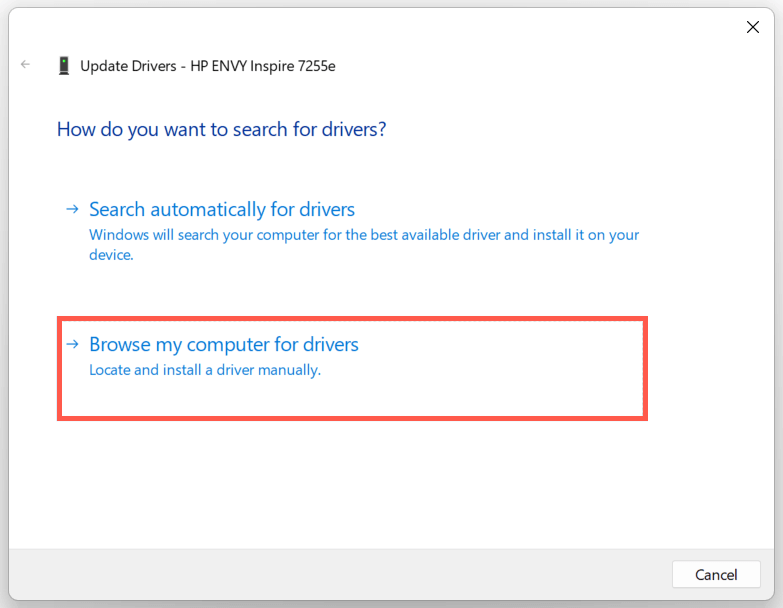
- Select Browse my computer for drivers on the Update Drivers dialog.
- Check the box next to Include subfolders . Then, select Browse and pick the downloaded driver file or folder.
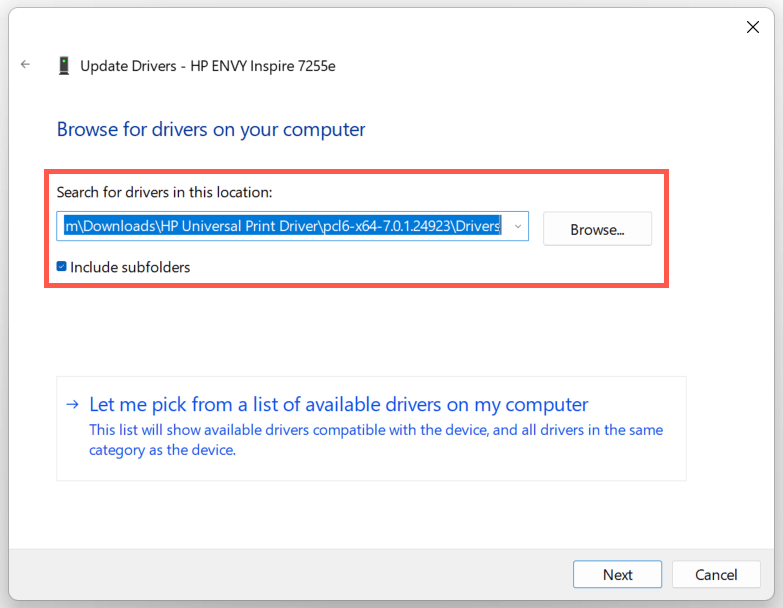
Note : If the driver file is in the ZIP format, Windows may not detect it unless you extract it first.
- Select Next to update the HP printer driver. Once that’s done, select Close to exit the Update Drivers window.
4. Install New Windows Updates
If your PC runs on an early build of Windows 10 or 11, your HP printer driver or support software may encounter compatibility issues unless you update the operating system .
To do that, open the Start menu and select Settings . Then, select Windows Update > Check for updates > Download and install to install available Windows updates.
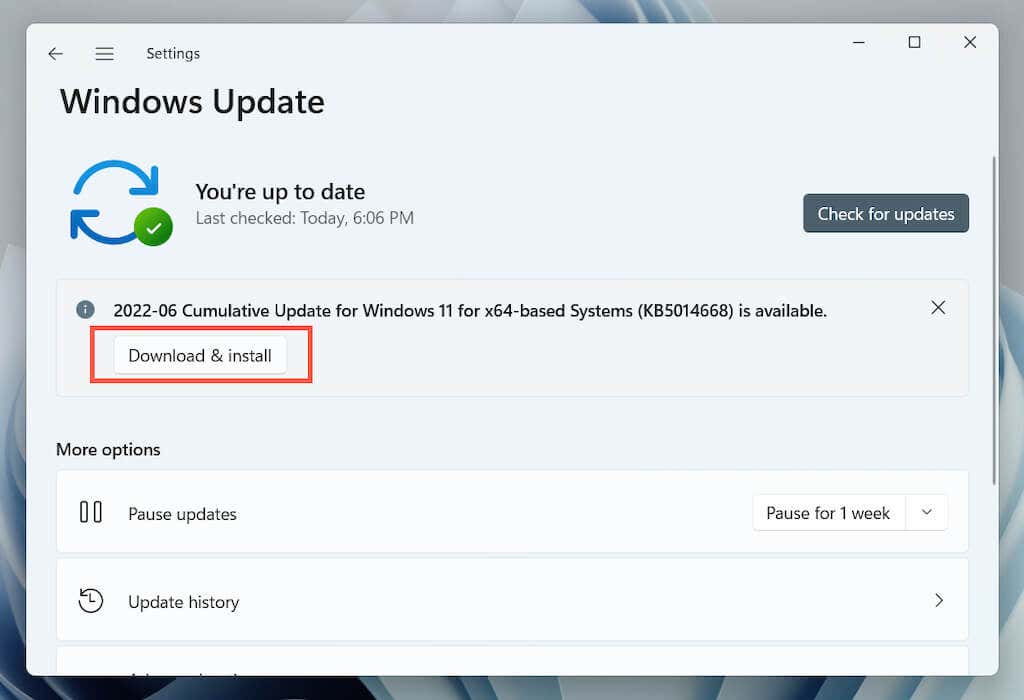
Also, select Advanced options > Optional updates or View optional updates within the Windows Update pane and install any Microsoft-verified printer updates if available.
5. Remove and Re-install Drivers for HP Printer
If the “Driver is unavailable” error persists, try removing and re-adding the printer to your computer. That also involves deleting and reinstalling the relevant HP drivers and support software.
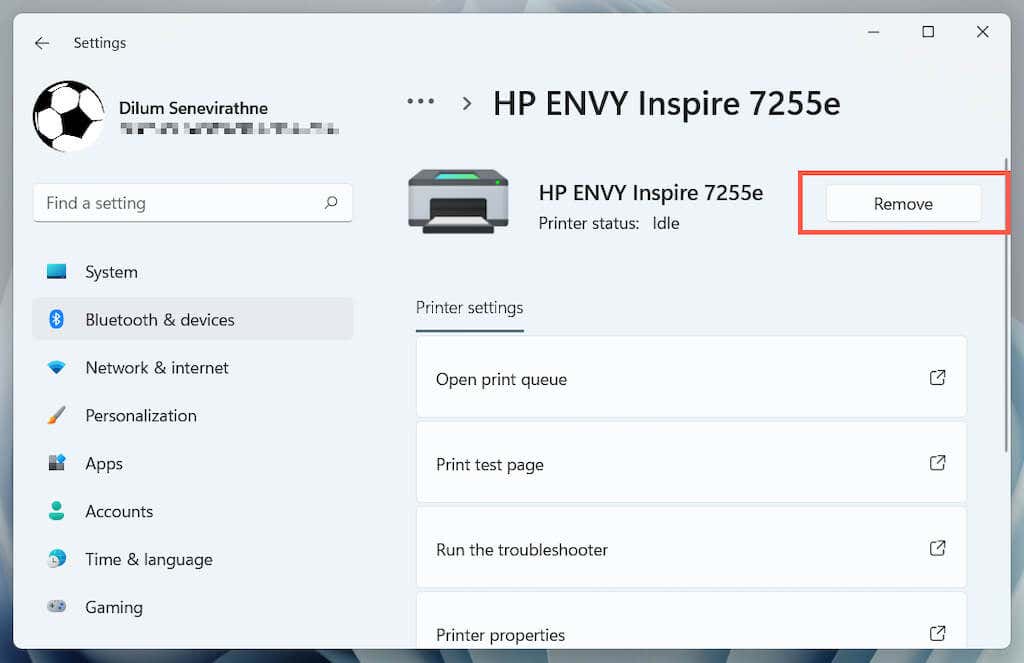
Open the Settings app and go to Bluetooth & devices > Printers & scanners .
Choose your HP printer and select the Remove button to confirm. Then, select Remove device on the pop-up to confirm.
Open the Device Manager.
Expand Printer queues , right-click your HP printer, and select Uninstall device .
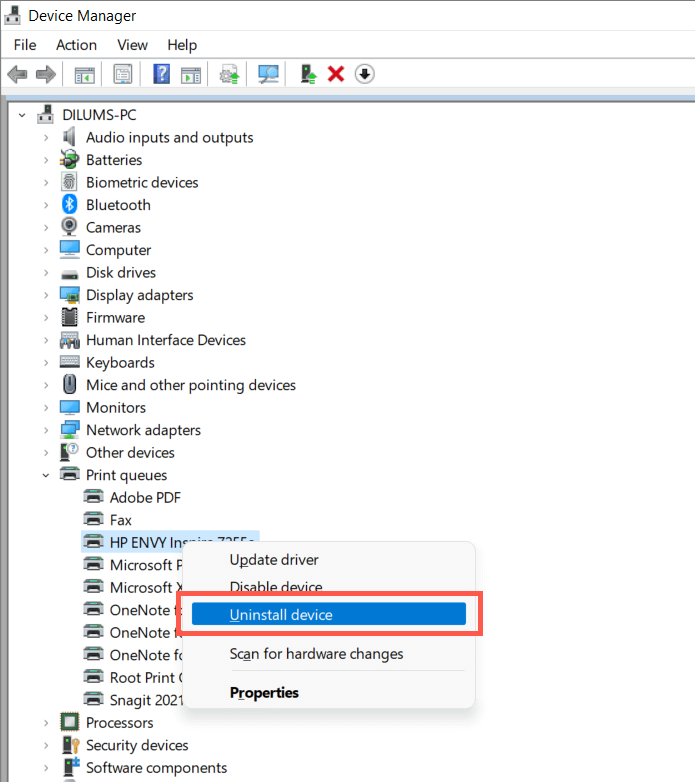
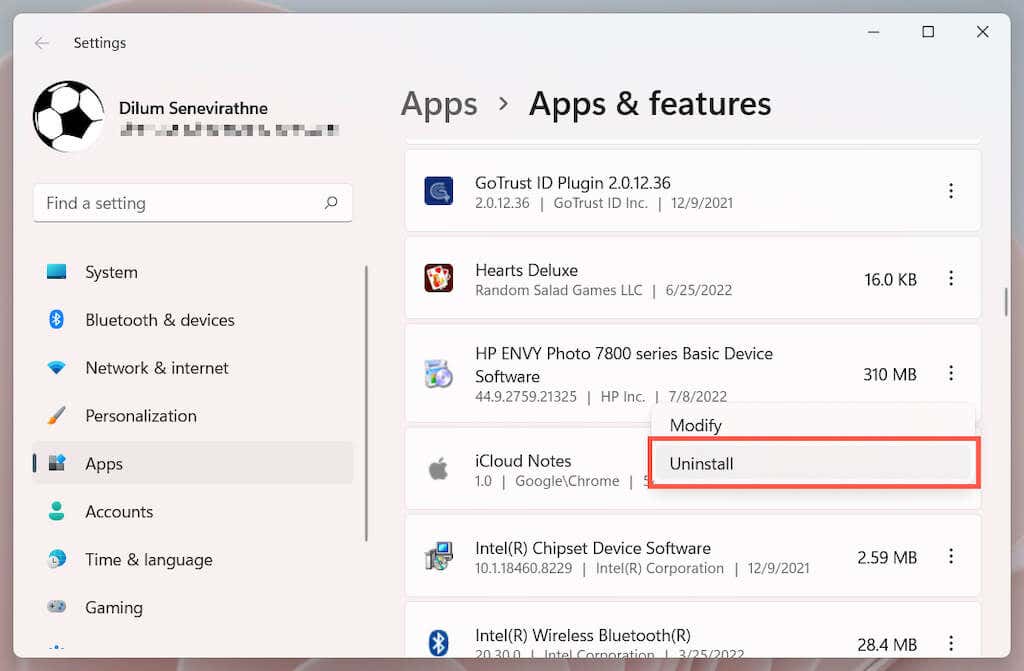
Right-click the Start button and select Apps and Features .
Locate and uninstall any HP drivers or support software.
Restart your computer.
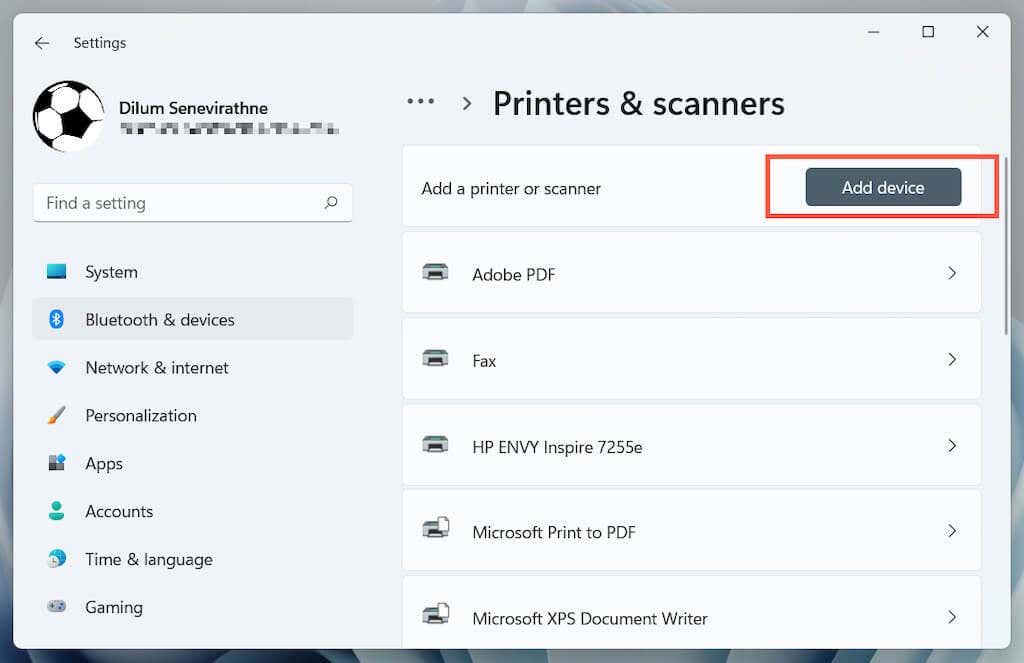
Re-open the Settings app and go to Bluetooth & devices > Printers & scanners .
Select Add device and set up the HP printer from scratch.
- Reinstall the latest drivers and support software for the device. Again, search for the printer model on HP’s Software and Driver Downloads portal to ensure you install everything.
6. Switch to the Generic Printer Driver
Switch to the generic printer driver in Windows. That will likely resolve the “Drive is unavailable” error but at the expense of losing various features specific to your HP printer. Regardless, it’s a good idea to try that if the issue persists.
- Open the Device Manager and select the problematic HP printer under Printer queues . Then, right-click and choose Update driver .
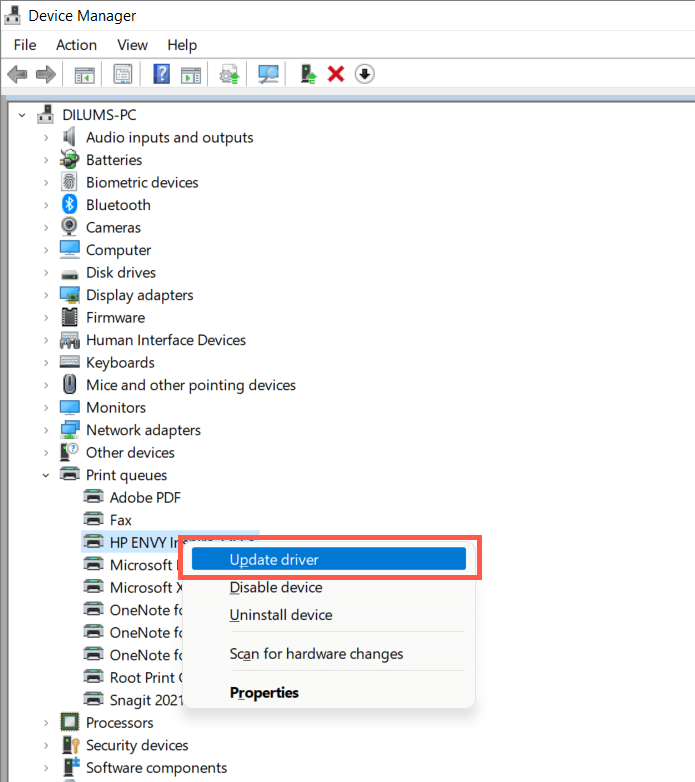
- Select Browse my computer for drivers.
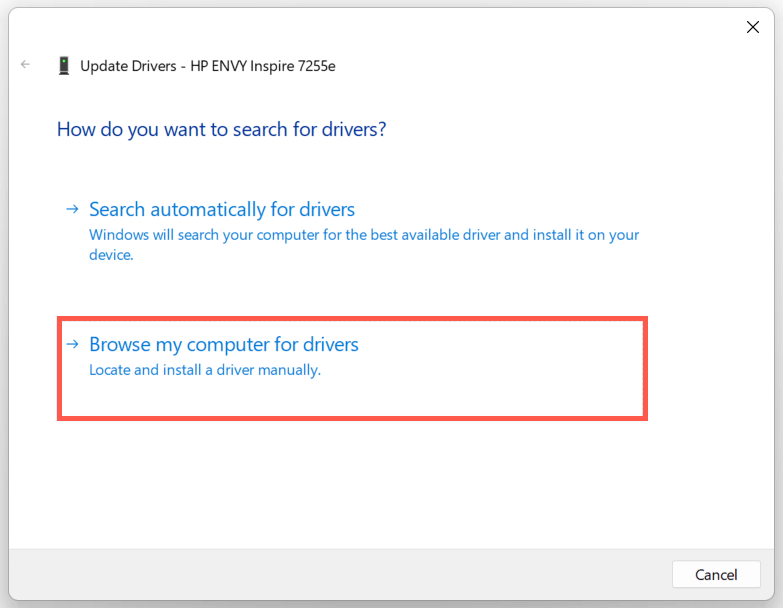
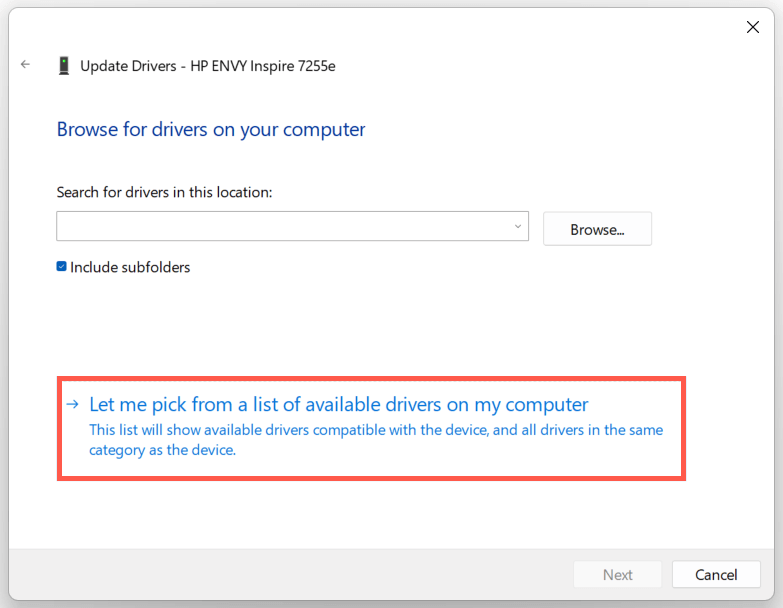
- Select Let me pick from the list of available drivers .
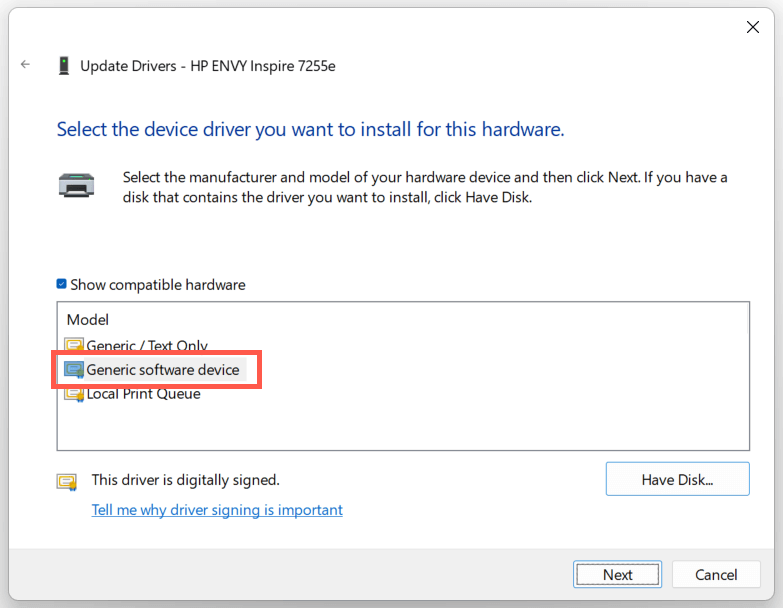
- Check the box next to Show compatible hardware . Then, select Generic software device > Next.
- Select Finish to install the generic printer driver for your PC.
7. Perform an SFC and DISM Scan
System file corruption can be another reason for your HP printer’s “Driver is unavailable” error. Running the SFC and DISM command-line tools usually helps fix that.
To initiate an SFC (or System File Checker) scan, right-click the Start button and select Windows PowerShell / Terminal (Admin) . Then, type sfc /scannow and press Enter .
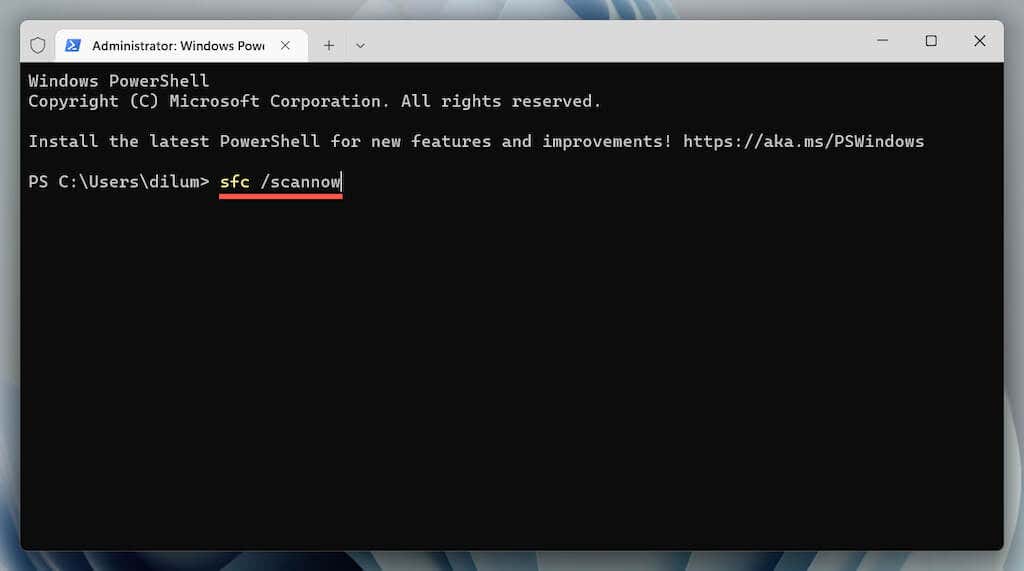
Once the System File Checker finishes scanning your computer, launch the DISM (Deployment Image Servicing and Management) tool with the following command:
DISM.exe /Online /Cleanup-Image /Restorehealth
The DISM tool takes a long time to complete and may appear to get stuck. However, keep the Windows PowerShell window open, and it should end eventually.
HP Printer Driver Unavailable Error Fixed
Did you manage to fix your HP printer’s “Driver is unavailable” error on your computer? If you did, try keeping the printer drivers and the operating system up-to-date to minimize the chances of running into the same problem going forward. If not, contact HP Support for model-specific fixes that could help resolve the driver issue.
- How to Fix the “Error – Printing” Status Error in Windows
- How to Fix Your Printer’s “Driver is unavailable” Error on Windows
- 7 Ways to Fix ”Windows Cannot Connect to the Printer”
- Print Job Won’t Delete in Windows? 8+ Ways to Fix
- Preparing for Windows 10 End of Support: Upgrading to Windows 11
Dilum Senevirathne is a freelance tech writer and blogger with three years of experience writing for online technology publications. He specializes in topics related to iOS, iPadOS, macOS, and Google web apps. When he isn’t hammering away at his Magic Keyboard, you can catch him binge-watching productivity hacks on YouTube. Read Dilum’s Full Bio
If your Windows PC displays a “Driver is unavailable” error, that means your system can’t find the correct drivers for your printer. You can’t print your documents or other items when this issue occurs. However, you can fix the problem by tweaking a few driver options on your PC.
The most common reason for the above error is outdated driver software. Other reasons include faulty drivers, corrupt Windows system files, and more. We’ll show several options to fix these problems so your printer starts working again.
Update Printer Drivers
The first solution to try when your PC displays a “Driver is unavailable” error is to update your printer drivers. Doing so updates the files that help your printer communicate with your computer.
You can use Windows’ Device Manager to perform the update process.
- Open the Start menu, search for Device Manager , and select the tool in the search results.
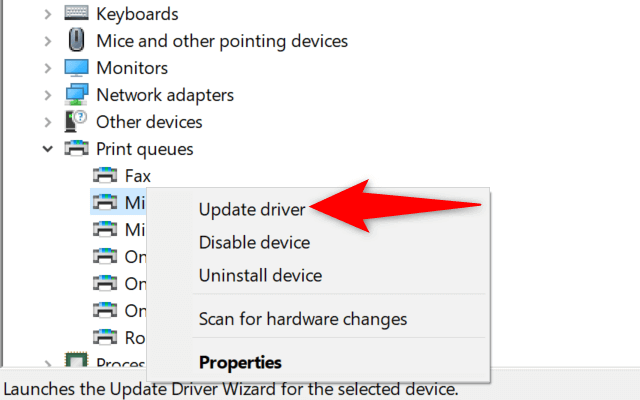
- Expand Print queues , right-click your problematic printer, and choose Update driver .
- Select Search automatically for drivers on the window that opens.
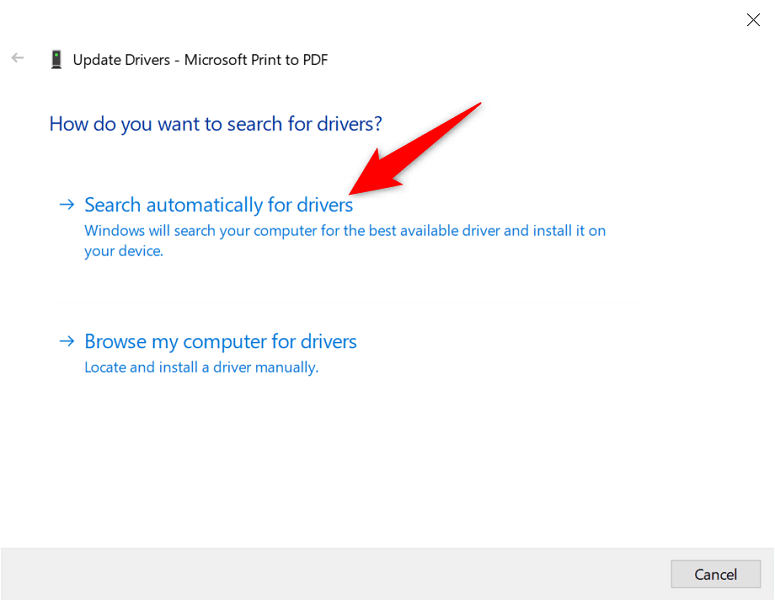
- Let Windows find and install the latest drivers.
- If no drivers are available, Device Manager will say that you already have the best drivers installed. In this case, quit the window by selecting Close .
Automatically Reinstall Printer Drivers
If the above method didn’t work, try completely removing and reinstalling your printer’s driver. This removes the problematic files that may be causing the “Driver is unavailable” error.
Again, use the Device Manager utility to perform the process.
- Launch the Start menu, search for Device Manager , and select the app in the search results.
- Expand Print queues , right-click your printer, and choose Uninstall device .
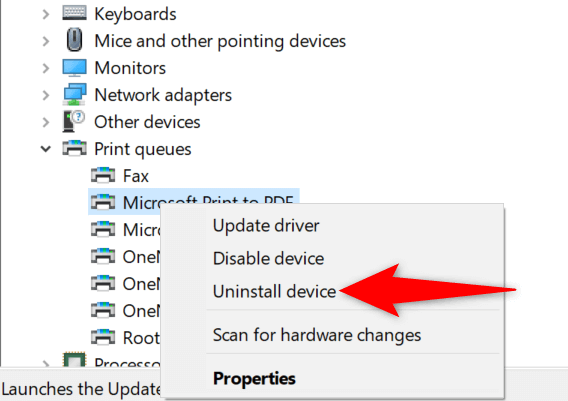
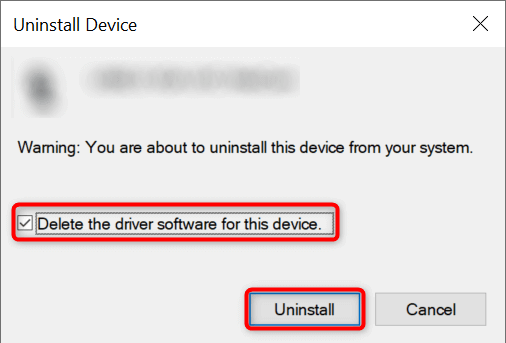
- Enable Delete the driver software for this device and select Uninstall .
- Unplug the printer from your PC.
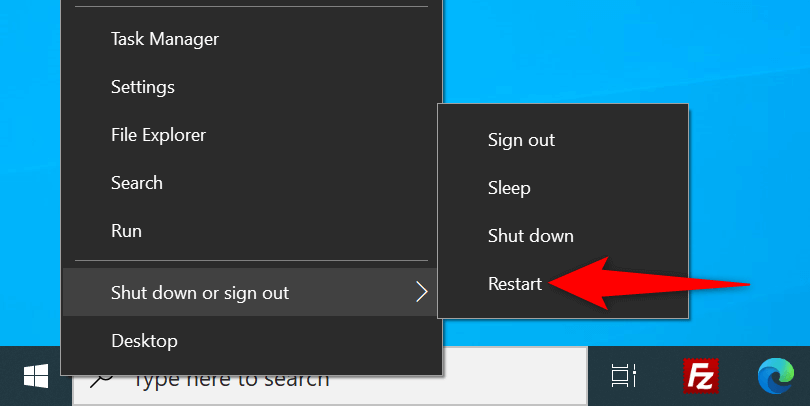
- Restart your PC by right-clicking the Start menu icon and choosing Shut down or sign out > Restart .
- Plug your printer back into your PC.
- Follow the on-screen instructions to reinstall the printer drivers.
Manually Reinstall Printer Drivers
Windows’ default printer drivers may not always work. If this is the case with you, manually download the drivers from your printer manufacturer’s website and install them.
Here’s how to do that.
- Launch Device Manager , right-click your printer in Print queues , and select Uninstall device .
- Enable the Delete the driver software for this device option and choose Uninstall device .
- Unplug your printer from your PC and reboot your PC.
- Connect the printer to your PC.
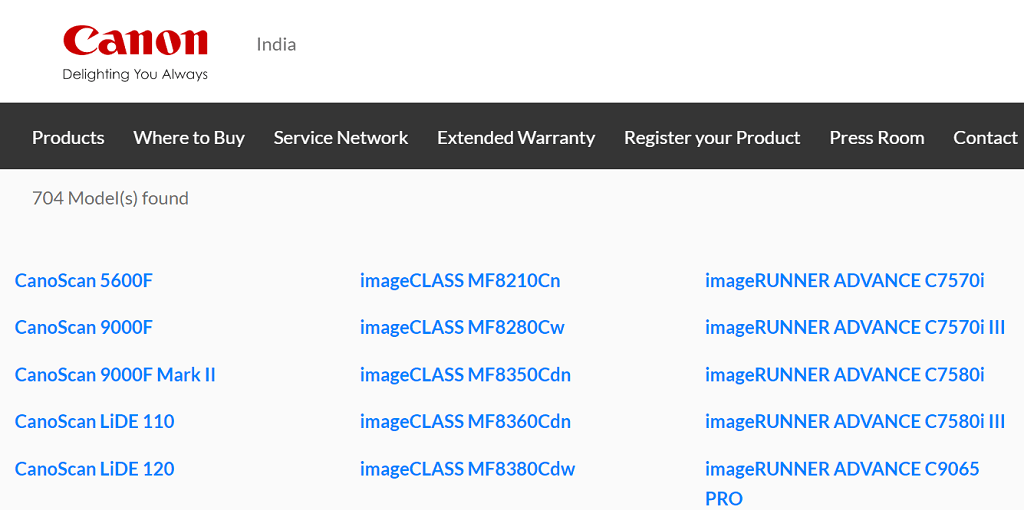
- Launch a web browser, access your printer manufacturer’s website, and download the latest drivers.
- Double-click the downloaded file to begin the installation process.
Update Windows 10 or Windows 11
Windows’ core updates sometimes help fix many device issues. You may be able to resolve the “Driver is unavailable” error by updating your Windows 10 or Windows 11 computer.
- Launch the Settings app by pressing Windows + I at the same time.
- Choose Update & Security on the Settings window.
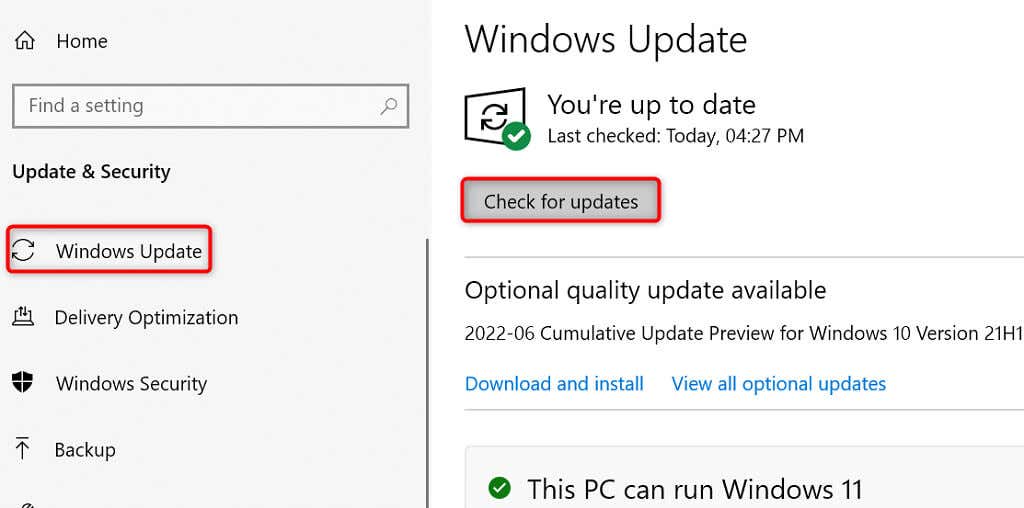
- Select Windows Update from the sidebar on the left.
- Choose Check for updates in the pane on the right.
- Install the available updates.
- Reboot your PC.
Prevent a Faulty Driver Update From Installing
Both Windows 10 and 11 automatically update your device drivers via Windows Update. Sometimes, these updates are faulty, causing random issues with your devices.
If you’ve been experiencing the “Driver is unavailable” only recently, your driver update might be the culprit. In this case, roll back the update and prevent Windows from installing the same update again.
- Download Microsoft’s Show or hide updates tool.
- Launch the newly downloaded wushowhide.diagcab file.
- Select Next on the tool’s first screen.
- Choose Hide updates .
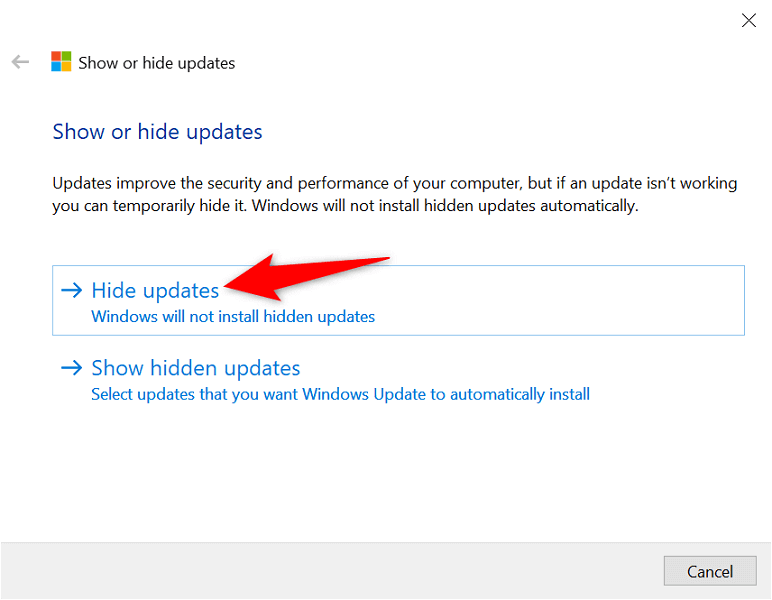
- Enable the box beside your printer update. Then, select Next at the bottom.
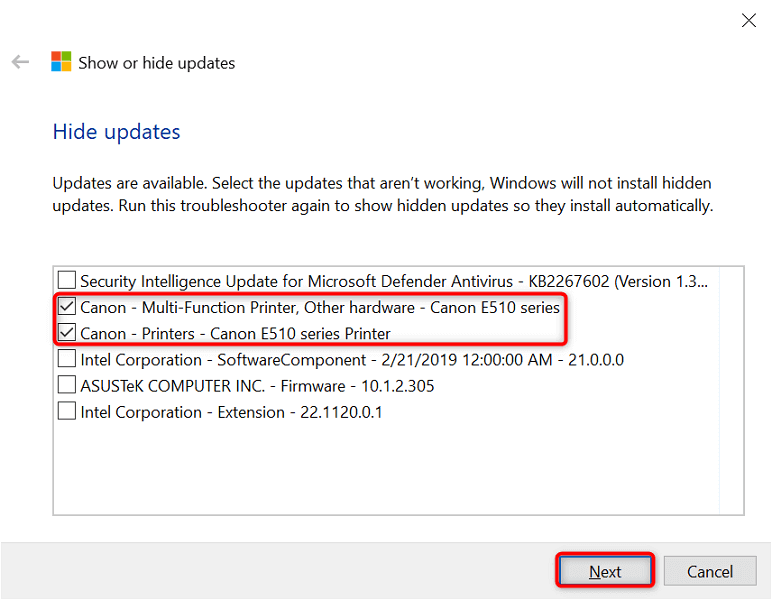
- Select Close the troubleshooter .
Windows will now block the printer driver updates from installing.
Later, you can re-enable those updates by choosing Show hidden updates and activating your printer’s option.
Use Generic Printer Drivers
Microsoft offers generic printer drivers to use when your actual ones don’t work. You may want to use these to temporarily fix the “Driver is unavailable” error and print your documents.
- Right-click the Start menu and choose Device Manager .
- Expand Print queues , right-click your printer, and choose Update driver .
- Select Browse my computer for drivers .
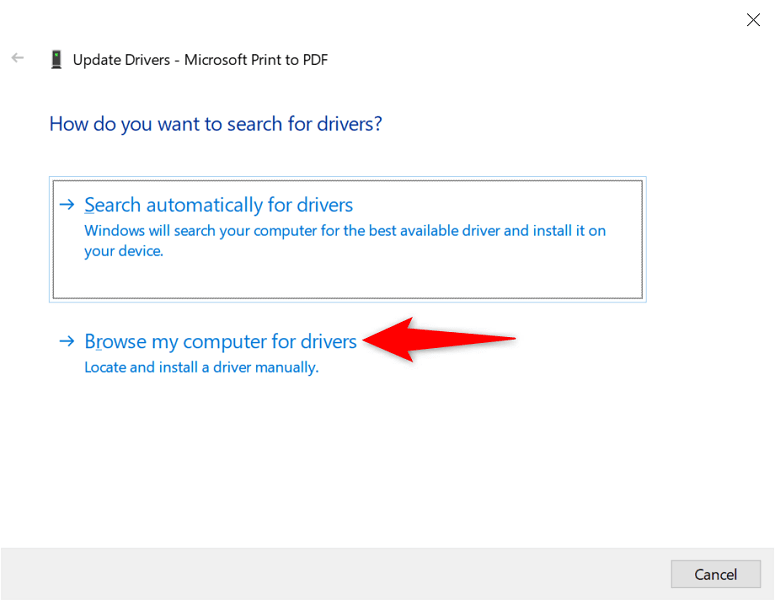
- Choose Let me pick from a list of available drivers on my computer .
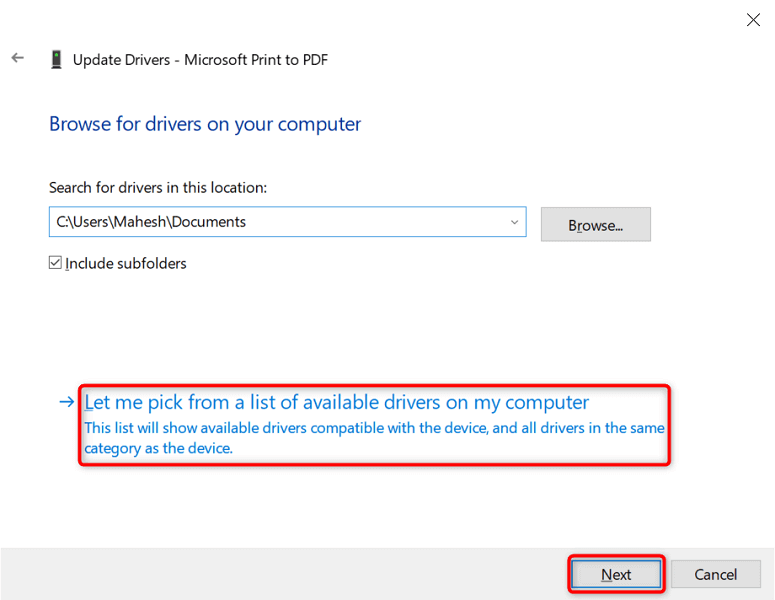
- Select Generic software device and choose Next .
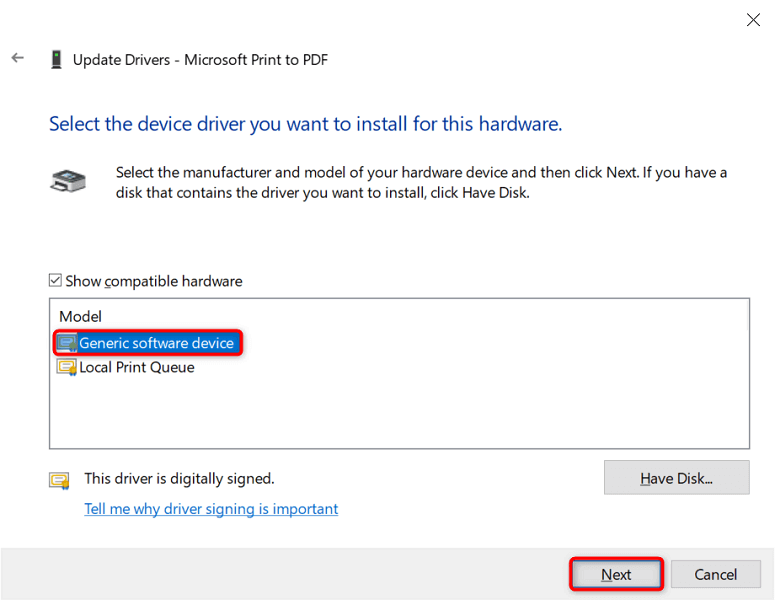
- Restart your PC.
Fix Corrupt Windows Files
Corrupt Windows system files can make your devices go haywire. Your “Driver is unavailable” issue may be the result of a faulty core file. Luckily, you can fix the issue by checking and repairing all your problematic system files .
- Open the Start menu, search for Command Prompt , and select Run as administrator .
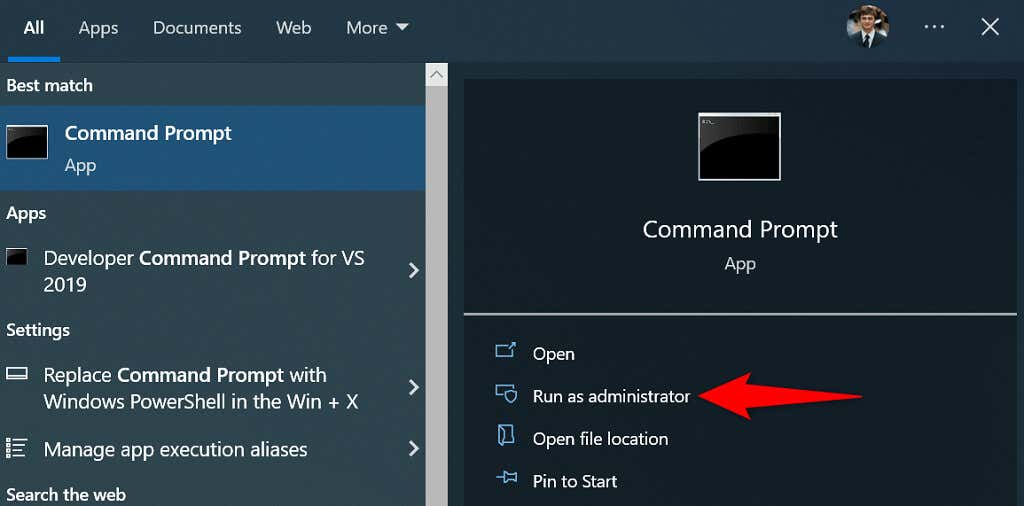
- Select Yes in the User Account Control prompt.
- Type the following on the Command Prompt window and press Enter . Wait for the command to finish executing: DISM.exe /Online /Cleanup-image /Restorehealth
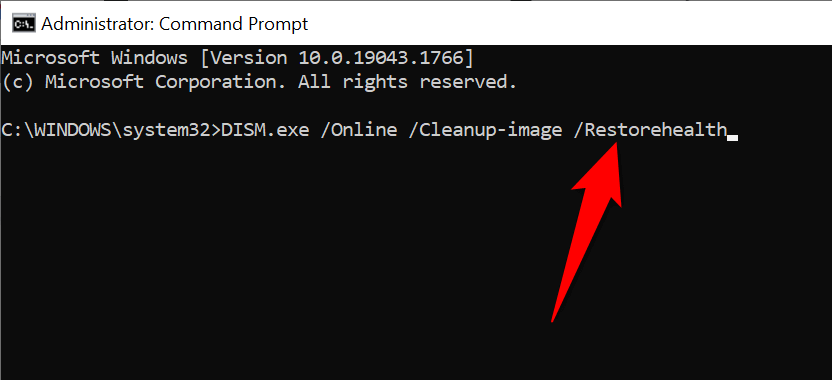
- Next, run the following command: sfc /scannow
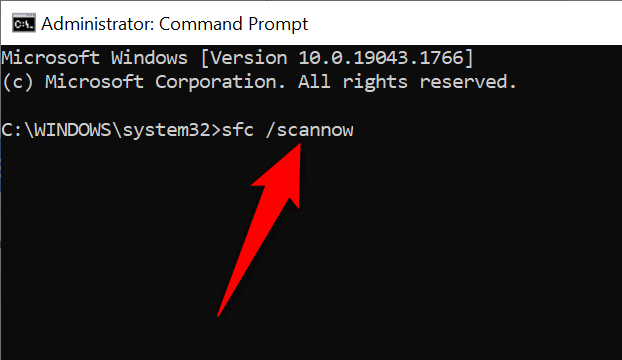
- Wait for the tool to find and fix faulty files on your machine.
Making “Unavailable” Printer Drivers Available in a Few Easy Ways
Windows’ “Driver is unavailable” error makes your printer unusable, but not for long if you follow the methods outlined above and resolve the underlying problems. Once you’ve done that, you can print all your documents as well as configure various options for your printer on your Windows PC. Enjoy!
- How to Fix the “Error – Printing” Status Error in Windows
- 7 Ways to Fix HP Printers ”Driver Is Unavailable” Error on Windows PC
- 7 Ways to Fix ”Windows Cannot Connect to the Printer”
- Print Job Won’t Delete in Windows? 8+ Ways to Fix
- Preparing for Windows 10 End of Support: Upgrading to Windows 11
Mahesh has been obsessed with technology since he got his first gadget a decade or so ago. Over the last few years, he’s written a number of tech articles on various online publications including but not limited to MakeTechEasier and Android AppStorm. Read Mahesh’s Full Bio
