More and faster are always two things we want, especially when it comes to data. The problem is that “more” and “faster” are usually at odds, so we have file compression . There are several ways to zip and unzip files in Linux, and we’re going to show you the methods behind them.

Zip and Unzip Using Zip in Linux
Linux has several compression tools built into almost every distribution, commonly known as Linux distros . Zip is likely the most popular. The Zip utility can be used in the graphical user interface (GUI) or the terminal.
Zip in the Linux GUI
- Navigate to the files to be compressed and select them. Then right-click and select Compress .
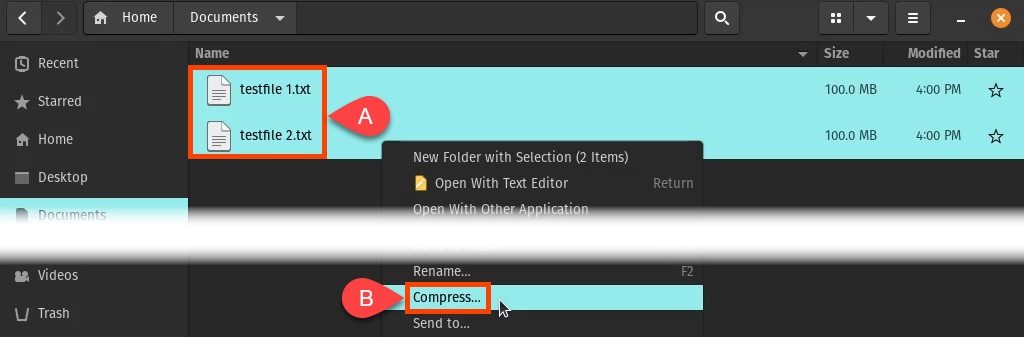
- Enter a name for the zipped archive. Note that you can also choose two other types of compression. This may vary between distros.

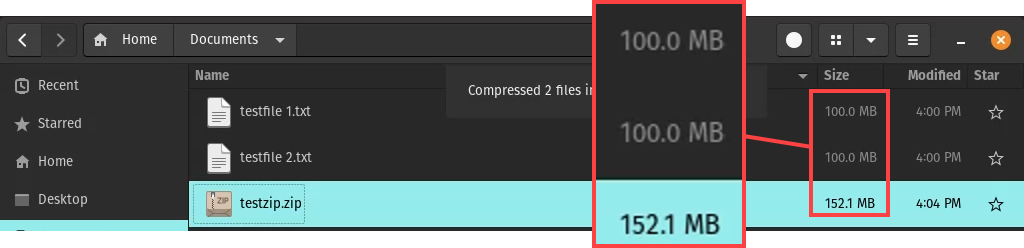
- Soon you’ll see your zipped archive. Note that the archive size is much less than the total size of the files put into it.
Unzip in the Linux GUI
- Find the zipped archive to unzip and right-click on it. Select Extract Here or Extract to… . Extra Here puts the contents into this directory. Extract to… allows you to select somewhere else to put the contents.
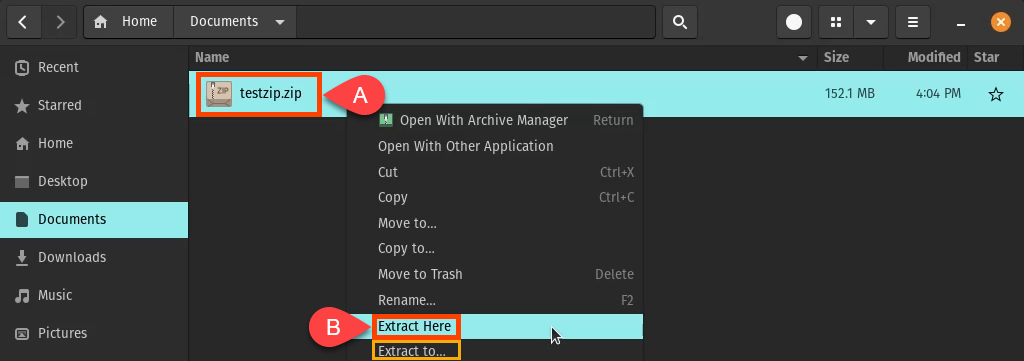
The files are extracted. Notice that they’re back to their full size of 100 MB each.

Archive Manager to Unzip in the Linux GUI
Some Linux distros have other ways to unzip built into them. In this example, you can use Archive Manager.
- Right-click on the archive and select Open With Archive Manager .

- Highlight the files to extract by single-clicking on them. You can select one, a few, or all of them. Then select Extract in the top-left corner.

- At this point, you can choose where to extract the files using the file manager. Then select Extract in the top-right corner.

- When the extraction is done, you can either carry on or Show the Files .
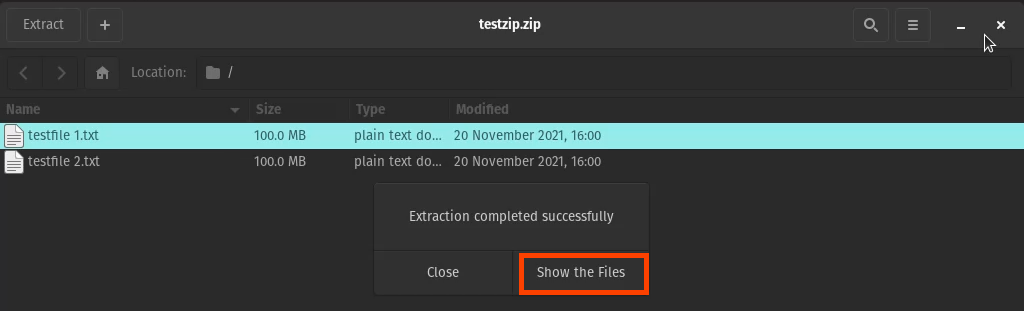
The file is back at its full size. A copy is left inside the archive.

Zip Files in Linux Terminal
Open the terminal and navigate to the directory where the files to be zipped are located. Enter the command zip ziptest.zip * .
Zip tells Linux to use the zip utility, ziptest.zip tells it the desired name for the archive, the asterisk (*) is a wildcard meaning zip all the files in this directory.


It zips the files, lists them, and says how much it has deflated or compressed them.

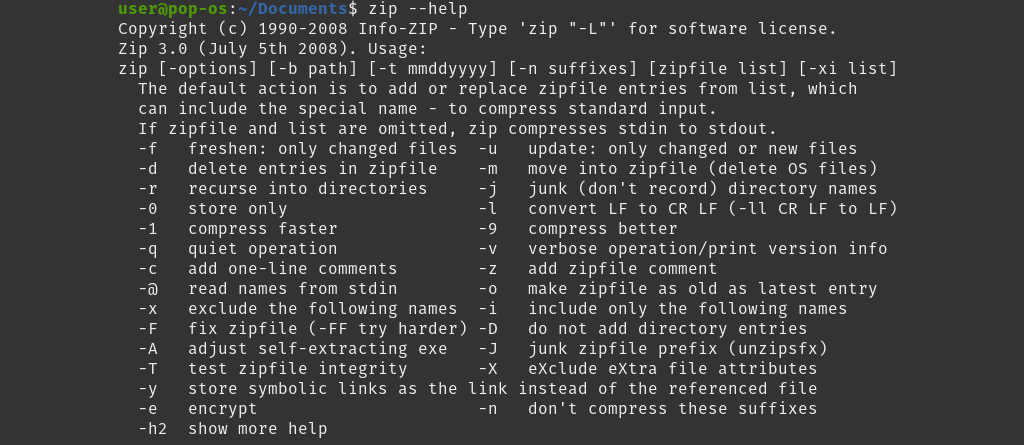
Many actions can be used with the zip command. To view them, enter zip –help, and you’ll see something like the following image.
Unzip Files in Linux Terminal
In the Terminal, use the command unzip ziptest.zip , where unzip is the command and ziptest.zip is the name of the archive to unzip.

It will show the files being unzipped, so you know when it’s done.

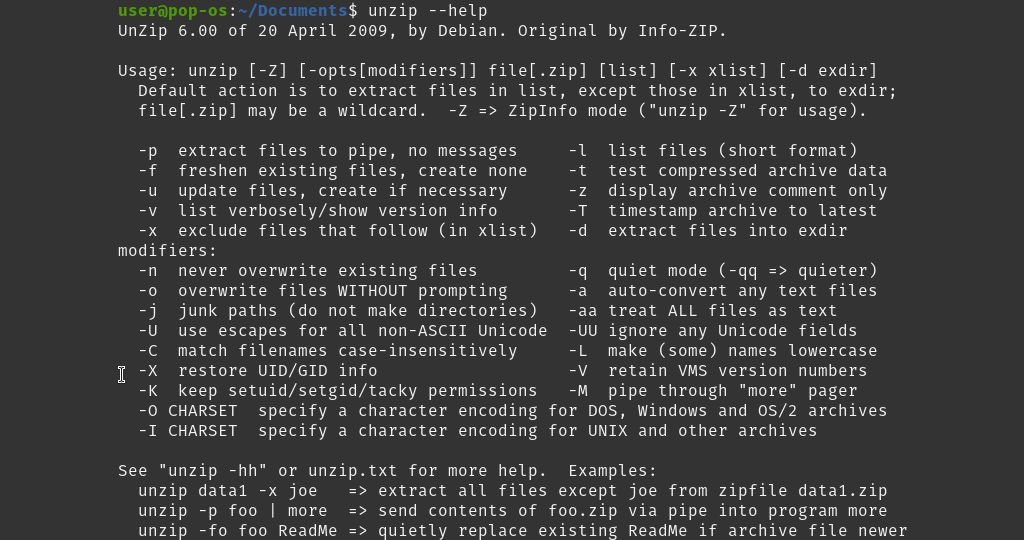
Like the zip command, many actions can be used with the unzip command. To view them, enter unzip –help, and you’ll see something like the following image.
Bzip2 for Zipping and Unzipping Files in Linux
Bzip2 is another compression utility built into most Linux distros. A major difference is that bzip2 cannot zip multiple files into one archive. Each file gets its own zipped archive.
Zip Files in Linux Terminal With Bzip2
Enter the command bzip2 -kv9 testfile1.txt testfile2.txt where bzip2 is the command.
-kv9 breaks down to k means k eep the originals, v means v erbose so we can see what’s happening, and 9 for the highest level of compression. You can choose between 1 and 9. The higher the level of compression, the longer zipping the files takes.

The output tells us more than zip does, but the end result is almost the same.

Unzip Files In Linux Terminal With Bzip2
Enter the command bzip2 -kvd testfile.1.txt.bz2 testfile2.txt.bz2 . The -kvd options break down as k for k eep the archives, v for v erbose output, and d for d ecompress.

You see the files being decompressed and known when it’s done.

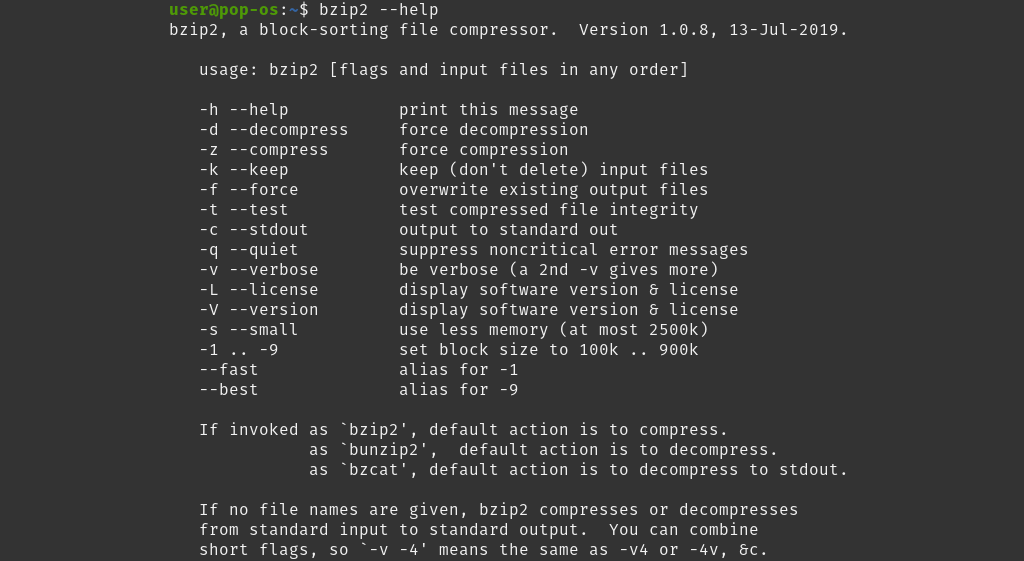
To view the bzip2 options, enter bzip2 –help, and you’ll see the following. Play around with the options on non-critical files just to see what they can do.
Gzip for Zipping and Unzipping Files in Linux
This is the last of the popular compression utilities that are included with most distros. It’s lighter than bzip2 and zip for options. However, the quality of compression is still about the same.
Zip Files in Linux Terminal With Gzip
Enter the command gzip2 -kv9 testfile.1.txt testfile2.txt . The -kv9 options break down as k for k eep the files, v for v erbose output, and 9 for the highest compression level between 1 and 9.

As the verbose output shows, gzip works about as well as the other zipping methods.

Unzip Files in Linux Terminal With Gzip
There are two ways to unzip gzip archives. One is to use the gzip, and the other is gunzip.
For the gzip command, use gzip -kvd testfile1.txt.gz testfile2.txt.gz . Notice the d option. That means to d ecompress.

For the gunzip command, use gunzip testfile1.txt.gz testfile.2.txt.gz . The only difference from gzip is that gunzip doesn’t require options for a basic decompression.

What About Tar to Zip and Unzip Files in Linux?
Why hasn’t tar been mentioned yet? It’s an archiving tool, taking a bunch of files and putting them into one archive for easy transport. Whatever the file sizes are, the size of the tar file will be about the same.
But if you combine a zip method with tar, then you get something really cool. You get a nicely compressed single package of files.
Using the other zip methods on a directory of files, you’d get a compressed archive for each file in the directory. Using tar with the gzip option on the directory compresses everything and makes one archive.
Zip Files in Linux Terminal With Tar and Gzip
Enter the command tar -czvf Documents.tgz Documents .
The -czvf options break down as c for c reate a new archive, z for compress with g z ip, v for v erbose output, and f for f ile equals archive, which means the archive maintains the file structure of the original directory.
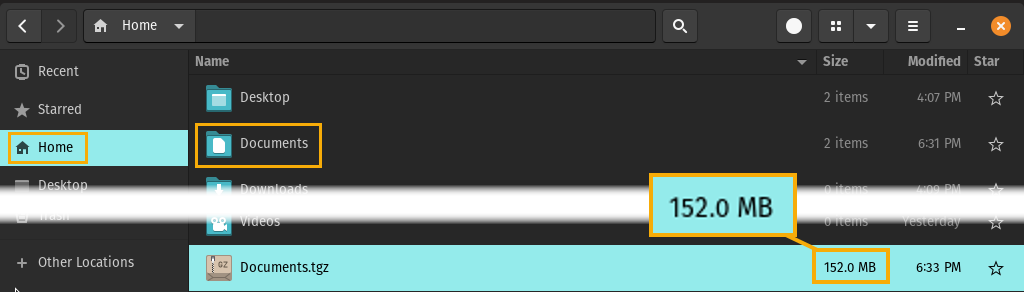
The new archive must be named, which is Documents.tgz in this example. By using the .tgz file extension, others will know that this is a tar archive that has been gzipped. Finally Documents is the directory to archive and compress.

The output looks like the following.

In File Manager, you can see the tar archive and that it’s compressed.
Unzip Files in Linux Terminal With Tar and Gzip
To unzip a gzipped tar archive, it’s the same tar command with slightly different options.
Enter the command tar -xzvf Documents.tgz Documents .
The -xzvf options break down as x for e x tract, z for unzip with g z ip , v for verbose so we can watch it happen, and f for file=archive means keep the file structure. Documents.tgz is the archive to be unpacked and unzipped, and Documents is the directory into which you want the contents to go.

The results are shown in the image below. The two files are back to full size, and they are in the Documents directory.

To view the tar options, enter tar –help, and you’ll get several pages of options. Notice that there are different zip methods available other than gzip, so you can choose the one you like.
Less Popular Zip Tools in Linux
There are two more compression utilities found in most Linux distros. However, they’re not that popular. Nevertheless, they’re listed here, so you’re aware of them.
LZMA
LZMA is another command-line compression utility often found in Linux distros. It’s the compression algorithm used by 7-Zip.

XZ
The XZ utility is a command-line compression tool often included in Linux distros. Its options are similar to those of bzip2. It’s based on the LZMA2 algorithm, which is based on LZMA.

More information about these utilities can be found by using the commands lzma –help and xz –help .
Aren’t There Other Ways To Zip and Unzip in Linux?
- How to Remove Linux from Your Chromebook
- How to Run a Virtual Machine in Linux
- 6 Best Linux Emulators for Windows
- How to Install KDE Plasma Desktop on Linux Mint
- How to Access and Use OneDrive on Linux
Guy has been published online and in print newspapers, nominated for writing awards, and cited in scholarly papers due to his ability to speak tech to anyone, but still prefers analog watches. Read Guy’s Full Bio
