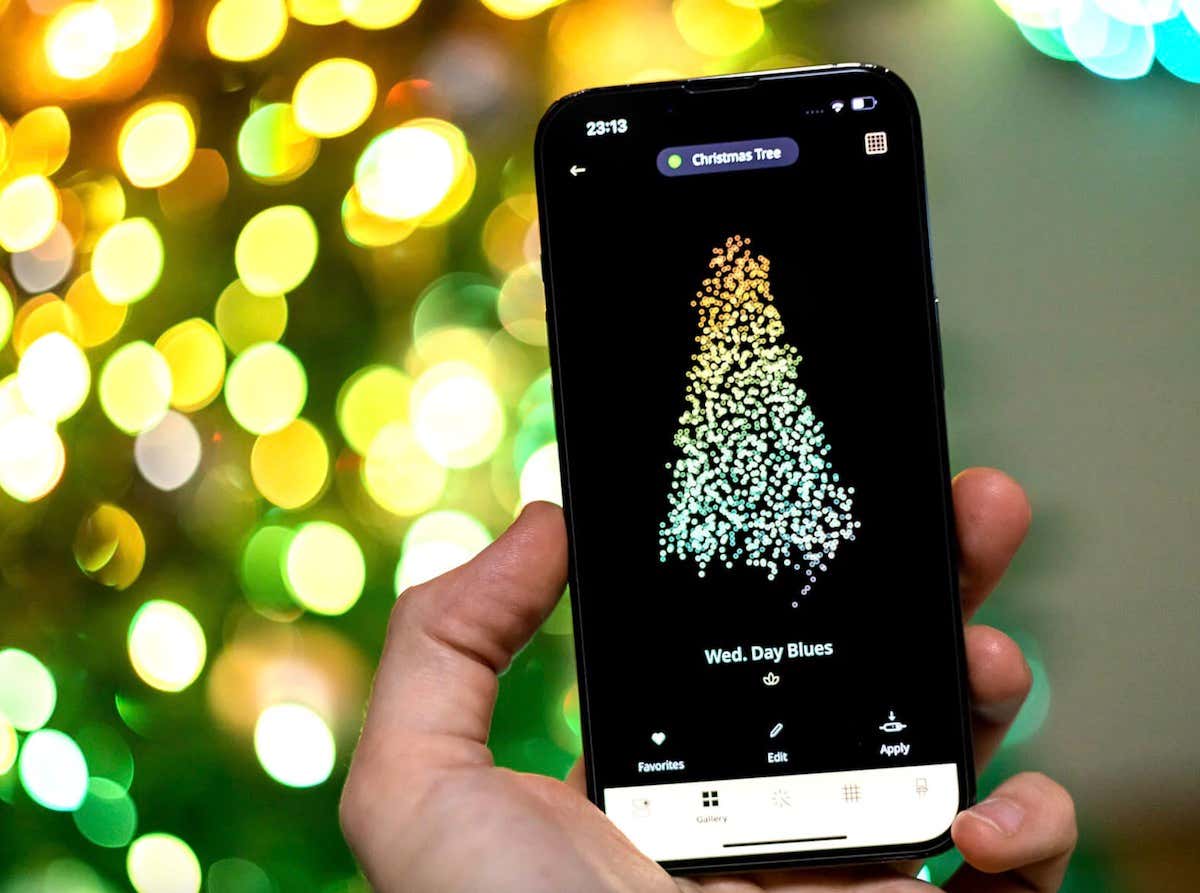
It’s a common belief that smart home automation is all about protecting your home from intruders. However, home security isn’t the only thing smart home tech is capable of. You can also use your smart gadgets to make the holidays easier and more fun for your family and friends.
Here’s how you can use your smart home devices this holiday season and the best smart tech you can find for the holidays.
How to Use Smart Home Devices For Decorating Your House
Decorating your house for the holidays can be exciting and dreadful if you have to do everything on your own. If you don’t have an extra pair of hands to help you, you can enlist your smart devices to make decorating your place easier and less time-consuming. Here are a few ways how you can do it.
Use Smart Christmas Lighting
One of the essential parts of Christmas decorating is the lighting. However, with the electricity prices rising, you don’t want to have your holiday lights on all the time, driving your energy bill up in case you or someone else forgets to switch them off.
That’s where the smart lights come in: they add remote control, scheduling, and automation to your everyday use of lighting, thus saving you money on energy use. Smart lighting comes in different types and shapes. Here are a few smart lights that we recommend trying.
Phillips Hue Smart Bulbs
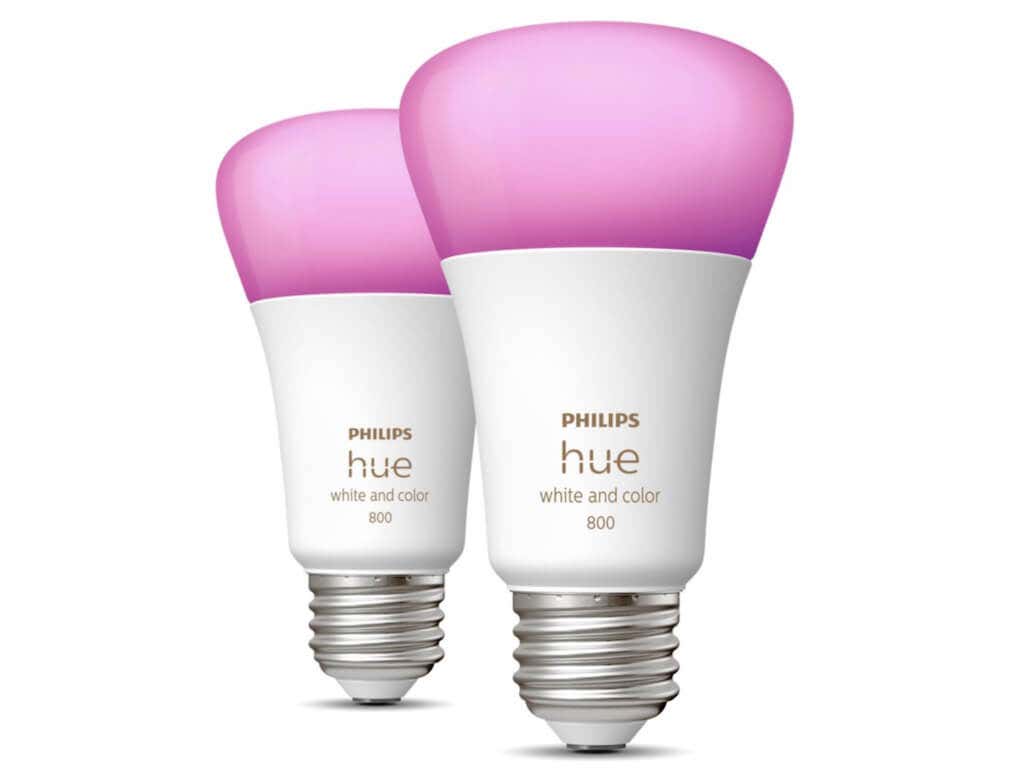
Smart bulbs are the simplest way to cut energy costs while having festive lighting in your house. All you have to do is replace your standard light bulb with a smart LED one. It will last 25 times longer and use 75% less energy than an incandescent light bulb.
Phillips Hue has some of the best smart lights on the market. It offers a wide range of smart bulbs for both indoors and outdoors. You can use the Philips Hue smart bulbs to decorate your house for Christmas, a birthday, or a Halloween party and then keep them as your regular lights for occasional light therapy use .
Use Smart Plugs for Outdoor Lighting
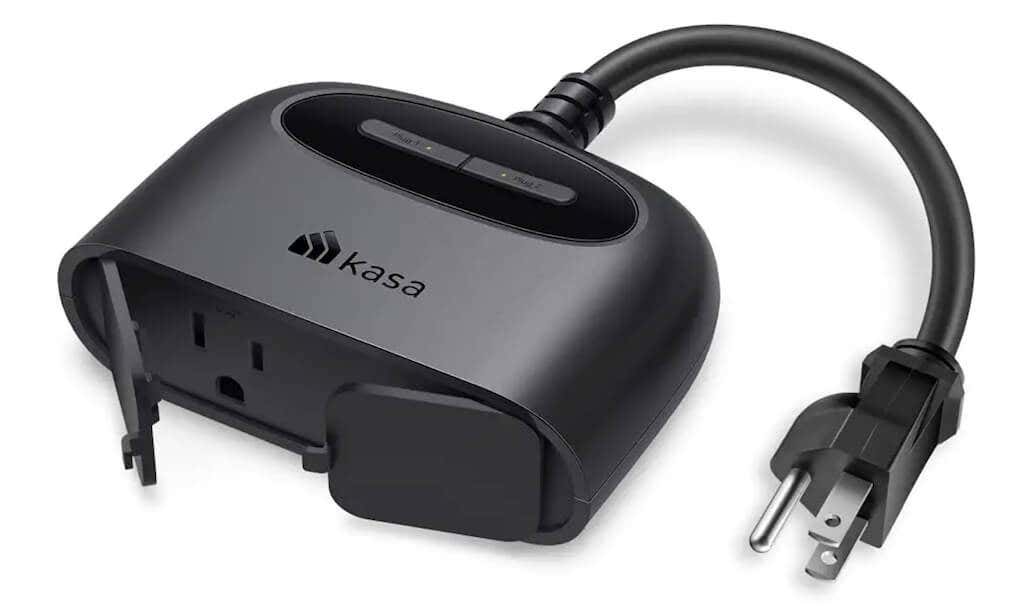
Your living room isn’t the only place that requires holiday decorations. If you have a balcony or a patio, you’ll want to put some Christmas lights there.
Of course, you can use smart outdoor lights to decorate these areas. But you can also use your old lights with a smart outdoor plug. These smart plugs are water-resistant and can switch your lights on and off at the right time every day.
Use Your Video Doorbell’s Holiday Chimes to Set the Mood
You can get your guests in the mood for Christmas at your front door with a festive holiday ringtone from your video doorbell.
Whether you have a Google Nest smart video doorbell or a Ring doorbell, you can change your ringtone to a fun Christmas tune or other holiday sounds. You can add holiday music to your doorbell using the Google Home / Nest app or the Ring app.

Aside from Christmas-related tunes, Nest offers timely chimes for different seasons and holidays, including Halloween.
How toUse Smart Home Devices During your Holiday Party
Besides decorating your house, your smart gadgets can help you start your party. Here’s how you can use your smart tech to entertain your guests during the holiday season.
Use a Voice Assistant to Run Your Party
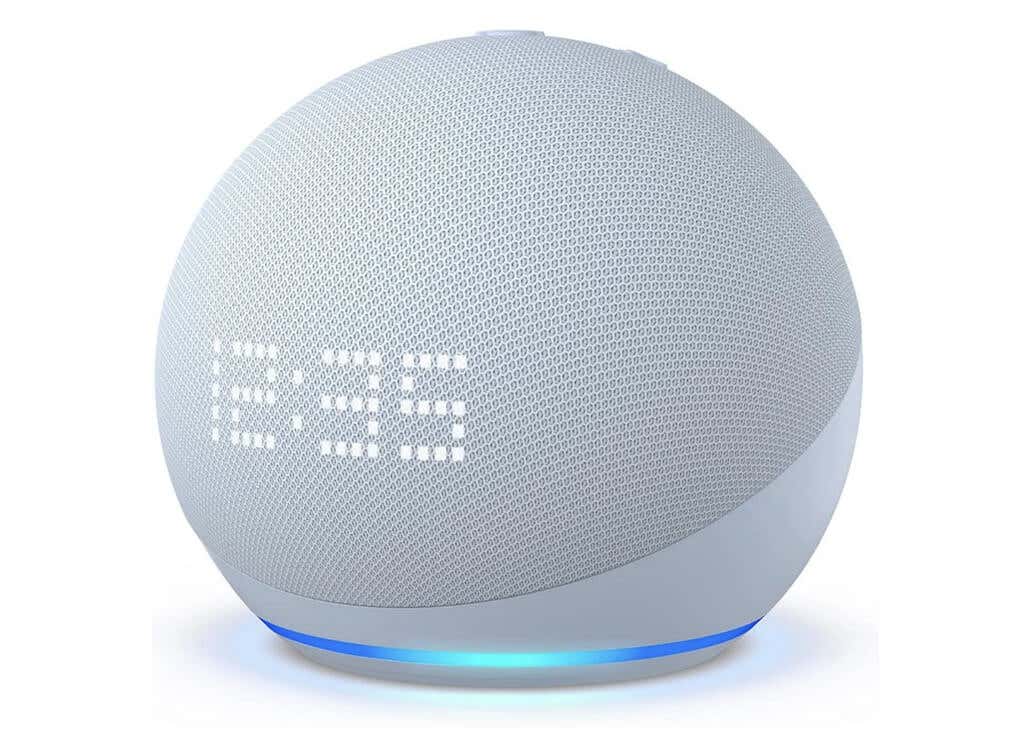
A smart speaker can do the same job if you don’t own a voice assistant yet. Many modern manufacturers include a pairing feature in their Bluetooth speakers, which allows you to connect multiple speakers around your house and play your music in stereo.
Use a Video Projector to Play Christmas Videos
If you have a plain wall or a window that you can use to set up a projector, you can spruce up your Christmas party with some fantastic holiday visuals. It could be videos of your previous holiday celebrations, music videos where Santa Claus makes an appearance, or videos of snow falling or a fireplace burning – whatever fits the theme of your party best.
Nebula Capsule 3 Laser
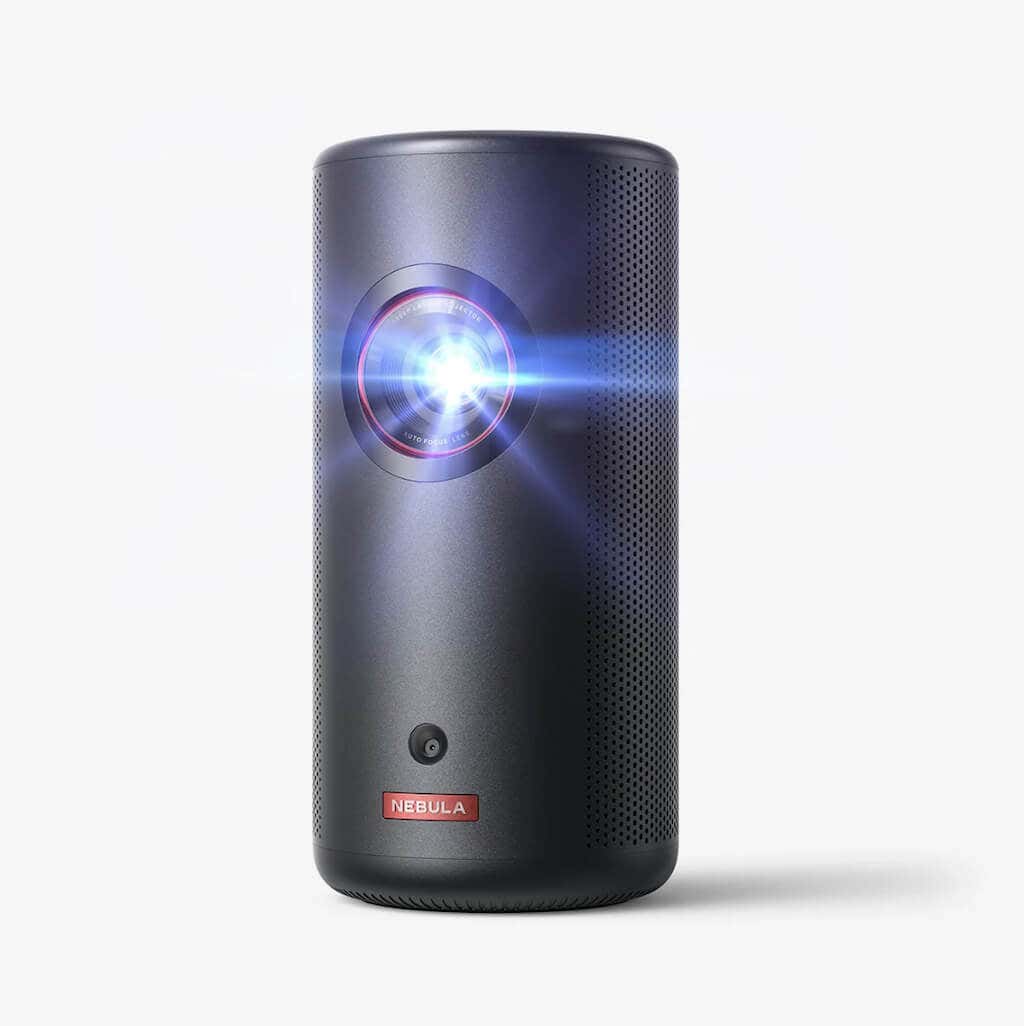
Need a portable video projector? Check out the Nebula Capsule 3 Laser by Anker – a portable projector that offers impressive specs for an affordable price.
This new portable laser bright projector by Anker is a great choice for playing holiday videos and movies indoors or outdoors. The Capsule 3 Laser weighs just 2 pounds, so you can easily carry it around. When using outdoors, you don’t have to worry about power thanks to the 52Wh built-in battery that can last up to 2.5h.
The Capsule 3 Laser displays 300 ISO Lumens of brightness in 1080p HD – perfect for any space lit by LED fairy lights. You can use Google Assistant to control it with voice commands or the Nebula Connect app to activate the projector right from your smartphone.
Use Your Action Camera to Make Memories
Everyone coming to your party will have smartphones to take pictures together. However, most of those shots will be unusable due to a lack of lighting and people not being able to stand still for a few seconds when the music’s playing.
If you want footage of the party to watch and share with your friends and family later, you can set up your action camera right in the middle of the party to record everything. If it’s a 360-degree camera , a fun idea would be to place the camera in the middle of your living room and leave it to record the whole party in timelapse mode.
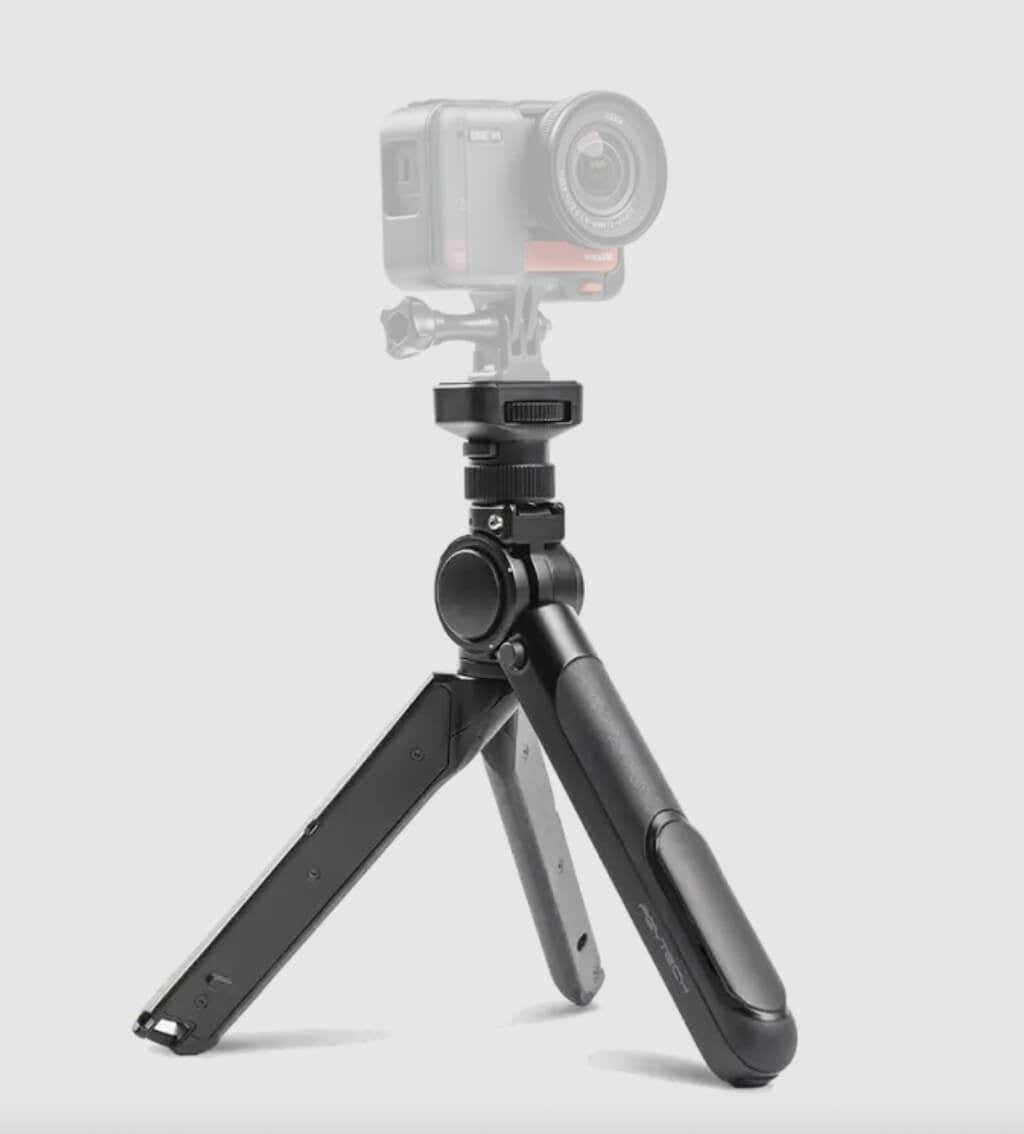
Don’t forget to warn everyone about the camera presence in advance and make sure nobody feels uncomfortable about the recording.
How to Use Smart Home Devices for Post-Holiday Recovery
Finally, your smart gadgets can help minimize the after-effects of the party. Here’s how smart tech can make your “morning after” easier by taking care of simple tasks like waking up your family and tidying up the place after the party.
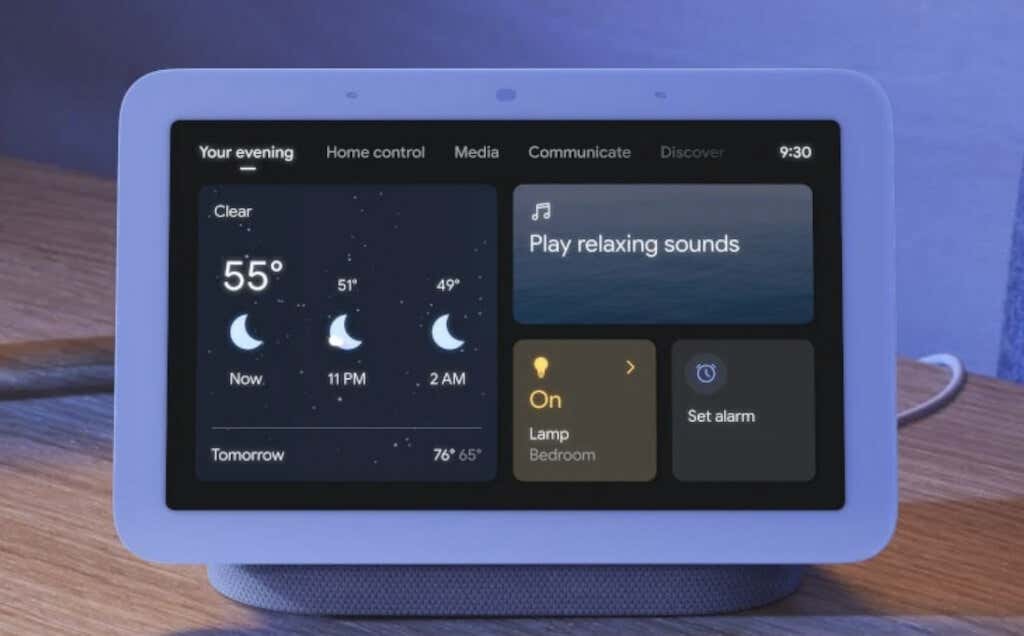
Use a Smart Alarm Clock to Wake Up to Christmas Carols
While getting up on Christmas day is easy for many people, waking up after a big party that you had to prepare and host yourself can be challenging even on such a day. Hearing cheerful Christmas carols first thing in the morning can help you restore the holiday spirit and enjoy this day to the fullest.
Use Smart Kitchen Appliances for Hassle-free Christmas Morning
Breakfast on a Christmas day is just as important as Christmas dinner. After a big Christmas party the previous night, you might not have the strength to make Christmas breakfast special as well. That’s where your smart kitchen appliances can help you.
Many simple tasks like brewing coffee, making tea, or making toast for the whole family can take up a lot of your time. Smart kitchen gadgets can help you prepare breakfast with just a few clicks and keep it warm until everyone gathers around the table.
Stagg EKG Pro Smart Kettle by Fellow
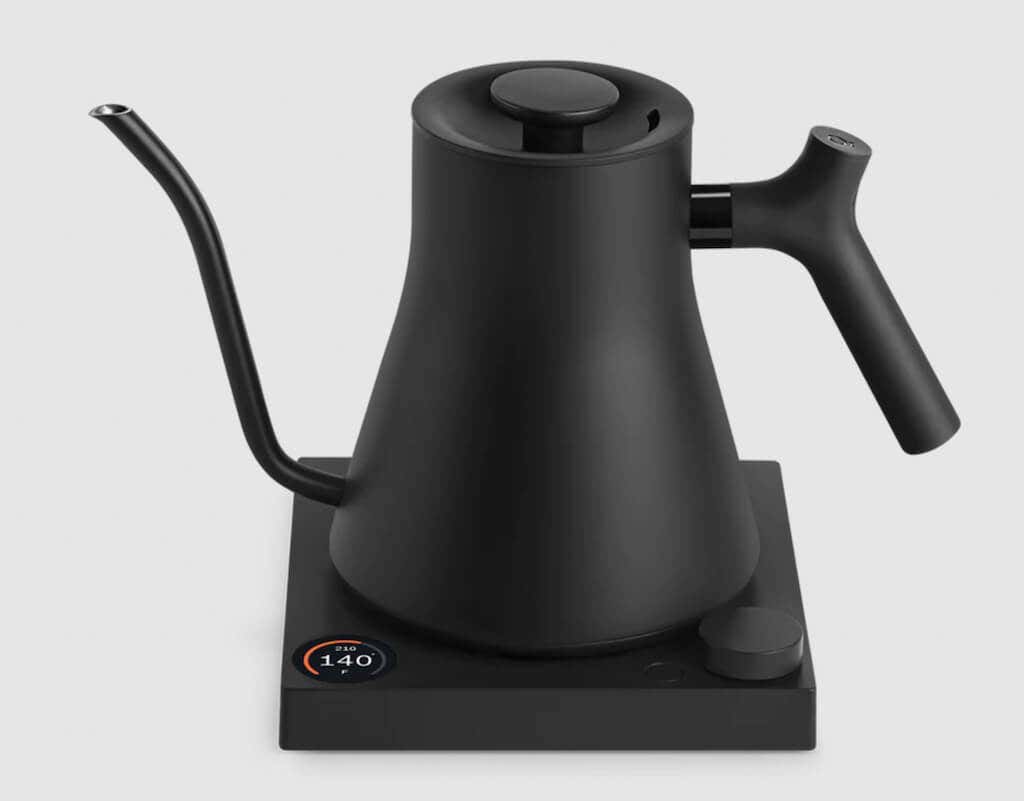
If your family members have their own drink of choice, a smart kettle is great for fast and convenient water boiling. Drinks like pour-over coffee, oolong tea, and English breakfast tea have their own boiling temperatures. You can set your smart kettle to the ideal brewing temperature and keep it hot for 15, 30, 45, or 60 mins.
If you’re also after a stylish look, we recommend the Stagg EKG Pro smart electric kettle by Fellow. This elegant gooseneck kettle will fit in any type of kitchen. It comes with a full-color LCD screen that you can set to communicate with you in English, French, or Spanish.
In case you need to check what temperature to set for your drink, the Stagg Pro has a guide mode to help you choose a preset temperature for different coffee brewing styles and different types of tea.
Among other nifty features, your Fellow Stagg kettle can alert you with a chime when the water is ready. You can also set a schedule for preparing the water for making tea or coffee when you wake up.
Use a Robot Vacuum for Post-Party Cleaning
Whether you’re planning a crowded Christmas party or a cozy evening with family, your house is bound to get messy after the holidays. The dreadful thoughts about post-party cleaning can quickly ruin any holiday spirit. A robot vacuum ensures you don’t have to think about cleaning your floors again.

Modern robot vacuums allow you to set cleaning schedules and automatically vacuum and mop your floors at a specific time every day. Some models, like the Trifo Lucy, even double as security cameras you can use to spy on your pets while you’re away from the house.
Use a Smart Massager for Stress Relief
Organizing even the most exciting party can be stressful and tiring. You deserve to take some time for yourself and properly relax your mind and your muscles. A smart massager can help you do just that.
Breo iNeck 3 Pro Smart Massager
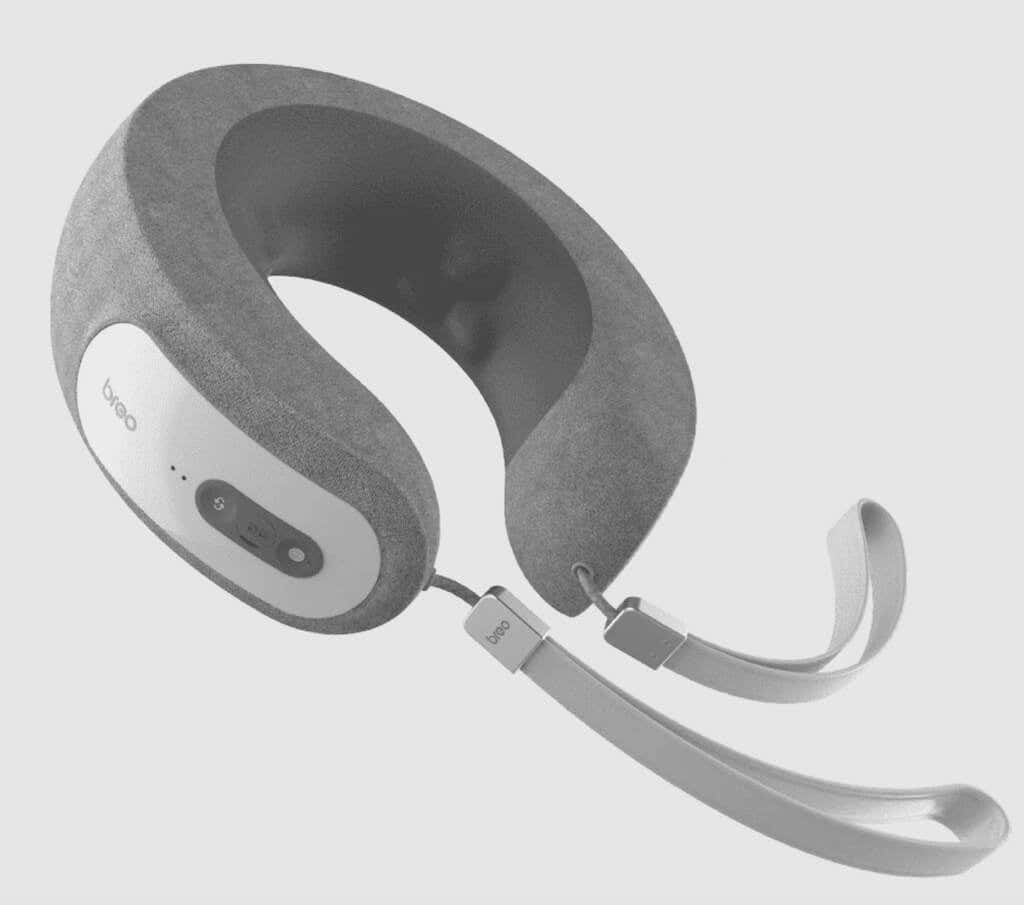
Neck and back pains are the most frustrating pains that cause discomfort. When you don’t have anyone to give you a neck massage, the next best thing is to use a smart neck massager like the Breo iNeck 3 Pro.
This massager is perfect for relaxing in a chair or bed after a long day and taking it with you on a trip or to an airplane, as it’s shaped like a travel pillow. You can use this device hands-free and control it via the Breo app.
The iNeck 3 Pro has three modes that allow you to massage every part of your neck and upper back. There’s also a setting that turns on the hot compress and a speed setting to fine-tune your massage session. If you have a sensitive neck, it’s best to keep your massage sessions under 5 mins. And if you need the iNeck 3 Pro to work its magic, prolong your massage session to 10 mins to eliminate any strains and aches in your neck area.
The device’s battery lasts about 2 hours on a single charge, so you won’t have to worry about charging your neck massager more than once a week.
What About Sustainable Home Decorations?
Smart home devices can be of great help when decorating your home and organizing holiday parties. However, they aren’t always ideal if you want to reduce energy use and costs.
An alternative way to decorate your house for the holidays is to replace Christmas lights with candlelights. Egloo – a handmade candle heater – is a great example of eco-friendly house decor.

Egloo is a multifunctional eco-friendly device that functions as a candlelight, a heater, an oil diffuser, and an air humidifier. On their site, you can order your Egloo in natural terracotta color or select one of the fancy designs, including a Christmas-themed ceramic dome.
While it won’t replace your electric heater, this beautiful device will fill your living room with a nice essential oil scent and moisten your home air. Besides, Egloo is just very aesthetically pleasing and will add a unique feel to your room.
- How to Reset Google Home or Nest Mini
- How to Install a Nest Thermostat
- 5 Best Ring Doorbell Alternatives
- How to Create Alexa Skills for Your Business or Employees
- How to Create Skills With Alexa Blueprints
However, you may be looking for something in particular. Maybe you want a trivia game about your family, a fairy tale where your child is the star character or a guide to your home and neighborhood for a houseguest.
Well, guess what? You can make your own skill using Alexa blueprints. Here’s how!
Browse Alexa Skill Blueprints
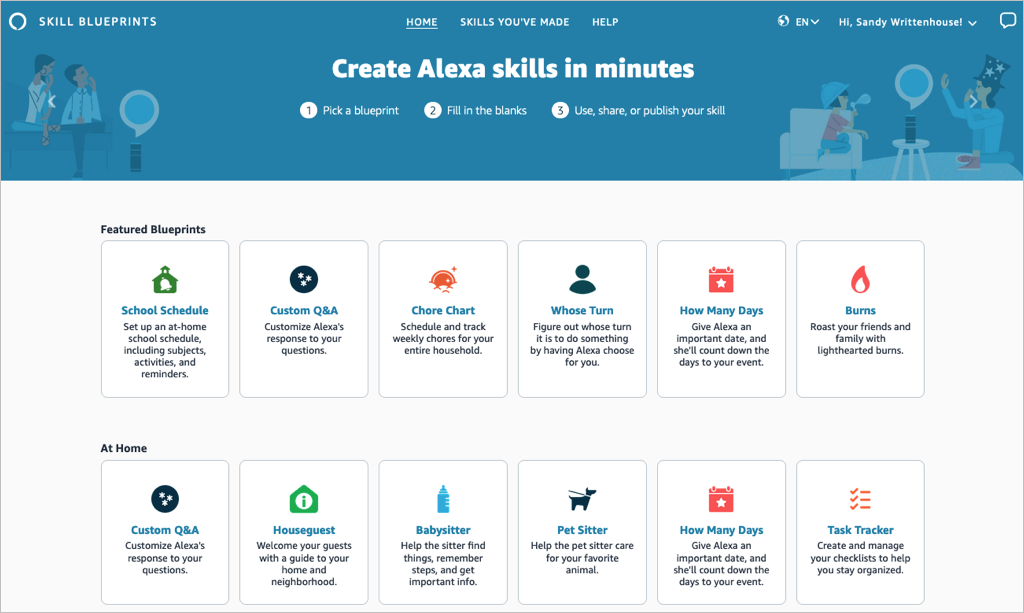
Select a blueprint to view more details and check out examples. This helps you see how the babysitter blueprint can help when you’re away, or the family jokes blueprint can liven up quality time.
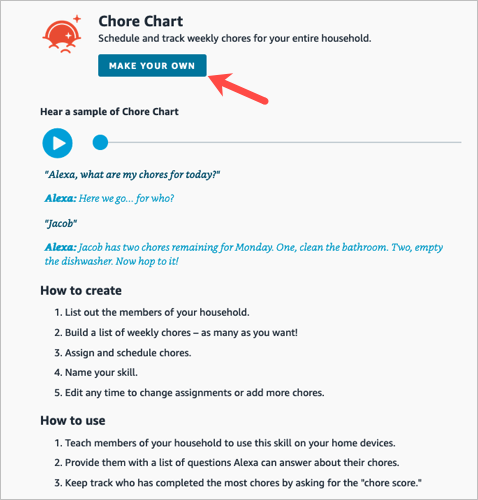
If you find one you want, pick Make Your Own on the skill information screen.
Create a Skill
The steps are the same whether you’re creating a skill with a blueprint on the web or on your mobile device. However, those steps may differ depending on the type of blueprint you select.
For instance, you’ll enter different information for a birthday trivia skill compared to one for flashcards, the pet sitter, or bedtime stories. You can see these steps when you select a blueprint to view its details.
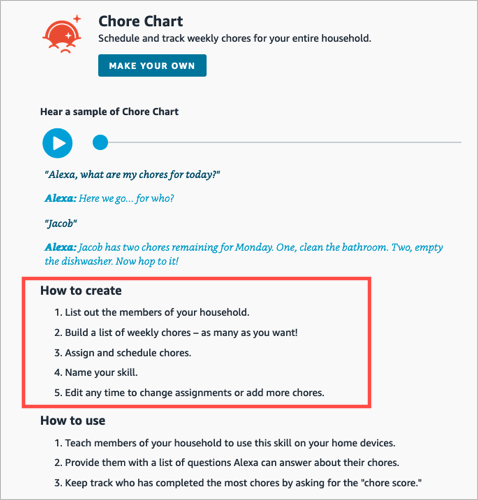
To show you just how easy it is, we’ll create one on each device.
Make a Chore Chart Skill on the Web
For this first example, we’ll use the Chore Chart blueprint to create a skill on the website. This skill helps keep track of household chores and who is responsible for each one.
- Visit the Alexa Blueprints website, sign into your Amazon account, and choose a blueprint.
- As described above, select Make Your Own directly below the skill name. If you see a short tutorial for building the skill, choose Start Now when you get to the end.
- Next, you’ll be prompted to replace the details for the skill with your own. For the Chore Chart, we’ll fill in the names of our household members and chores.
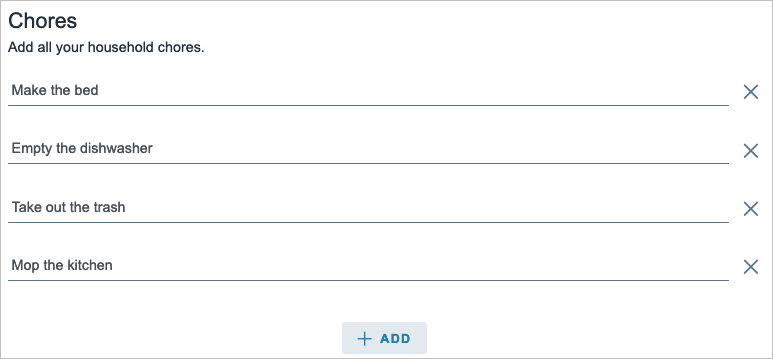
- Select Next on the top right to move to the next step.
- Here again, you may be asked to enter more details for the skill. For the Chore Chart blueprint, we assign the chores to the household members. Just keep in mind that the number of prompts and requested details depend on the exact skill and blueprint.
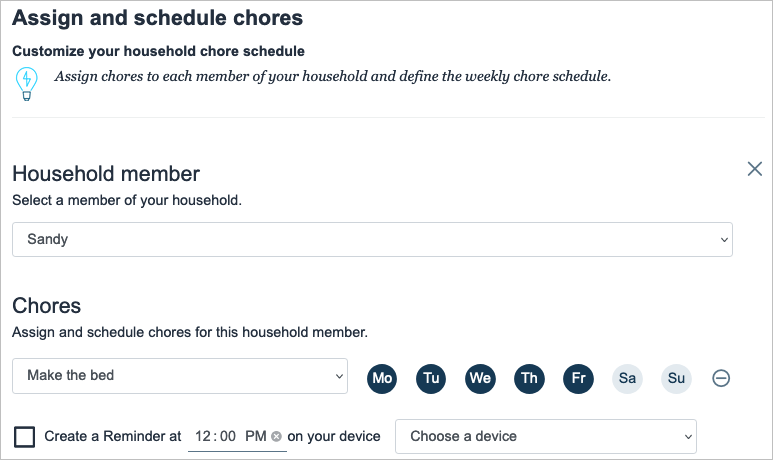
- Select Next to continue.
- One step that you’ll find in most blueprints is for customizing the experience. This refers to how you interact with Alexa for that particular skill. For instance, you can enter introduction phrases for when someone opens the skill and then other phrases for when someone completes a chore. These are the phrases Alexa uses for that specific skill.
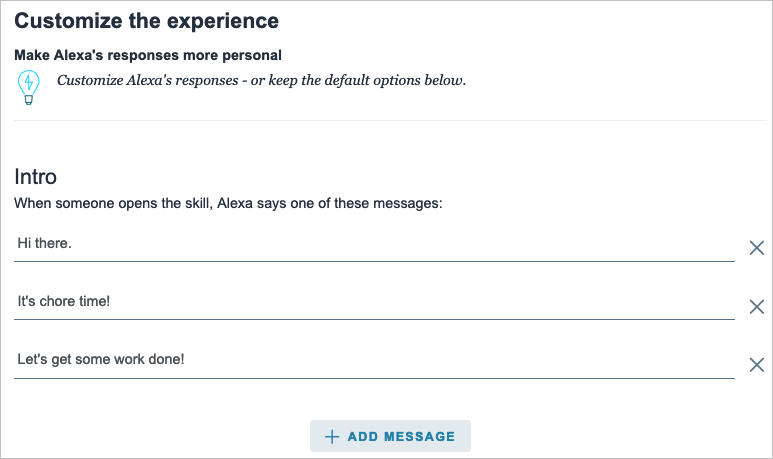
- Select Next to finish entering the details.
- The final step in creating a skill is to give it a name. Try to use something meaningful that you’ll remember but also something simple enough for Alexa to recognize.

- Select Next one last time to create the skill.
After a few moments to process all the information, your skill should be ready to use!

Make a Whose Turn Skill in the Mobile App
For this next example, we’ll use the Whose Turn blueprint to create a skill in the Alexa app. This skill prompts Alexa to choose whose turn it is to do something.
- Open the Alexa app on Android or iOS and select the More tab.
- Pick See More in the top section and choose Blueprints .
- Browse the options by category, just like on the website. Then, select the one you want to use and tap Make Your Own .
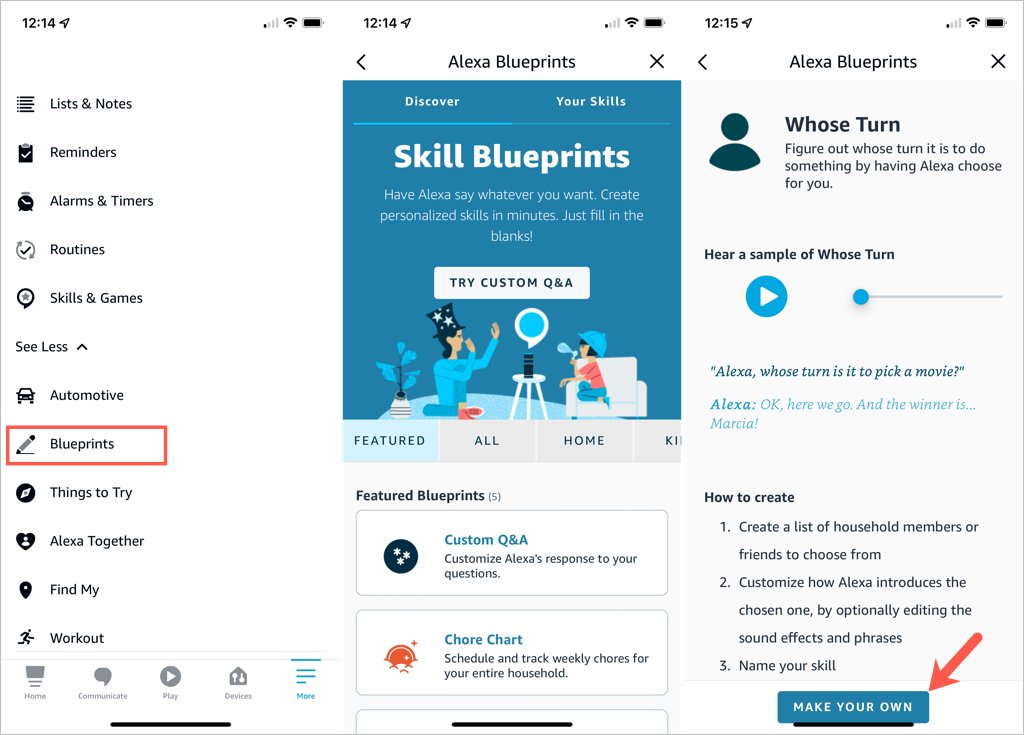
- Replace the details for the skill with your own. For the Whose Turn skill, we’ll add the names for Alexa’s choices.
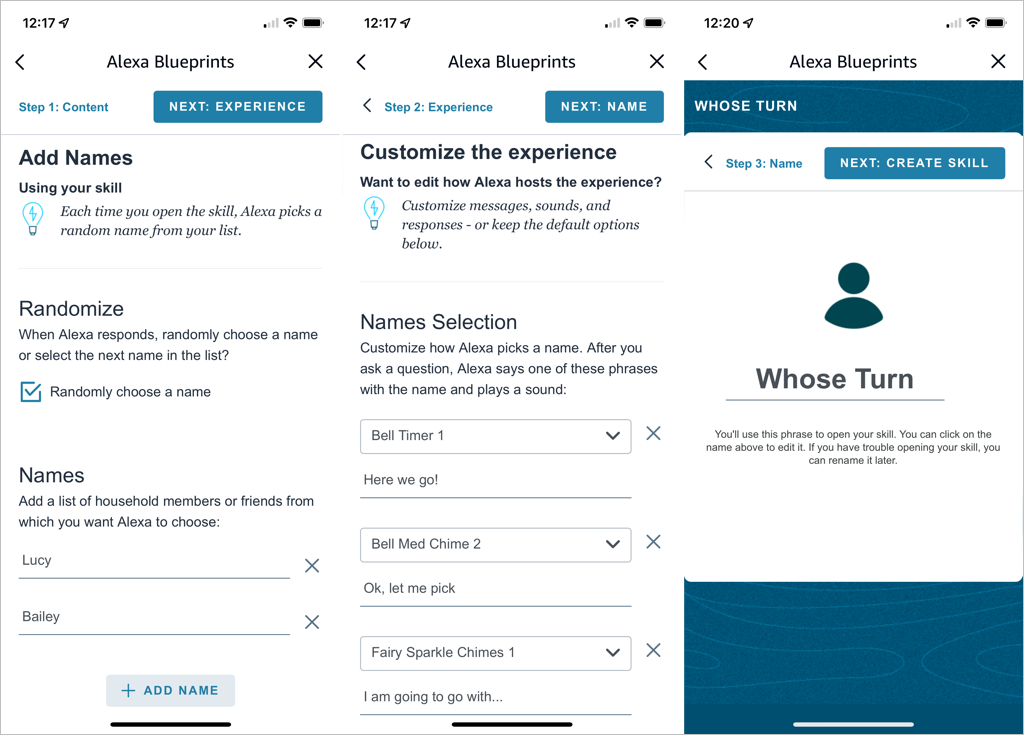
- Tap Next on the top right to continue.
- The next step for the Whose Turn skill is to personalize the experience. This allows you to customize how Alexa picks a name. After you ask a question, Alexa uses the phrases and sound effects you select in this section. Optionally, you can scroll down for additional customization options.
- Tap Next to name your custom skill.
- Select the text on the name line to edit it or enter your own. Again, pick a meaningful name and one that’s easy for Alexa to recognize.
- Tap Next to create the skill.
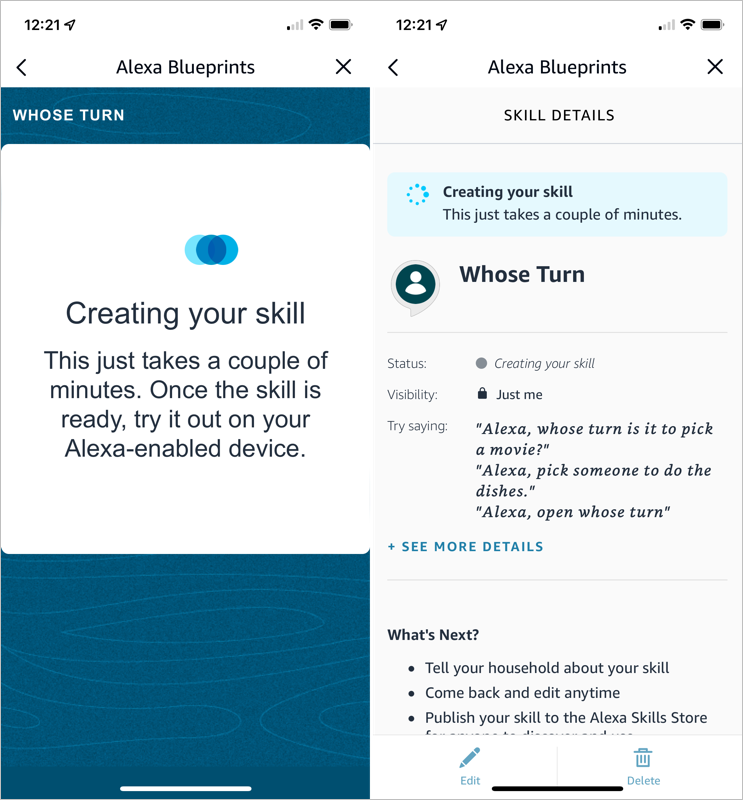
You’ll see the progress as your skill is created and a confirmation when the process completes. You can tap the X on the top right to exit when you finish reviewing your skill.
Edit Skills You Create
Once you create a skill using Alexa Blueprints, you may want to make adjustments to it. You can do this on the web and in the mobile app too.
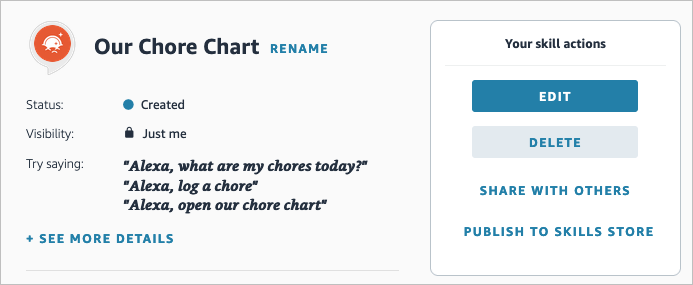
Your Skills on the Web
- Visit the Alexa Blueprints website and sign in. Select Skills You’ve Made at the top.
- You’ll see a list of your skills. Choose Details to the right to open the one you want to edit.
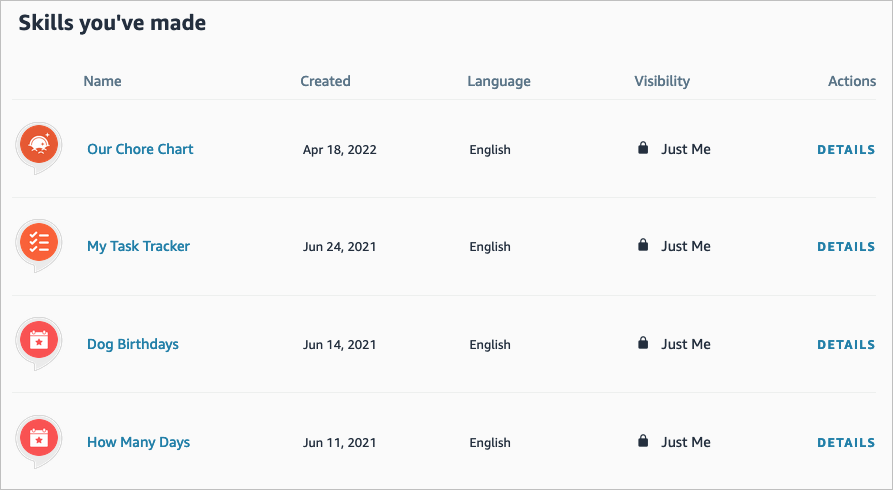
- On the right side, select Edit or Delete . You’ll notice you can also pick Share With Others to make it easy for your family or friends to access or Publish to Skills Store for other Alexa users.
Your Skills in the Mobile App
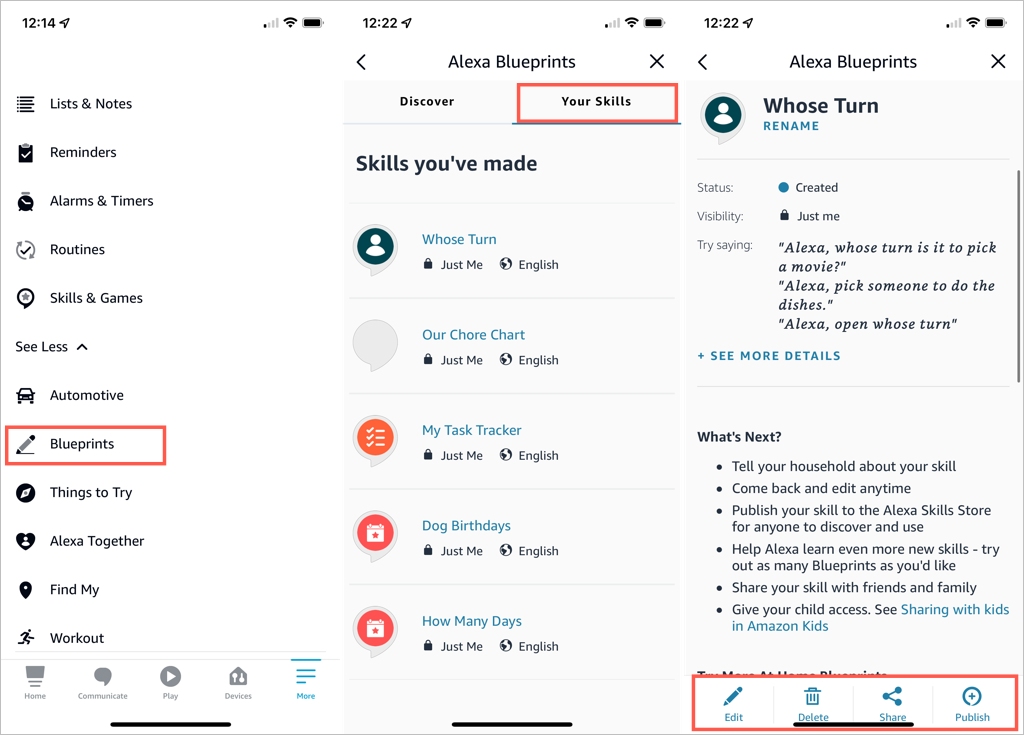
You can edit your custom skills easily in the Alexa mobile app as well.
- Go to the Menu tab.
- Select See More > Blueprints .
- On the Your Skills tab, select the blueprint you want to edit.
- Use the buttons at the bottom to make your changes.
Take Advantage of Alexa Blueprints
Even though there are many premade skills you can pick from, creating your own Alexa skills gives you great ways to personalize the experience on your Alexa devices, get tasks done, or have a little fun !
- How to Create Alexa Skills for Your Business or Employees
- How to Shop With Alexa for All Your Shopping
- 10 Cool Alexa Tricks to Try With Your Amazon Echo
- How to Change Alexa Language to Spanish and Other Languages
- Why Alexa Is Flashing Yellow, Green, and What Does it Mean?
