Face ID is a convenient and fast way to unlock your phone, authorize transactions, or log into various services. So it can be annoying when you get a message that “Face ID Has Been Disabled” on your iPhone or iPad.
This isn’t a serious issue in most cases, but if you want to use Face ID, we’ll walk you through some common troubleshooting steps.
What Is Face ID Exactly?
Face ID is a cool feature Apple developed for iPhone and iPad devices. It’s a biometric authentication system that uses your face to unlock your phone, authenticate purchases, and do other secure things. It was first introduced with the iPhone X in 2017.
Face ID is supported on these iPhones and iPads:
- iPhone 13 Pro Max, iPhone 13 Pro, iPhone 13 mini, iPhone 13
- iPhone 12 Pro Max, iPhone 12 Pro, iPhone 12 mini, iPhone 12
- iPhone 11 Pro Max, iPhone 11 Pro, iPhone 11
- iPhone XS Max, iPhone XS, iPhone XR
- iPhone X
- iPad Pro 12.9-inch (3rd generation), iPad Pro 12.9-inch (4th generation)
- Pad Pro 11-inch, iPad Pro 11-inch (2nd generation)

While a neat feature, Face ID has come at the cost of Touch ID, Apple’s fingerprint sensor technology. Many people miss Touch ID because it’s fast, reliable, and convenient. This became especially apparent during the pandemic when everyone was wearing masks!
In truth, biometric unlock technology on phones may be a security risk rather than a high-tech security feature. However, if you want this convenient feature to work, let’s see how to deal with this error message.
What Does “Face ID Has Been Disabled Mean”?
If you see the message “Face ID Has Been Disabled” on your iPhone or iPad, the Face ID feature is not working. This means you won’t be able to use Face ID to unlock your device, authenticate purchases, or perform other security actions. Don’t worry, though; you can try a few troubleshooting steps to get Face ID working again.
The error usually includes the text “a problem was detected with the TrueDepth camera.” The TrueDepth camera is a special camera system found on specific Apple devices (like the iPhone X and later models) that are used for Face ID. It’s what makes Face ID possible!
The TrueDepth camera system uses a combination of infrared cameras and dot projectors to create a 3D map of your face. This map is used to recognize your face and make sure it’s really you. The TrueDepth camera system also uses machine learning algorithms to continually improve and refine its recognition capabilities.
So, the TrueDepth camera is essential for Face ID because it allows your device to quickly and accurately recognize your face and ensure it’s you. Without it, Face ID wouldn’t be possible! So many of the fixes for this issue relate to this camera system.
1. Reboot Your Device
Sometimes restarting your iPhone can resolve Face ID issues! It’s a quick and easy step to help get your Face ID working again.
Here’s how to restart your iPhone:
- Press and hold the side and volume buttons until the power off slider appears.
- Drag the slider to turn off your iPhone.
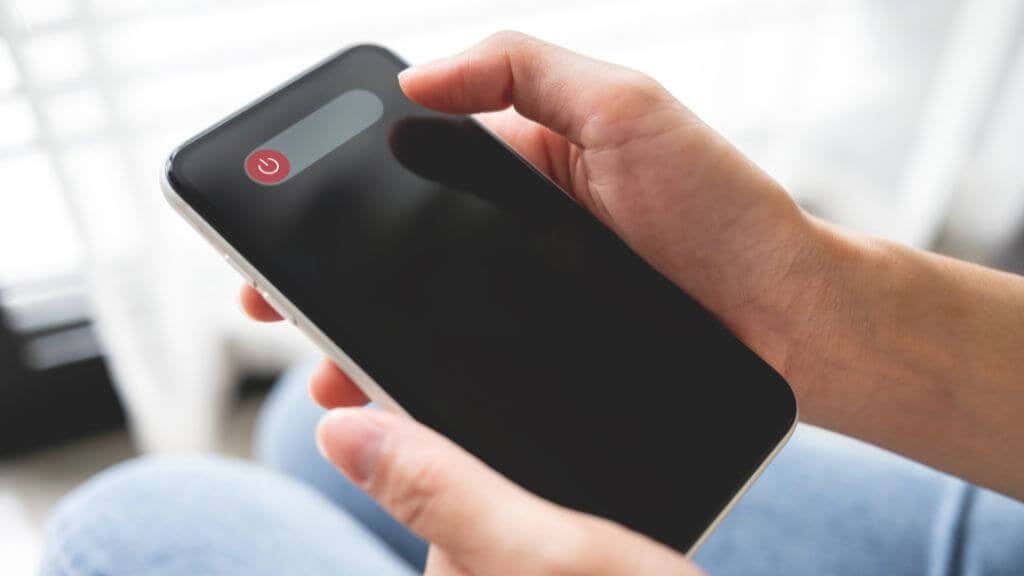
- After your iPhone turns off, press and hold the side button again until you see the Apple logo.
And that’s it! Restarting your iPhone can sometimes resolve software-related issues, including Face ID problems. Try it and see if it helps get your Face ID working again.
2. Check for iOS or Face ID Updates
If you need help with Face ID, one of the first things you can try is checking for updates. Updating your iPhone software and Face ID settings can sometimes resolve the issue.
Here’s how to check for updates:
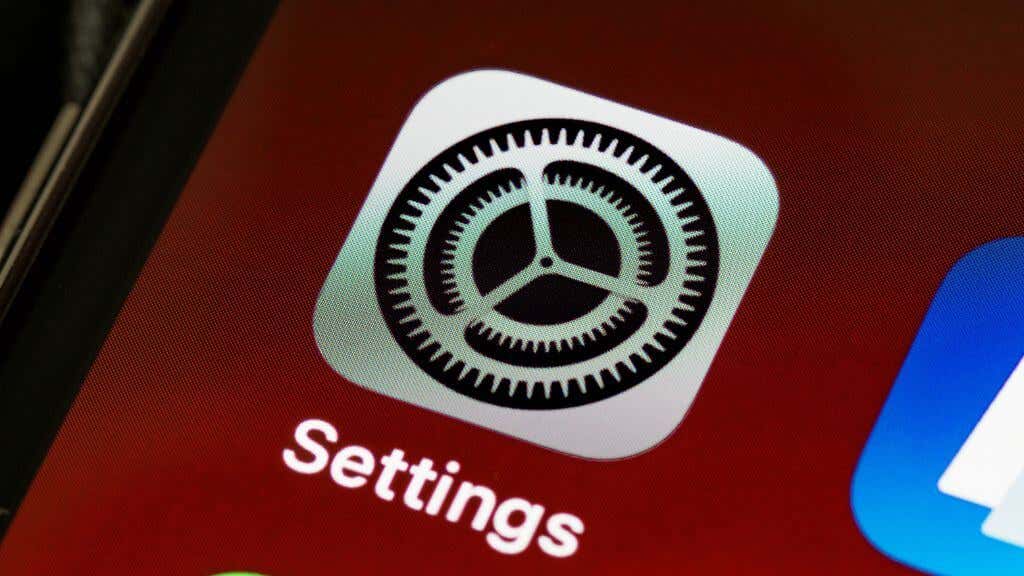
- Go to Settings .
- Select General .
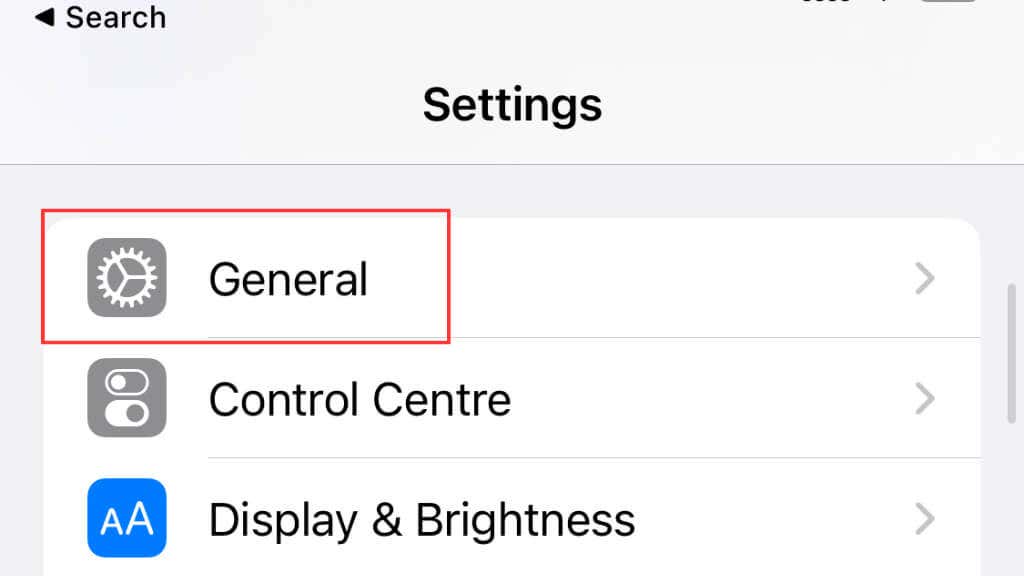
- Select Software Update .
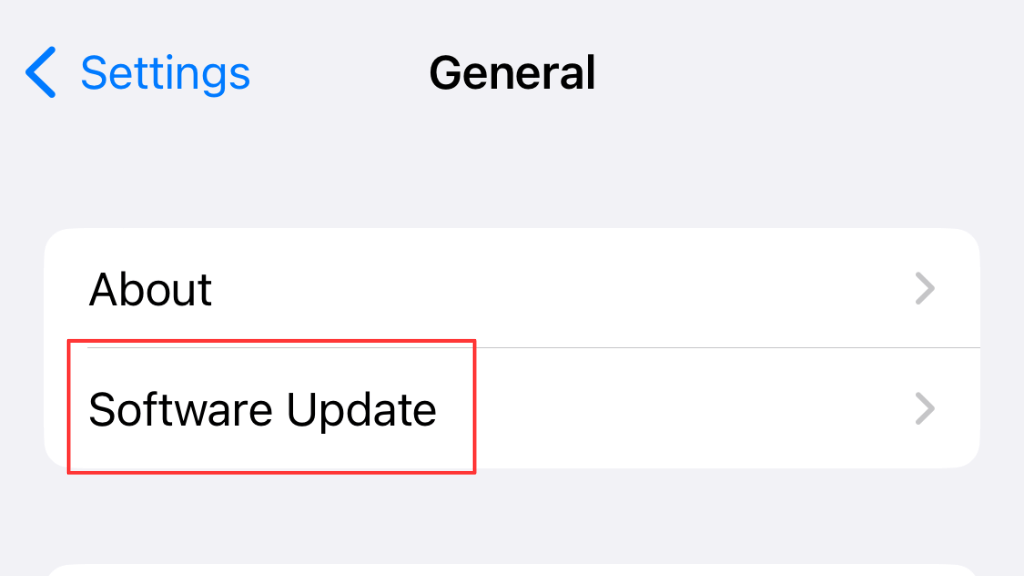
- If there’s an update available, follow the on-screen instructions to download and install it.
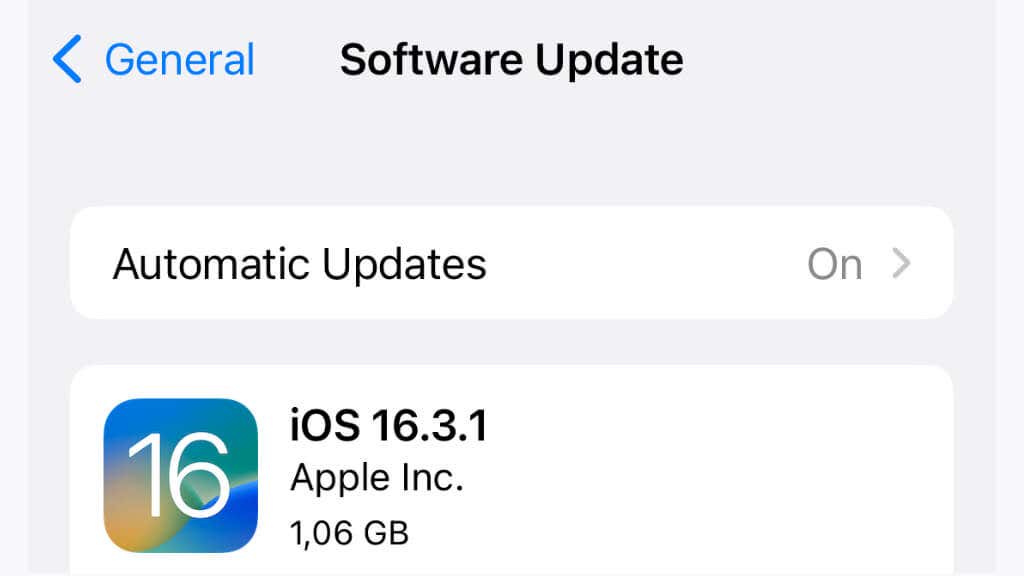

After installing updates, try Face ID again and check that the error is gone.
3. Reset Face ID
If restarting your iPhone or updating it didn’t resolve the Face ID issue, you can try resetting Face ID. Resetting Face ID will delete your current Face ID data and let you set it up again from scratch.
Here’s how to reset Face ID:
- Go to Settings.
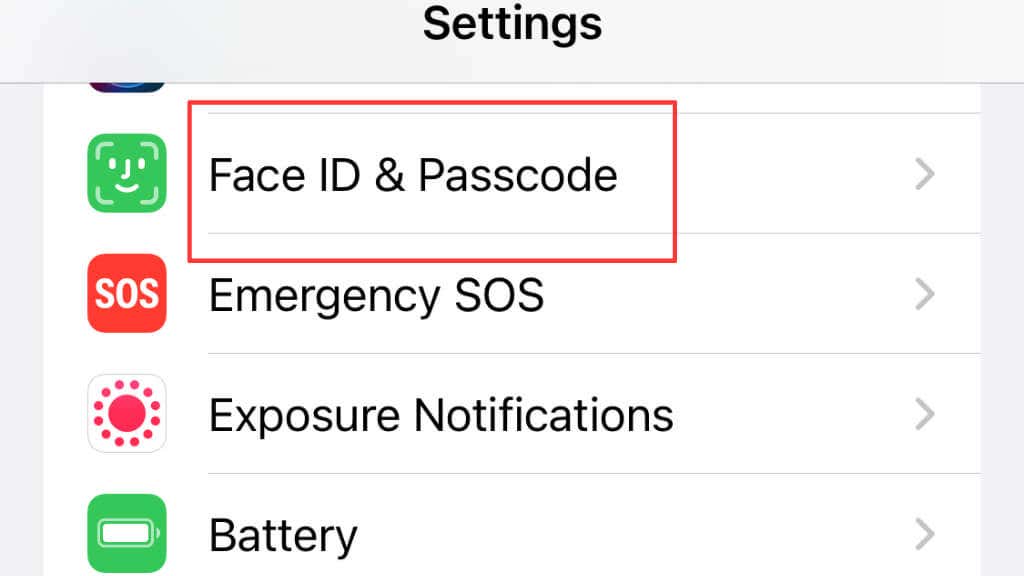
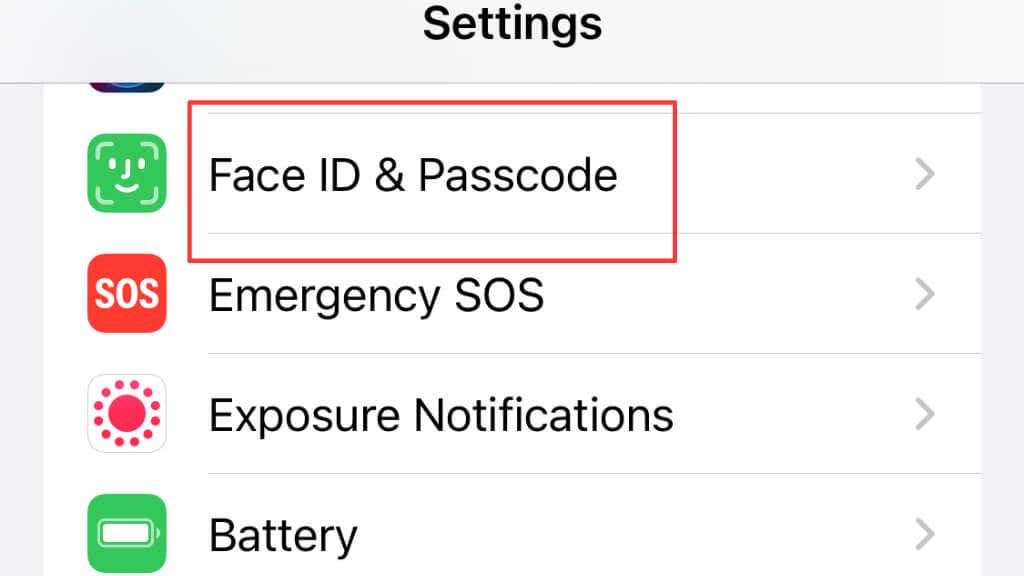
- Select Face ID & Passcode .
- Enter your passcode.
- Select Reset Face ID .
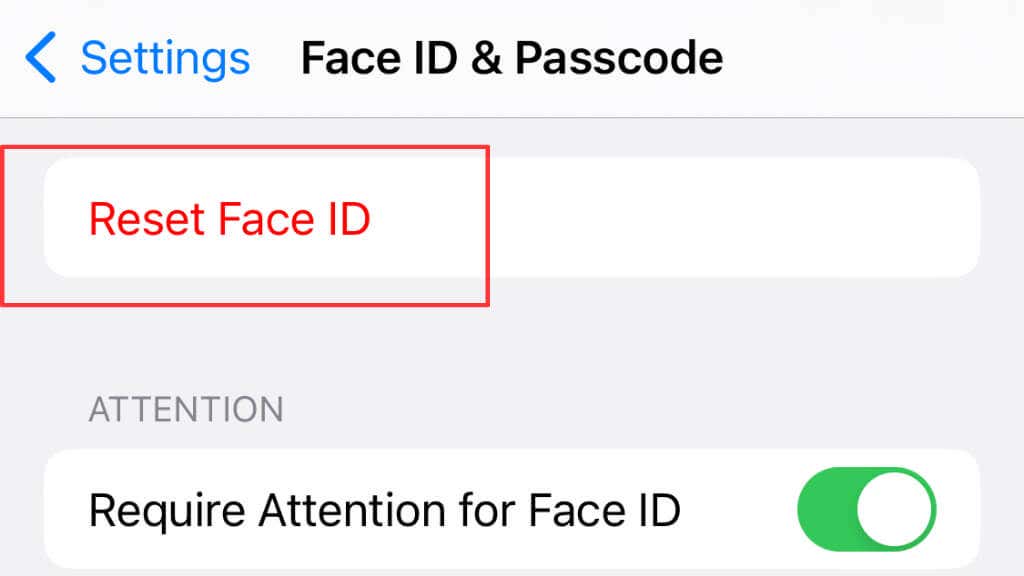
- Enter your passcode to confirm the reset.
- Follow the on-screen instructions to set up Face ID again.
Resetting Face ID can sometimes resolve Face ID issues, so try it if your Face ID isn’t working. And don’t worry; resetting Face ID won’t affect any other data on your iPhone.
4. Make Sure You’re Complying With Face ID Attention Requirements

Face ID requires that you look directly at the device with your eyes open. This is an important security feature to make sure it’s really you who’s using the device.
If you’re having trouble with Face ID, make sure you’re meeting the attention requirements. Here are a few things to keep in mind:
- Make sure your eyes are open and look directly at the device.
- Make sure you’re holding your device at the right distance from your face.
- Ensure enough light so the TrueDepth camera system can accurately scan your face.
- Finally, ensure your face is unobstructed and fully visible to the TrueDepth camera system.
If you’re still having trouble with Face ID, even after verifying the attention requirements, try one of the other troubleshooting steps. But first, make sure you’re meeting the attention requirements so that Face ID can work its magic!
5. Check Your Face Data
You may not notice it, but the face you see in the mirror every day differs from the one the day before. Over time, our faces can change so much that detection may become an issue.
If you’re still having trouble with Face ID, you can check your face data to ensure it’s accurate and up to date. Here’s how:
- Go to Settings .
- Select Face ID & Passcode .
- Enter your passcode.
- Select Set Up An Alternative Appearance .
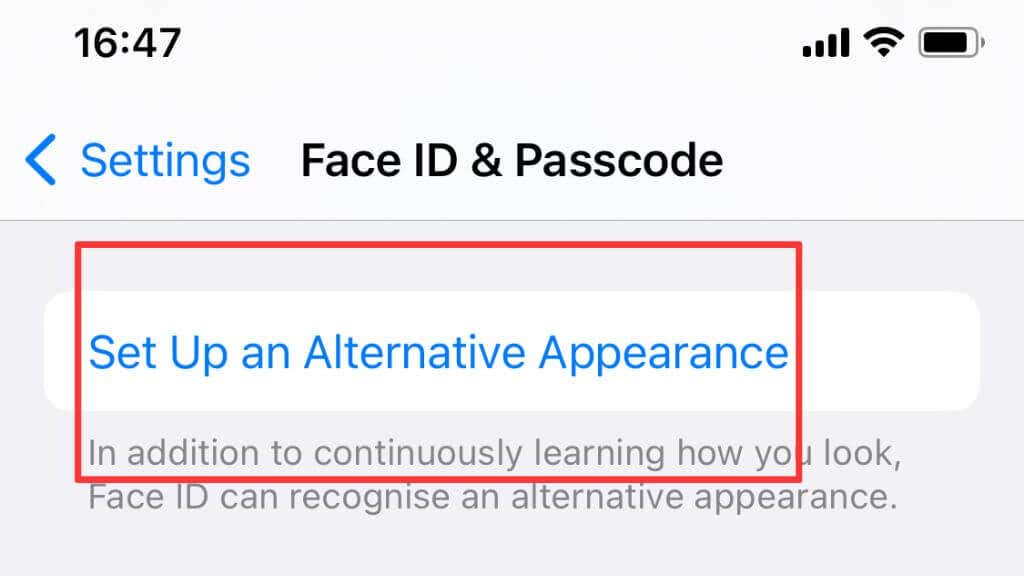
- Follow the on-screen instructions to add a new face or update your existing face data.
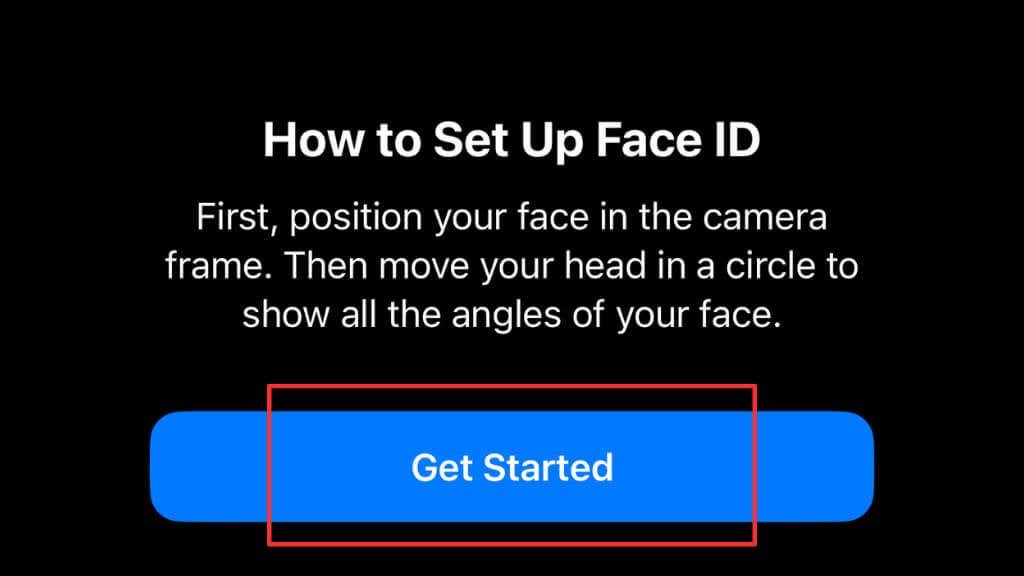
If your face data is outdated or inaccurate, your Face ID may not work properly. By checking your face data, you can help make sure Face ID is working its best.
6. Clean The TrueDepth Camera
The TrueDepth camera is an important part of Face ID, and keeping it clean is important for accurate face scanning. Here’s how to clean the TrueDepth camera:
- Turn off your iPhone and unplug it from any power source.
- Use a microfiber cloth to wipe the lens of the TrueDepth camera gently.
- Make sure the cloth is dry and free of any debris or residue.
- Turn on your iPhone and test Face ID to see if it’s working properly.
7. Check for Third-Party Interference

Sometimes, third-party apps or accessories can interfere with Face ID and cause problems. Check for third-party interference by doing the following:
- Disable any third-party apps or accessories that might be causing the problem.
- Uninstall any recently installed apps or accessories that might be causing the problem.
- Restart your iPhone and test Face ID to see if it’s working properly.
If Face ID starts working properly after disabling or uninstalling a third-party app or accessory, you’ll know that it was causing the problem. You can then either keep the app or accessory disabled, or contact the developer for further assistance.
8. Get in Touch With Apple Support
In rare cases, Face ID problems can be caused by hardware issues. If you’ve tried all the troubleshooting steps and you’re still having trouble with Face ID, you may need to contact Apple Support or take your iPhone to an Apple Store for a hardware diagnosis.
You can also visit the Apple Support website for more information and resources or call Apple Support for personalized help. Apple Support is there to help you get the most out of your iPhone, so don’t hesitate to reach out if you’re having trouble with Face ID!
- How to Use Your iPhone as a USB Drive on Mac and PC
- How to Turn Off Password Suggestions on iPhone
- How to Accept Invite to Shared Album on iPhone
- How to Send Emails on iPhone
- iPhone Not Sending Emails? 10 Fixes to Try
Passcodes suck. They take a long time to type in, it’s easy to forget them and most people probably pick something really easy to guess, which hurts their security. This is why biometric unlock methods are so popular.
All but the most inexpensive smartphones now have fingerprint scanners built-in. One little touch and your phone unlocks, which is pretty convenient. But more devices are also now using facial recognition instead since screens are getting so large. Apple is no different and offers devices that use both of these technologies to secure them. Technologies that are officially known as Face ID and Touch ID.

But how do Face ID and fingerprint scans work?
What Are Face ID & Touch ID?
The obvious answer to this question is that Face ID is a face unlock system and Touch ID is a fingerprint unlock system. Job done. End of article. Right? Well, it’s a little more complicated than that because although lots of different companies use faces and fingerprints to unlock their devices, they don’t all work in the same way.
These two biometric systems are Apple’s proprietary solutions to the biometric problem. This matters because companies like Apple feel that their approach and technology are more secure than their competition. It matters because hackers and other security specialists have managed to fool systems like these in the past.
As you’d expect, there’s a race between the creators of biometric security sensors and those who want to defeat them. You must know how the sensors on your Apple device work and what their limitations are.
How Does Face ID & Touch ID Work?
Touch ID is Apple’s most mature biometric system and you’ll find it on certain models of iPhones, iPads, and MacBook Pros. Its sensors use the sapphire crystal as the button material. This is very hard and incredibly resistant to scratches, which is why high-end smartphone cameras also use sapphire lens covers.
When you place your finger on the button, a very high-resolution image is taken of your fingertip. A proprietary software algorithm then examines the image, transforming your fingerprint into pure math. This is then compared to the stored mathematical transformation of the fingerprint that was registered when Touch ID was set up. If they match, then the device unlocks.

Face ID works in a pretty smart way as well. Many devices use a normal camera for facial recognition. It compares the photo it has on record with the one you are presenting to unlock the device. The software that does the facial matching is quite sophisticated, but many of these cameras can’t tell the difference between a photo or a mask, so they can be fooled into unlocking.
Face ID, on the other hand, makes use of a specialized TrueDepth camera to create a very detailed depth map of your face. One with over 30 000 points. It combines this with an infrared image of your face to create a facial profile. The neural net machine learning hardware components of modern Apple mobile device processors make this level of sophistication possible.
So how secure are these technologies and are they good enough for you to trust?
General Biometric Security Flaws
First of all, some security vulnerabilities apply to biometric systems in general. The biggest problem with using an aspect of your biology to unlock something is that you can’t change it. If someone managed to make a perfect copy of your fingerprint or face, they could unlock anything. If someone figures out a password or passcode, just change it.

This sort of thing has happened in the past and the way that biometric sensors have got around it is by becoming more detailed and looking at multiple aspects of your biology. For example, finer details of your fingerprints or the presence of body heat. Those who want to defeat these systems have to get better at replicating your biology, which is impractical for the average hacker at a certain point.
The biggest weakness of biometric systems is a pretty simple one. Someone can simply take your finger or face and force you to unlock your device. That’s different from a password or code which you can “forget” or otherwise withhold. We’ll deal with this scenario at the end of the article.
How Secure Are Face ID & Touch ID?
This is a bit of a loaded question since that depends on what your definition of ‘secure’ is. Usually, the security of systems like these is expressed as the odds of someone randomly beating them. That’s the “brute force” method of cracking a digital lock. For Touch ID there’s only a 1 in 500,000 chance of someone’s fingerprint being similar enough to yours that Touch ID will be fooled.
Of course, that’s very different compared to someone making an impression of your fingerprint or creating fake ones from a scan. Then again, how likely that is to happen depends on who you are and if someone would be motivated to take this extreme path. If you’re a VIP who draws this sort of attention, you shouldn’t be using biometrics, since they aren’t secure enough at that risk level in our opinion.

Face ID is more secure from a brute force perspective according to Apple’s numbers. With a one-in-a-million chance of a random person looking enough like you. Identical twins are perhaps the exception here. So what about photographs or masks that replicate your face? Face ID has countermeasures for this. As mentioned above, photos won’t work since the camera can sense depth. It uses neural net technology to also mitigate against the use of masks.
There are no numbers to tell us how effective this is, but once again for the average user, no one is going to spend thousands or even millions of dollars creating technology to defeat Face ID. If you’re the president of a country, don’t use biometric locks.
Activating The iOS Biometric Killswitch
Now only one issue remains. What if someone is in a position to force you into unlocking your phone? They just have to point it at your face or put your finger on it, after all. If you think you may be entering this situation, you can simply click the on/off button five times and biometrics will be disabled in favor of a passcode.
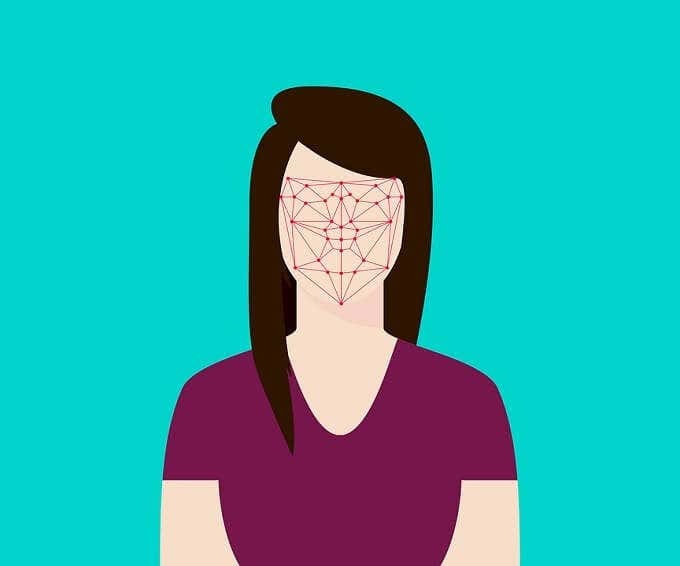
On the iPhone 8 and up you need to squeeze the side button and either of the volume buttons. These methods could be different when you read this, so be sure you look up the biometric killswitch method for your specific iOS device.
In short: Face ID and Touch ID are plenty secure for most people, but not for people who need military-grade security. If you are however very paranoid, use a six-digit passcode instead.
- How to Fix Face ID With a Mask Not Working on iPhone?
- How to Use Face ID on iPhone With a Mask On (No Apple Watch Required)
- Is iPhone Face ID Safe To Use?
- Fix Apple Watch Charging Problems (All Models)
- How to Use Your iPhone as a USB Drive on Mac and PC
