Duolingo’s popularity means that it’s adding new languages all the time. English-speakers can currently choose from 34 different languages, including common languages like Spanish, Japanese, and Arabic, as well as less-common, constructed languages like Esperanto, Klingon, and even High Valyrian !
Although it’s feature-rich, Duolingo can sometimes be confusing. The tips and tricks below will help you get the most out of the language learning app.
Enabling Dark Mode in the Duolingo App
Make learning a new language easier on your eyes by enabling Dark Mode on iOS devices, Android devices, and in Chrome.
iOS devices:
- Open your device’s Settings app.
- Select Display & Brightness .
- Select Dark .
- Restart the Duolingo app if it’s already open, and from then on it will be in dark mode.
Android devices:
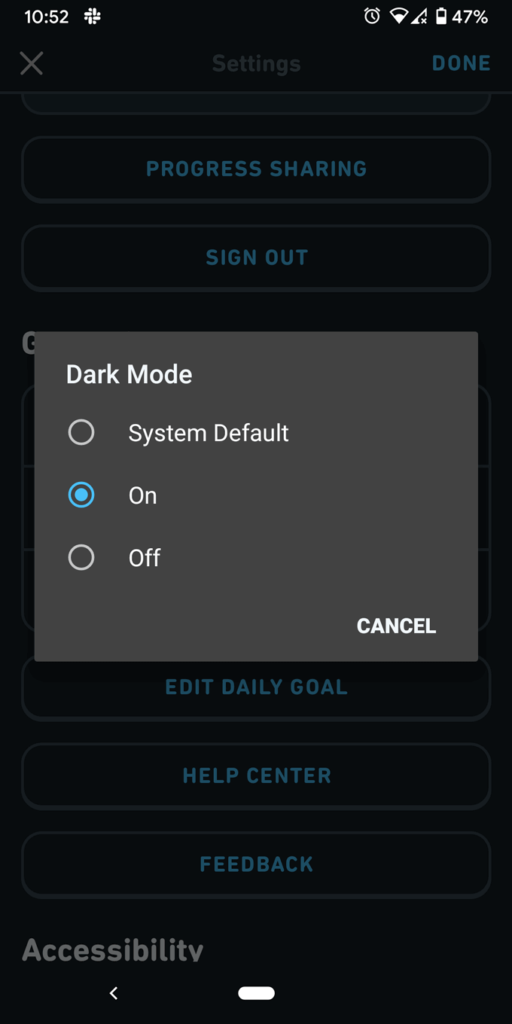
- In the Duolingo app, go to your Profile .
- Select the Settings icon (gear/cog).
- Set Dark Mode to On .
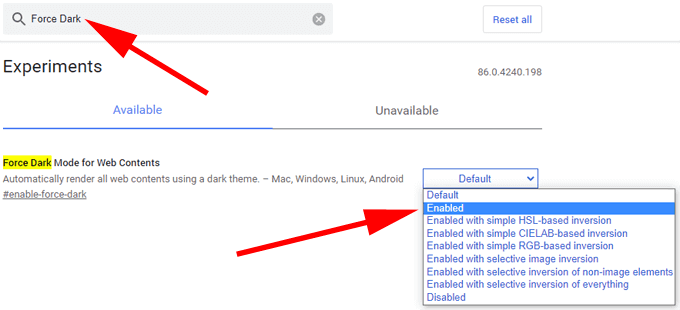
Google Chrome: (*Warning: This method is part of Chrome’s experimental features and may cause data loss and/or compromise security and privacy. Also note that the change will affect all websites, not just Duolingo.)
- Type chrome://flags into the search bar.
- Press Enter .
- Type Force Dark Mode for Web Contents into the search field.
Enabling Dark Mode might help you to spend more time learning, so it’s worth doing.
Accessing Your Duolingo Profile
Your profile tells you when you joined Duolingo and gives you some statistics about your performance. Access your profile by tapping on the profile icon at the bottom of the Duolingo app.
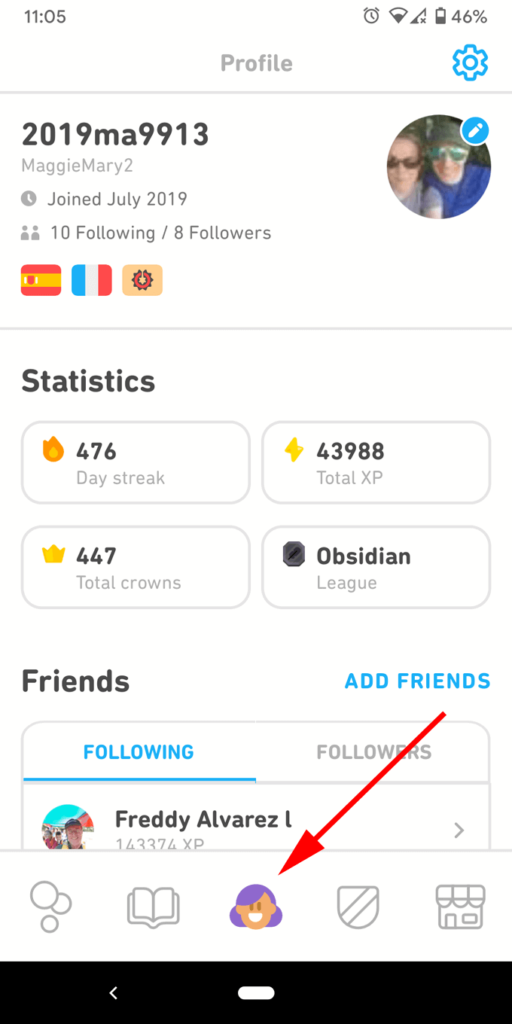
From there you can:
- Change your avatar (profile image).
- View your statistics.
- See your friends.
Tap on the Settings icon (gear/cog) in the top-right corner of your Profile page to:
- Specify whether Duolingo should include speaking exercises and listening exercises among your lessons. This is helpful when you’re in public and don’t want to have to speak out loud.
- Set your notification preferences.
- Adjust your Daily Goal, i.e., how many minutes a day you want to spend on Duolingo.
Adding Friends can be a really good motivator. Every time you reach a milestone, your friends can send you congratulations!
Reset or Remove a Duolingo Course
Perhaps it’s been a while since you’ve used Duolingo, and you’ve forgotten everything you learned. Here’s how to start over.
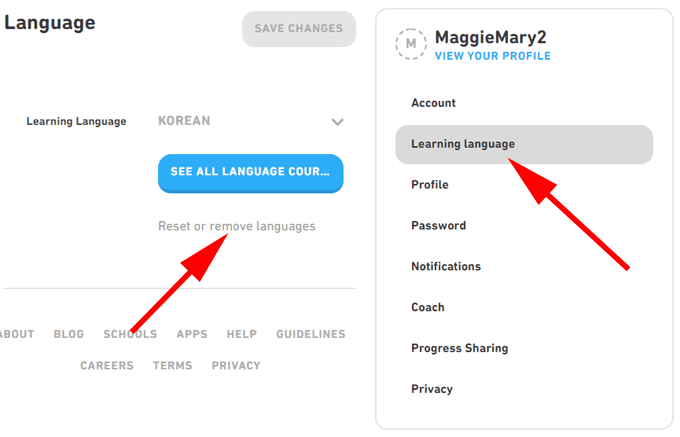
- On the Duolingo website, hover your mouse over your profile icon and select Settings .
- Choose Learning language in the panel on the right.
- Choose your language from the dropdown.
- Select Reset or remove languages .
- Choose either the Reset progress or Remove button.

Now you can start learning languages beginning with the very first lesson.
Participating in the Duolingo Forums
The Duolingo Forum is filled with fellow language-learners who want to help and be helped. Post your questions or browse through the various topics. There is a lot of good information in the forum, and you’ll never see it if you only stick to the app.
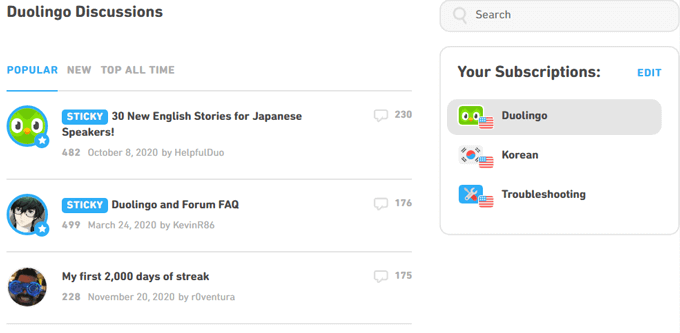
Get the support and motivation you need by visiting the Duolingo Forum!
How to Get Duolingo XP Fast
Let’s say you want to climb to the top of the leader boards as quickly as possible. What’s the best way to do that? The short answer is Stories .
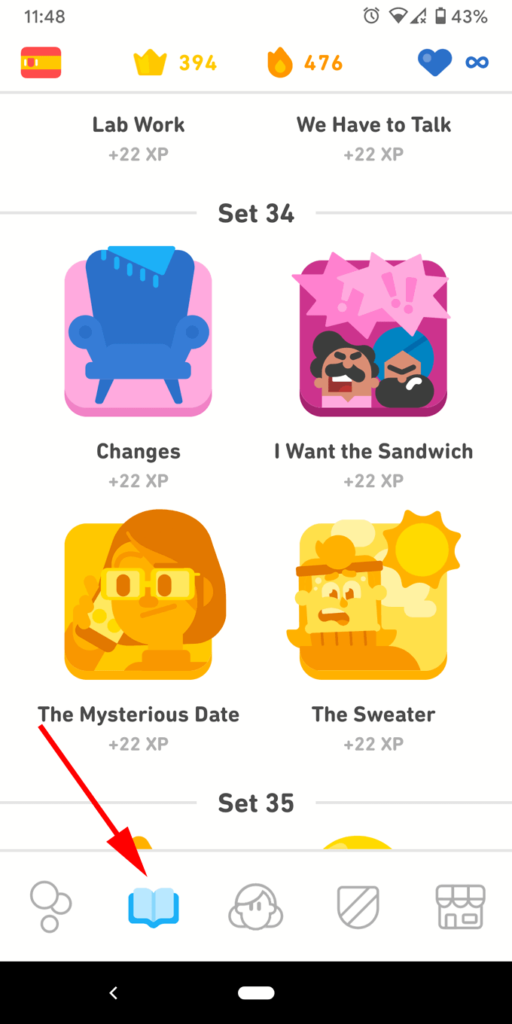
While a typical lesson will give you 20 experience points, it also can take several minutes to complete. Stories, on the other hand, are shorter and can offer more XP than regular lessons do.
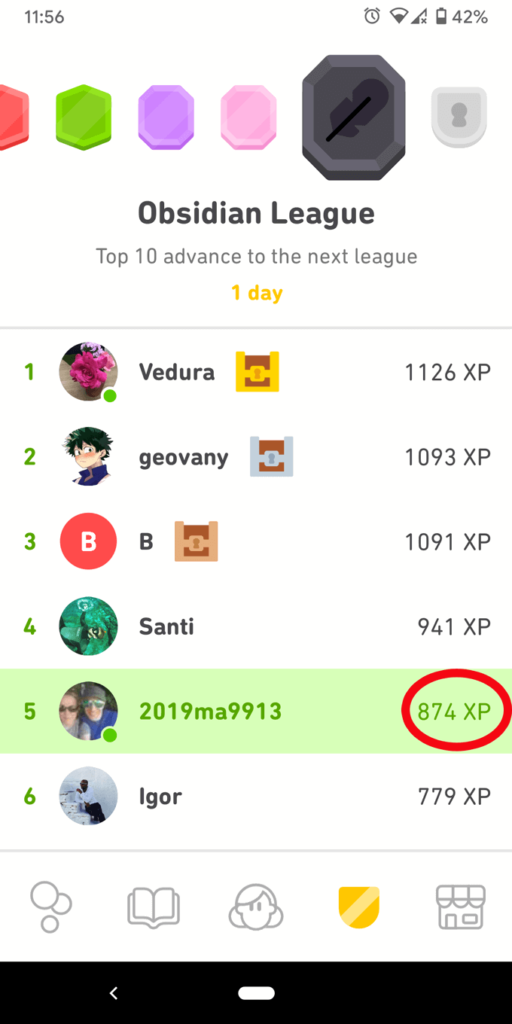
The league leaderboards are yet another way Duolingo motivates you to keep learning.
Getting Even More Data on Your Duolingo Progress
Despite all its features, Duolingo doesn’t do a great job letting you know exactly how far you’ve come. Enter DuoMe.
The DuoMe website describes itself as the “Unofficial Streak Hall of Fame.” If you have an active/loss streak over 100 days you may get listed on the site. Look yourself up by username, like this: duome.eu/MaggieMary2 . If you’re there, you’ll be able to access all kinds of statistics about your performance including:
- Your level
of crowns you have earned
of skills you have mastered
of lessons you’ve completed
of lexemes you have learned
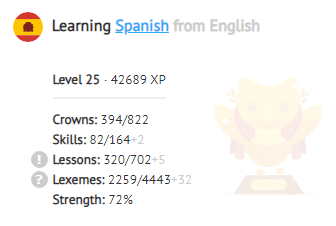
You might find that you’ve learned more than you thought!
The Duolingo Podcast
- Spanish for English speakers
- French for English speakers
- English for Spanish speakers
Access these podcasts on the website , Spotify, Stitcher, or iTunes.
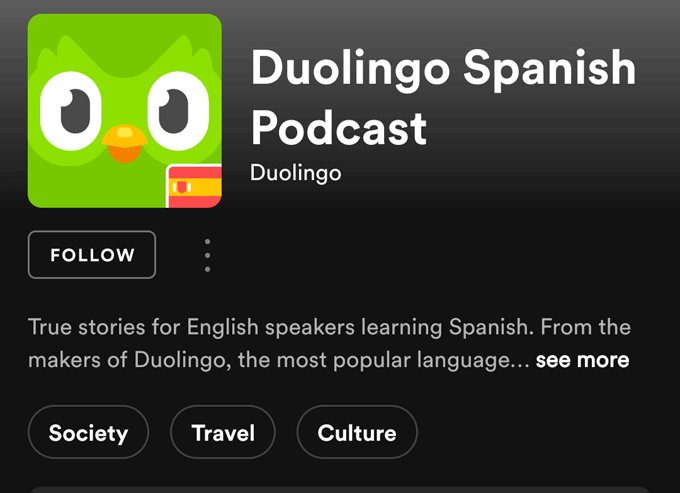
The podcasts are especially valuable to learners who aren’t around native speakers of the language they’re trying to learn. Experts agree that the more you can immerse yourself in a new language, the more progress you’re going to make.
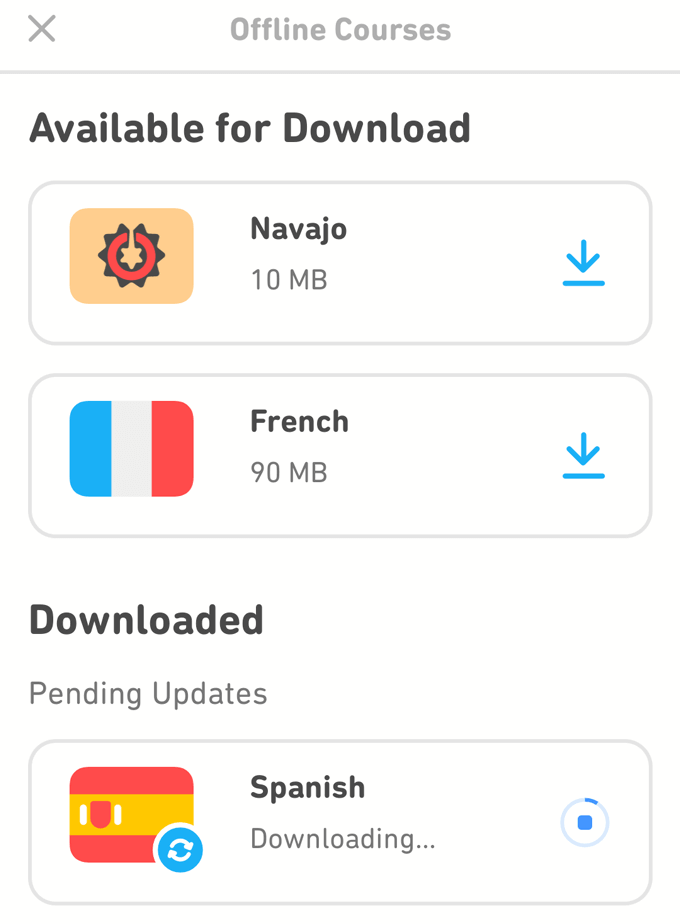
Downloading Duolingo Lessons for Offline Learning
How to Cancel Your Duolingo Plus Subscription
How you initially purchased your Duolingo Plus subscription determines how you go about cancelling it. If you bought Duolingo on Android, log into your Google account and then go to Subscriptions and Services. Look for your Duolingo subscription, select Manage , and then Cancel subscription .
iOS users can go to the Settings app and select iTunes & App Store . Select your Apple ID, then select Subscriptions . Find your Duolingo subscription and select Cancel Subscription.
Lastly, if you signed up via Duolingo’s website, just sign into your account in a web browser, navigate to your profile, and then choose Settings . Choose Duolingo Plus and then select Cancel Subscription.
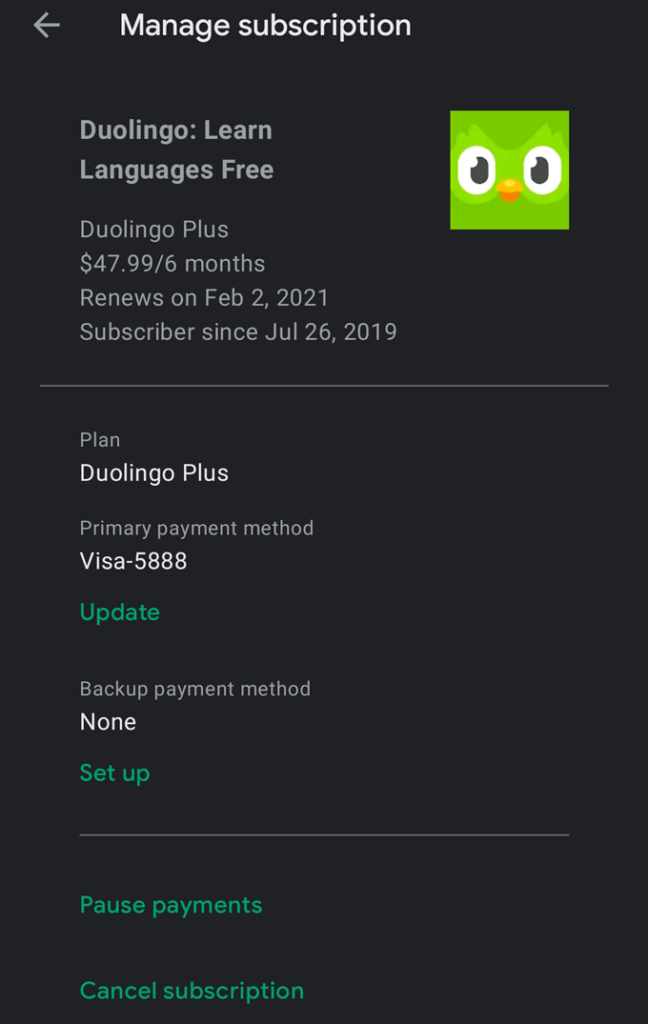
No matter which cancellation method you use, you’ll be able to continue using Duolingo Plus until the end of your current subscription period.
- How to Fix Slow Wi-Fi on Your Smartphone
- 7 Best Machine Translation Software (or AI) to Try in 2025
- What Does the Green Dot Mean on Facebook?
- How to Turn off Hardware Acceleration in Chrome
- How to Check VRAM in Windows 10, 11, and macOS?
