Microsoft Office applications can automatically save files to your OneDrive cloud account. However, problems with your OneDrive account or OneDrive’s synchronization settings will trigger “Upload Blocked” errors in Office applications.
This tutorial covers possible solutions for OneDrive Upload Blocked errors in Office apps on Windows computers. The troubleshooting solutions below apply to all Office applications—Microsoft Word, Excel, Powerpoint, Outlook, etc.
1. Reconnect Your OneDrive Account
Microsoft reckons reconnecting your Microsoft account to the Office application will fix OneDrive sync errors. Connect your computer to the internet, open the affected Office application, and follow the steps below.
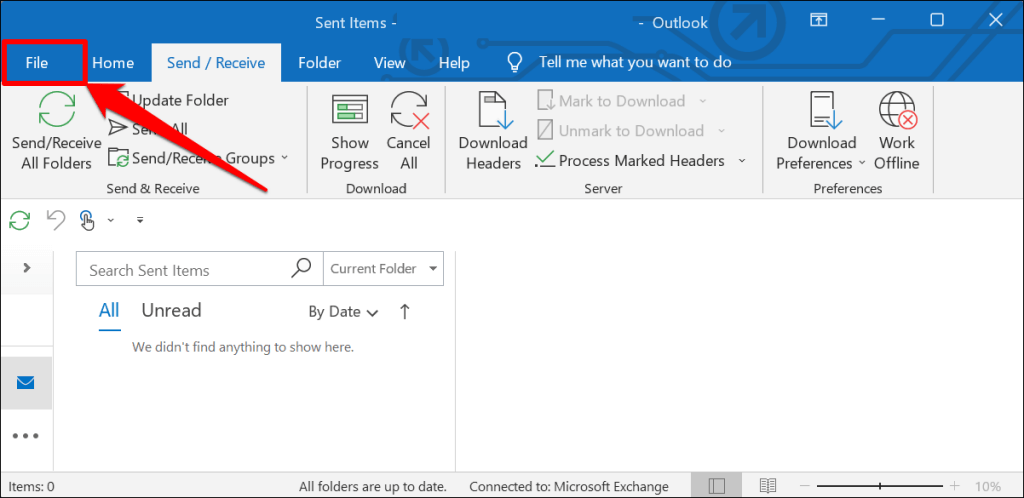
- Open the File tab in the Office app.
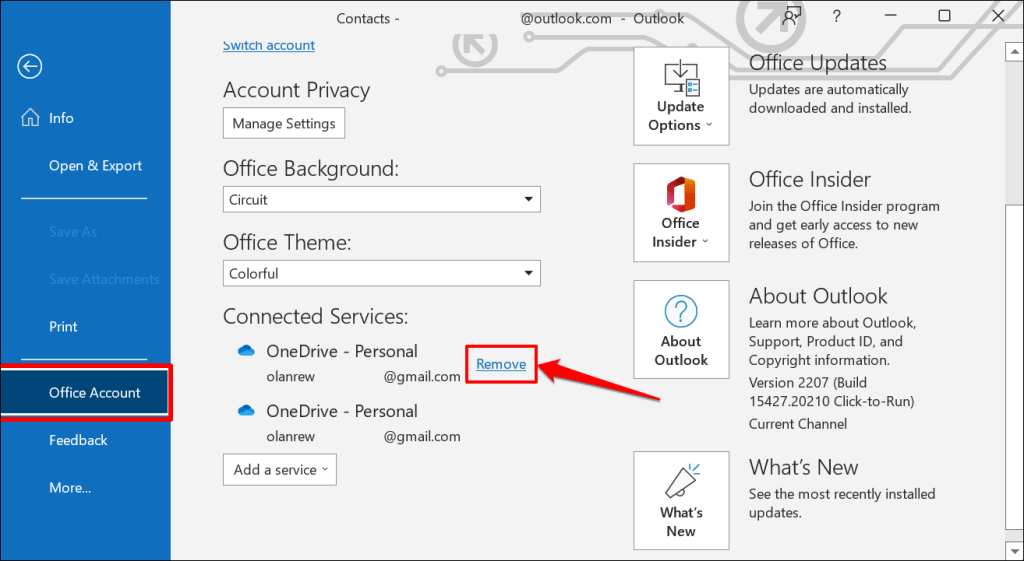
- Select Office Account on the sidebar and select Remove next to the active OneDrive or user account.
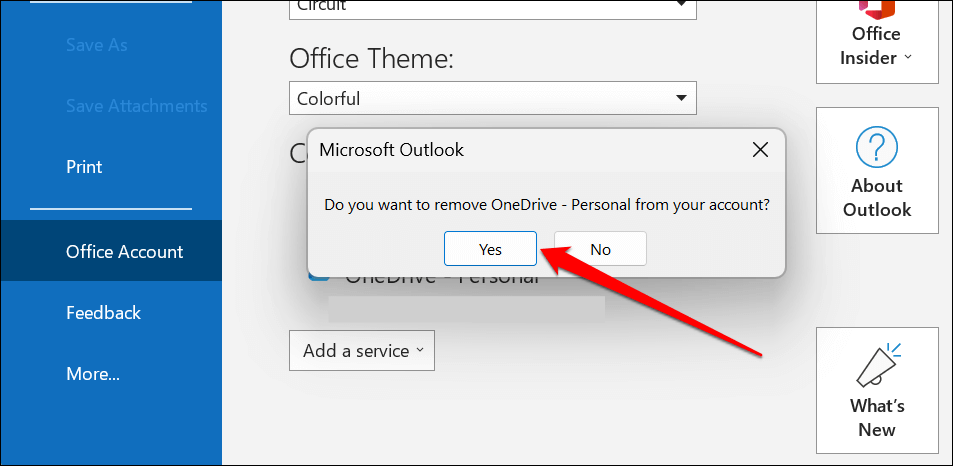
- Select Yes on the pop-up window.
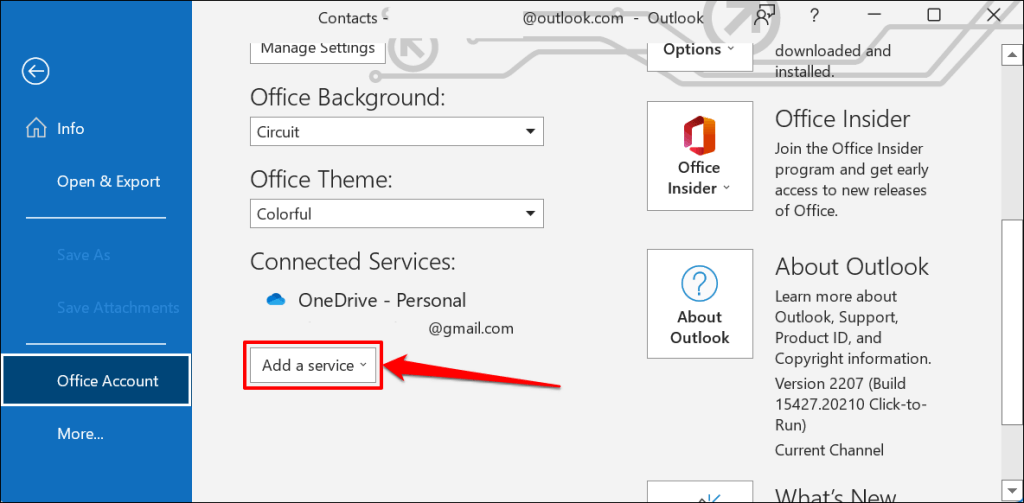
- Open the Add a service drop-down menu to reconnect your OneDrive account to the app.
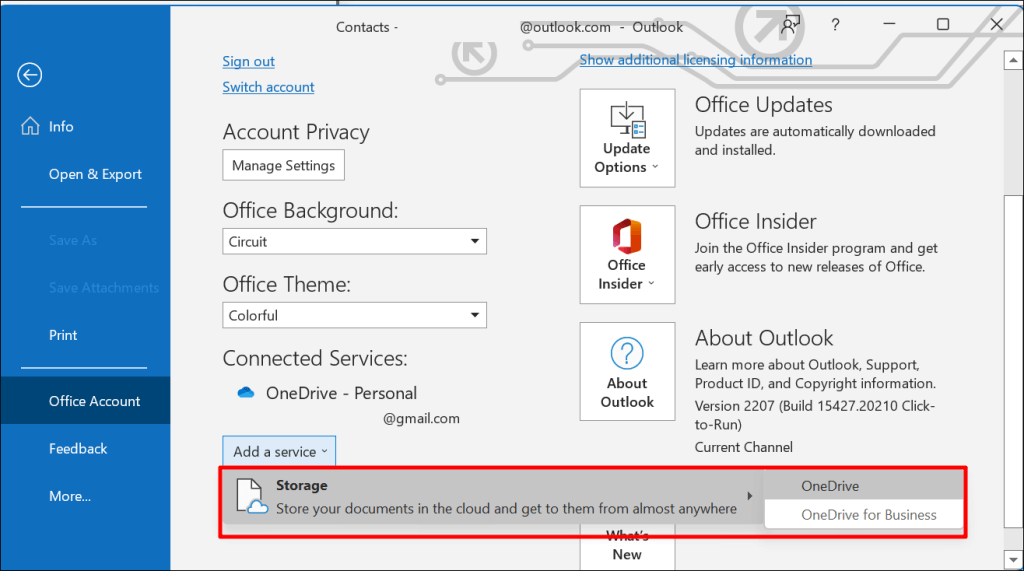
- Select Storage and then OneDrive . Select OneDrive for Business if you use a “Microsoft 365 for Business” account .
Enter your Microsoft account email and password to proceed. Try saving the document to OneDrive again and check if reconnecting your account resolves the “Upload Blocked” error.
2. Resume OneDrive Synchronization
Pausing OneDrive’s synchronization can cause Microsoft Office applications to throw the “Upload Blocked” error. Check OneDrive’s settings and ensure your computer is syncing files to the cloud storage.
- Right-click the OneDrive icon on the Taskbar—see the bottom-right corner of your PC’s screen. OneDrive synchronization is disabled if there’s a “Your files are not currently syncing” message on the screen.
- Select the gear icon and select Resume syncing to re-enable OneDrive’s synchronization.
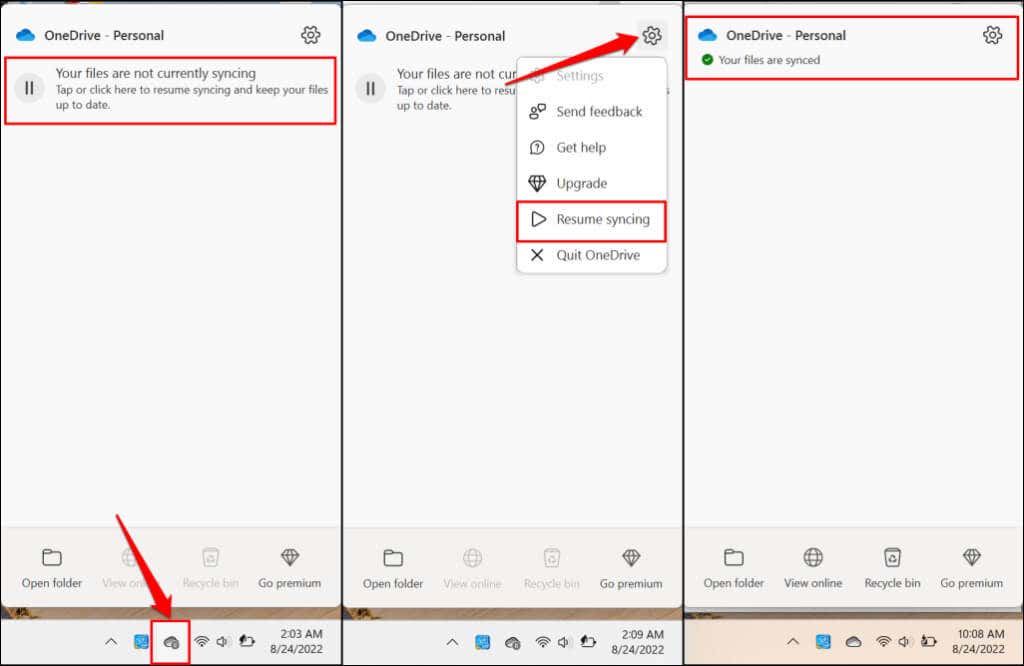
Try saving the document again when OneDrive displays the “Your files are synced” message.
3. Verify OneDrive’s Storage Availability
Office applications won’t save or synchronize documents to OneDrive if you exhaust your storage quota. If the “Upload Blocked” error persists, check that you haven’t used up your OneDrive storage.
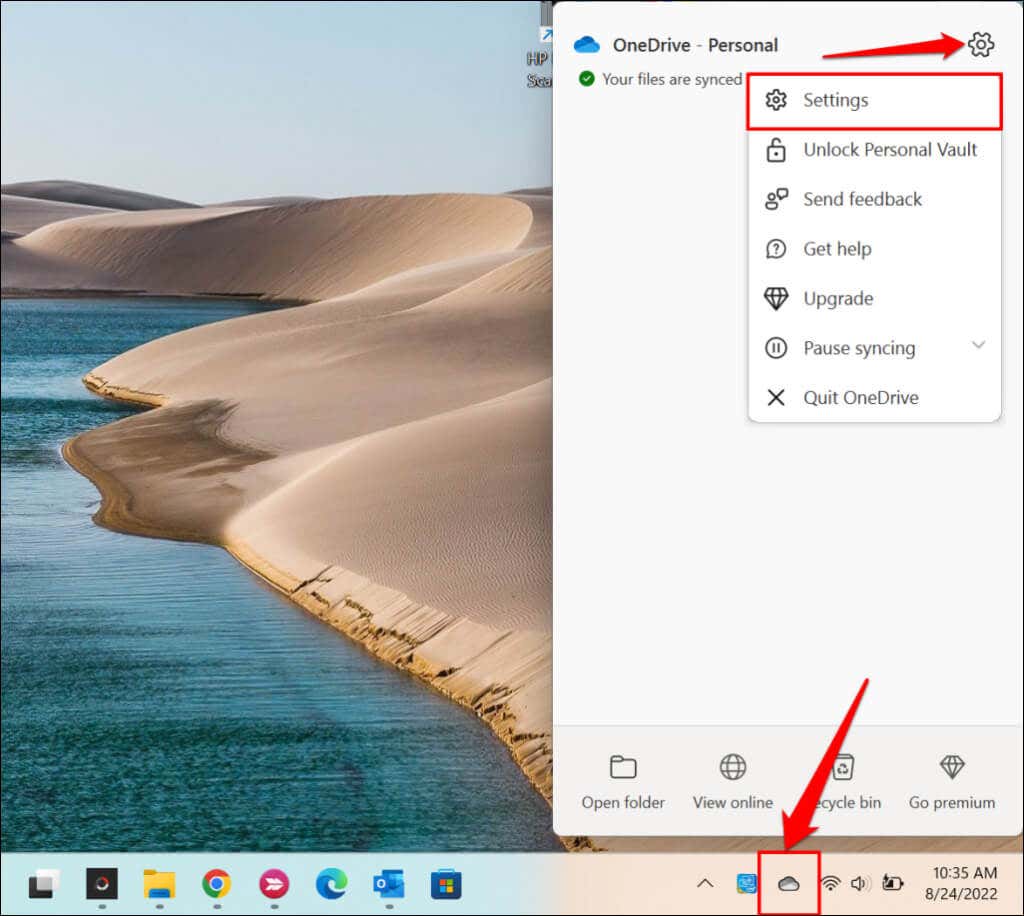
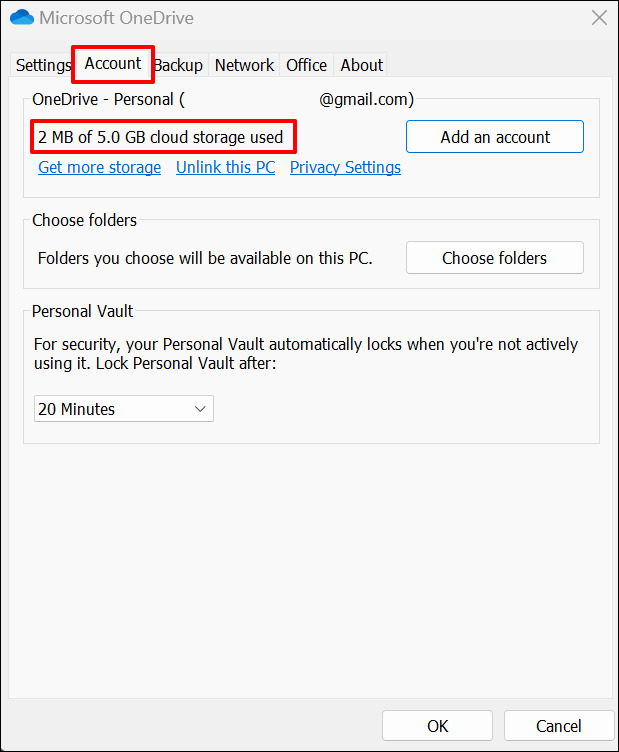
- Open the OneDrive menu on the Taskbar, select the gear icon , and select Settings .
- Head to the Account tab and check how much free OneDrive storage is linked to your account. Select Get more storage to upgrade your Microsoft 365 account for more OneDrive storage space.
4. Delete the Office App’s Cache Files
Corrupt cache files in Office apps can block document upload to OneDrive. Deleting files in the cache system of the affected Office application may fix the “Upload Blocked” error.
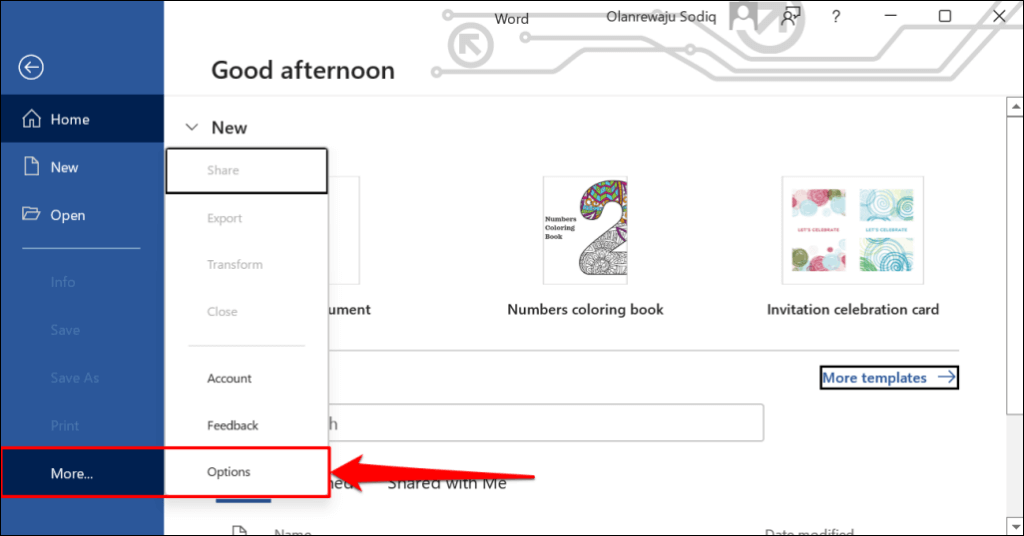
- Open the Office app’s File menu, select More on the sidebar and select Options .
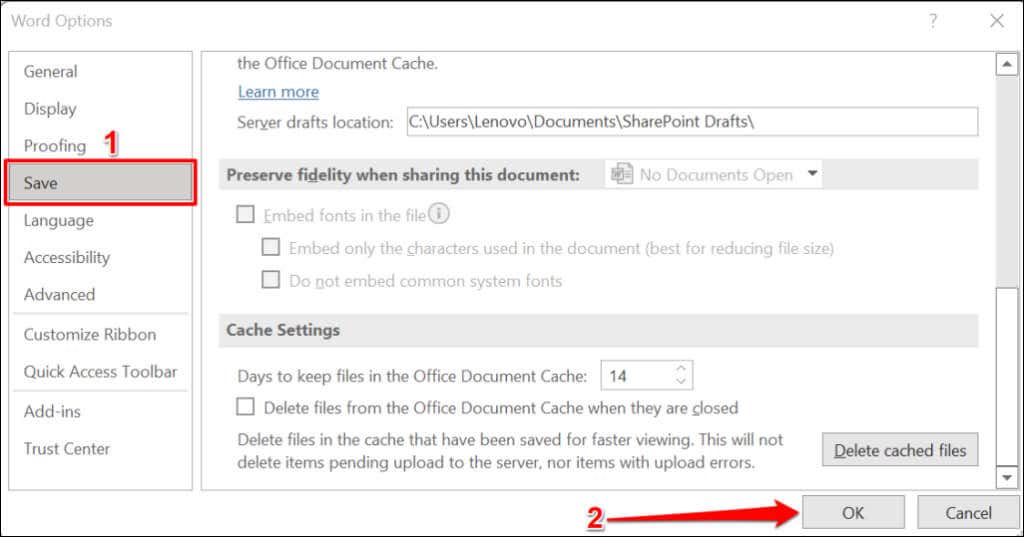
- Open the Save tab, scroll to the “Cache Settings” section, and select the Delete cached files button.
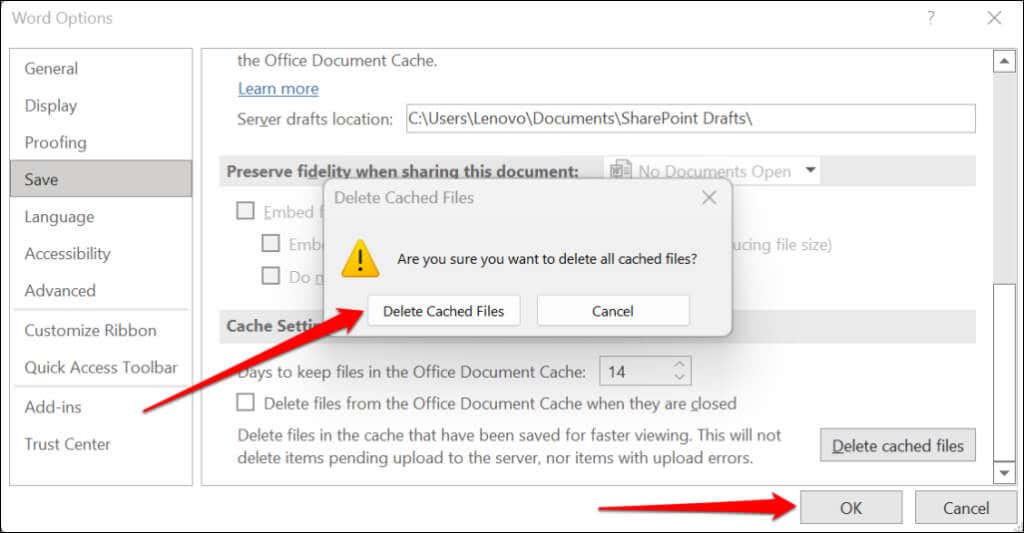
- Select Delete Cached Files on the pop-up window and select OK to save the changes.
5. Reopen the Office App
Force close the Office application if the “Upload Blocked” error persists after reconnecting your OneDrive account. If you haven’t saved the document locally (on your computer), we recommend pasting the content elsewhere as a backup. Say you’re working in Microsoft Word; copy and paste the content of the Word document to Google Docs.
Press Ctrl + Shift + Esc to open the Windows Task Manager. Select or right-click the Office application and select End task .
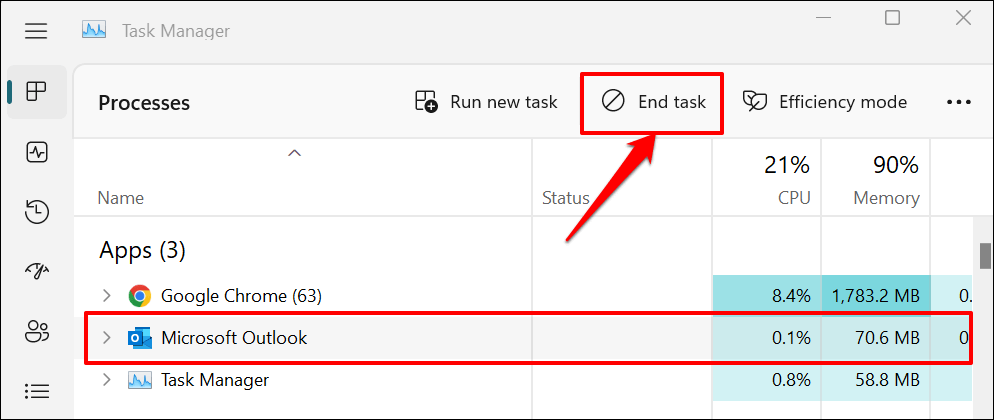
Reopen the app and check if it syncs changes made to your document to OneDrive.
6. Update the Office Application
Office updates ship with new features, security patches, bug fixes, and other improvements. Microsoft rolls out frequent updates to Office applications and automatically installs updates on your device.
The “Upload Blocked” error could be because you’re using an old or outdated version of the Office app. Configure your Office apps to update automatically, or manually check for new updates. Connect your computer to the internet and follow the steps below to update Office to the latest version.
Open the affected Office application and open the Account tab in the file menu. Expand the Update Options menu and select Update Now .
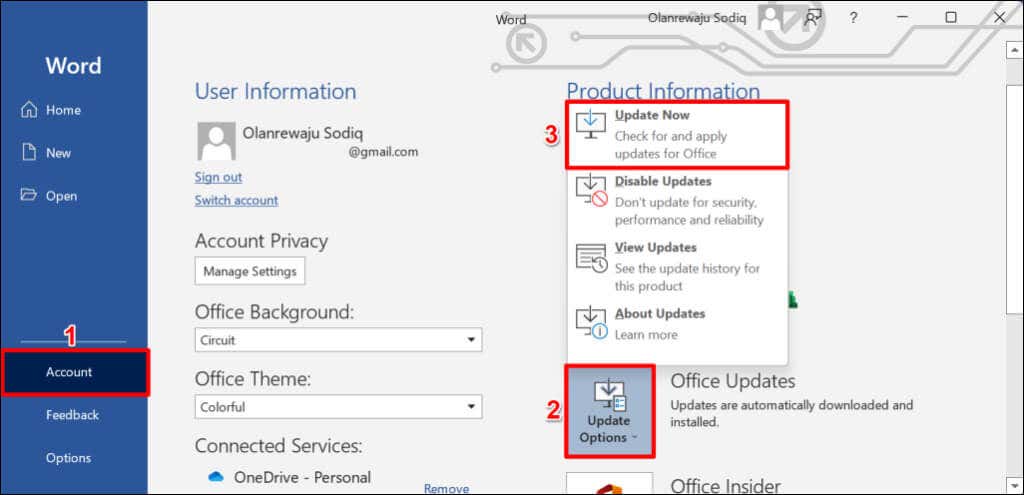
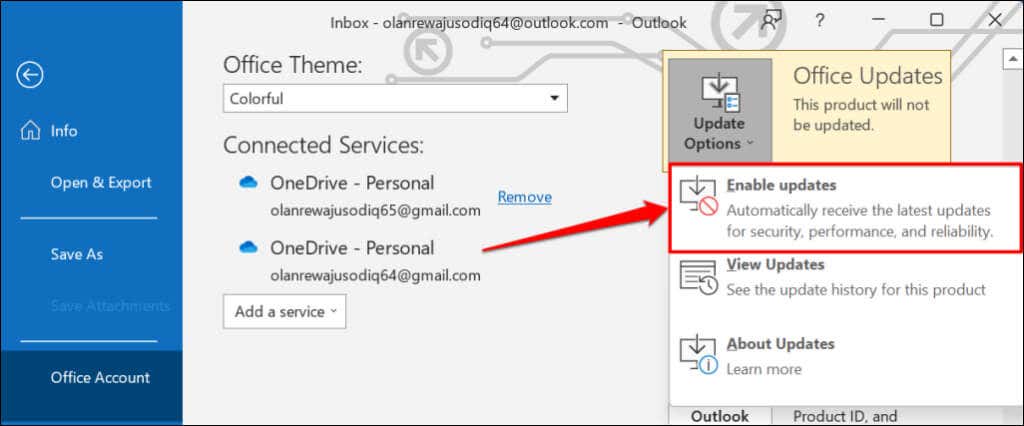
Select Enable updates if “Updates Now” is missing in the update menu.
7. Disable Office Upload Cache System
In Windows, OneDrive co-synchronizes files in Office applications. The integration has some benefits —it allows you to co-edit and work on shared documents with other people. However, you may get the “Upload Blocked” error message if OneDrive and Office upload cache systems are interfering.
Turning off the Office upload in OneDrive’s settings may resolve the “Upload Blocked” error.
- Select the white or blue OneDrive (cloud) icon on the Taskbar’s notification area. If the icon is missing in the notification area, expand the Show hidden icons menu and select the OneDrive icon .
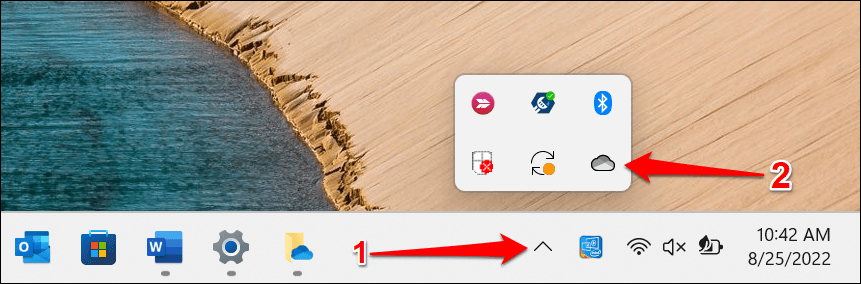
- Select the gear icon in the top-right corner of the OneDrive menu and select Settings .
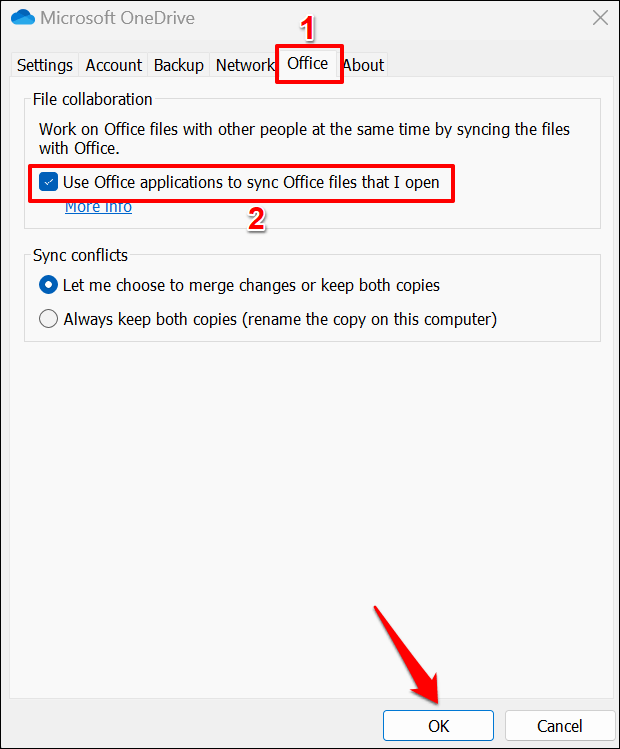
- Head to the Office tab and uncheck Use Office applications to sync Office files that I open . Select OK to save the changes.
8. Repair Office
Repair the Microsoft Office application if none of the troubleshooting fixes above resolve the “Upload Blocked” error.
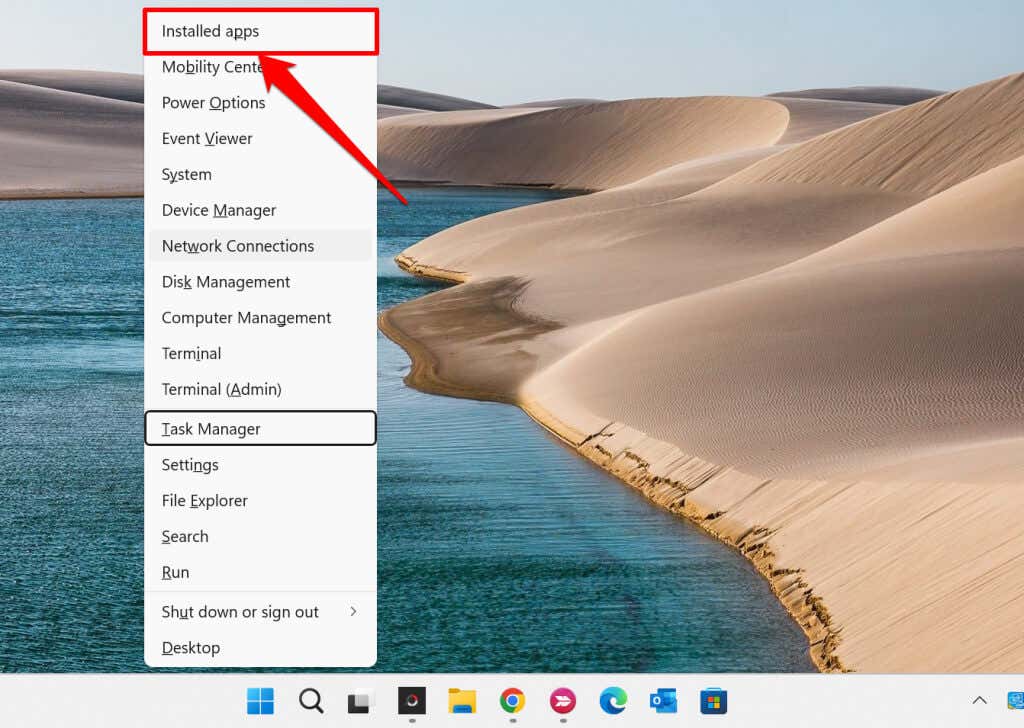
- Press Windows key + X and select Install apps (or Apps and Features in Windows 10) on the Quick Access menu.
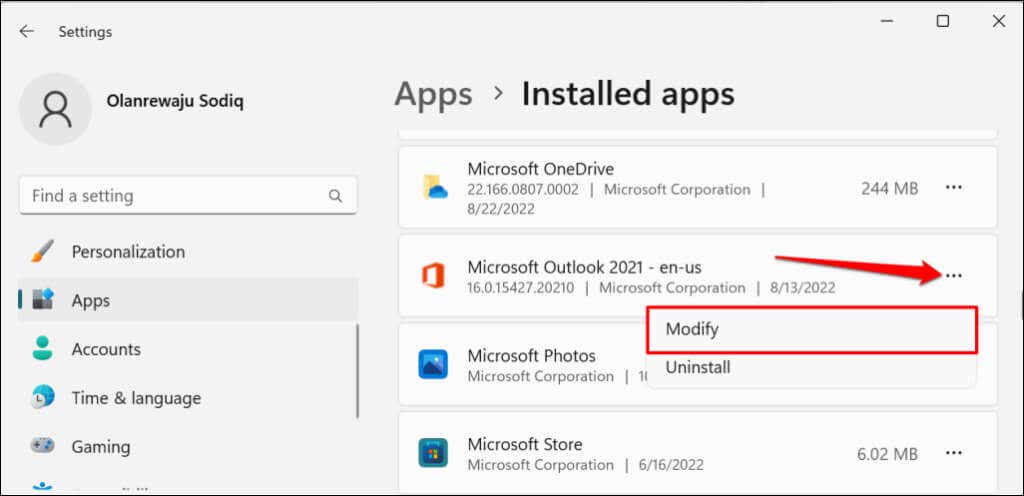
- Select the menu icon next to the affected Office app and select Modify .
- Select either Quick Repair or Online Repair and select the Repair button.
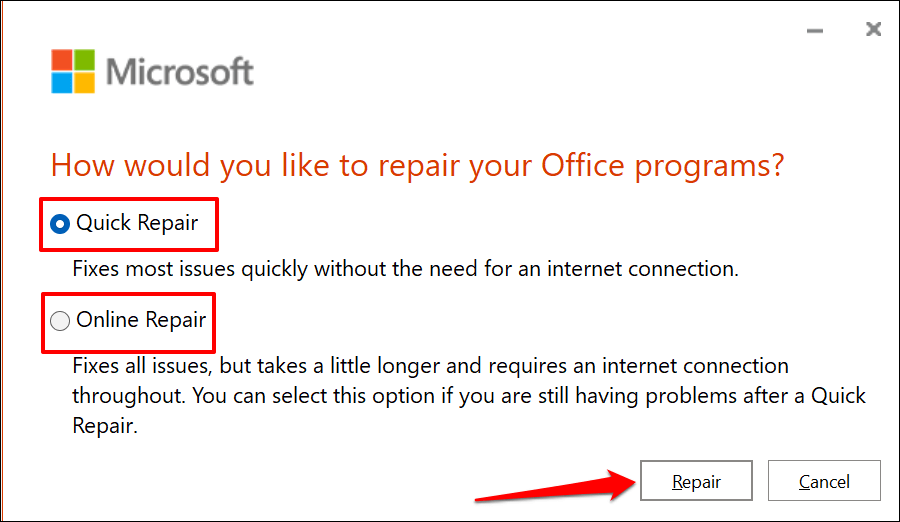
“Quick Repair” is a faster repair option that only detects and fixes corrupt files causing the Office app to malfunction. “Online Repair,” on the other hand, provides comprehensive repair and fixes every likely problem. Note that “Online Repair” requires an internet connection.
Microsoft recommends running an “Online Repair” only if a “Quick Repair” doesn’t resolve the problem you’re trying to fix.
- Select Repair on the confirmation prompt to start the operation.
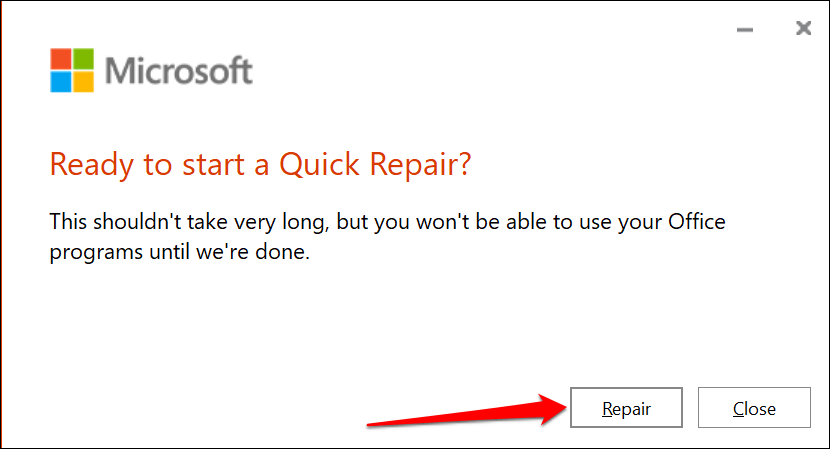
- If any Office app is open, you’ll get a prompt to close the app. Save your document in the app before you proceed. Select Continue to grant the repair tool permission to close the app.
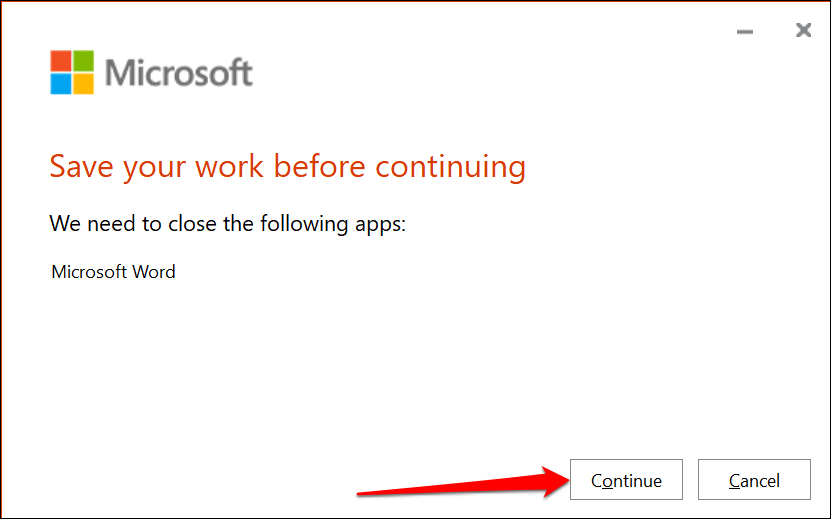
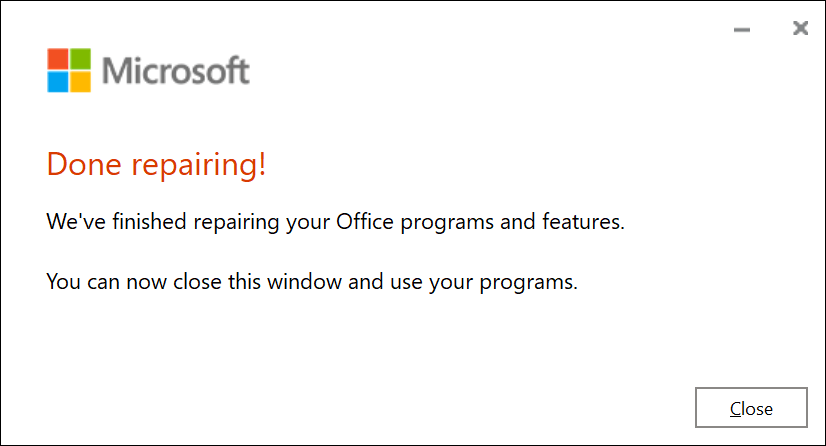
The tool will repair all Office programs and features on your computer.
- Close the tool and reboot your computer when the repair operation is complete.
9. Update Windows
OneDrive-specific bugs in the Windows operating system can prevent Office apps from uploading documents to the cloud storage platform.
Go to Settings > Windows Update and select Check for updates or Restart now .
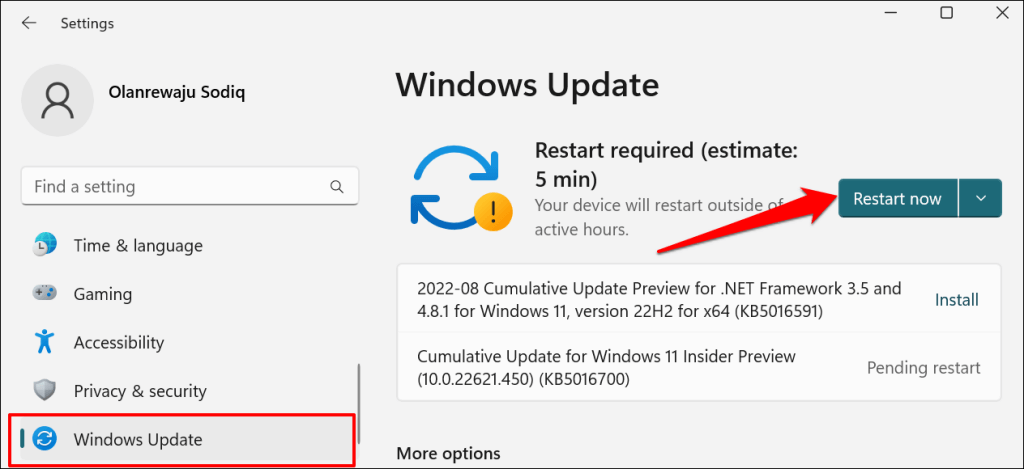
In Windows 10, head to Settings > Update & Security > Windows Updates and install any update available for your computer.
Reinstall Office
Contact Microsoft Support or uninstall and reinstall the Office application if the error persists after trying these fixes.
- How to Add OneDrive to Windows File Explorer
- How to Reset OneDrive in Windows
- Fixed: Cloud File Provider Is Not Running on OneDrive – 0x8007016A Error
- How to Fix a OneDrive Error 0x8004de40
- How to Access and Use OneDrive on Linux
Sodiq has written thousands of tutorials, guides, and explainers over the past 4 years to help people solve problems with Android, iOS, Mac, and Windows devices. He also enjoys reviewing consumer tech products (smartphones, smart home devices, accessories, etc.) and binge-watching comedy series in his spare time. Read Sodiq’s Full Bio
