Do you ever wish your editing process was faster or more efficient? If so, then familiarizing yourself with some of the basic GIMP keyboard shortcuts will help you save time and make your workflow smoother.
From adjusting layers and image transformations to navigating menus and executing commands, GIMP’s shortcut selection gives users plenty of options for speeding up their editing tasks. In this blog post, we’ll explore the most useful shortcuts available in GIMP, along with tips on how best to use them.
Also, if you want to give yourself an even bigger productivity boost, make sure to check our favorite Excel keyboard shortcuts and Google Docks keyboard shortcuts . You waste too much time clicking on everything.
GIMP Tool Keyboard Shortcuts
GIMP tools are similar to the ones in Photoshop.
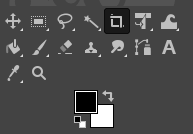
In fact, if you ever worked in any image editing app, you’ll easily recognize most of them. They’ll help you select, and interact with the image and its elements.

Note: some of the tools are grouped, so you won’t see them all in the tool menu. For example, Pencil, Airbrush, Ink, and MyPainBrush are grouped under Paintbrush. The same goes for the Ellipse selection tool; you can find it grouped with the Rectangular selection tool.
GIMP Additional Selection Keyboard Shortcuts
Shortcuts listed here will help you select in unique ways, as well as interact with different selections. We chose the most common actions, and they’re self-explanatory.
GIMP Editing Keyboard Shortcuts
When it comes to editing your document or file, use these keyboard shortcuts to make your workflow faster.
Note: The Paste in Place action allows you to paste the content of your clipboard into a new file, in the exact same location where it was positioned in the original file.
GIMP File Keyboard Shortcuts
The keyboard shortcuts listed in this section will help you open and interact with different files and images in GIMP.
Note: Opening a recent image past 03 is the same command, just replace the number with the corresponding one. CTRL(Command) + 4,5,6, and so on.
GIMP View and Action Keyboard Shortcuts
The keyboard shortcuts listed here will help you interact with GIMP. Browse its menus easily, toggle guides, or rulers, and fill the background with a color.
GIMP Dialogs Keyboard Shortcuts
These shortcuts will allow you to manipulate Dialogs in GIMP. Dialogs are moving windows that contain tool options or are dedicated to a specific task. Open the dialogs to see and manipulate all their options without effort.
GIMP Layers Keyboard Shortcuts
Manipulating layers is crucial for any image editing tool. Doing it fast means you’ll be done with your task in no time. What better way to quickly achieve the desired action than to use keyboard shortcuts? Use the shortcuts listed in this table to manipulate layers easily and quickly.
How to Access the Full List of GIMP Keyboard Shortcuts
This article lists only the most common and useful keyboard shortcuts for GIMP. But every GIMP user has their preferred and unique list of shortcuts and in time you’ll create one too. You’ll add to these lists the tools and functions you use the most, or perhaps subtract the shortcuts you don’t use so often. Here’s how you can find the complete list of shortcuts within the GIMP application.
- Open GIMP on your PC or Mac.
- Go to the Edit menu (or the GIMP Application menu on Mac).

- Select Keyboard Shortcuts .
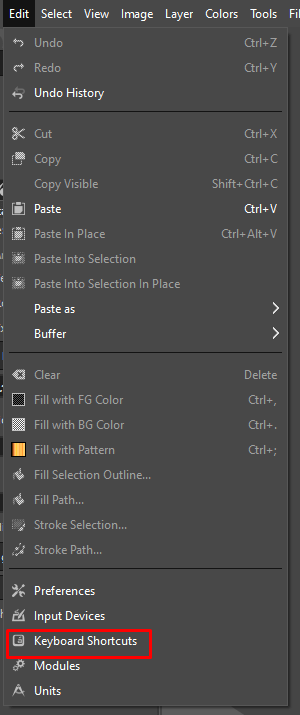
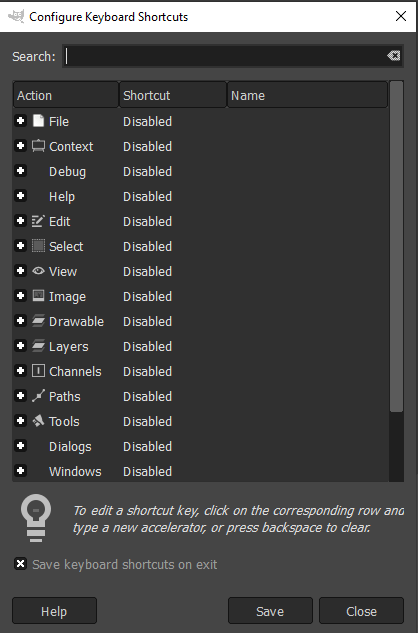
- GIMP will display a whole list of different commands and shortcuts for you to enable. You can also create customized shortcuts in this window.
How to Create Customized Keyboard Shortcuts
Not all GIMP commands have dedicated keyboard shortcuts. After all, there are thousands of commands, and it is up to you to select the most useful ones and assign shortcuts if they don’t have them already. Here’s how you can do it in GIMP:
- Open GIMP on a PC or Mac.
- Go to the Edit menu (or the GIMP Application menu on Mac).
- Select Keyboard Shortcuts .
- Use the search field to find the command you are looking for.
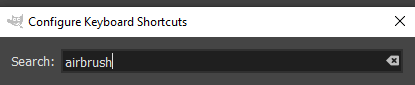
- If no shortcut is assigned to that particular command, it’ll say Disabled next to it.
- Click anywhere on the command’s entry to make your own shortcut. You’ll see Disabled replaced by New accelerator…
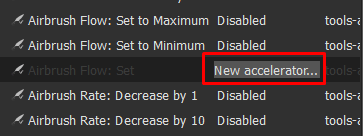
- Press the desired keyboard shortcut to assign it to this command. Press backspace to delete your shortcut if you made a mistake or changed your mind.
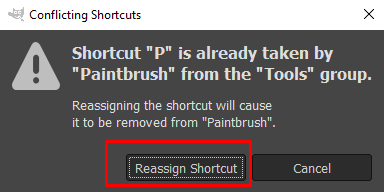
- If the keyboard shortcut you chose is already assigned to another command, GIMP will display a pop-up window asking you to confirm you want to overwrite the shortcut.
- Select Reassign Shortcut to confirm.
GIMP keyboard shortcuts are an incredibly useful tool when it comes to editing images. With just a few keystrokes, you can create stunning artwork in no time at all. Whether you’re a professional photographer or just getting started with GIMP, these shortcuts can make your workflow much smoother and more efficient.
- How to Fix Slow Wi-Fi on Your Smartphone
- 7 Best Machine Translation Software (or AI) to Try in 2025
- What Does the Green Dot Mean on Facebook?
- How to Turn off Hardware Acceleration in Chrome
- How to Check VRAM in Windows 10, 11, and macOS?
