Windows 7/8/10 allows you to add a message that is displayed on the logon screen when users log in. To setup a message for users logging in on your computer, use the Local Security Policy editor.
The message is simply informational and doesn’t provide any kind of actual security. Depending on what you write, it can deter someone, but the message is removed once they click OK. Also, you can only edit the security policy settings on the Pro and higher versions of Windows. It won’t work on Home or Starter editions.
Edit Logon Message in Windows
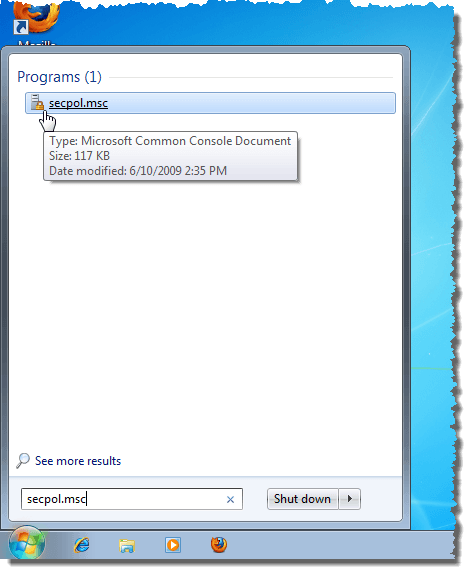
Enter the following into the Search programs and files box on the Start menu and press Enter or click the link.
secpol.msc
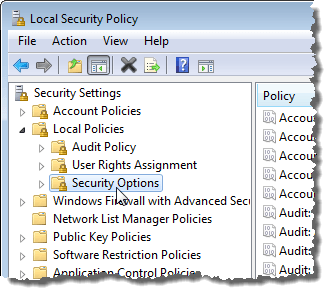
Expand the Local Policies node in the tree in the left pane and select the Security Options node.
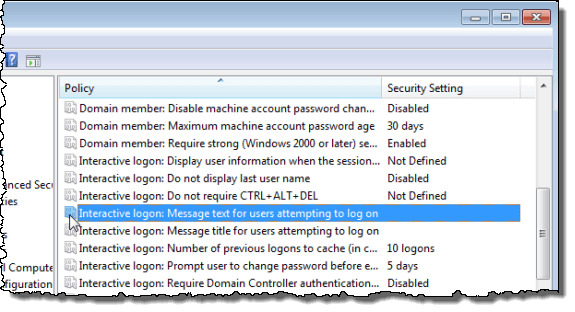
Double-click the Interactive logon: Message text for users attempting to log on setting in the right pane.
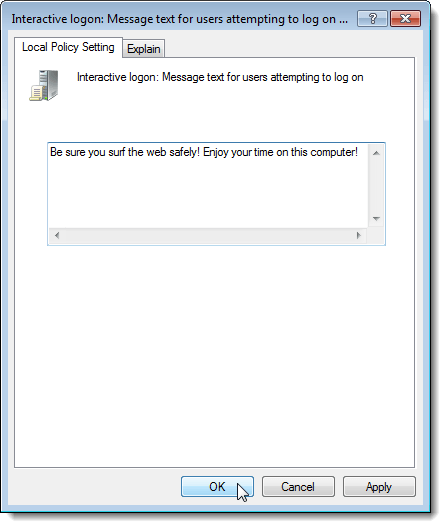
On the Local Policy Setting tab, enter your message in the text box and click OK .
We have seen instructions online that say all you need to display a message on the logon screen is to enter text for the setting mentioned above. However, we found that the message only displays when we applied a title to the message. To do this, double-click on the Interactive logon: Message title for users attempting to log on setting.
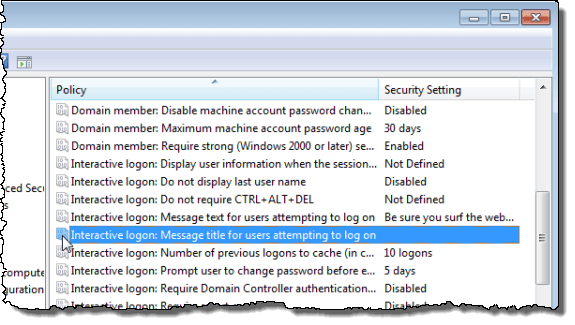
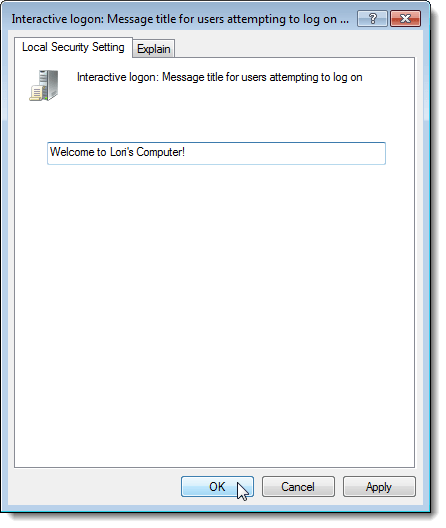
On the Local Policy Setting tab, enter a title for your message in the text box and click OK .
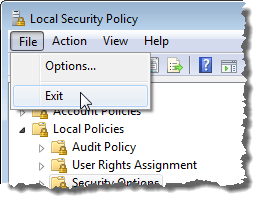
To close the Local Security Policy editor, select Exit from the File menu.
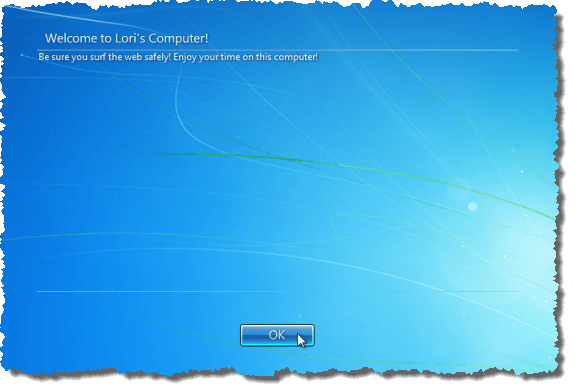
Your title and message now displays on the screen before the available users are displayed. Click OK to select the user and log on.
To disable the message, simply go back into the Local Security Policy editor and delete the message and the title. Enjoy!
- How to Use Event Viewer to Troubleshoot Windows Problems
- How to Boot into Safe Mode in All Versions of Windows
- How to Reset Your Computer Password If You Lock Yourself Out
- 14 Command Prompt (CMD) Commands Windows Users Should Know
- Change from Public to Private Network in Windows
Founder of Help Desk Geek and managing editor. He began blogging in 2007 and quit his job in 2010 to blog full-time. He has over 15 years of industry experience in IT and holds several technical certifications. Read Aseem’s Full Bio
