Over the years, Google Docs has become one of the most popular ways for companies to collaborate and synchronize their work on documents of all types. For example, the writers behind each article on this website routinely use Google Docs!
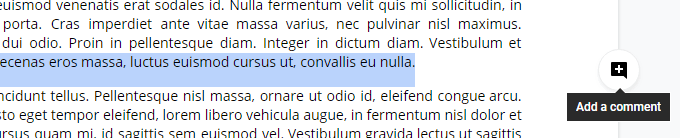
When you’ve selected the text, you’ll notice that an icon will appear on the right side of the document. The icon looks like a speech bubble with a plus sign inside of it.
Clicking on this icon will bring up an input field where you can type in your comment.
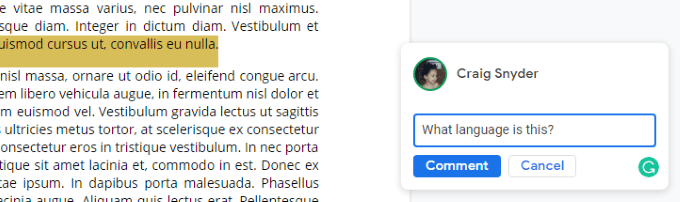
Press Enter or click the Comment button to submit your comment.
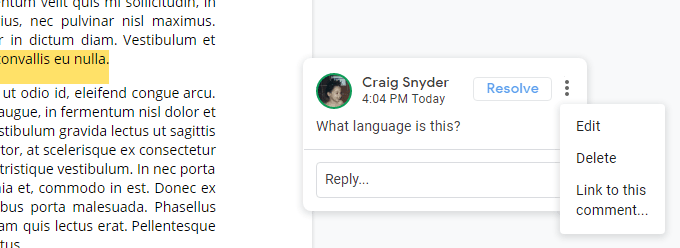
It’s that simple! Now, your document will highlight the text that you’ve made a comment on. Your comment will be displayed on the right side of the document, but clicking on an area of the highlighted text will bring your comment into focus and bring up options that we’ll talk about next.
You can either click on a comment on the right side of the document or click on a highlighted section of the document’s text to bring a comment to the foreground. Once in the foreground, you’ll have the option to reply or resolve the comment. If you have permissions, you can also edit or delete it.
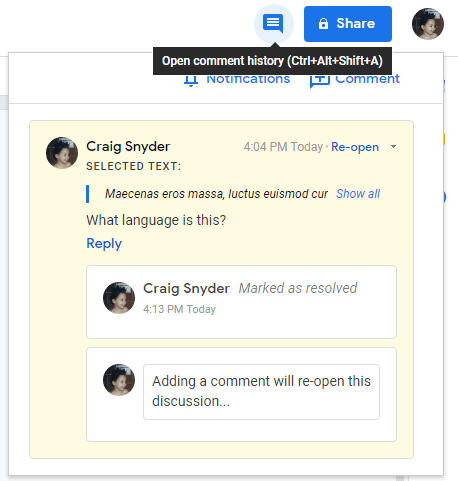
At the top-right of the page, near your Google Account’s display picture, you’ll see an icon of a speech bubble with three horizontal lines inside of it. Clicking on this icon will open the document’s comment history.
- How to Flip Images in Google Docs
- How to Fix Mouse Cursor Disappearing on Google Docs
- How to Add Line Numbers in Google Docs
- How to Insert Word Art in Google Docs
- How to Insert Variable Smart Chips (Placeholders) in Google Docs
