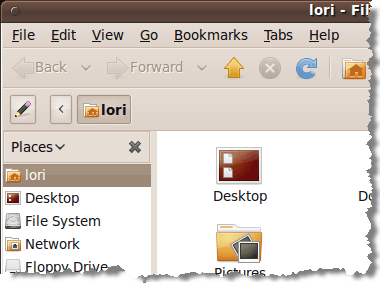
Nautilus is the default file browser for the Gnome environment in Ubuntu . Nautilus Actions is a tool for Nautilus that allows you to add programs to the context, or the right-click menu, in Gnome . This provides the ability to right-click on a file, such as a text file, and select the program with which to open the file from the pop-up menu.
To install Nautilus Actions , open a Terminal window and enter the following:
sudo apt-get install nautilus-actions
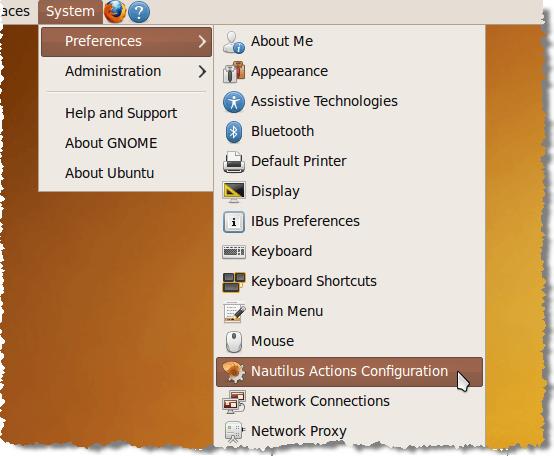
Once Nautilus Actions is installed, select Preferences | Nautilus Actions Configuration from the System menu.
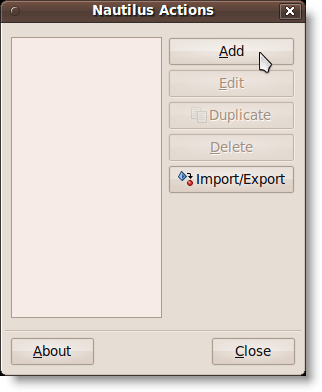
The Nautilus Actions dialog box displays. To add a new action, click Add .
The Add a New Action dialog box displays.
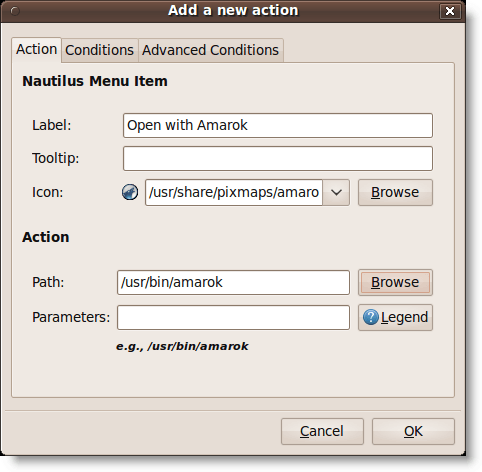
For this example, we are adding an “ Open with Amarok ” option to the context menu, so we can right-click on an .mp3 file and open it in the Amarok player. Enter ‘ Open with Amarok ’ as the label for the menu item in the Label edit box.
If you want a Tooltip to display, enter the text you want in the Tooltip edit box. We left it blank. To select an icon, click the Browse button. The nautilus-actions dialog box displays, providing a list of pixmaps from which to select. Scroll down to find the icon for Amarok as pictured below and click on it.
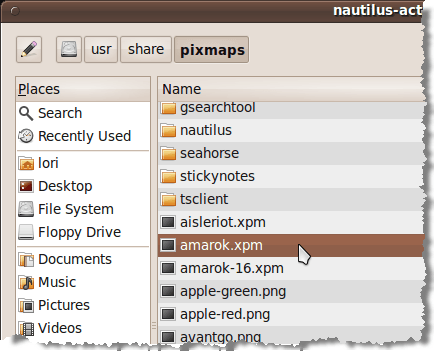
Click Open to select the icon and return to the Add a new action dialog box. To select the Amarok program, click Browse next to the Path edit box on the Add a new action dialog box (pictured above). On the nautilus-actions dialog box, scroll down to find amarok in the list in the right pane and click on it.
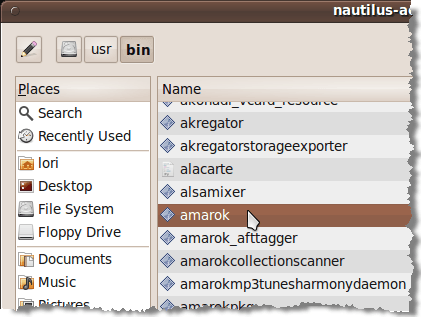
Click Open to select the program and return to the Add a new action dialog box.
If you want to specify any parameters to send to the selected program add them using the Parameters edit box. Click the Legend button to view a list of formats for the different parameters you can use. Parameters are command-line options used when calling an application.
NOTE : To find out the available parameters for the application you selected, open a Terminal window and run ‘ [command] –help ’ (e.g., ‘ amarok –help ’), or, for a more detailed description, use ‘ man [command] ’ (e.g., man amarok ).
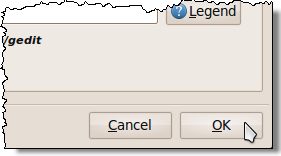
There are no parameters we wanted to add for Amarok , so we left the Parameters edit box blank. Click OK to accept your changes and close the Add a new action dialog box.
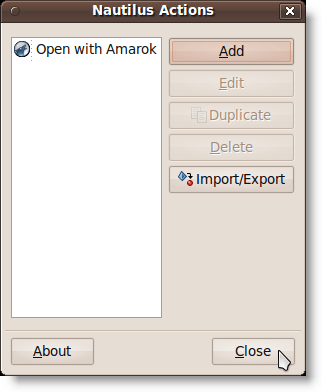
Then, click Close on the Nautilus Actions dialog box.
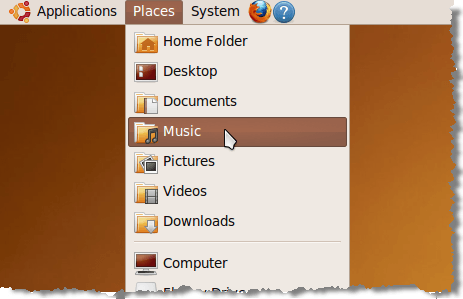
We open the Music folder from the Places menu to access our .mp3 file.
We right-click on the .mp3 file and the Open with Amarok option is available.
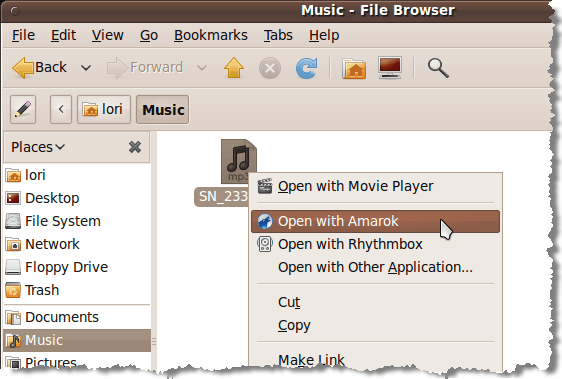
You can add shortcuts to other applications for files types you use often.
by Lori Kaufman
- What Version of Ubuntu Do I Have?
- Linux Mint vs Ubuntu: Which Is Better?
- Fedora vs Ubuntu: Which Linux Distribution Is Better?
- A Beginner’s Ubuntu Linux Guide
- Forcefully Close a Program in Ubuntu
Founder of Help Desk Geek and managing editor. He began blogging in 2007 and quit his job in 2010 to blog full-time. He has over 15 years of industry experience in IT and holds several technical certifications. Read Aseem’s Full Bio
