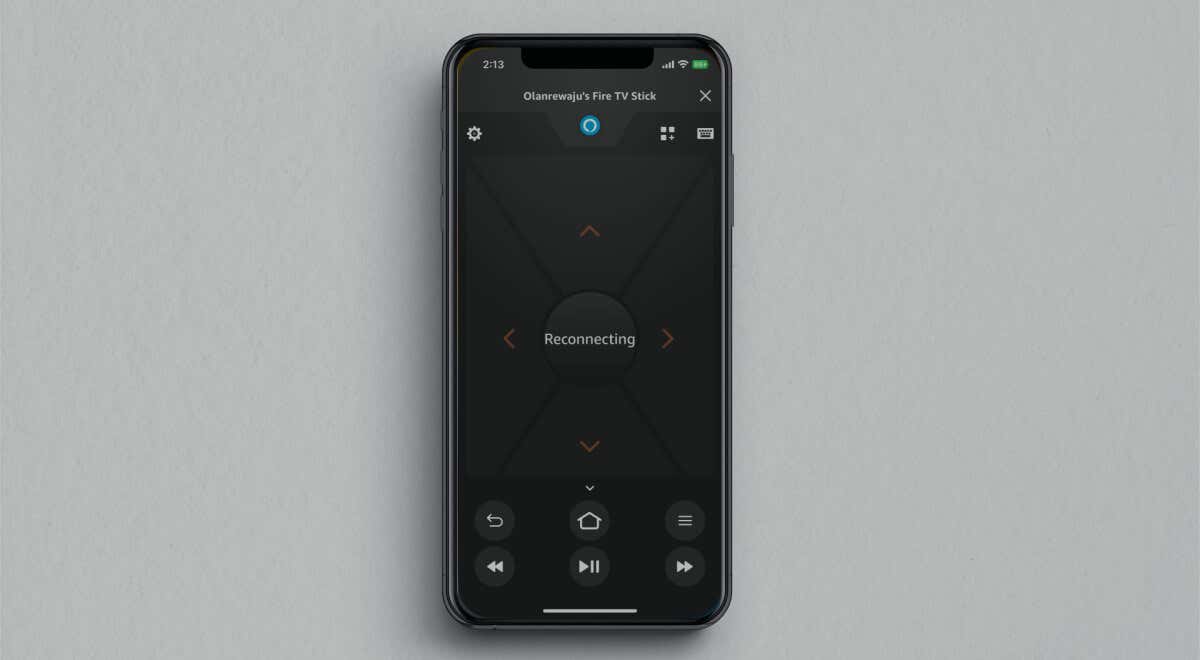
The Fire TV remote app lets you control any Fire TV streaming device from your smartphone. The app is easy to use and set up, but system glitches, outdated software, and other factors can cause the app not to work with your Fire TV device.
If you can’t use the Fire TV app, the troubleshooting advice in this tutorial should fix the issue.
1. Check Your Internet Connection Status
The Fire TV app works only when your Fire TV streaming device and smartphone are on the same Wi-Fi network.
Open your Fire TV Settings menu, select Network , and verify that you’re connected to the same network as your phone.
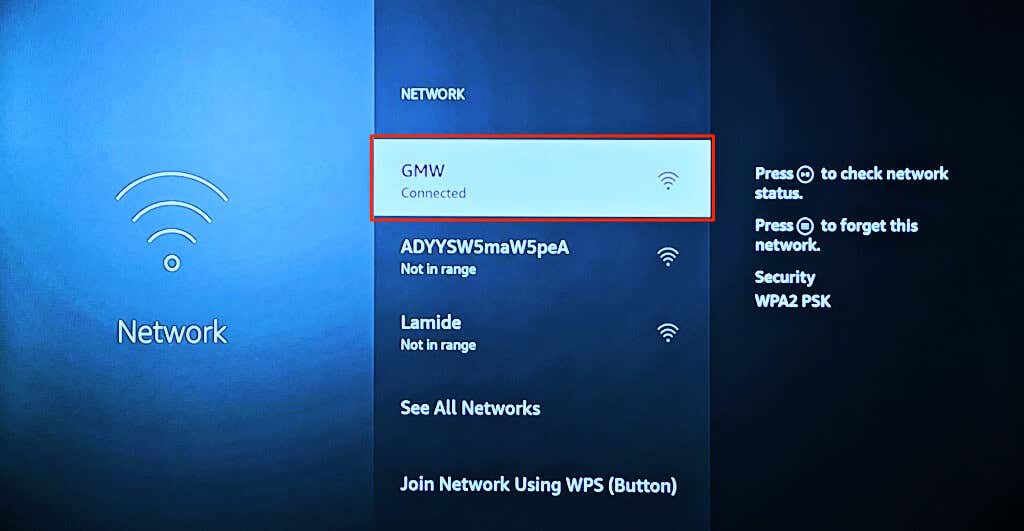
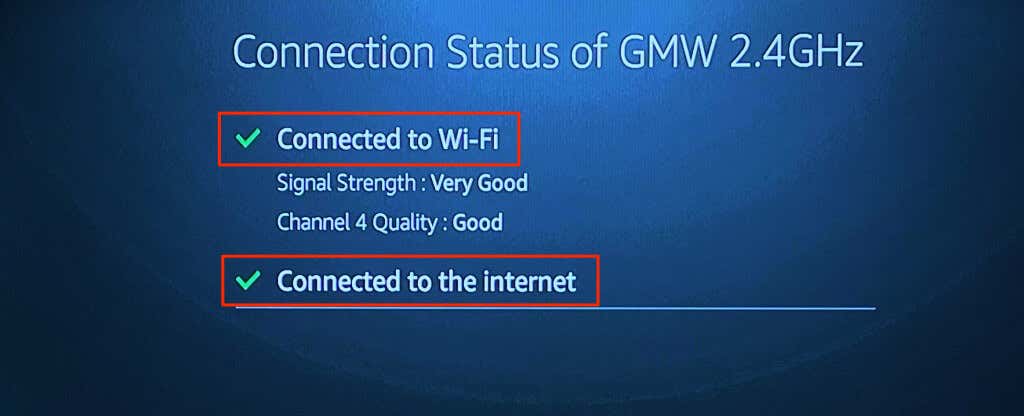
Press the Play/Pause button on the Wi-Fi network to check its connection status. You’d see the Connected to Wi-Fi and Connected to the internet status messages if your connection’s working correctly.
Reboot your router if the connection status tool reads “Not connected to the internet.” If the Wi-Fi connection has a captive portal or login page, press the Menu button on your Fire TV Remote to open the login page.
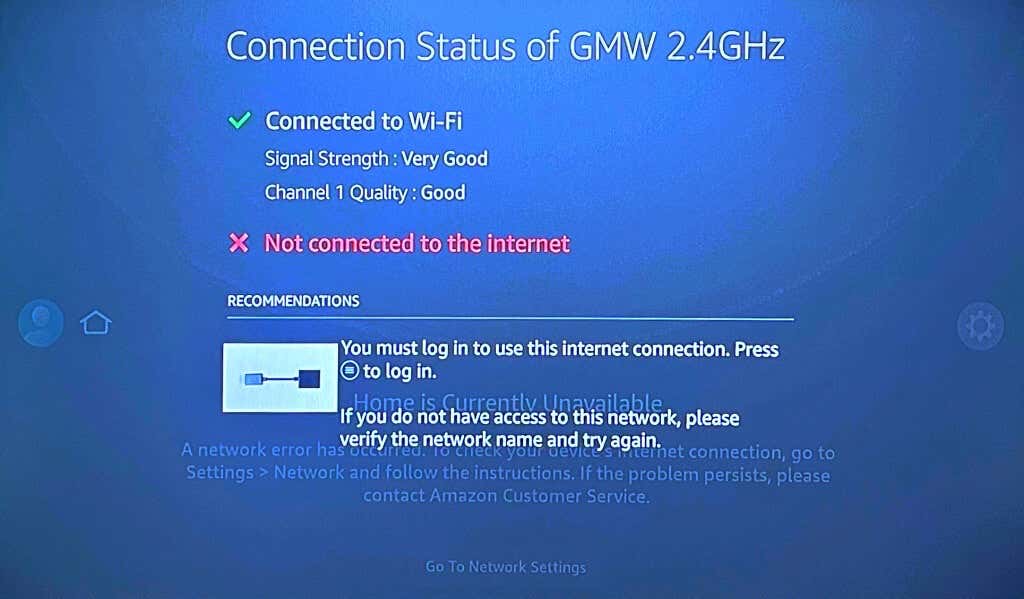
Your Fire TV device should connect to the internet when you sign in to the network.
Contact the network administrator if you can’t sign in or use the network. If you have access to the network’s admin panel, check that your Fire TV isn’t blacklisted .
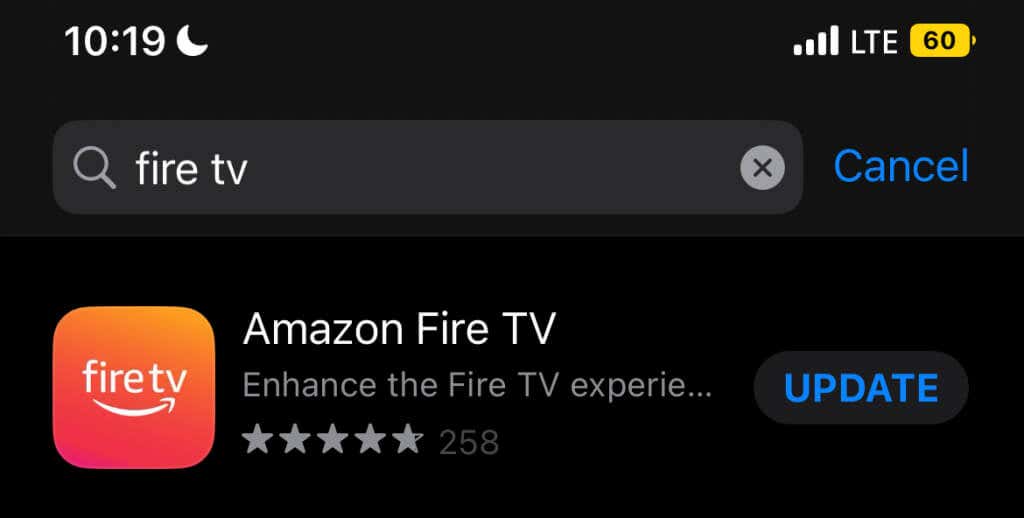
3. Force Close and Reopen the Fire TV App
If the Fire TV app is unresponsive or keeps crashing , force-stopping and reopening the app might fix the problem.
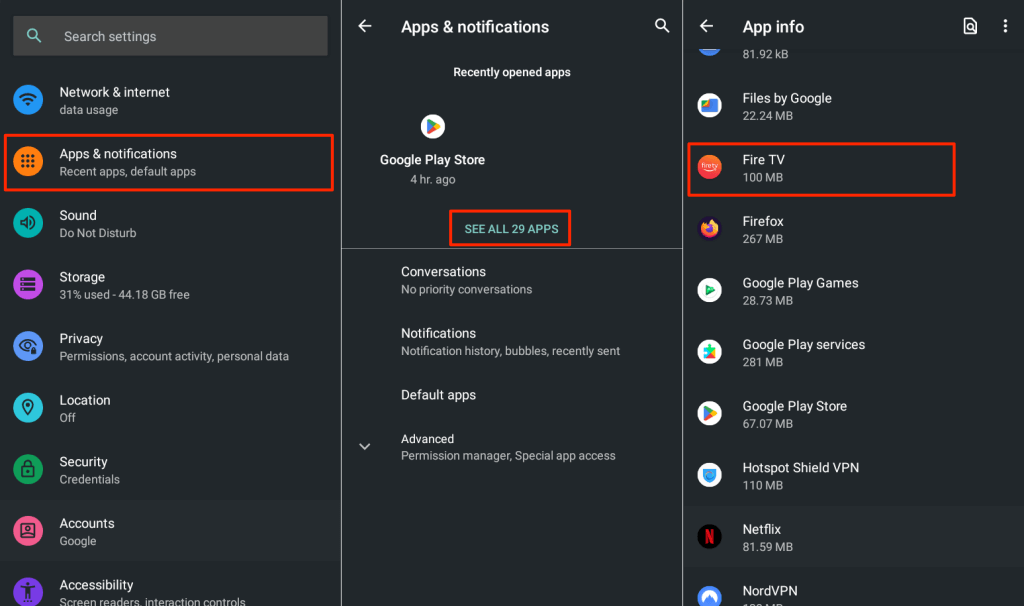
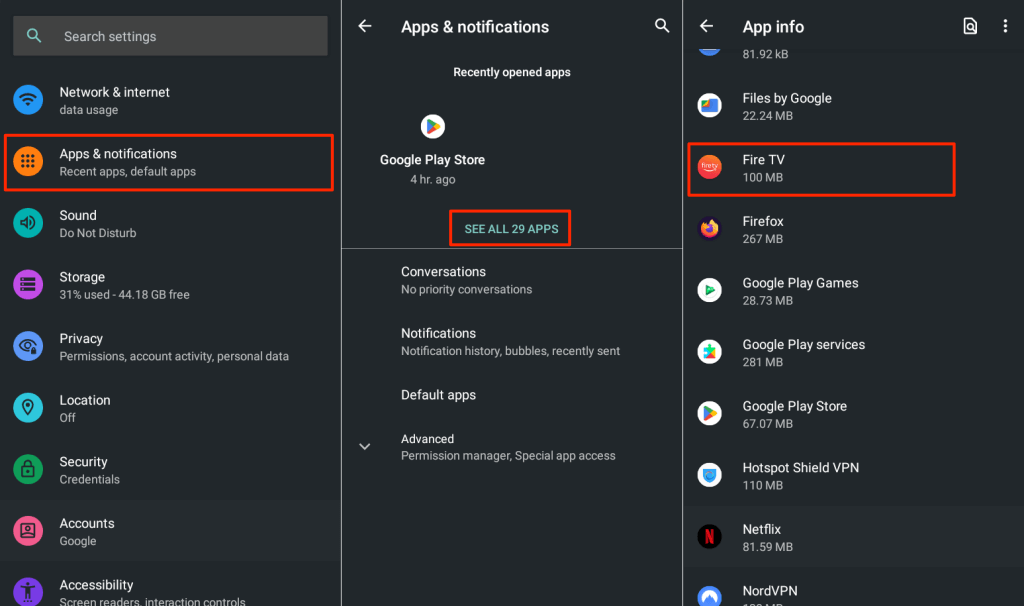
- Go to Settings > Apps & notifications > App info or See All Apps > and tap Amazon Fire TV app.
- Tap Force Close and select OK on the pop-up.
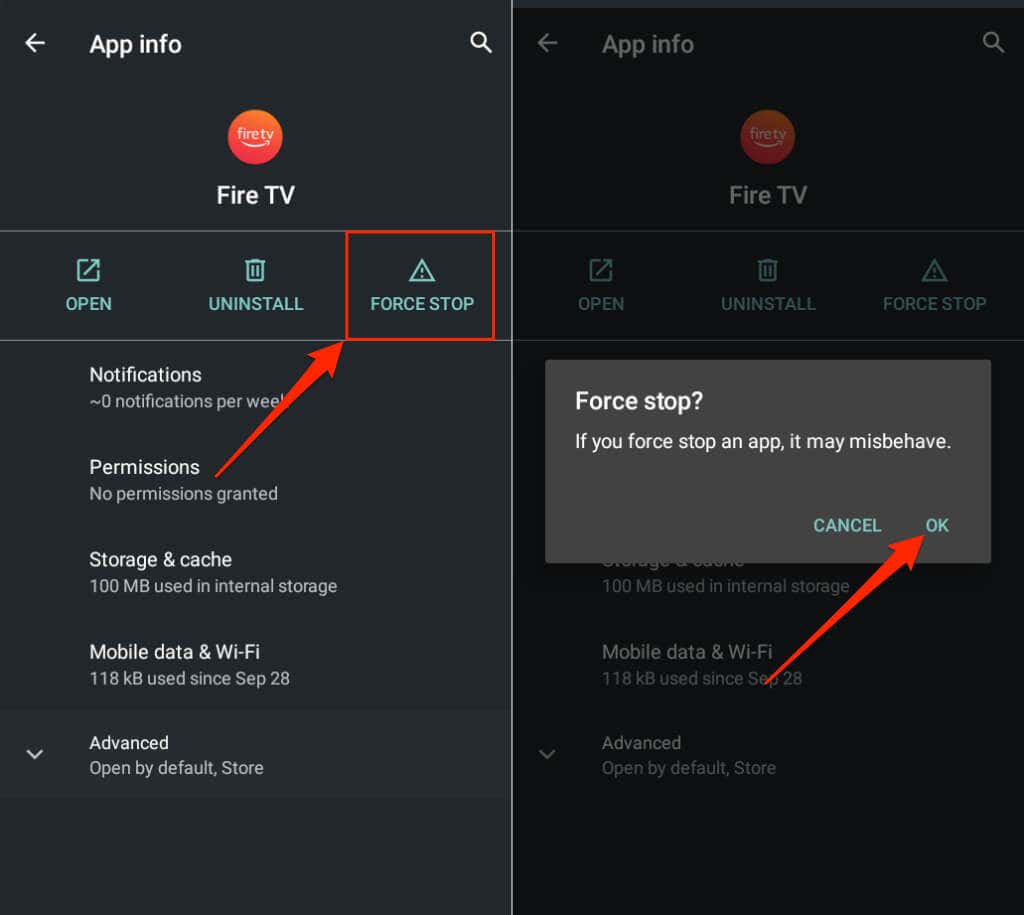
Connect your phone to the same network as your Fire TV and reopen the Fire TV app. Clear the app cache file and storage data if it still doesn’t connect to your Fire TV.
- Open your iPhone or iPad’s App Switcher—swipe up from the bottom and pause in the middle of the screen. If your iPhone/iPad has a Home button, double-click the button to open the App Switcher.
- Swipe up on the Fire TV app to close it.
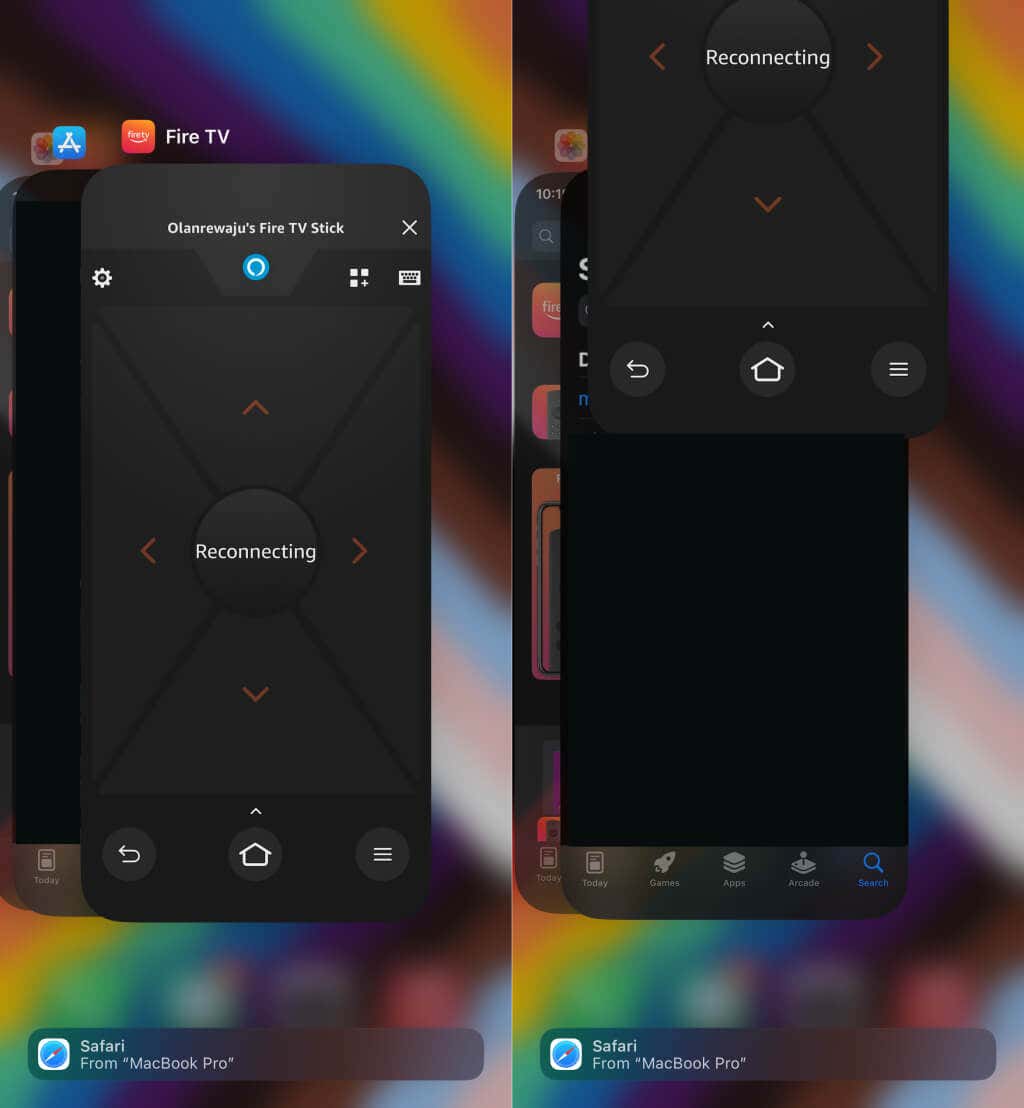
- Reopen the app and check if it connects and works with your Fire TV device.
4. Clear the Fire TV App Cache and Data
- Go to Settings > Apps & notifications > App info or See All Apps and select the Amazon Fire TV app.
- Tap Storage & cache and select the Clear Cache icon.
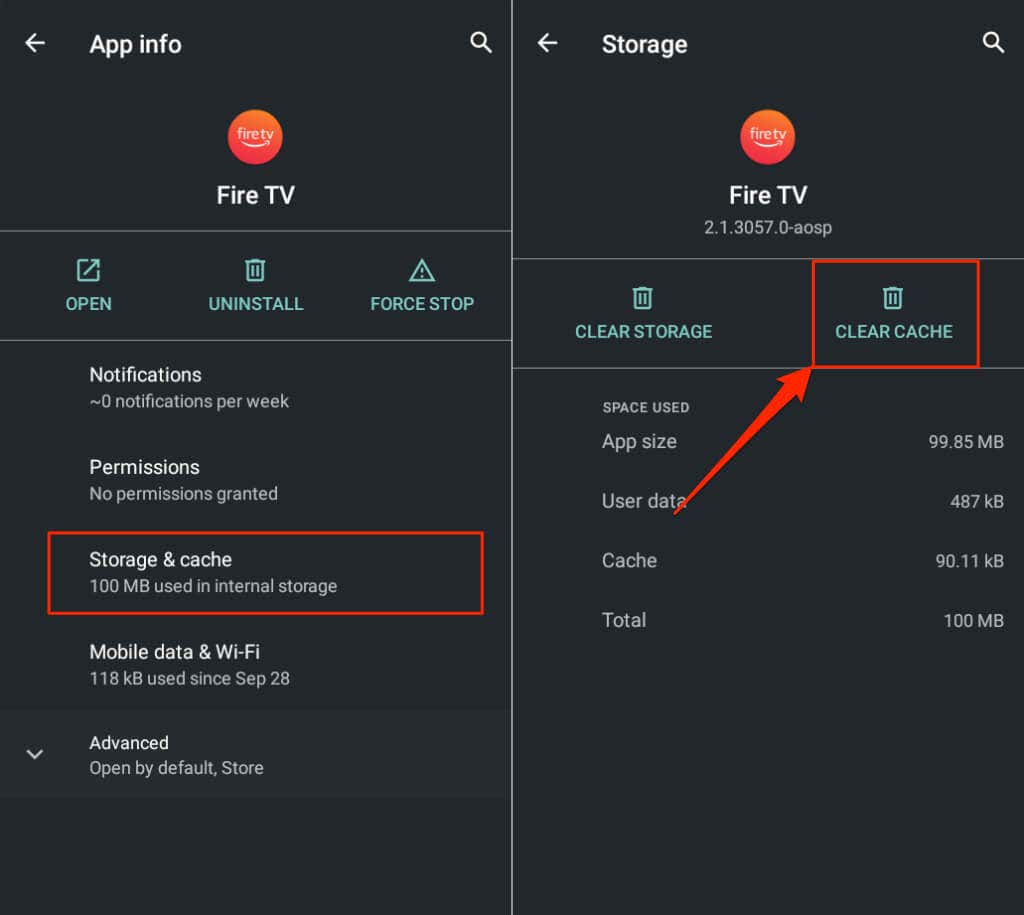
Reopen the Fire TV app and try connecting to your Fire TV device. Clear the app’s storage data if the issue persists.
- Tap Clear Storage and tap OK on the pop-up.
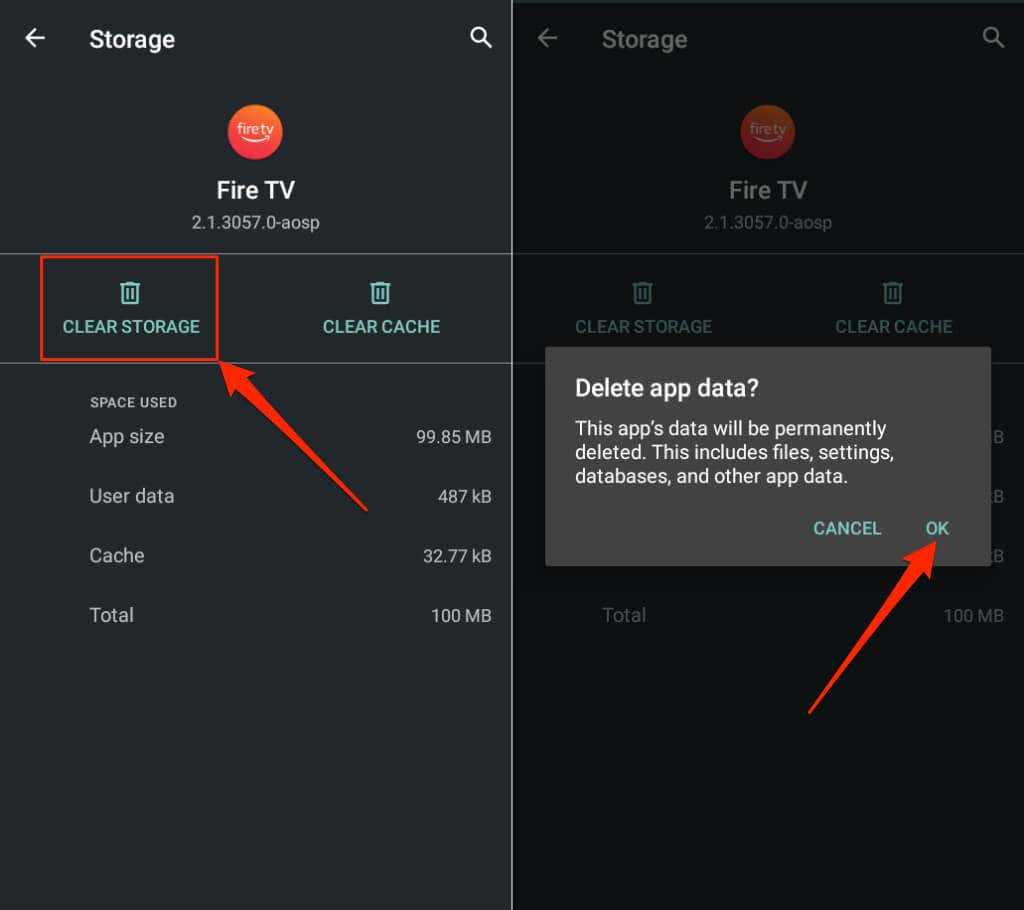
Open the Fire TV app and set up your Fire TV device from scratch.
5. Restart Your Devices
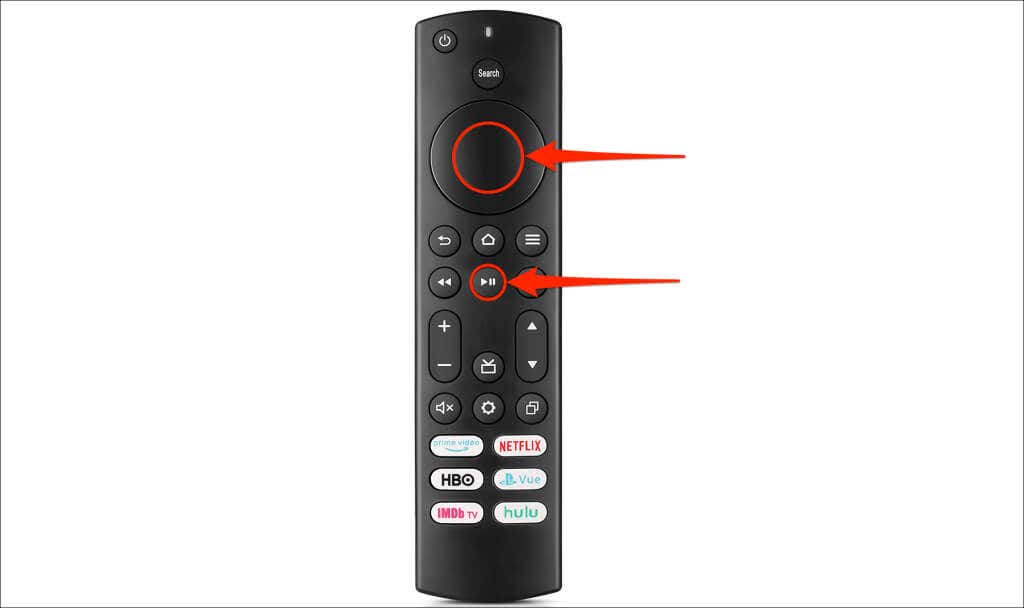
Reboot your smartphone and Fire TV if the remote app still doesn’t work. Press and hold the Play/Pause and Select button together for 3-5 seconds to reboot your Fire TV device.
6. Update Your Devices
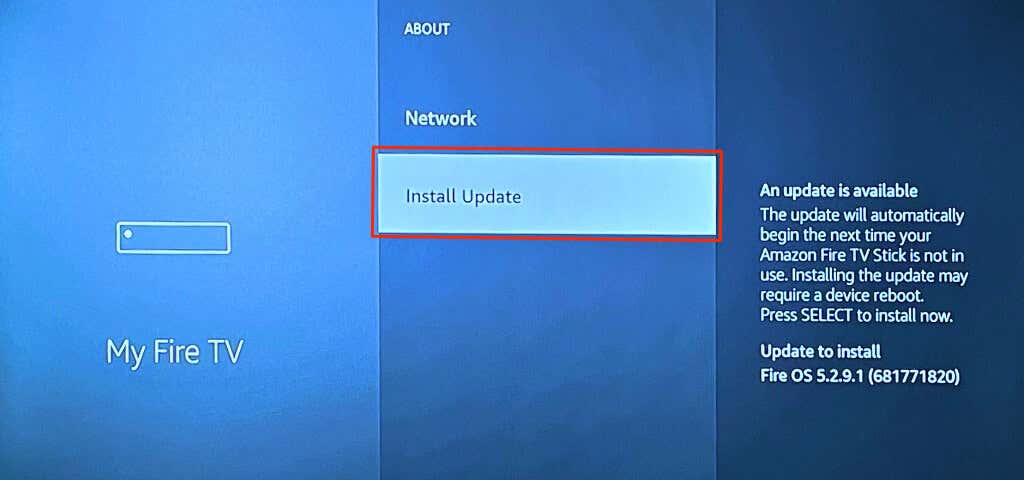
Updating your Fire TV can resolve connectivity issues and performance lags. Connect your Fire TV to the internet, download the latest Fire OS version, or install a pending update.
Connect your Fire TV to the internet, go to Settings > My Fire TV > About , and select Check for Updates or Install Update .
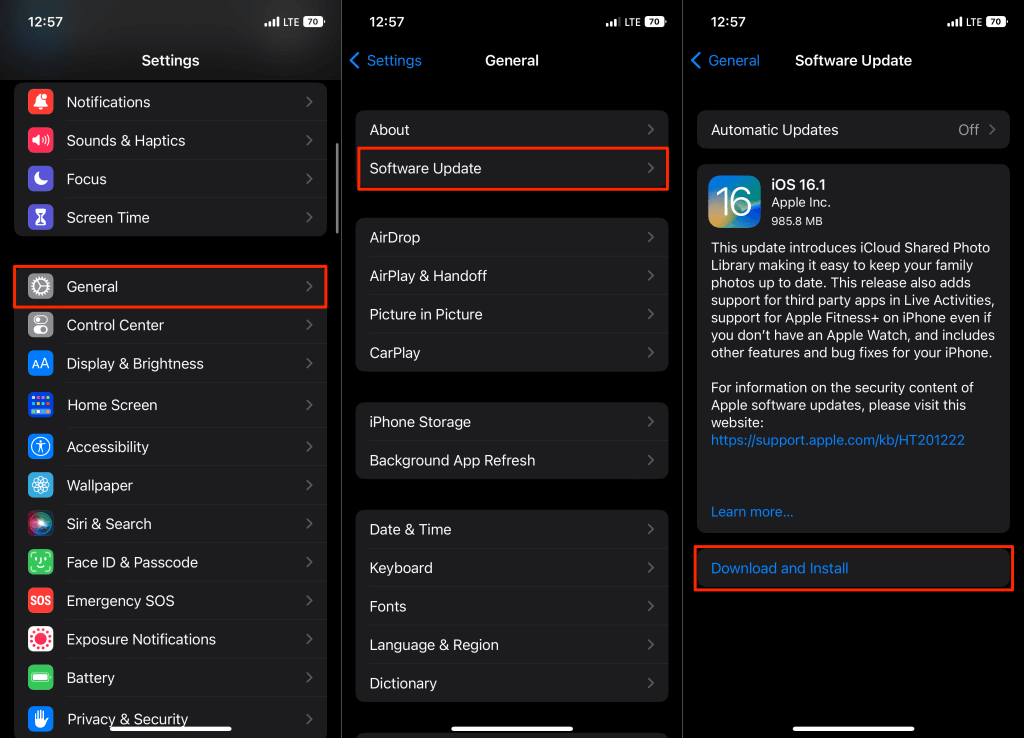
You should also ensure your smartphone’s up-to-date. Go to Settings > General > Software Update and tap Download and Install to update your iPhone or iPad.
If you use an Android device, update its operating system via Settings > System > System update > Check for update .
7. Reinstall the Fire TV Remote App
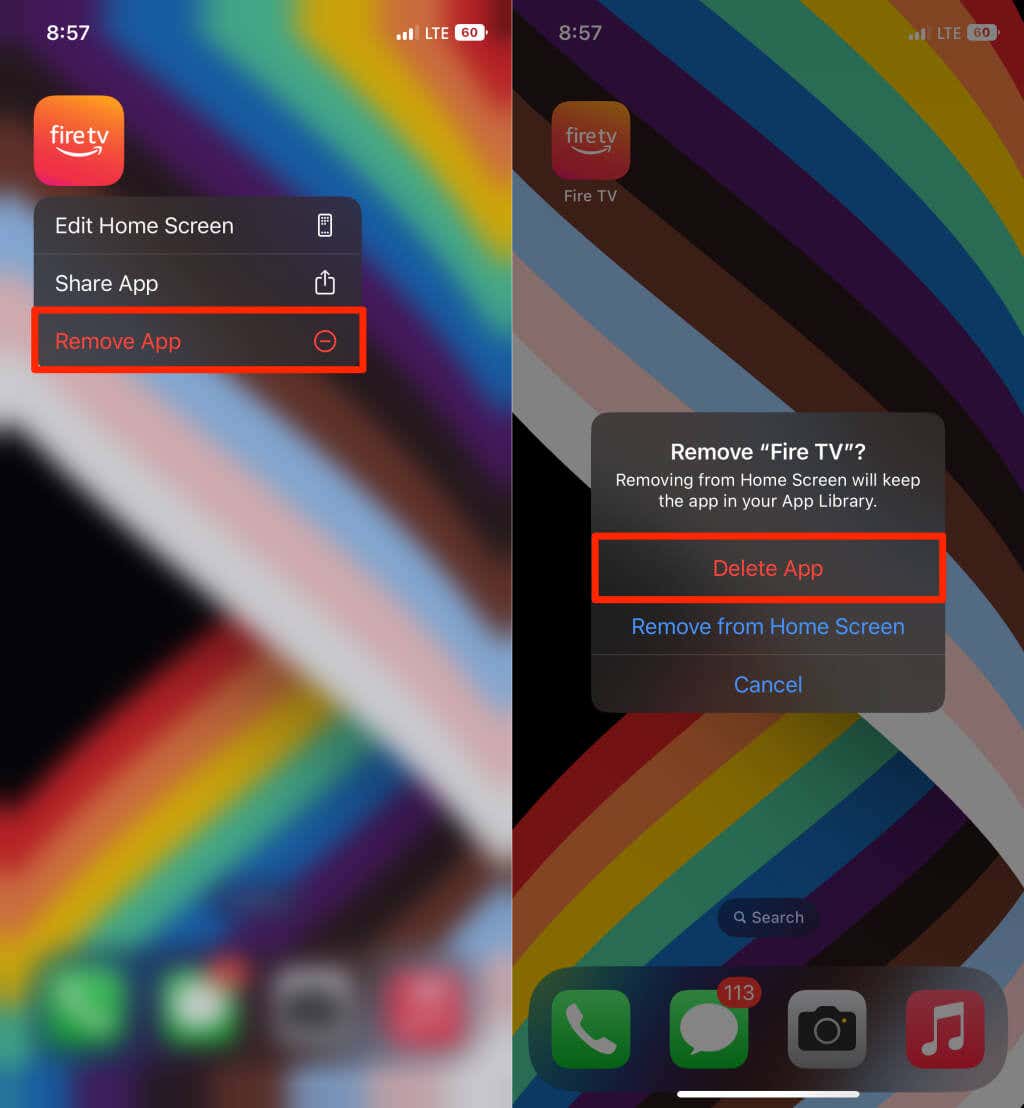
Delete the Fire TV Remote app, restart your smartphone, and reinstall it from your device’s app store.
Tap and hold the Fire TV app icon on your iPhone or iPad, tap Remove App , and select Delete App .
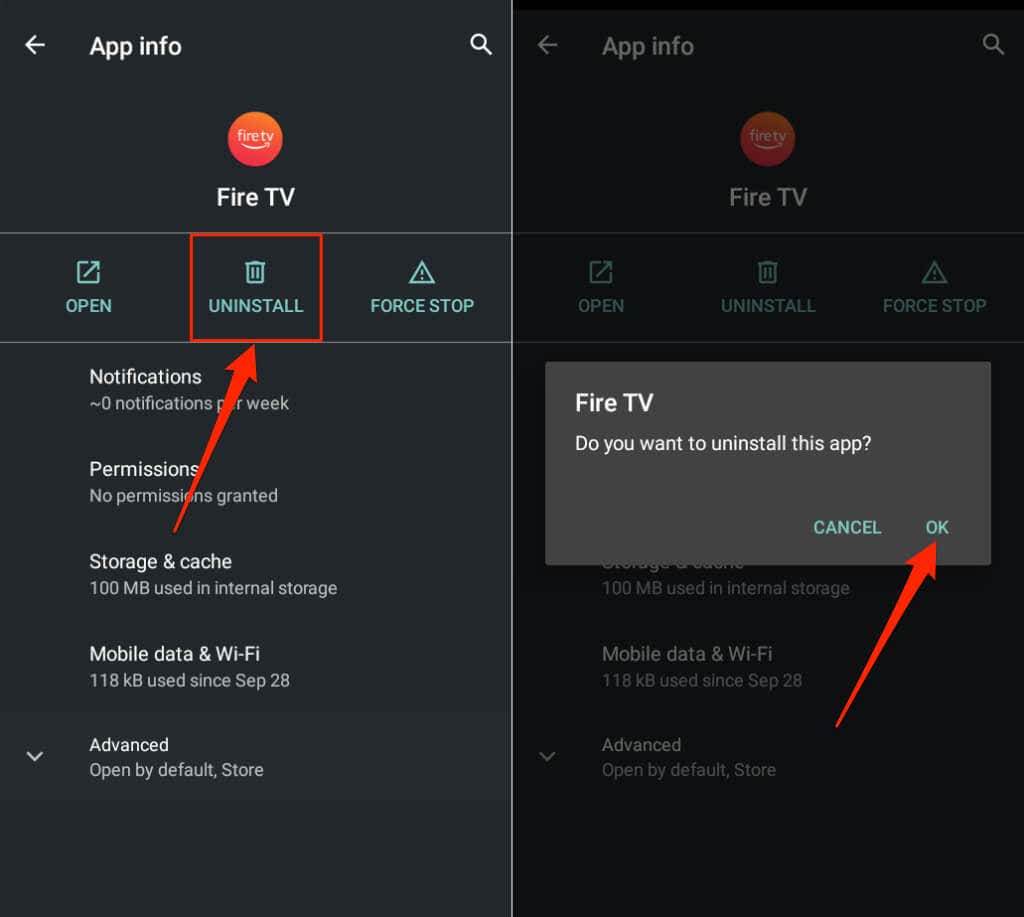
On Android, go to Settings > Apps & notifications > App info (or See All Apps ) > Fire TV > Uninstall and tap OK .
Reboot your phone (and Fire TV) and reinstall the Fire TV app from the Apple App Store or Google Play Store .
- Amazon Fire TV Stick Won’t Turn On? 4 Ways to Fix
- Fire TV Stick Stuck on the “Fire TV” or “Amazon” Logo? 8 Fixes to Try
- FIX: Amazon Fire Stick Keeps Restarting
- 6 Fixes to Try if Your Fire TV Keeps Freezing
- A Detailed Guide on Fixing Black Screen Issues on Fire TV Stick
Sodiq has written thousands of tutorials, guides, and explainers over the past 4 years to help people solve problems with Android, iOS, Mac, and Windows devices. He also enjoys reviewing consumer tech products (smartphones, smart home devices, accessories, etc.) and binge-watching comedy series in his spare time. Read Sodiq’s Full Bio
