1. Move Remote Closer and Check for Interference
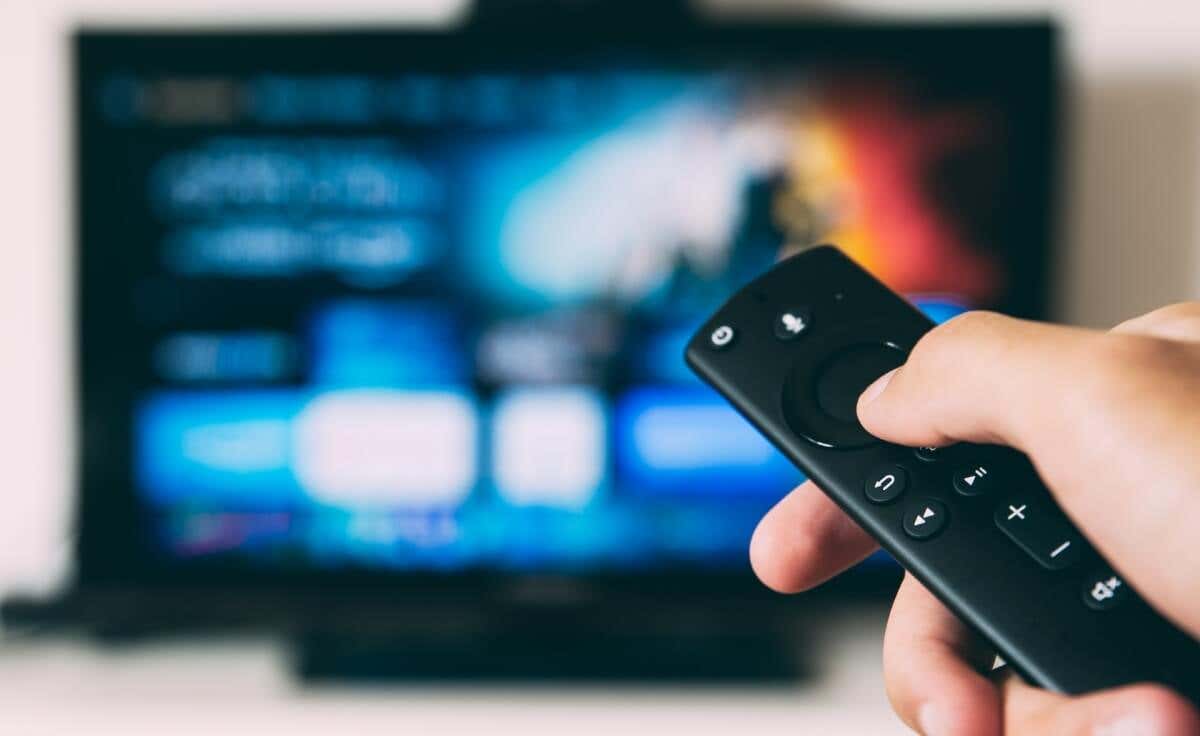
Ensure your Fire TV and its remote are in the same room and within visible distance. Also, ensure the remote has a clear line of sight from the Fire TV.
Using your Fire TV device or remote near radiation-emitting devices—Wi-Fi router, wireless speaker, microwave oven, etc.—can cause interference. We recommend turning off these devices or moving them away from your Fire TV device/remote.
2. Use the Fire TV Remote App
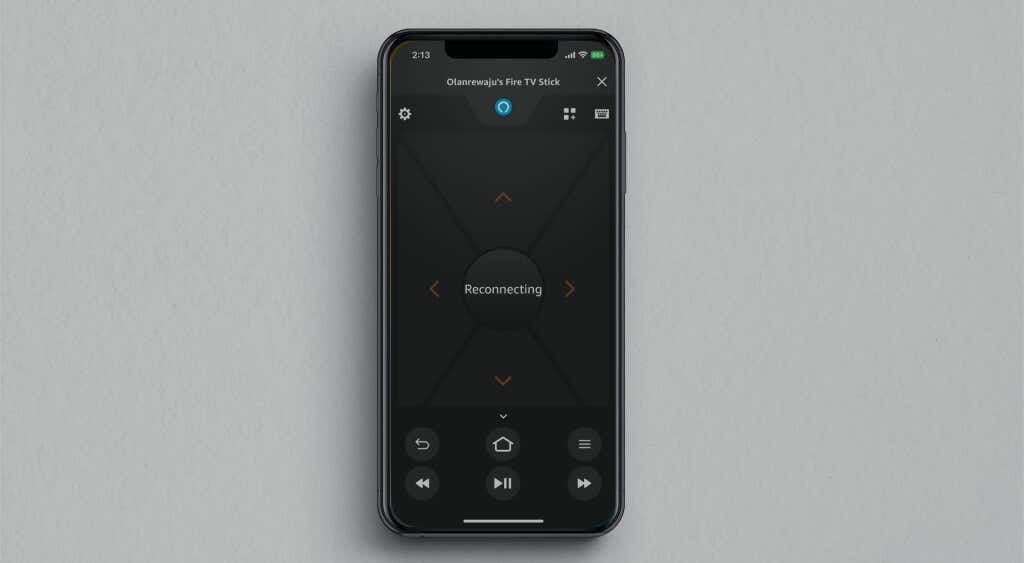
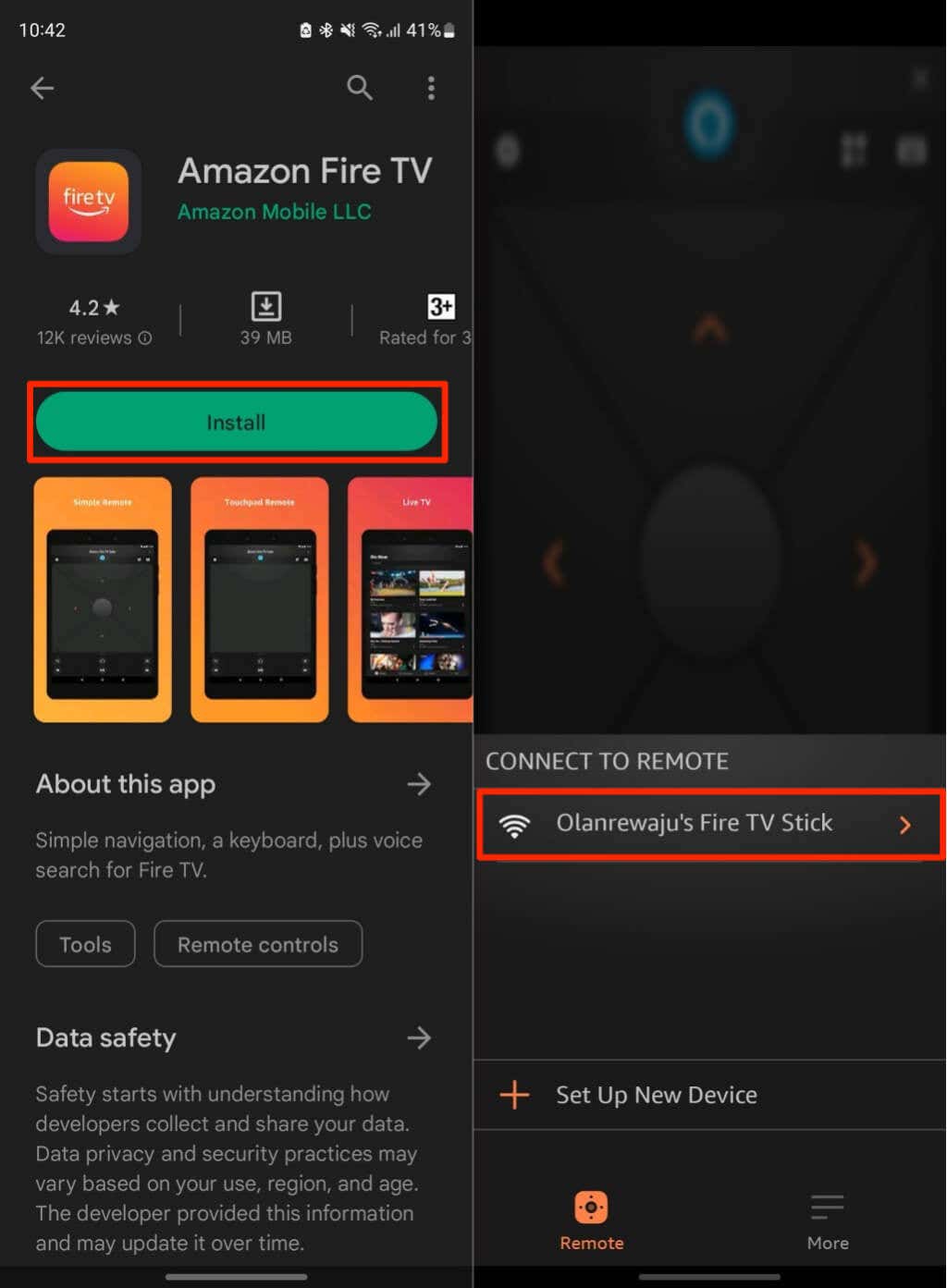
- Download the Amazon Fire TV app from the App Store (for iPhone/iPad) or Google Play Store (for Android).
- Next, connect your mobile device to the same Wi-Fi network as your Fire TV.
- Open the Amazon Fire TV app and wait for it to detect your Fire TV device. Select your device in the “Connect to Remote” section to proceed.
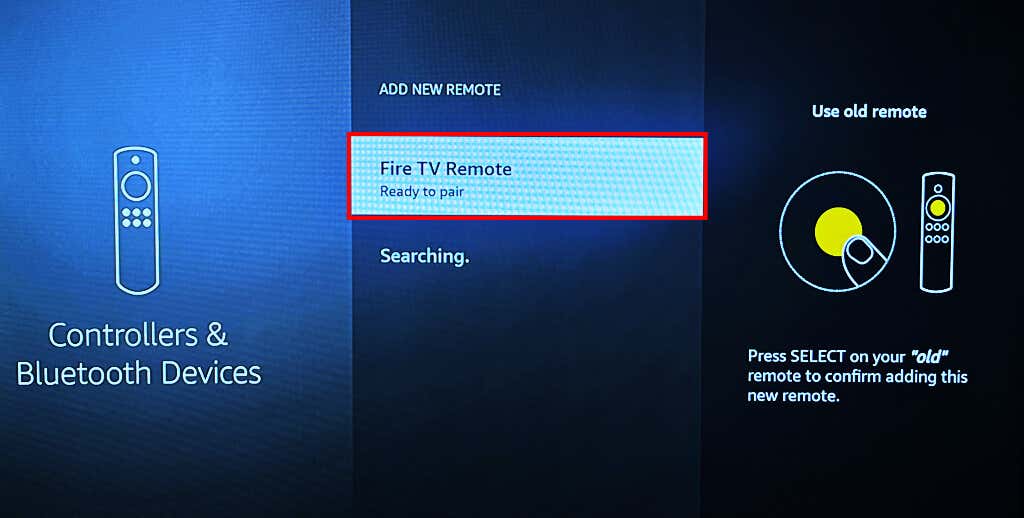
You should see a “Fire TV Remote – Ready to pair” entry on the search page when your Fire TV detects the remote.
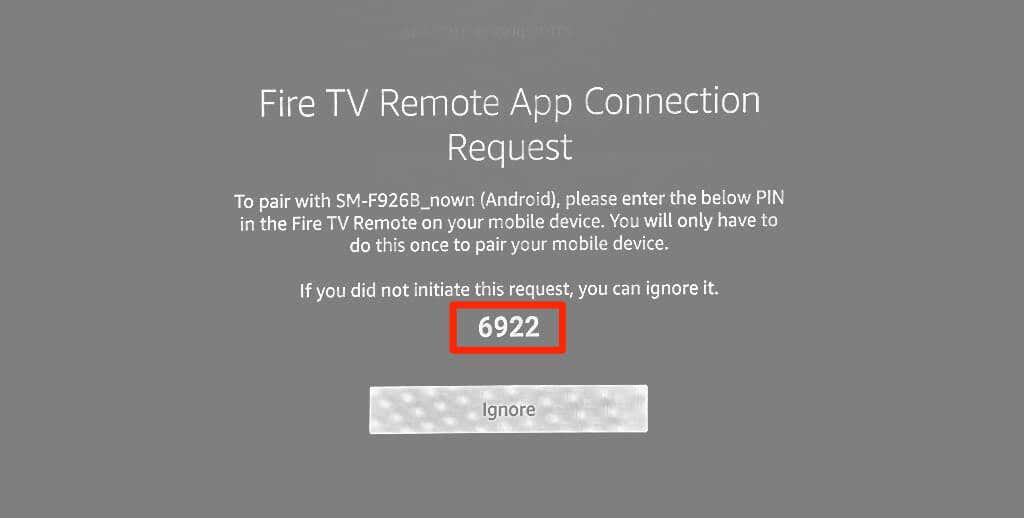
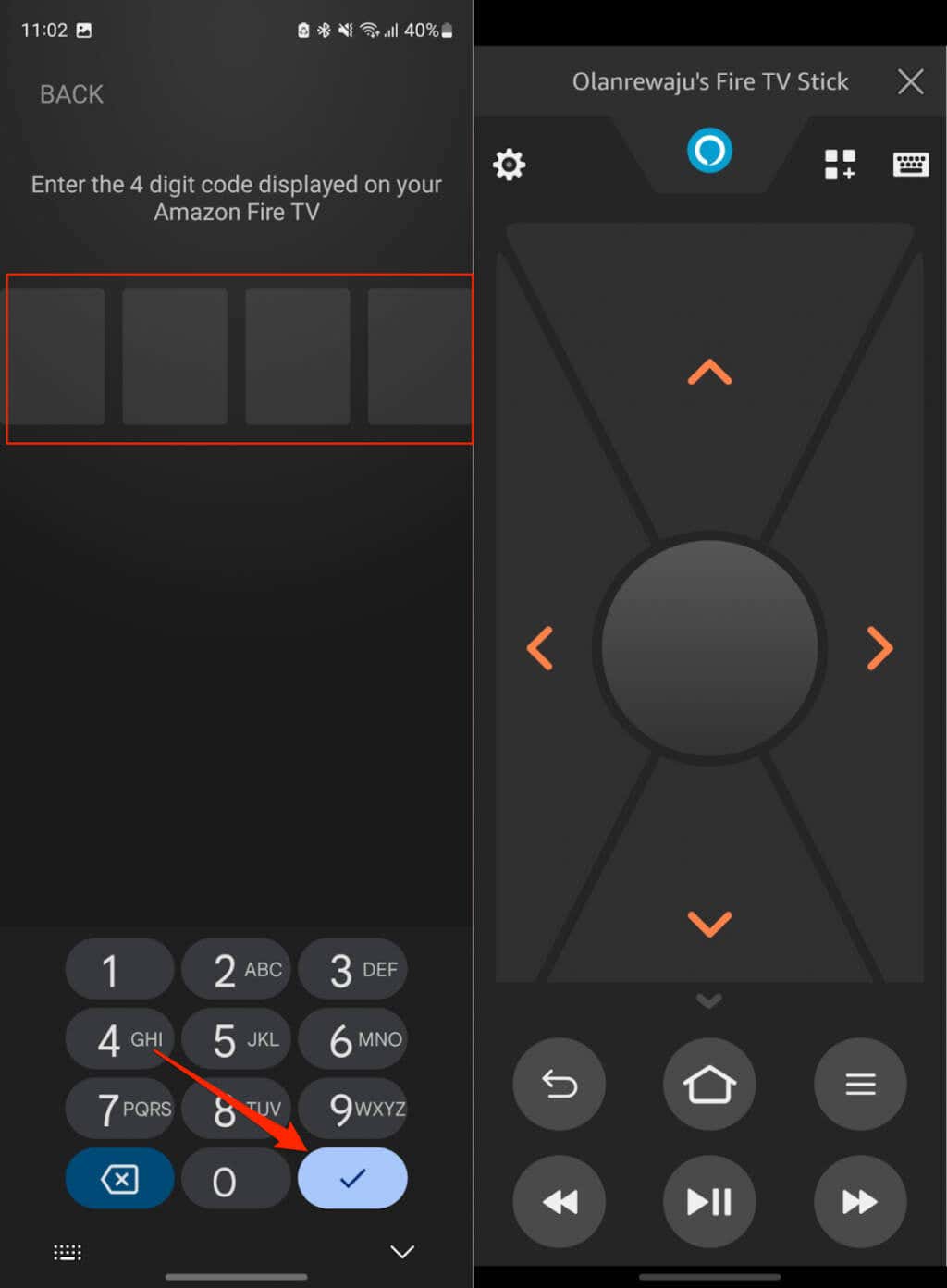
- Enter the code in the Amazon Fire TV app and tap the Checkmark icon to proceed.
3. Reinsert or Replace the Batteries
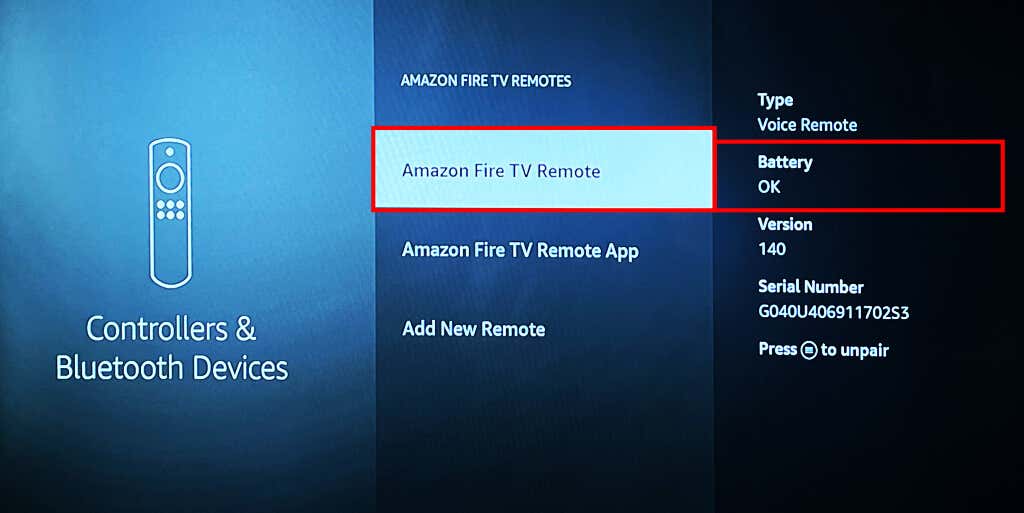
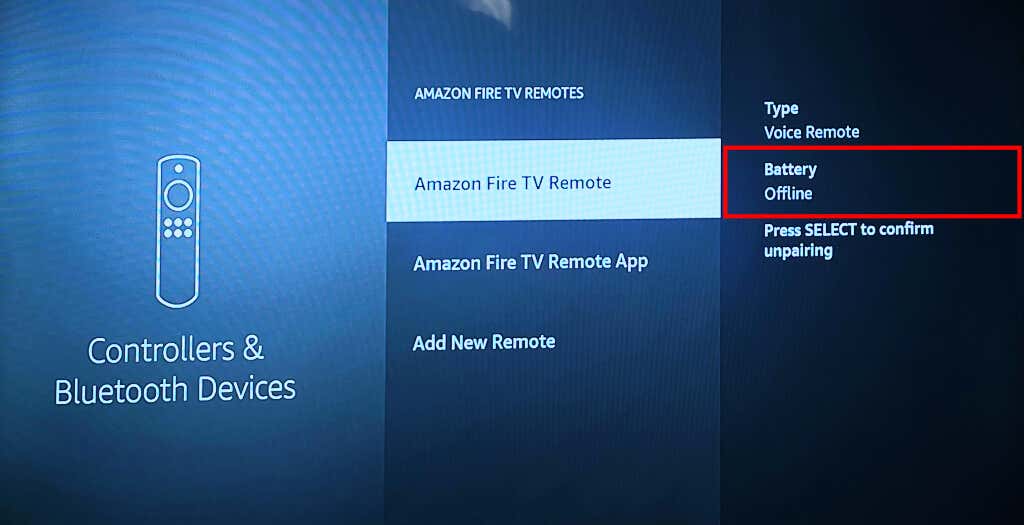
Change the remote’s batteries if your Fire TV says they’re “Offline.”
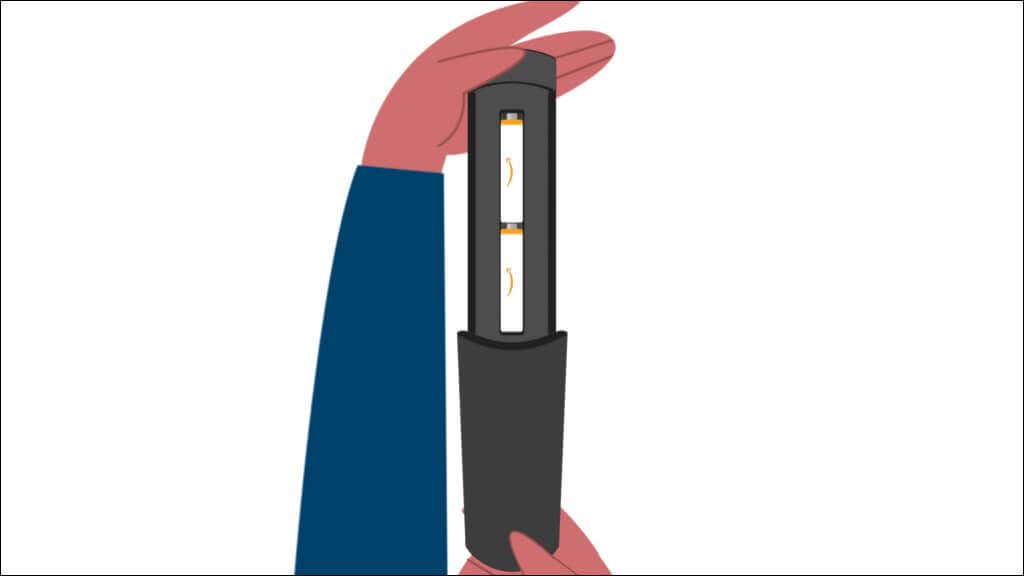
Open your Fire TV Remote’s back cover and check that the batteries are secure and inserted correctly. Also, ensure you align the battery polarities—positive (+) and negative (-) sides—in line with the inscriptions in the battery compartment.
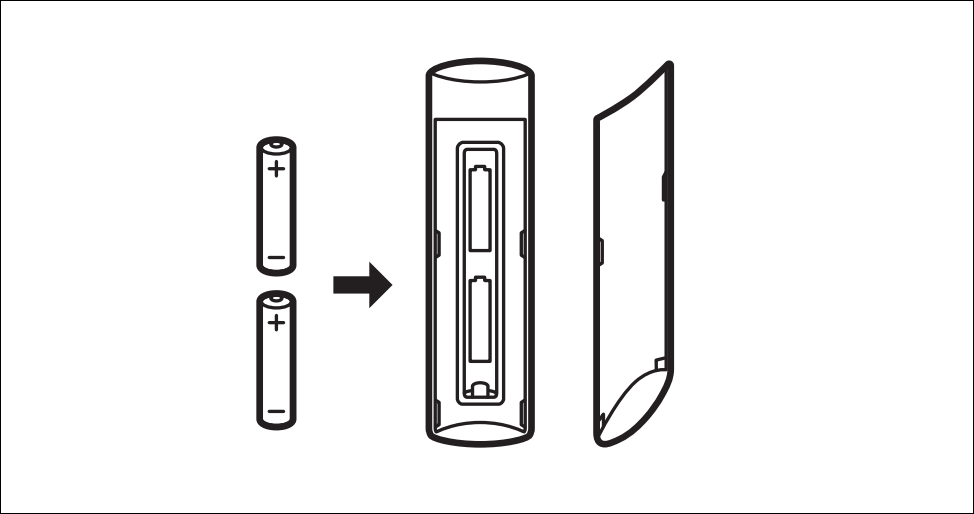
Replace both batteries with new units. Your Fire TV Remote might malfunction if you replace one battery or mix old and new batteries.
4. Unpair and Re-Pair the Remote
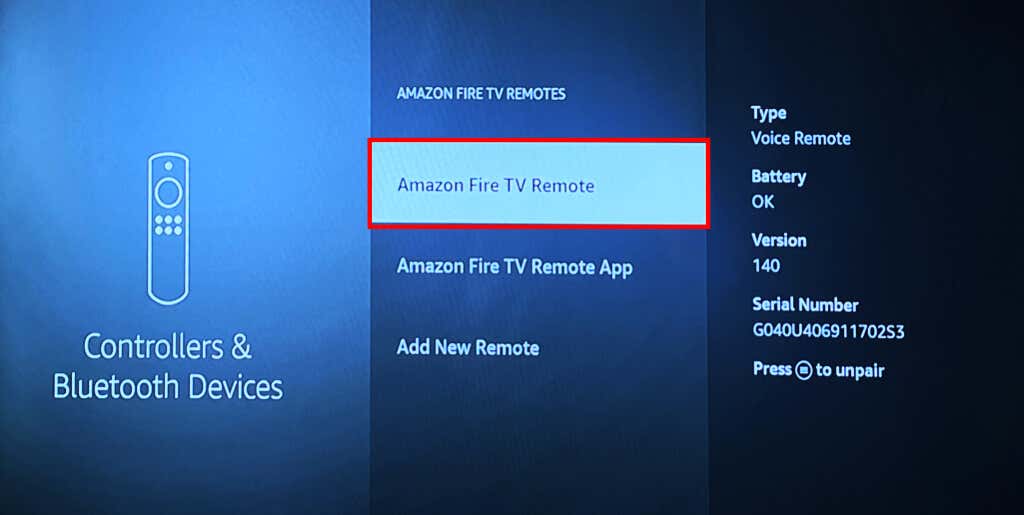
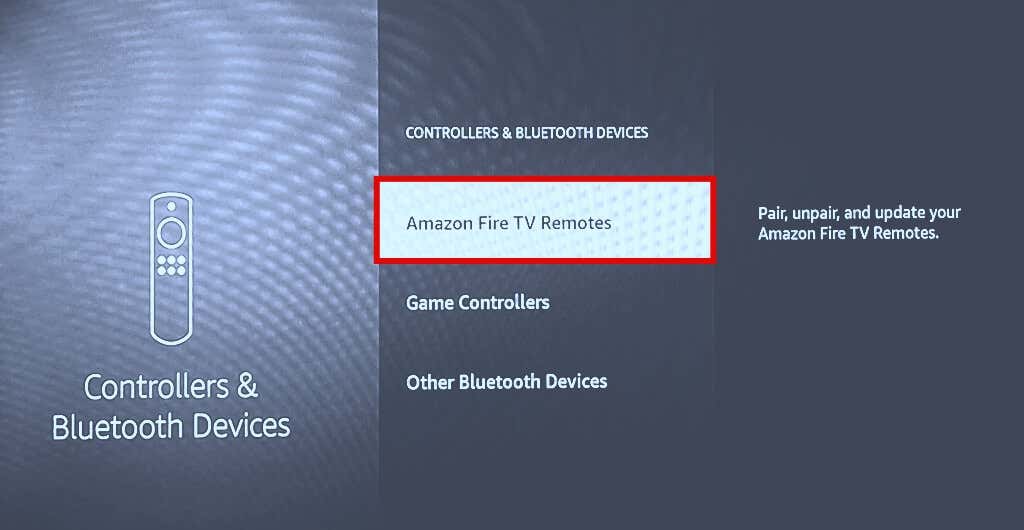
- Go to Settings > Controllers & Bluetooth Devices > Amazon Fire TV Remotes > Amazon Fire TV Remote .
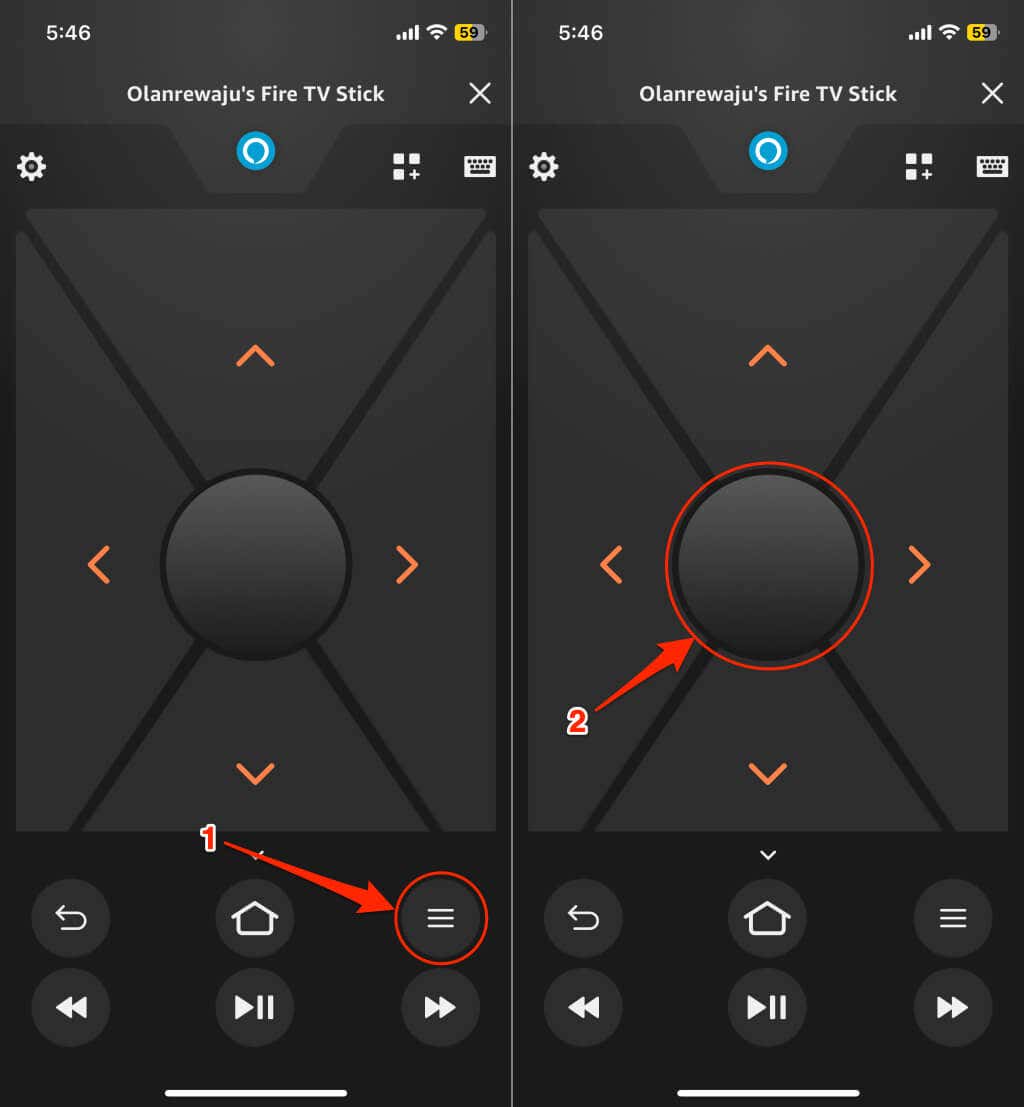
- Tap the Menu icon (in the Amazon Fire TV) app to unpair the remote.
- Next, tap the Select icon to confirm the unpairing.
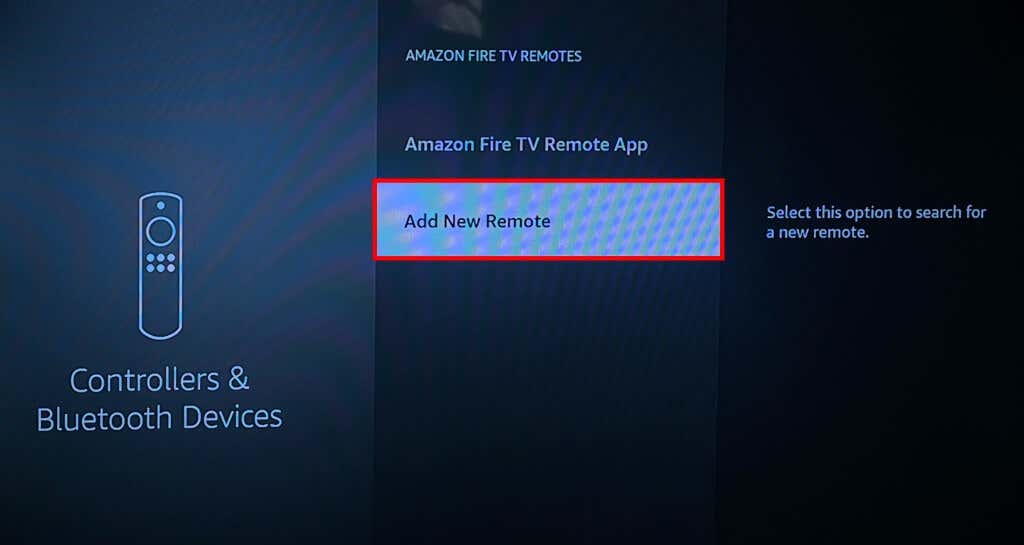
- Select Add New Remote to re-pair the remote to your Fire TV.
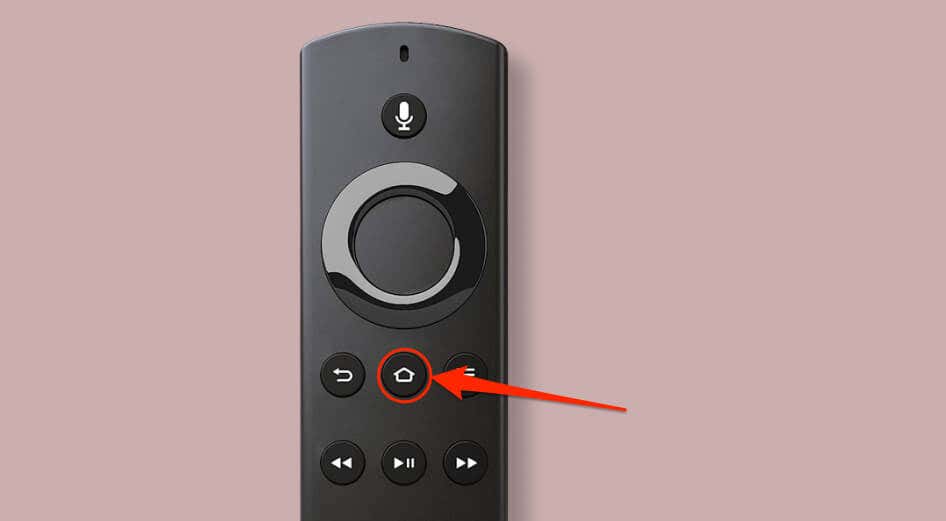
- Press and hold the Home button on the Fire TV remote for ten seconds to put it in pairing mode.
You should see “Fire TV Remote – Ready to pair” on the search page when your Fire TV detects the remote.
- Tap the Select icon in the Amazon Fire TV app to pair/connect the remote to your Fire TV.
The remote should now appear on the list of controllers. Reboot your Fire TV if the remote still doesn’t work.
5. Power Cycle Your Fire TV
5. Update Your Fire TV
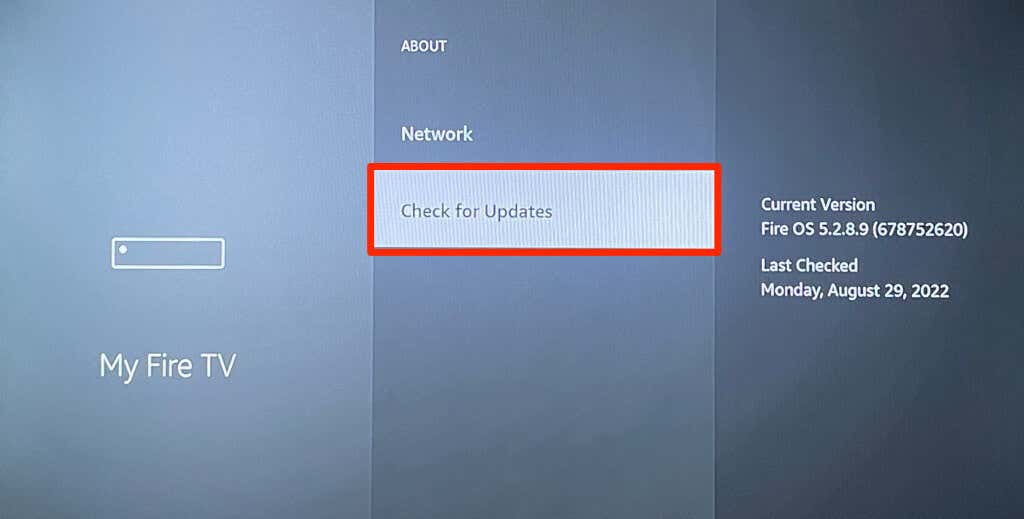
Go to Settings > My Fire TV > About and select Check for Updates or Install Update .
6. Reset Your Fire TV Remote
Resetting your Fire TV Remote to factory default can get it working correctly again. The factory reset procedure for Fire TV Remotes varies depending on your Fire TV or remote model/generation.
How to Reset Alexa Voice Remote (1st Generation)
Unplug your Fire TV from its power source and follow the steps below.
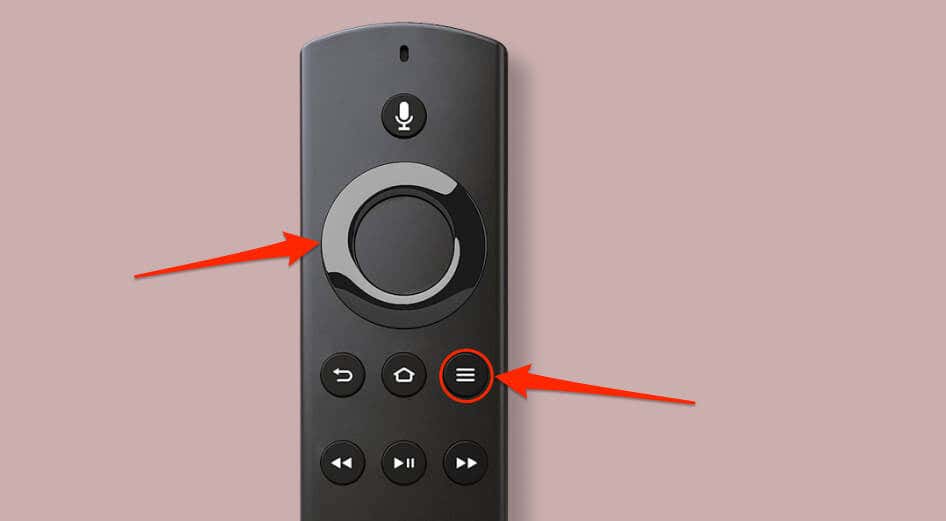
- Press and hold the Left and Menu buttons simultaneously for at least 12 seconds.
- Release both buttons and wait five seconds.
- Open the back cover and remove both batteries from the remote.
- Plug or reconnect your Fire TV to its power source.
- Reinsert the batteries in the remote when you see a screen that says the Fire TV can’t detect your remote.
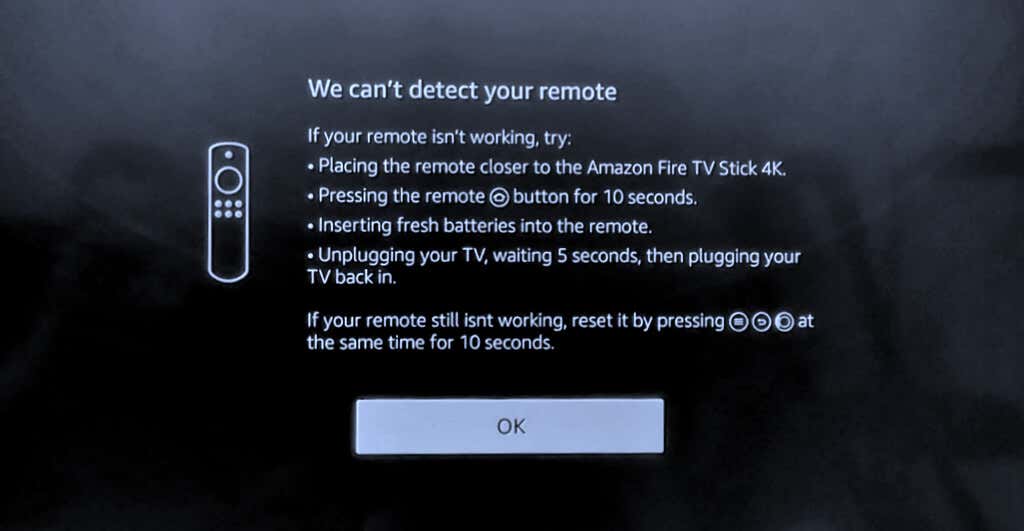
- Press the Home button to reconnect the remote to your Fire TV device.
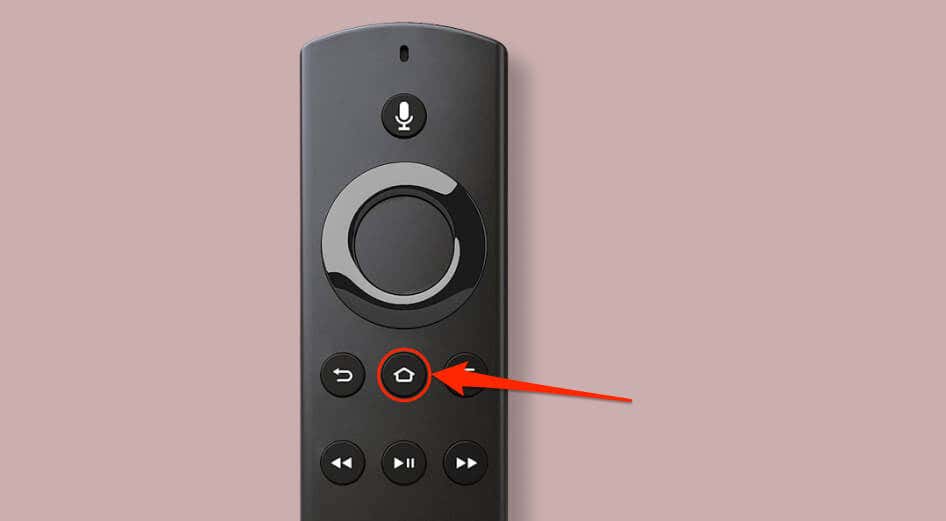
How to Reset Fire TV Remote (Basic Edition)
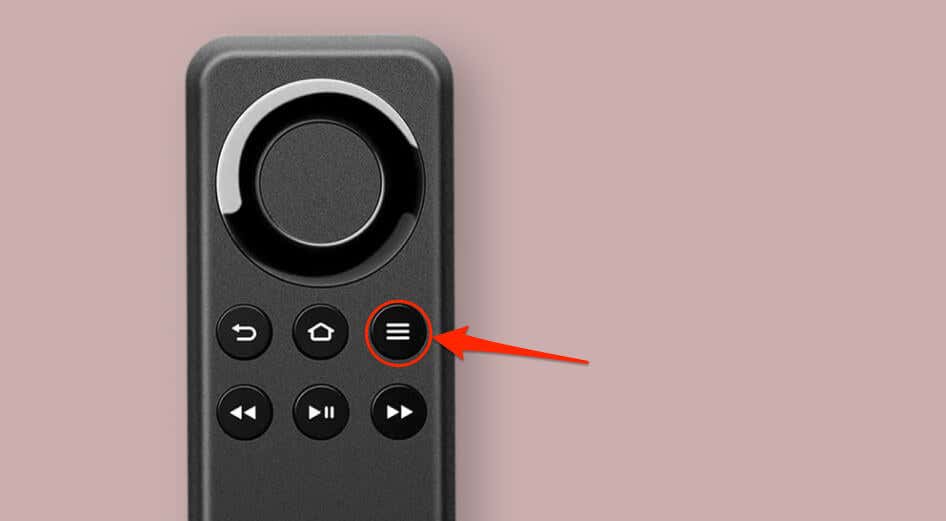
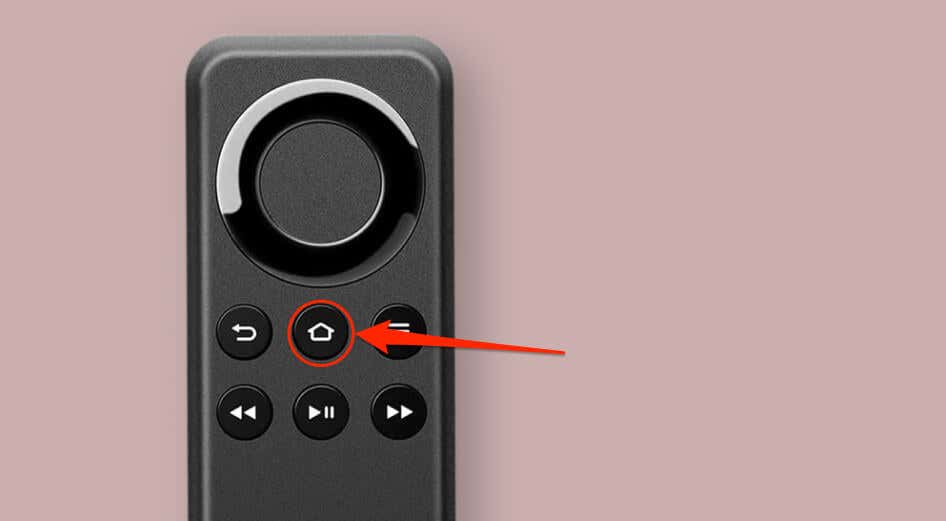
- Press and hold the Home button.
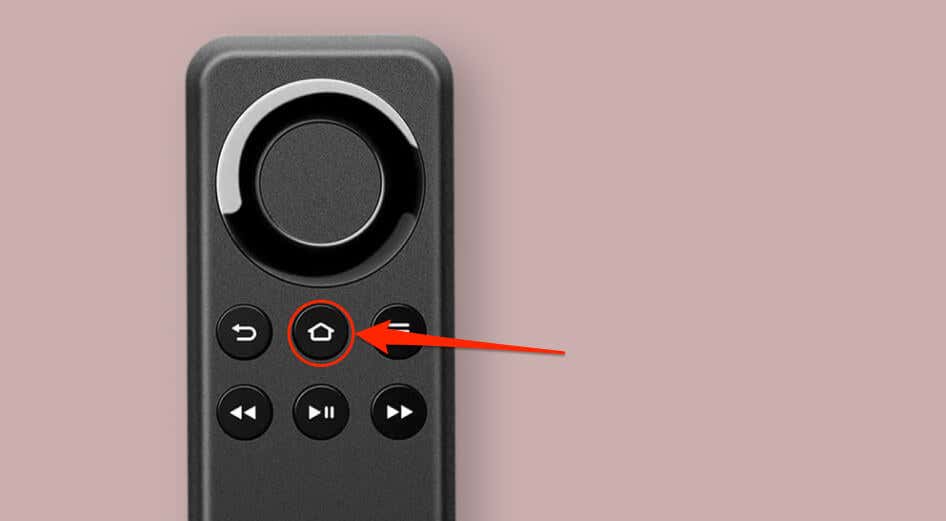
- Press the Menu button three times while holding the Home button.
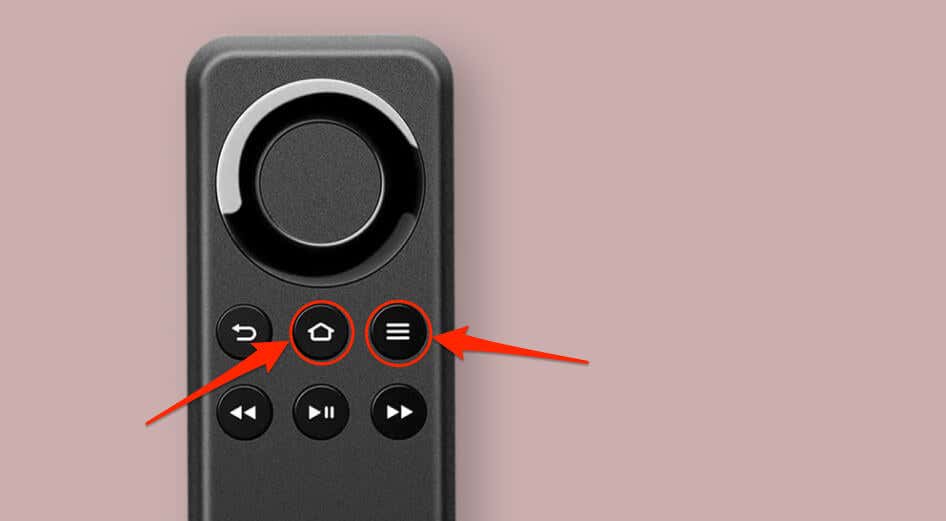
- Release the Home button and press the Menu button nine times.
- Open the back plate/cover of the Fire TV Remote and remove the batteries.
- Next, unplug your Fire TV from its power source.
- Reinsert the batteries in the remote and plug your Fire TV back into its power source.
- Press and hold the Home button on the remote when your Fire TV boots the home screen. The remote should pair with your Fire TV in about 40-60 seconds.
How to reset Fire TV Remote (Other Models/Editions)
- Press and hold the Left , Menu , and Back buttons on your remote for at least 12 seconds.
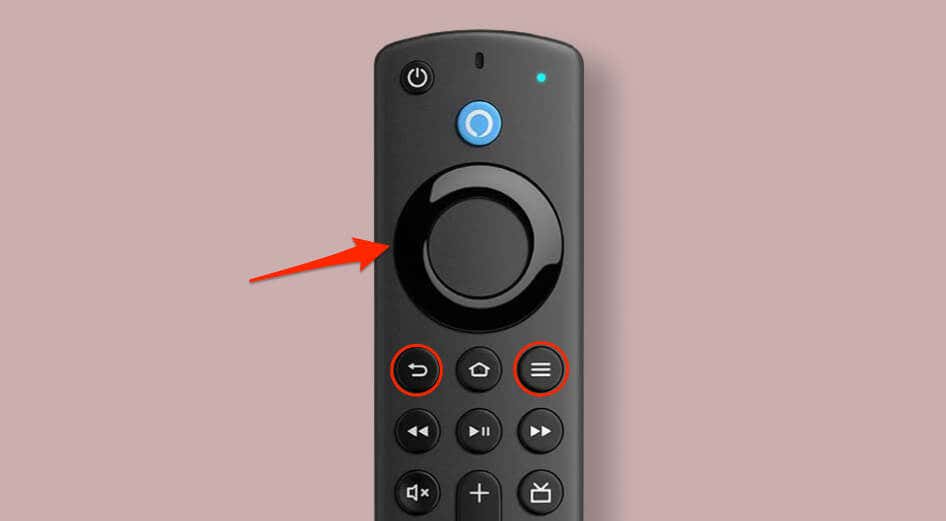
- Release all three buttons, wait five seconds, and remove the batteries from your remote.
- Connect your Fire TV to the power outlet and wait for it to boot the Home screen. You should see a “We can’t detect your remote” message on your TV screen.
- Reinsert the batteries in the remote and press the Home button.
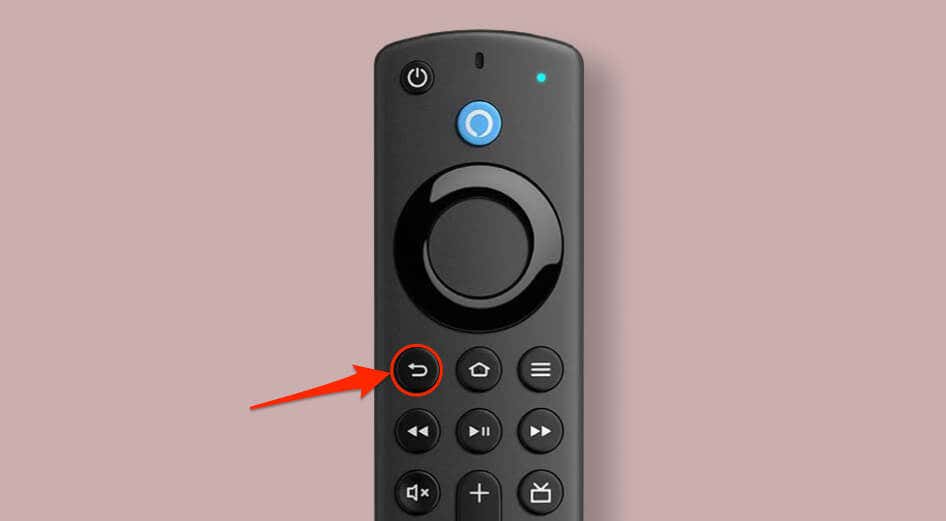
The remote should automatically pair with your Fire TV device. Otherwise, press and hold the Home button for ten seconds to pair it manually.
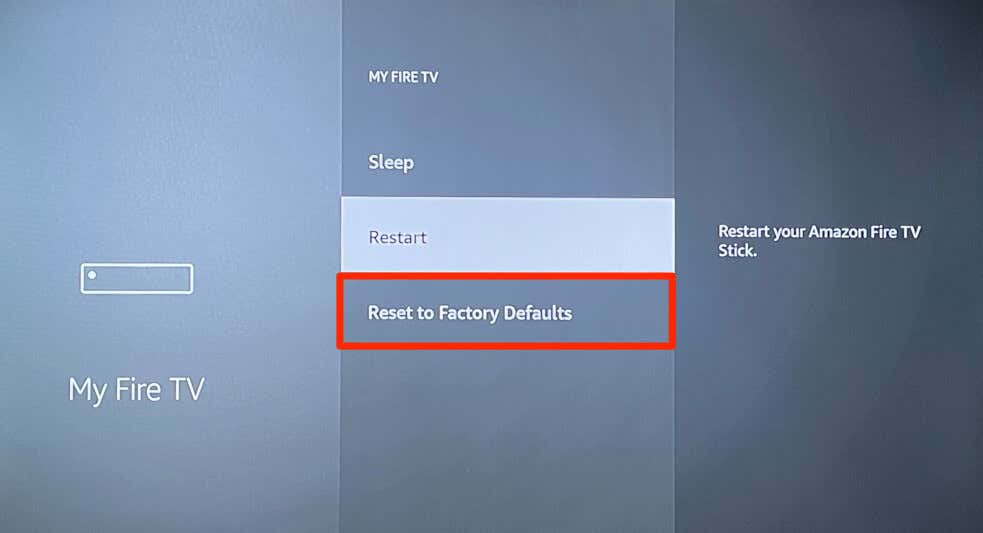
7. Restore Your Fire TV to Factory Settings
Factory resetting your Fire TV can resolve remote malfunctions and other issues. Reset your Fire TV to factory settings if the remote doesn’t work after exhausting all troubleshooting steps.
Resetting your Fire TV wipes everything on the streaming device—settings, installed apps, saved data, etc.
Go to Settings > My Fire TV > Reset to Factory Defaults and select Reset on the confirmation screen.
Buy and Pair a Replacement Remote
Afterward, press and hold the Home button on the remote for ten seconds to pair it to your Fire TV.
Refer to our tutorial on pairing Fire TV Remote for more details on linking replacement remotes to Fire TV devices.
- How to Close Apps on Your Fire TV
- Is Your Fire TV Slow? Here Are 10 Ways to Speed It Up
- Fire TV Keeps Restarting? 8 Fixes to Try
- How to Connect Bluetooth Devices to Your Fire TV
- How to Update Your Fire TV Device
