
1.Check Your Wi-Fi or Mobile Data Connection
Check your phone’s internet connection and ensure it’s active and stable. You can verify your connection’s status by launching your phone’s web browser and opening a site. If you can load the site, your connection is working. If the site fails to load, your connection has an issue.
You can switch between Wi-Fi and cellular data to make the Music app work. You can also try to troubleshoot your internet problems or seek your internet service provider’s help.
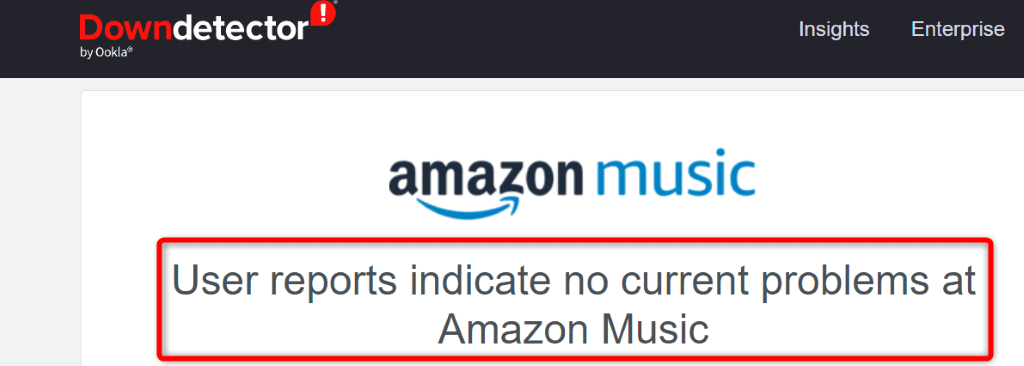
Note that you can only force apps to close on Android. You’ll have to close and reopen the app the usual way on an iPhone and iPad.
On Android
- Open Settings on your phone.
- Select Apps > App management in Settings.
- Tap Amazon Music on the list.
- Choose Force stop .
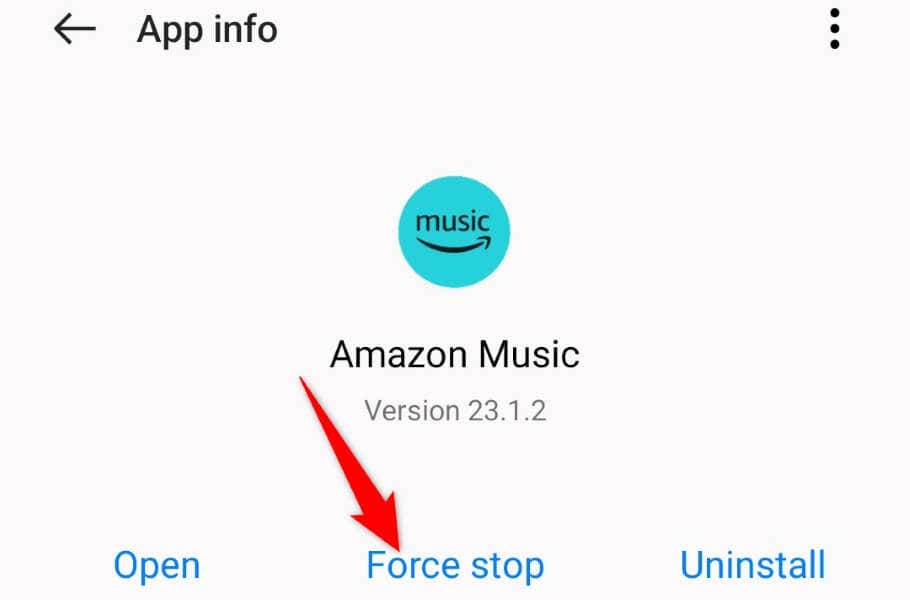
- Select Force stop in the prompt.
- Relaunch the app from your app drawer or home screen.
On iPhone and iPad
- Swipe up from the bottom of your phone’s screen and pause in the middle.
- Find and swipe up on Amazon Music to close the app.
- Reopen the app from your home screen.
4.Restart Your iPhone, iPad, or Android Phone
If relaunching the app didn’t fix your issue, restart your phone to resolve the problem. Your phone may be experiencing a system glitch, causing your installed apps to malfunction. Rebooting the phone should fix that problem.
Make sure to save your unsaved work before powering off your device.
On Android
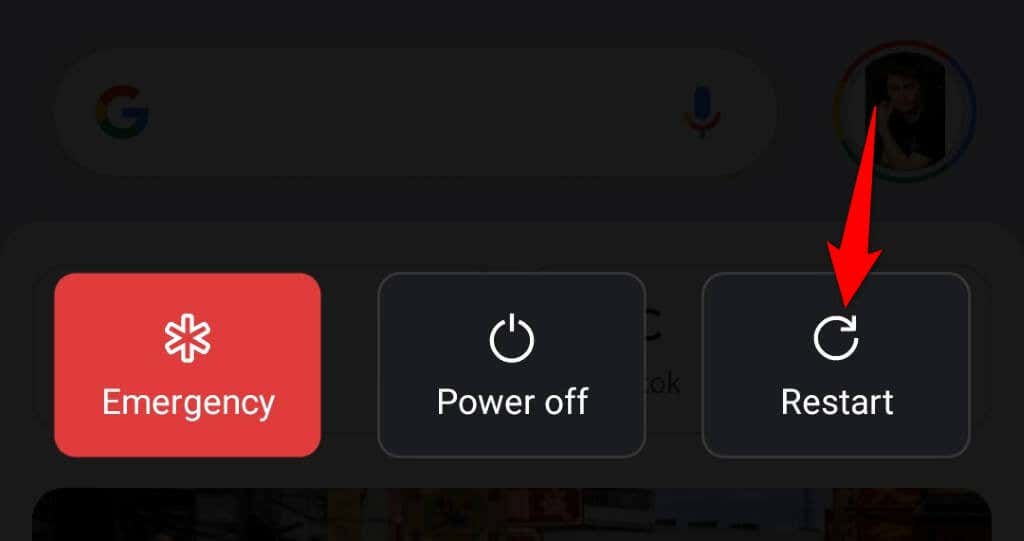
- Open the Power menu by pressing and holding down the Power button.
- Select Restart in the menu.
On iPhone (iOS)
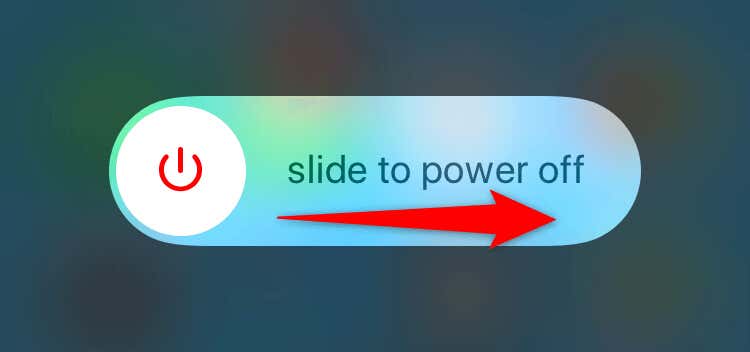
- Press and hold down Volume Up + Side or Volume Down + Side buttons simultaneously.
- Drag the slider to the right.
- Press and hold down the Side button to turn on your phone.
On iPad (iPadOS)
- Press and hold down Volume Up + Top or Volume Down + Top buttons at the same time.
- Drag the slider to turn off your tablet.
- Turn on your tablet by pressing and holding down the Top button.
Fortunately, you can resolve that by clearing the app’s cache files on your phone . This deletes the problematic cache, allowing the app to rebuild a fresh new cache with no issues.
You don’t lose your saved playlist, login session, or other data when you clear the app’s cache. Also, note that you can only remove an app’s cache files on Android. You’ll have to uninstall and reinstall the app to clear its cache on an iPhone and iPad.
- Open Settings on your Android phone.
- Select Apps > App management in Settings.
- Choose Amazon Music on the list.
- Select Storage usage to view the app’s storage overview.
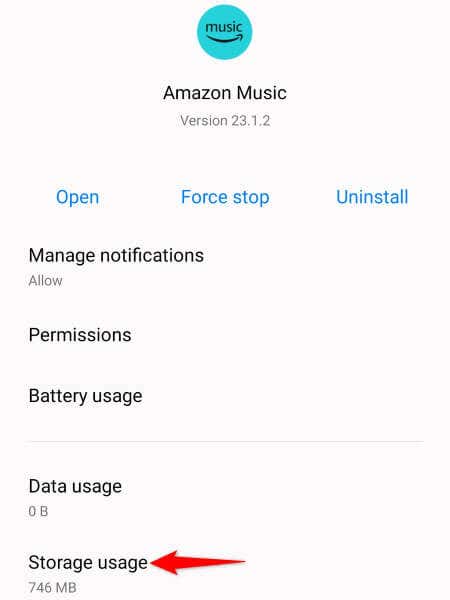
- Tap Clear cache to remove the app’s cached data.
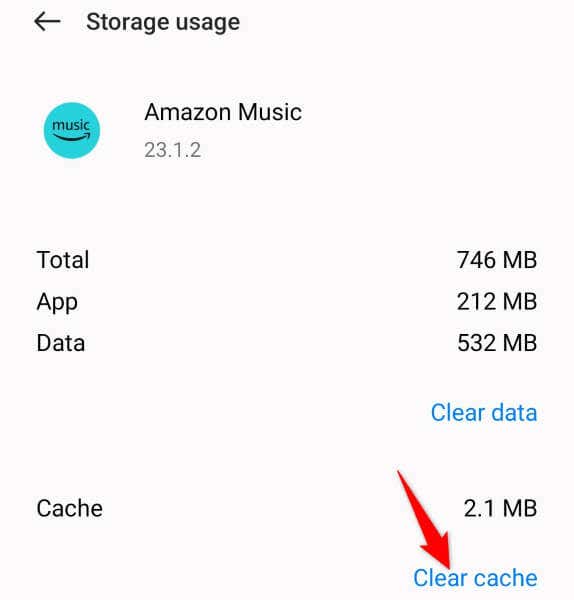
If your issue persists after clearing the cache, delete the app’s data files by choosing Clear data . This logs you out of the app but helps fix many issues.
Luckily, you can fix that by simply updating the app on your phone . It’s quick, easy, and free to do that, and we’ll show you how.
On Android
- Open Play Store on your phone.
- Find Amazon Music .
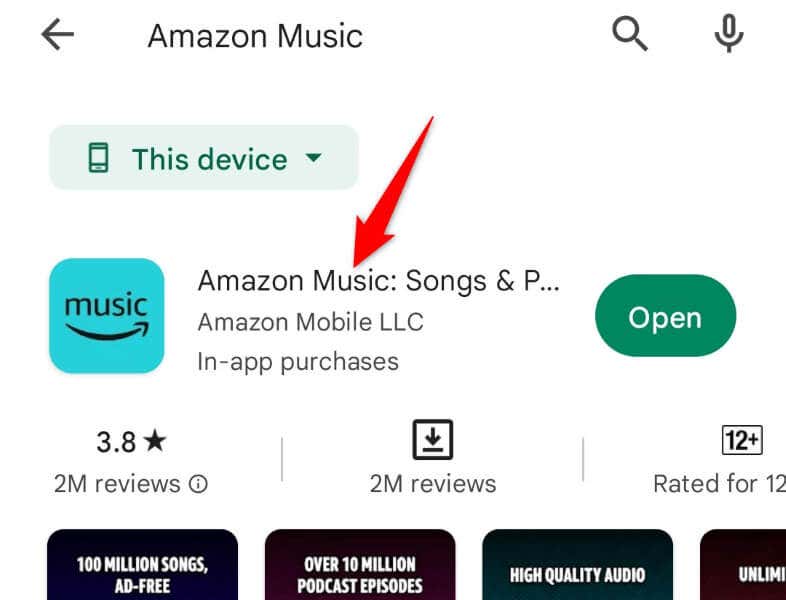
- Select Update next to the app in the search results.
On iPhone and iPad
- Launch App Store on your phone.
- Select Updates at the bottom.
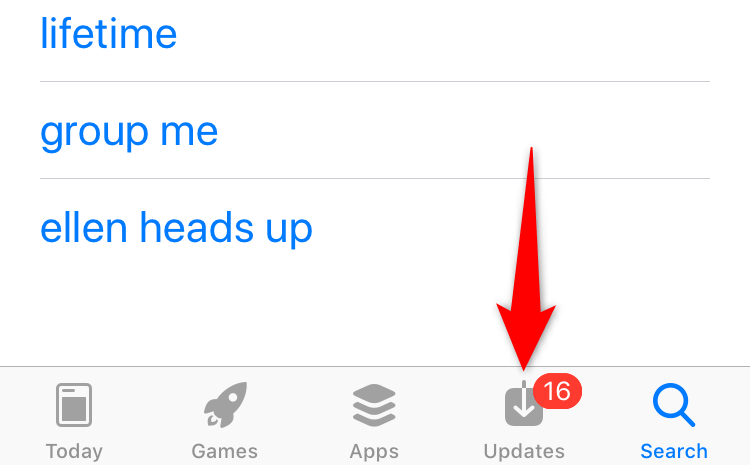
- Choose Update next to Amazon Music on the list.
Doing so deletes all the current app files, removing any files that may be problematic. Then, reinstalling the app brings new files that have no issues.
On Android
- Launch your phone’s app drawer and find Amazon Music .
- Tap and hold on the app and select Uninstall .
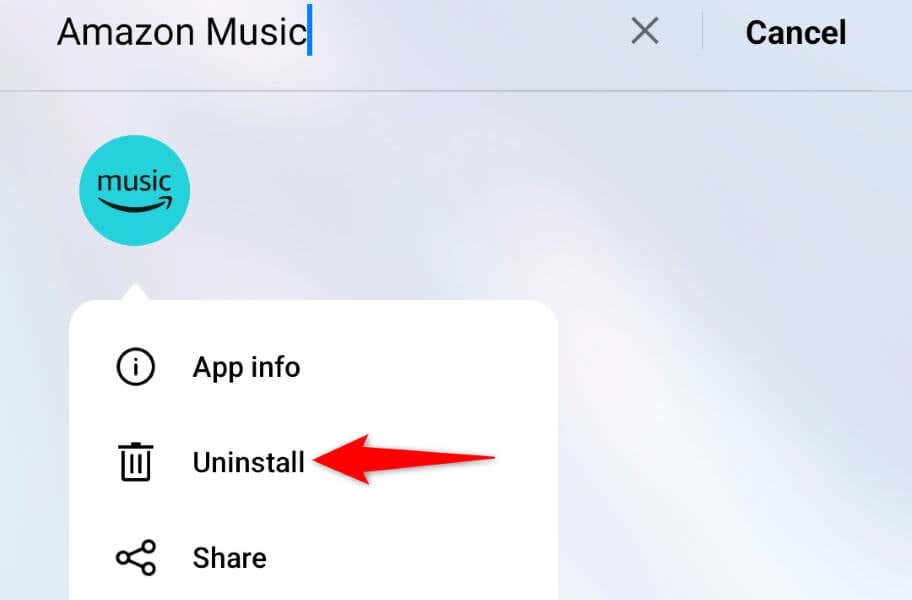
- Choose Uninstall in the prompt.
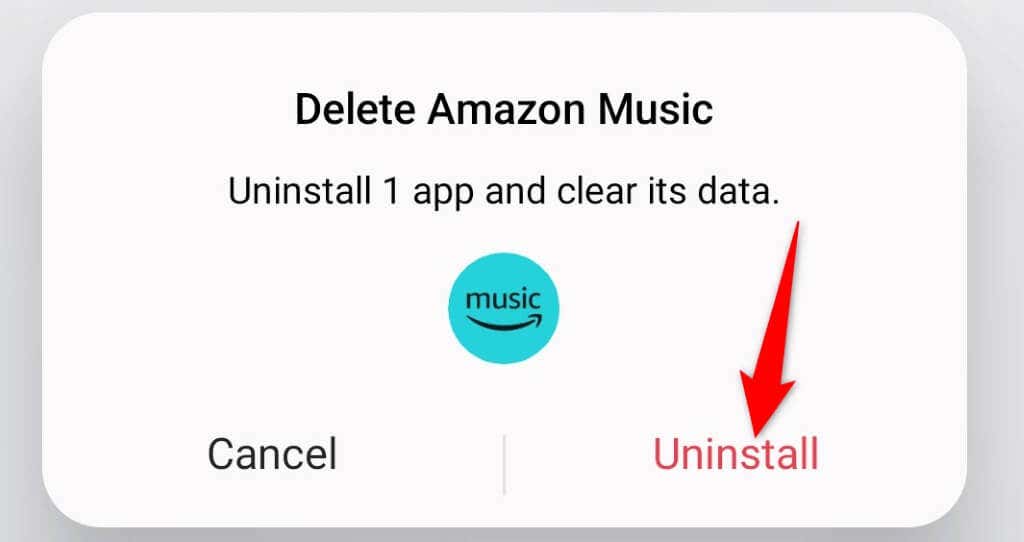
- Open Play Store , find Amazon Music , and tap Install .
On iPhone and iPad
- Tap and hold Amazon Music on your home screen.
- Choose X in the app’s top-left corner.
- Select Delete in the prompt.
- Open App Store , find Amazon Music , and select the download icon.
Once you have that, launch the app and continue to listen to your favorite songs .
- Amazon Fire Stick Home Screen Not Loading? 9 Ways to Fix
- How to Share Your Amazon Cart
- How to Delete a Delivery Address From Amazon
- Deleting Order History from Amazon: All You Need to Know
- How to Cancel Amazon Gift Card Order (and Get a Refund)
