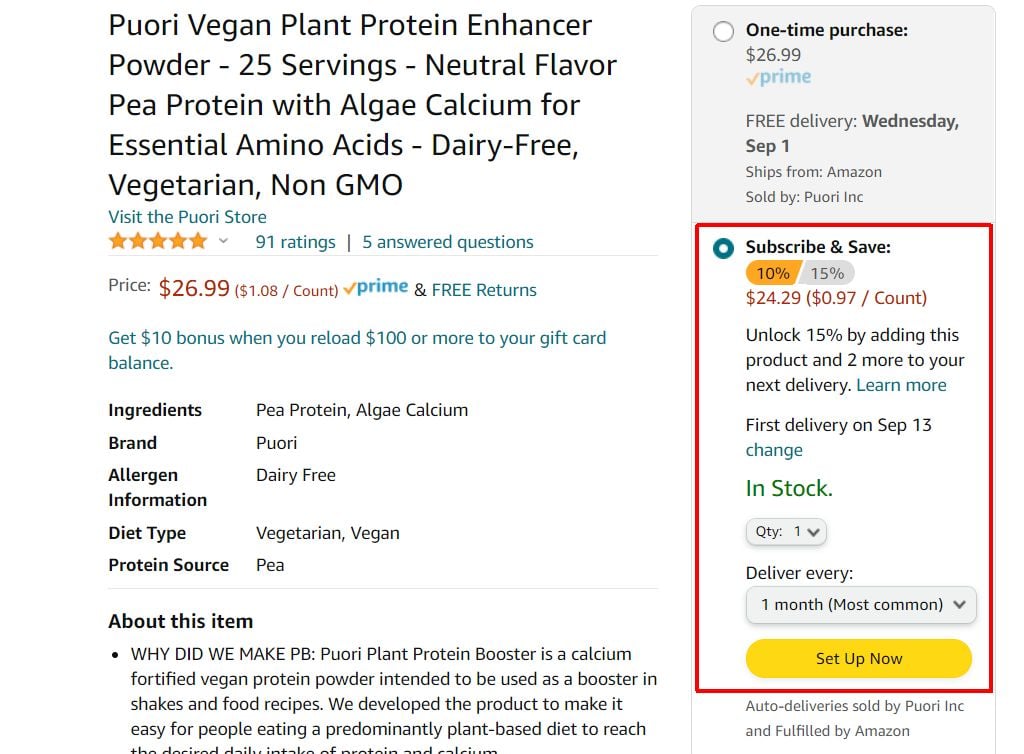
You’ll see in that section that under Deliver every , you can set up the frequency that you want to automatically order the same product.
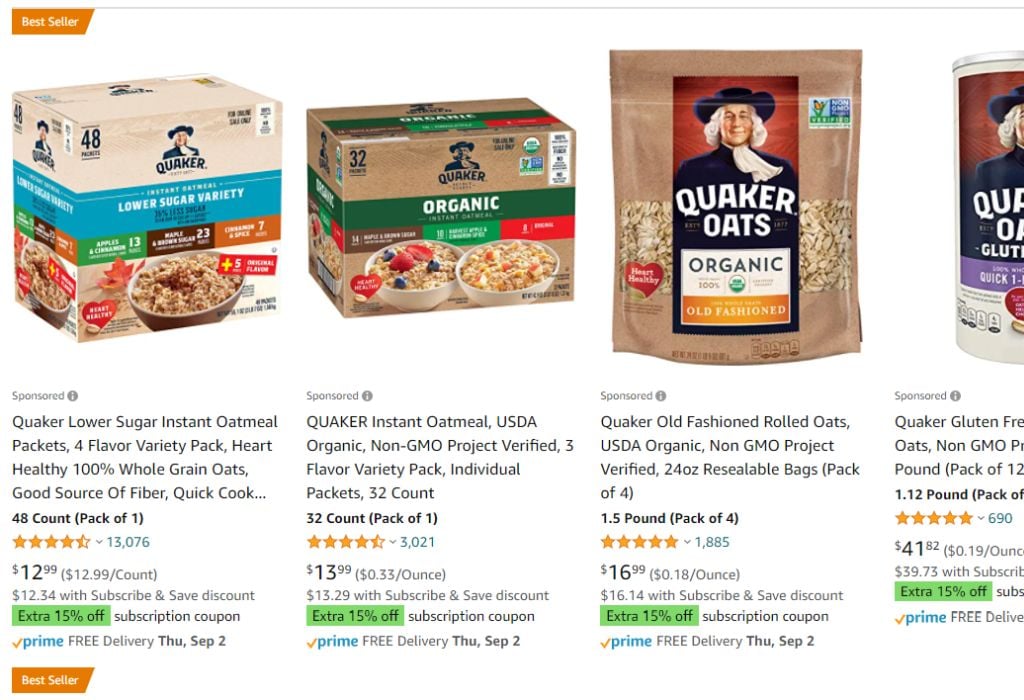
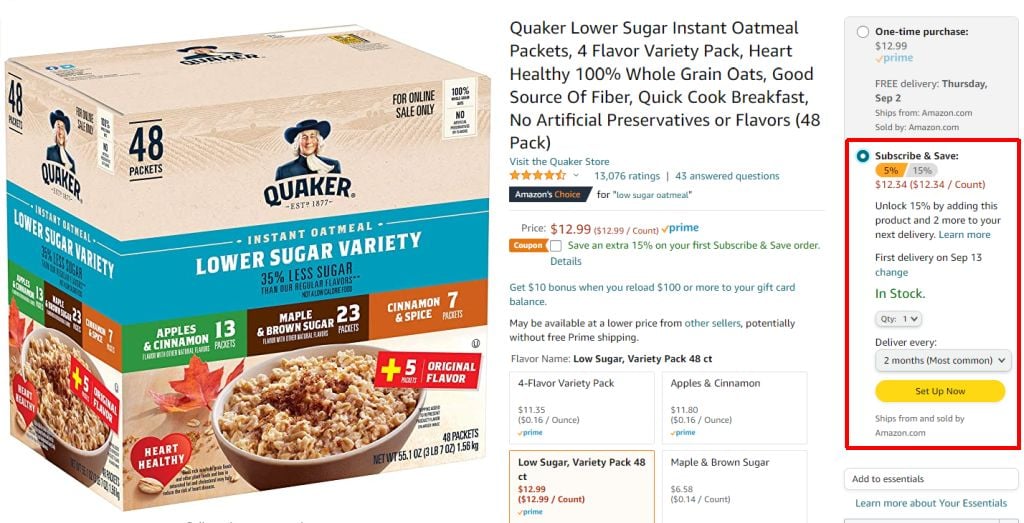
These settings include:
- Quantity to order
- Frequency to order the product
- Set Up Now button

Just review all of the settings (especially the order frequency and “Arrives by” date). If everything looks like you want it to, just select Confirm subscription and your product subscription will be active.
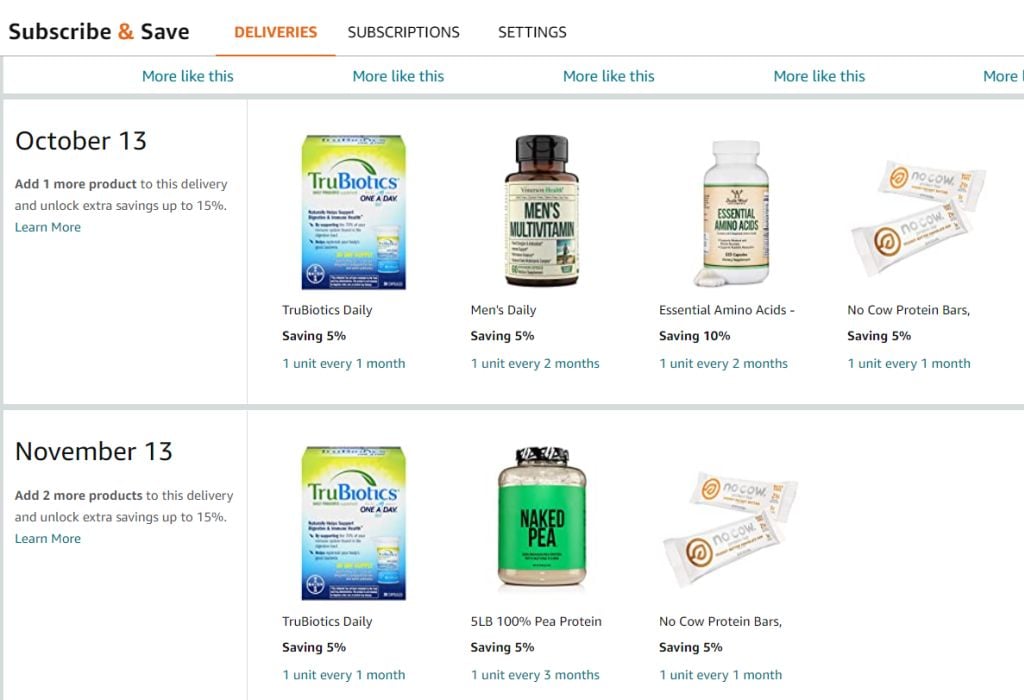
If you review your subscription and delivery list in your Account settings, you’ll see that different items on different days feature unique levels of savings.
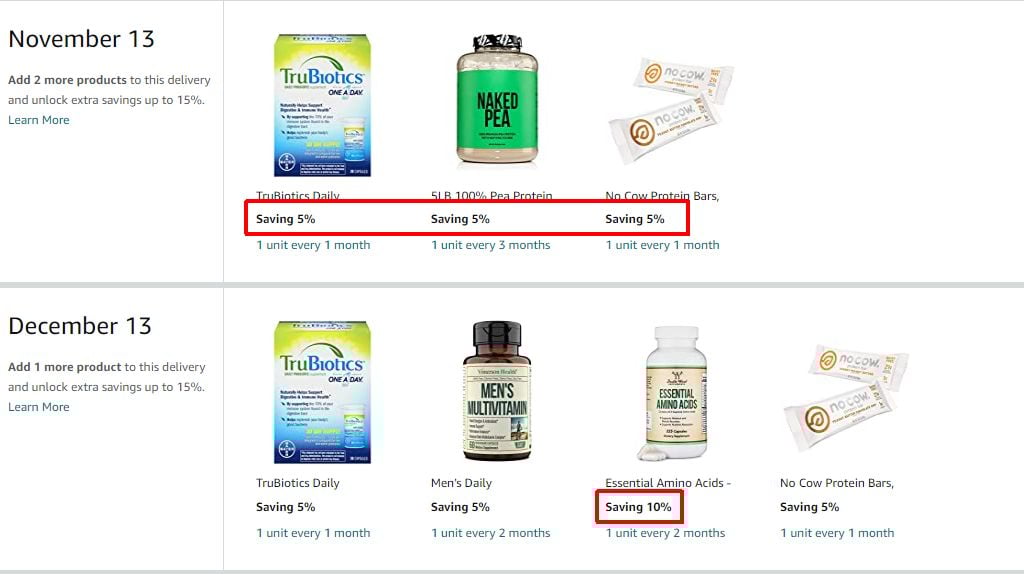
You can see this on the item details page, where you’re able to enable the subscription.
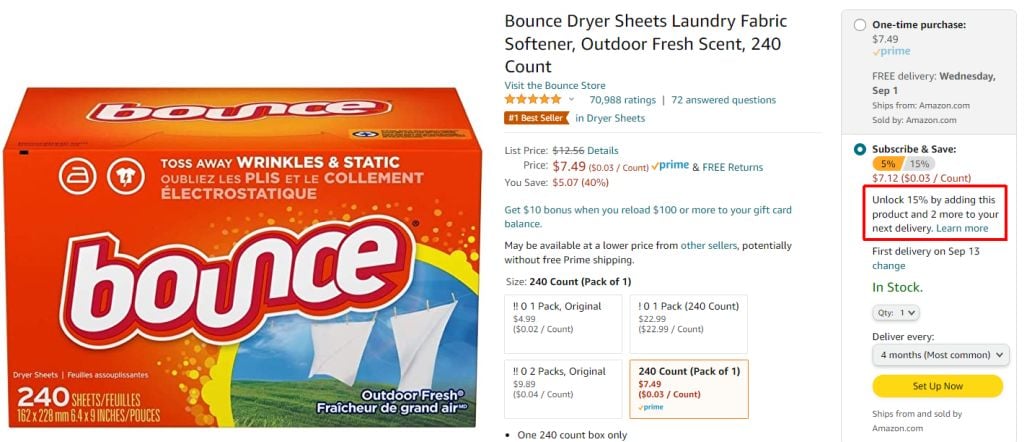
The potential savings for this item might be different than other items, but in general, every item will get discounted even further so long as you’re ordering more items for any delivery.
- Organize blocks of subscriptions based on reorder dates (once a month, every other month, etc).
- Subscribe to as many items you buy often at the grocery store anyway to maximize savings.
- Search for products with the highest potential savings with more subscribed items.
Be very careful about which order frequency you choose. You don’t want to order a three-month supply of something every month, or you’ll end up with a surplus inventory that you don’t need.
You can see how successfully you are on each delivery date because you’ll see those delivery dates highlighted as “Max savings unlocked”.
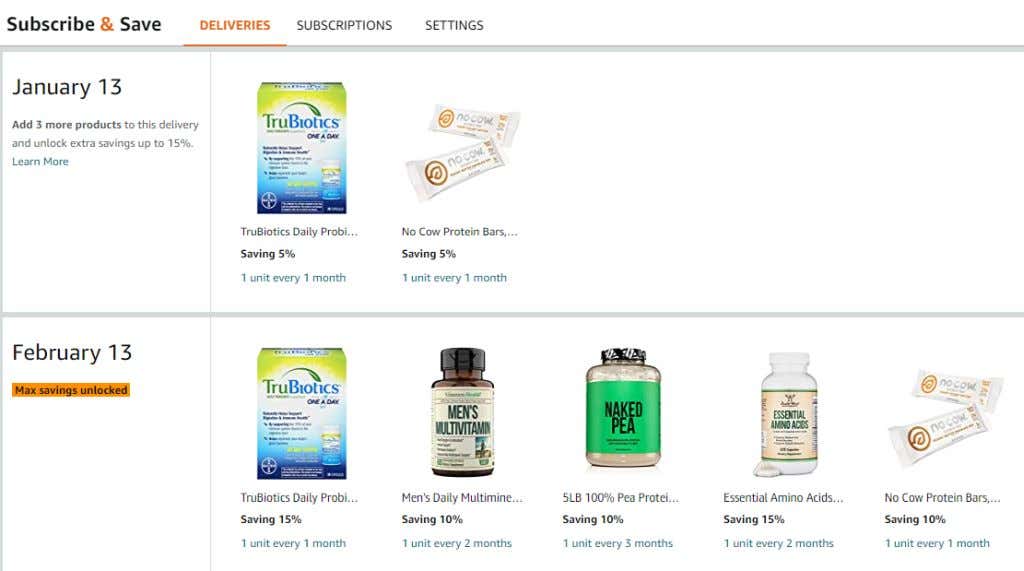
How to Manage Your Product Subscriptions
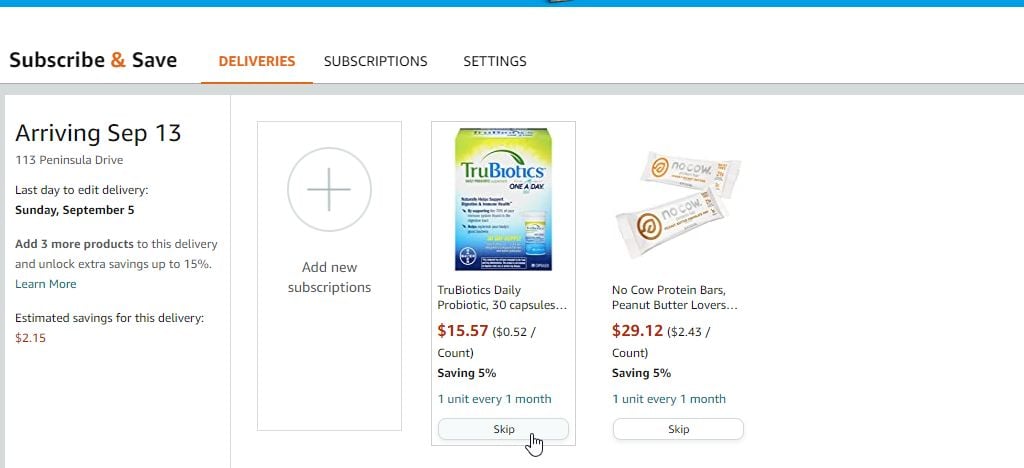
On the most recent, upcoming delivery date, you can choose to skip the delivery of any item that you haven’t actually used up yet. This is a great way to avoid overstocking on an item that you didn’t consume as much of as you expected to.
To do this, just select Skip under the item that you don’t want to be delivered that month.
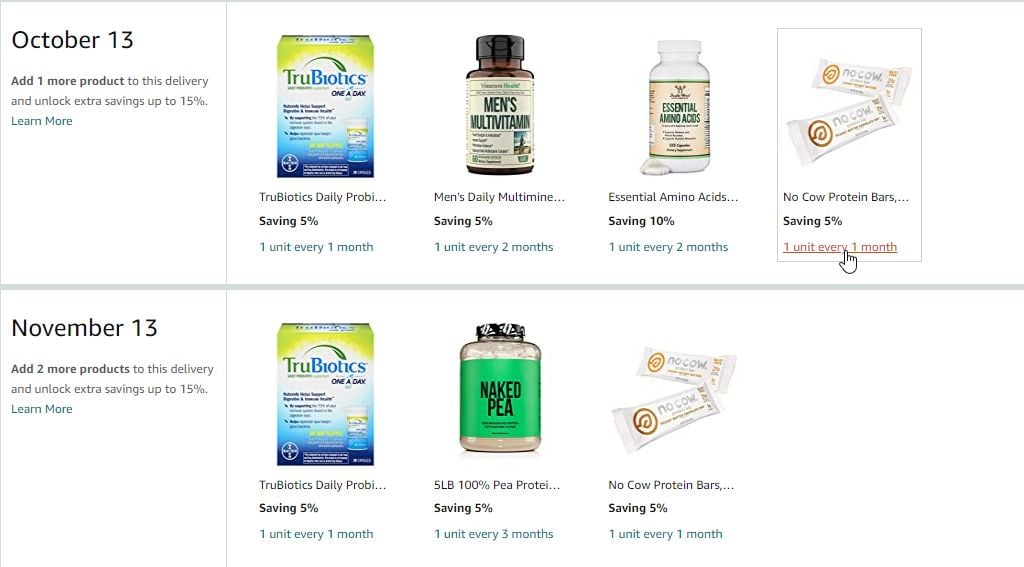
If you scroll down to future delivery dates, you can also make modifications to any of those items as well.
Just select the link under the item that shows the current delivery frequency of that subscription.
This will open a window where you can modify any of the following details about that active subscription.
- Quantity that you want to order
- How often you want it delivered
- What date you want to set for the first (next) delivery
To change the delivery frequency, just use the dropdown under Delivered every .
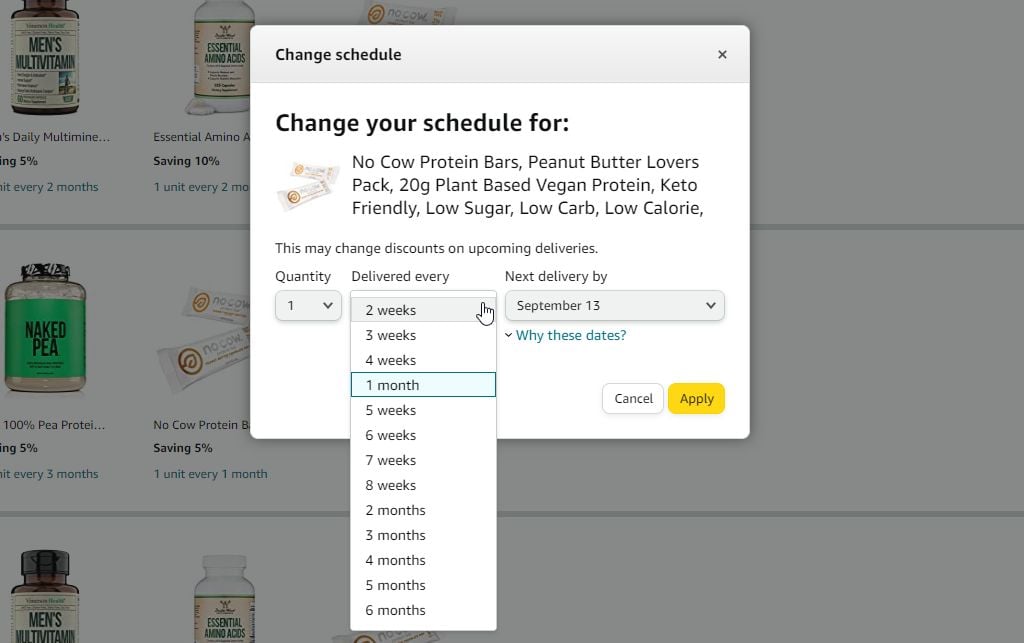
You’ll see that you aren’t limited to just a monthly delivery. If it’s an item you use a lot, you can select to have it automatically ordered and delivered in as little as every 2 weeks.
To change the next upcoming delivery date, just select the dropdown under Next delivery by .
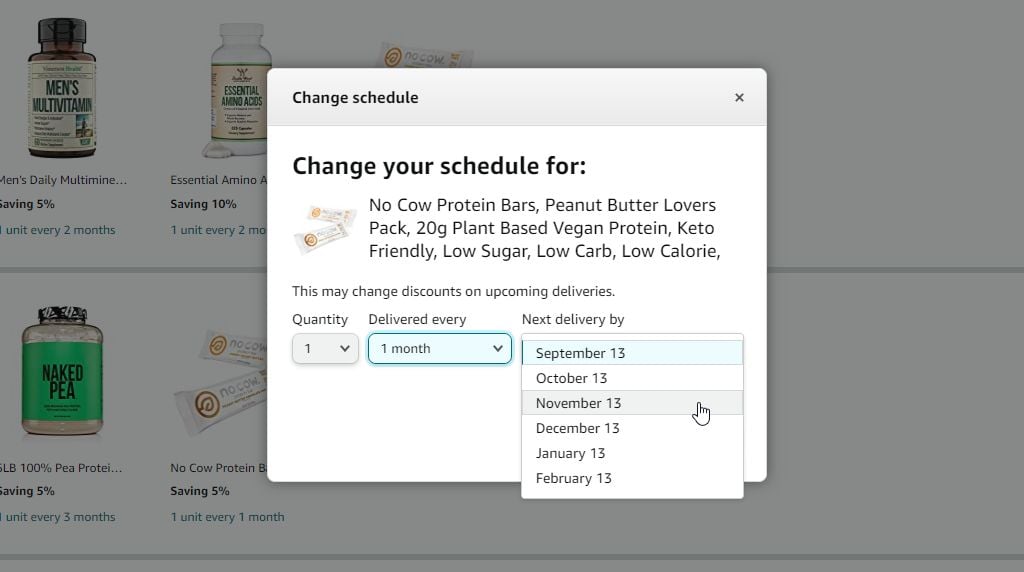
The dates will be a month or more out. So just select the next delivery you need based on when you next expect to run out of that item.
Once you select Apply , those changes will immediately take effect and you’ll notice your entire future delivery list update with the changes you’ve made.
- Amazon Fire Stick Home Screen Not Loading? 9 Ways to Fix
- How to Share Your Amazon Cart
- How to Delete a Delivery Address From Amazon
- Deleting Order History from Amazon: All You Need to Know
- How to Cancel Amazon Gift Card Order (and Get a Refund)
