Talking someone through a computer problem over the phone takes skill and patience because you can’t see what’s happening. That’s where remote desktop access apps come in. We’re looking at the four biggest remote access apps to see which is best for you.
Best Remote Desktop App for SMBs:LogMeIn
Platforms: Windows, macOS, iOS
Price: $350/yr for access to 2 computers up to $7,000/yr for access to 50 computers
It’s the variety of functionality that makes LogMeIn pro best for small businesses. SMBs usually have a small IT team where each person does a bit of everything, so they need a remote desktop app that does a bit of everything also. A key feature is unattended remote access with Wake On LAN when support is required, but the user is busy with something else.
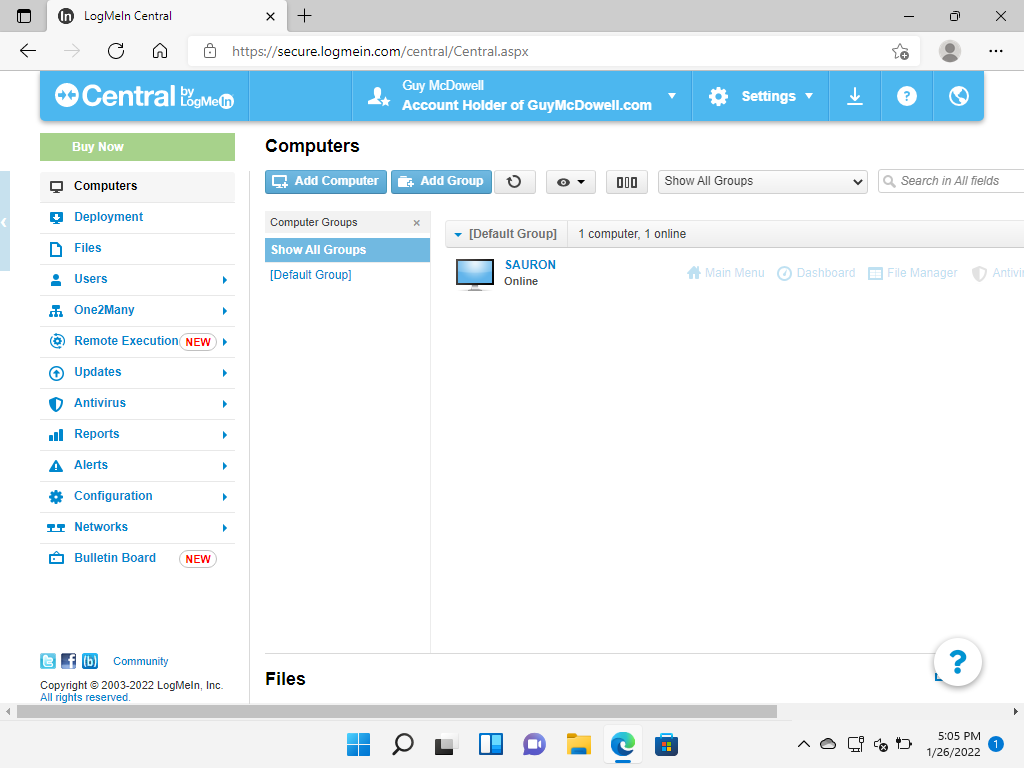
Centralized management of anti-virus and firewalls, plus Active Directory group policy management multiplies the capabilities of your smaller IT team. It’s the ease of use that can make it worth the price for growing businesses and commercial use. LogMeIn used to have a free version but dropped it abruptly several years ago.
Best Remote Desktop App for Linux:TeamViewer
Platforms: Windows, macOS, Android, iOS, Linux
Price: $ 450/yr for single admin, up to 200 managed devices to $1750.yr for 30 admins, up to 500 managed devices.
It’s an understatement to say TeamViewer is only the best remote desktop access for Linux. TeamViewer is the only remote desktop app on this list that boasts its ability to access Linux. Yet it may be the best option for anyone, from the individual IT support person up to large, multi-location businesses.
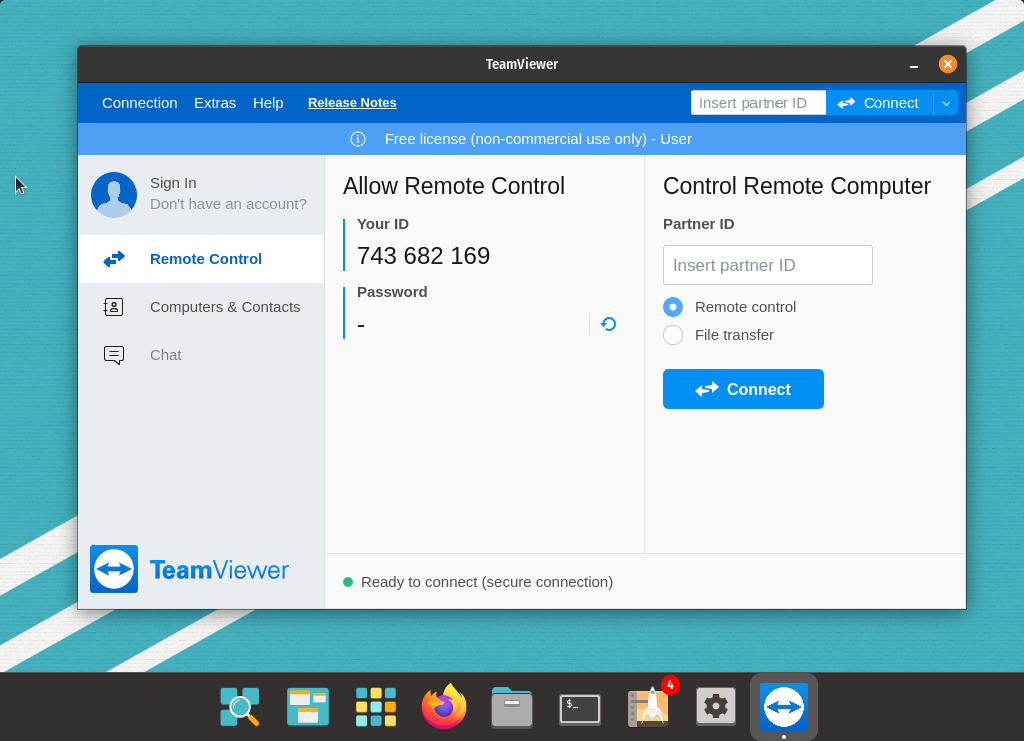
If using VPNs for remote access is a problem for you, TeamViewer provides secure end-to-end AES encryption without a VPN. Perhaps the most useful feature of TeamViewer is that you can ask a user to download the remote desktop software, which can be branded for your business, and in seconds you can be on their device.
Best Remote Desktop App for Limited Budget:Splashtop
Platforms: Windows, macOS, Android, iOS, Linux, Chrome OS
Price: $60/yr for a single user and up to $99/yr/user for business users
The most affordable remote support app on the list, Splashtop does have complicated licensing and pricing. The single-user plan has the lowest price but has limited features such as only being able to view one monitor at a time. Yet if you just need to remote control your own computer, this may be enough. The enterprise option has all the features anyone may want, like session recording, remote reboot, and cloud options.
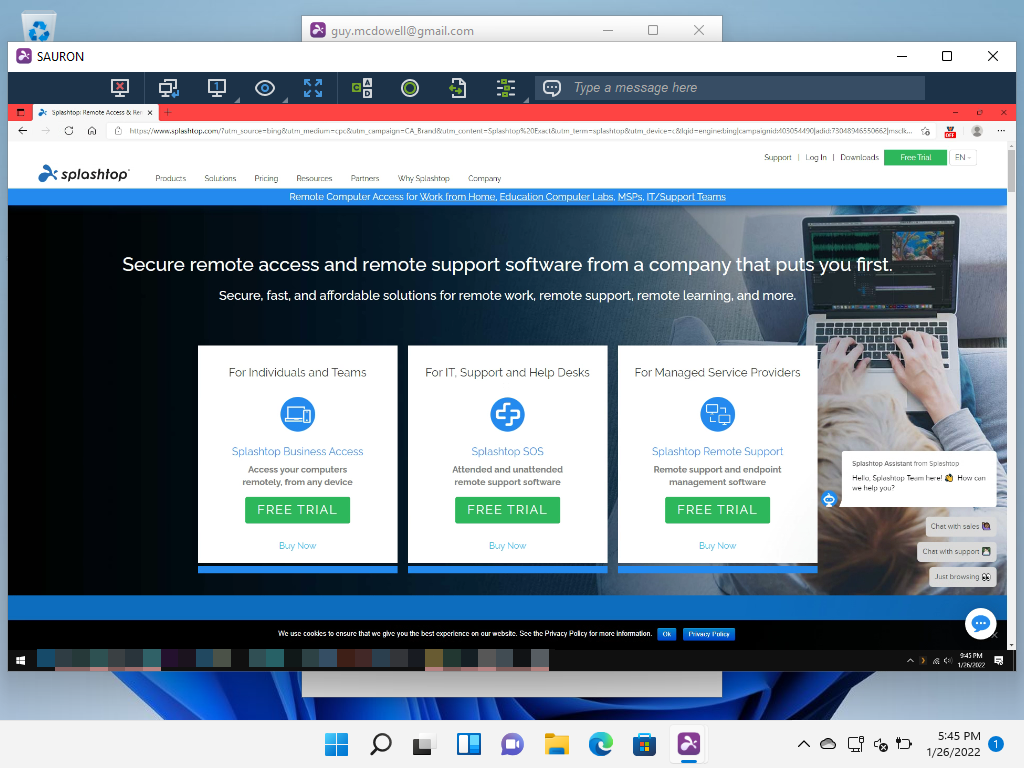
There are several options for small businesses, managed service providers, and educational institutions. So it may take some time to figure out exactly what is needed for your situation. There are also many reports of remote connection instability.
Best Remote Desktop App Overall:AnyDesk
Platforms: Windows, Mac, Android, iOS, Linux, FreeBSD, Raspberry Pi, Chrome OS
Price: $ 120/yr for a single user, $238/yr for 3 hosts and up to 3000 devices
Whether you want this just for yourself or for your corporate help desk, AnyDesk provides an affordable, powerful, easy to use solution. If you’re supporting desktops and mobile devices in a corporate environment or providing remote support for IoT devices in an industrial setting, AnyDesk can help. AnyDesk has the greatest cross-platform capabilities supporting any operating system.
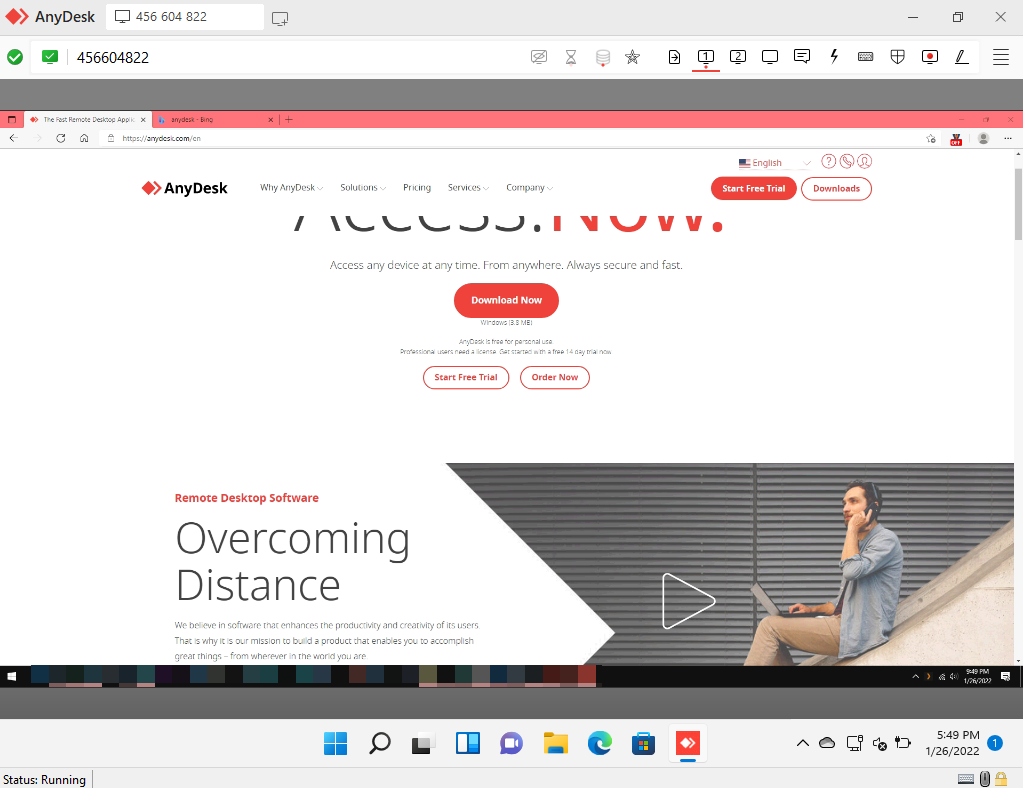
It’s also the most user-friendly in our testing. AnyDesk’s pricing makes it available to most people and the functionality is as great or better than any of the remote support apps on this list. Security is also top of mind for AnyDesk with end-to-end AES encryption and RSA 2048 asymmetric key exchange. AnyDesk is the best remote access solution in our opinion.
Which Remote Desktop Support Solution Is Best for You?
We’ve compared four of the best remote desktop access solutions and in which situations they excel. However, what’s best for you requires looking at what pricing works for you and what features you need. Some options include whiteboards and tools for online meetings that might replace things like Zoom or Microsoft Teams. Some are easier for the end-user to access. And some will work better over limited internet connections if you have users who live rurally. Put together your criteria, test all the remote access solutions, and see what’s best for you.
- GoodNotes vs Notability: Which Is Better?
- Microsoft Editor vs Grammarly: Which is Better and Which Should You Use?
- Google Keep vs Microsoft OneNote: What’s Different and Which Is Better?
- What Is Uber One and Is It Worth It?
- Lightroom vs Photoshop: Which One Should You Use
Printing when you’re on the road is never a simple matter. Where you choose to print depends on when you need your printed document.
If you only need to pick up your printout when you get home, printing over the Internet to your home computer is the way to go. This is possible from either your laptop or your cellphone.
However, if you need a printout immediately, there are lots of kiosks and printing centers around the country where you can send your printout and pick it up immediately.
In this article, you’ll learn about all the options available to print documents whenever you’re out of the house.
1. Using Google Cloud Print
One of the best services ever offered by Google is Google Cloud Print . This service lets you safely and securely connect your wireless printer to the Internet. Once connected to the Google Cloud Print service, you can use your Google account to print anything from your laptop or your smartphone.
Setting up this service is very easy if you have a printer supported by the service. Just visit the Google Cloud Print page to get started. You’ll need to log into your Google account if you haven’t already.
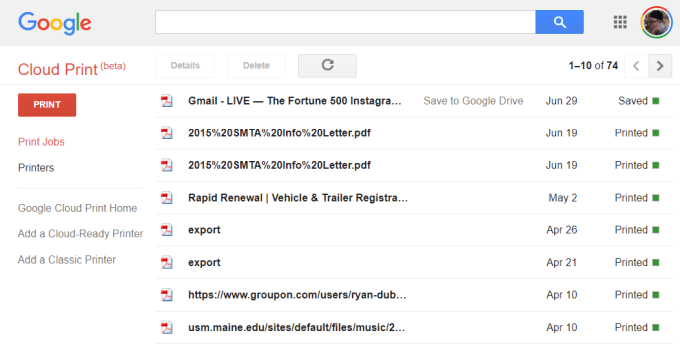
If this is your first time setting up one of your printers with Cloud Print, click Add a Cloud-Ready Printer to see if your model of printer is compatible.
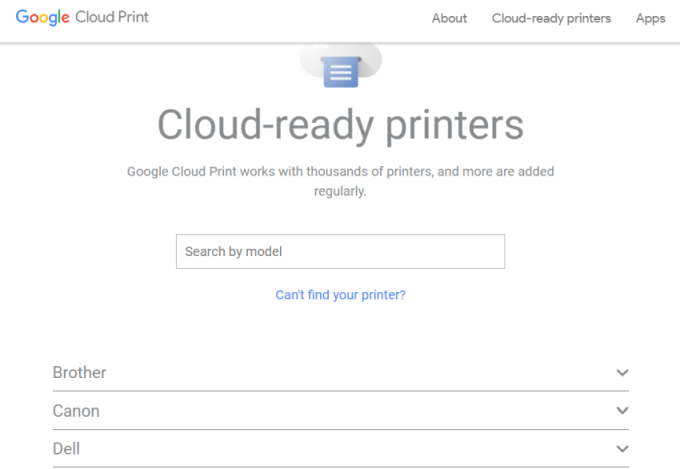
If your printer isn’t a Cloud-Ready model, then click Add a Classic Printer to see the setup instructions for adding a regular printer to Google Cloud Print (see simple instructions below).
Connecting Your Computer to Google Cloud Print
To set up your Google Cloud ready printer:
- Make sure your computer is turned on
- Open your Chrome browser, click the three dots in the upper-right, and select Settings .
- Scroll down and select Advanced .
- Scroll down further to Printing and expand Google Cloud Print .
- Select Manage Cloud Print Devices .
You may be prompted to sign into your Google account. If you see the cloud-ready printer that your computer is already connected to, click the Register button. Otherwise, under the Classic Printers section, click the Add printers button.
If you register a cloud-ready printer, you’ll need to confirm the registration on the printer itself. Adding a classic printer will detect printers connected to your computer and walk you through a wizard to add them to Google Cloud Print.
Printing to Google Cloud Print
Once you’ve set up your printers on Google Cloud Print, using the service is very easy.
In the Google Chrome browser, you can print as you normally do by clicking the three dots in the upper right and selecting Print .
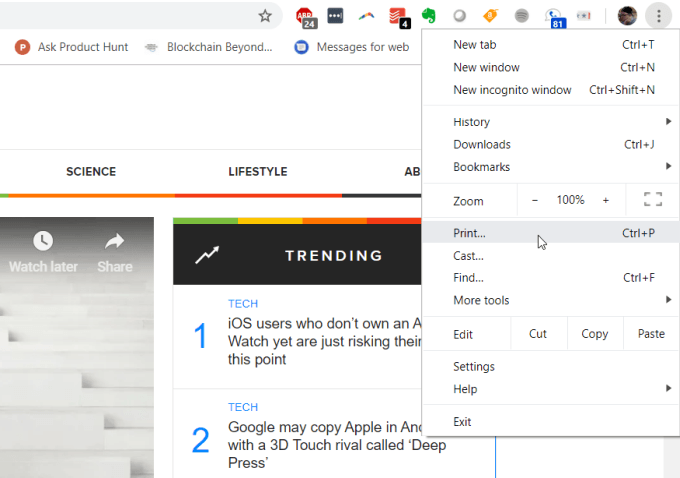
You’ll see the Google Cloud printer available to print to along with its internet address.
Select this printer and click the Print button to print.
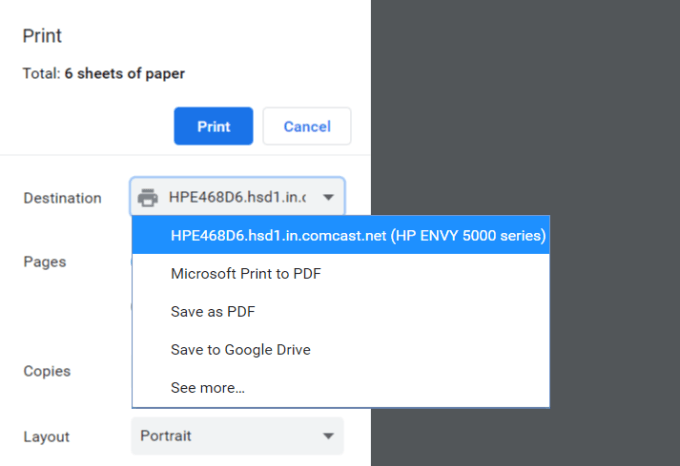
Having a Google Cloud Print connected computer, you’ll see the same printer available on different Google services like Google Docs, Google Sheets, and Gmail. It’ll also let you print from your Chromebook if you own one.
On your mobile phone, printing is typically available under the Share feature in different apps.
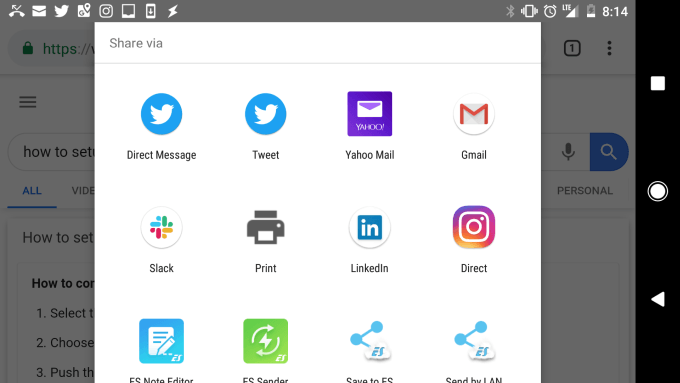
When you choose the Print option, you’ll see your new cloud printer available.
Send your printout to that printer, and it’ll show up on your home printer, no matter where in the world you are.
2. Set Up a Home VPN
Another, slightly more complicated solution to print to your home printer from anywhere is setting up a VPN network you can connect to from the internet.
You can do this using a hidden VPN service included with your Windows 10 computer. You’ll need to follow this procedure from your computer that has access to print to your home printer.
First, you’ll need to allow users to connect to your computer through the internet.
Open the Control Panel and select Network and Sharing Center . Select Change Adapter Settings and press Alt-F on the keyboard. Select New Incoming Connections .
Enable the user accounts you want to give access to, or create a new ID and Password you want to use to allow incoming connections.
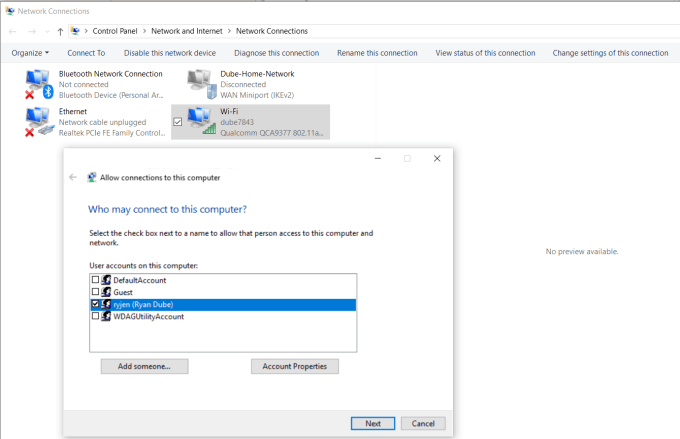
Click Next and enable Through the internet .
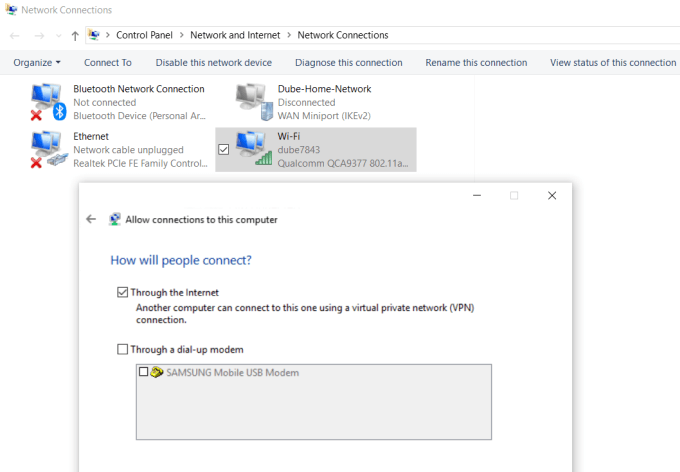
Click Next to finish off the Wizard. You’ve now provided access to your computer through the network via VPN.
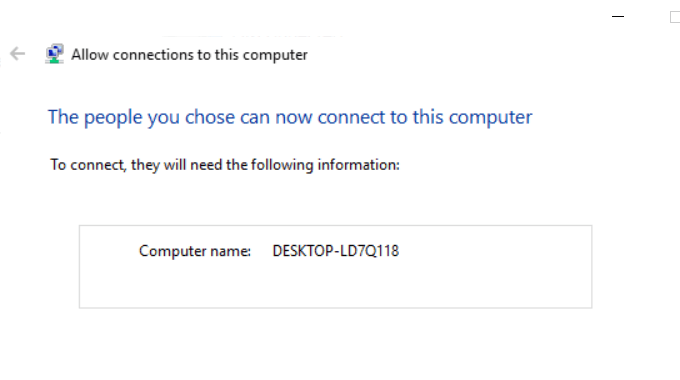
Next, you’ll need to log into your home network router and add port forwarding for VPN connections. If this sounds hard, read our post on understanding what port forwarding is and how to setup port forwarding. Make sure to use port 1723 if using PPTP. LT2P uses port 1701.
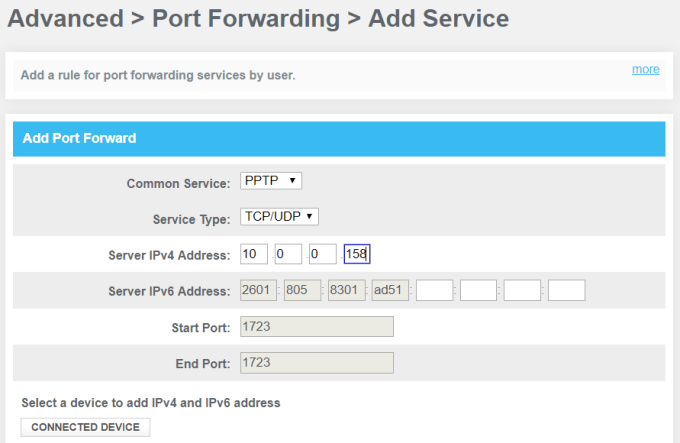
The Windows VPN uses PPTP so select that as the service. Type the internal IP of your computer that’s connected to the printer for the Server IPv4 Address, and leave all other fields as is.
Now, when you want to connect to your computer for printing, you can connect to it via VPN. First, click the Start menu and type VPN . Click on VPN Settings .
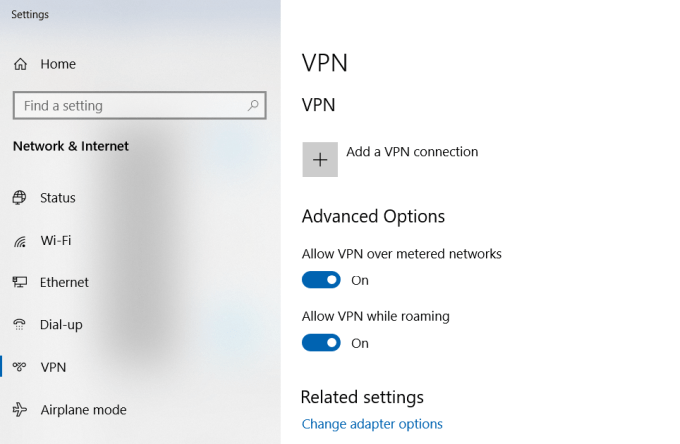
Click on the plus icon to add a new VPN connection.
Before you can fill out the fields, you’ll need your computer’s public IP address . You can see this by visiting a site like WhatIsMyIP.com .
Fill out the VPN form as follows:
- Provider : Windows (built-in)
- Connection Name : Name the connection anything you like
- Server name or address : Give this your computer’s public IP address.
- User name and password : Provide the ID and Password you created when you enabled Internet access to your computer.
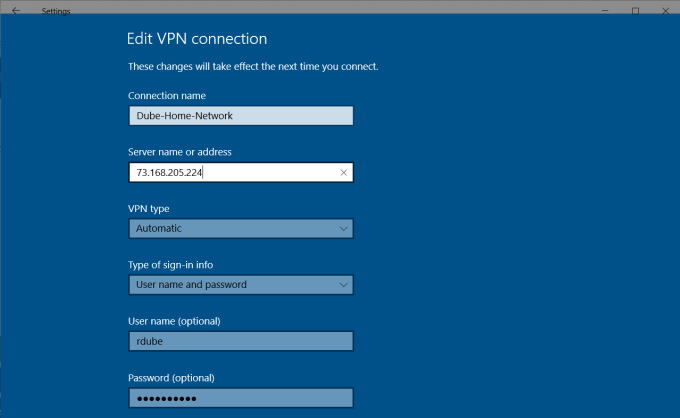
Once you’re done setting this up, you’ll see the VPN connection listed in the VPN settings window. Just click connect while you’re connected to the internet away from home to connect to your home computer. Once connected, you’ll have access to all the network devices, like your home printer.
There are several issues that may cause a VPN setup like this to not work. Your virus software, firewall settings, or other computer security settings could block the connection.
3. User Free PrinterShare Software
Another solution that’s a whole lot simpler than trying to figure out what security settings is blocking your VPN connection is just installing free software that will share out your connected printer to the Internet.
Install the PrinterShare software on a computer on your home network. To use the web printing option, you’ll need to create a free PrinterShare account and password.
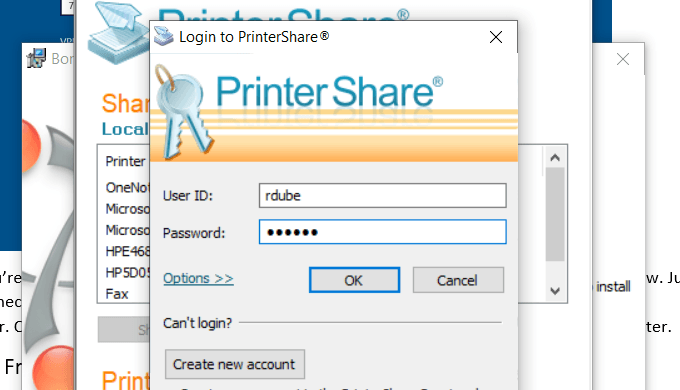
The software will randomly generate a user account number that will display in the software. Remember this ID, and the password you configured for it.
Launch the software on the computer and share the printer that you want to allow internet printing to.
Install the PrinterShare application on the second computer that you’re using outside of your home. Next time you run the software while you’re sitting in an internet café somewhere, you’ll see the printer you shared under the Remote Printers list.
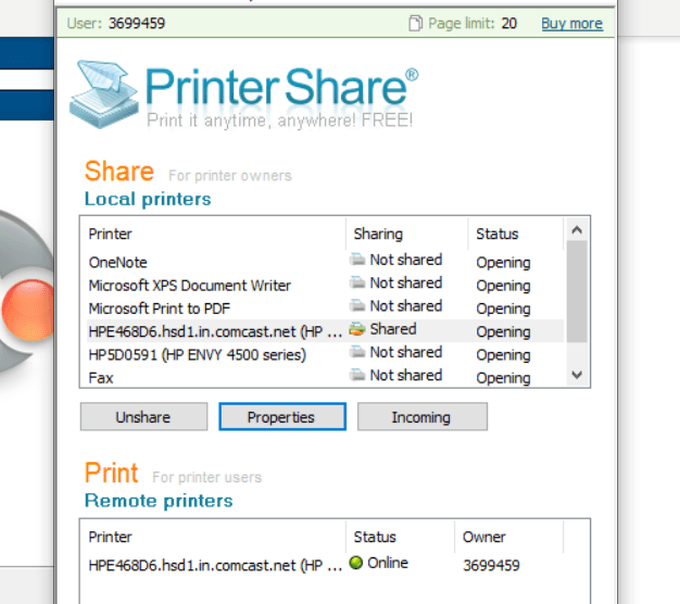
Now, when you try to print a document or anything else on your computer, you’ll see the PrinterShare printer available under your list of printers.
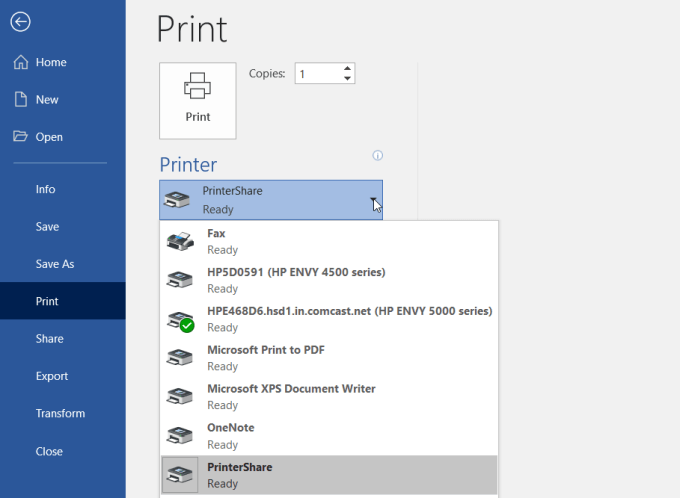
Printing to this printer will send the print over the internet to the printer connected to your other computer on your home network.
As you can see, you don’t have to configure the router or change any security settings. The print is transmitted directly over the internet via the internet connection on your home computer.
4. Online Printing Services
If you don’t mind spending some money and you won’t need the printout for a few days, you can order printouts online.
There are several services where you can upload documents and have the service print them and mail them to you.
A few of these services include:
- PrintDog : Order anything from brochures and greeting cards to posters or color and black and white document copies. Prices are very reasonable at just a few cents per page for regular documents.
- UPrin t ing : You can use this service to print regular documents. But you can also order flyers, posters, brochures and more. You can even order a design printed on t-shirts or mugs.
- Best Value Copy : If you just want fast and cheap copies, this is probably the best service for it. Prices are just a few cents a page at a flat rate. There’s also no minimum order, so if you want to just print a few pages, you can.
5. Shipping Print Kiosks
If you want your document printouts immediately, using a local shipping service is the best option.
These companies offer either web-based file transfers, or you can transfer documents from your computer using a memory stick to a computer in the shop. There, you can use their printer to print out your document.
A few of the most popular print kiosks you’ll find all around the country (and in some cases the world) are the following:
- UPS : You either print online or at your local UPS shipping center.
- FedEx : Print using their website and pick it up at a local FedEx center.
6. Local Print Shops
Beside large shipping services, there are also lots of print shops around the world where you can bring in a memory stick with your documents on it and print those documents for very cheap per-page prices.
A few of these include:
- Staples : Use the website to find a Staples print center near you.
- Office Depot : Do in-store document printing quick and easy.
- CVS : Visit the CVS photo center where you can also print documents.
- Costco : If you have a Costco membership, visit a location for your document printing needs.
7. Your Local Library

One of the most overlooked resources is the local library. Almost every town in the country has a library. Even the smallest libraries offer printing services for their patrons.
Usually, you can buy a card that works on the printer and you load the card with a set amount of money that you can use to make copies. Modern printers at libraries have a memory card slot so you don’t even need a computer to print to the library printer. Or, you connect to the library network and print to the printer that way.
Usually, library printing services are dramatically discounted from the prices you’ll find at commercial printing centers.
- How to Fix Slow Wi-Fi on Your Smartphone
- 7 Best Machine Translation Software (or AI) to Try in 2025
- What Does the Green Dot Mean on Facebook?
- How to Turn off Hardware Acceleration in Chrome
- How to Check VRAM in Windows 10, 11, and macOS?
