Do you have trouble getting your Apple Watch to turn on? We’ll explain why that happens and what you can do to fix the problem.

If you can’t turn on your Apple Watch, work through the solutions in this troubleshooting guide, and you should be able to get it to boot up again.
1. Force Restart Your Apple Watch
It’s not uncommon for the system software on the Apple Watch to crash or glitch out and stop the display from lighting up. The only way to fix that is to hard reset the watchOS device.
A hard reset—or force restart—cuts the power briefly to the internal hardware components and triggers a software reboot. Unless the problem occurred amid a watchOS update , you shouldn’t worry about subjecting Apple’s smartwatch to a hard reset.
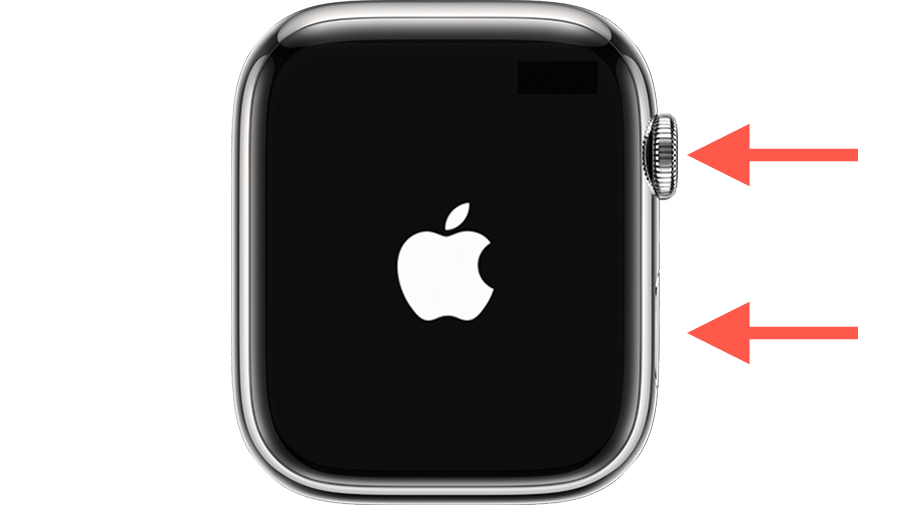
To force restart your Apple Watch, hold the Digital Crown and the Side button simultaneously for at least 10 seconds, and release them when you see the Apple logo. Then, wait until watchOS finishes booting and enter the device passcode to access the watch face.
2. Charge Your Apple Watch Battery
If a hard reset doesn’t do anything and your Apple Watch display remains off, you’re likely dealing with a dead battery. Try placing the watchOS device on its magnetic charger and wait for at least five minutes (or 30 minutes if you see a “lightning bolt with a charger” indicator).
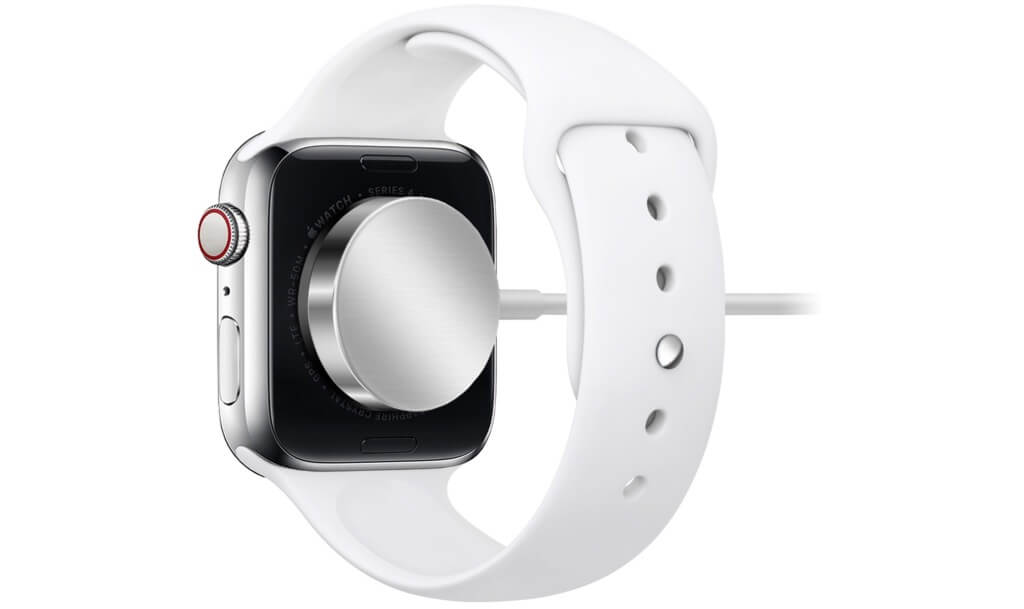
Your Apple Watch will automatically turn itself once it has charged sufficiently. Hold the Side button to boot it up manually if nothing happens. If you continue to see a black screen, perform another hard reboot without removing the charger.
3. Check the Magnetic Charging Cable
Next, inspect your Apple Watch’s charger closely for wear and tear. If it looks OK, try connecting it to a different iPhone or iPad power adapter, wall outlet, or USB port on your Mac or PC.

However, if the cable is frayed or the charging puck looks visibly damaged, you must consider buying a new charger. If you want to go for something other than Apple’s standard offering, here are several top third-party Apple Watch chargers that could interest you.
4. Disable the Screen Curtain Feature
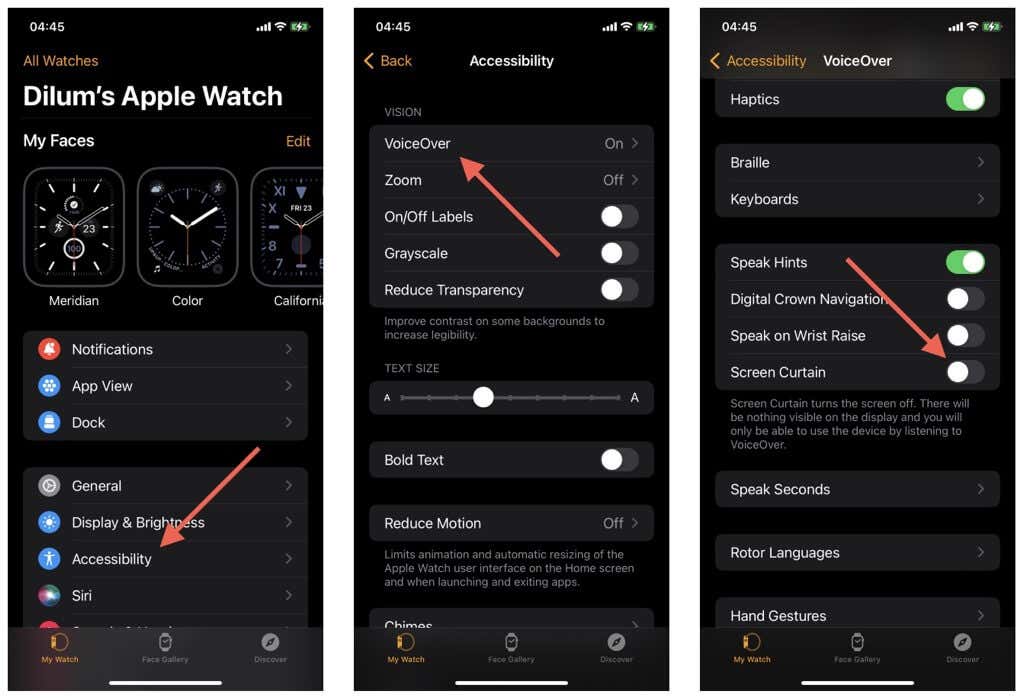
Your Apple Watch comes with an accessibility feature called Screen Curtain that allows you to operate it using voice commands with the display off. If you were digging around the Settings app in watchOS and accidentally activated Screen Curtain, you can get out of the resulting black screen via the Apple Watch app on your iPhone.
- Open the Watch app on your iOS device and tap My Watch .
- Go to Accessibility > VoiceOver > Screen Curtain .
- Scroll down and turn off the switch next to the Screen Curtain .
5. Turn Off Power Reserve Mode
Power Reserve is a watchOS power management feature that turns off the Apple Watch display to preserve battery life. It lets you check the time by pressing the Side button but nothing else.
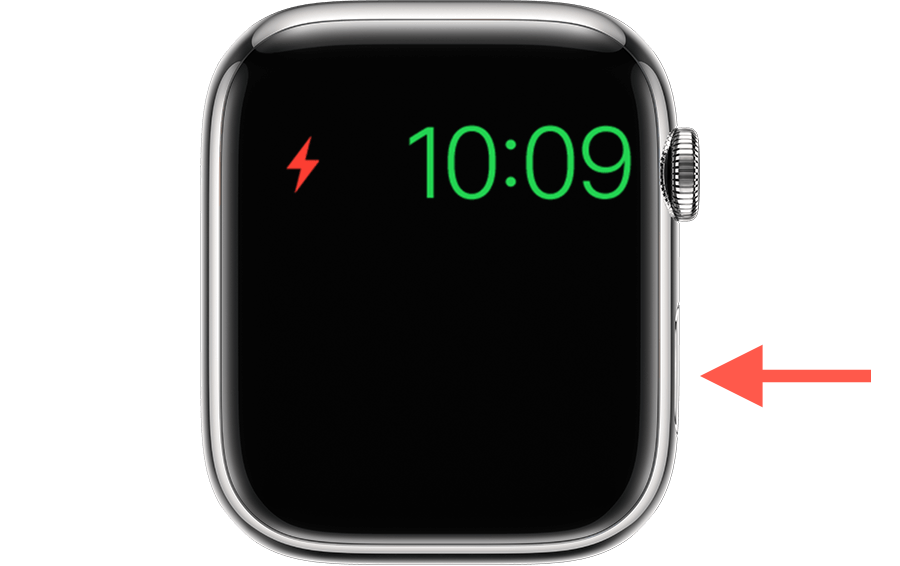
If you intentionally or accidentally enabled Power Reserve, just press and hold the Side button until you see the Apple logo. However, if you see a red “lightning bolt” symbol (which indicates an extremely little battery life remaining), you can’t use your watchOS device normally unless you charge it first.
6. Reset Apple Watch to Factory Defaults
- Place your Apple Watch on its magnetic charger.
- Open the Watch app on your iPhone and switch to the My Watch .
- Tap the All Watches option at the top-left corner of the screen.
- Tap the More Info icon next to your Apple Watch.
- Tap Unpair Apple Watch .
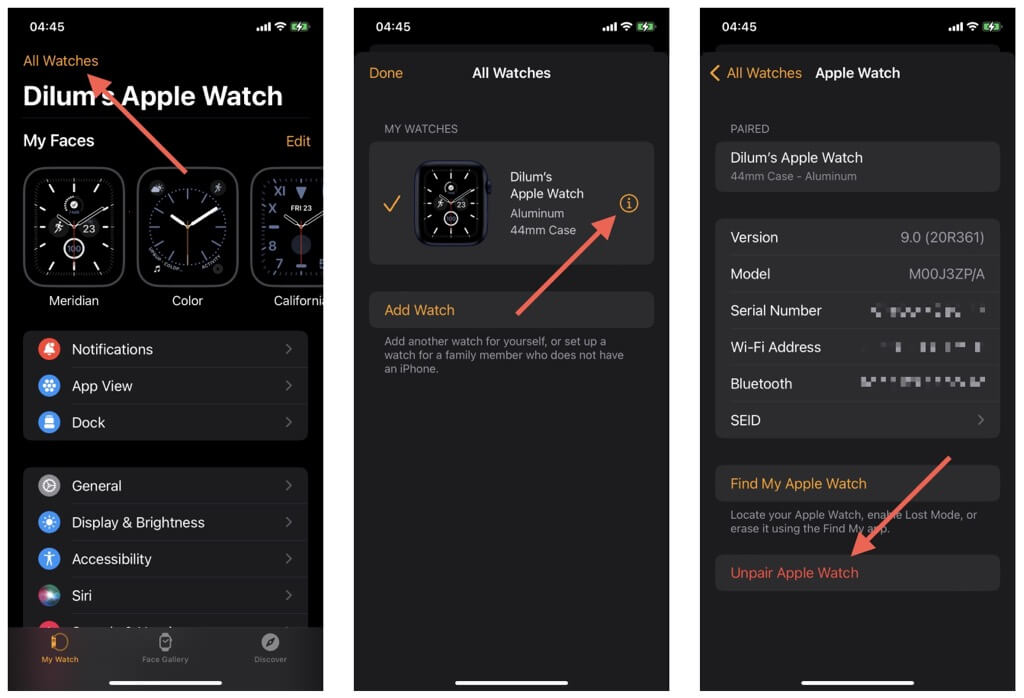
If the Watch app manages to reset your Apple Watch, the screen should automatically light up after a few moments. You can choose to restore a backup of your data when you begin to set up your watchOS device .
If everything works fine after that, install any pending watchOS updates to minimize the chances of running into similar software issues. To do that, re-open the iPhone’s Watch app and go to My Watch > General > Software Update .
Apple Watch Not Turning On? It’s Time to Visit an Apple Store
If you still can’t turn on your Apple Watch, it’s time to contact Apple Support and book yourself a Genius Bar reservation. You’re likely dealing with a hardware problem that only an Apple technician can diagnose and fix. However, if your Apple Watch is still within its warranty period, you might be eligible for a free replacement.
- Fix Apple Watch Charging Problems (All Models)
- How to Set Your Apple Watch to Vibrate Only
- How to Delete a Workout on Apple Watch
- How to Delete Messages on Apple Watch
- Why Your Apple Watch Keeps Locking When on Wrist (And How to Fix It)
