If you also use Windows XP on another computer, you can transfer that VHD file to the XP computer and mount it without having to run Virtual PC or Microsoft Virtual Server . You can install only a component of Microsoft Virtual Server and run a command from the command line.
NOTE: If you have applied a password to your VHD file using BitLocker in Windows 7, you CANNOT access your VHD file in Windows XP. You will be asked to format the drive.
Download Microsoft Virtual Server from
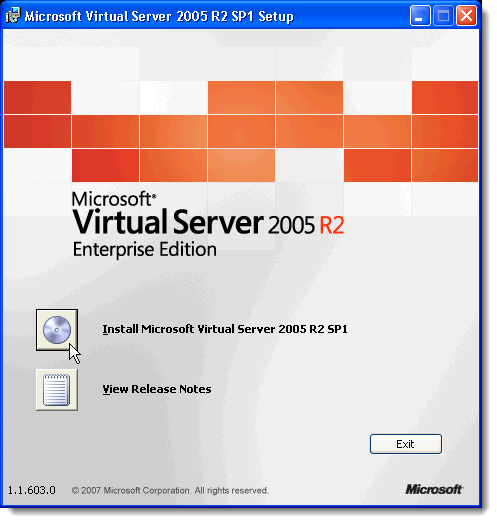
Start installing Microsoft Virtual Server by double-clicking on the setup.exe file. The initial Microsoft Virtual Server 2005 R2 SP1 Setup screen displays. Click the button next to Install Microsoft Virtual Server 2005 R2 SP1 .
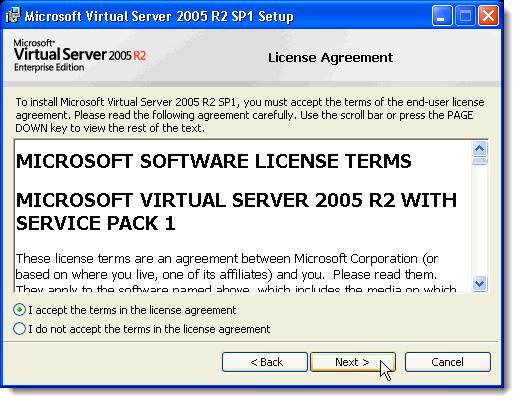
The License Agreement displays. Select the I accept the terms in the license agreement radio button and click Next .
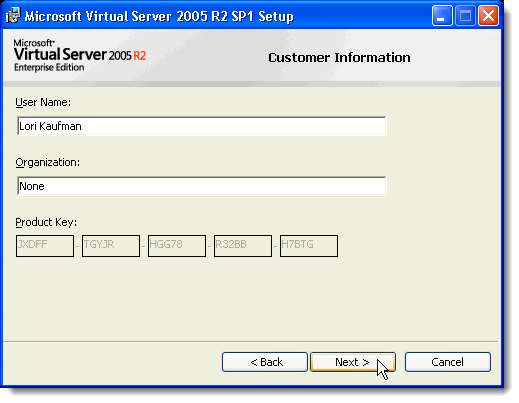
The Customer Information screen displays. Enter your User Name and Organization . The Product Key is automatically entered. Click Next .
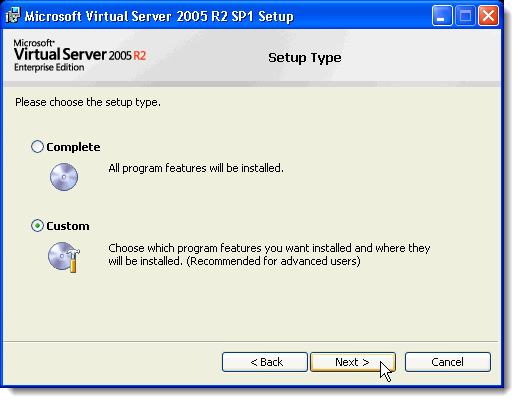
On the Setup Type screen, select the Custom radio button and click Next .
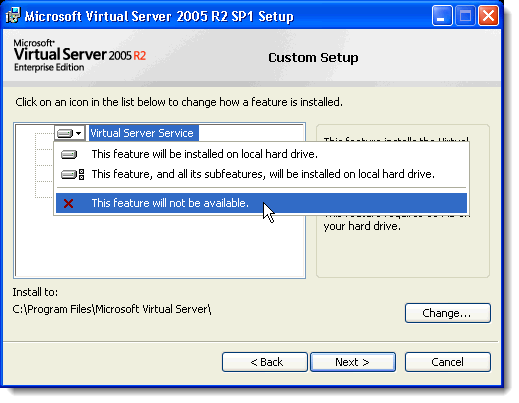
On the Custom Setup screen, click on the button next to the first feature in the list, Virtual Server Service , and select This feature will not be available from the pop-up menu.
Do the same thing for all the features except the VHD Mount feature. The Custom Setup screen should look like the following image. Click Next .
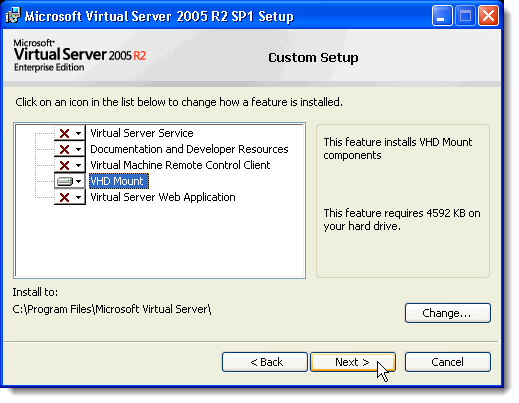
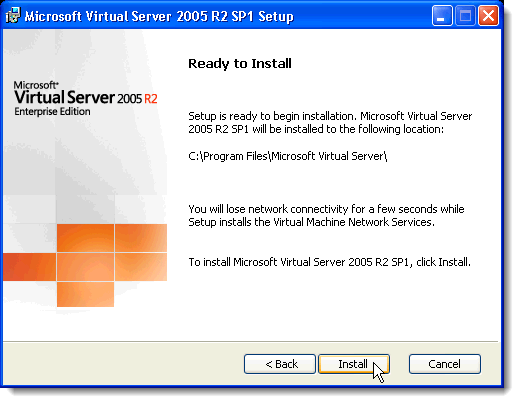
The VHD Mount feature is ready to be installed. Click Install .
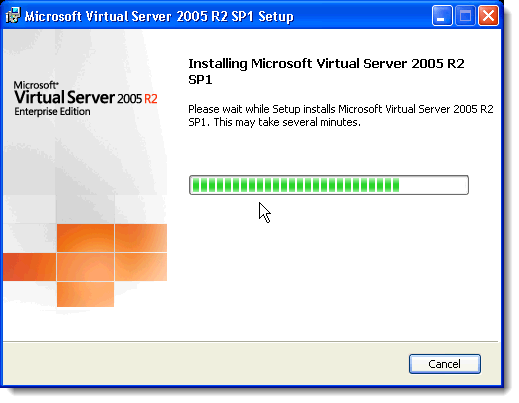
The progress of the installation process displays.
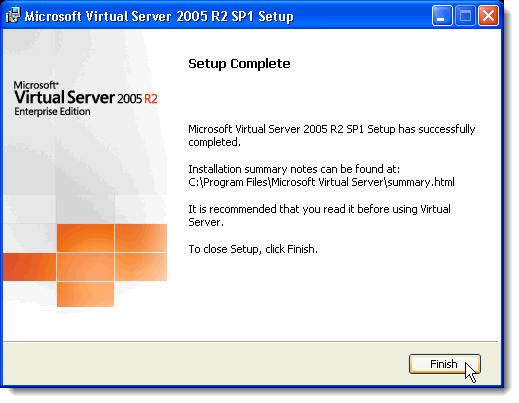
When the Setup Complete screen displays, click Finish .
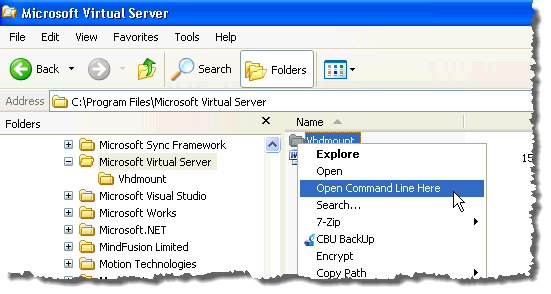
In Windows Explorer, navigate to the C:\Program Files\Microsoft Virtual Server directory. In the right pane, hold down the Shift key while right-clicking on the Vhdmount directory. Select Open Command Line Here from the pop-up menu.
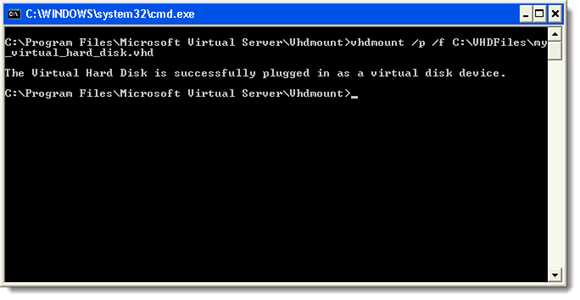
At the command prompt, enter the following line.
vhdmount /p /f <path to VHD file>
Replace “
NOTE: For information about the parameters for the vhdmount command, type vhdmount at the prompt and press Enter . A list of available parameters with descriptions displays.
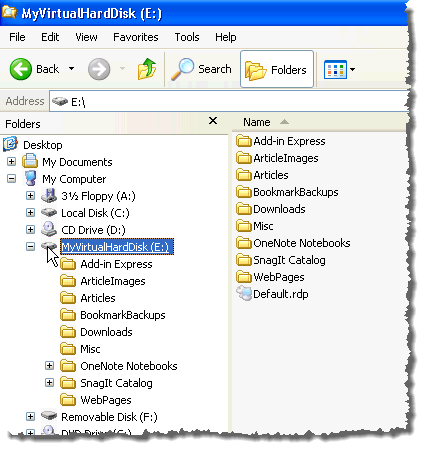
In Windows Explorer, your VHD file displays as a hard drive with a drive letter.
To detach your VHD file, enter the following line at the command prompt:
vhdmount /u <path to VHD file>
Again, replace “
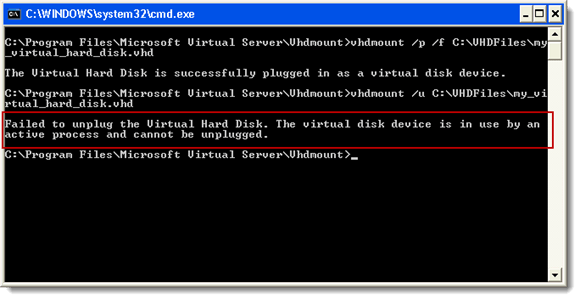
If you still have Windows Explorer open and your VHD selected, you will receive an error when you try to detach the VHD file. You must either select a different drive, or close Windows Explorer.
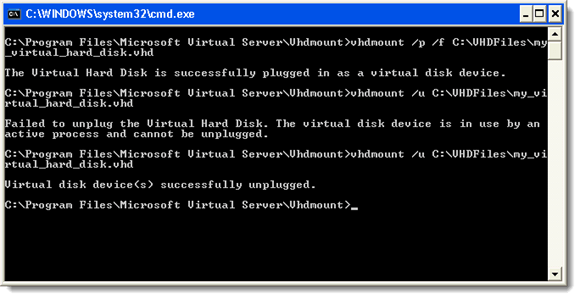
Once the VHD file is no longer being used, you can enter the detach command again and you should see a message indicating that the virtual hard disk has been successfully unplugged.
This component of Microsoft Virtual Server is useful if you transfer files between a Windows 7 computer and a Windows XP computer. You can keep all your files in one portable file and easily access them on both operating systems.
- How to Boot into Safe Mode in All Versions of Windows
- How to Set Up a Windows XP Virtual Machine for Free
- How to Reset Your Computer Password If You Lock Yourself Out
- Transfer Files from Windows XP, Vista, 7 or 8 to Windows 10 using Windows Easy Transfer
- How to Change the Clock To Military Time in Windows
Founder of Help Desk Geek and managing editor. He began blogging in 2007 and quit his job in 2010 to blog full-time. He has over 15 years of industry experience in IT and holds several technical certifications. Read Aseem’s Full Bio
