If you use Avast as your primary antivirus tool and it doesn’t update its virus definitions, you risk getting your computer infected with various kinds of viruses and malware. This security breach is a serious problem that requires an immediate fix.
Some of the common reasons Avast won’t update its virus definitions could be that your firewall is blocking the connection, you have the wrong date and time set on your computer, or there’s an issue with the Avast app itself.

Check Your Internet Connection
Avast needs to connect to the internet to download new virus definitions. If your internet connection is inactive or unreliable, Avast could experience problems with getting new virus updates.
To check your internet connection, open a web browser on your computer and try to access a website like Google. If the site loads fine, your internet is working as it should.
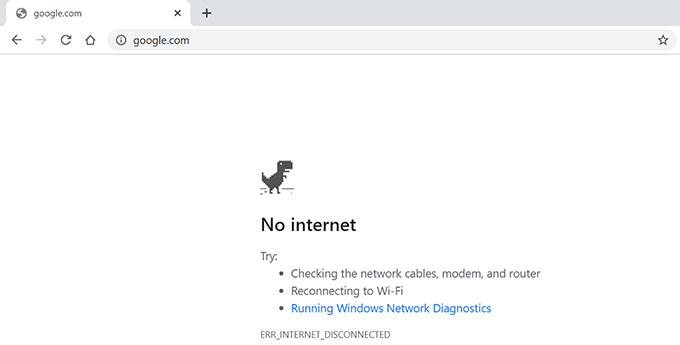
If the site fails to load, there might be an issue with your connection. You can either try to fix the problem yourself or contact your internet service provider (ISP).
Manually Update Avast Virus Definitions and the Avast App
Avast allows you to download virus definitions both manually and automatically. Whether you perform a manual or an automatic update, Avast will download the same set of virus definitions.
You should also keep the Avast app updated as newer app updates bring improvements and fix existing bugs.
If the automatic updates have stopped working, you can run a manual update and see if that works by following the steps below.
- Launch Avast on your computer.
- Select Menu at the top-right corner of the app.
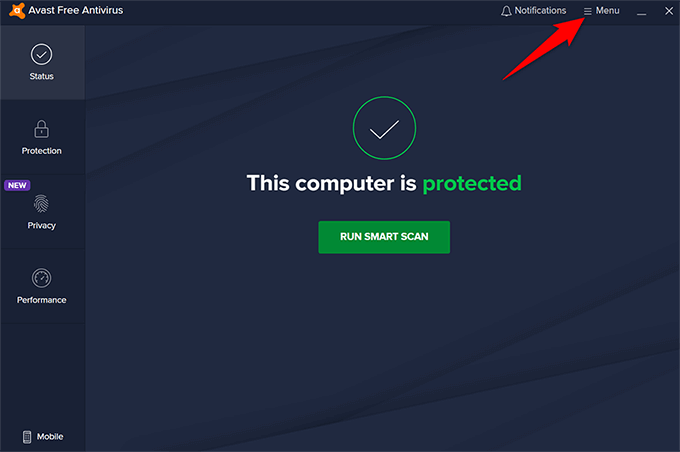
- Select Settings .
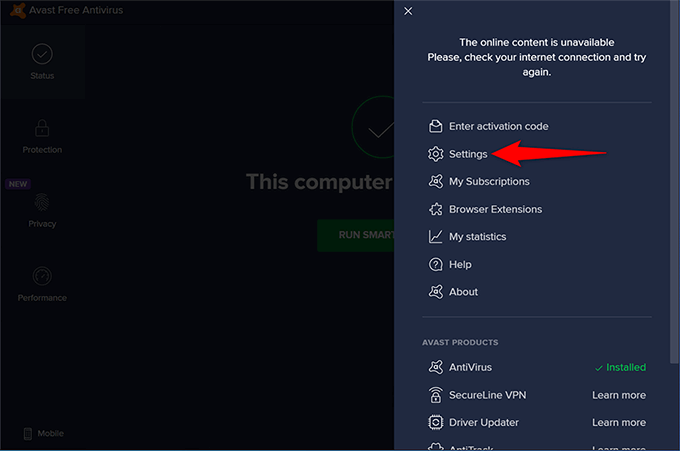
- Choose General > Update from the left sidebar.
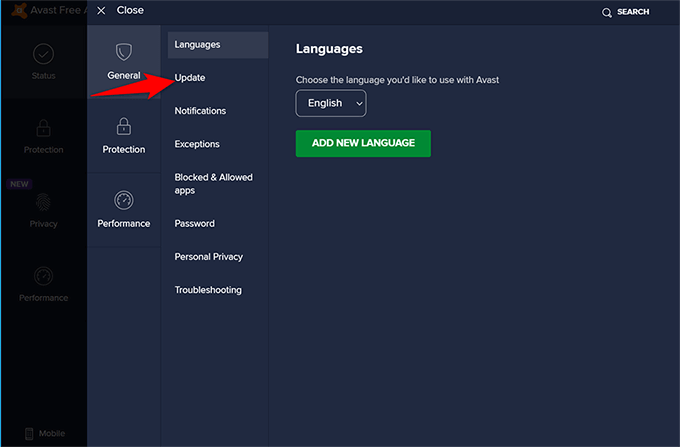
- Select Check for Updates in the right pane in the Virus definitions section.
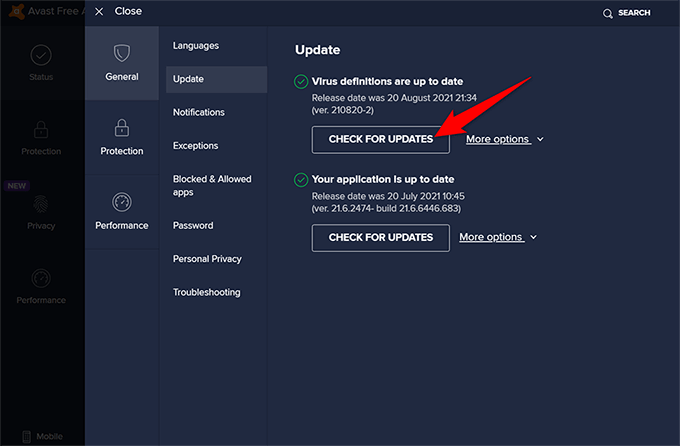
Wait for Avast to find new virus definitions.
Select Check for Updates on the right pane in the Your application section to update Avast to the latest version.
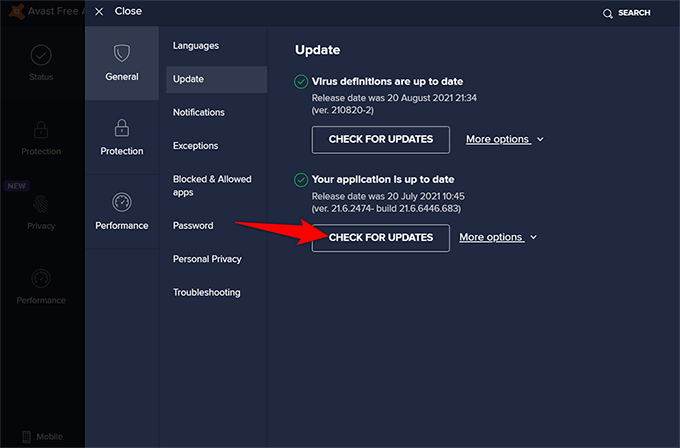
If there’s an issue with the Avast app itself, updating the app to the latest version should likely fix that.
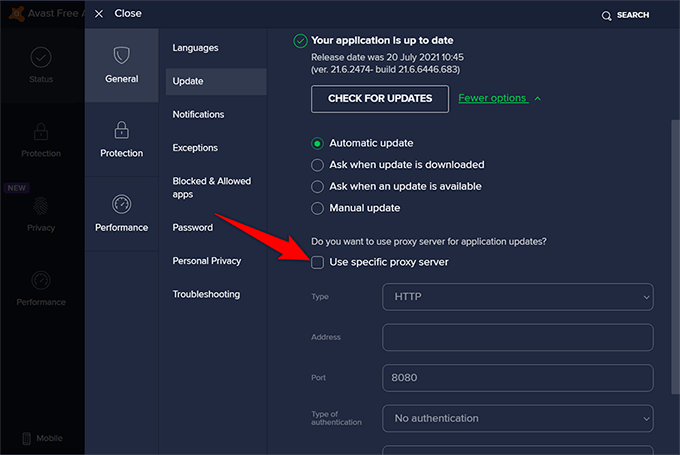
In case the app update fails, you might be using a broken proxy server with Avast. Disable this proxy server by selecting More options next to Your application and turning off the Use specific proxy server box. Then, try updating the app again.
Repair the Avast App
A good thing about Avast antivirus is that it comes preloaded with a repair option. You can run this built-in repair tool and let Avast repair itself.
- Access Avast on your computer.
- Select Menu at the top-right corner of Avast.
- Choose Settings from the menu.
- From the left sidebar, choose General > Troubleshooting .
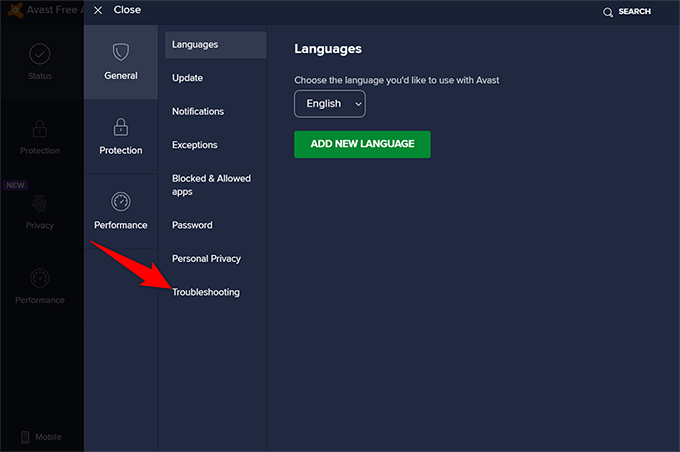
- Scroll down the Troubleshooting screen to the Still having problems section and select the Repair App button.

- Choose Yes in the prompt that opens.
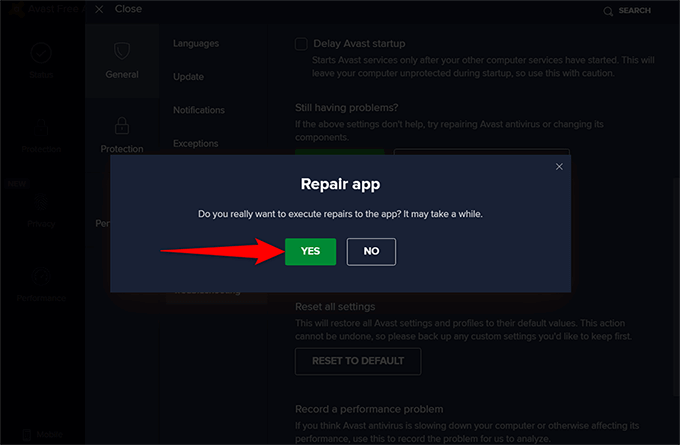
- Restart your computer when Avast is repaired.
Turn Off the Windows Firewall
Your computer’s firewall defines how the incoming and outgoing connections work. Your firewall may be blocking Avast’s connection to the virus definition servers. As a result, Avast is unable to update its virus database.
Disable the firewall temporarily by following the steps below, and see if Avast can then update its virus definitions.
- Open the Control Panel and select System and Security .

- Choose Windows Defender Firewall .
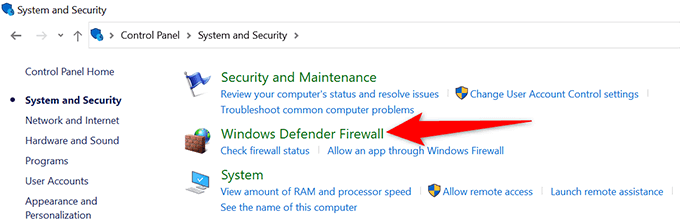
- Select Turn Windows Defender Firewall on or off from the left sidebar.
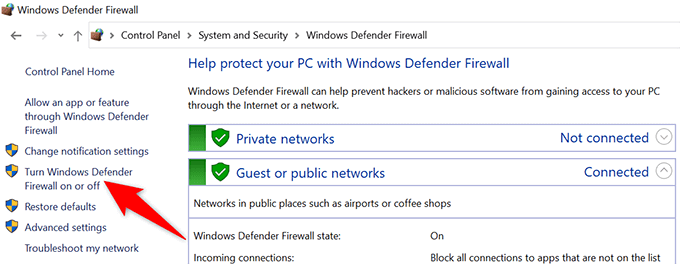
- Enable the Turn off Windows Defender Firewall option in both Private network settings and Public network settings sections. Select OK at the bottom.
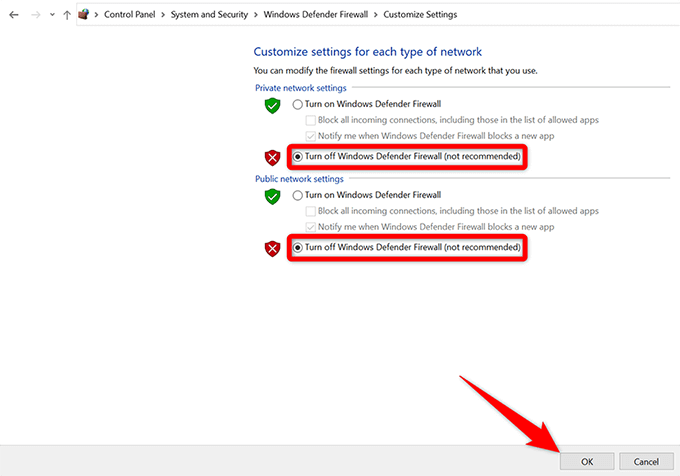
- Launch Avast and run a manual virus definition update.
Fix Your Date and Time Settings
Certain apps don’t work as usual if you have the wrong date and time settings set on your computer. This might be a reason Avast has issues updating its virus definitions.
Luckily, fixing this issue on a Windows 10 PC is easy.
- Open Windows 10’s Settings app by pressing Windows + I keys simultaneously.
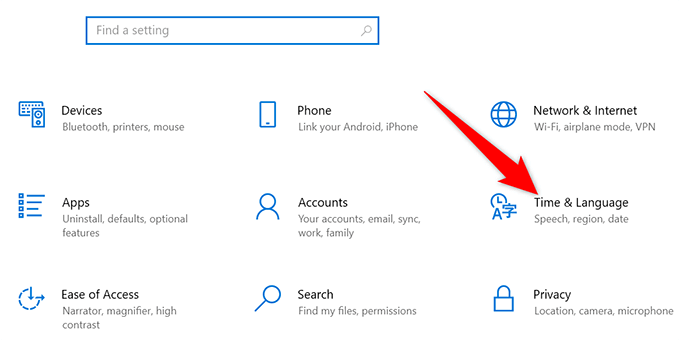
- Select Time & Language in Settings.
- Choose Date & time in the left sidebar.
- On the right pane, enable both Set time automatically and Set time zone automatically options.

Reset Avast Settings
Avast comes with various tools and setting options built into it. Any incorrect configuration can cause issues with the app, preventing the app from getting new virus definitions.
Luckily, Avast offers an option to reset all options back to their default values quickly. Keep in mind that you’ll have to reconfigure your options when you have reset Avast.
- Open Avast and select Menu at the top-right corner.
- Choose Settings from the Menu options.
- Select General > Troubleshooting from the left sidebar.
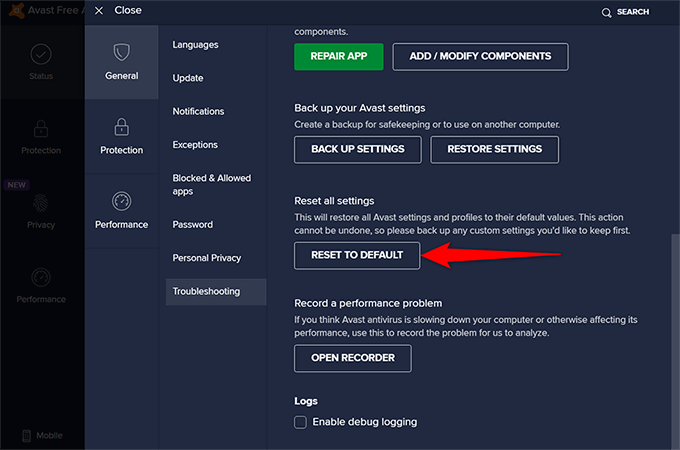
- Scroll down the Troubleshooting page to the Reset all settings section. Here, select the Reset to Default button.
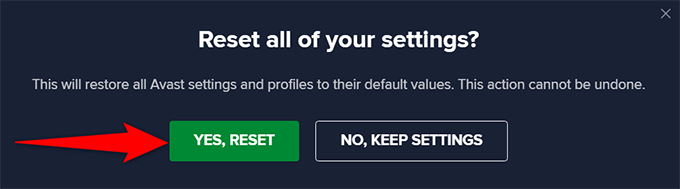
- Select Yes, Reset in the prompt.
- Run a manual virus definitions update in Avast.
Reinstall Avast
If Avast still doesn’t update the virus definitions, you should uninstall and reinstall the app to see if that fixes the problem. Reinstalling the app gives the app a fresh chance to build its configuration.
- Open the Settings app on your PC.
- Select Apps and then choose Avast in the apps list.
- Select the Uninstall button for Avast.
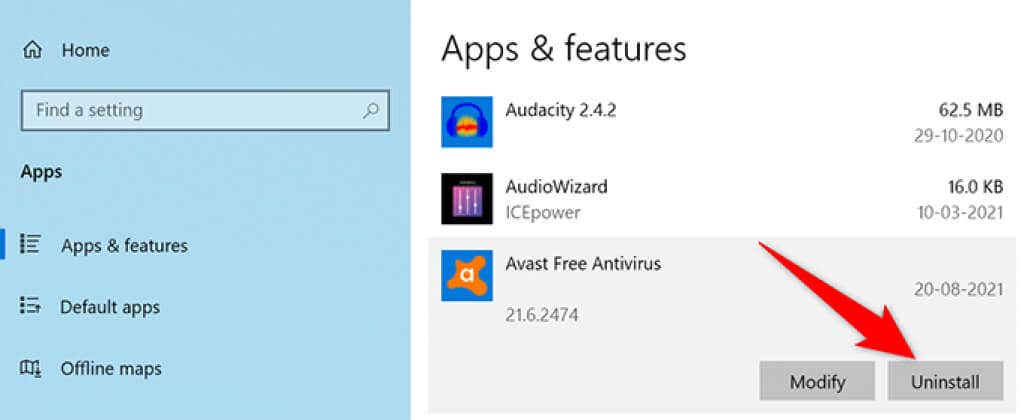
- Choose Uninstall in the prompt that opens.

- Restart your PC when you’ve uninstalled Avast.
- Redownload the app on the Avast website and install it on your PC.
Contact Avast
If there’s a major issue with Avast, contact the antivirus developer using the Avast support site . It’s worth using this option if you can’t fix the problem with the methods listed above.
- Open a web browser on your computer and access the Avast support site .
- Scroll down the site and select the Contact Us button.
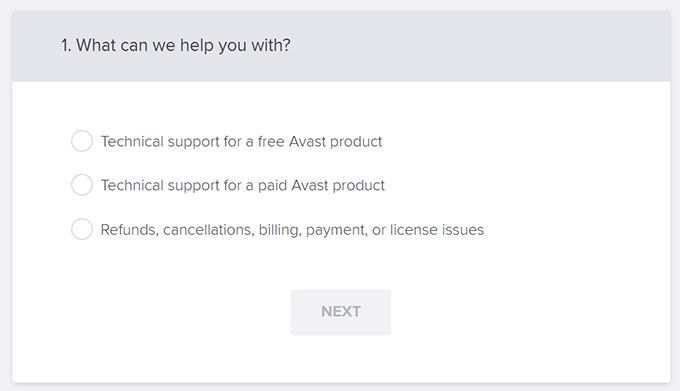
- Select appropriate options on your screen, and you should be able to connect with someone at Avast.
We hope this guide helped you fix Avast when it doesn’t update the virus definitions. However, consider scanning your computer with the built-in Microsoft Defender Antivirus on your Windows 10 PC if your issue remains unresolved.
- Avast Won’t Open on Windows? 6 Ways to Fix
- Avast UI Failed to Load? 5 Ways to Fix
- Avast Online Security Extension: Is It Worth Using?
- How to Completely Uninstall and Remove McAfee From Windows 11
- Does Your Windows 11 PC Need an Antivirus?
Mahesh has been obsessed with technology since he got his first gadget a decade or so ago. Over the last few years, he’s written a number of tech articles on various online publications including but not limited to MakeTechEasier and Android AppStorm. Read Mahesh’s Full Bio
