The Blue Yeti microphone is an excellent choice for beginners. It provides great audio quality at an affordable price. If you’re recording podcasts, streaming games, or recording audiobooks, the Blue Yeti is the perfect place to start—as long as it works.
If you aren’t sure whether the microphone is working, look at your playback settings. If your system doesn’t recognize your Blue Yeti, try these fixes to straighten it out.
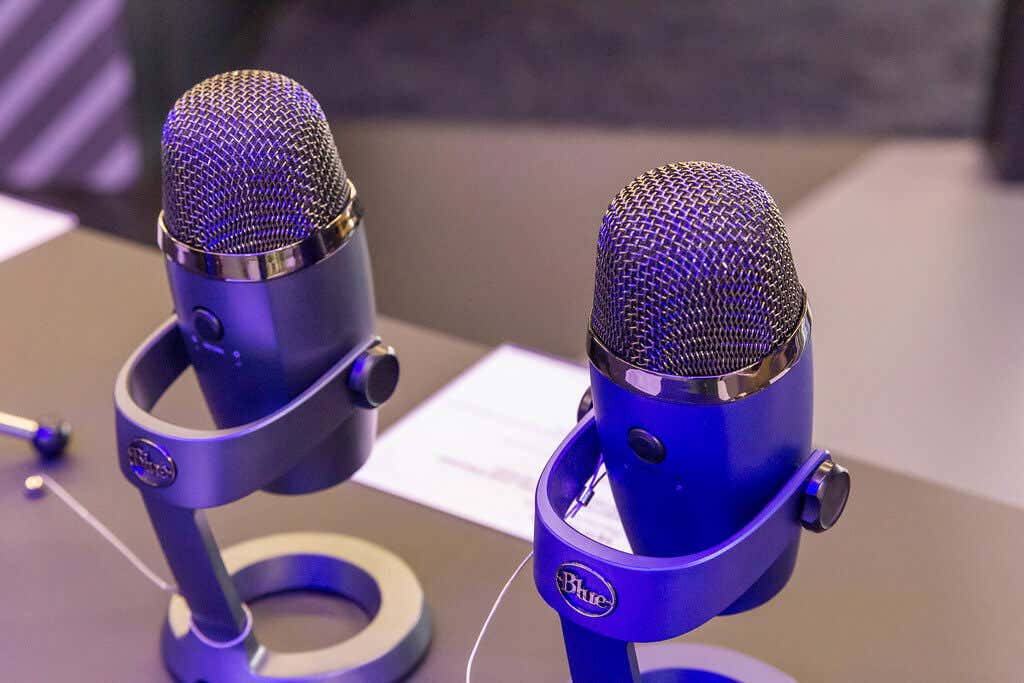
How to Fix Blue Yeti Not Recognized Errors
There are several reasons your Blue Yeti mic might not show up in Windows 10 or 11. Here’s how to fix it.
Try a Different USB Port
One of the main problem points is just a faulty connection—or that the Blue Yeti device just isn’t fully plugged in. Swap to a separate USB port to eliminate the risk of a bad connection, a faulty USB cable, or other similar issues. Many people have found that swapping to a USB 2.0 port (instead of a USB 3.0 port) results in better operation.
Update Your Blue Yeti Driver
Another common culprit of microphone problems is the driver. If your driver is out of date (or is just glitchy), you need to update the microphone driver so that Windows can recognize it.
- Make sure your Blue Yeti is correctly connected to your computer.
- Open Run by searching for it or by pressing Win + R .

- Type in devmgmt . msc and then press Enter or select OK.
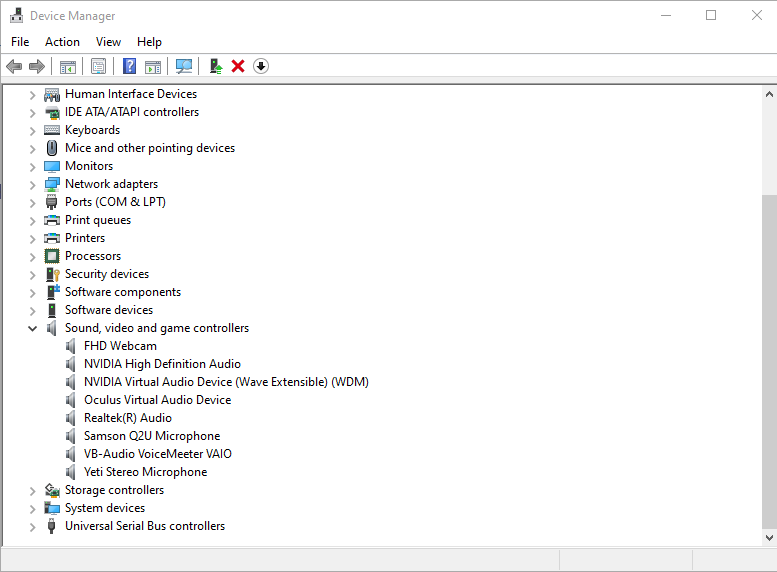
- This opens the Device Manager . Select the down arrow beside Sound, video and game controllers and then right-click Yeti Stereo Microphone .
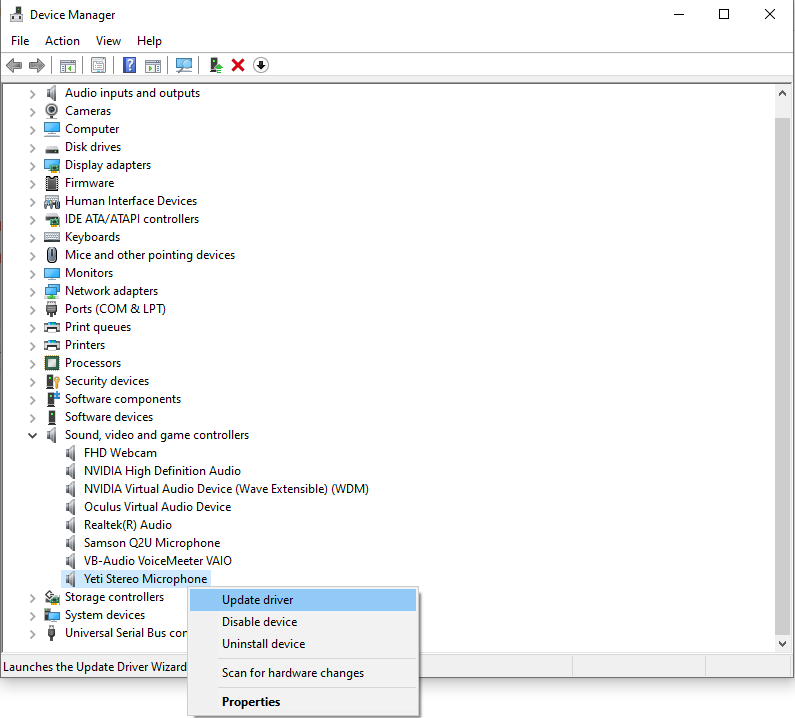
- Select Update driver.
- Select Search automatically for drivers.
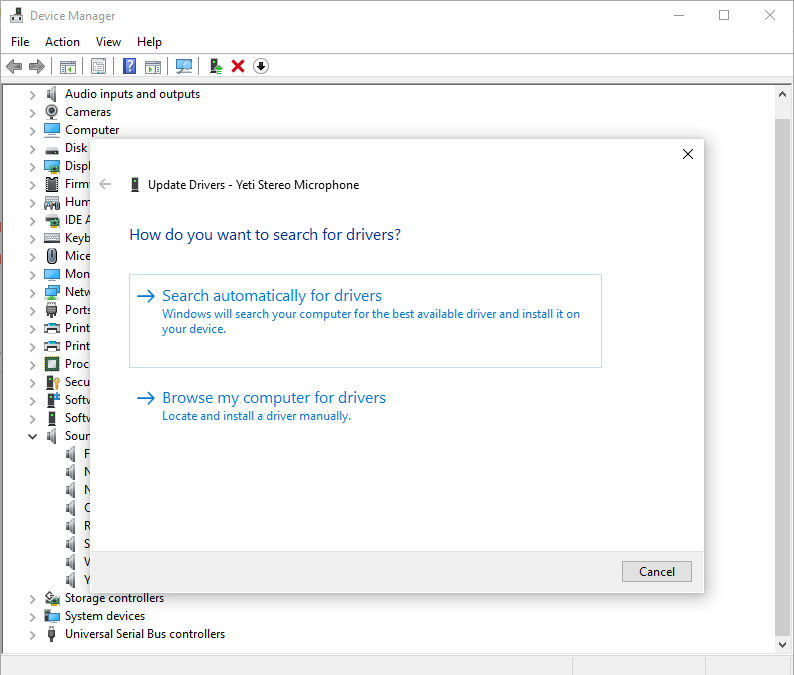
- This will search for any available drivers. If any are found, you can select it, and it will install. If not, it will tell you that you have the best driver installed. Select Close .
After this, restart your computer. This step isn’t always necessary, but a complete restart can correct many problems. If this doesn’t work, perform the same steps as above once more—but instead of updating the driver, uninstall and reinstall it.
Use the Microsoft Audio Troubleshooter
Microsoft has several built-in tools to help diagnose potential issues with your system. The best part is that it is incredibly easy to use and access.
- From the system tray, right-click the Speaker icon and select Troubleshoot sound problems.

- Below where the program asks whether it can perform a scan, select Yes.
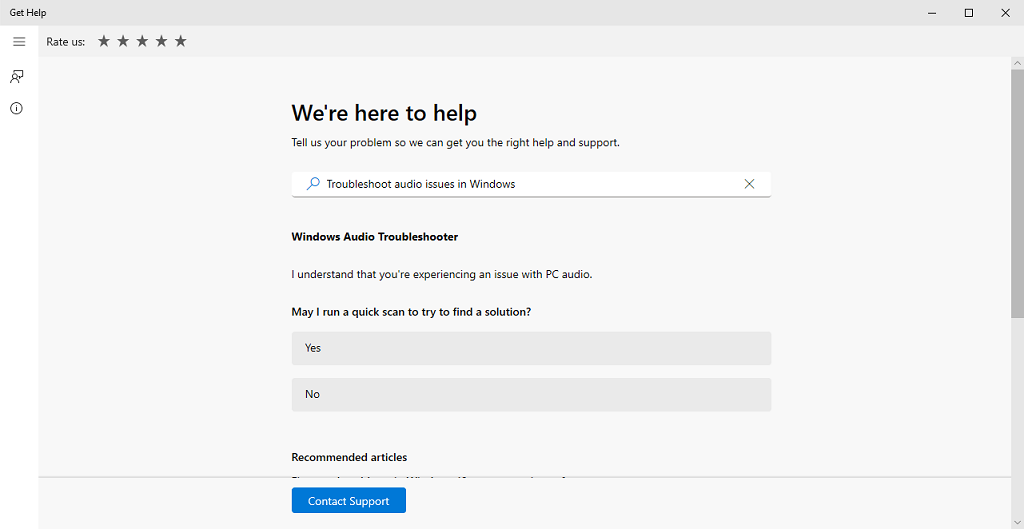
- Follow the on-screen instructions to finish the troubleshooting process.
This might not fix every problem, but it can help you narrow down exactly why your recording device isn’t recognized.
Set Blue Yeti As the Default Device
Sometimes your Blue Yeti might be available as an option within Sound settings but not available as an option on other programs. If this is the case, you can fix it simply by setting it as the default device.
- Right-click the Speaker icon in your system tray and select Sounds .
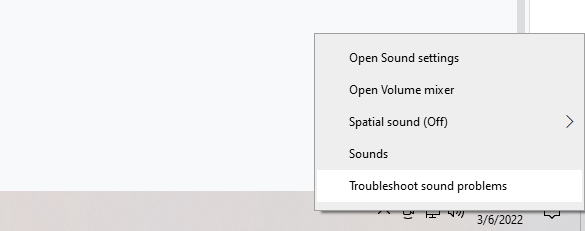
- Select the Recording tab.
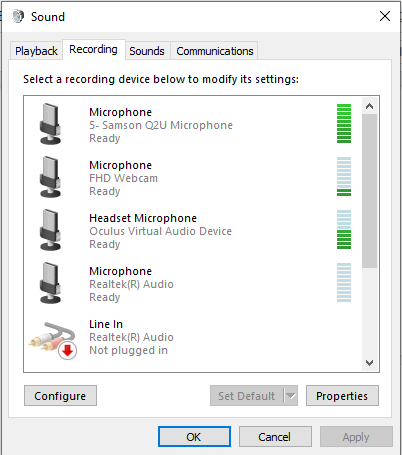
- Scroll down and select your Blue Yeti, then right-click and choose Set as default device.
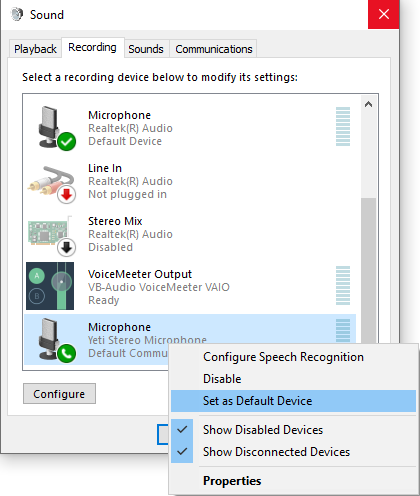
- Select OK .
You can adjust any other audio device from this menu as well. Changing the default option for audio input can solve many potential problems.
Manually Download The Driver
The Blue Yeti Pro is a slightly more advanced, more expensive version of the Blue Yeti. Other models operate using the standard drivers , but users have reported a need to manually install the driver with this particular model.
- Navigate to https://www.bluemic.com/en-us/products/yeti-pro/ and select Download beside Yeti Pro Driver.

- After the driver downloads, follow the on-screen instructions to install it.
- Restart your computer.
Again, this problem seems to be specific solely to the Blue Yeti Pro. The updated driver software should resolve the issue. If you have another version of the Blue microphones (like the mini version, the Yeti Nano), it should be able to operate using the standard drivers on either Windows or Mac machines.
- Why Your GPU Fans Aren’t Spinning and 10 Ways to Fix
- What Are Ortholinear Keyboards (And Should You Get One)?
- Got a New Computer? Here Are The 10 Things You Should Do
- What Is Dual-Channel Memory (RAM)?
- Razer Mouse or Keyboard Not Showing Up in Razer Synapse? Try These 6 Fixes
Patrick is an Atlanta-based technology writer with a background in programming and smart home technology. When he isn’t writing, nose to the grindstone, he can be found keeping up with the latest developments in the tech world and upping his coffee game. Read Patrick’s Full Bio
