Every modern social media platform allows users to comment on different posts, images, and videos. With billions of users, Facebook is an absolute labyrinth of posts with very lively discussions in their comment sections. Suppose you want to join a discussion on a topic that intrigues you, but Facebook won’t post the comment you just typed. That must be infuriating!

Possible Reasons You Can’t Comment on Facebook Posts
Issues with Internet Connection
Sometimes it can even seem as if your comment went through, just to disappear moments later. That is a clear sign that you have a weak internet signal. At other times Facebook will tell you to try again if the comment doesn’t go through.
If you notice you are having problems with internet connectivity, try restarting your router, or reconnecting to the wi-fi. If the problem persists, you will have to check if your router is working properly. Problems with internet connectivity can be complex unplugging and plugging back in can often be the solution.
Issues with a WebPage
Facebook Jail

You could be assigned Facebook Jail if you:
Send too many friend requests in a short period
Post inappropriate, NSFW, or insulting content
Logging in too many times from different IP addresses
Logging in on too many different accounts from the same IP address
Spamming, posting too many times in a short time
Committing a payment fraud while using the Facebook payment system
Privacy Settings
Personal profiles, groups, pages, and events have privacy settings that can be changed, usually by a profile owner or a moderator. They can choose to restrict you from commenting on their posts.
Timeline Review
Did you know you can control what you see on your timeline? It’s one of the best Facebook features because you can filter out unwanted content. That means that you need to approve whatever is posted on your timeline.
If you find yourself unable to comment on someone else’s post, it might be that you need their approval. You won’t see your comment go through but the owner of the profile will receive a notification pending post . He may decide to approve or decline your comment.
Customized Friend List
You probably already know you can customize your friend list and create groups of friends with different permissions. You can assign them different statuses such as close friends , family , or acquaintances .
It could happen that your friend put you in one of the customized groups that don’t have permission to comment. You might still be able to see his posts, stories, and pictures, but he restricted commenting on them.
You were Unfriended
How to Fix the Problem
1.Refresh Facebook Webpage
Sometimes the best solution is the simplest one. Try pressing the refresh button on your web browser, or press the F5 key on your keyboard.

Facebook uses lots of webpage plug-ins, micro-refreshers, and various graphical effects. They are in place so that different processes can run in the background, such as video playing in your main feed, the preview of stories at the top of your screen, a constant friend list refreshing to show you new friends you added, or groups you joined.
These processes are constantly running and they can cause hiccups when the page is loading. If you cannot post a comment, it could be because of the background processes that are using a lot of bandwidth. Refreshing the page should fix this problem easily.
2.Relog to Your Facebook Account
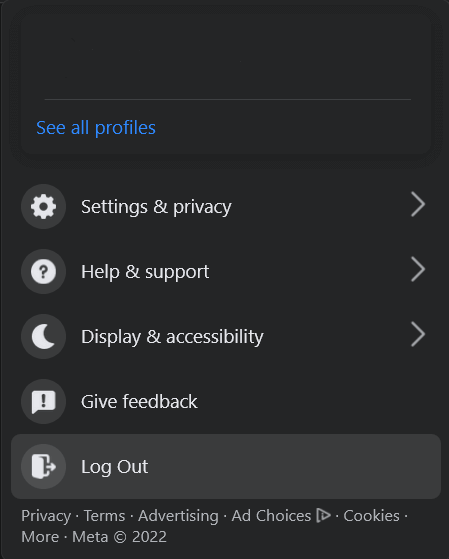
To log out, click on your profile picture at the top right corner of the page. A pop-up menu will open and at the bottom, you will find the Log Out option. Click on it.
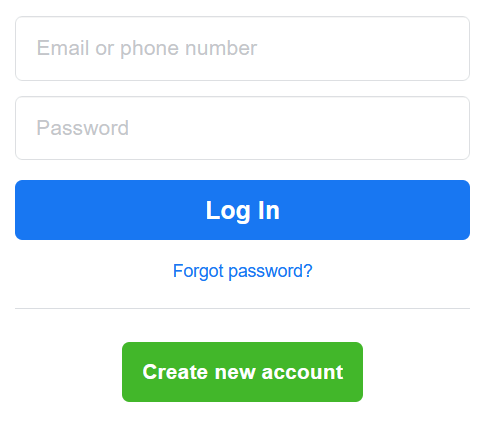
To log back in, simply type your email or phone number and password in the designated areas, and click on the Log In blue button.
If you’re using an Android device, re-logging into the Facebook app is a bit different. Here’s a step-by-step guide on how to do it.
Open the Facebook app.
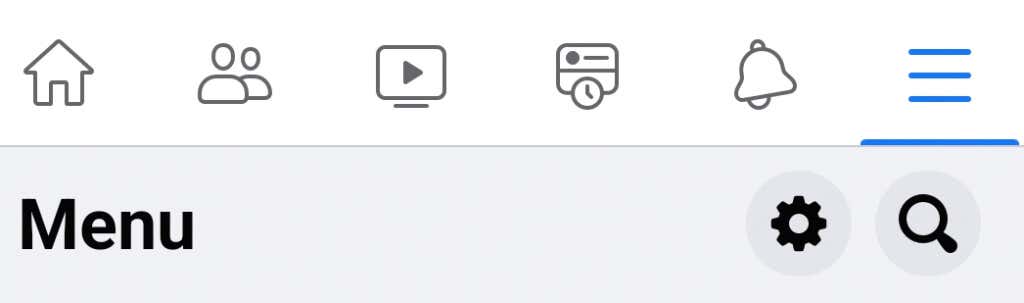
Navigate to the Menu.
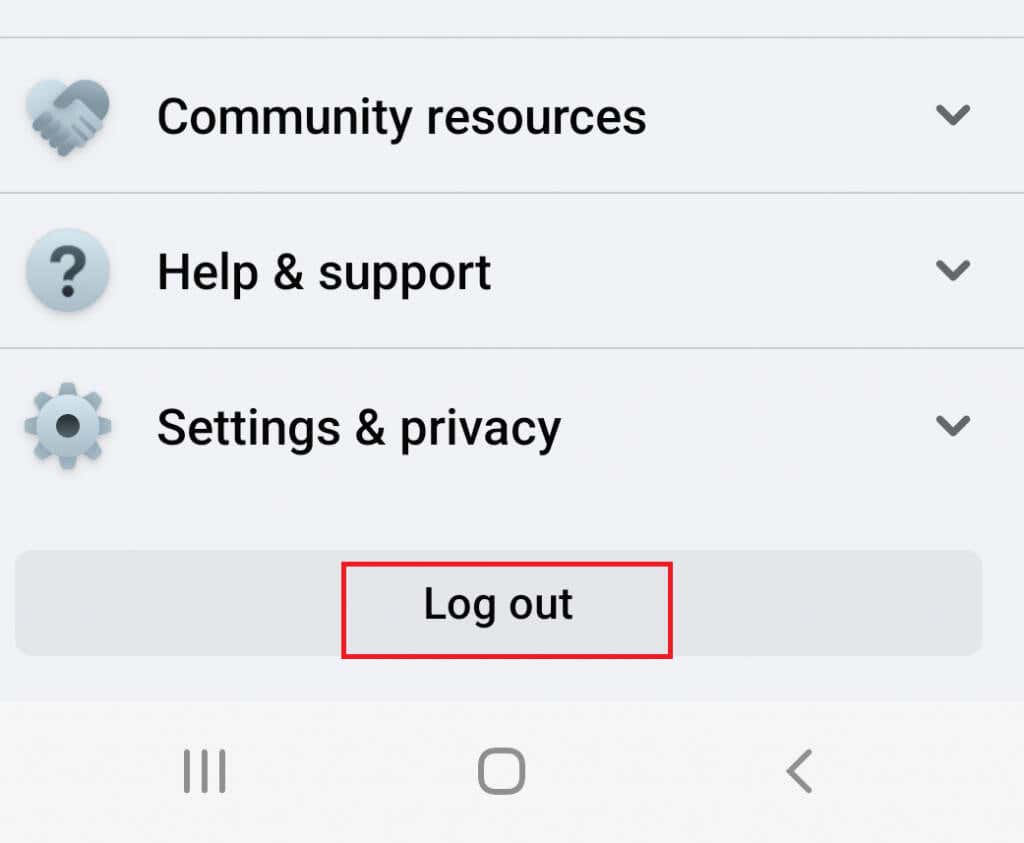
- Scroll down to the Log Out button, and click it.
- To log back in, type your account information and tap the Log In button.
Once you are back in your Facebook account, try posting a comment to see if the issue was resolved.
3.Clear Browser Cache and Cookies
Luckily, there is a simple solution for this. You can clear the cache and cookies to get rid of the corrupted files that are messing with your browser. But how you clear them depends on the browser you are using.
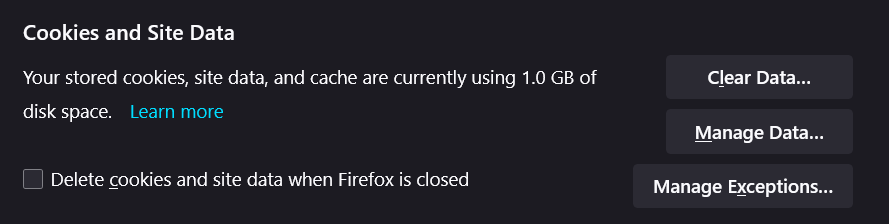
You need to open up Settings in your browser and find the Cookies and Site Data (Firefox) or Clear Browsing Data (Chrome) section. They are typically under the Privacy and Security tab.
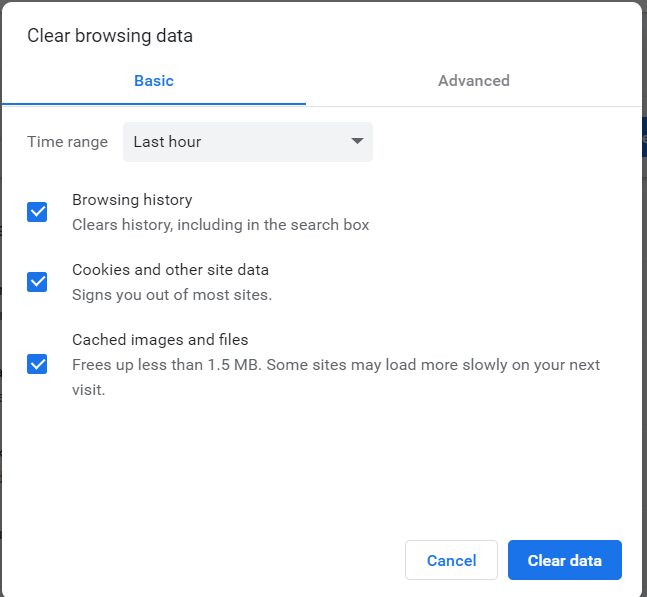
Check the Delete cookies and site data when Firefox is closed in Firefox, and in Chrome, you can change the time range. Then simply click Clear Data , and restart your browser. That should do the trick.
4.Turn Off Your VPN
VPN is a cool service that allows you to access content that may not be available in your country.
5.Remove All Browser Extensions
To disable them follow these steps before you log into your Facebook account:
Open your browser and select Settings
Go to the Extensions tab
Turn off all extensions that you suspect influence your Facebook
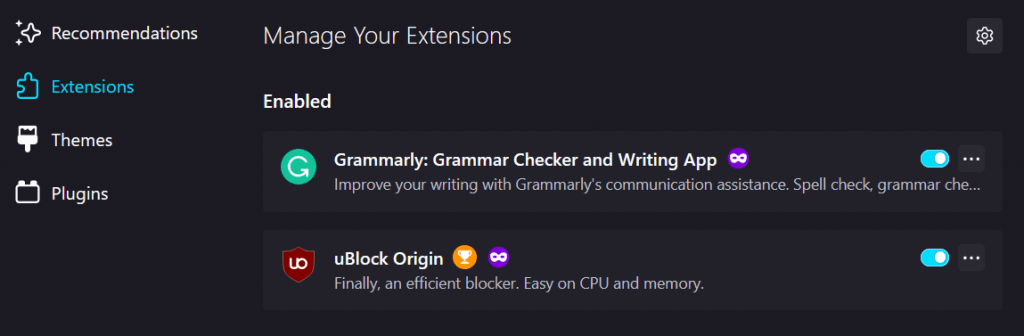
Restart your browser and log back into Facebook. Try leaving a comment to see if this fixed your issue.
6.Update Your Facebook App
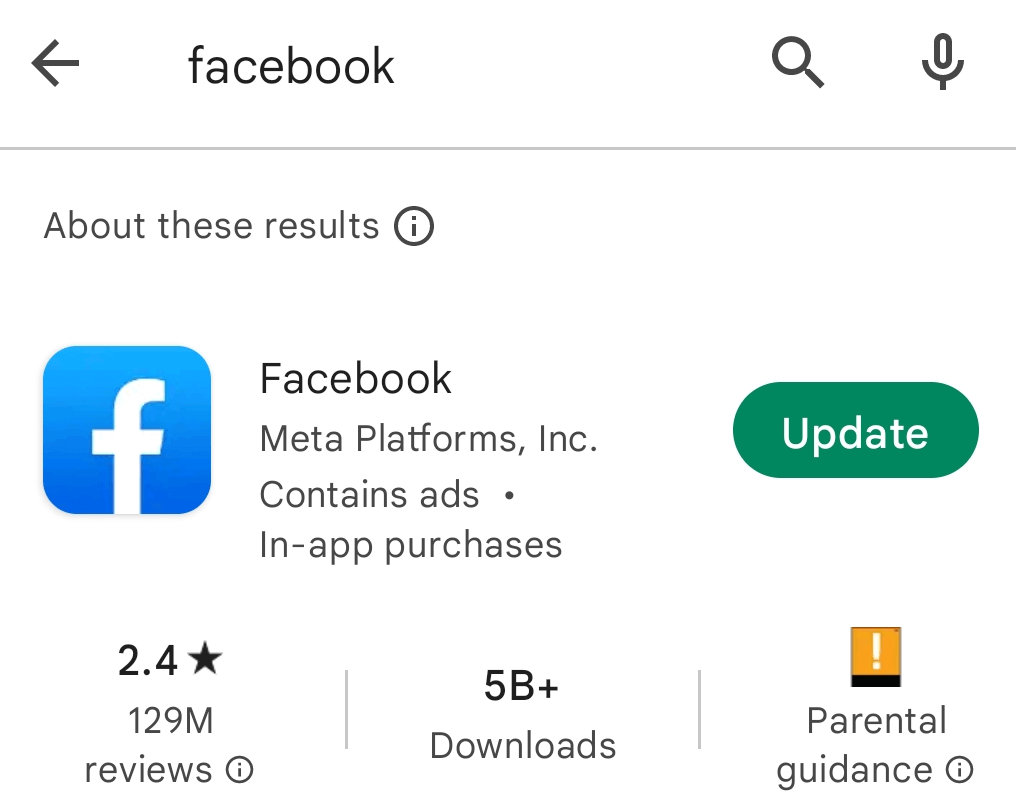
To update your Facebook app simply go to the Apple store or Play store, depending if you have an iPhone or an android device. Once there, find the Facebook app and tap on Update. Once it’s finished, open the app and try commenting.
7.Reinstall the Facebook App
To reinstall the Facebook app, you’ll have to uninstall it first. Here’s a quick guide on how to reinstall it:
To delete the app, find it on your screen and hold your finger on it until a pop-up menu appears
Tap Remove
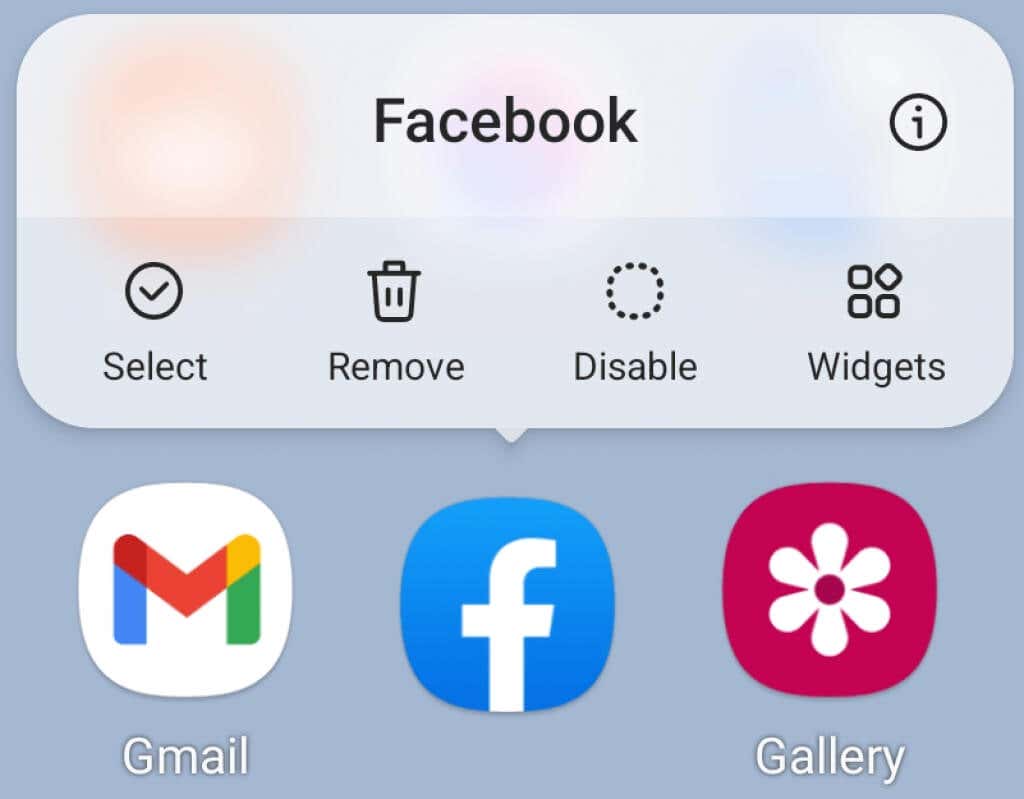
- Go to the app store and install the app just as you did the first time
Now that you reinstalled the app, try logging in and commenting.
8.Contact Facebook Support
If none of the mentioned fixes worked for you, you’ll have to contact Facebook Support. Their IT service will be able to work with you and find where the problem lies. Be prepared to give them information such as the browser or device you are using, your basic account information, and when the problem first appeared.
Use the Facebook Help & Support feature, and contact customer service in the report a problem section. You’ll find this option if you click on your Facebook profile picture in the upper right corner of the webpage, or a hamburger menu if you’re using a mobile devices app.
- How to Make a Post Shareable on Facebook
- How to Fix Facebook Notifications Not Working
- Facebook Keeps Logging You Out? 8 Ways to Fix
- Facebook Marketplace Not Working? 9 Ways to Fix
- How to Use Archived Messages in Facebook Messenger
Nicolae is a Jack of all trades technology writer with a focus on hardware, programming languages, and AI image-processing software. Over the last five years, he has ghostwritten numerous tech how-to guides and books on a variety of topics ranging from Linux to C# programming and game development. Nicolae loves everything that has to do with technology and his goal is to share his knowledge and experience with others. Read Nicolae’s Full Bio
