Are you excited to use ChatGPT, the revolutionary Artificial Intelligence (AI) chatbot developed by OpenAI? Signing up for a ChatGPT account allows you to tap into this incredible language model’s power and explore its endless possibilities.
However, if you need help with the signup process, don’t worry! In this article, we’ll explore some common problems users face and provide several fixes to get you up and running quickly when you see “signup is currently unavailable” or another problem that prevents you from using or reaching the ChatGPT login page.
1. Check Your Internet Connection
Before troubleshooting any technical issues, ensuring your internet connection is stable is critical. A weak or intermittent connection can lead to errors during the signup process.
Start by examining your physical setup. Ensure that all cables connecting your modem and router are securely plugged in. A loose or faulty connection can cause intermittent dropouts or weak signals, messing with your ability to access the internet reliably. Also, take a moment to ensure that the Wi-Fi router is adequately powered on and functioning. Refer to its manual to know what the indicator lights should look like when everything is normal.

If you’re connected to the internet via Wi-Fi, evaluate the signal strength and proximity to the router. The farther away you are from the router, the weaker the signal may become, potentially leading to connectivity issues. Likewise, some objects or metal pipes in the walls of older buildings can blog radio signals. Try moving closer to the router, or consider using a Wi-Fi network extender to strengthen the signal throughout your home or workspace.
Next, perform a quick reboot of your modem and router. Power them off, wait for a few seconds, and then power them back on. Restarting your networking equipment can resolve temporary glitches and refresh the connection between your device and the internet service provider.
2. Clear Your Browser Cache To Fix ChatGPT Sign-Up
Clearing your browser cache is a quick and easy way to resolve many web-based problems. Although we’ll focus on Google Chrome, the general concept applies to most browsers.
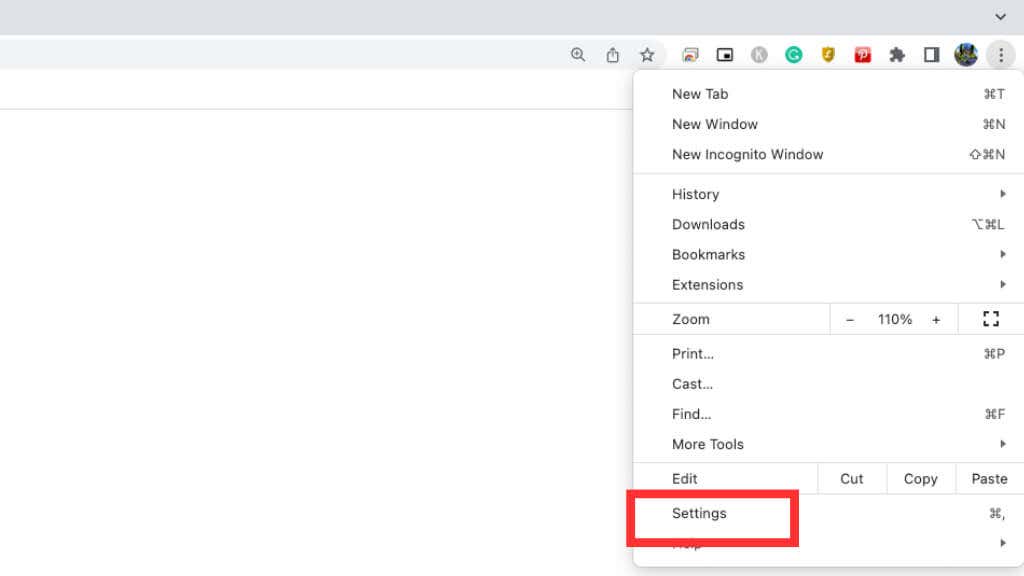
- Open Google Chrome. In the top-right corner of the window, you’ll spot three dots . Select them, and a menu will appear.
- Select Settings . Once you’ve done that, a fresh tab will appear, revealing the Chrome Settings page. This is the main control panel for your browsing experience.
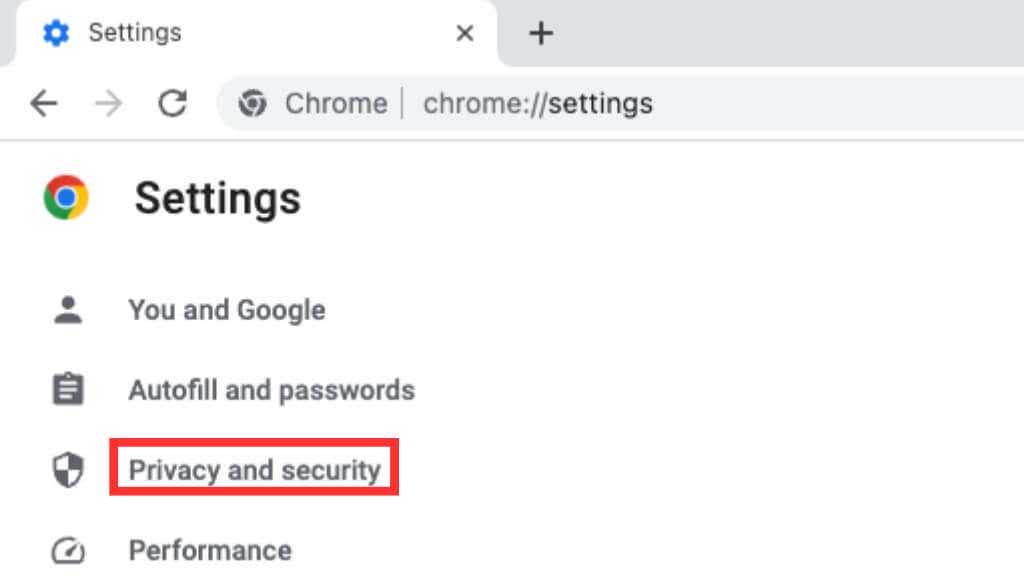
- Choose Privacy and Security in the left-hand sidebar. Select it to reveal a whole list of privacy and security options.
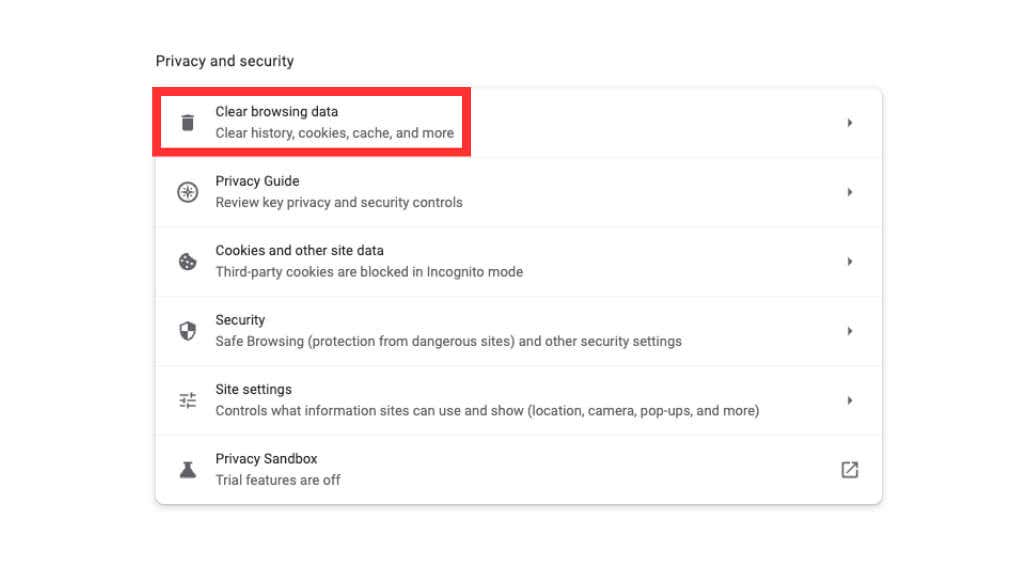
- Select Clear browsing data and a new tab will appear, offering various data-clearing options.
- Make sure you have the Cached images and files option selected. If you’re a little more ambitious, you can clear other browsing data like cookies or browsing history. It’s up to you how thorough you want to be, but clearing your cookies will mean logging out of every website; in this case, you’ll have to log in again manually with your login credentials.

- Once you’ve selected it, click the Clear data button and watch as the digital cobwebs are swept away, leaving you with a fresh and tidy browser cache.
Remember, these steps may differ slightly depending on your browser, but the general concept remains the same.
3. Try a Different Browser
If clearing your browser cache doesn’t work, it’s worth trying a different browser altogether. Browsers can have unique quirks that may interfere with the signup process. Popular alternatives like Mozilla Firefox or Microsoft Edge are excellent options to consider.
4. Use Incognito Mode
When troubleshooting login issues, using incognito mode can help identify if the problem lies with your browser’s extensions or settings. Here’s how to open an incognito window in different browsers:
- Google Chrome: Press Ctrl + Shift + N
- Mozilla Firefox: Press Ctrl + Shift + P
- Microsoft Edge: Press Ctrl + Shift + N
- Apple Safari: Command + Shift + N

Just remember that incognito mode won’t hide your location, so you can’t use it to bypass any geographical restrictions preventing your signup.
5. Consider Peak Times
At peak times, the ChatGPT servers may experience high traffic, leading to server errors and temporary unavailability of the signup process. If you encounter such errors, please try again later when the server load is likely lower.

Remember time zones, too; the servers you’re trying to access may be in a different time zone, shifting the peak times for you to hours that might seem unusual.
6. Contact Support
Remember to document any error messages or issues you encounter along the way. Taking a screenshot can be particularly helpful when contacting support or seeking assistance online. By providing specific details, you enable others to assist you more effectively.
7. Try From a Different Device

8. Consider a VPN

As of this writing, ChatGPT is banned in these countries: Afghanistan, Belarus, Burundi, Central African Republic, China, Cuba, Democratic Republic of Congo, Egypt, Eritrea, Ethiopia, Hong Kong, Iran, Italy, Libya, Myanmar, North Korea, Russia, Somalia, South Sudan, Sudan, Syria, Venezuela, and Yemen.
More countries may follow suit, or some currently banning the AI tool may change their laws or policy decisions to unban it. Be warned that if you gain access to ChatGPT in a country where it’s legally banned, you could get into some serious trouble.
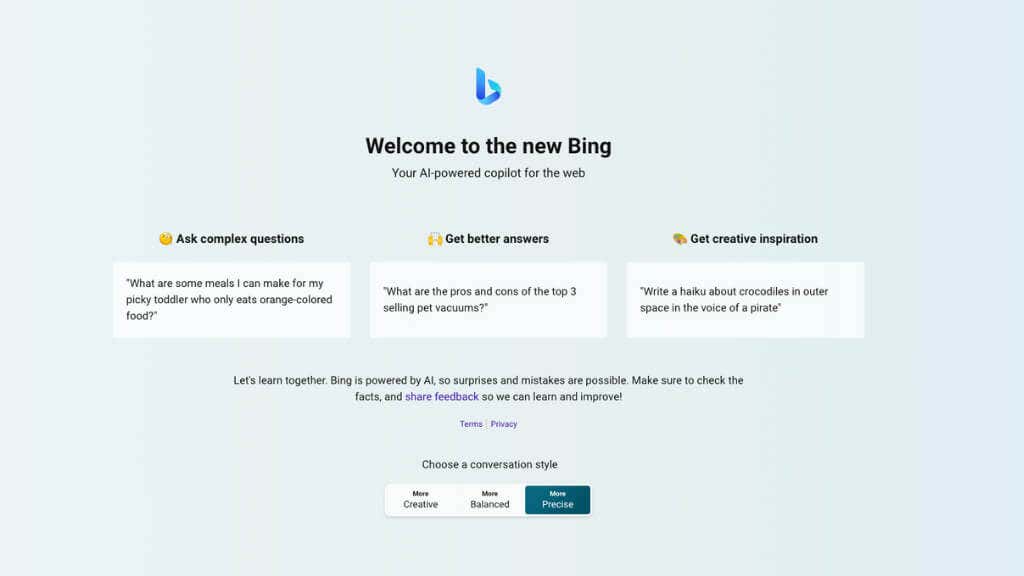
9. Explore ChatGPT Alternatives
- How to Upload a Word Document or PDF to ChatGPT
- How to Use Private ChatGPT Mode to Hide Your Chats
- 13 Ways to Fix “Conversation Not Found” Error in ChatGPT
- How to Sign Up for ChatGPT
- How to Use ChatGPT Without a Phone Number
