By default, Microsoft Word uses inches as its unit of measurement in dialog boxes and on the ruler. You can change measurement units to centimeters, picas, points, or millimeters. This post shows you how to change this setting in Word 2016 and earlier.
Change Measurement Units in Word
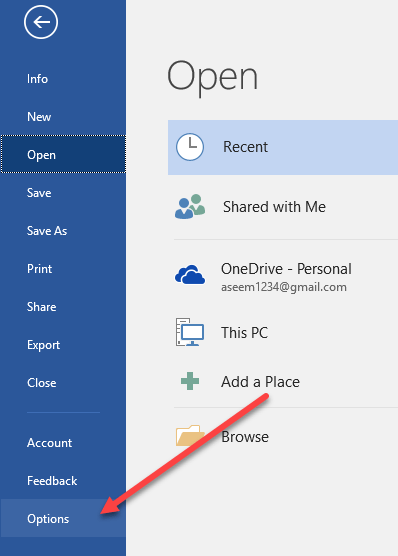
To change the default measurement units in Word , click on File and then Options .
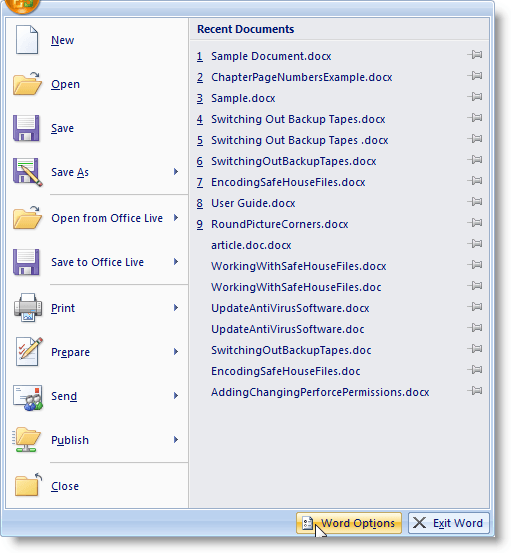
If you are using Word 2010 or earlier, then click the Office button and click the Word Options button at the bottom.
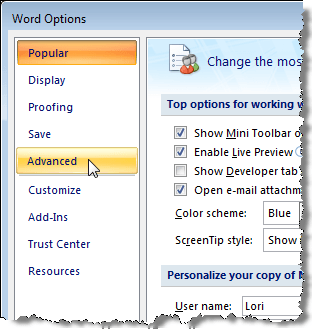
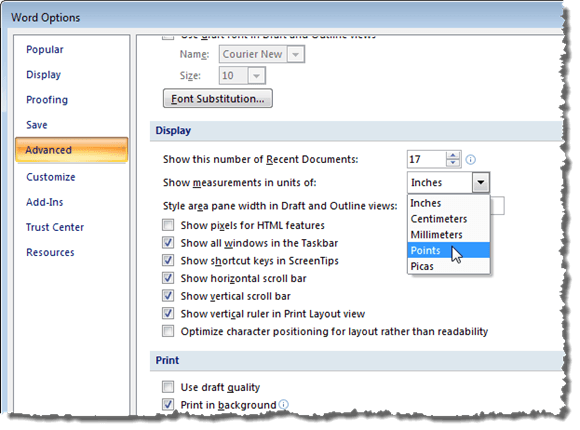
The Word Options dialog box displays. Click Advanced in the left pane.
Scroll down to the Display section. Select a unit of measurement from the Show measurements in units of drop-down list. Click OK .
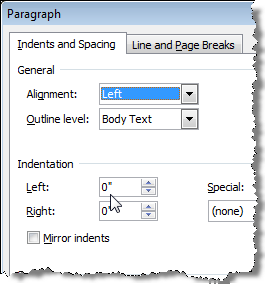
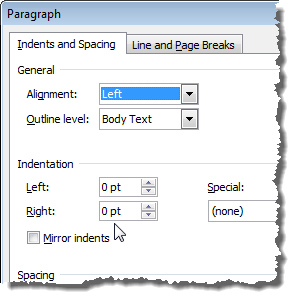
Now, the unit of measurement is different, as displayed below in the Indentation section of the Paragraph dialog box.
Change Measurement Units in Word 2003 and Earlier
The procedure for changing the units of measurement in Word 2003 and earlier versions is slightly different.
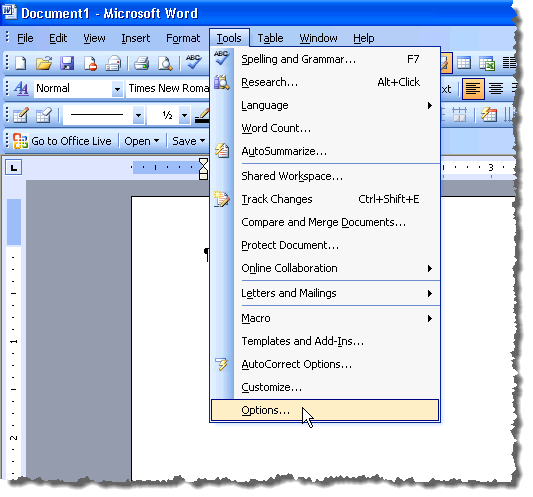
To begin, select Options from the Tools menu.
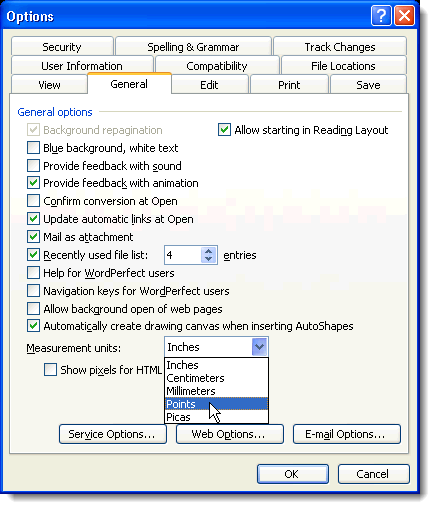
Click the General tab and select a unit of measurement from the Measurement units drop-down list. Click OK .
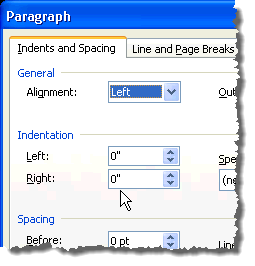
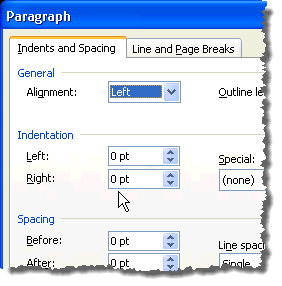
Again, the unit of measurement is different, as displayed below in the Indentation section of the Paragraph dialog box.
Being able to customize the units of measurement used in Word is useful if you are working on a document that must have custom margins in a specified unit of measurement other than inches. Enjoy!
- How to Remove Headers and Footers in Word Documents
- How to Clear Formatting in Word
- How to Remove Unwanted Lines in Word Documents
- How to Select All Text in Word Documents
- How to Insert Arrows in Microsoft Word Documents
Founder of Help Desk Geek and managing editor. He began blogging in 2007 and quit his job in 2010 to blog full-time. He has over 15 years of industry experience in IT and holds several technical certifications. Read Aseem’s Full Bio
