While the Chrome browser is pretty minimalist as far as toolbars go, there are still toolbars present if you’ve enabled them.
The days of big, clunky taskbars with large buttons are gone. However, most people who use Chrome enable two main toolbars. One is the bookmarks toolbar which provides quick links to your favorite bookmark links. The other is the extensions and menu toolbar. In this article, you’ll learn what to do when any of these Chrome toolbars are missing.
Fix Missing Extensions on the Toolbar
Do you remember adding a bunch of new extensions to Chrome and suddenly the icons no longer appear in the Chrome toolbar?
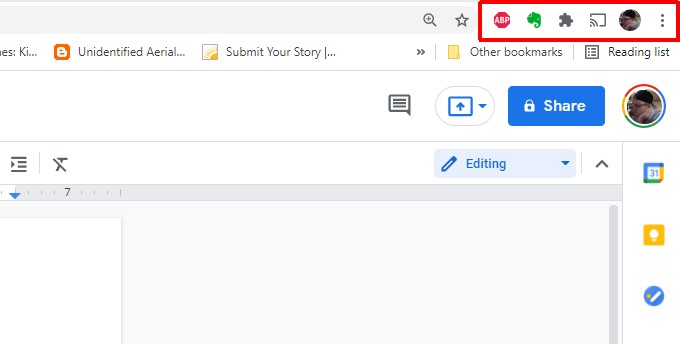
This often happens when an extension crashes or for some other reason gets disabled. You can add these extensions to the taskbar again by enabling the extension.
To do this:
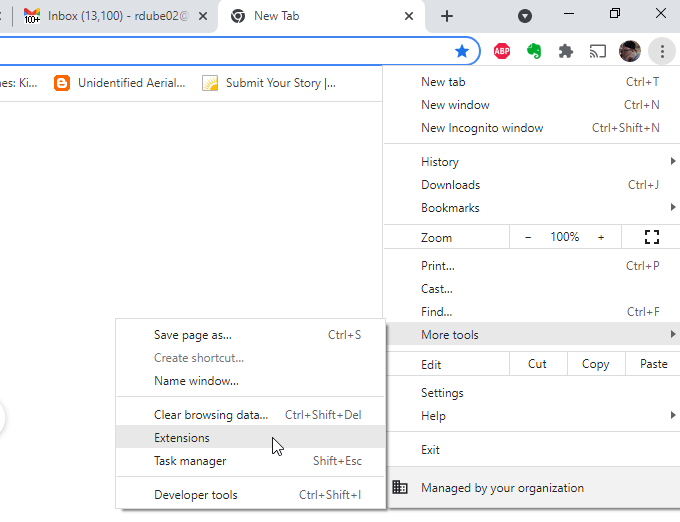
- Select the three dots in the upper right to open the Chrome menu, select Settings, and then select Extensions .
- Find and enable the extension that’s missing from your Chrome toolbar.
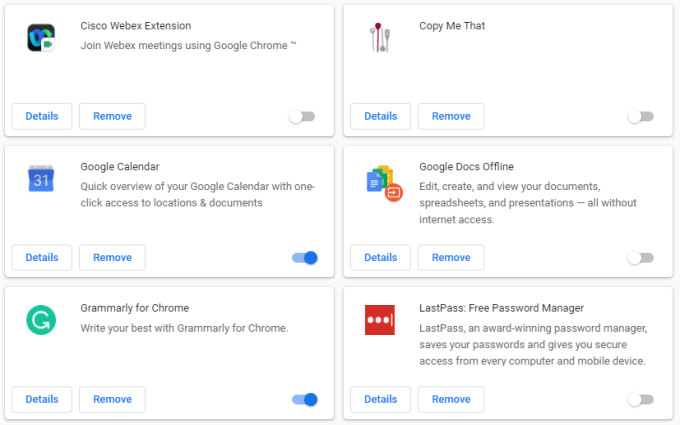
If the extension is working correctly, you should now see its icon in the top Chrome toolbar.
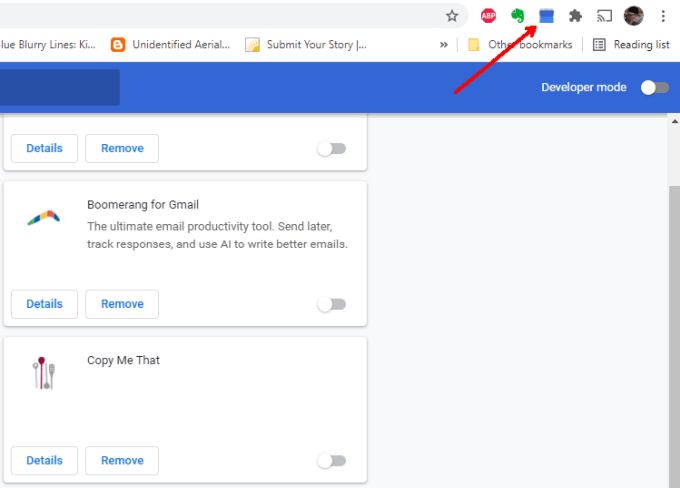
Hopefully, your extensions are working properly now.
Fix or Repair Missing Extensions
If the extension icon doesn’t appear when enabled, there could be other reasons.
Not sure where the website is? You can find it by opening the same extensions window using the process above and select the Details button on that extension box.
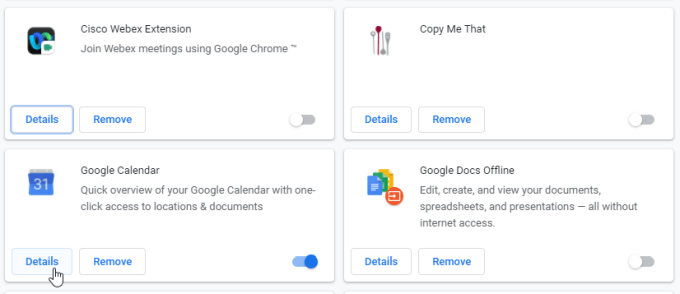
Scroll down and select View in Chrome Web Store .
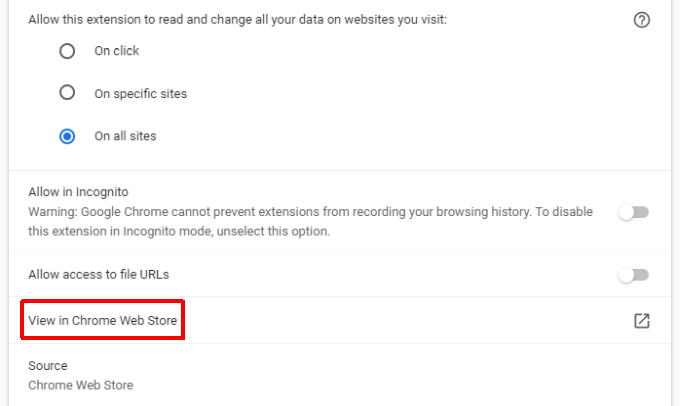
If the Chrome Store site says there should be an extension icon, then it’s possible it’s not working correctly, and you’ll need to repair or reinstall it
Repair a Corrupted Extension
If the extension is corrupted, there’s potentially a quick way to fix it.
Open the Extensions window using the same process as above.
Scroll down to the extension that’s not working and check if you see a Repair button.
You’ll see a permissions window appear asking for access to Chrome data.
Select Repair and then approve all permissions requests.
The repair button appears when the extension attempts to launch but can’t locate the necessary files to run. If you don’t see this button, it’s still possible that the extension is either corrupted or outdated, and the extension itself hasn’t detected this.
If this is the case, you can try reinstalling the extension.
Reinstall a Corrupted Extension
Reinstalling an extension ensures that you have the latest version, and it’ll replace all extension files and ensure that any corrupted files are replaced. This should fix any extension issues you’re having.
- Use the process above to access the Chrome Store page for the extension. At the top of that page, select the Remove from Chrome button.
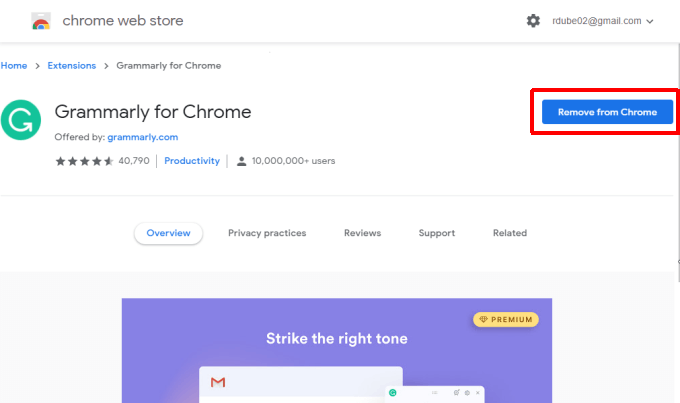
- You’ll see a pop-up window in Chrome confirming that you want to remove the extension. Select Remove to confirm.
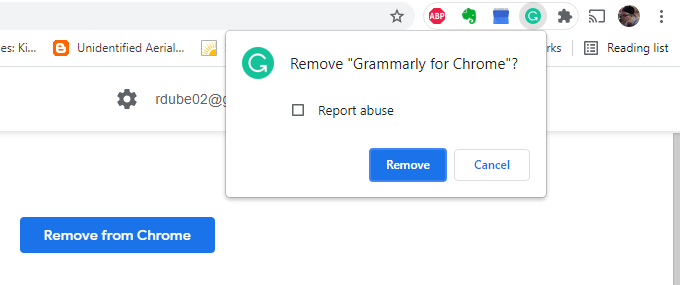
- Once you remove an extension, return to its Chrome Store page and select the Add to Chrome button.
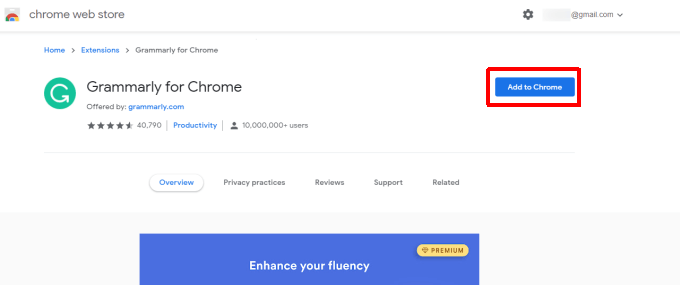
This will reinstall the extension to your Chrome browser. Recheck the toolbar, and hopefully, the extension icon is now present.
Fix a Missing Bookmarks Toolbar
If the missing Chrome toolbar is the one below the URL field that displays all of your bookmark icons, you can fix this in just a few clicks.
Select the three dots in the upper right corner of Chrome to open the menu. Select Bookmarks , and then select Show bookmarks bar .
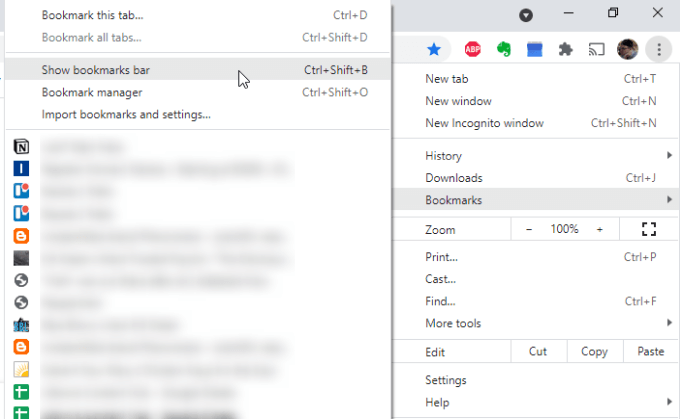
A checkmark will appear to the left of this selection. This means the bookmarks bar is enabled and should now appear in Chrome again.
Fix All Chrome Toolbars Missing
One of the most common causes for toolbars missing in Chrome is when users accidentally switch Chrome into full-screen mode.
In full-screen mode, the main toolbar with the URL field, extensions, and menu disappear. If the bookmark bar is disabled, you won’t see any toolbars at all.
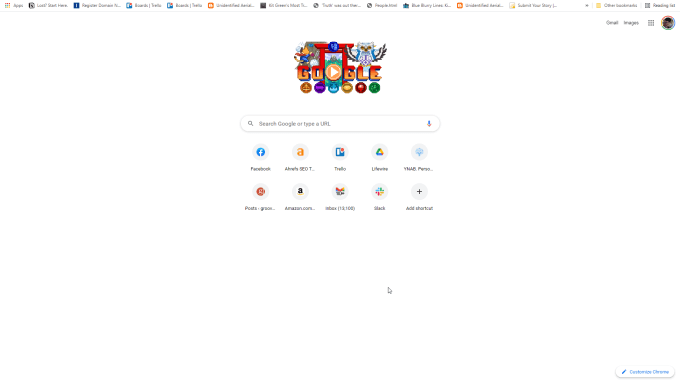
The fix for this is straightforward.
On Windows, all you have to do is press F11 . This will return Chrome to normal mode, and all toolbars will appear.
On Mac, select and hold the top-left corner of the browser. This will make the menu bar appear. Then, just select the green circle to return Chrome to normal mode.
- How to Disable Efficiency Mode for Google Chrome in Windows
- 7 Ways to Fix Chrome’s “Result_Code_Hung” Error
- Chrome Lags When Downloading Files? How to Fix It
- How to Fix a chrome-error://chromewebdata/ Error
- How to Fix a Chrome Error Code 5
Ryan has been writing how-to and other technology-based articles online since 2007. He has a BSc degree in Electrical Engineering and he’s worked 13 years in automation engineering, 5 years in IT, and now is an Apps Engineer. Read Ryan’s Full Bio
