Google as a company has a hand in pretty much every corner of the Internet. While their search engine is what they are best known for, they also have services like YouTube, Gmail, Google Drive, Google Assistant, and Google Plus.
Google provides a valuable service, but the primary way that they monetize is through advertising and collecting information. Businesses recognize the huge influence that the company has to offer, and ads on YouTube as well as web pages and searches have proven quite lucrative.

The good news, however, is that Google allows you to choose the data that they are allowed to collect and even delete personal information entirely.
The process is pretty simple, and you have a lot of options to tweak Google tracking to suit your needs. Read on below to find out how to delete personal information collected by Google.
First, navigate to myactivity.google.com to access the dashboard that contains your personal information. When you first arrive, Google will show you a short tutorial that explains how they track your activity and some basic information on the controls available.

From there, you have several different options on how to handle data deletion.
Delete Personal Information From Today
Step 1. By default, the main page will show your internet activity chronologically – breaking each down by time and giving a pretty good sense of the pages you’ve visited over time.

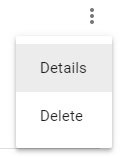
Step 2. At the top right of the “ Today ” section, you can click the three vertical dots to expand the menu. This gives you the option to view details on your activity, as well as delete your browsing habits from the past day entirely.
Delete A Specific Page
Step 1. If you’d like to delete a specific page from your history, find it in your activity and click the “ Details ” button to see more information.

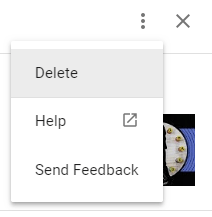
Step 2. Just as with the page on the main menu, click the three dots and select “ Delete .”
Delete Personal Information By Category
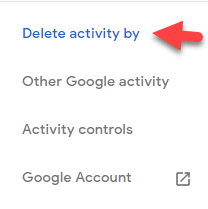
Step 1. If you’d like to delete personal data entirely, click on “ Delete Activity by ” on the left of the main page.
Step 2. The next page allows you to choose a specific date range to delete information from. Click “ Delete ” to wipe the entirety of your personal information that was collected in that period.
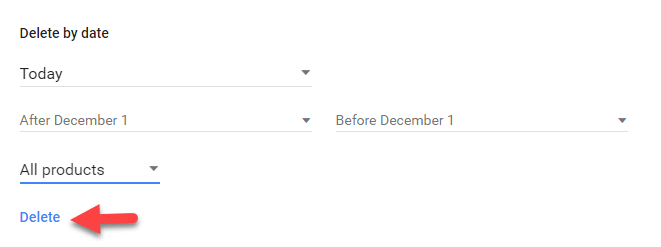
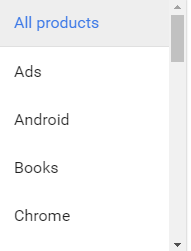
Step 3. You also have the option to delete data from specific Google Services. Use the drop-down list on the page to select the services you’d like to delete, and then follow the process from step 2.
Manage Google Tracking
In addition to being able to delete Google’s existing information, you can manage the way they handle your personal information in the future.
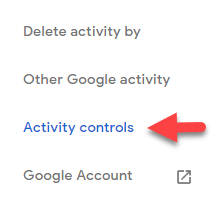
Step 1. Click “ Activity Controls ” in the menu on the left of the page.
Step 2. The next page explains a bit more about their tracking process, and you’ll have the option to manage data collection by each category. Just click the slider to on or off to suit your preferences.

It can be difficult to reduce your footprint when browsing the web. However, Google does provide the ability to better maintain your privacy.
While they don’t advertise the utility, the Activity Tool is a great way to ensure that you’re well aware of the way that the company manages your personal data. Enjoy!
- How to Fix Speech Services by Google Waiting for Network Connection Error
- How to Turn Off Google Assistant on Various Platforms
- How to Use Latitude and Longitude in Google Maps
- How to Activate and Use Google Lens
- How to Write a Review on Google
Freelance blogger, journalist, and copywriter specializing in reviews, guides, and the latest in technology news. Read Zachary’s Full Bio
