If you need to know the details of your PC’s hardware, there is a simple graphical application, called GNOME Device Manager , in Ubuntu 10.04 that allows you to view the technical details of your computer’s hardware.
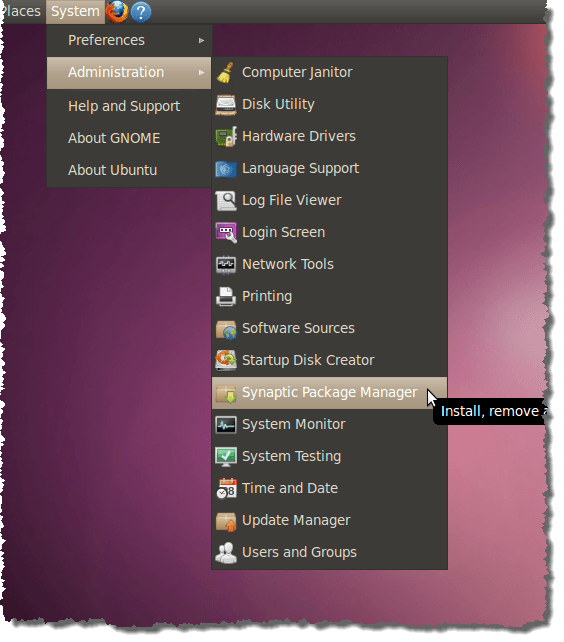
To install the GNOME Device Manager , select Administration | Synaptic Package Manager from the System menu.
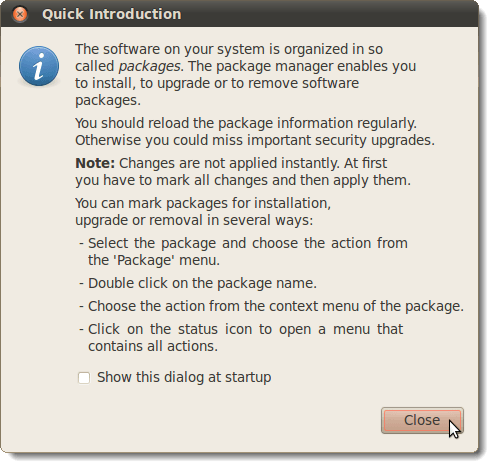
If you have never used Synaptic Package Manager before, or if you have de-selected the Show this dialog at startup check box, the Quick Introduction dialog box displays. If you don’t want to see this dialog box again, be sure there is no check mark in the Show this dialog at startup check box. Click Close to continue.
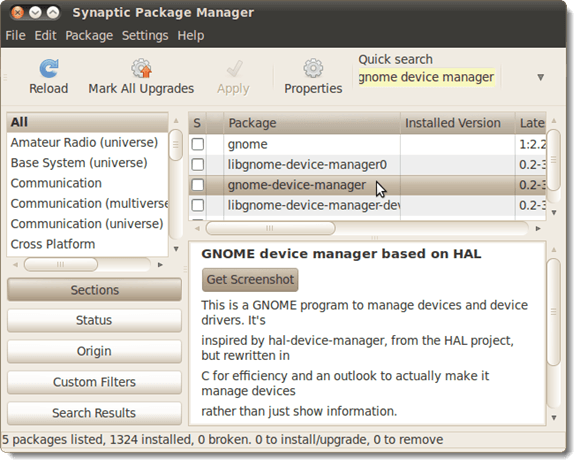
Enter gnome device manager in the Quick search edit box. The results display automatically.
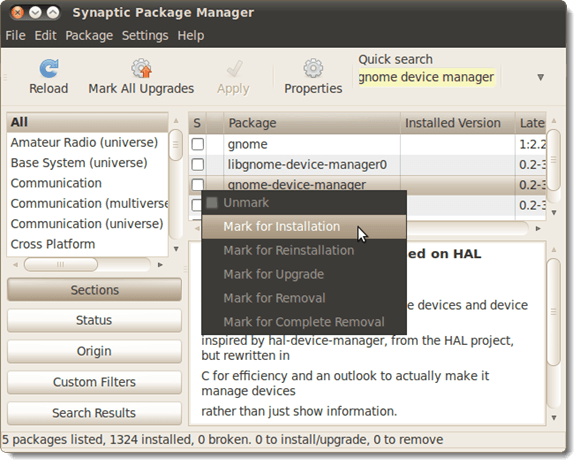
Right-click on gnome-device-manager and select Mark for Installation from the pop-up menu.
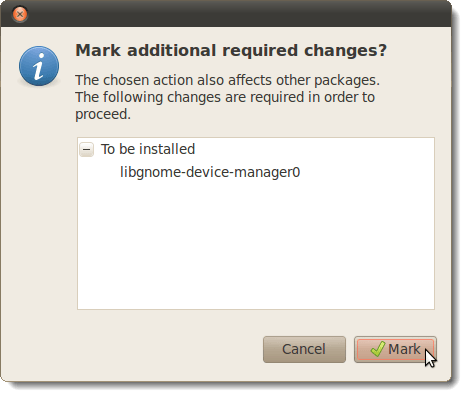
A dialog box displays informing you of another package needs to be installed in order to install GNOME Device Manager . Click Mark to mark the extra package for installation.
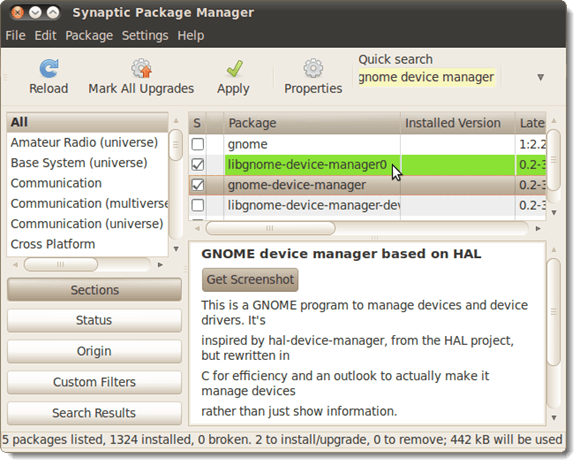
You’ll notice the libgnome-device-manager0 checked and highlighted in green. It will be installed with gnome-device-manager .
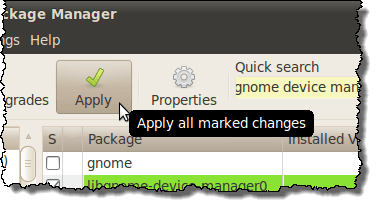
Click the Apply button to apply the changes.
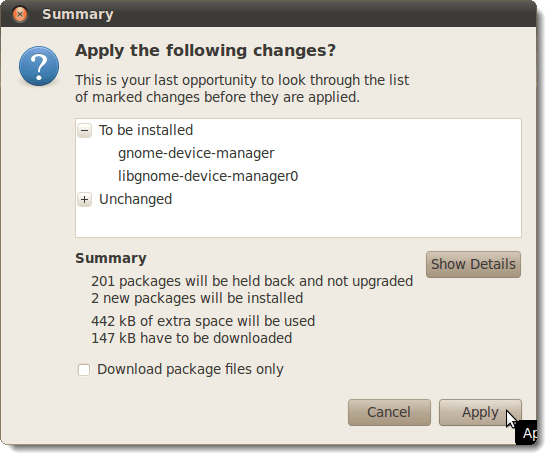
A Summary screen displays showing you the changes to be made. Click Apply to continue with the installation.
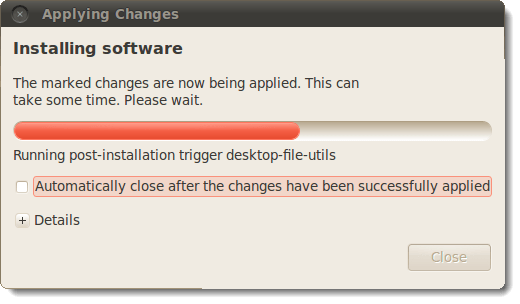
The progress of the installation displays.
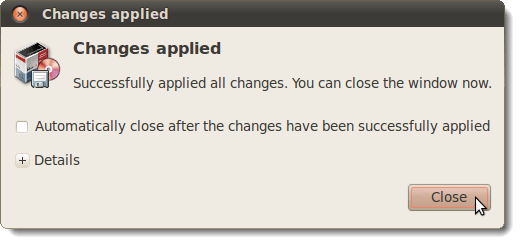
When the installation is finished, a dialog box displays telling you the changes have been applied. Click Close .
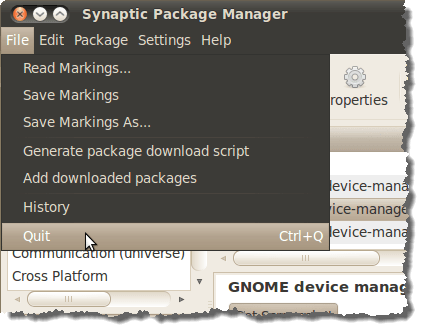
Close the Synaptic Package Manager by selecting Quit from the File menu.
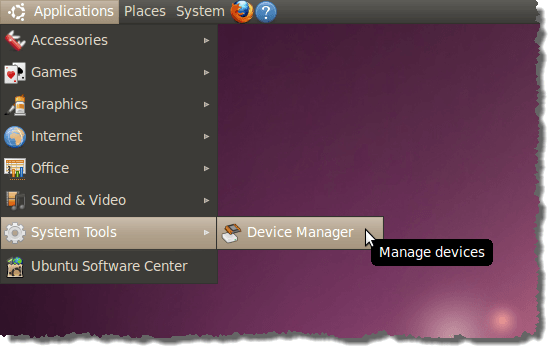
To start the GNOME Device Manager , select System Tools | Device Manager from the Applications menu.
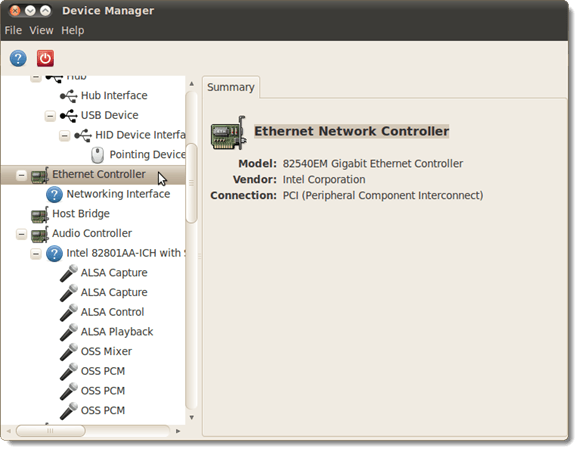
The GNOME Device Manager main window opens displaying a tree on the left containing entries for all of the hardware in your computer. Select an item in the tree to view a summary of information about the selected piece of hardware on the right side of the window.
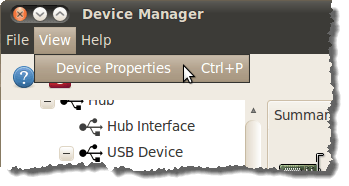
To view more details about the hardware, select Device Properties from the View menu.
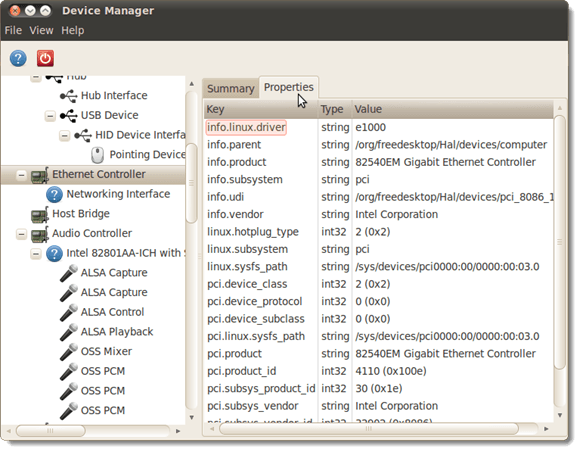
The Properties tab displays on the right side of the window.
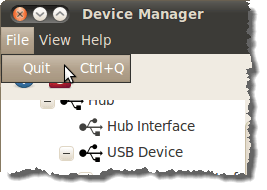
To close the GNOME Device Manager , select Quit from the File menu.
NOTE: The hardware information in the GNOME Device Manager is only viewable. You cannot use the GNOME Device Manager to configure devices. However, sometimes finding out about your hardware is all you need to do and this tool provides a quick and easy method for doing so.
by Lori Kaufman
- What Version of Ubuntu Do I Have?
- Linux Mint vs Ubuntu: Which Is Better?
- Fedora vs Ubuntu: Which Linux Distribution Is Better?
- A Beginner’s Ubuntu Linux Guide
- Forcefully Close a Program in Ubuntu
Founder of Help Desk Geek and managing editor. He began blogging in 2007 and quit his job in 2010 to blog full-time. He has over 15 years of industry experience in IT and holds several technical certifications. Read Aseem’s Full Bio
