Poor network connection and incorrect date and time settings will cause Find My to display the “No location found” error. Turning off Find My or disabling its location permission can also cause this error on iPhones, iPads, and Macs.
Sometimes, closing and reopening the Find My app can fix temporary glitches causing the “No location found” error. Try the troubleshooting solutions below if restarting Find My doesn’t fix the problem.
1. Check Find My’s System Status
Before anything, check if the Find My service is operating normally on Apple’s System Status page . A green dot next to Find My means the service is running correctly.

If Find My is temporarily unavailable, waiting for Apple to fix the issue is the only thing to do. Keep tabs on the System Status page and check if Find My works correctly when the service is available again.
2. Disable Airplane Mode
Your device must have an internet connection for location tracking services to work in the Find My app. Turning on airplane mode disables the Find My network, especially if you use cellular or mobile data.
Open Settings and toggle off Airplane Mode .

If you don’t want to take your iPhone/iPad off airplane mode, turn on Wi-Fi, and connect to a Wi-Fi network. Find My should update the location of your devices when connected to the internet.
3. Enable Location Services for Find My
Ensure the Find My service has all the required permissions to determine and use your device’s location.
Configure Location Service for Find My on iPhone and iPad
Close the Find My app on your iPhone or iPad and follow the steps below.
- Open the Settings app, select Privacy & Security (or Privacy ) and toggle on Location Services .
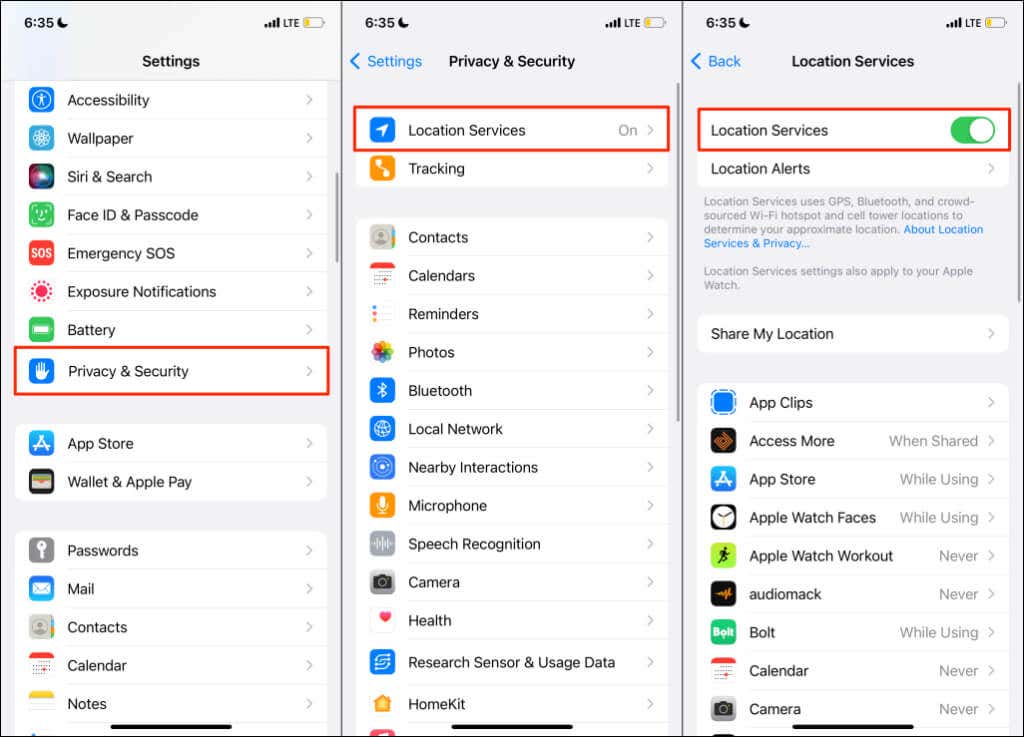
- Next, select Share My Location and turn on Share My Location .
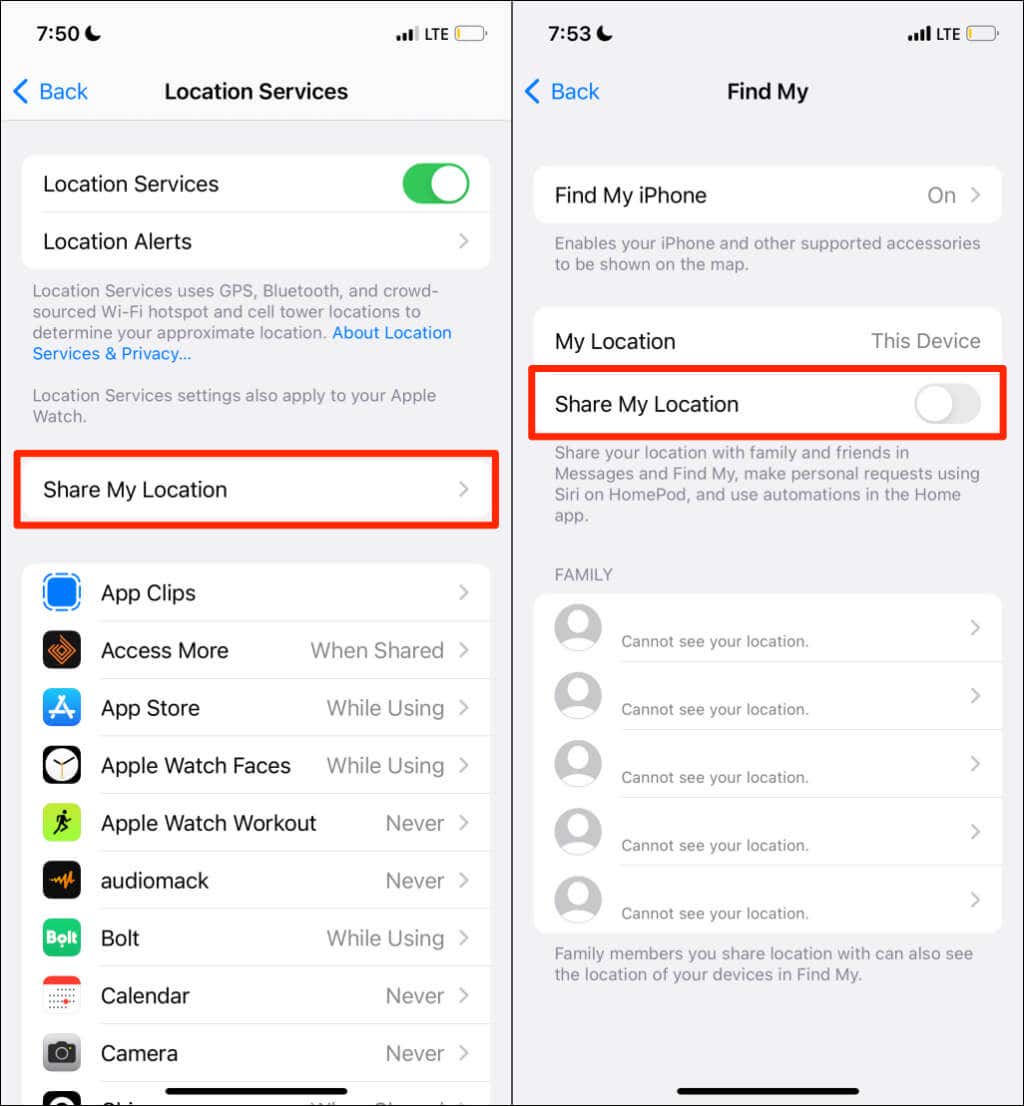
- Tap Find My iPhone on the same page and turn on the following: Find My iPhone , Find My network , and Send Last Location .
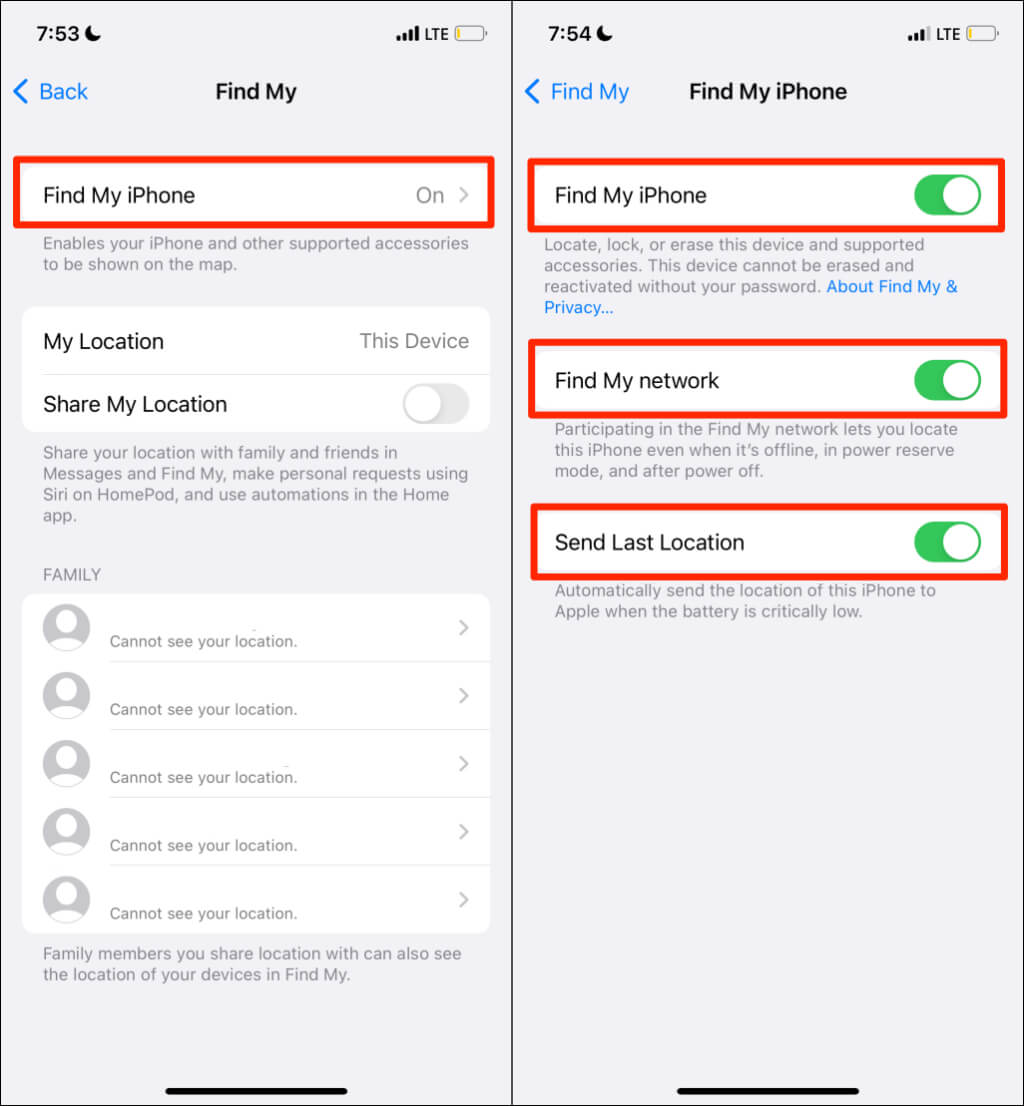
Enabling these location settings allows you to locate your device when it’s offline, powered off, or in power reserve mode. Return to the “Location Services” page ( Settings > Privacy & Security > Location Services ) and proceed to the next step.
- Select Find My and set your device to allow location access for the app While Using the App . Also, turn on Precise Location to allow Find My to determine your exact location.
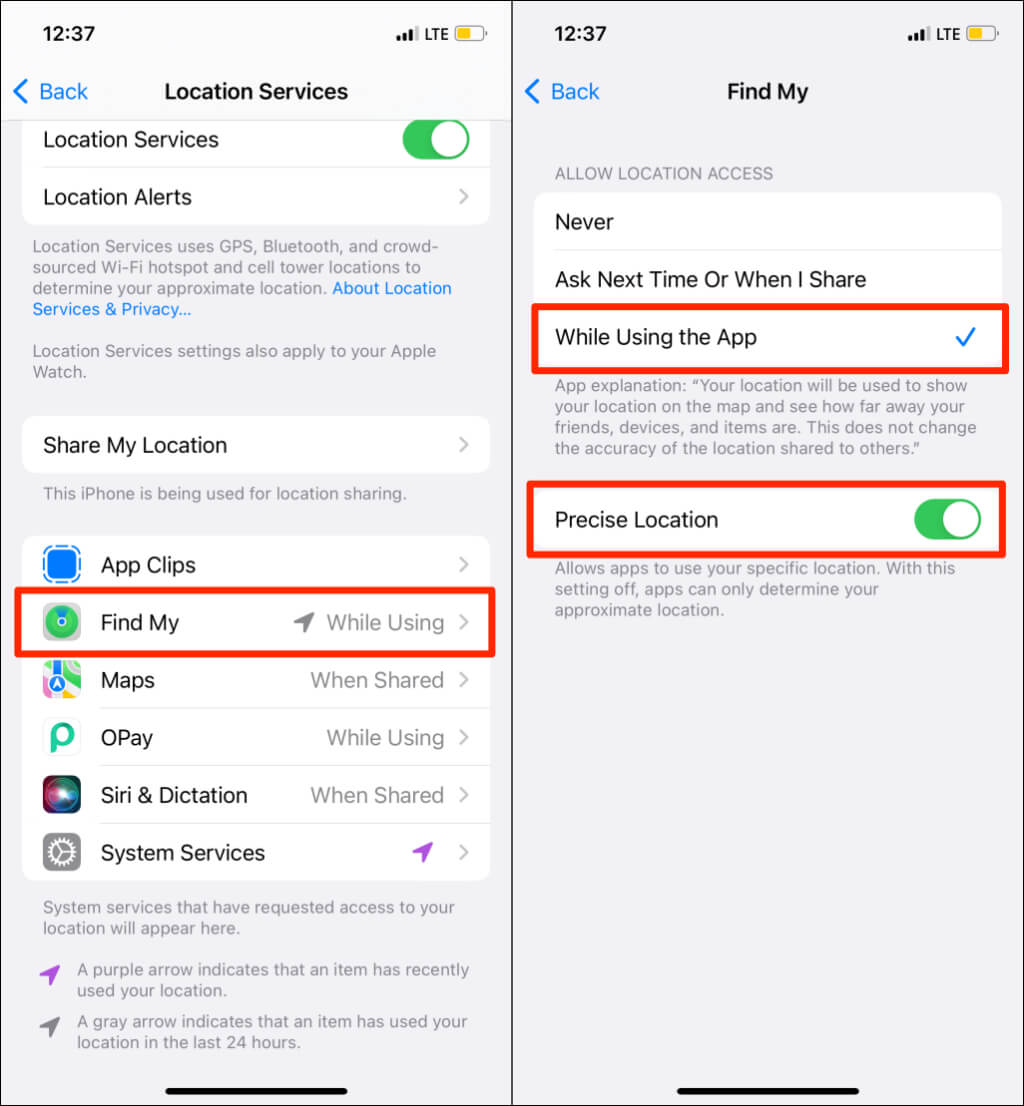
- Return to the “Location Services” page and select System Services. Turn on location access for the Find My system service.

Configure Location Service for Find My on Mac
Close the Find My app on your Mac and follow the steps below.
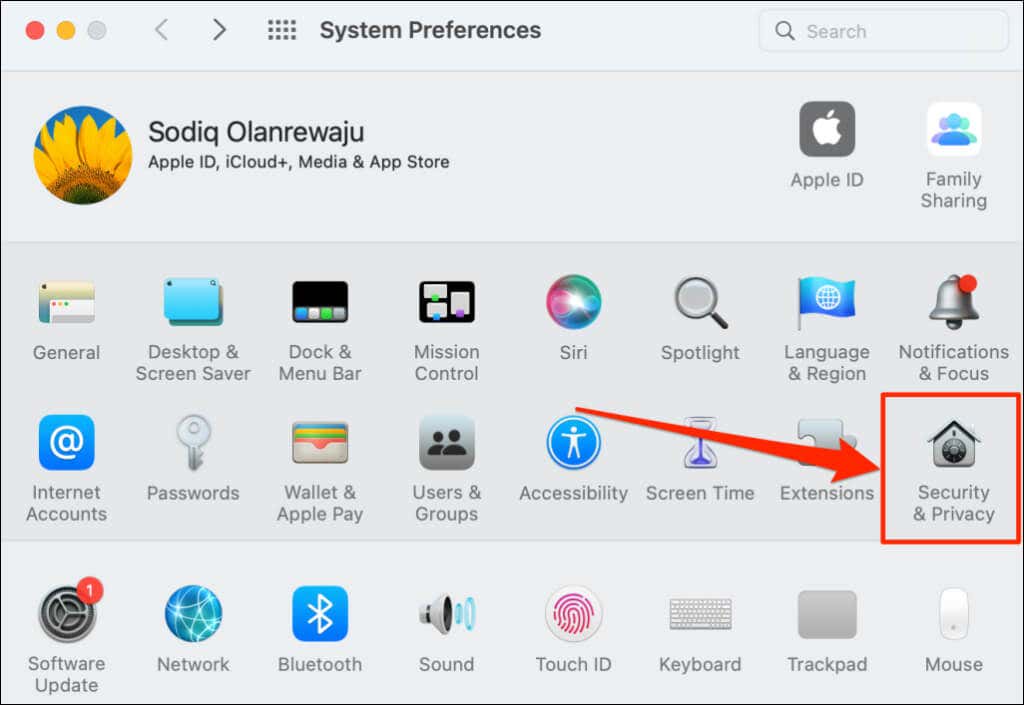
- Open System Preferences and select Security & Privacy .
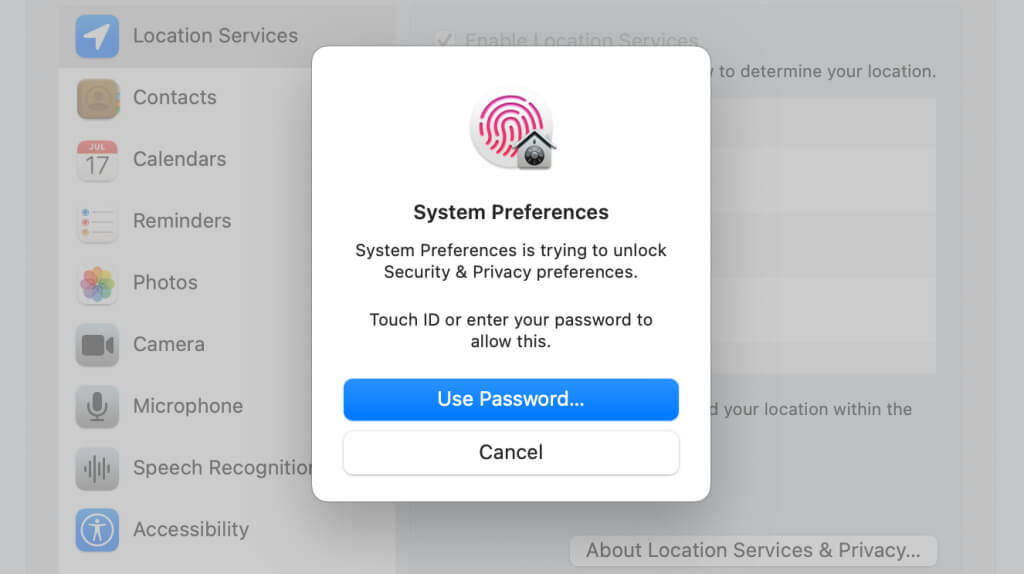
- Head to the Privacy tab and select the lock icon in the bottom-left corner.

- Enter your Mac’s password (or use Touch ID) to unlock the Security & Privacy preferences page.
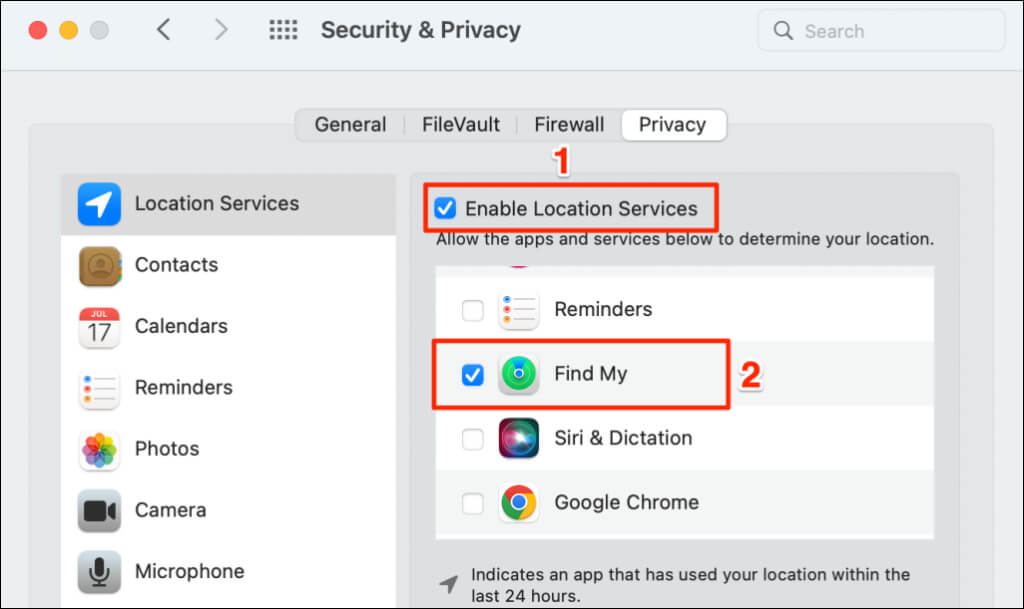
- Check the Enable Location Services and Find My boxes.
Open the Find My app and check if it detects the location of linked devices.
4. Check Date & Time Settings
The Find My service may malfunction if your device’s date, time, and time zone are incorrect. Close the Find My app and follow the steps below to set your iPhone’s date and time settings.
Set Date and Time on iPhone or iPad
Open the Settings app, go to General > Date & Time and turn on the Set Automatically option.

Set Date and Time on Mac
- Open System Preferences , select Date & Time , and select the lock icon in the bottom left corner.

- Enter your Mac’s password or use Touch ID to unlock the Date & Time preferences page.

- Check the Set date and time automatically box to get the correct date and time from Apple’s network server.

Set the date and time manually if your Mac has no internet connection.
5. Reset Location and Privacy Settings
Returning your iPhone or iPad’s location settings to their default might help fix the problem. Close the Find My app and follow the steps below.
- Go to Settings > General > Transfer or Reset iPhone or ( Transfer or Reset iPad ).
- Tap Reset and select Reset Location & Privacy .
- Enter your device’s passcode and tap Reset Settings .
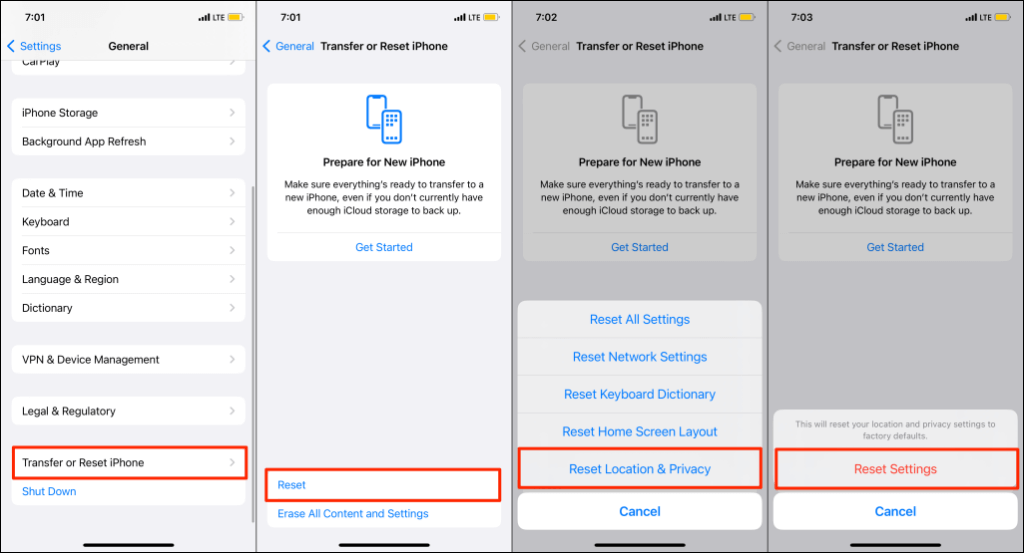
Resetting your iPhone’s location and privacy settings stops all apps from using your location.
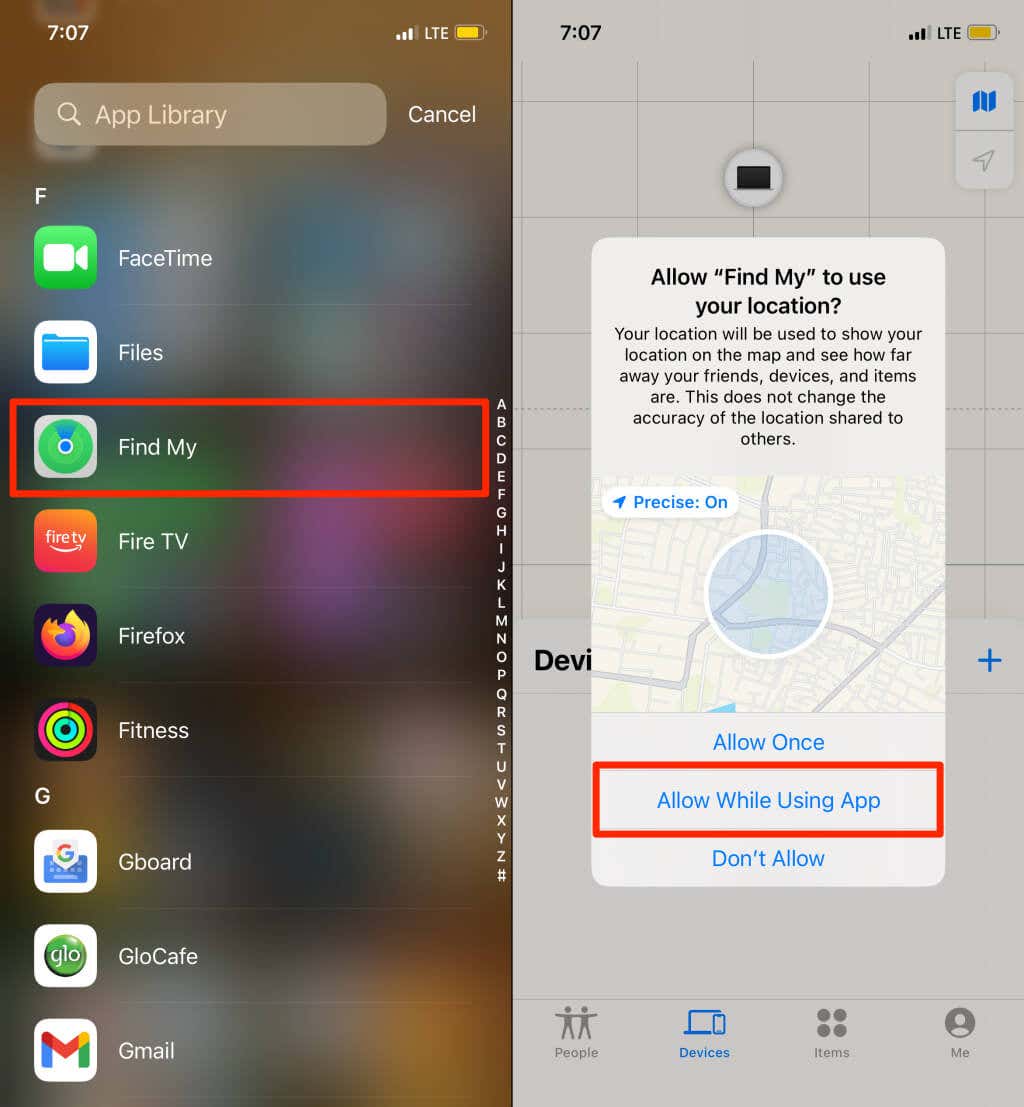
- Open Find My and tap Allow While Using App to allow Find My to use your location.
6. Reboot Your Device
Restart your device if Find My displays “No location found” for all linked devices. A device reboot can fix issues with location services and get Find My working again.
7. Update Your Device
New operating system updates often ship with bug fixes for the Find My service on Apple devices. Update your device if the “No location found” issue persists after trying the troubleshooting fixes above.
For iPhones and iPads, go to Settings > General > Software Update and tap Download and Install .

To update your Mac, go to System Preferences > Software Update and select Update Now .

Reboot your device to install downloaded updates and check if the software update fixes the issue.
8. Enable Location Sharing on the Affected Device
If just one device shows “No location found,” ensure the device is sharing its location via Find My.
Enable Location Sharing on iPhone/iPad
- Open the Settings app and tap your iCloud or Apple ID name .
- Select Find My and toggle on the Share My Location option.
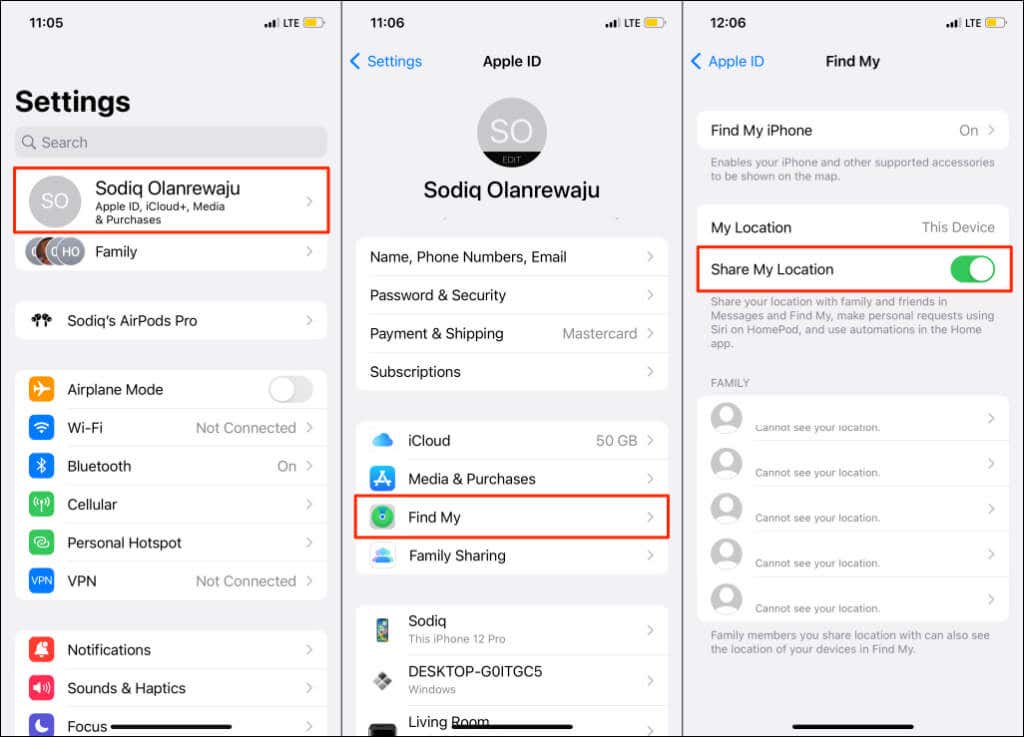
Enable Location Sharing on iPhone/iPad
- Open System Preferences and select Apple ID .

- Check the box next to Find My Mac and select the Options button.
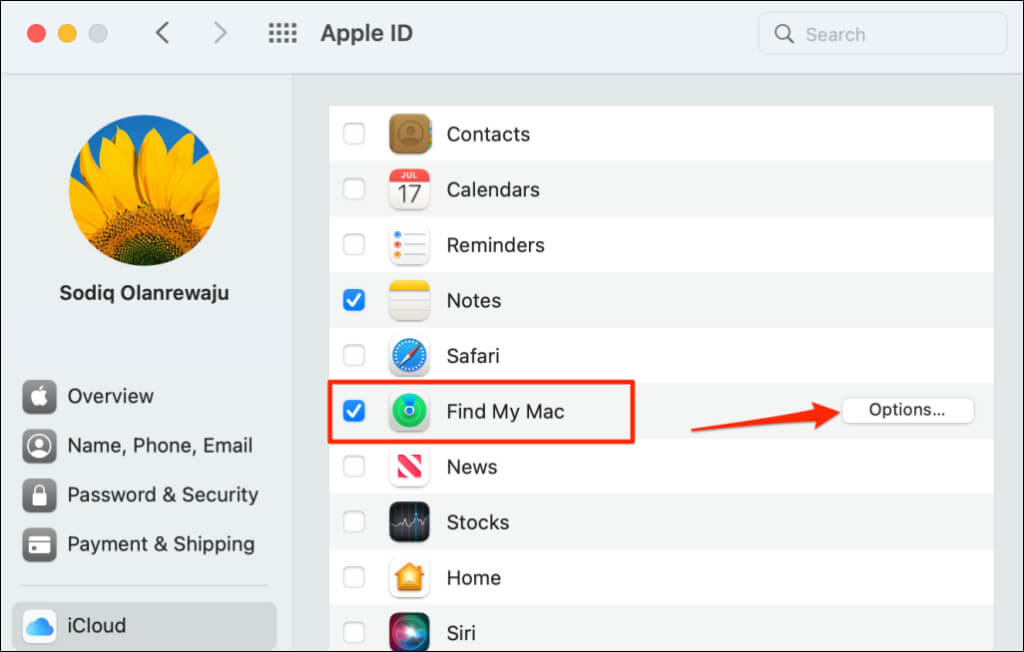
- Ensure Find My Mac and Find My network are both turned on. Select Done to close the pop-up.

Enable Location Sharing for Bluetooth Accessories
If Find My shows “No location found” for your AirPods or Beats headphones, ensure the accessory has location sharing enabled. Connect the affected accessory to your iPhone or iPad and follow the steps below.
Go to Settings > Bluetooth , tap the info icon next to the device, and ensure Find My network is turned on.

Device Location Now Found
If your family or friend’s device keeps showing “No location found,” ask them to try some of the troubleshooting fixes in this article. Otherwise, contact Apple Support if the problem persists.
- How to Delete Multiple Apps (At Once) On Your iPhone/iPad
- How to Restore the Missing Phone Icon on iPhone/iPad
- How to Dismiss the “Update Apple ID Settings” Notification on iPhone and Mac
- How to Change Your Game Center Nickname (iPhone, iPad, and Mac)
- Guided Access Not Working on iPhone/iPad? Try These 9 Fixes Now
