Do you keep seeing a message labeled “File system error (-2147219196)” while opening images with the Photos app in Windows 10? Despite sounding like a disk error, it’s an issue that mainly stems from file corruption or broken permissions.
Work your way through the fixes that follow to fix “File system error (-2147219196)” in Windows 10 and start using Photos as usual again.
Run the Windows Store Apps Troubleshooter
Windows 10 includes a built-in troubleshooter that automatically deals with errors related to apps belonging to the Microsoft Store (such as Photos). We strongly recommend running it before diving into the rest of the fixes.
Open the Start menu and select Settings .
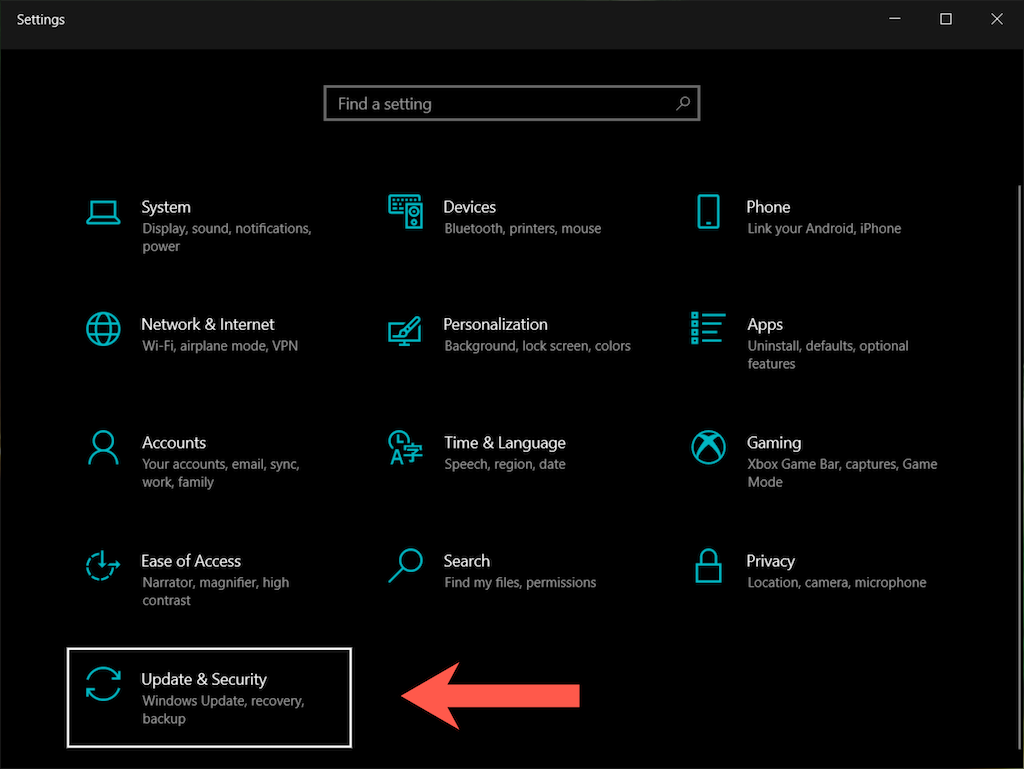
Select the option labeled Update & Recovery .
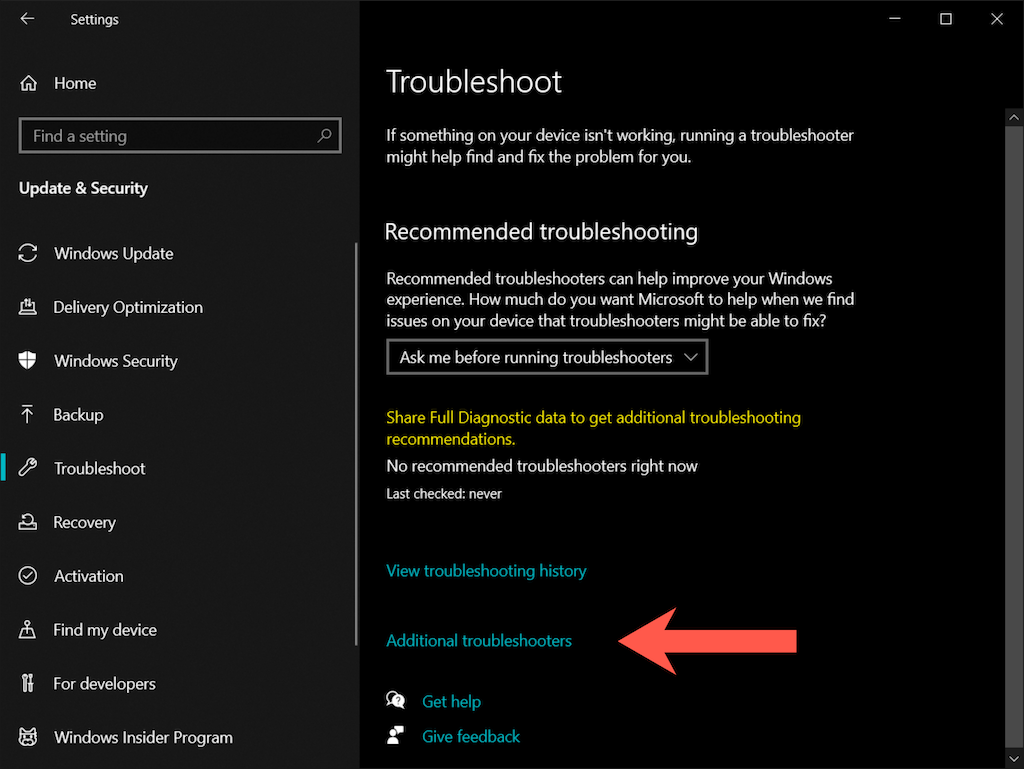
Select Troubleshoot on the sidebar.
Select Additional troubleshooters .
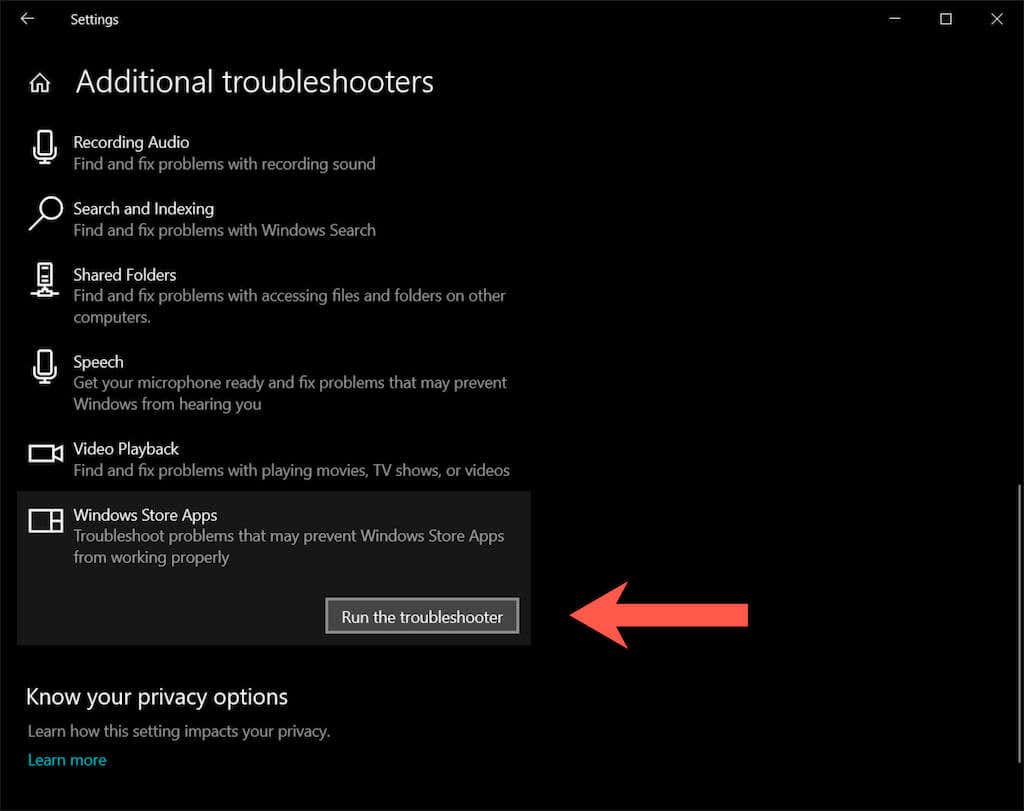
- Select Windows Store Apps > Run the troubleshooter .
Repair the Microsoft Photos App
If the Microsoft Store troubleshooter fails to fix “File system error (-2147219196)” in Windows 10, the next course of action involves repairing the Photos app.
Open the Settings app and select Apps .
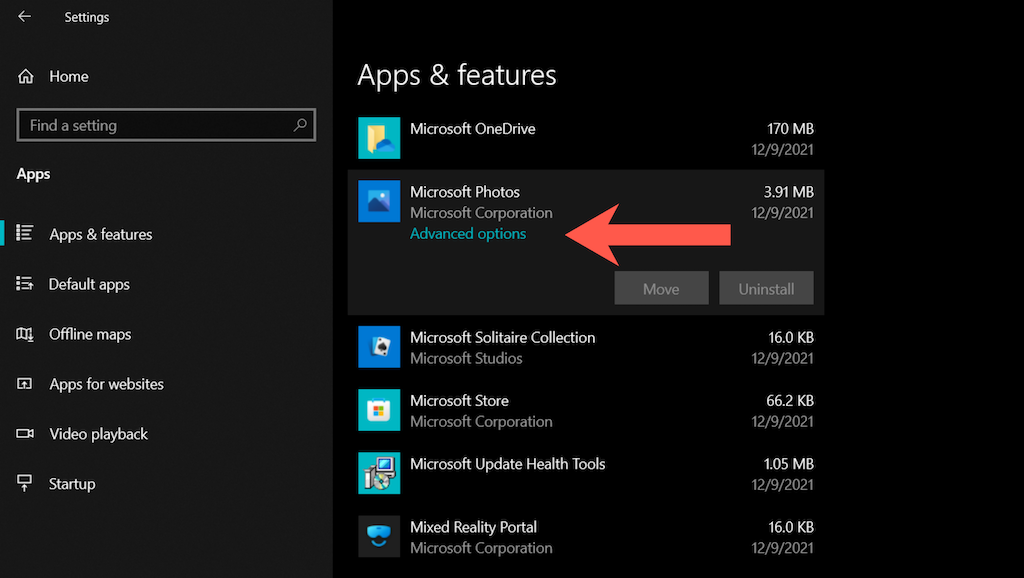
Scroll down the list of apps and select Microsoft Photos > Advanced options .
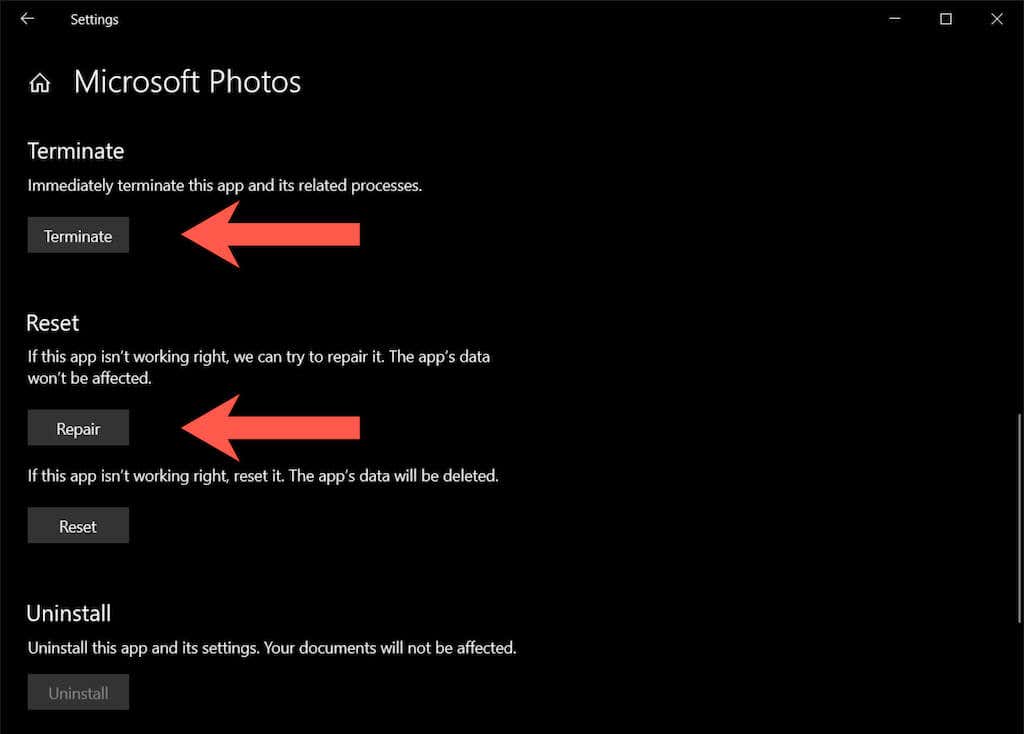
- Select Terminate to shut down all live processes related to the Photos app. Then, select Repair .
Reset the Microsoft Photos App
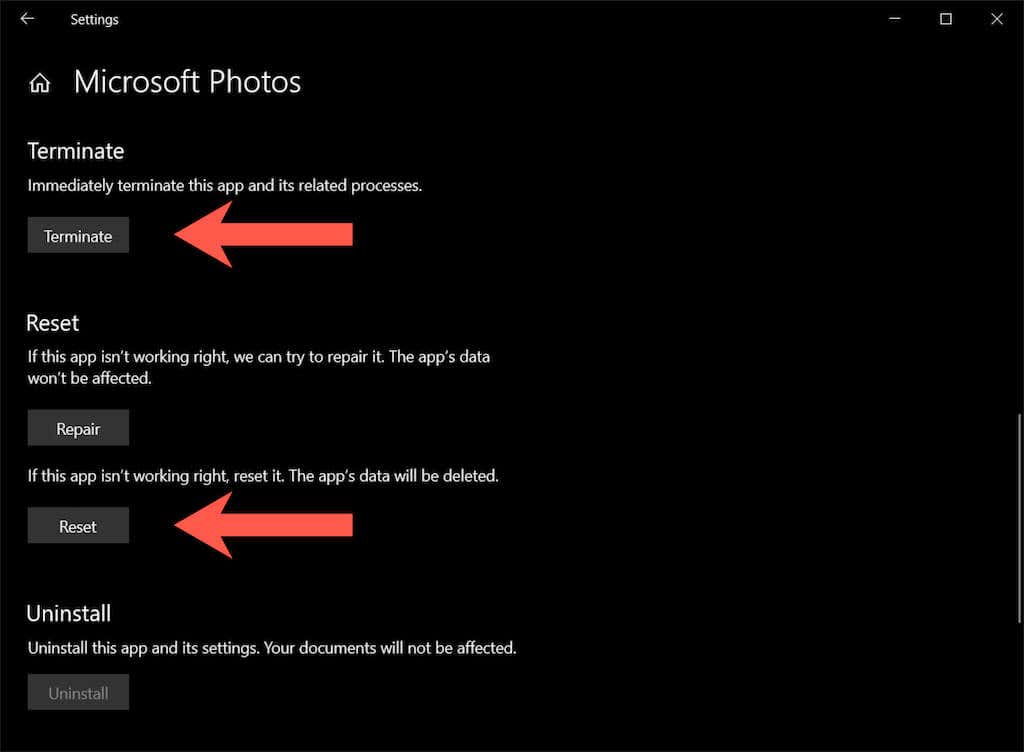
If repairing Photos also didn’t make a difference, try resetting the app to its defaults. To do that, simply follow the instructions in the section above but select Terminate > Reset instead.
Install Microsoft Store Updates
Assuming that the fixes above didn’t make the “File system error (-2147219196)” pop-up go away, it’s best to check for and install any updates related to Photos and other Store-related apps.
Open the Microsoft Store.
Select the Library icon at the lower left of the window. On older versions of the Microsoft Store, open the Store menu (icon with three dots) and select Downloads and updates instead.


Re-Register the Photos App
The following fix involves re-registering the Photos app with Windows 10. The procedure consists in executing a command via an elevated Command Prompt console.
Type cmd into the Start menu and press Ctrl + Shift + Enter to open Command Prompt with administrative rights.
Copy and paste the following command:
PowerShell -ExecutionPolicy Unrestricted -Command “& {$manifest = (Get-AppxPackage Photos).InstallLocation + ‘AppxManifest.xml’ ; Add-AppxPackage -DisableDevelopmentMode -Register $manifest}”
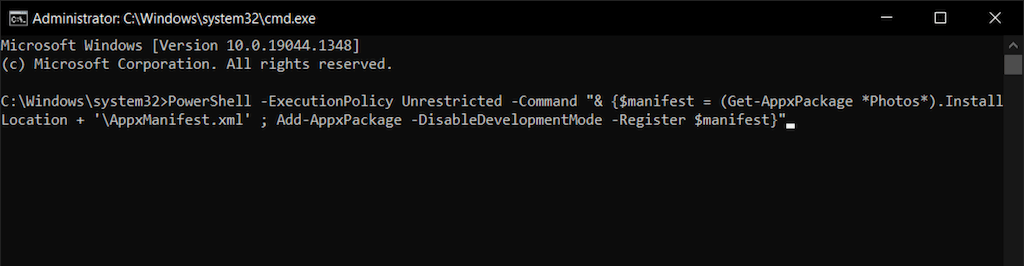
- Press Enter .
Re-register All Microsoft Store Apps
If re-registering the Photos app didn’t help, try re-registering all Microsoft Store apps on your PC via an elevated Windows PowerShell console.
Press Windows + X (or right-click the Start button) and select Windows PowerShell (Admin) .
Copy and paste the following command:
Get-AppXPackage | Foreach {Add-AppxPackage -DisableDevelopmentMode -Register “$($_.InstallLocation)AppXManifest.xml”}
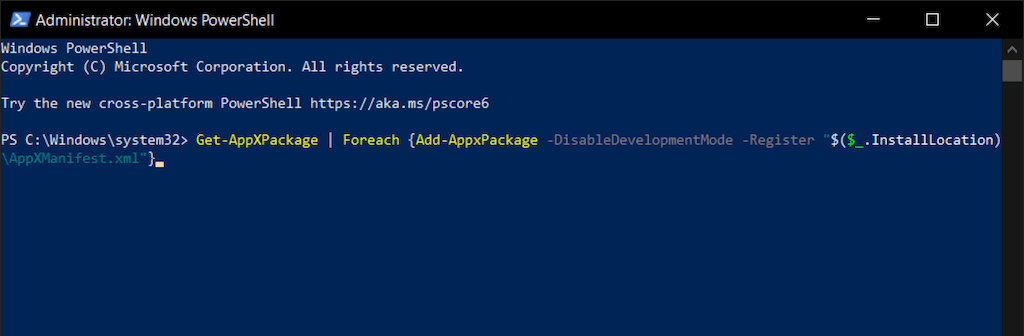
- Press Enter .
Reinstall the Photos App
If file corruption is the cause of the “File system error (-2147219196),” completely removing and reinstalling the Windows Photos app may fix the issue. However, the procedure requires running a command as the SYSTEM user. For that, you need a tool called PsExec.
- Head over to the PsExec page on Windows Sysinternals and select Download PsTools .

- Right-click the downloaded ZIP file and select Extract files . Then, set the folder path as C:/PSTools and choose Extract .
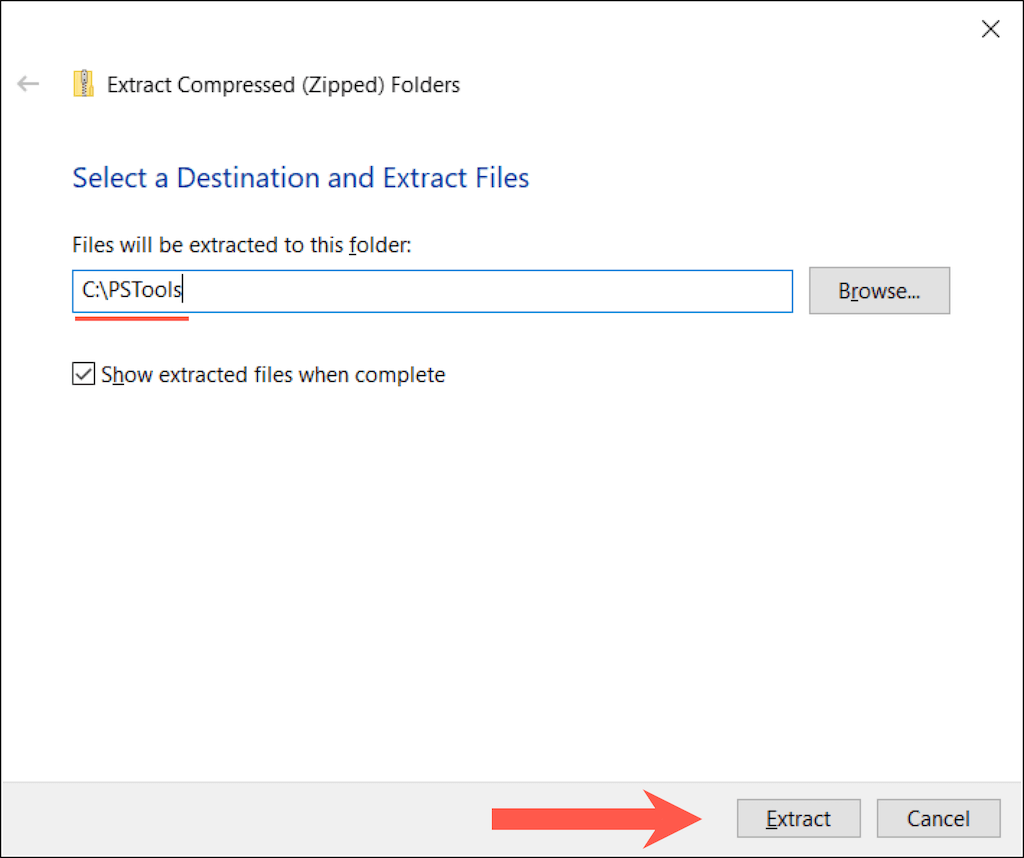
- Open an elevated Windows PowerShell console and execute the following command:
Get-AppxPackage photos | Remove-AppxPackage
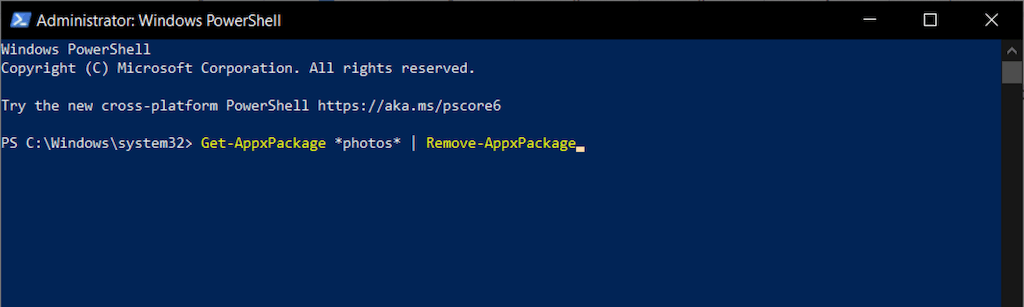
- Open an elevated Command Prompt console and execute the following command:
C:PSToolsPsExec.exe -sid C:WindowsSystem32cmd.exe

- Agree to the SysInternals software license terms. A separate Command Prompt console will automatically launch.
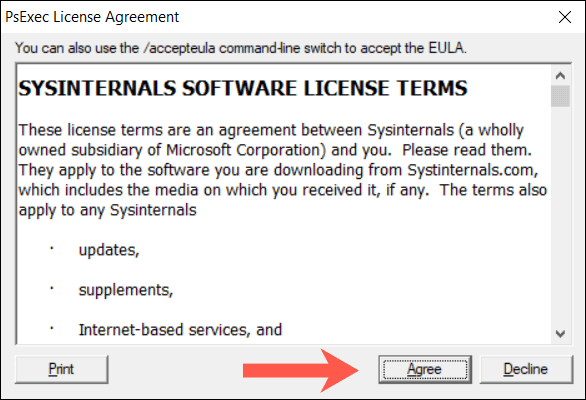
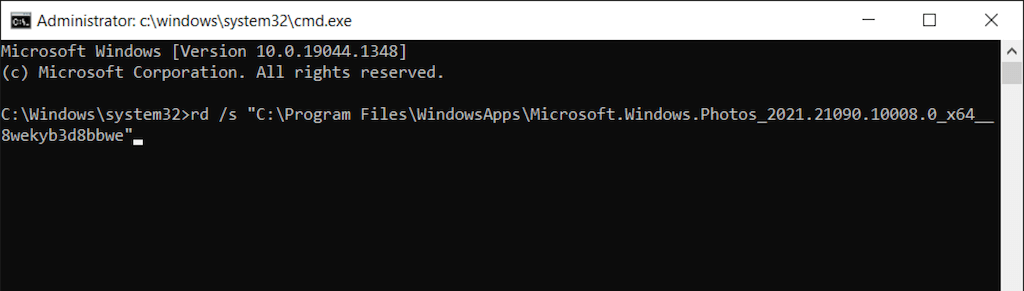
- Execute the following command:
rd /s “C:Program FilesWindowsAppsMicrosoft.Windows.Photos_2021.21090.10008.0_x64__8wekyb38bbwe
Note: The Photos app’s directory changes with each Windows update. To auto-fill the command with the correct name, press the Tab key right after rd /s “C:Program FilesWindowsAppsMicrosoft.Windows.Photos_ . You may have to cycle through matching entries (repeatedly press Tab ) until you see x64 included as part of the file name.
- Exit all Command Prompt windows and reinstall Photos via the Microsoft Store.

Change Photos App Ownership to TrustedInstaller
If the issue persists, change ownership of the Photos app to TrustedInstaller (a special user account in Windows 10) and see if that helps.
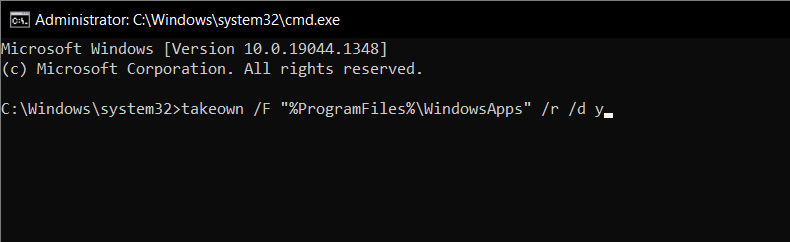
- Open an elevated Windows PowerShell console and execute the following command:
takeown /F “%ProgramFiles%WindowsApps” /r /d y
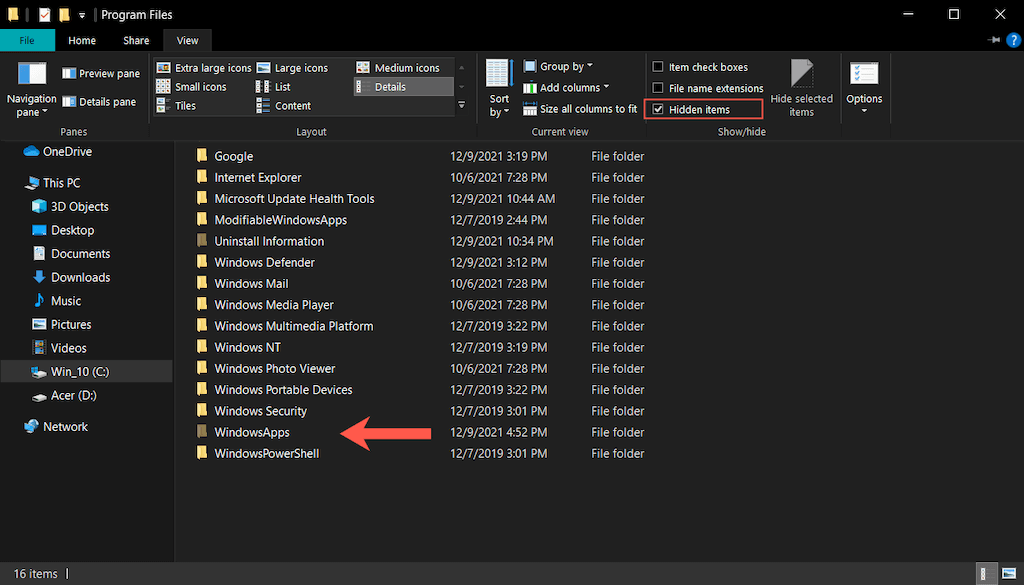
Open File Explorer and select View > Hidden items on the menu bar.
Head over to the following location:
Local Disk C > Program Files > WindowsApps
- Right-click on the folder labeled Microsoft.Windows.Photos_[version number] and select Properties .
Note: If you see multiple similar-looking folders, pick the directory that contains x64 as part of its file name.

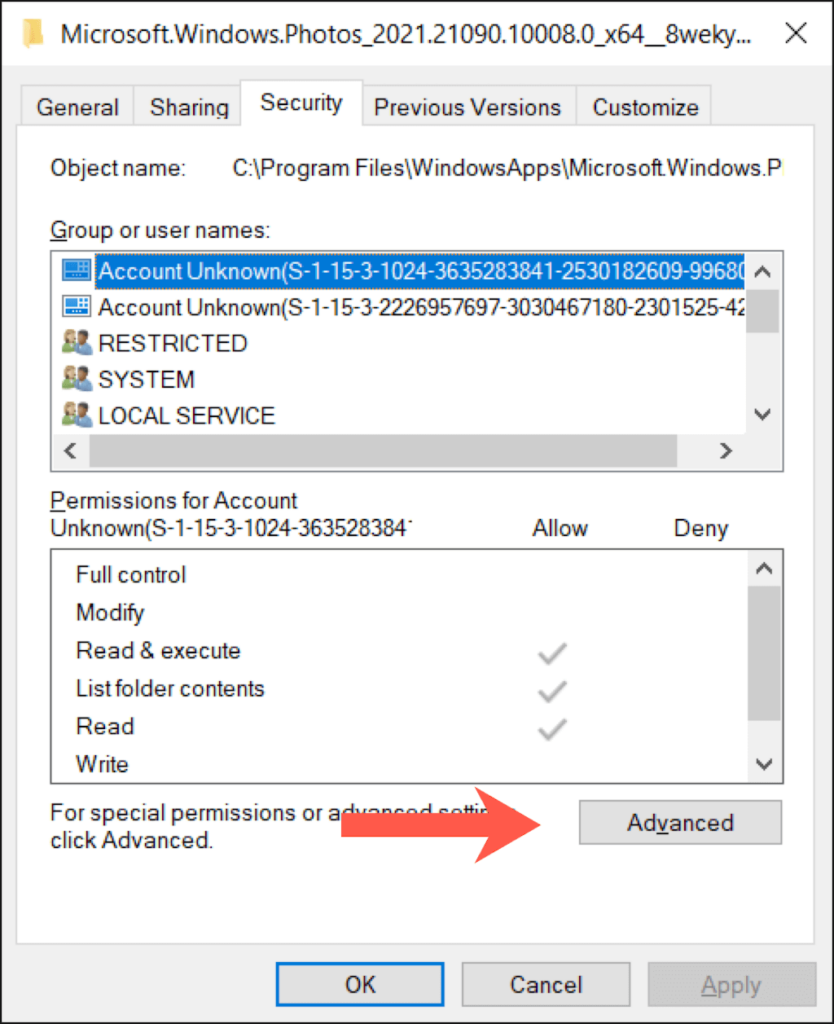
- Switch to the Security tab and select Advanced .
- Select Change next to Owner.

- Type NT SERVICETrustedInstaller into the vacant box and select OK.
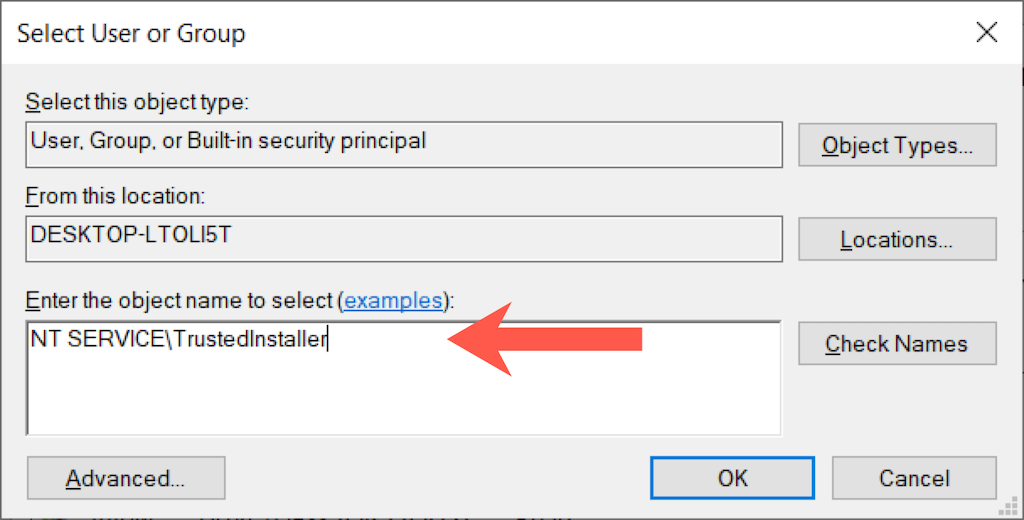
- Check the box next to Replace owner on subcontainers and objects .
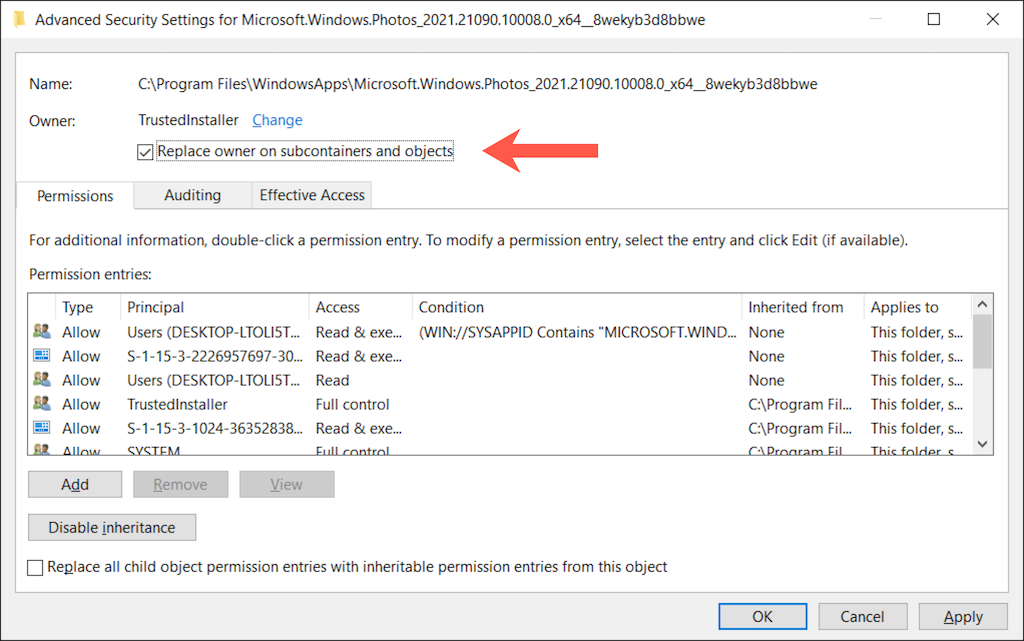
Select Apply , then OK . Follow that by exiting the folder’s Properties window.
Re-register the Windows Photos app (instructions above).
Install Pending Windows 10 Updates
Windows 10 updates can improve the stability of apps and the operating system. If you still keep seeing the “File system error (-2147219196)” message, it’s time to use Windows Update.
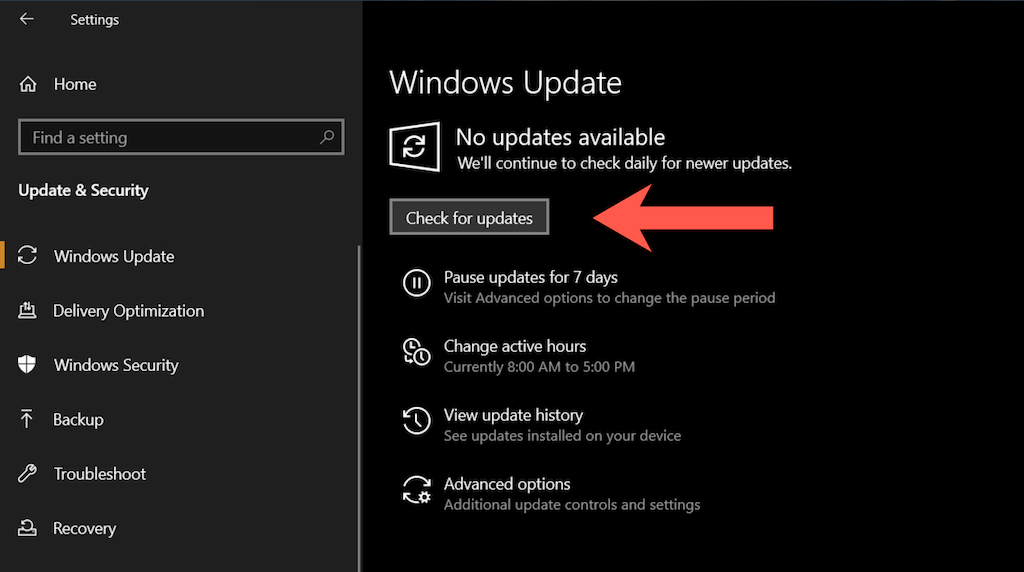
Open the Settings app and select Update & Security or Windows Update .
Select Check for Updates .
Select Download and install to apply any pending updates.
Uninstall the Most Recent Windows Update
Rarely, Windows 10 updates can end up breaking things. If the issue with the Photos app occurred right after installing an operating system update, you might want to consider uninstalling it.
Open the Settings app and select Update & Security or Windows Update .
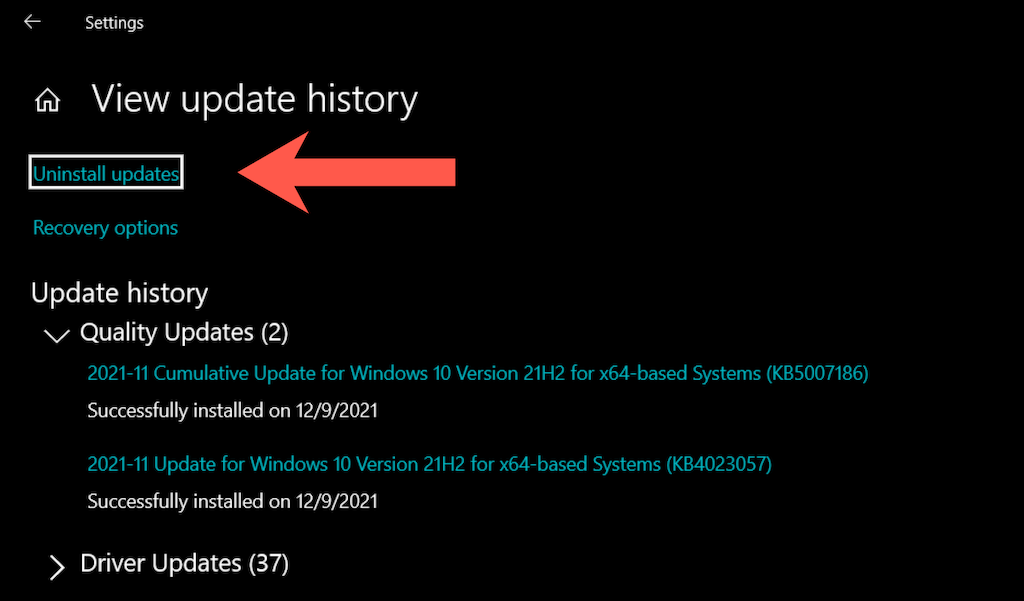
Select View update history .
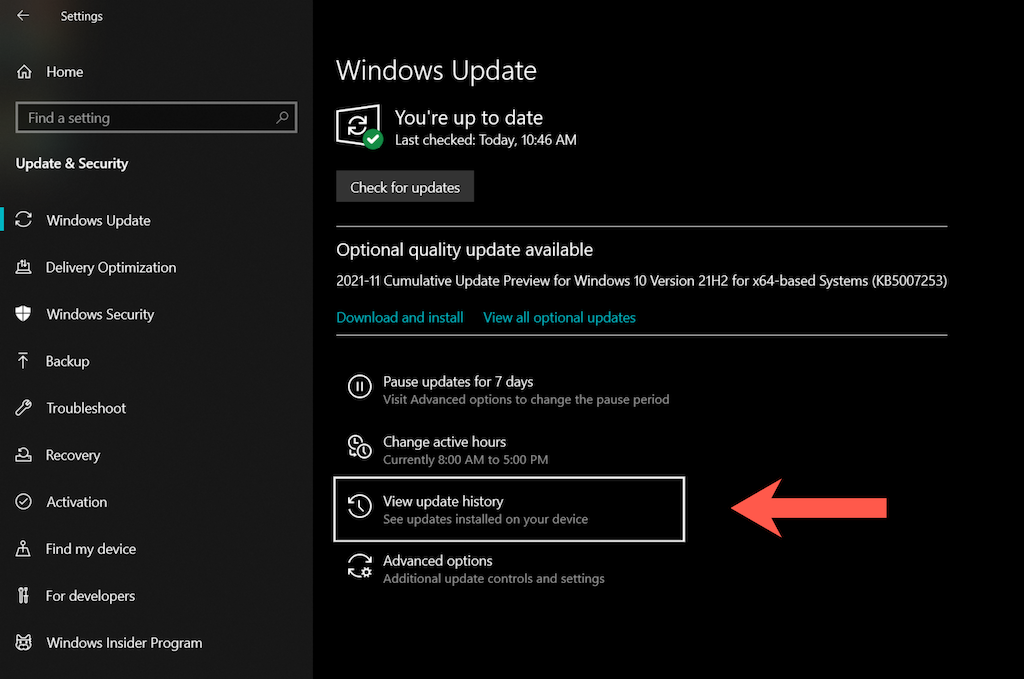
- Select Uninstall updates .
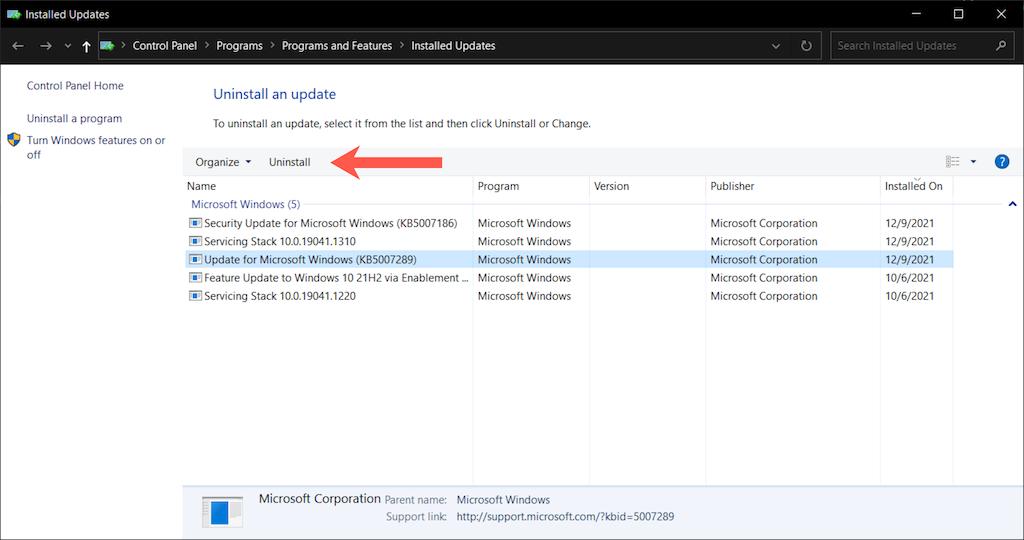
Select the most recent update (skip any security or servicing stack updates).
Select Uninstall .
Run an SFC and DISM Scan
If none of the fixes above helped, it’s time to run the System File Checker (SFC) and the Deployment Image Servicing and Management (DISM) tool. That resolves corruption issues with the operating system.
System File Checker (SFC)
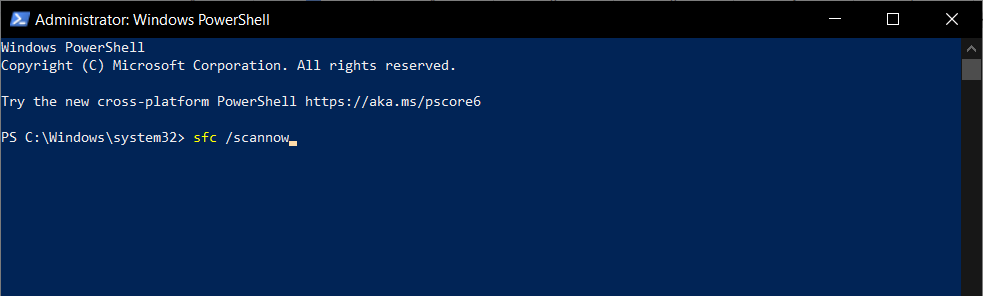
Open an elevated Windows PowerShell console and run the following command:
sfc /scannow
Deployment Image Servicing and Management (DISM) Tool
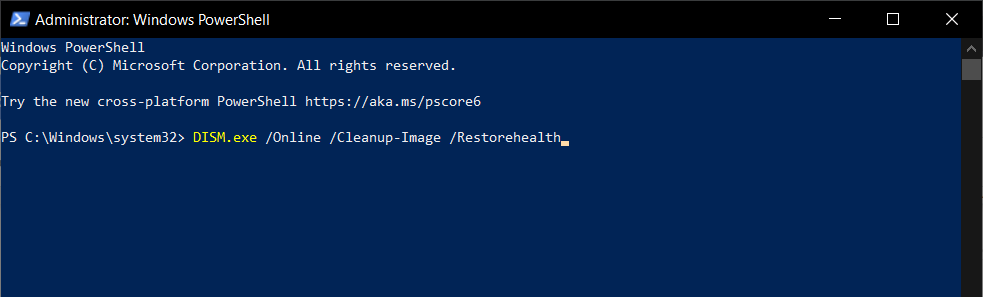
After the System File Checker finishes scanning Windows 10 for issues, restart your computer and execute the following command:
DISM.exe /Online /Cleanup-Image /Restorehealth
Fully Fix File System Error (-2147219196) in Windows
The fixes above should’ve helped you resolve the “File System Error (-2147219196)” issue with the Photos app in Windows 10. If not, try using an alternative Windows photo viewing app until Microsoft fixes the problem in a subsequent update. If you can’t wait, your remaining options involve performing a system restore and reverting Windows 10 to factory defaults .
- Preparing for Windows 10 End of Support: Upgrading to Windows 11
- How to Fix a “This file does not have an app associated with it” Error on Windows
- How to Fix an Update Error 0x800705b4 on Windows
- How to Resolve “A JavaScript error occured in the main process” Error on Windows
- How to Fix the Network Discovery Is Turned Off Error on Windows
Dilum Senevirathne is a freelance tech writer and blogger with three years of experience writing for online technology publications. He specializes in topics related to iOS, iPadOS, macOS, and Google web apps. When he isn’t hammering away at his Magic Keyboard, you can catch him binge-watching productivity hacks on YouTube. Read Dilum’s Full Bio
