Roblox is available on PC, Mac, iOS, Android, and Xbox One. There are several issues that can arise when trying to connect to a Roblox game that will prevent you from playing. Usually, Roblox connection errors result from being blocked by your firewall or due to a poor internet connection.
In this article, we will cover how to fix the most common issues when Roblox is not working.
Connection Problems
The most common causes of connection problems with Roblox are:
- Inconsistent connection
- Low-bandwidth internet
- Firewall interference
- Roblox servers are down
- The game is empty or poorly coded
- You’ve been banned from the server or it’s a private server
These issues may produce various error messages including most commonly “Could Not Connect” and “ID Failure 14”. You may also experience extremely long loading times, games that never load, games that consistently shut down, or games where you are able to enter the Build and Edit modes but not Play mode.
Another common issue is Error Code 279. There are ways you can fix Error Code 279 .
Note: If you’ve been banned from a server, or it’s a private server, you will likely receive the “Could Not Connect” message.
Check Your Internet Connection
The first thing to check is that you are connected to the internet and that your connection is fast enough to run Roblox without issues arising.
On Windows:
- Press Windows + I to open Settings .
- Select Network & Internet .

- Under Status , it should say “You’re connected to the Internet”.
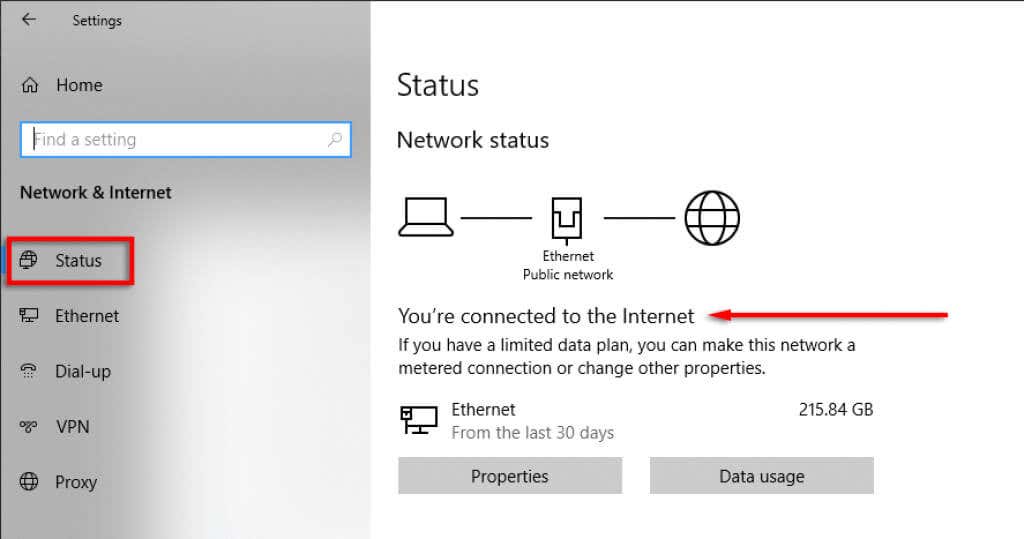
- If not, troubleshoot your internet connection .
On Mac:
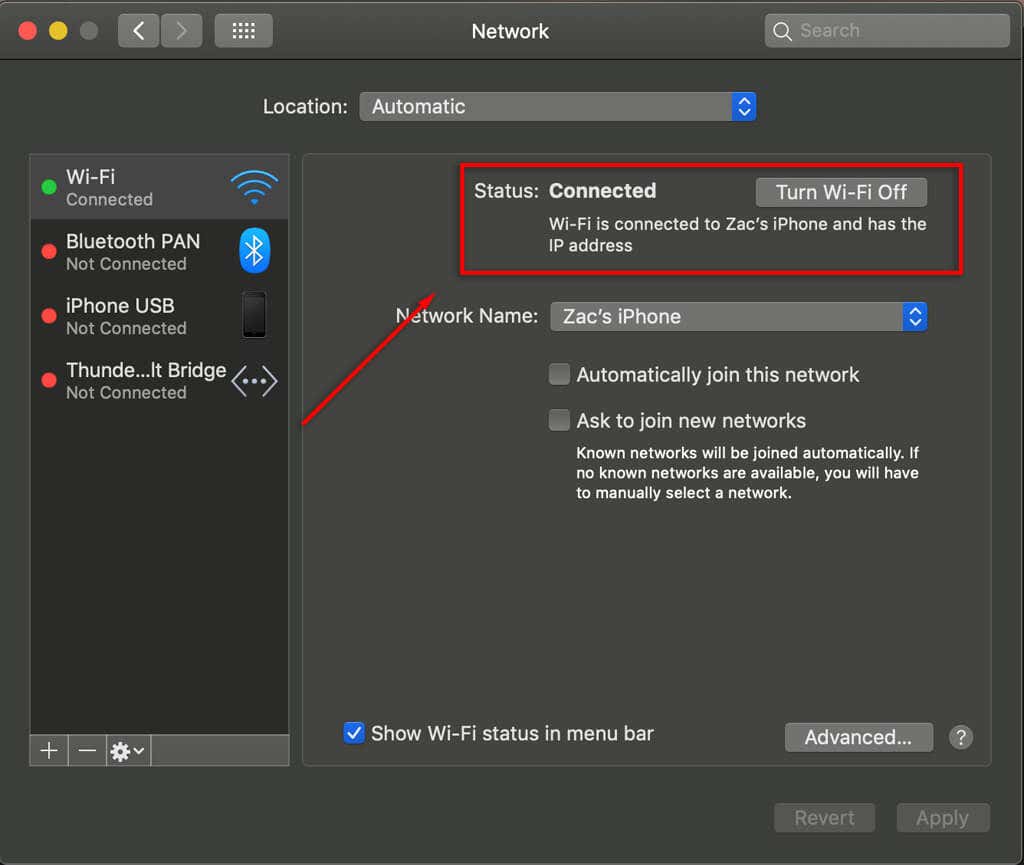
- Select the Apple Menu > System Preferences > Network .
- Select your Network Adapter .
- It should say Status: Connected .
On Xbox One:
- Select Settings > All Settings > Select Network > Network settings .
- Select Test network connection .
- This will tell you whether or not you are connected to the internet.
On iOS or Android:
You should be able to see your internet connection by the data indicator along the top of the screen (next to the reception symbol).
If you’re having consistent internet trouble, ensure that no one on your network is downloading anything and that your internet provider isn’t having issues in your area.
Note : For the most consistent connection, you should try to play while connected through an ethernet cable (rather than via Wi-Fi).
Check Your Connection Speed
Roblox requires a 4-8 Mb/s average internet connection.
- Open your Internet Browser .
- In the search bar, type Ookla speed test .
- Once the webpage loads, select Go .
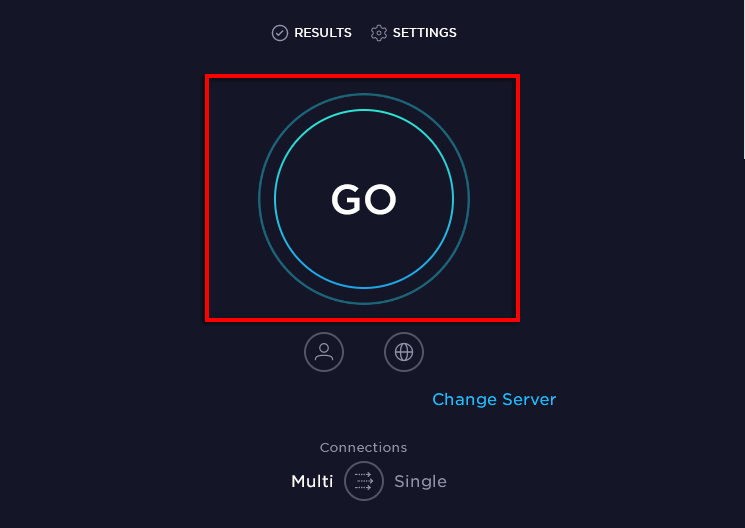
- Wait for the page to display your average.

If this is below the recommended connection speed, it may be the cause of your problems.
Check Your Firewall
Occasionally, your firewall can block Roblox. To counteract this, ensure that Roblox isn’t blocked.
On Windows 10:
- Open Start .
- Type Firewall into the search bar.
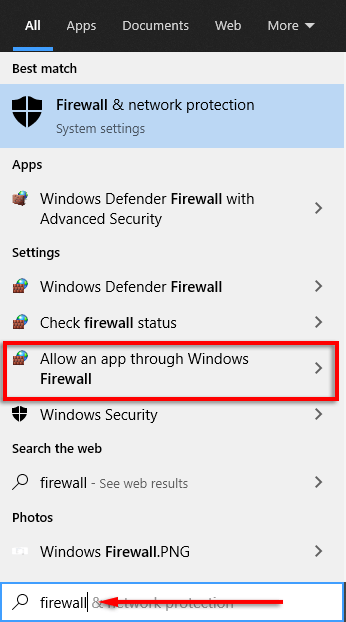
- Select Allow an app through Windows Firewall .
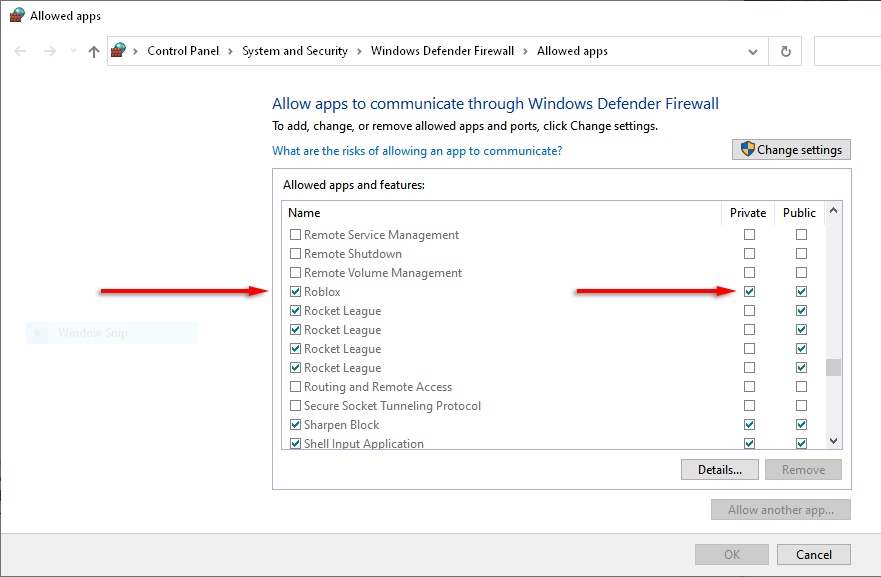
- Scroll down and find Roblox .
- If it’s unticked, check it on Private networks.
On Mac:
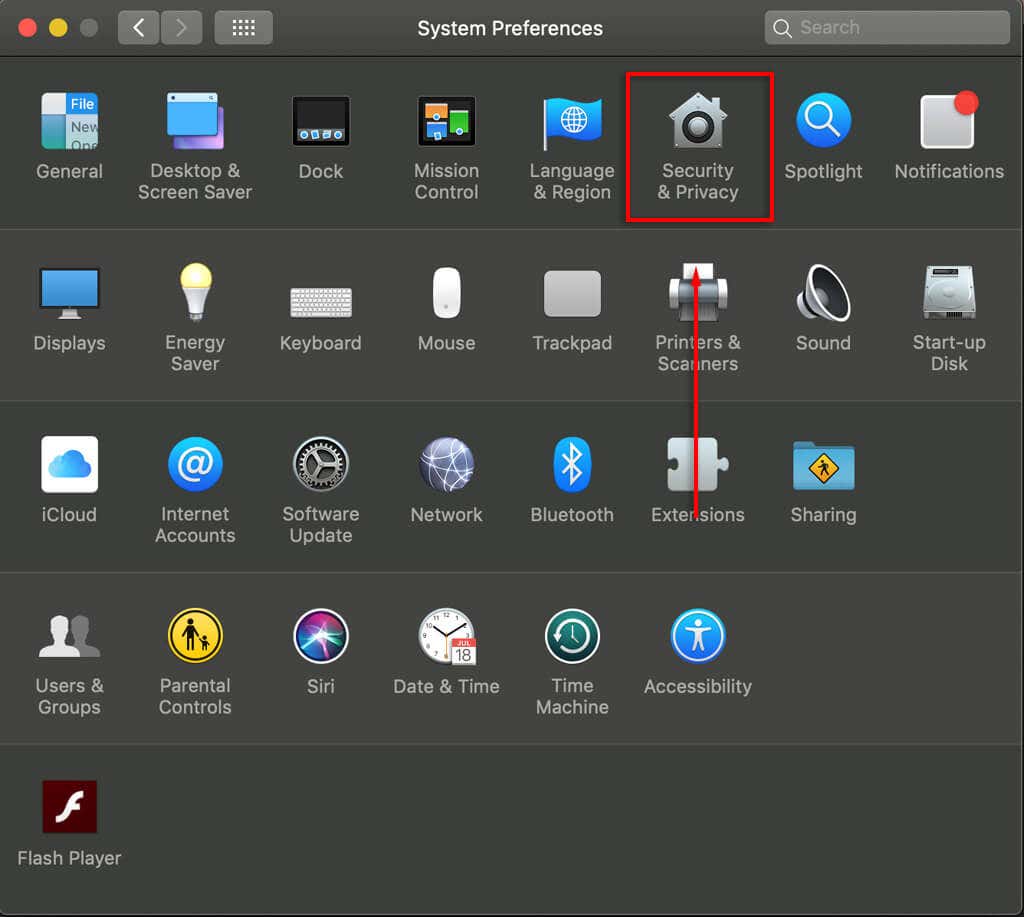
- Open System Preferences .
- Select Security or Security & Privacy .
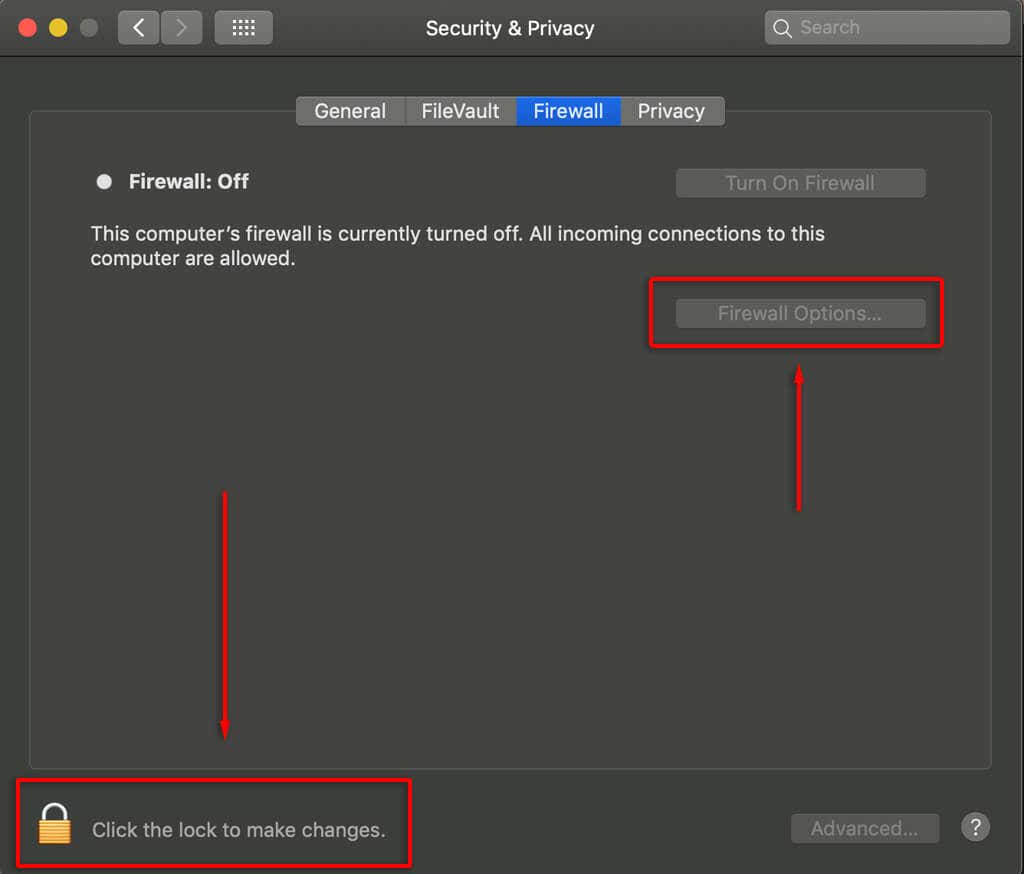
- Select the Firewall tab.
- Unlock the preference section, then enter your admin name and password.
- Select Firewall Options .
- Select Add Application (+) .
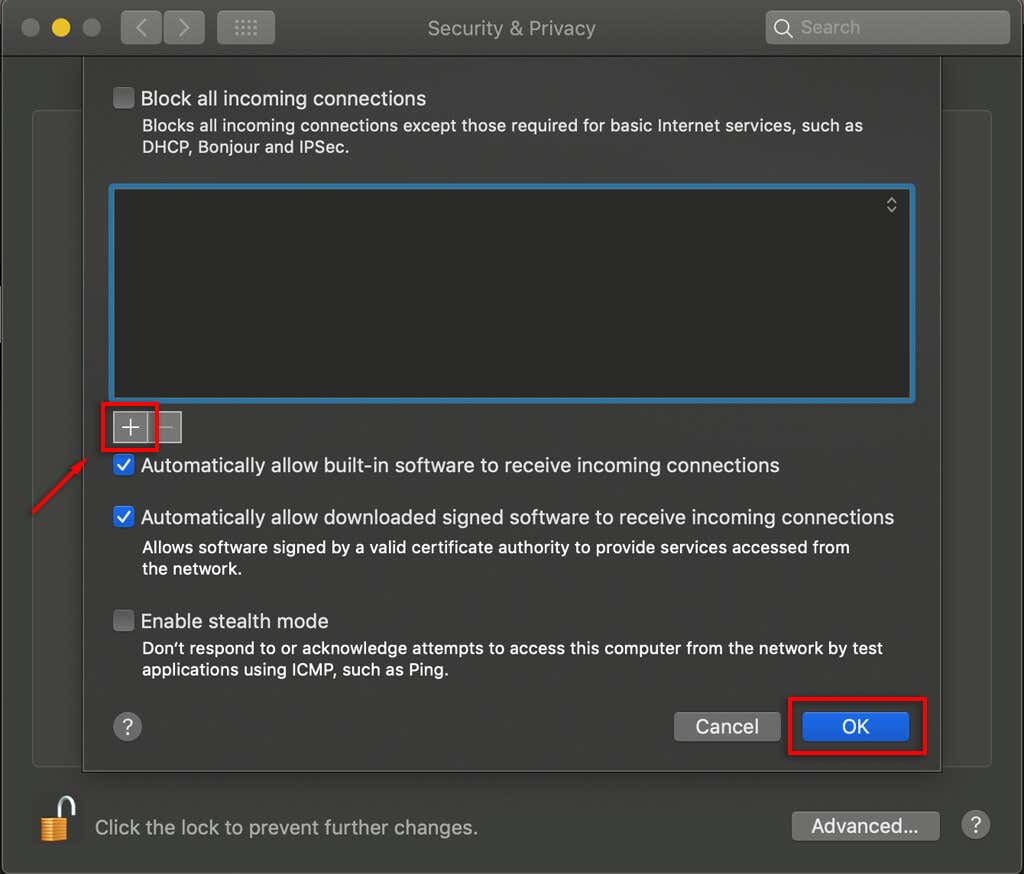
- Choose Roblox .
- Select Add > OK .
Check if Roblox Servers Are Down
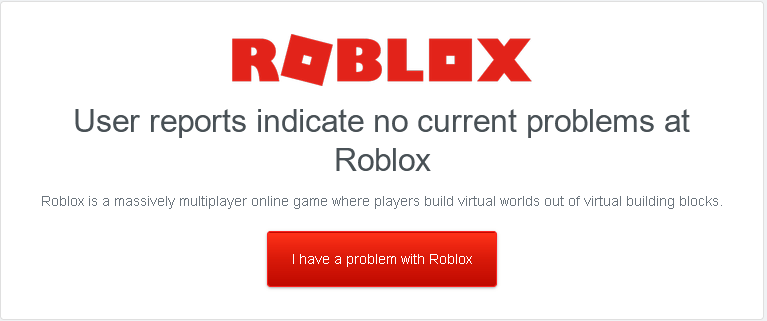
If you are experiencing issues, head to these websites and see if other users are reporting connection issues. If they are, it may be that the Roblox servers are experiencing difficulties.
Check if It’s a Bad Map / Place
Some maps/places on Roblox are poorly made or have internal code errors. Generally, if your avatar appears, that means that the map has loaded. If there are issues with the map, these may be inherent to the map itself and have nothing to do with your connection. All you can do is inform the maker and hope that the issue is fixed on their side.
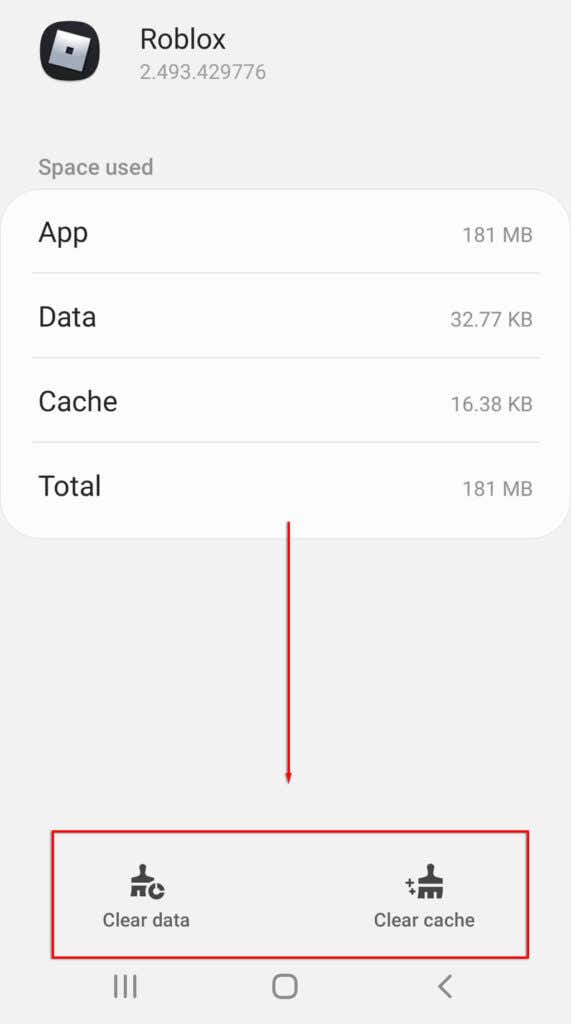
Clear Roblox Data
If you’re playing on an Android device, the temporary files can occasionally become corrupted. To clear this data:
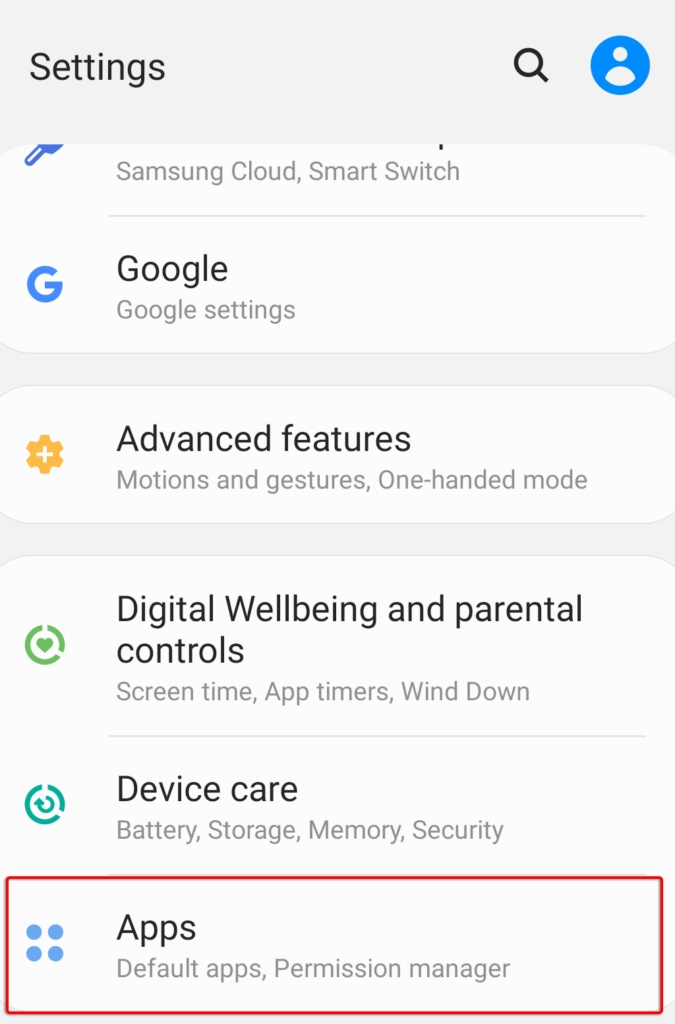
- Open Settings > Apps .
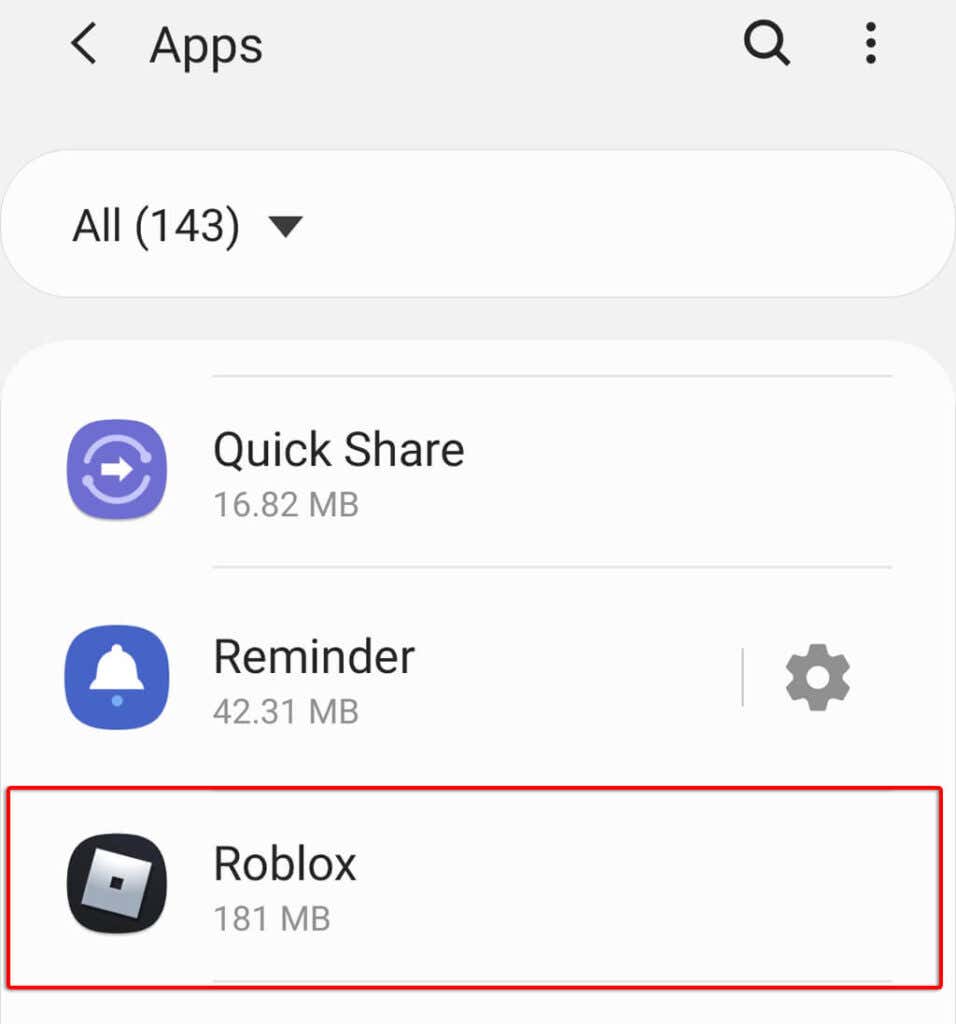
- Select Roblox then select Storage .
- Select Clear Data and Clear Cache .
Reinstall Roblox
If your connection problems are particularly persistent, the final option is to reinstall the game. Ensure that Roblox is closed on your device, then uninstall and reinstall it.
Note: Make sure to properly uninstall Roblox prior to reinstalling. Here’s how for Windows and Mac.
If Nothing Else Works
If nothing above fixes your issues with Roblox not working or connecting, you may have to contact their support team . They will help you to work through any potential causes of the connection error and hopefully get you back into the game in no time.
- How to Fix “An error occurred while starting Roblox” on Windows
- How to Fix Roblox Error Code 279
- How to Optimize Your Windows 11 PC for Gaming
- Computer Freezes When Playing Games? 6 Ways to Fix
- How to Fix “An Unexpected Error Has Occurred and Roblox Needs to Quit” Error
Jake Harfield is an Australian freelance writer whose passion is finding out how different technologies work. He has written for several online publications, focusing on explaining what he has learned to help others with their tech problems. He’s an avid hiker and birder, and in his spare time you’ll find him in the Aussie bush listening to the birdsong. Read Jake’s Full Bio
