One question that I have gotten a lot lately from users is how to open a link in Internet Explorer in a new tab instead of a new window. If you use Firefox or Google Chrome, all links automatically open in a new tab, which for me is more convenient.
However, with IE, all links open in a new window, which is really annoying since it now supports multiple tabs! So how does one configure IE so that clicked links are opened in a new tab? Here’s how.
Open IE Links in New Tab
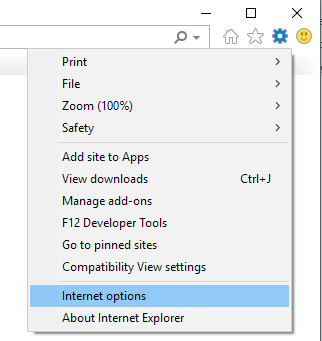
First, open Internet Explorer and click on Tools and then Internet Options . Press the ALT key if you don’t see any of the menu items. If you’re using newer versions of IE, it’s the gear icon now instead.
Now click on the Settings button under the Tabs section on the General tab.
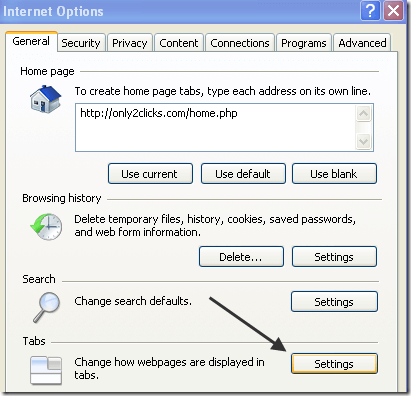
In later versions of IE, you click on the Tabs button under the Tabs section.

Finally, under the heading “ When a pop-up is encountered ”, choose Always open pop-ups in a new tab .

That’s it! Now when you click on a link in Internet Explorer that is set to open in a new window, it will instead open in a new tab! You can also change the setting below it, Open links from other programs in , to open in a new tab in the current. That way if you click on an Internet link from an email, etc, it will open in the current IE window as a new tab. Enjoy!
- How to Backup an iPhone Without iCloud?
- Sluggish Windows 11 PC? Try These 5 Windows 11 Tricks to Free up Virtual Memory
- macOS Tahoe Privacy Settings You Need to Secure Your Mac
- How To Turn Off Notifications On Windows 11?
- How to Recover Lost Files After Windows Update?
Founder of Help Desk Geek and managing editor. He began blogging in 2007 and quit his job in 2010 to blog full-time. He has over 15 years of industry experience in IT and holds several technical certifications. Read Aseem’s Full Bio
