GamePigeon has a great collection of iMessage games to play with friends and family. The app is easy to set up, and GamePigeon games are equally easy to play. However, there are instances when GamePigeon crashes or fails to load in the Messages app. Here’s why this happens and how to fix it.
Why Isn’t GamePigeon Working on Your iPhone?
You might encounter issues installing or running GamePigeon due to software or device incompatibility. The GamePigeon app works on iPhone, iPad, or iPod touch devices running at least iOS 10 and iPadOS 10, respectively. Update your device if it’s running an outdated or unsupported software version.
Additionally, GamePigeon doesn’t work on Mac computers. The app is only compatible with Messages for iPhone, iPad, and iPod touch.
Spotty internet connection, low storage space, and other temporary system glitches can also cause GamePigeon to stop working. Follow the troubleshooting steps below to get GamePigeon working again on your device.
1. Close and Reopen the Messages App
Restarting the Messages app can resolve GamePigeon malfunctions. We recommend closing and reopening the Messages app if it freezes whenever you launch GamePigeon.
Swipe up from the bottom of your iPhone/iPad screen and pause at the middle of the screen. If your iPhone/iPad has a Home button, double-press the button to open the App Switcher.
Swipe up on the Message app preview in the App Switcher to close the app. Open the Messages app again and check if GamePigeon works without any issues.
2. Update Your iPhone and iPad
iOS updates bring bug fixes and feature improvements to Messages and Apple applications. GamePigeon developers often recommend updating iOS if the app suddenly stops working in Messages. Head to your iPhone or iPad settings and install any available software update.
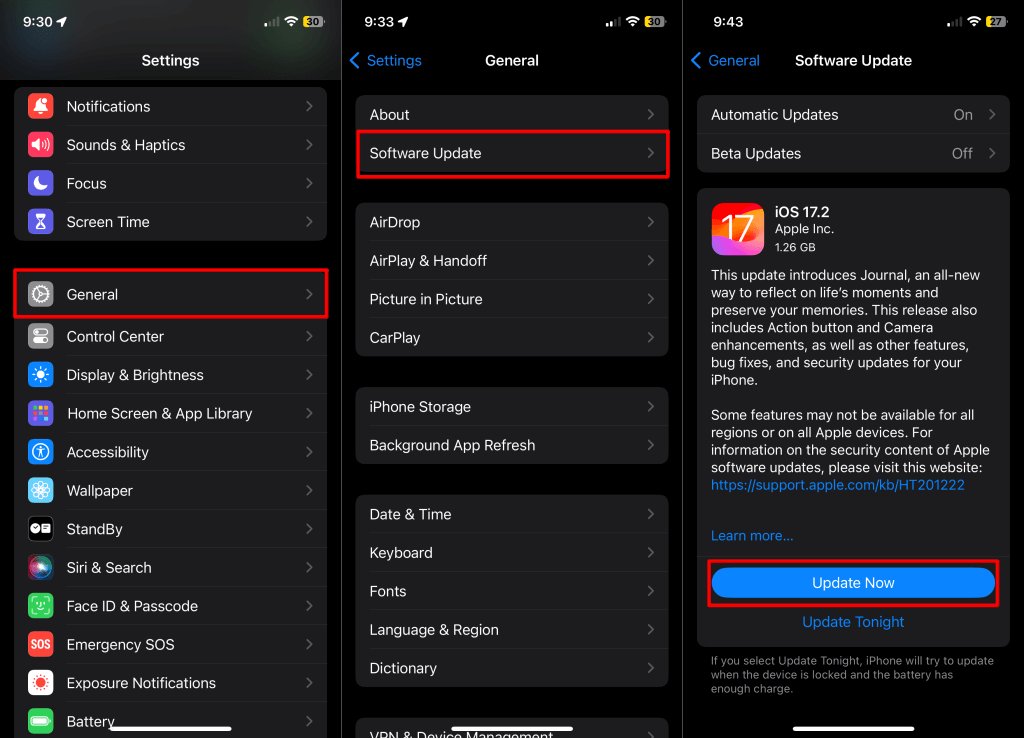
Go to Settings > General > Software Update and tap Download and Install (or Update Now ) to install the latest iOS/iPadOS.
Downgrade your iPhone or iPad if GamePigeon stops working after installing a Beta or stable update. See our How to Downgrade iOS tutorial to learn how downgrading works in iOS.
3. Troubleshoot Your Internet Connection
You need an active internet connection to play GamePigeon games with your friends or contacts. Poor or unstable internet connection can prevent GamePigeon from opening or syncing your progress.
Test your device’s network connection by sending texts via iMessage, making a FaceTime call, or visiting web pages. Switch to a Wi-Fi connection if your iPhone/iPhone can’t access the internet over cellular data.
Putting your device in and out of Airplane Mode can refresh your cellular network and restore mobile data connectivity. Reset your device’s network settings or contact your internet service provider if the connectivity issue persists.
How to Reset Network Settings on iPhone/iPad
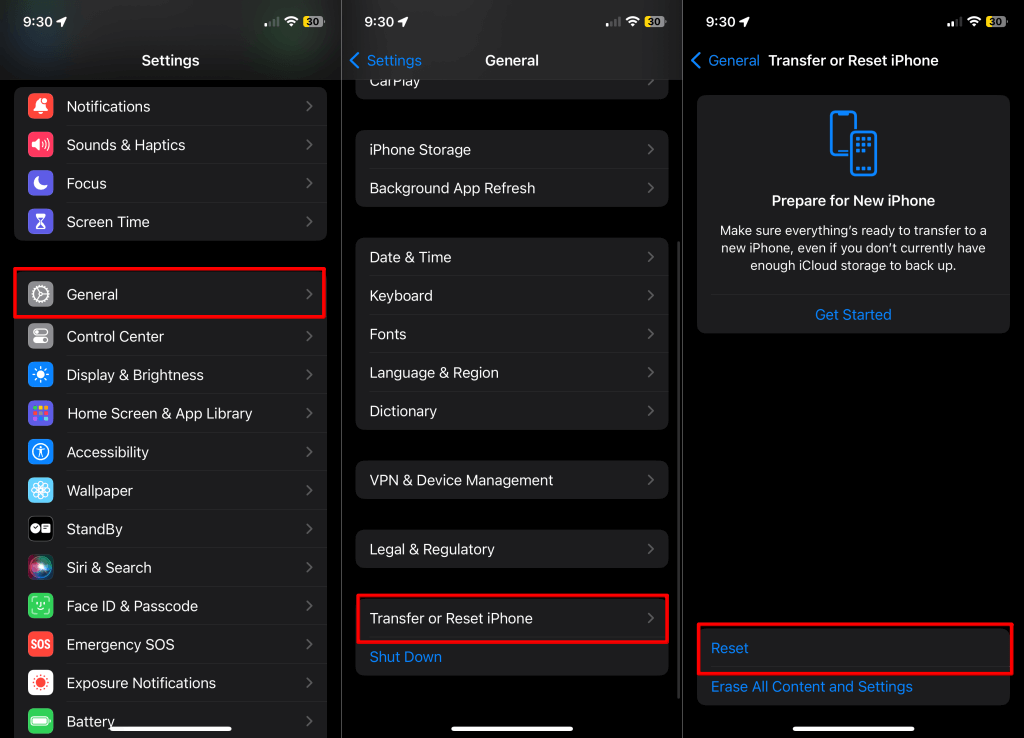
- Go to Settings > General > Transfer or Reset iPhone (or Transfer or Reset iPad ) and tap Reset .
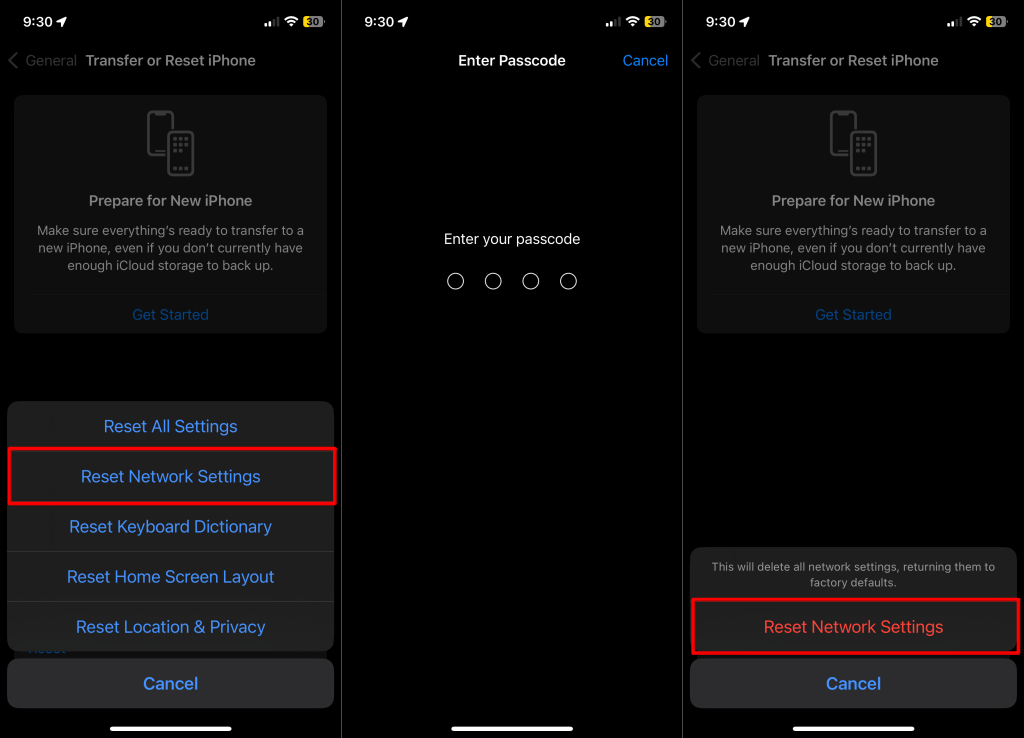
- Select Reset Network Settings .
- Enter your device’s passcode and tap Reset Network Settings again on the pop-up.
4. Check iMessage Server Status
You can’t send iMessages or play GamePigeon games if the iMessage service is unavailable. Visit the Apple System Status web page and check for iMessage.
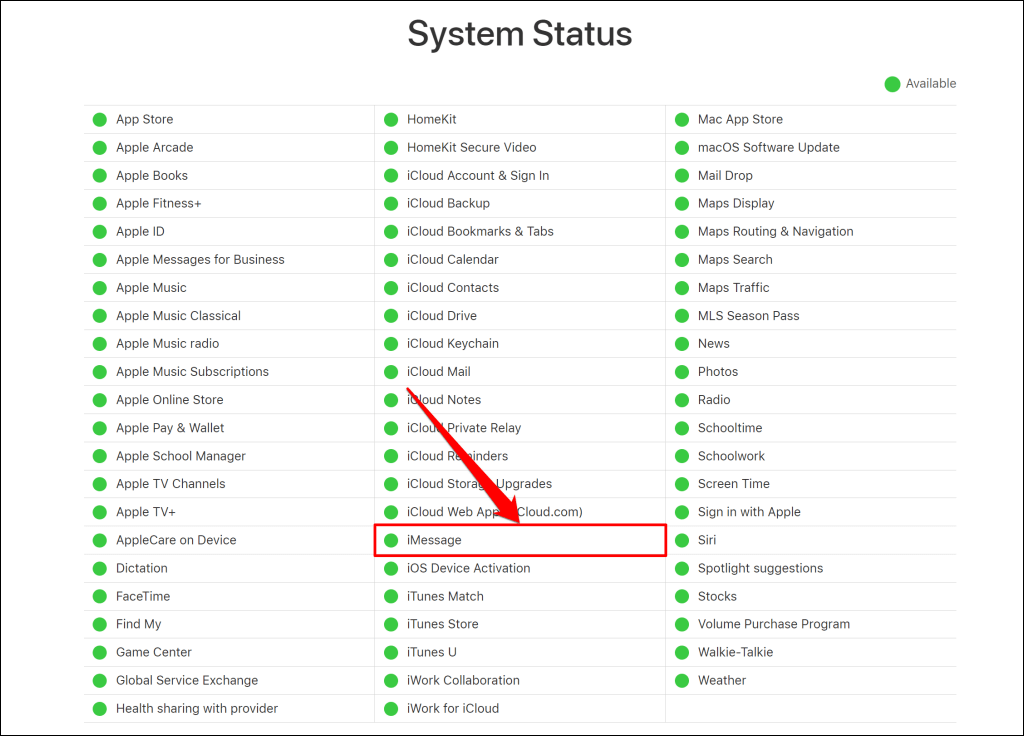
A green status icon/indicator means iMessage is operating normally. Hence, GamePigeon should also work in the Messages app. If the status indicator for iMessage is red or yellow, the messaging service is experiencing downtime. Wait while Apple restores the service or report the downtime to Apple Support .
5. Free Up Storage Space
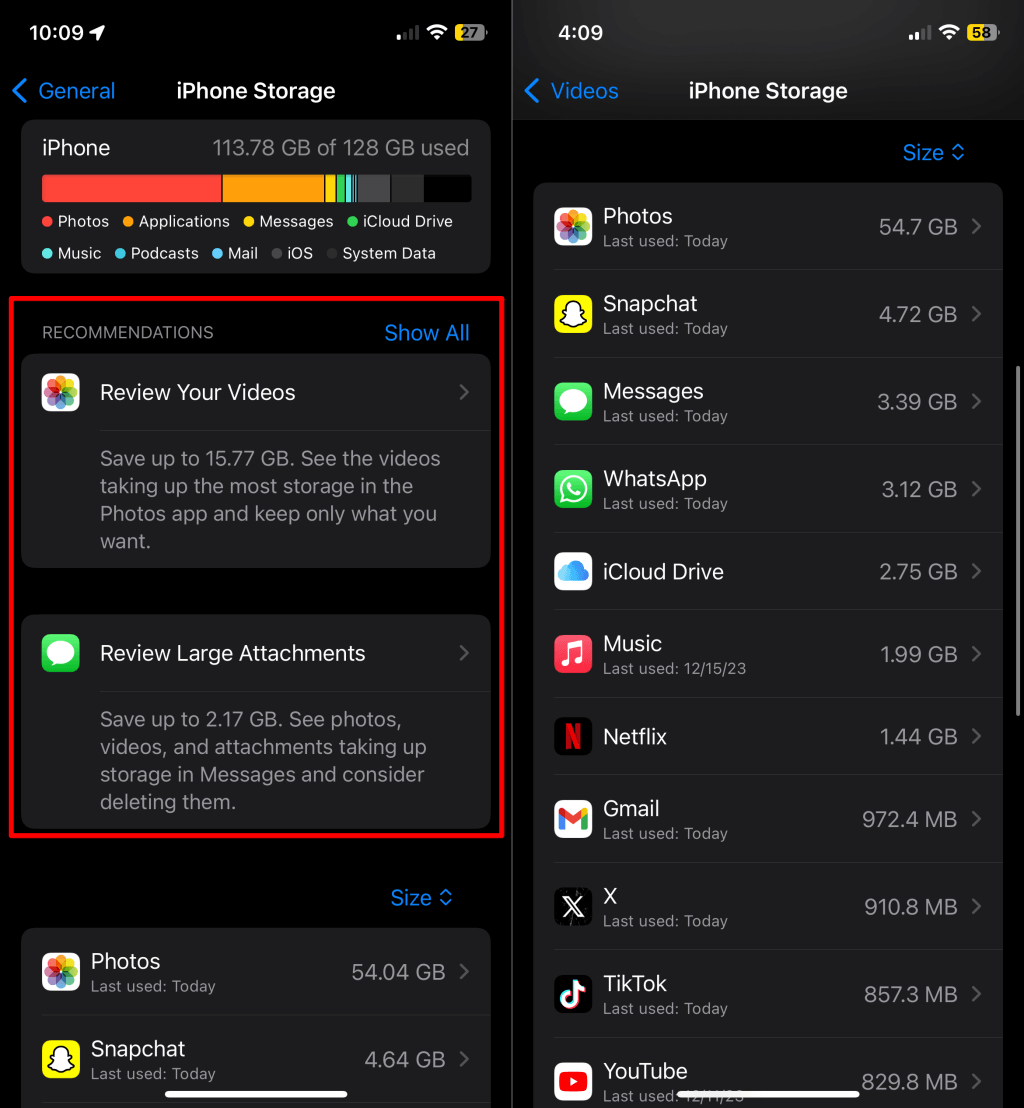
Some applications and system features can stop working if your device runs low on storage space. Check your iPhone or iPad storage status and use the system recommendations to optimize/free storage space .
Go to Settings > General > iPhone Storage or iPad Storage to see your storage status.
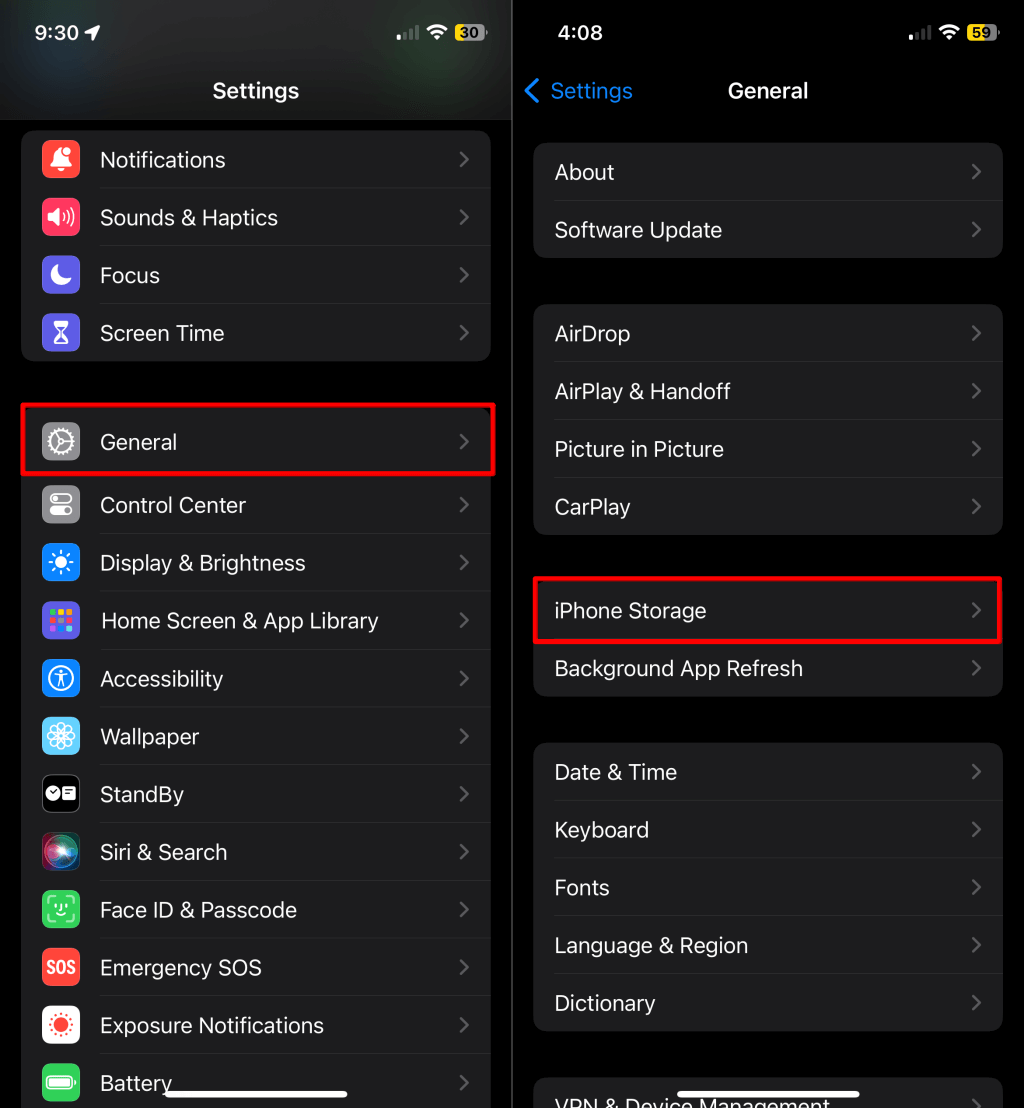
At the bottom of the page, you’ll find a sequential list of applications using the most storage on your device. Tap an application for more information about its storage consumption. Also, check the “Recommendations” section for storage optimization tips tailored to your device.
6. Reinstall GamePigeon
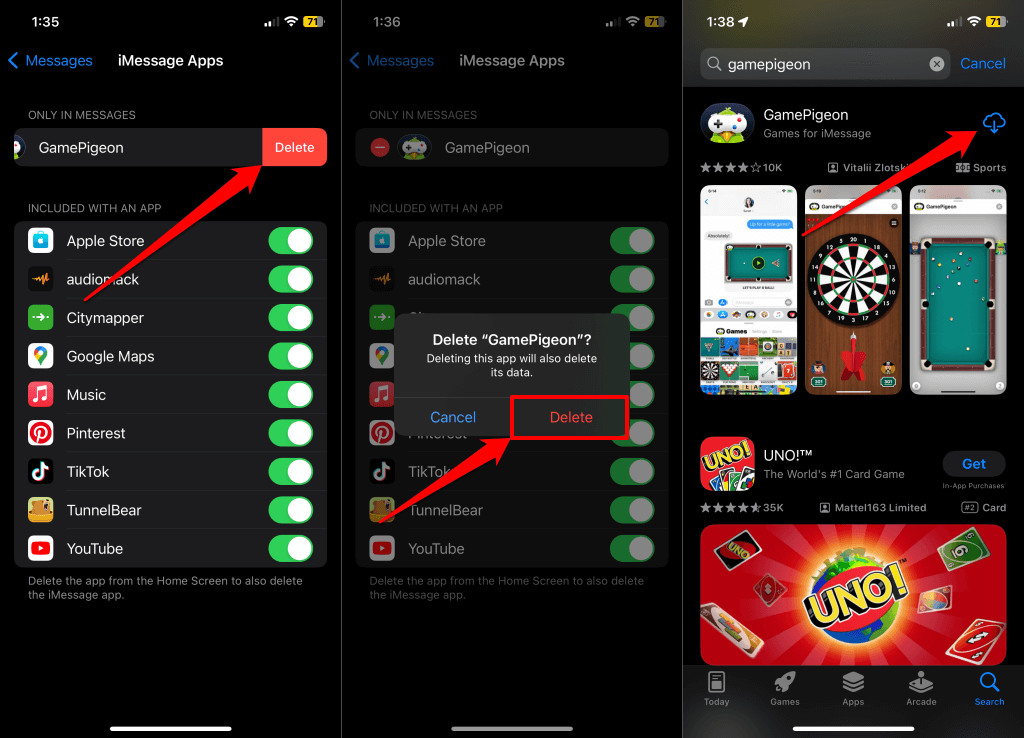
Deleting GamePigeon and reinstalling the app can get it working correctly again on your iPhone or iPad.
- Open Settings , tap Messages , and select iMessage Apps .
- Tap the red minus icon next to GamePigeon .
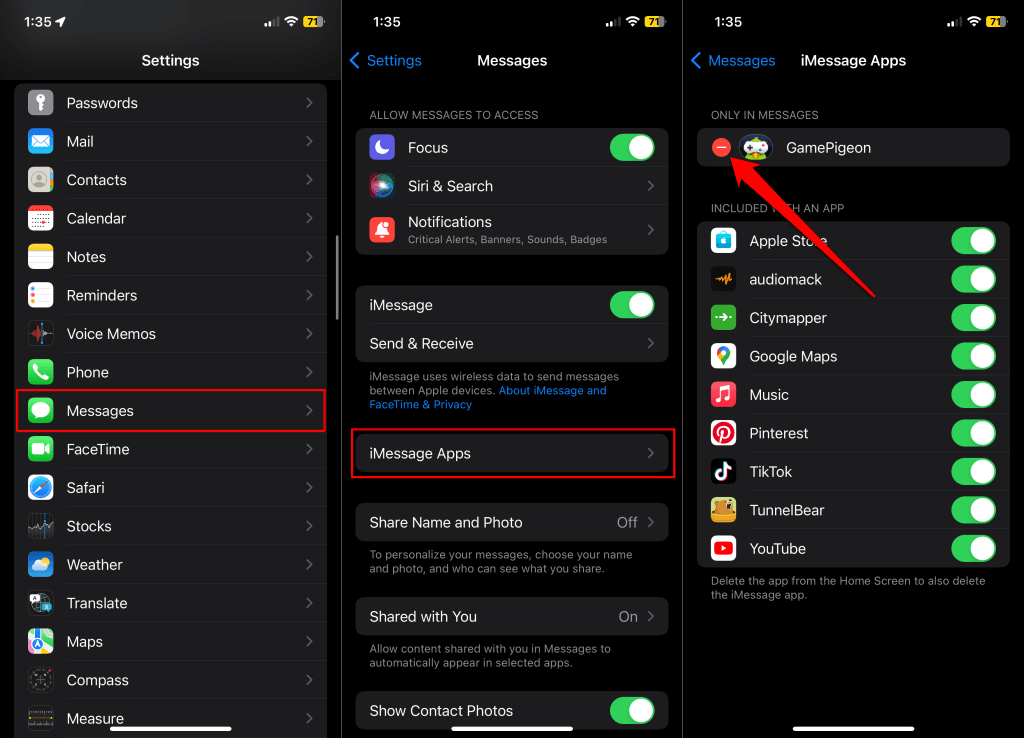
- Select Delete and tap Delete on the confirmation pop-up to remove GamePigeon from the Messages app.
- Open the App Store , type “ game pigeon ,” and select the Get button.
Fix GamePigeon in a Breeze
These troubleshooting steps should get the GamePigeon app working again. Sign out of your Apple ID (and sign back in) or contact Apple Support if the issue persists.
- What Does “Delivered Quietly” Mean on iMessage?
- Photos Not Showing in iMessage? 12 Fixes to Try
- 12 Fixes to Try if Your iPhone Won’t Send Pictures in Messages
- How to Play 8 Ball Pool on iMessage
- iMessage Not Syncing on Mac? 9 Ways to Fix
