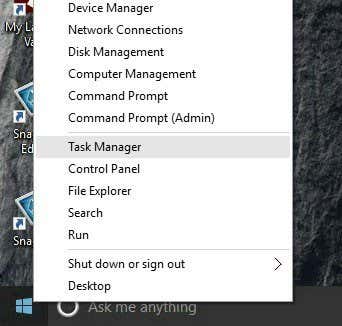
It’s worth noting that in Windows 8 and Windows 10, the Startup tab has been removed from MSCONFIG and is now included in the Task Manager . You can get to the Task Manager by simply right-clicking on the Start button in Windows 8 or Windows 10 and choosing Task Manager from the list.
Knowing which programs run at startup can be very useful for debugging all sorts of performance issues related to your PC. One recommendation I always give is to make a list of all of the startup programs enabled while your computer is running normally. That way, if your computer is running slow later on, you can always go back to MSCONFIG and uncheck anything that wasn’t originally listed.
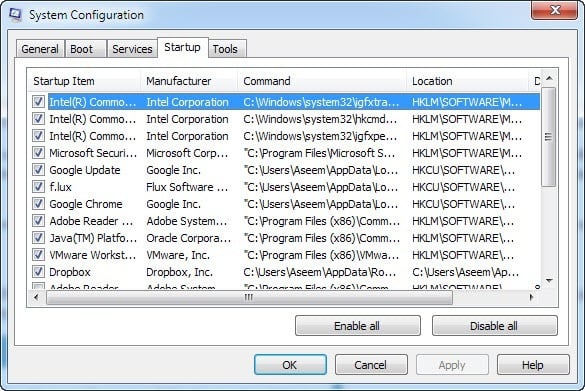
Also, there are times when technical support may request a list of startup programs in order to diagnose an issue with your computer. Generating a list and emailing them could save you a lot of time and prevent someone from having to connect remotely to your computer, which I never prefer since I don’t trust anyone else having access to my computer.
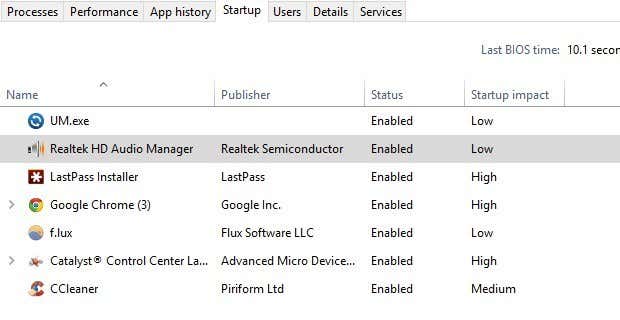
In addition to the task manager looking a bit nicer and cleaner in Windows 8 and Windows 10, it also forgoes the checkboxes and gives you a column called Startup Impact to help you gauge how that startup item affects the boot time.
You can actually generate a list of all the startup programs in Windows using the command prompt or PowerShell and save the list as a text file or an HTML document. Follow the steps below.
Command Prompt
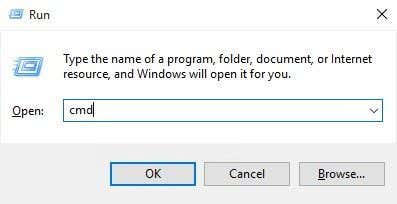
Step 1: Open the command prompt by going to Start , Run and typing in CMD . If you are unfamiliar with the command prompt, feel free to read my command prompt beginner’s guide first.
Step 2: Now type in the following WMI (Windows Management Instrumentation) command at the prompt and press Enter .
wmic startup get caption,command
You should now see a list of all the applications along with their paths that run at Windows startup.
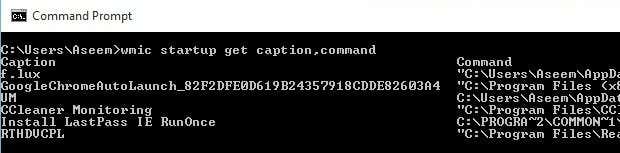
If you want more information, you can also just type wmic startup and you’ll get a few extra fields like Location, UserSID and User.
Step 3: If you want to export the list out as a text file, type in the following command:
wmic startup get caption,command > c:\StartupApps.txt
wmic startup get caption,command > c:\StartupApps.htm
PowerShell
If you prefer to use the more modern and powerful PowerShell, the command below will give you pretty much the same results as the WMI command above.
Get-CimInstance Win32_StartupCommand | Select-Object Name, command, Location, User | Format-List
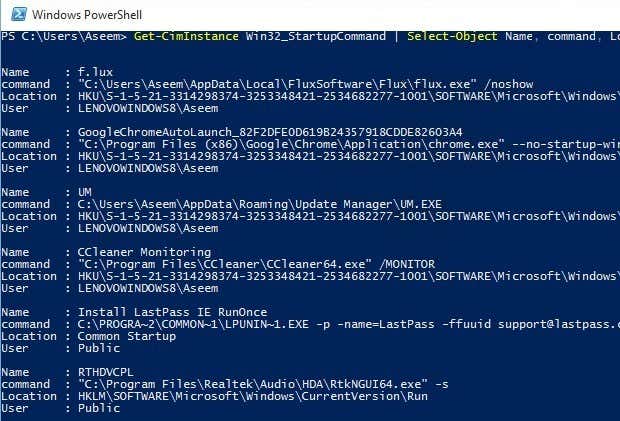
If you want to send the output of a PowerShell command to a text file, you can simply append the following part to the above command after Format-List .
| Out-File c:\scripts\test.txt
Make sure to include the pipe symbol | that is at the very front. I actually prefer the output of PowerShell because the formatting is much easier to view in a text editor.
That’s about it. You should now have a list of startup programs that you can save and reference later. If you have any questions, feel free to post a comment. Enjoy!
- How to Fix Slow Wi-Fi on Your Smartphone
- 7 Best Machine Translation Software (or AI) to Try in 2025
- What Does the Green Dot Mean on Facebook?
- How to Turn off Hardware Acceleration in Chrome
- How to Check VRAM in Windows 10, 11, and macOS?
