In the modern home, Wi-Fi isn’t a luxury–it’s a necessity. A solid connection means your kids can do schoolwork from their rooms, you can browse the web in bed at night, and the gamers in your family never have to worry about lag. The easiest way to achieve a great connection is with a mesh router: two or more devices that overlap with each other to provide redundant, thorough coverage.
Gryphon sent two sets of their routers for us to test: the Gryphon Tower and the Gryphon AX router. While this review mostly focuses on the Gryphon AX router, we did test the Gryphon Tower. Spoiler: it’s good, but the AX is better.
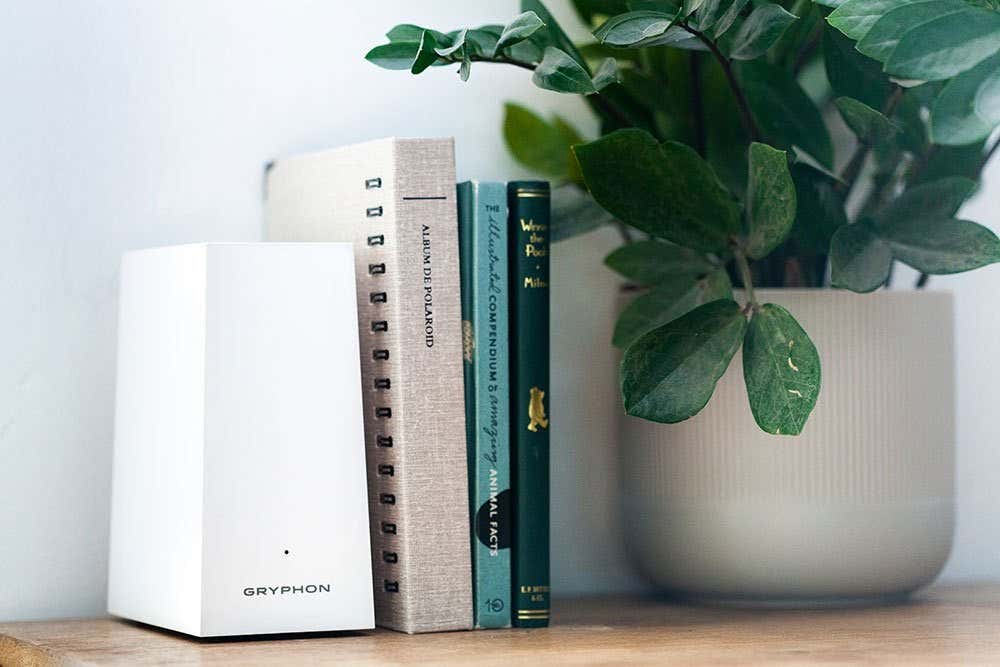
Gryphon Tower vs Gryphon AX
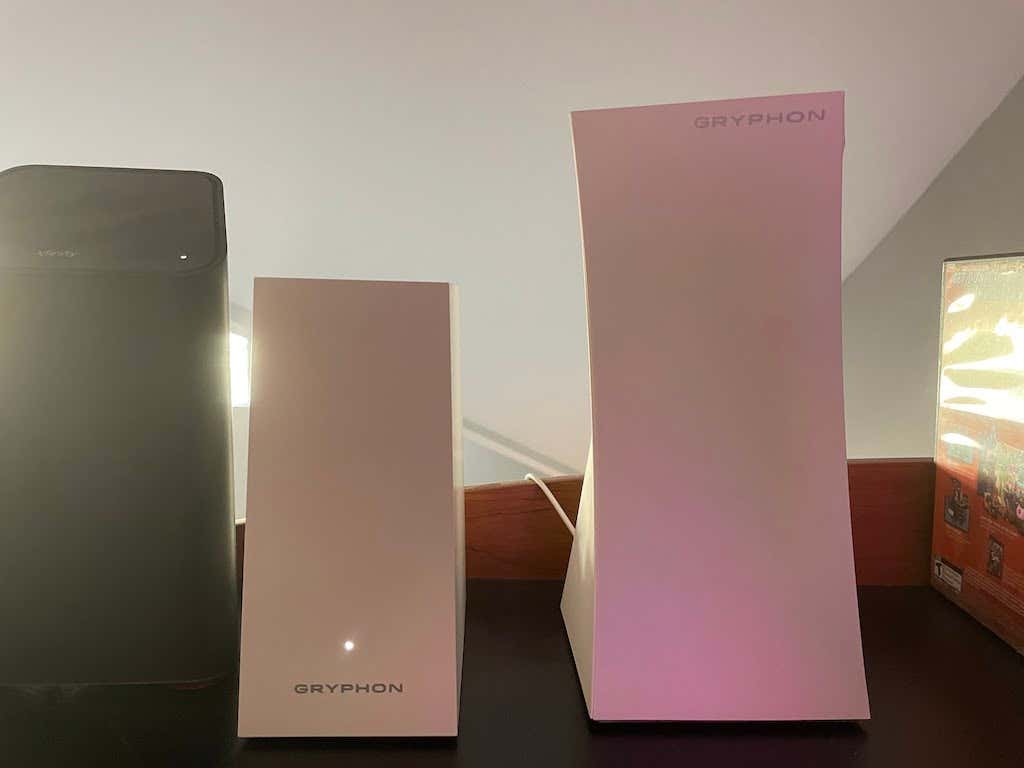
The primary difference between the two router types is their coverage. They aren’t interchangeable; you can’t use one Gryphon AX and one Gryphon Tower. The Tower provides up to 5,000 square feet of coverage with two routers (one serving as a repeater) and throughputs speeds up to 1.3 Gbps.
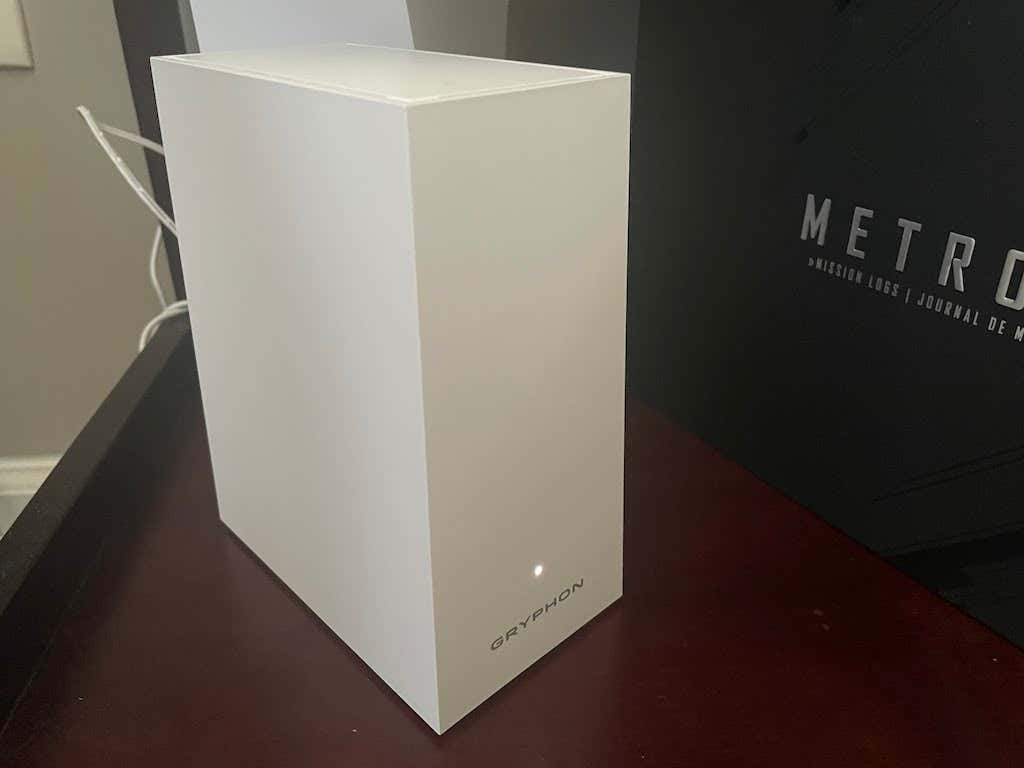
The Gryphon AX, on the other hand, can handle Wi-Fi 6. It supports up to 4.3 Gbps and can support a greater number of connected devices. It also handles triband networks (2.4 GHz and two 5 GHz). There is built-in malware filtering and intrusion detection technology to keep your home network more secure, along with a ton of parental controls. The physical design of the AX is much smaller than the Tower, which makes it easier to fit into tight spaces.
The only real downside to the AX is that each router has only two ports. One is the connection point for the Ethernet cable from the router. If you want to hardwire a gaming console or a computer, you will only have one port to work with.
Price and Value
On its own, the Gryphon AX is $279. You can also purchase a two-pack for $479, resulting in savings of $80. You can combine more than just two Gryphon AX routers if you have a larger home, but two of the routers are sufficient to cover 5,000 square feet of space. Gryphon also provides a 90-day money back guarantee if you’re on the fence about taking the risk.
While these routers aren’t cheap, they compare to similar devices on the market . For example, the ASUS RT-AX86U has many of the same specifications, but costs $345. It also supports lower throughput speeds.
We examined many of the top Wi-Fi 6 routers on the market, and there are few options with better speeds and similar features for this price point. In addition to the base purchase price of the router, it includes 12 months of Gryphon Premium for free. Many of the best features of the router are locked behind a premium subscription. This subscription normally costs $99 per year or $9.99 per month.
App and Router Features
What stands out most about the Gryphon AX and its app are the number of features and options it brings to the table.
Users
You can set up multiple users within the app and assign specific devices to that user. Each user has their own settings that include Screen Time, Web Browsing, Access Control, Data Usage, and more. Creating individual users means you can limit the amount of time or the kind of content an account can access. For example, you can set specific periods of time that your kids can access the internet with their laptop.
You can also view their browsing history via the app. It even includes a feature called “Show CDN” that declutters the browsing history so you can more easily see the websites that the user visited. Access Control allows you to block websites by URL or by category. You can block gambling or dating websites, social networks, and even music and video streaming sites.
The ability to block specific websites during certain hours is tremendously useful for both parents and people that need help focusing on tasks and avoiding distractions.
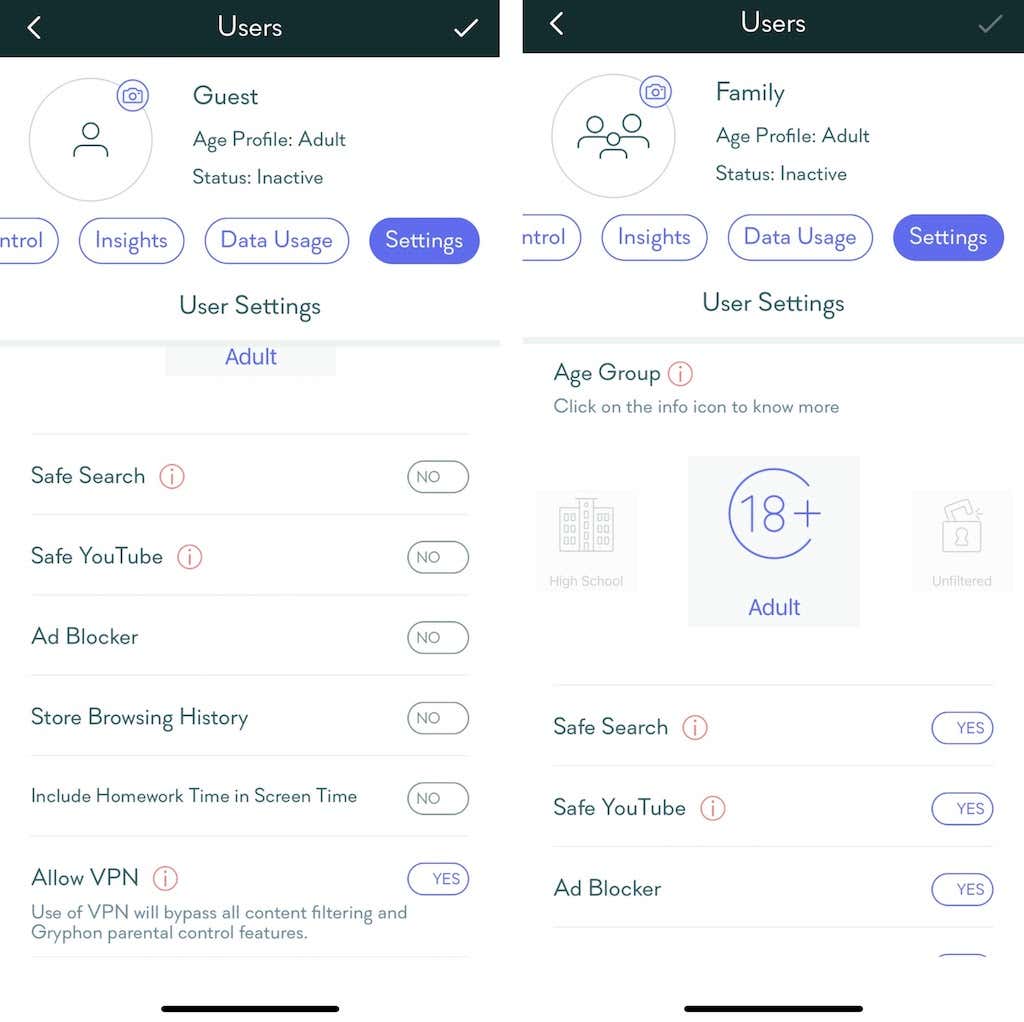
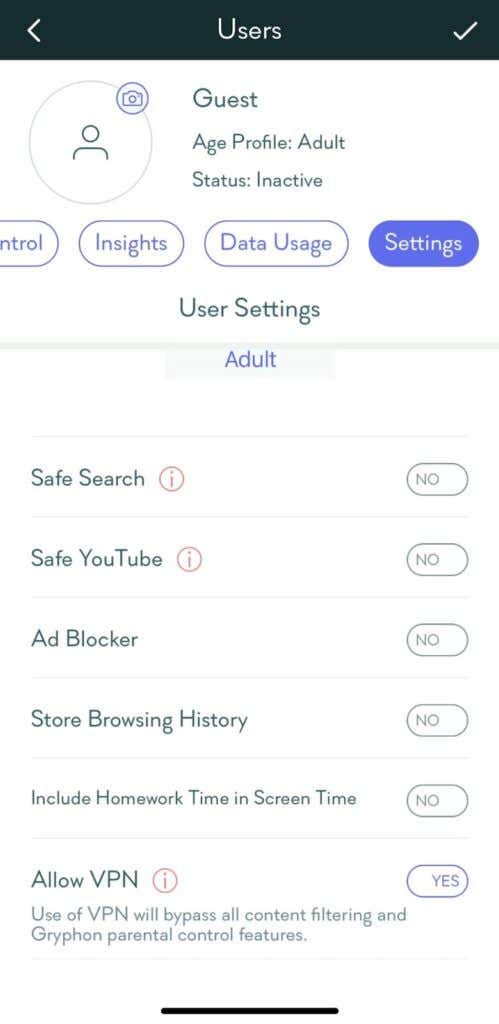
There are a variety of individual settings you can activate within User settings, too:
- Age Group: Assign specific safety settings based on age. Options range from Toddler (blocks all except specified safe sites) to Unfiltered (unrestricted access.)
- Safe Search : Filters out adult content from popular search engines.
- Safe YouTube : Blocks all YouTube videos that are flagged for adult content.
- Ad Blocker : Blocks ads on a hardware level, meaning any connected device can see content without the need for an ad blocker extension.
- Store Browsing History : Tracks the browsing history of that user so that you can review it from within the Gryphon app.
- Allow VPN: If you choose to allow a user to use a VPN, it can bypass Gryphon’s filtering and parental control features.
Security Center
Remaining safe while browsing the web is more important than ever before, especially today when there are so many data leaks. The Security Center warns you of two major risk factors: weak passwords and open ports.
If a connected device has an open, unguarded port, it can be used as a backdoor for hackers to gain access to your network. If you have a password that’s deemed “weak” by the software (as in too easy to guess), Gryphon will alert you from the Security Center.
The Security Center can be accessed from the main page, where you’ll also see the number of malware applications that have been blocked, the amount of data used, and the last time a speed test was performed.
Devices
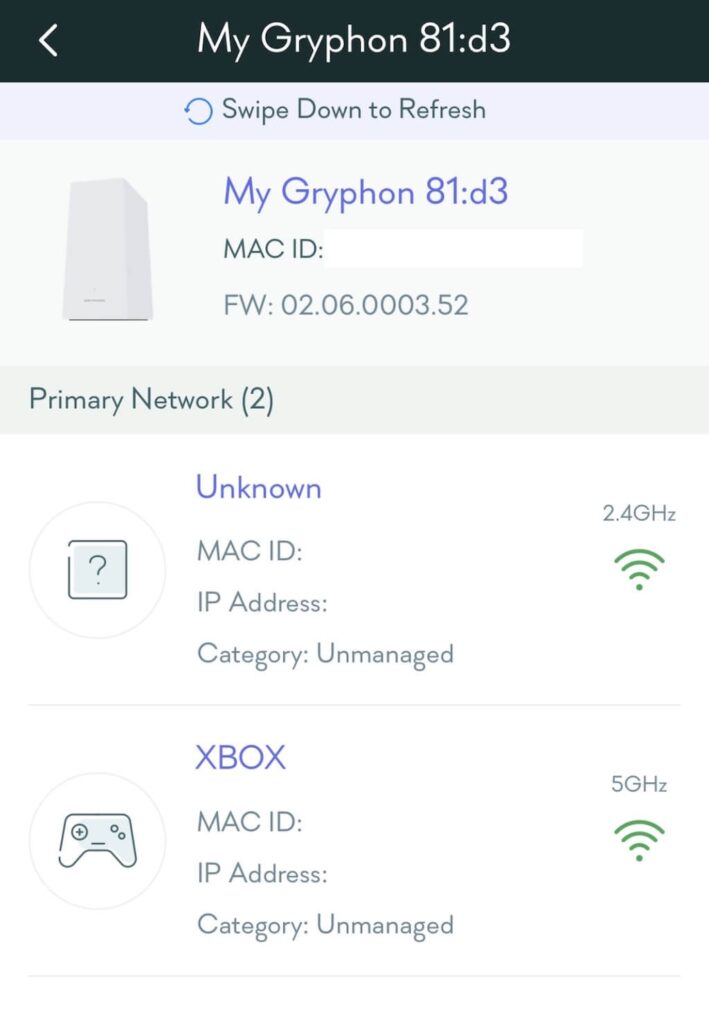
The Devices tab allows you to see every connected device on your network. However, if you have a smart home or just connect with a lot of devices, it can be hard to sort through everything. This tab breaks devices down into a series of categories: Managed, Unmanaged, Gadgets, TV & Games, Priority, and HomeBound.
If that isn’t enough, these categories are broken down even further based on the connection type. You can view all devices, only wired devices, any devices that are offline, or any device connected to your primary network.
Tapping any device gives you a breakdown of its information, including:
- MAC ID
- Device type
- What user it’s assigned to
- IP address
- Whether or not port forwarding is enabled
You can also choose to not monitor that device, and grant priority to up to three devices in your home. Giving a device priority will give it the majority of network bandwidth if multiple devices are vying for it.
Installation and Setup
The idea of a mesh router can be intimidating to many people, especially anyone who doesn’t consider themselves “tech savvy.” The Gryphon AX is incredibly easy to set up. All you have to do is download the app from the Google or App Store, create an account, and follow the on-screen instructions.
These instructions boil down to:
- Plugging in the router
- Using the app to scan the QR code on the bottom
- Placing your phone nearby until the two can synchronize
The majority of the setup process is automatic. Once the first router (or Primary router) is set up, you can add a mesh repeater. Again, this process is much the same as setting up the first one.
It took less than 90 seconds to set up each router. After the devices were up and running, the app presented the option to set a Wi-Fi name and password. The best feature is that it allows you to use the same SSID and password so that any existing devices will automatically connect, rather than having to reconnect all of the devices at once.
Once you have the Gryphon app set up, you can personalize your experience. You can manipulate granular settings like the channel selection for different network bands, use Wi-Fi radio control, and even enable or disable the IoT network. This last feature is particularly useful if you have a smart home, as it lets you keep all connected devices on the same network without interference from other devices.
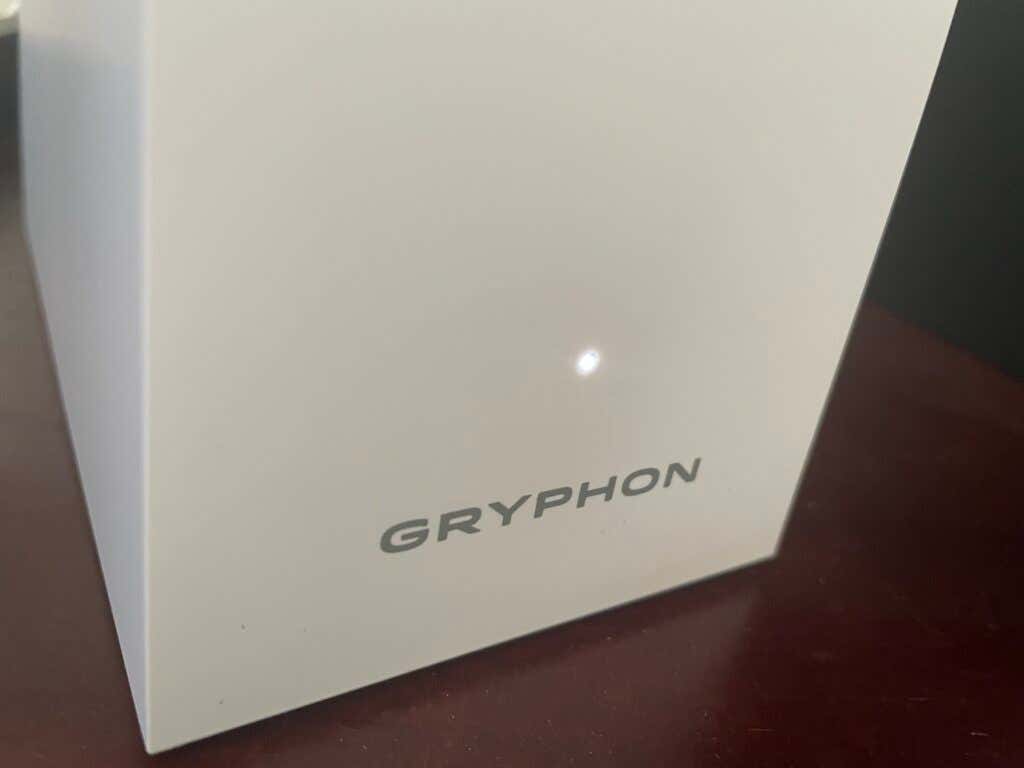
The app allows you to choose what level of malware protection you want. However, it does have a “recommended” level that provides protection without being too intrusive. You can even control the LED light on the front of the router, choosing whether it’s always on or if it should go off during certain hours.
The app is insistent with regard to account security. For example, if you don’t enable two-factor authentication, it will prompt you to do so until you agree. You can also ask the app to require Face ID if you’re an iPhone user.
The Verdict
The Gryphon AX provides incredible Wi-Fi coverage throughout the home. With the primary router on the top floor and the mesh repeater on the lower floor, we found devices to have better connections and higher Wi-Fi speeds than with just a single router. Every aspect of this router, from the setup to the day-to-day operation, was unobtrusive and allowed us to focus on using our devices instead of worrying about connections.
The Gryphon AX is well worth the price, especially considering the added security features, parental control options, and the ease of setup. Anyone would be hard-pressed to find a router with these same features for a better price.
- WhatGeek x 3inuS Kebohub EE01 Mechanical Keyboard Review
- Mobile Pixels Duex Max Portable Monitor Review
- Trifo Lucy: The AI Robot Vacuum and Mop
- Review of Anycubic Kobra Max 3D Printer
- The OBSBOT Tiny 4K: an Impressive Webcam for PC & Mac
Patrick is an Atlanta-based technology writer with a background in programming and smart home technology. When he isn’t writing, nose to the grindstone, he can be found keeping up with the latest developments in the tech world and upping his coffee game. Read Patrick’s Full Bio
3D printer manufacturer, Anycubic, recently released two new printers—the Anycubic Kobra and its bigger, badder uncle, the Anycubic Kobra Max. We were interested in testing both products in our hunt for the best entry-level 3D printers. We’re looking for ease-of-use and affordability, as well as build and print quality.
We’ve published a number of 3D printer reviews from Anycubic—for both FDM printers like the Anycubic Vyper that print with spools of filament and SLA resin 3D printers like the Anycubic Photon Mono X 6K that use a liquid resin as its raw material—and we can say that the Kobra Max has quickly become one of our favorites.
Features of the Anycubic Kobra Max 3D Printer
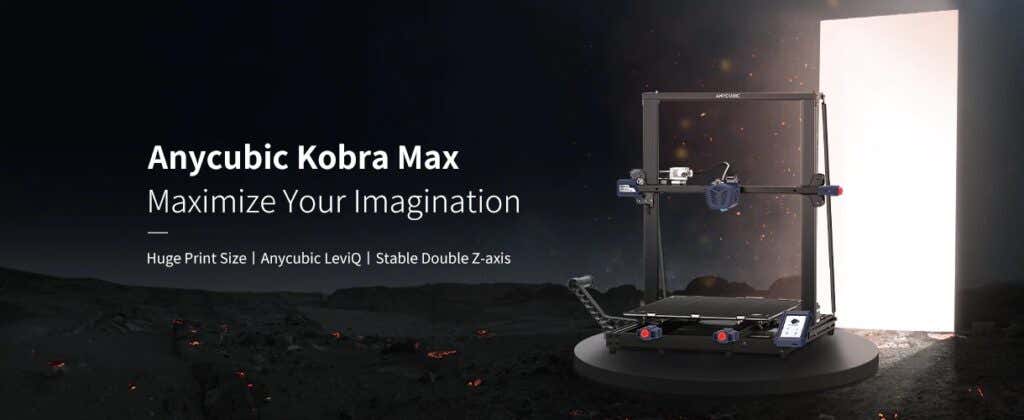
The most obvious feature of this printer is its size. It is absolutely massive. That means you can print huge items in a single piece. Think of a full helmet or an entire ukulele—these are things you couldn’t print in one piece on a normal-sized 3D printer. Truly, the word “Max” doesn’t sufficiently capture just how big this printer is. Good luck fitting the packaging into your trash or recycling bins!
We were skeptical that a Cartesian printer of this size (which relies on a moveable print bed) would perform well since it has a lot of weight to move around. Admittedly, it’s not the speediest printer out there because of those design tradeoffs, but it works great.
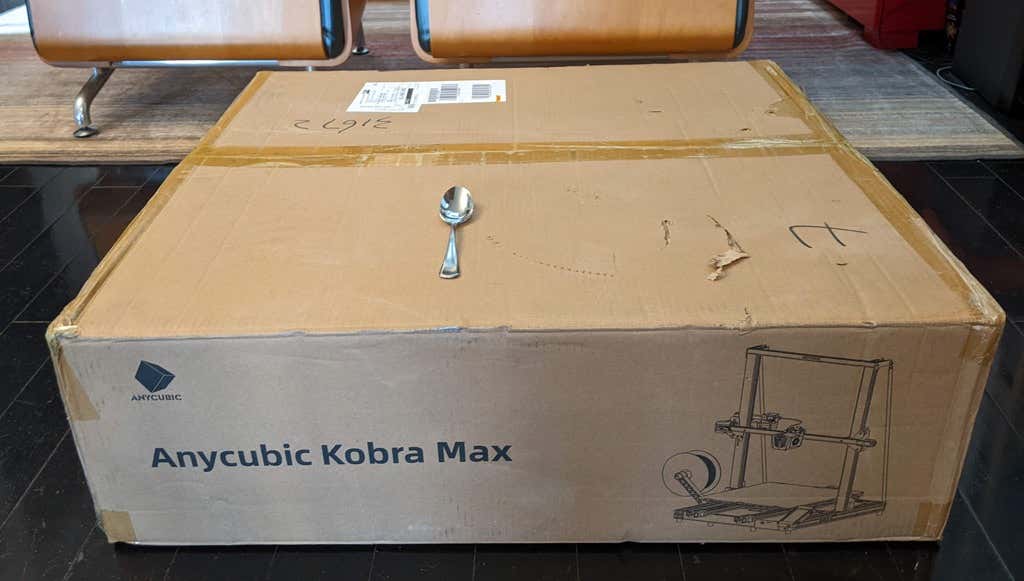
The Kobra Max has an impressive list of technical specifications:
- Leveling: Automatic, 25 points leveling using the Anycubic Leviq technology
- Panel area: 7.95 in² / 51.3 cm²
- Filament run-out detection: support
- Printing material: PLA / ABS / PETG & TPU
- Nozzle size: ø 0.4 mm (replaceable)
- Nozzle temperature: ≤ 500 °F / 260 °C
- Hot bed temperature: ≤ 194 °F / 90 °C
- Average speed: 3.1 – 3.9 in./s (80mm/s – 100m/s)
- Control panel: 4.3 inch LCD touch screen
- Z-axis: double threaded rod
- Print size: 17.7 x 15.7 x 15.7 in. / 45 x 40 x 40 cm (HWD)
- Build volume: 19.02 gal. / 72.0 L
- Machine dimensions: 72 x 71.5 x 66.5cm
As far as we can tell, the extruder is identical to the extruder and print head on the Anycubic Vyper. Furthermore, the Kobra Max has the same automatic bed-leveling system as the Vyper. The system uses a pressure sensor instead of an inductive sensor.
The bed-leveling sensor is right on the nozzle itself, ensuring that it can probe every printable part of the bed. And since the sensor is pressure-based, you could replace the glass bed with any other material and the bed-leveling system will still work. (Inductive sensors require metal to work, so you won’t find them on printers with glass beds.)
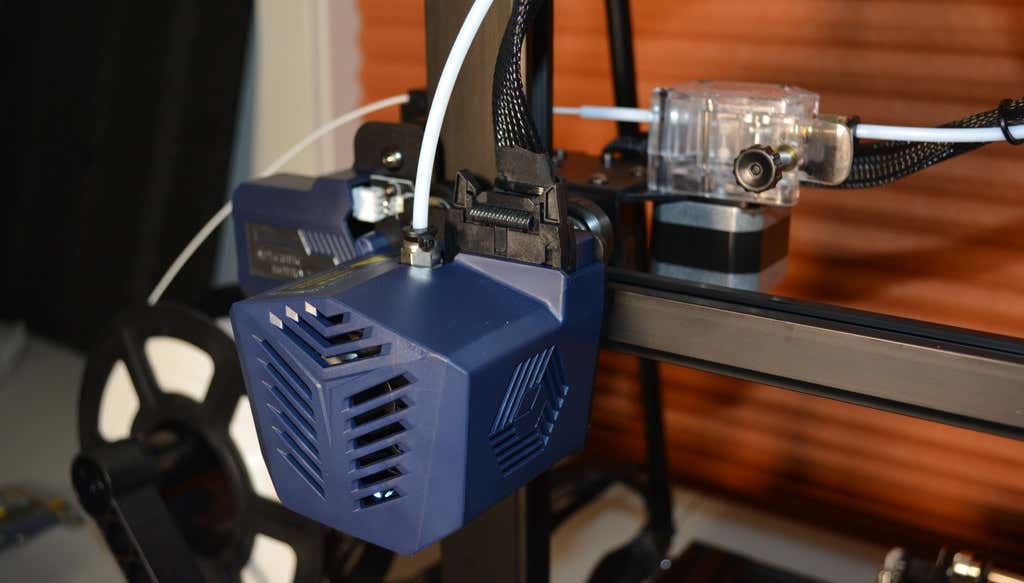
Since the Kobra Max’s printing platform is a rigid glass sheet, you can’t remove and flex it to pop your prints off. We prefer removable spring steel build plates, but glass is still a nice printing surface. If your printer doesn’t have a removable bed, glass is ideal because you can use metal scrapers to remove your prints without worrying about scratching the surface.
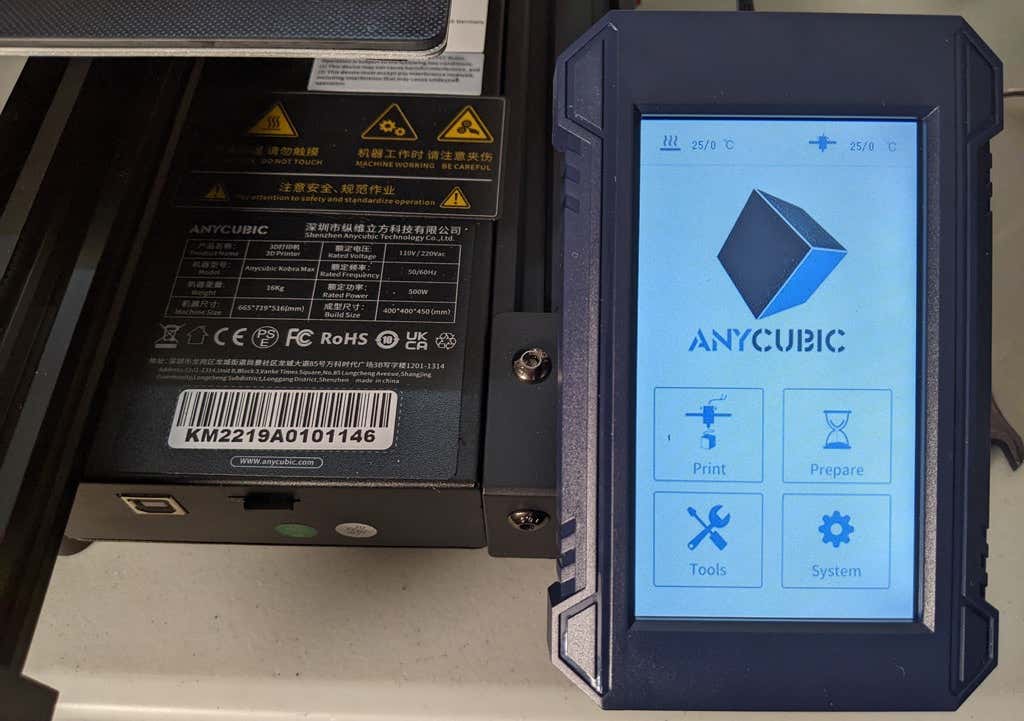
The LCD touchscreen is identical to the screens used on many other Anycubic printers. As usual, it’s responsive and easy to use.
A note about filament types: the Kobra Max will print with PLA, PETG, TPU, and ABS. However, if you really want to print with ABS and get the best possible results, the printer should be inside an enclosure. Given its size, it may be challenging to build a suitable enclosure for the Kobra Max.
Assembling the Kobra Max 3D Printer
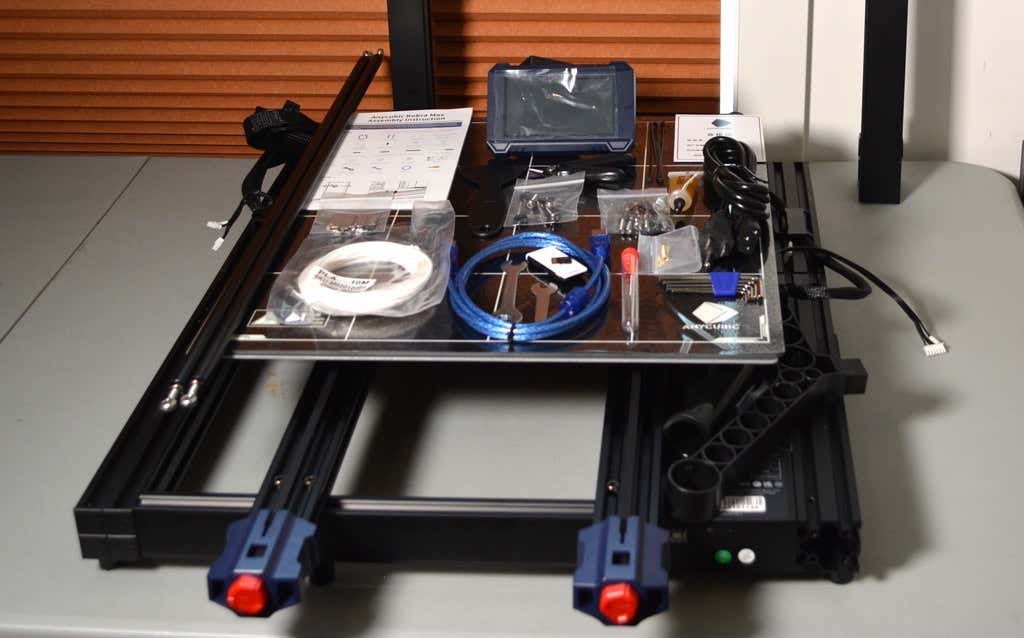
When assembling the new Kobra Max, make sure you have sufficient working space. Since the bed moves forward and backward, you need more space than you’d think. We put it on a 30” folding table, and when it’s printing, it needs about 36 inches, front to back.
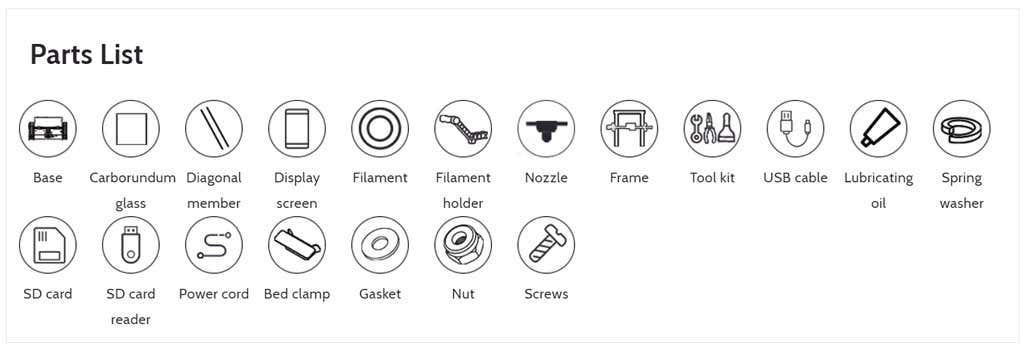
Assembly of the Kobra Max is no more difficult than assembling the Kobra or Vyper. The only additional items are the diagonal braces which add stiffness to the frame, reducing mechanical vibration.
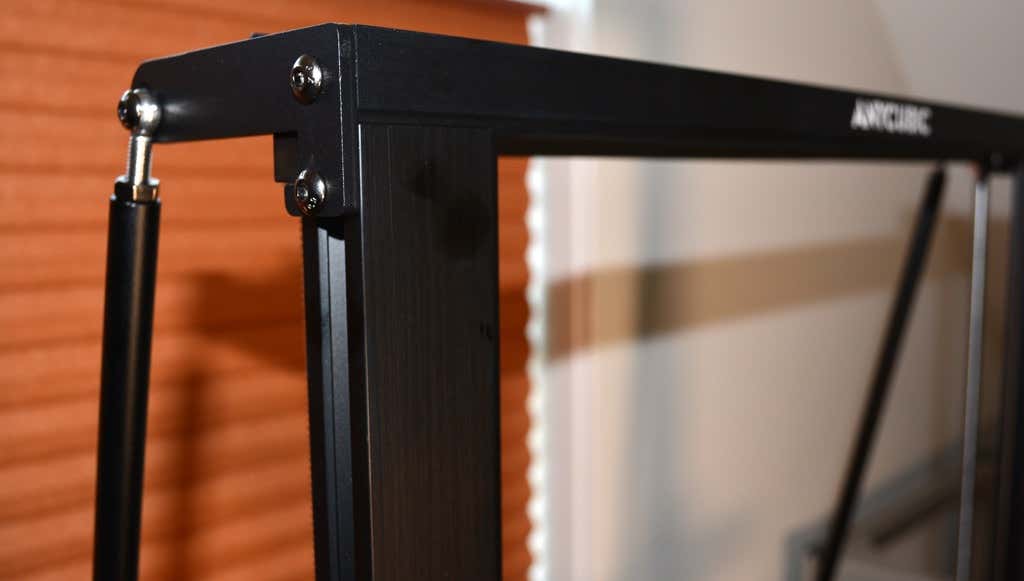
It took two people about 15 minutes to assemble. Double-check that you’ve cut all the zip ties used to stabilize the printer during shipping. There are a lot of them.
Calibration
The auto-bed-leveling system is easy to use. Anycubic recommends that you check the x- and the y-axes to make sure they don’t wobble. If they do, you can adjust the eccentric nuts until the wobbling stops. There was no wobble on our printer, so we didn’t have to do anything.
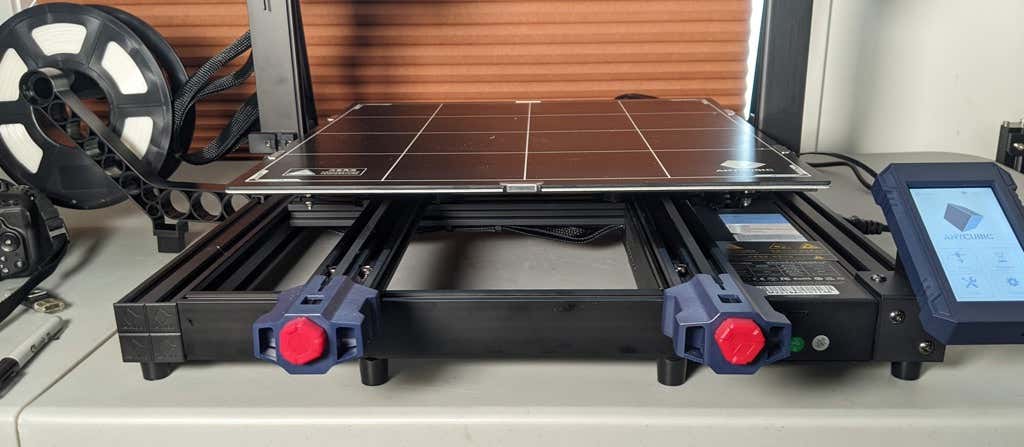
Additionally, the x- and y-axes have belt tensioners. We needed to slightly tighten the x-axis on ours. The tensioners are easy to use and are features a lot of other printers lack. Who wants to take apart the extruder assembly just to tighten the belts? Not us, and probably not you.
Build Quality of the Kobra Max
Due to the addition of the diagonal braces, the frame is really stiff. The dual z-axis screws are an improvement over the smaller Kobra. They virtually eliminated sagging of the x-axis assembly.
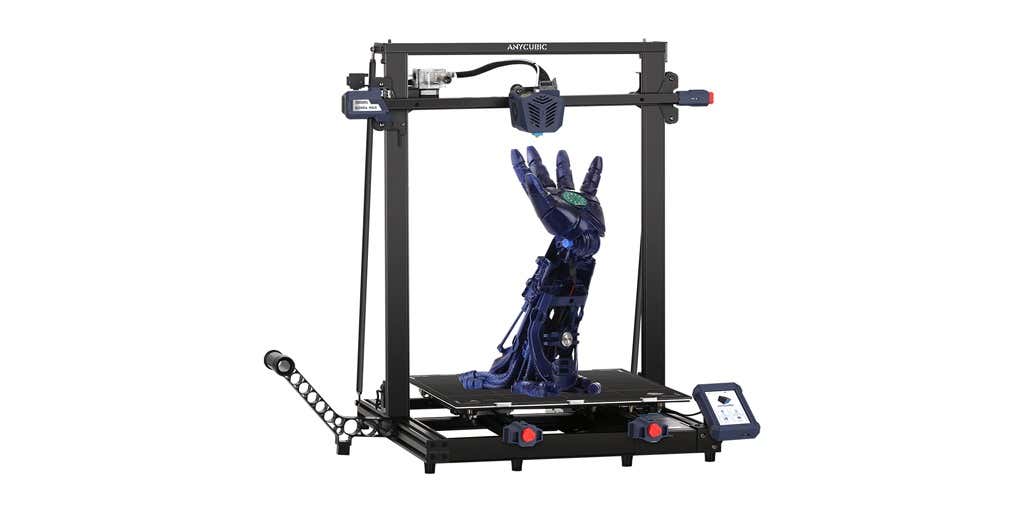
The spool holder sits on the base of the printer, reducing wobbling when printing tall items. It’s better than having the spool on the top like on the Kobra.
This printer is built with aluminum extrusions with aesthetically-pleasing plastic covers for the hotend and the tenionsers. It’s got an optical z endstop. The x and y endstops are mechanical. The whole thing feels solid.
First Print
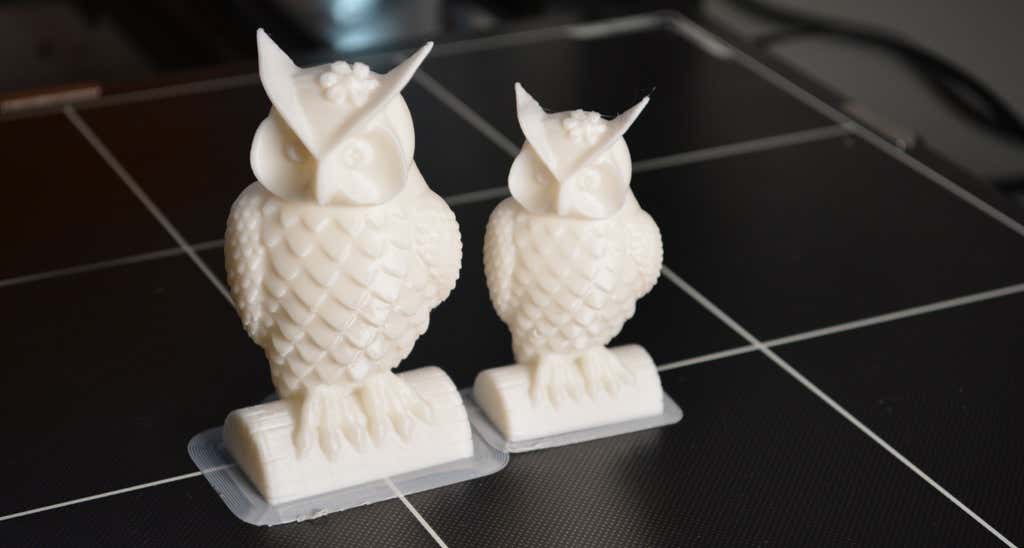
For the first print, we used the test file provided by Anycubic. Appropriately, the owl is about twice the print volume of the owl test print that comes with the smaller Kobra. Given the bowden setup (which makes sense for a printer this size), we were surprised that the ears on the owl turned out so well.
The ears look better than they did on the owl printed on the Kobra which has a direct drive extruder system. We suspect that’s due to the slower print speed. Many times, retractions on bowden extruders will create artifacts, but we didn’t notice any blobs or stringing. It approaches the quality you’d expect from a direct-drive.
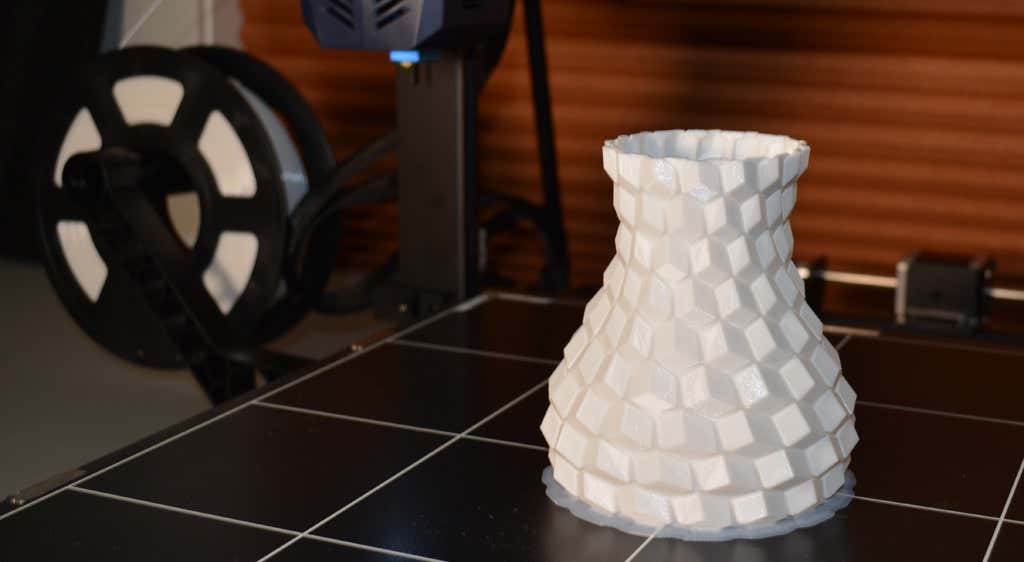
Next, we printed a vase with a large, flat base with a 0.2mm layer height. Removing prints from the glass bed is certainly not as easy as removing prints from smaller, flexible beds, but it’s not a deal-breaker either. We didn’t have any adhesion problems. The prints didn’t release when the glass bed cooled, which is what we expected and hoped for.
Curious what the power requirements would be for a printer this size, we were worried we wouldn’t be able to run multiple printers on the same circuit. We measured the power usage while the Kobra Max was printing, and, as expected, power usage is highest while the printer is warming up. Ours topped out at 473 watts. While printing, it was a more manageable 200-300 watts. We thought it would be more than that. You could probably run three of these printers on a 20 amp circuit.
Cut to the Chase
To drive home just how big the Kobra Max is, we put the Kobra on the bed of the Kobra Max. Insane. (We do not recommend you try this.)
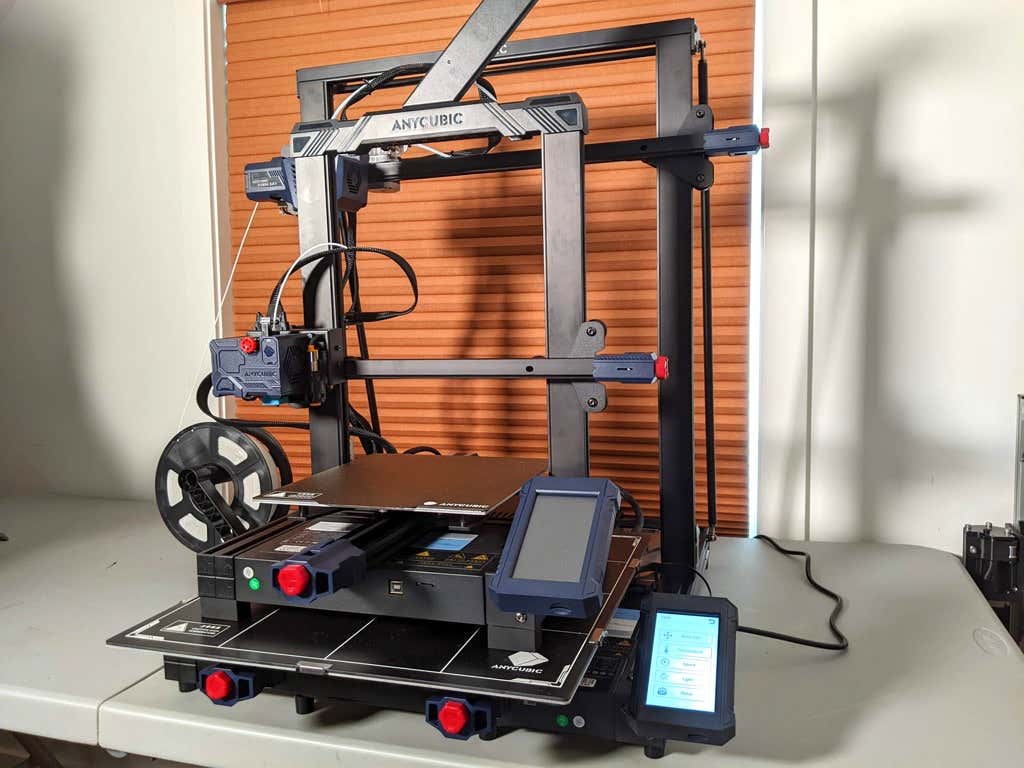
A small printer is limiting, so if you find yourself printing large objects in small pieces and assembling them, consider buying a Kobra Max. If you’re new to 3D printing, keep in mind that it takes a long time to print big objects—potentially days and days. Typically, we’d recommend a smaller printer to beginners, but at the price point of $569.00 if you purchase on the Anycubic site, it’s worth considering as an entry-level printer.
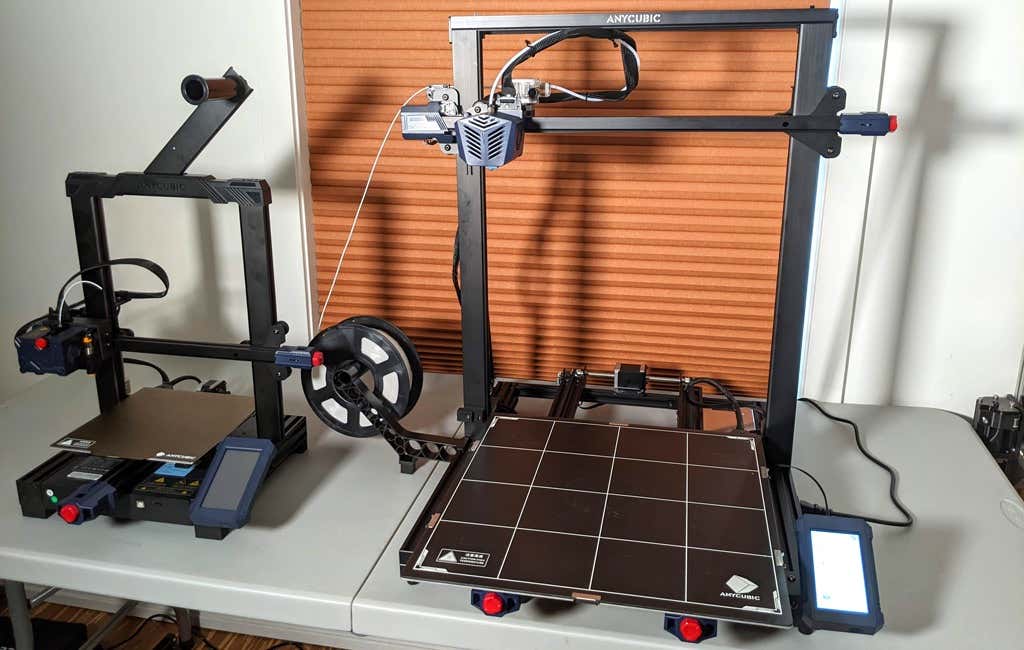
One downside is that smaller prints will take a little longer than they would on a smaller, faster printer. That’s just physics. Bigger printers have more inertia to overcome and take longer to move. For example, the print time for our vase was thirteen hours. On our Prusa MK 2.5 with similar settings, it would have taken about twelve hours—not a huge difference.
*Special thanks to FormerLurker for help in reviewing AnyCubic’s Kobra Max 3D printer.
- WhatGeek x 3inuS Kebohub EE01 Mechanical Keyboard Review
- Mobile Pixels Duex Max Portable Monitor Review
- Trifo Lucy: The AI Robot Vacuum and Mop
- The OBSBOT Tiny 4K: an Impressive Webcam for PC & Mac
- Review of Anycubic’s Kobra 3D Printer
Maggie Marystone is a freelance technology writer, human rights worker, and storyteller based in Chicago. Read Maggie’s Full Bio
