3D printing has become a much more mainstream technology, with printing machines available at just about every price point. Most people who want a 3D printer can probably find a model they can afford. Despite this, 3D printing is still so new that few people know how it works.
This is why now is a good time to answer the question “How does 3D printing work?”. There’s a very good chance you’ll have to use one eventually!
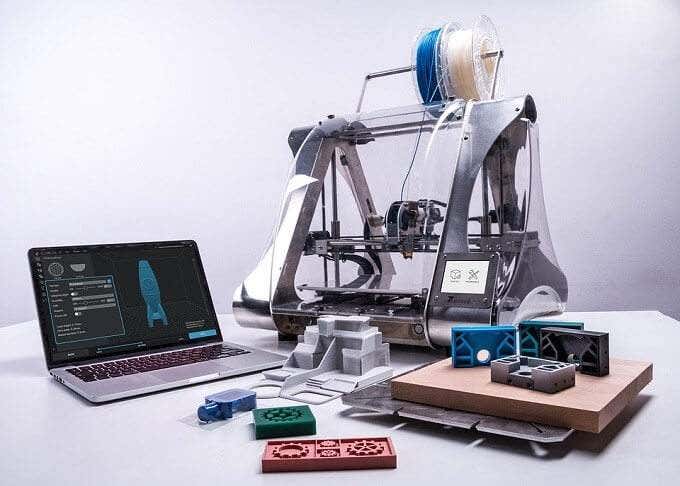
Additive vs Subtractive 3D Printing
There are two broad categories of 3D printing. The 3D printers that you can buy yourself are almost all “additive” machines. In other words, they build 3D objects by adding material (usually in layers) until the object is complete. The 3D printers people think of when they hear “3D printer” is almost always of the additive variety.
Subtractive 3D printing is very different. Here you start with a fixed amount of material and then remove material until only the finished object is left. A sculptor making a statue out of marble is using a subtractive method. Subtractive machines are usually found in large workshops and industrial settings. CNC milling (computer numerical control) systems are probably the best-known example.
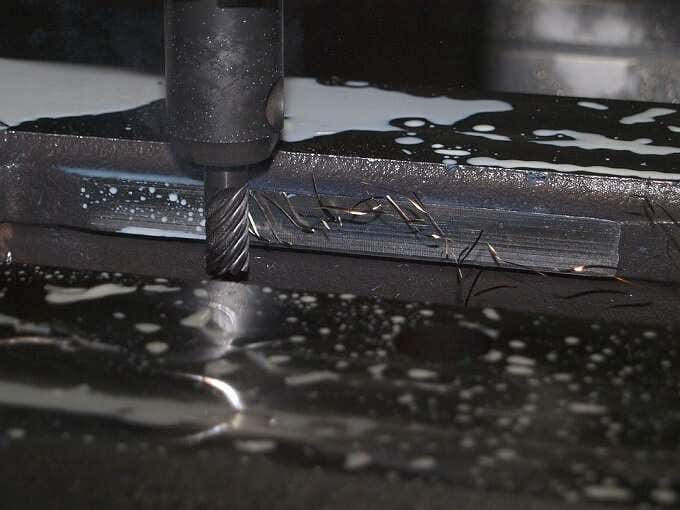
We’ll only be concentrating on additive machines from here on out, since they’re relevant to the average consumer. Just know that subtractive machines belong to the same extended family of 3D printers as the one you might put on a desk.
Fused Deposition Modelling, Stereolithography and Selective Laser Sintering
The three main methods of additive 3D printing are FDM (fused deposition modelling), stereolithography (SLA) and selective laser sintering (SLS).
The da Vinci FDM Printer
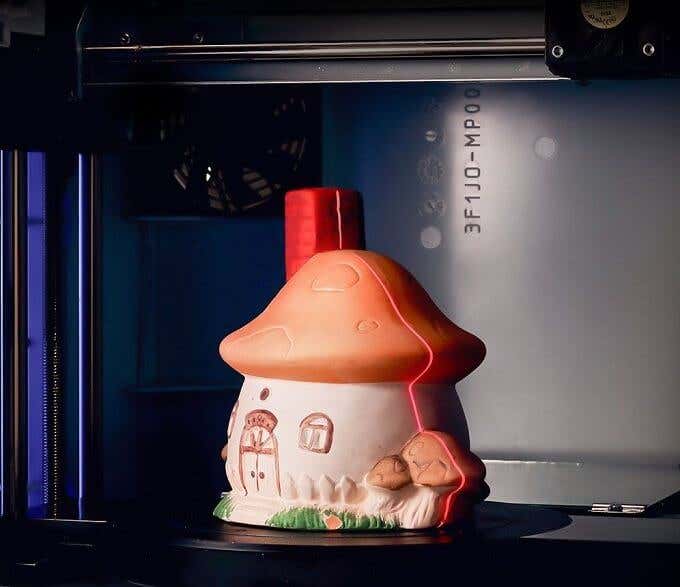
FDM is the most common consumer-grade system. With these types of printers a filament of material is passed through a hot print head. The print head is precisely positioned in 3D-space and deposits a layer of material according to exact programmed instructions. There are different approaches to FDM, but we’ll get to that in a moment.
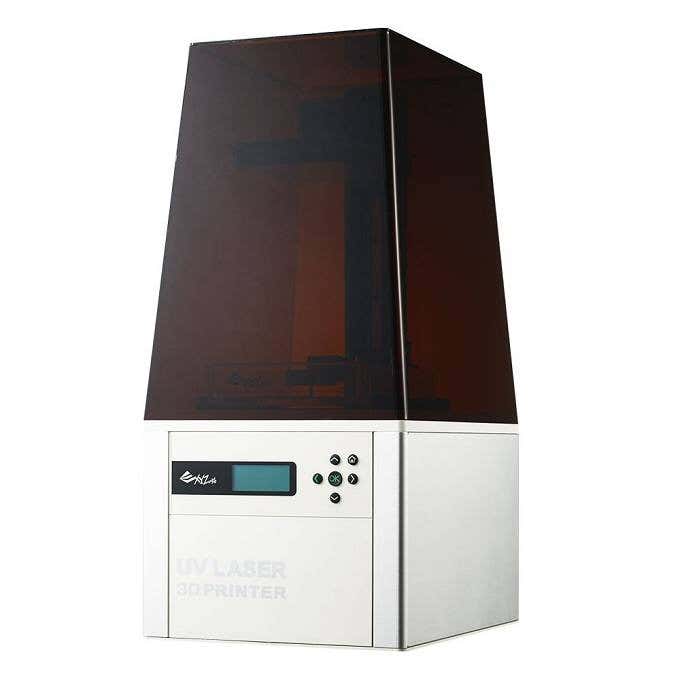
The Nobel SLA Printer
Stereolithography is much less common in consumer systems. These printers use lasers to cure a liquid resin into a solid plastic material. Usually, the object is “pulled” from a vat of resin, forming layer by layer as it rises from the material. In recent years SLA printers have become more compact and affordable. So it’s a real alternative to FDM printers, depending on what type of final model you settle on.
Selective laser sintering (SLS) uses a powerful laser to fuse a polymer powder. The actual powder acts as a support structure for the print, so this type of printing doesn’t need special scaffolding. SLS is not a type of FDM you’ll find on the desktop. It’s still an industrial technology for now.
Cartesian & Delta Robot Printers
A Delta Robot Printer
The most common type of FDM printer is the cartesian 3D printer. The name refers to cartesian coordinates. That’s the XYZ coordinates we all learned in school. The print head can be moved to any XYZ coordinate within the print volume space. The math is simple, the printers are pretty affordable and print quality is precise.
However, depending on how granular the XYZ coordinates are, curved surfaces might not be as smooth as they could be, requiring some manual finishing work.
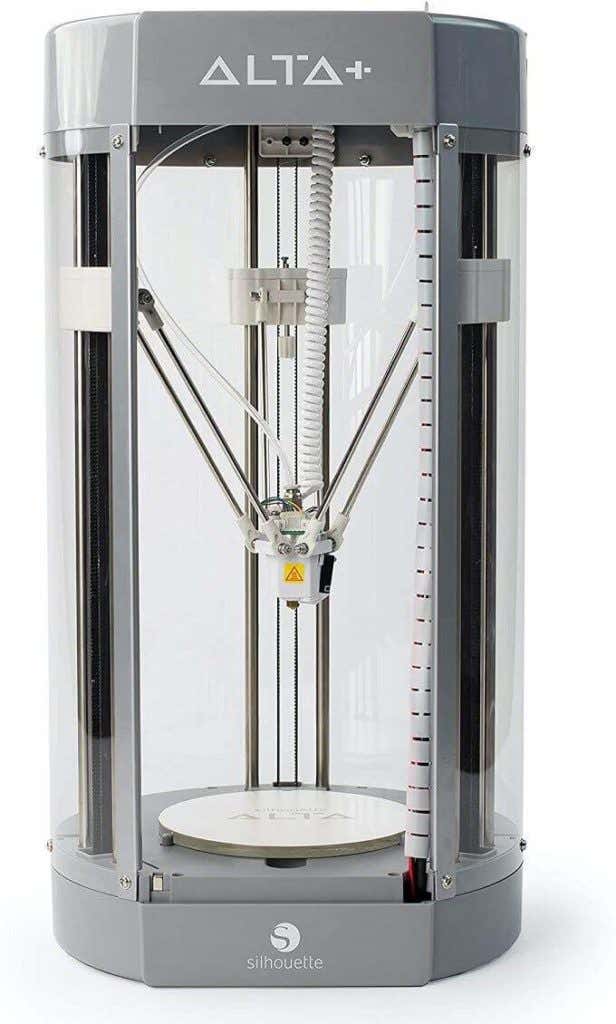
Delta robot printers take a different approach. The print head is mounted to three arms that run on three rails. By varying the height of each arm, the print head can swing. This design allows for the print head to swing in true curves and also allows for tall objects to be printed within the print volume.
Basically, the longer the rails are, the taller the model can be. Rather than XYZ coordinates, delta robot printers use trigonometry to calculate print head position. The end result is that they can’t reach quite the same print resolution as cartesian printers.
To really understand the delta robot concept, you need to see it in action. Have a look at this video by Johann Rocholl and you’ll quickly get the concept.
Notice the articulation on the arms and how freely and smoothly the print head can move.
3D Printer Materials
3D printers use a variety of materials, but there are two plastics that are by far the most common in consumer-grade applications: ABS and PLA.
ABS (Acrylonitrile Butadiene Styrene) is exactly the same plastic that LEGO bricks are made of. This plastic is susceptible to warping when cooling down and needs a printer with a heated print bed. It’s quite impact resistant, but not particularly strong. It’s suitable for making prototype parts and even final parts that aren’t load-bearing.
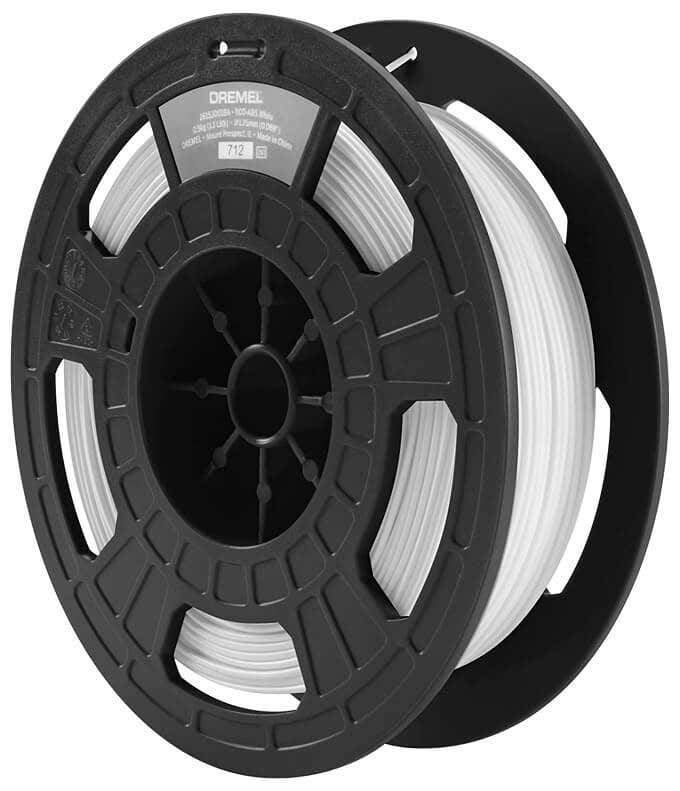
PLA (Polylactic Acid) has a low melting point, doesn’t warp much, is easy to work with and has fewer failed prints. It’s also far too brittle for any practical use, but it is brilliant for creating smooth, detailed models that are only meant to be looked at.
The good news is that most consumer 3D printers will work with both of these inexpensive materials. So you can change them out as your needs require.
Nylon filament is another option and there are even printers that use wood or metal as a material. Next-generation printers can also handle more than one filament at a time, allowing for mixed material or multi-color prints.
The Typical 3D Printing Process
If you’ve never made a 3D print yourself, you’re probably curious about how it actually works from a user perspective. While using a 3D printer isn’t as easy as knocking out 2D prints on a laser or inkjet printer, it’s not nearly as difficult as you might think.
After setting up the printer according to the manual, with calibration and levelling done correctly, you first need a model to print.
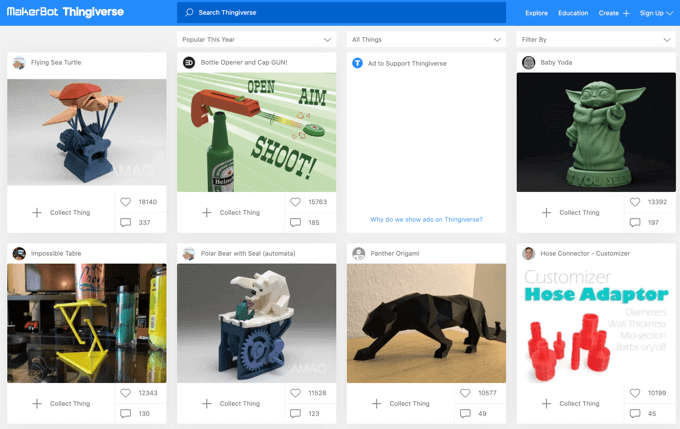
You can make your own model, using something like Zbrush or AutoCAD , but most people are likely to download a model from an online site. The first stop should definitely be Thingiverse , which is quite possibly the most famous collection of user-submitted models. However, there are many alternatives.
After getting a model in a compatible format, you’ll open it up in the software that came with your printer. They all look and work differently, but the basic concept is the same. You may also want to first treat a 3D model with Meshmixer , which ensures that a 3D model is solid and suitable for printing.
In the 3D printer software, you’ll pick the size and quality of the model and the software will convert it into “slices” representing each print layer. It will also calculate the “scaffolding” that has to be printed to support the model while it’s being made. This stuff can be broken off when the print is done.
With all that prep work behind you, the print can begin. Depending on the quality settings, you might be in for a long wait! High quality prints vary from a few hours to a few days. Thankfully, some 3D printers let you monitor the progress of your print remotely via an app.
Once the print is done, you’ll remove it from the bed and then break it free of the scaffolding. In many cases you’ll have to finish the model using sandpaper and special cutting tools to remove imperfections. Some people even paint their models! The only real limit is your creativity.
If you’re itching to buy a 3D printer, these are our best picks and if you’re on a budget, these are more pocket friendly options.
- 10 Troubleshooting Tips for 3D Resin Prints Gone Awry
- How to Access and Change Your WiFi Router Settings (2025 Edition)
- HDMI Cable Types and Specifications Explained
- How to Fix the “Error – Printing” Status Error in Windows
- HP Printer Not Printing Black? 10 Fixes to Try
Sydney Butler is a social scientist and technology fanatic who tries to understand how people and technology coexist. He has two decades of experience as a freelance computer technician and more than a decade as a technologies researcher and instructor. Sydney has been a professional technology writer for more than five years and covers topics such as VR, Gaming, Cyber security and Transhumanism. Read Sydney’s Full Bio
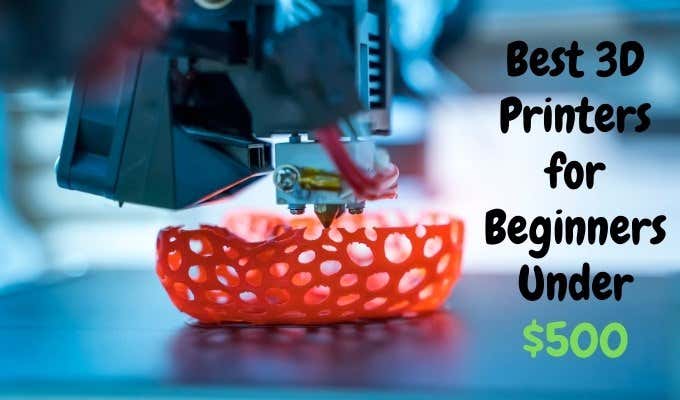
Modern 3D printers are much easier to use than they’ve ever been. They are also much more capable and reliable than early hobbyists and even commercial models. Perhaps most importantly, they are now priced in such a way that anyone who wants one can afford it.
We’ve pulled together a selection of 10 of the best 3D printers under $500. Each one is highly rated by a decent number of real-world customers and has one or two features that set them apart from the hundreds of other 3D printers on the market.
Best For Big Prints:Creality CR-10 V2
The “biggest” problem with affordable 3D printers is that they tend to be too small. Which means if you want to print projects that are larger than an action figure you have to fork out a sizable stack of money for the privilege.
The Creality CR-10 V2 comes in at the upper limit of our budget for this list and offers a very spacious 300x300x400mm build volume. This V2 model boasts a number of upgrades over the original CR-10, not least of which includes better build materials, quieter operation and a print resume function if the build has to stop for some reason.
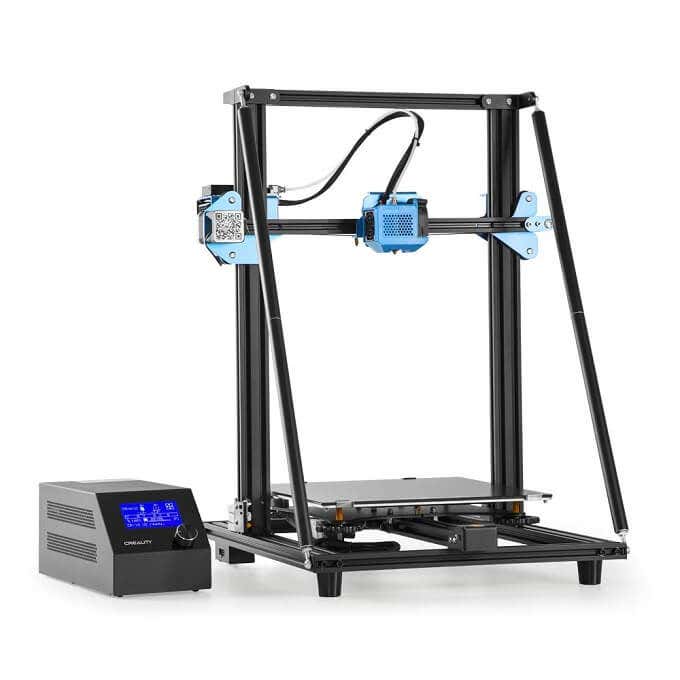
If you want large, quiet and reliable printing at the $500 price point there doesn’t seem to be all that much competition for this newly-refined big-boy printer from Creality.
Budget Dual Material Printing:QIDI TECH X-Pro
Most 3D printers have a single material extruder, which means you can only print your project using one type of filament in a single color. The X-Pro offers a dual-extruder printer at the $500 price point that can print in a variety of materials as well as in two colors at once.
A dual-extruder system like this allows for some truly complex 3D prints. For example, you can print a model that has both hard and flexible materials.This is obviously more complex than single material prints, but having a printer that can print using two independent materials at this price is a big deal.
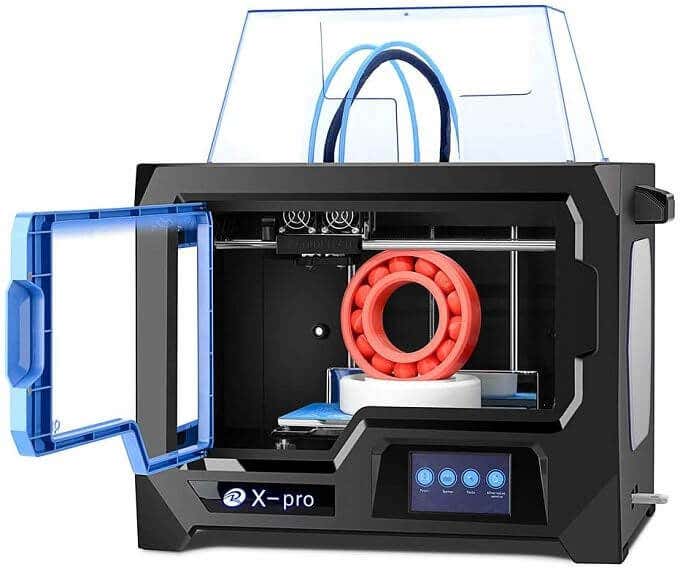
The X-Pro has some smart features. Such as the magnetically attached bed and side panels. It also has a decent build volume and, since it’s enclosed, you should have good temperature stability during your print. If you want to get into multi-material printing, this is the cheapest option we’re aware of.
Fast, Space-efficient Vertical Printer:FLSUN Mini Delta 3D Printer
Most 3D printers on the market, especially in the budget segment, are “cartesian” printers. That is, they use a three-axis print head using XYZ coordinates within the build volume. Delta robot printers such as the FLSUN Mini Delta use a different method of getting the print head to its desired location inside the build volume.
The print head is attached to three arms that run up and down independent vertical rails. By varying the height of each arm, the head can swing freely within the build space.
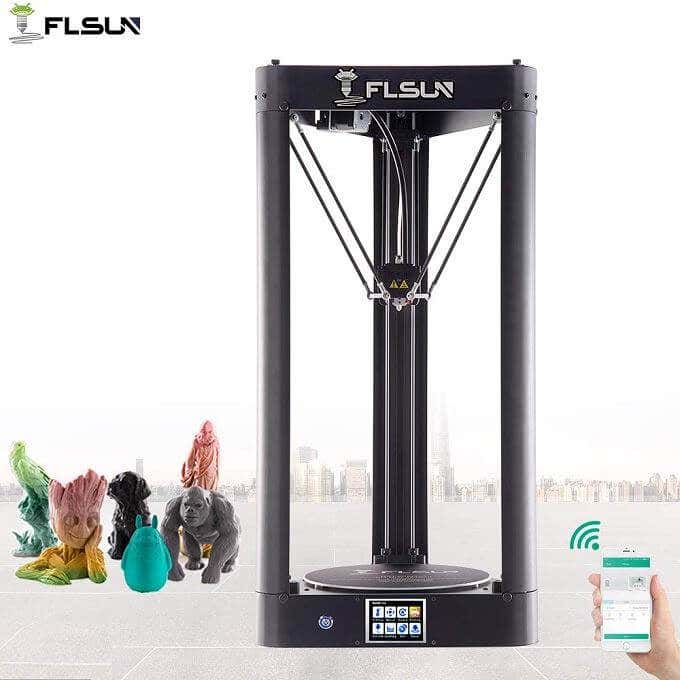
Delta robot printers like this are faster than cartesian printers, can print tall models that would need slicing in cartesian printers and can do a better job of printing curved surfaces. The downside is that they can’t quite reach the same level of resolution and precision as a cartesian equivalent.
The Mini Delta comes in at a fantastic price, has a small footprint compared to its total build volume and offers a stylish all-metal design. If you need the specific advantages of the delta robot design, this is a good budget entry.
Best Budget High-resolution Resin Printer:LONGER Orange 30
It wasn’t too long ago that resin printing was reserved for multi-million dollar engineering facilities. Now resin printers have firmly entered the consumer space and this Orange 30 is one of the best affordable models we’ve seen.
The precision and finely detailed prints that are possible with the Orange 30 are incredible. It uses a 2560×1440 LCD screen to mask each of the print layers, allowing for complex structures and stunning prints. It also uses a matrix of UV LEDs for curing, ensuring uniform levels of UV light across the LCD screen.
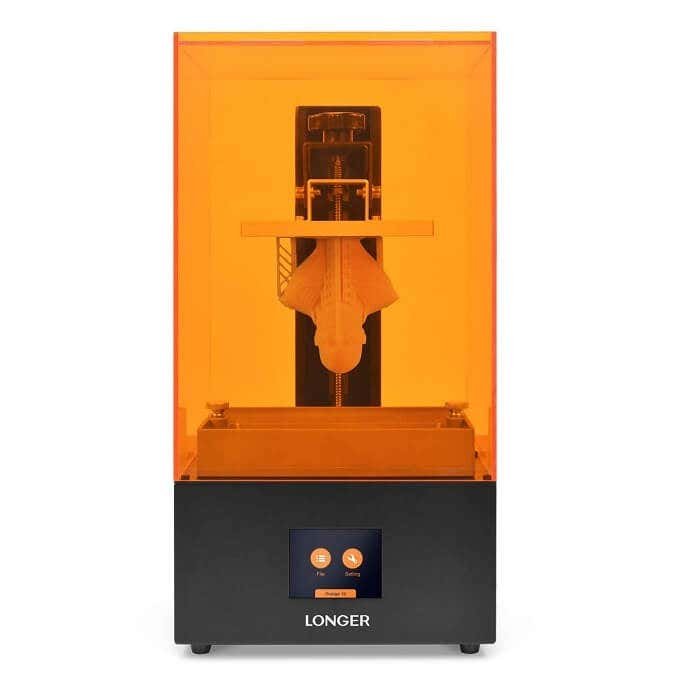
This LCD-based SLA (stereolithography) is a new approach to the traditional industrial rapid prototyping method that’s been in use for decades. It’s a smart way to use existing consumer technology to achieve something new. If you don’t want to build structural models and care mainly about aesthetics, this has got to be near the top of your list.
The Best Beginner’s Printer:FlashForge Finder
The first 3D printers that you could buy for home use were not meant for the casual user. They needed significant assembly, setup and maintenance. We’ve had to build our fair share of 3D printers over the years and this is a key reason they’ve not been mainstream for such a long time.
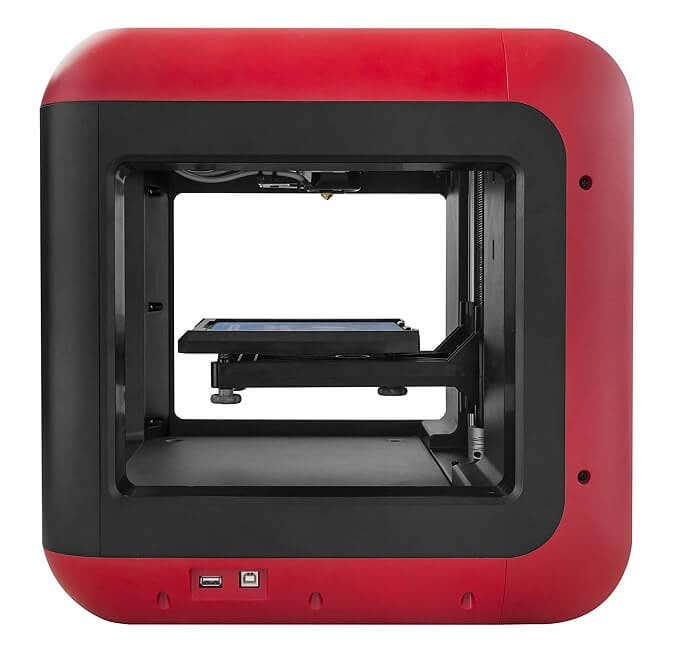
The FlashForge Finder offers a simple, user-friendly printer experience. It’s also designed to be safe to use, with rounded corners and liberal use of plastic where needed. Operation of the printer happens through a color touch screen with a friendly graphical interface. It’s quiet, has assisted leveling and works with WiFi, so you can put it anywhere. It’s pretty much the perfect entry-level 3D printer.
A Fast Budget Resin Printer:PHROZEN Sonic Mini
The Phrozen Sonic Mini uses the same LCD curing system as the Longer Orange 30, but comes in at a significantly lower price. The biggest trade off is a reduction in print resolution, but the Sonic Mini can still achieve fine detail better than any extrusion printer at this price range.
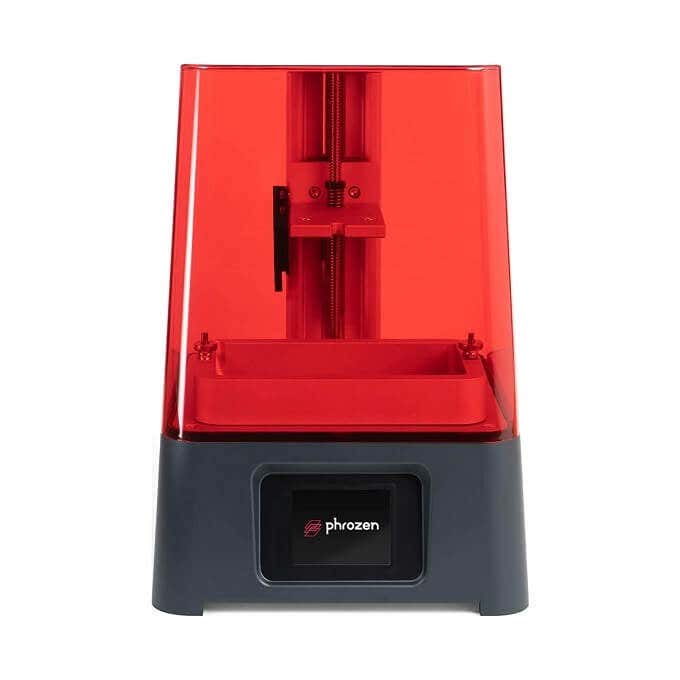
One very cool feature of the Sonic Mini is its wide resin compatibility. You don’t have to stick to first party resin or even LCD resin. This printer will even work with DLP projector printer resins! PHROZEN rates the lifespan of their LCD at 2000 hours, so you’re also likely to get years of service from this entry-level machine unless you decide to upgrade for other reasons.
The Best All-rounder For Everyone:Comgrow Creality Ender 3 Pro
The Creality Ender 3 is the very definition of “good enough” when it comes to 3D printers. It’s an open design machine that has all the most important features an extrusion-type Cartesian printer should have.
It’s an Open Source machine, which means those who like to tinker and customize can really get into the software guts of the machine, or benefit from community mods. While it is semi-assembled to cut down costs, it seems assembly is so easy that they recommend it as a project for children.
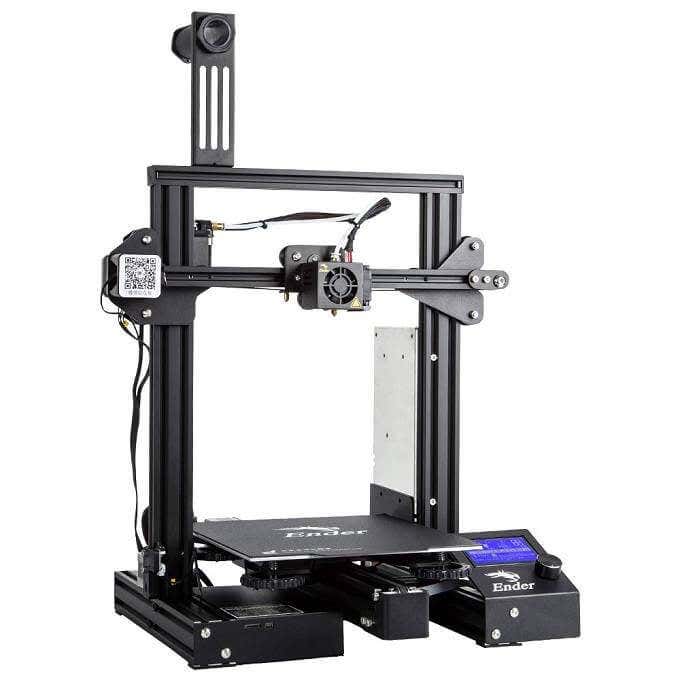
The build volume is more than decent and you get traditionally premium features such as print resuming at a great price. If you’re curious about 3D printing and want a good first experience with a fundamentally solid machine, the Ender 3 looks like the one for the job.
Best For Hobbyists With Small Budgets:JGMAKER Magic
This sub-$200 3D printer from JG Maker straddles the line between a basic hobby-grade dabbling printer and more serious machinery. It’s got an open bed design and a decent build volume, so you should be in a position to print most useful items and not just small curiosities. Most importantly it has a filament runout sensor and allows you to resume printing. Fantastic features at the price!
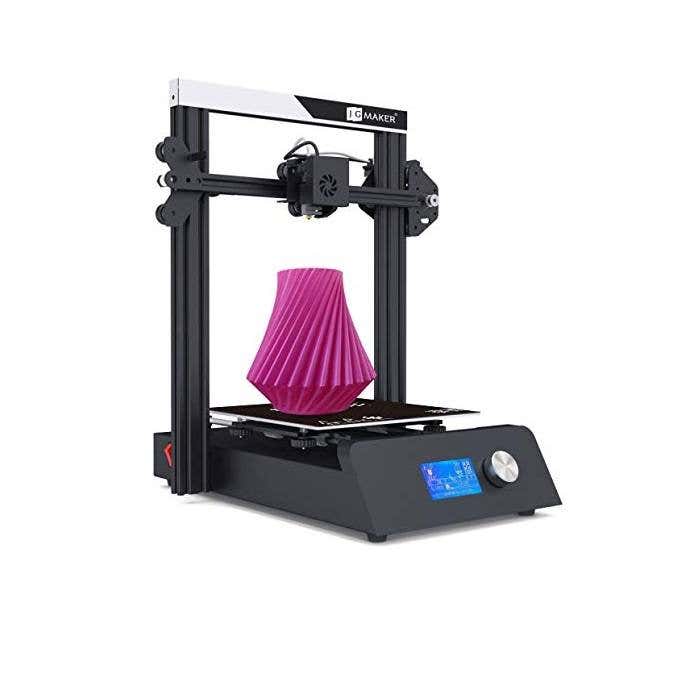
You can print models from an SD card as well, which means your printer and your computer don’t have to be anywhere near each other. WiFi would have been a nice feature, but having a sneakernet solution is better than being forced to tether the machine to a PC.
Adding $100 to your budget will see good gains in performance, build volume, noise level and the overall experience. If that’s just too rich for your blood then the Magic is an excellent choice.
Best Educational Printer:Creality Cr-100 Mini 3D Printer
Available in a kid-friendly red or yellow truck design, the CR-100 Mini is priced for the classroom or the bedroom of any precocious young engineer. This printer doesn’t require any assembly, it has automatic bed-leveling and sports a rather tiny build volume. Not a printer you could really make practical items with, but perfect for making toy models and teaching the little ones about the technology they’ll almost certainly have to use as adults.
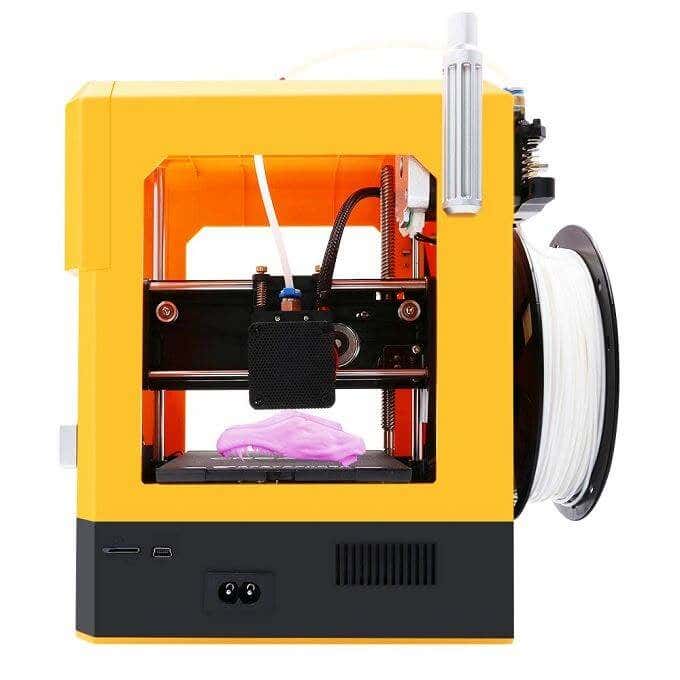
It’s small enough to lock away from unsupervised hands and cheap enough to enable bulk purchases by schools.
Most Affordable LCD Resin Printer:QIDI TECH Shadow 5.5 S
The Shadow doesn’t need much explanation. It’s a high-resolution machine with a small build volume. It’s perfect for anyone who wants to make detailed figures and other models or prototypes that aren’t meant to be load-bearing or durable.
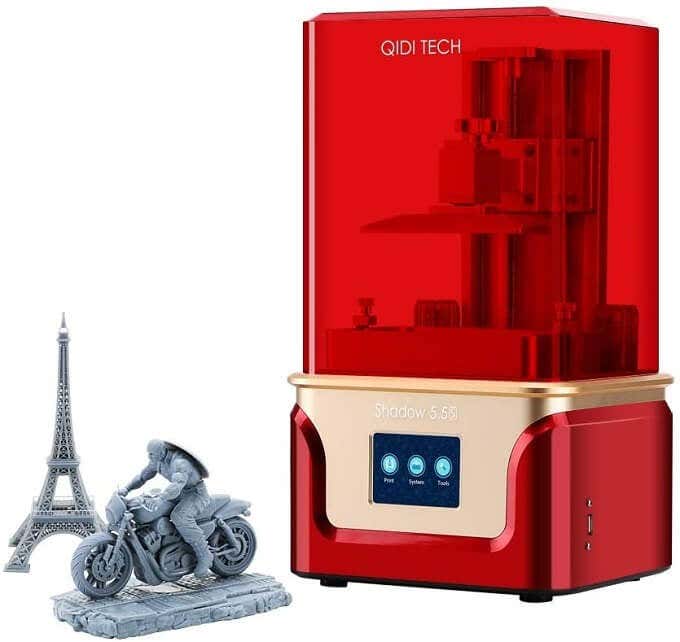
For this price it’s in impulse-buy territory but it will outperform most extruder-type printers at many times the price. If you’re looking to take your Dungeons & Dragons hobby to the next level, this is absolutely the best deal you’re going to get!
Real-world Replicators?
While we’re not quite there yet when it comes to real-world replicators like the ones you’ve seen in Star Trek, it’s still mind-boggling that you can buy what amounts to a desktop production facility from these best 3D printers for well under $500.
Whether you just want to play with the technology or have practical applications for your new 3D printer, there’s no doubt that this is one of the coolest gadgets to own today.
- The Best Free AI Courses to Boost Your Skills
- 6 Best Procreate Alternatives for Windows PC
- 5 Best Podcast Apps for Windows
- Best 10 Free PDF Editors for Windows
- 5 Best Audiobook Players for Windows
Sydney Butler is a social scientist and technology fanatic who tries to understand how people and technology coexist. He has two decades of experience as a freelance computer technician and more than a decade as a technologies researcher and instructor. Sydney has been a professional technology writer for more than five years and covers topics such as VR, Gaming, Cyber security and Transhumanism. Read Sydney’s Full Bio
In the last few years, 3D printers have finally become widely available for the masses. They’re no longer tools just for professionals and businesses. You can even find great 3D printers for under $500 including SLA printers. So getting a 3D resin printer isn’t difficult, but creating a professional-looking print can still be challenging.
Resin printers like the AnyCubic Photon Mono X 6K are ideal if you’re a beginner who wants to quickly get started with 3D printing or an artist looking to create detailed art pieces. That said, 3D SLA prints can go wrong just like FDM prints, so let’s explore the most common problems and fix them through some basic 3D printing troubleshooting.
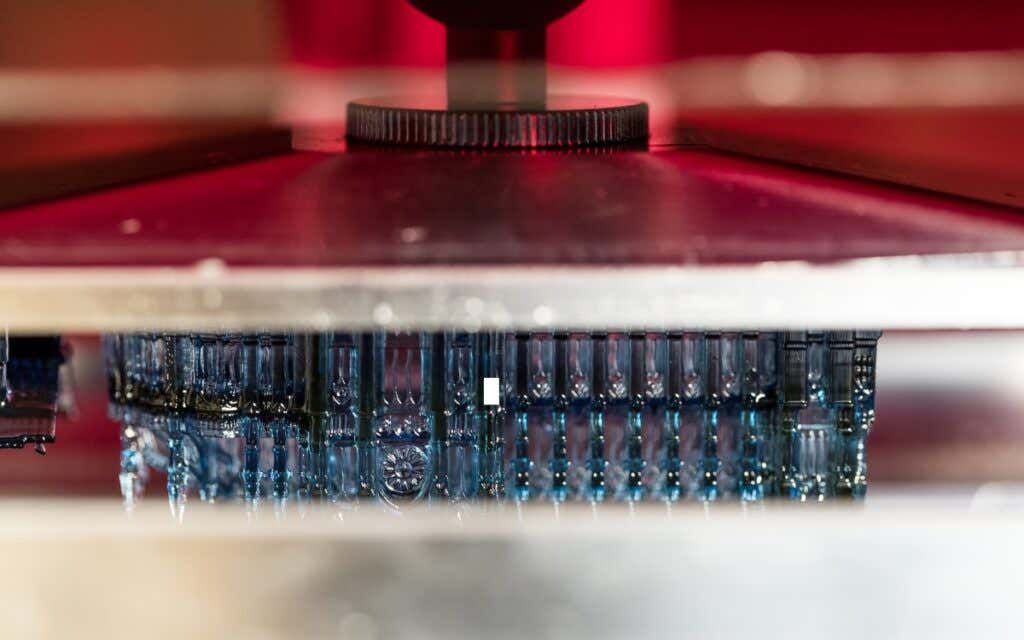
1. Use Clean Resin
You can prevent a lot of 3D printing issues and failed prints by making sure you use a high-quality, clean type of resin without any residue contaminating it. Always check your resin before starting a new project.
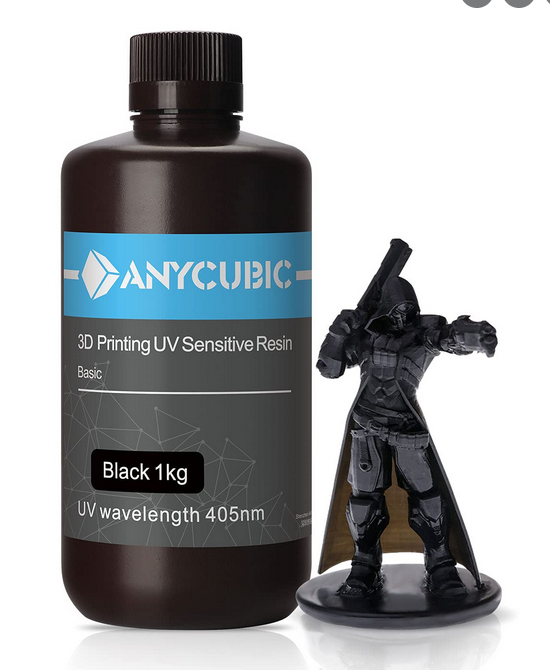
You might find cured resin particles inside the bottle, especially if you buy large quantities. Solid residues can prevent the printer from working properly and your print might go awry halfway through the process. Also, you can contaminate the resin accidentally with alcohol or other liquids if you leave the bottle open. Inspect the resin and keep a well-ordered working environment.
2. Check the Ambient Temperature
You might ignore the ambient temperature in your home, garage, or workshop simply because you’re used to it. However, it can impact how well the resin sets. This is particularly a problem if you live in a colder environment because most resins require an ambient temperature of between 22℃ and 25℃ and preferably even higher. Check the manufacturer’s recommendation and heat your workspace or move the printer to a warmer part of your house.
Before getting started, you should also let the resin reach room temperature. If you just received a new batch of resin, it’s probably colder or warmer than the temperature in your workspace. Let it sit for a few hours. You want a stable temperature during the printing and curing process.
3. Keep the LCD Screen Clean
One of the most common reasons for failed 3D prints is a dirty LCD screen. Any type of residue on the screen can prevent your printer from working properly or cause print deformations. Your printer’s UV light has to go through the screen without anything blocking its path otherwise you’ll get gaps in your model and other defects.
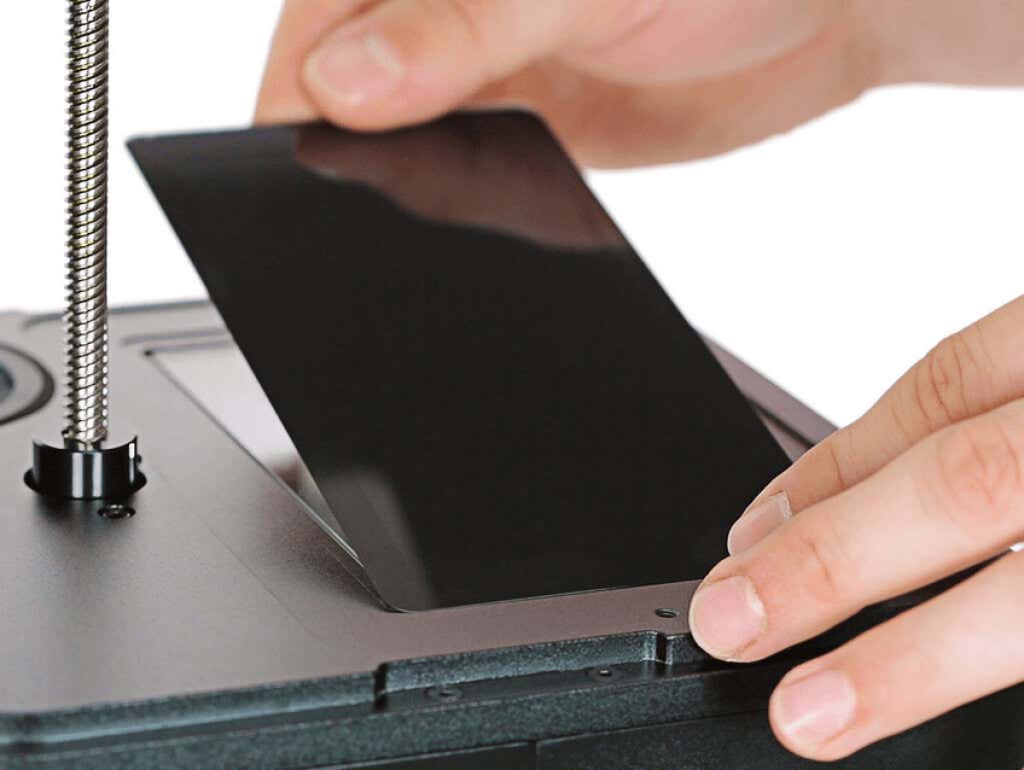
The most common residue you’ll have to deal with is cured resin because things rarely go perfectly in 3D printing. To clean it off, use a plastic scraper. You can also use a sharp razor blade, but please use it carefully and gently or you might damage the screen. Most of the residue should come off easily. If the screen is still somewhat dirty afterward, wipe it with a microfiber cloth and isopropyl alcohol.
4. Don’t Print So Fast
A common cause of ruined 3D resin prints is a high printing speed. 3D resin printing usually involves the use of a UV light that hits the resin to harden it. The resin needs to be hit by the correct amount of light or you won’t get any results. Printing too quickly means your print is underexposed, or in other words, the resin doesn’t get enough UV light. As a result, your printer won’t print anything and if it does, you’ll have a frail model that breaks easily.
Go into the slicer software and adjust the print settings, especially the printing speed. Slow the printing down in small increments and try again. Also, remember to check the resin and the temperature first.
5. Print Diagonally at 45 Degrees
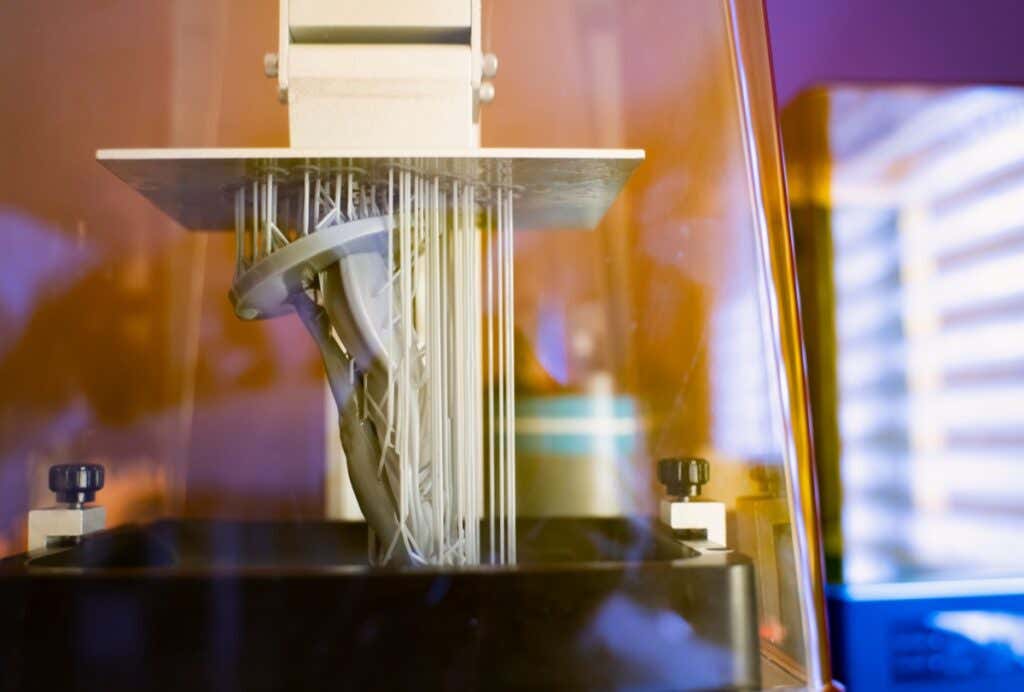
The unwritten rule of 3D resin printing is to print your model oriented at 45 degrees. Why? Printing at an angle results in fewer failures and better print quality, especially when a lot of support structures are needed due to a large print model.
6. Don’t Overload the Print Bed
Printing can take a lot of time, so you probably decided at some point to fill the build plate with as many models as possible. After all, why not save time and money by printing everything at once? Well, you might end up with nothing but a print failure and waste a lot of resin.
If you’re a beginner and make a mistake, all of the models on the print bed can go awry. Depending on the model, your 3D resin printer might not even operate well with an overloaded build plate. So stick to printing one 3D model at a time, or a couple at most, and remember to keep them at a 45-degree angle to increase your chances of success and the print quality.
7. Check the FEP Film and Replace It
The FEP film is a special foil used to create an optimal path for the UV light source to cure the resin. It’s a vital component of the printing process. If your prints are suddenly turning into failures, you need to check the film. It’s often overlooked, especially by beginners.

After a certain amount of printing, the FEP film will warp or suffer some kind of damage. When you spot such signs of wear and tear, it’s time to replace it. Small scratches won’t affect the quality of your print, and if you spot smudges you can ignore them or wipe them with a paper towel and isopropyl alcohol.
8. Recalibrate the Build Plate
If your print turns out bad at the first layer, the lower layers, or it completely fails halfway, the build plate might be slightly inclined. You need to level it and repeat this operation whenever necessary as part of your printer’s maintenance routine. Whether you’re using a resin 3D printer or FDM printer, calibration is key to avoid most 3D printing problems.
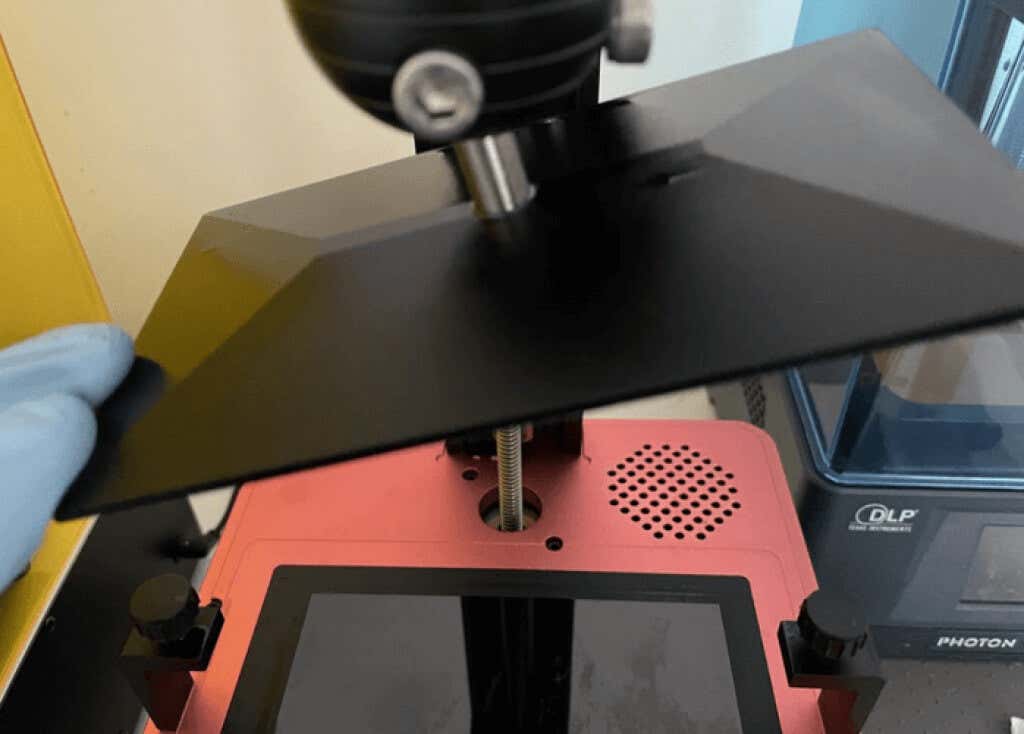
Depending on the quality of your printer, it might require recalibration more often than others. That said, all 3D printers need some calibration every now and then. Check the manual for your 3D resin printer on how to level the print surface and bring it back to its optimal position.
9. Dealing with Delamination
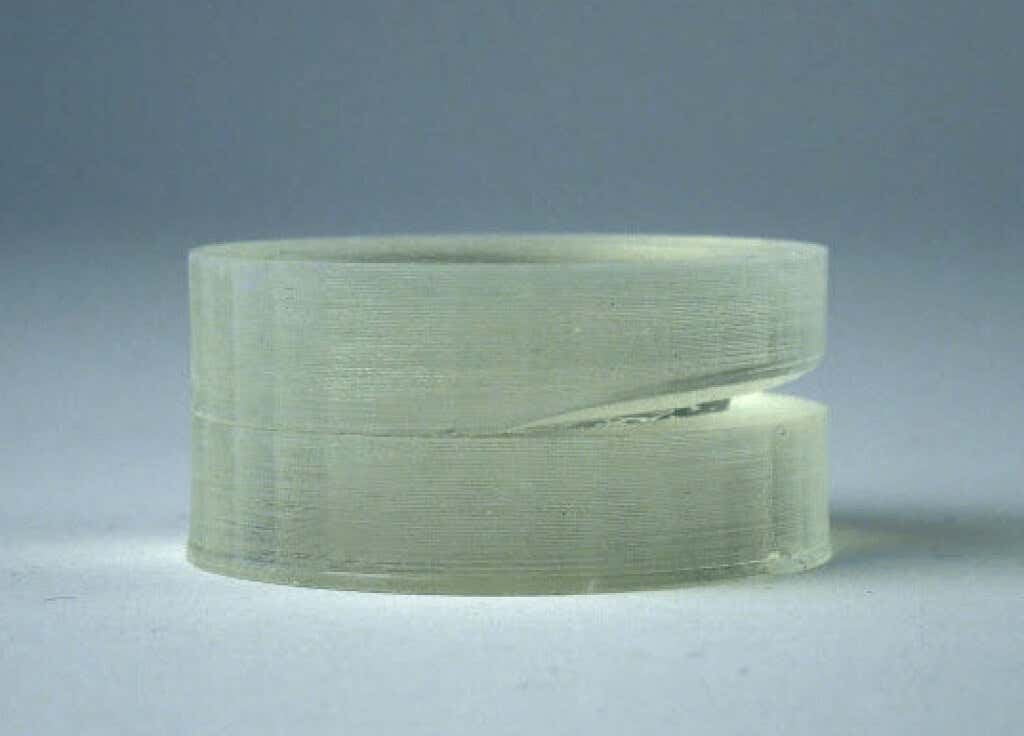
Filament prints aren’t the only ones that can end up looking deformed. For example, the layers of resin needed to build models might not bond well and they shift in separate ways looking as if they’re pulling apart from each other. This layer separation is known as delamination and it will definitely ruin the looks of your print because it’s too obvious not to notice. Fortunately, you have 2 solutions.
Generate More Support Structures
Many things can go wrong with a resin print if it’s not properly supported. So make sure you have enough supports to hold the parts of your model that are at a drastic angle. Also, remember to orient your model diagonally at 45 degrees to increase the resilience of your supports and the quality of the print.
Look for Obstructions
Layer separation also occurs when something is blocking the UV laser’s path. First, you need to make sure the resin itself is clean, without any debris blocking or interfering with the light. You can use a filter to remove any solidified resin if you noticed any. Afterward, look at the FEP film and the LCD screen for any markings, imperfections, or debris. Clean all contaminants and replace the film if it’s damaged.
10. Dealing with Ragging
Ragging is another 3D print deformation problem that turns your model into an ugly mess full of blobs. Oozing-like shelves that look like thin flaps stem horizontally from your print. These thin structures are often partially cured and break away inside the resin vat, thus obstructing the UV laser and ruining the print beyond salvage. Here’s how to troubleshoot this problem.
Check the Resin
Is the resin expired? Are you using too-cheap-to-be-true resin from shady sources? Depending on the resin, it has a limited lifetime that can range from 1 to 2 years. Expired resin isn’t reliable and will react differently to the UV laser, ambient temperature, and other variables. Improper storage can also degrade the resin.

In either case, print deformation like ragging is a common result of bad resin so make sure you inspect it.
Look for Obstructions
Same as with delamination, an obstructed laser can be the cause of the ragging problem. Check the resin vat for debris. Clean the print bed thoroughly with a plastic scraper. Remove the resin from the tank and filter it in case there’s any cured resin inside it. Also, inspect the FEP film and clean all optical surfaces.
Reduce the Number of Supports
Too many supports can be a bad thing and ruin your print. Ragging is a symptom of high support density, so check the settings in the slicer software to reduce the number of supports. Make your supports more effective by also reorienting your model. As mentioned earlier, a 45-degree angle will reduce the number of supports you need.
- HDG Explains : How Does 3D Printing Work?
- How to Fix the “Error – Printing” Status Error in Windows
- HP Printer Not Printing Black? 10 Fixes to Try
- How to Fix Missing or Failed Printhead Error on HP Printers
- How to Add a Printer to Your Chromebook
Nicolae is a Jack of all trades technology writer with a focus on hardware, programming languages, and AI image-processing software. Over the last five years, he has ghostwritten numerous tech how-to guides and books on a variety of topics ranging from Linux to C# programming and game development. Nicolae loves everything that has to do with technology and his goal is to share his knowledge and experience with others. Read Nicolae’s Full Bio
As a Windows user, a non-working printer could be a simple fix or a time-consuming disaster. If you see the “Error – Printing” status error on Windows, you won’t have much to go on to try and troubleshoot the problem, which can be frustrating and inconvenient to resolve.
Several factors might cause the “Error – Printing” status error, but, in most cases, simple troubleshooting steps like restarting your printer or checking your printer connections may do the trick. To fix the “Error – Printing” status error on Windows, follow the steps below.
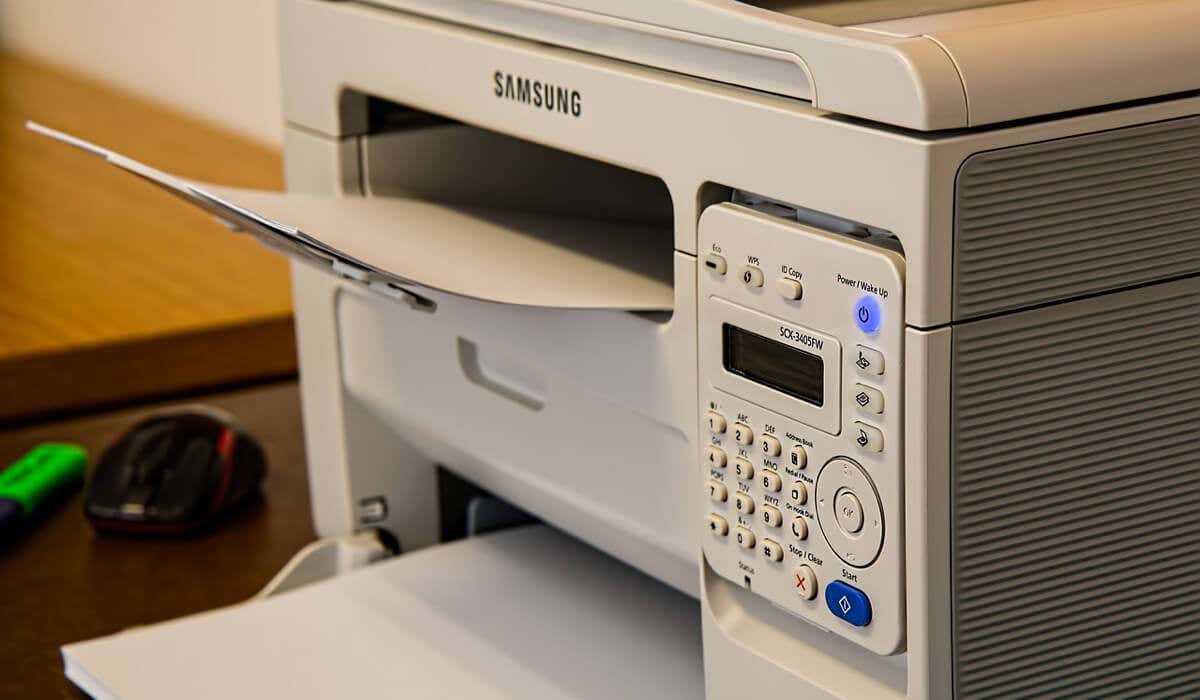
Understanding the “Error – Printing” Status Error on Windows
The “Error – Printing” status is a simple, catch-all error code that appears when your Windows PC can’t successfully print . It can be caused by several factors, such as missing paper, outdated or corrupted printer drivers, incorrect printer settings, or issues with the Print Spooler service on your Windows PC.
It can appear in a few different ways, such as “Error – Printing,” “Printer in error state,” or “Print Spooler service not running.” The message may differ, but the result is the same—your printer can’t process or complete the print job.
If you see this error, try some of the troubleshooting fixes below.
Restart Printer and PC
First, restart your devices to see if this resolves the problem.
It’s a good idea to turn off your printer and disconnect its power cord. Next, shut down your PC and unplug its power cable as well. Wait for at least 30 seconds before plugging everything back in.
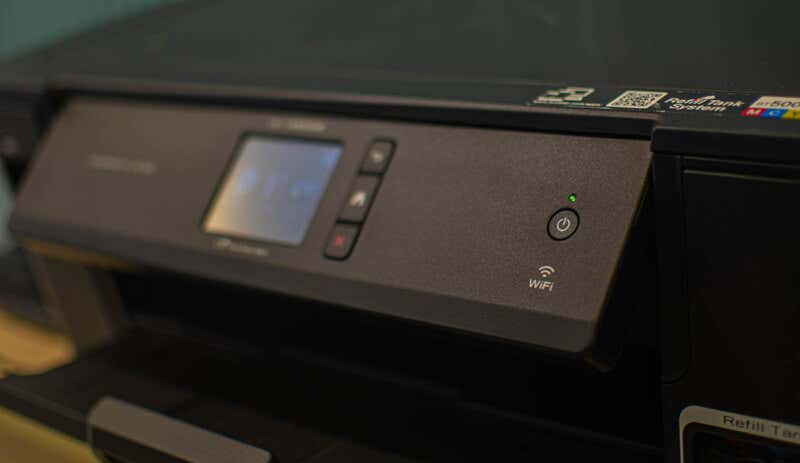
After the waiting period, reconnect the printer and PC’s power cords. Turn on your printer first, ensuring it’s up and running. Next, turn on your PC. Finally, try printing a test page to see if the “Error – Printing” status error has been resolved.
This restart process might seem obvious, but a clear shutdown and restart can often resolve minor (and unexpected) issues.
Check Printer Hardware and Connection
Printer still not working? It’s a good idea to look more closely at your printer hardware and its connection with your PC.
First, verify that your printer is turned on. Look for an LED or display indicating power, and ensure it’s connected to an electrical outlet. If you have a wired printer, inspect the USB cable connecting the printer to your PC. Make sure it’s properly secured at both ends.
If the USB connection isn’t recognized, try a different USB port or a new cable. Likewise, if the printer is connected over a network, ensure the ethernet cable is connected and the connection is active.
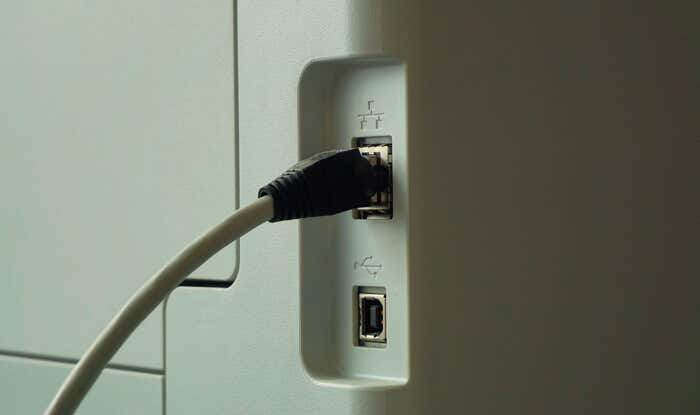
For wireless printers, double-check your Wi-Fi connection. Ensure that your printer connects to the same network as your PC. Most printers have a display or indicator light to show a successful wireless connection. If your wireless printer isn’t connecting , consult your printer’s manual for specific steps to connect to Wi-Fi.
Also, check your printer for issues such as low paper or ink. Without paper or ink, you can’t print, so replenishing the paper or ink should resolve the issue.
Clear Paper Jams
A paper jam may be causing the “Error – Printing” status message on your PC. If your printer can’t push through paper, it can’t continue the printing process.
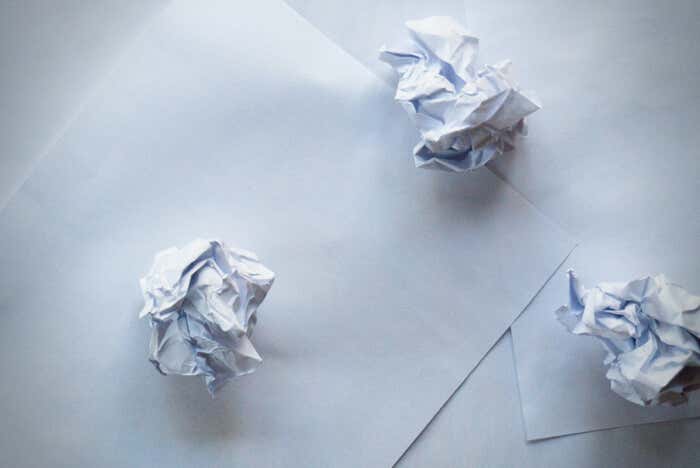
To resolve this issue, you’ll need to clear any jams from your printer. Depending on your device, this might be difficult to do, so you may need to consult your manual first.
Start by checking the areas where paper enters and exits the printer, then remove any jammed paper. If your printer has an automatic document feeder, open the ADF cover (Automatic Document Feeder) and remove any jammed paper.
Restart Print Spooler Service and Clear Print Queue
After clearing a printer jam, it’s also a good idea to clear your print queue and restart the Print Spooler service (which your printer needs to be able to print). It’s a good idea to do this if your print queue won’t clear after an error occurs during printing.
You can also do this at any point to try and resolve printer errors like the “Error – Printing” message.
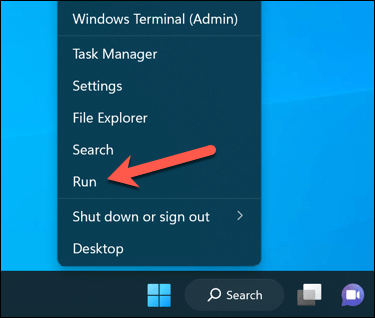
- To begin, right-click the Start menu, select Run, or press the Windows Key + R to open the Run command box.
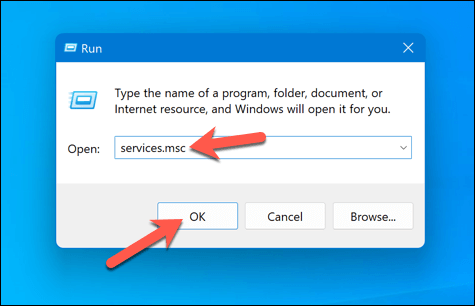
- In Run , type services.msc and press OK .
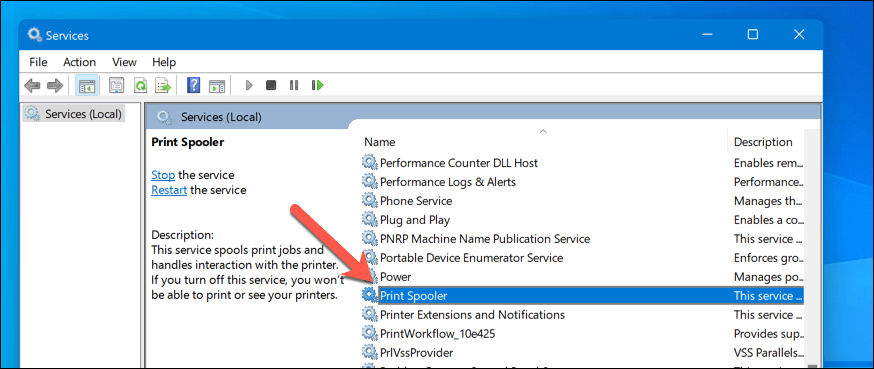
- In the Services window, look for the Printer Spooler service and double-click it.
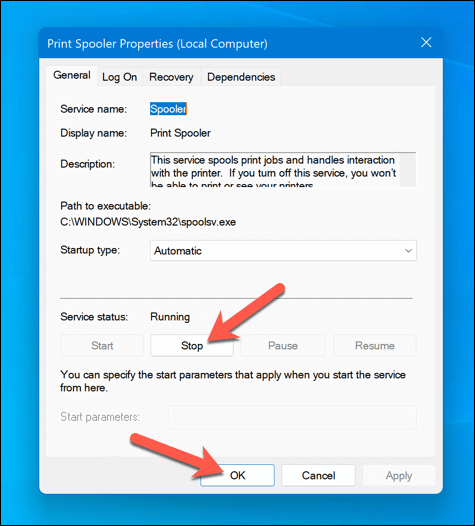
- Press Stop and OK . This will stop the print spooler service, allowing you to clear any leftover print jobs.
- Next, open File Explorer and navigate to the C:\Windows\System32\spool\PRINTERS folder using the address bar. Delete all files in this folder to completely clear the print queue.
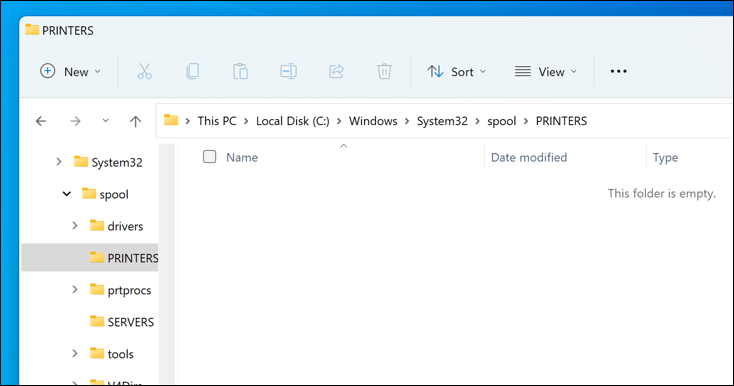
- Return to the Printer Spooler service in the Services window and click Start to restart the spooler.
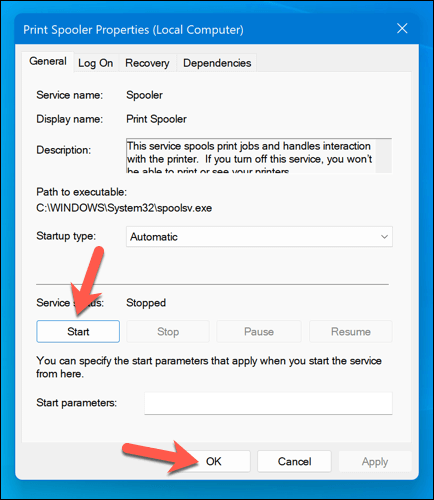
With the paper jams cleared and the print queue emptied, your printer should now return to a ready state, and you can resume printing your documents without any errors.
Update or Reinstall Printer Drivers and Software
Outdated driver software can sometimes lead to the “Error – Printing” status error in Windows. To fix this issue, you should check for new printer software (including new printer drivers) from the manufacturer.
Follow these steps to ensure your printer driver and manufacturer software are up-to-date. It may be a good idea to uninstall existing printer software before proceeding.
- Visit the printer manufacturer’s website and search for your specific printer model in the support or downloads section.
- Find any available updates or new versions of the printer driver software. Ensure the software is compatible with your version of Windows.
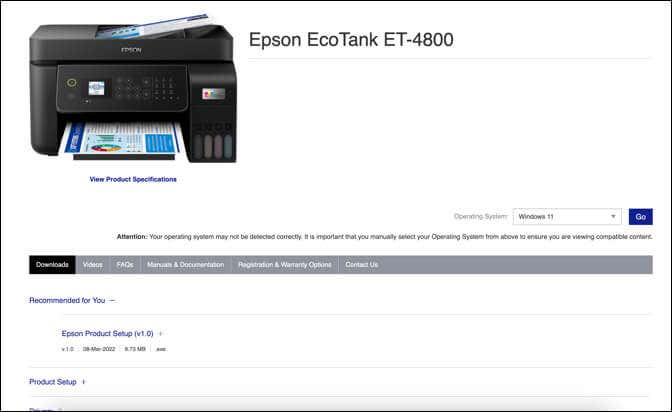
- Next, download the latest driver and printer software. If new software is available, download and save the installer to your computer.
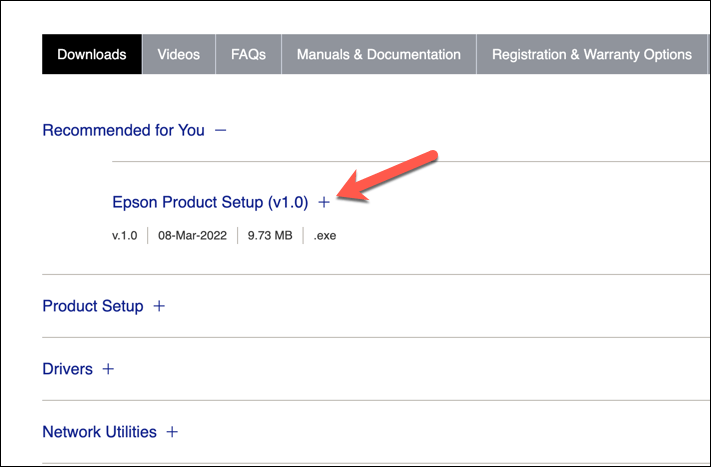
- Run the installer and follow the on-screen instructions to complete the installation.
After completing these steps, your printer should begin to start working. However, you may need to restart your PC for any changes to take effect.
Check for New Windows Updates
A new Windows update can fix bugs, and new updates can help resolve common printing issues. You can manually check for new Windows updates to try and resolve the “Error – Printing” status error on your PC.
To check for new Windows updates, follow these steps.
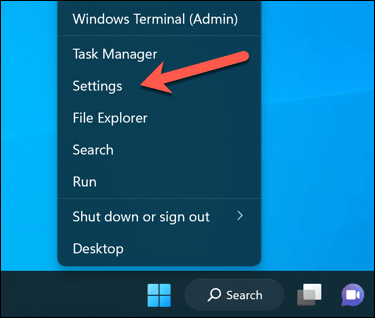
- Right-click the Start menu and select Settings .
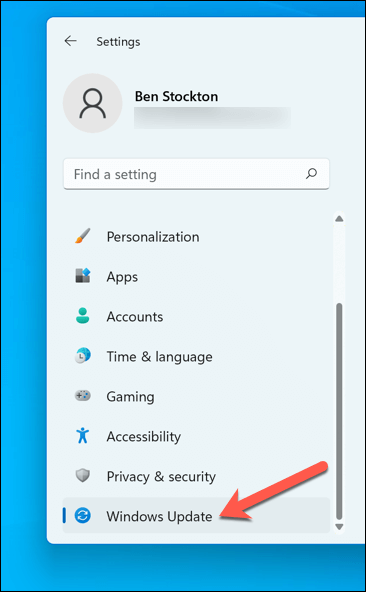
- In the Settings window, select Windows Update from the sidebar.
- Next, click the Check for updates button. If there are any pending updates, Windows will automatically start downloading and installing them.
- If it doesn’t, press Download Now to begin the installation.
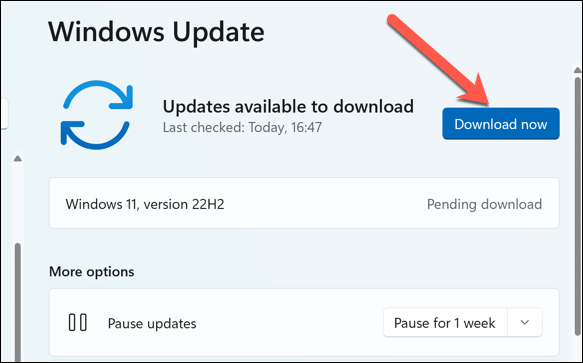
After updating your PC, restart your computer and try printing again to see if the error is resolved.
Use the Printer Troubleshooting Tool
If you’re still struggling to resolve the “Error – Printing” status error in Windows, you can use the Printer Troubleshooter . This built-in tool helps to identify and fix common hardware and device-related issues.
Follow these steps to run the troubleshooter on your Windows PC.
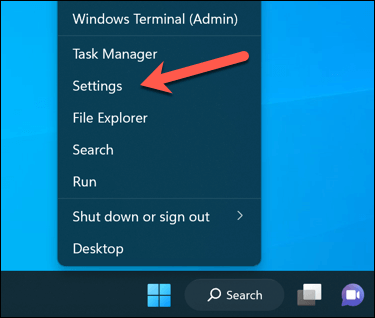
- Right-click the Start menu and select Settings .
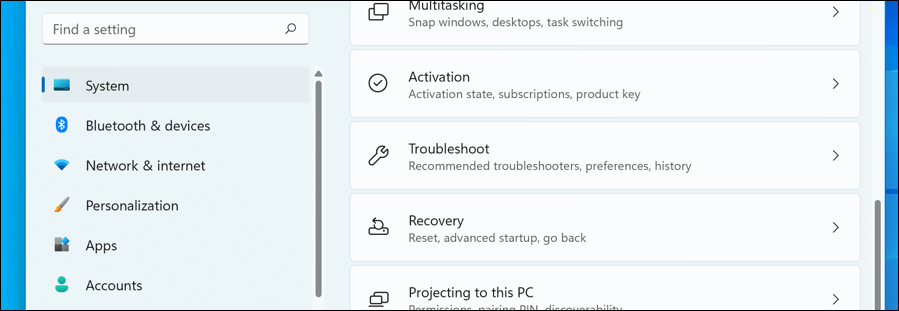
- In Settings , select System > Troubleshoot .
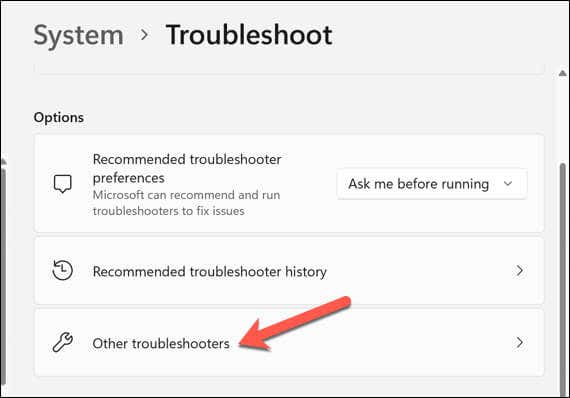
- Select the Other troubleshooters option.
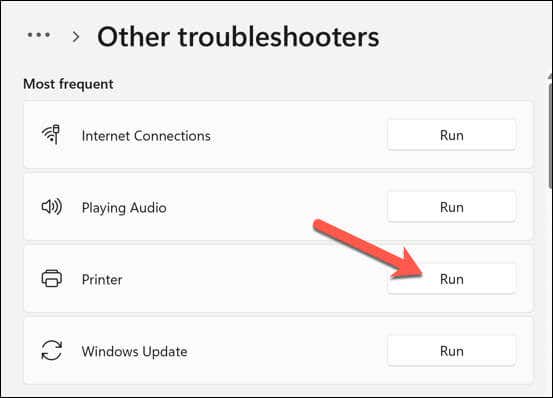
- Next, select the Printer troubleshooter to begin running the printing troubleshooting tool.
- Click Next and follow the on-screen instructions to detect and fix any problems.
After completing the troubleshooter and resolving any issues it detects, restart your computer, and then check if the “Error – Printing” issue is resolved.
Resolving Common Printer Issues on Windows 11
There isn’t a one-size-fits-all fix for resolving the “Error – Printing” status error on your Windows PC. Most of the time, however, one of the troubleshooting fixes above will resolve the problem.
However, there could be deeper problems with your printer, which means you can’t connect to your printer or print properly. For instance, if you see the error code “0x0000011b” on your PC, there could be a problem with your network that’s preventing you from printing—you’ll need to dig deeper to find and fix the problem.
- 7 Ways to Fix HP Printers ”Driver Is Unavailable” Error on Windows PC
- How to Fix Your Printer’s “Driver is unavailable” Error on Windows
- 7 Ways to Fix ”Windows Cannot Connect to the Printer”
- Print Job Won’t Delete in Windows? 8+ Ways to Fix
- Preparing for Windows 10 End of Support: Upgrading to Windows 11
Ben Stockton is a freelance technology writer based in the United Kingdom. In a past life, Ben was a college lecturer in the UK, training teens and adults. Since leaving the classroom, Ben has taken his teaching experience and applied it to writing tech how-to guides and tutorials, specialising in Linux, Windows, and Android. He has a degree in History and a postgraduate qualification in Computing. Read Ben’s Full Bio
One of the most common printing issues that HP printer users report is that their printer will not print black ink. There are a few reasons this might occur, including incorrect printhead alignment, faulty or empty black color printer cartridges, and more.
In this article, we’ll cover ten common printer errors that can cause your HP Printer to stop printing black and explain how to fix them. These methods might also help with color ink or color cartridge issues.
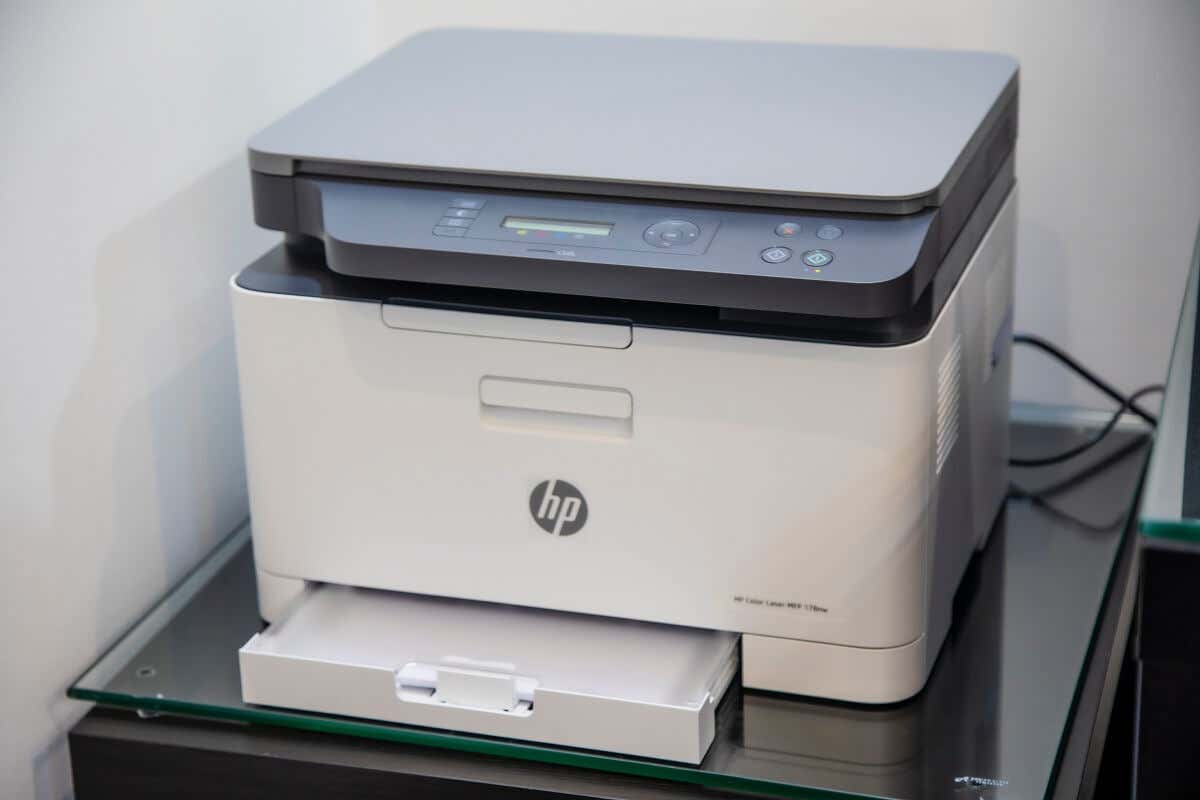
10 Ways to Fix Your HP Printer When It’s Not Printing Black
Below, we cover 10 different methods to troubleshoot your HP color printer. We begin with the easiest and most probable fixes, so start at the top and work your way down.
Note: Your printer problems might be associated with a specific error message. If so, check out our troubleshooting guides for “ Printer Status Unknown ” and “ Driver Is Unavailable .”
1. Make Sure You Have Ink or Toner
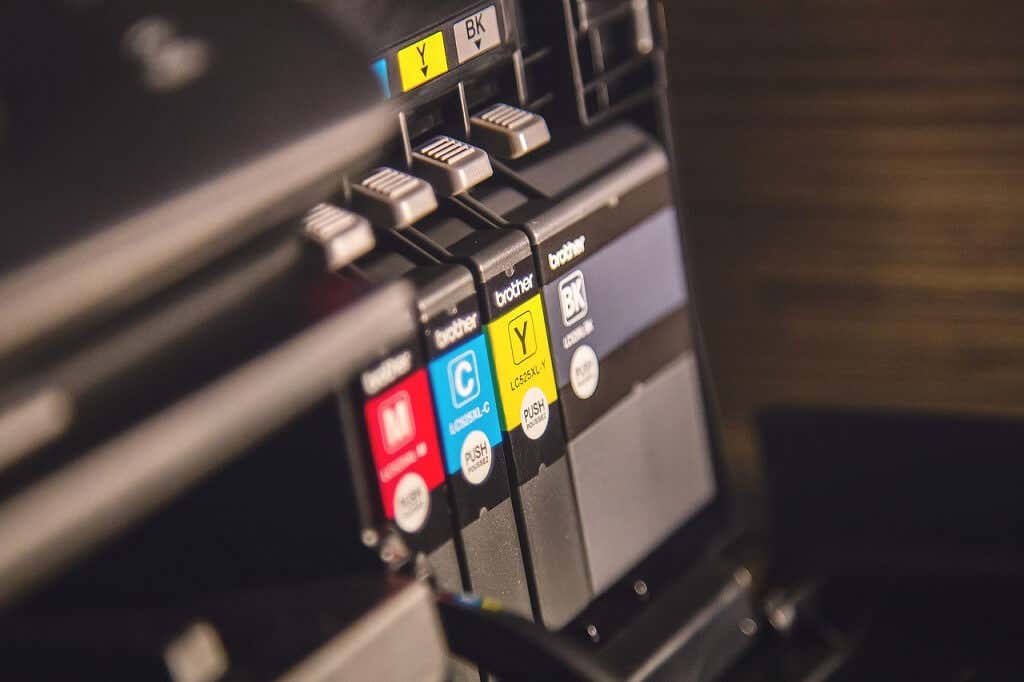
This may seem obvious, but if your HP Printer won’t print black, it might be low on ink or toner. Whether your printer requires ink or toner will depend on the model. HP DeskJet, HP Envy and HP Officejet, and HP InkJet Printers all use ink. HP LaserJet printers use toner.
The first thing to do is check your ink levels. Your printer cartridge doesn’t need to be completely out of ink to stop printing in that color—just very low. If there’s an exclamation mark beside the ink level indicator for black, you need to insert a new cartridge.
Keep in mind that if your printer sensors are faulty, they may show that you have ink even when you don’t. So, even if your printer says it has ink, insert a new printer cartridge to test whether it’s an empty cartridge at fault.
2. Clean the Printhead
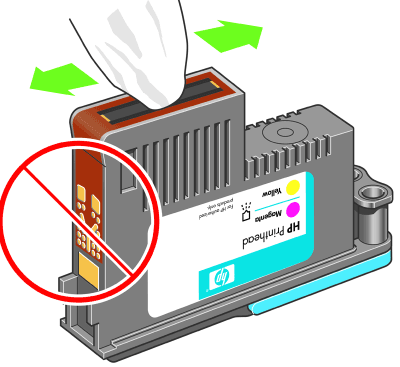
A clogged printhead nozzle can prevent your printer from printing black ink. Fortunately, this is an easy fix. Printhead cleaning is available in the Printer Maintenance menu or HP printer’s control panel under Deep Cleaning or Clean Printhead .
Select the appropriate option on your printer and allow the cleaning process to take place. This may take a while. The printer will then usually print a test page to see if the issue has been resolved. You may need to do this a few times to restore print quality fully.
To prevent clogging in the future, avoid going for long periods of not using your printer, and do not use third-party black ink cartridges.
Note: Another common error HP users get is that they have “Missing or Failed Printheads.” See how to fix this error if it occurs .
3. Clean the Cartridges
If you have cleaned the printhead a few times and are having no luck, it may be worth cleaning the cartridges themselves. Printer cartridges can become clogged or dry out, causing that color to fail.
The easiest way to clean cartridges is to wipe the nozzle plate (where the ink comes out) with some isopropyl alcohol. If this doesn’t work, your cartridge may be dry. Pour some boiling water into a container and submerge about a quarter of the cartridge face down. Leave until the water cools. Dry the cartridge and reinsert it into the printer as normal.
4. Use the HP Smart App
The HP Smart App is available for some HP users and can be used to troubleshoot various printing issues. Most Wi-Fi-enabled HP printers manufactured after 2010 are compatible with this app.
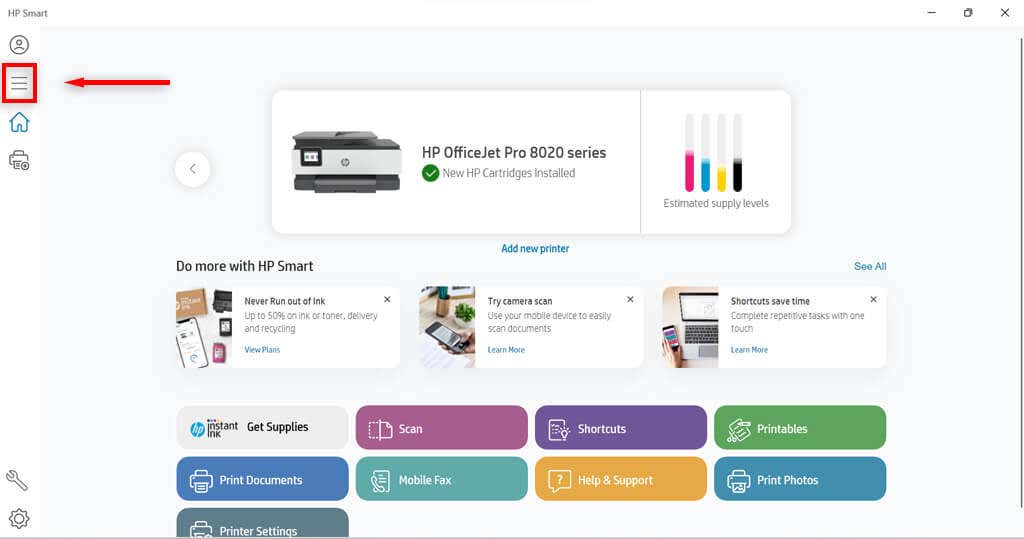
- Open the HP Smart app on your device.
- Select the three bars on the left-hand side to open the home menu.
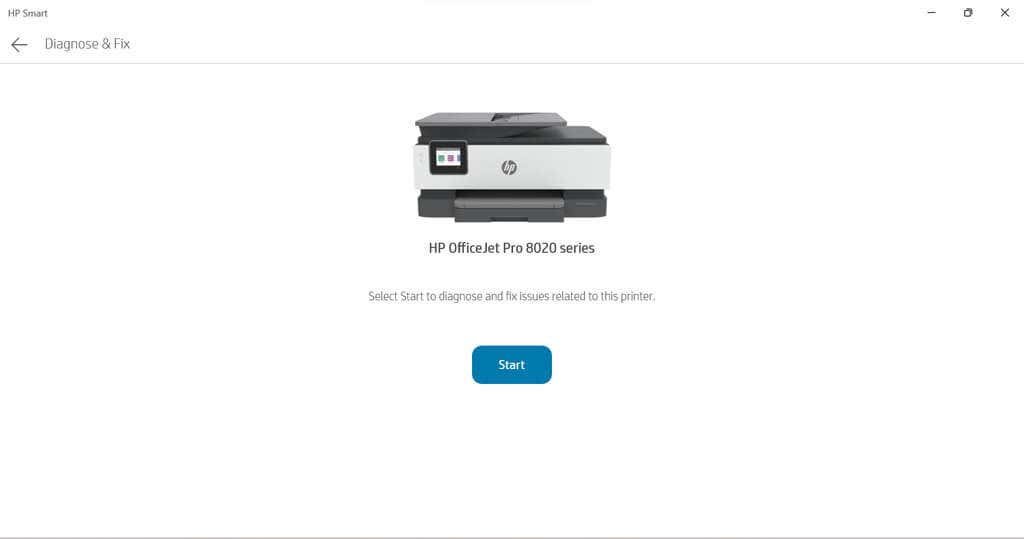
- Select Diagnose and Fix.

- Select Start . Follow the instructions from the troubleshooter.
5. Use the Windows Printer Troubleshooter
Windows users can also use the Printer Troubleshooter to see what may be causing the issues.
- Type Printers and scanners into the taskbar and select Printers & scanners .
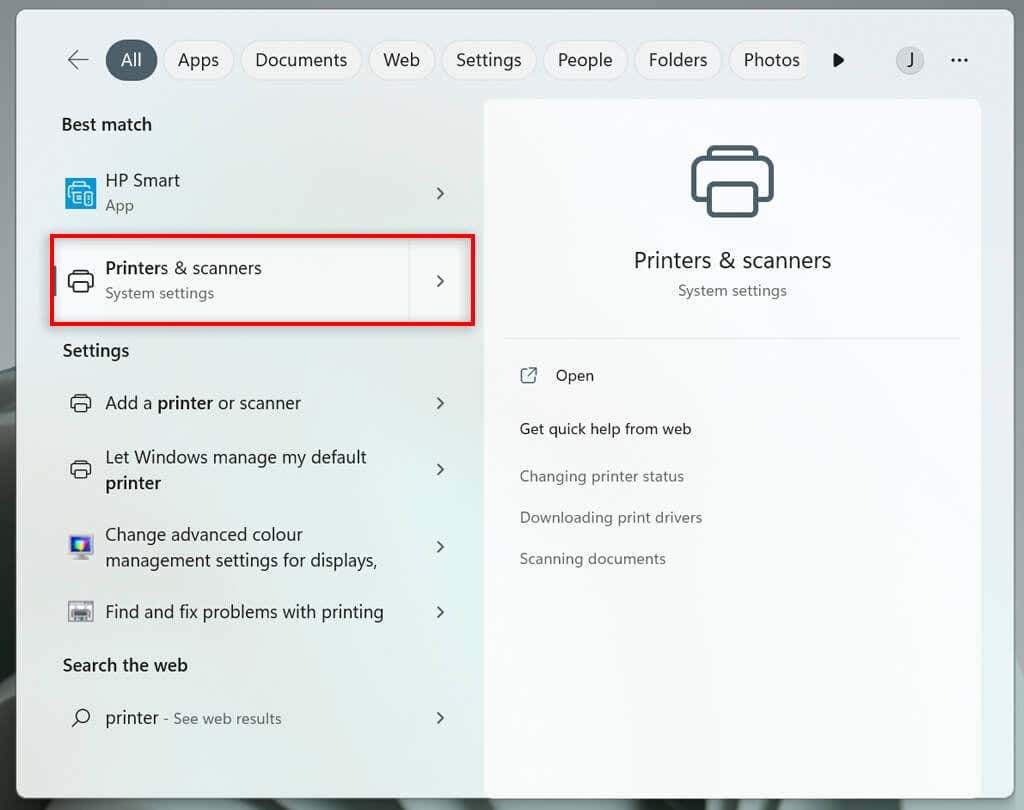
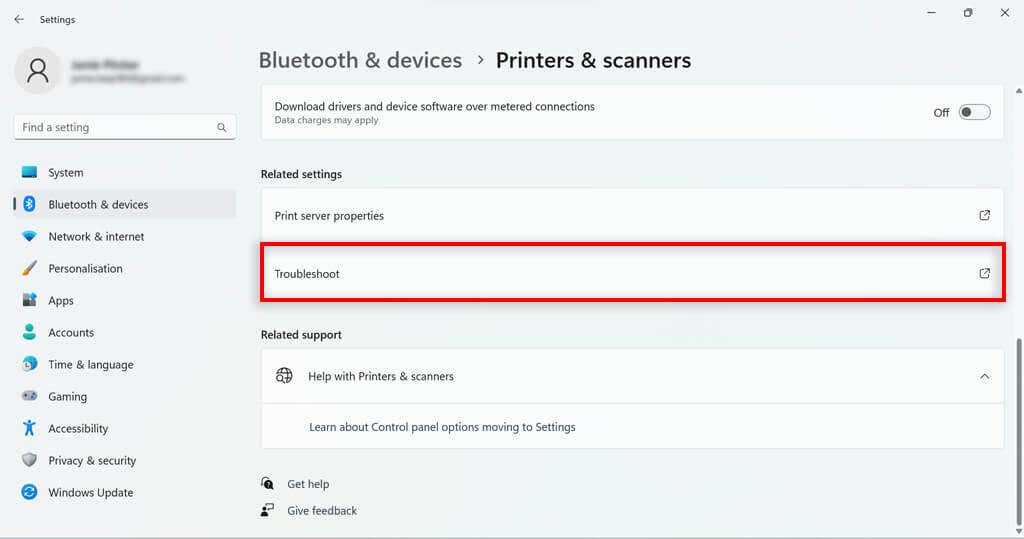
- Under related settings, select Troubleshoot .
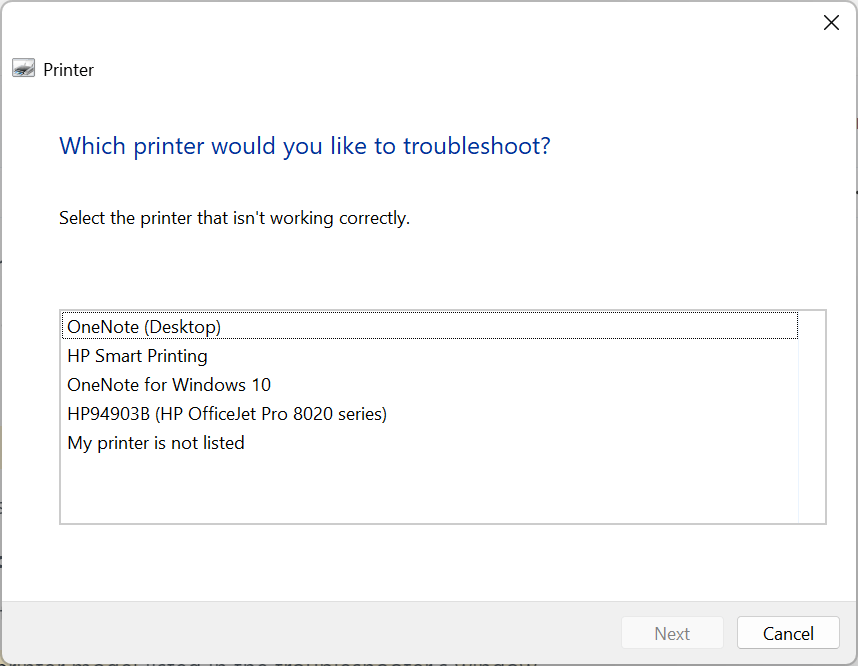
- Choose your HP printer model . This should be listed in the troubleshooter’s window.
- Select Next .
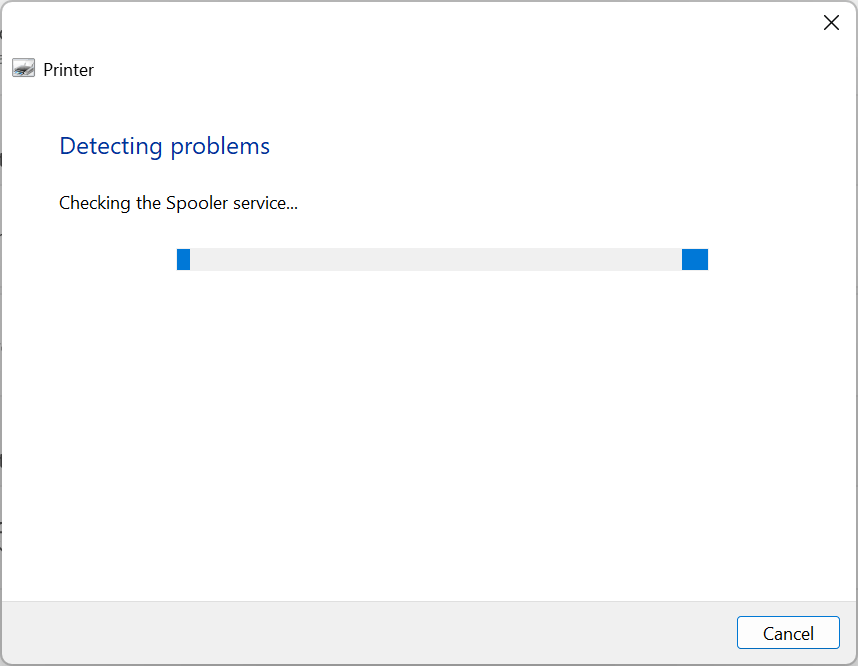
- Follow any instructions in the diagnostic report.
If Windows identifies any problems with the software or printer driver, it will fix them or recommend actions for you to take.
6. Use the HP Print and Scan Doctor
For those with models that aren’t compatible with HP Smart, there is another piece of software that may be helpful. If you don’t have it already, you can download the HP Print and Scan Doctor software here .
- Open the HP Print and Scan Doctor software.
- Select Start to choose your HP printer, and then select Next .
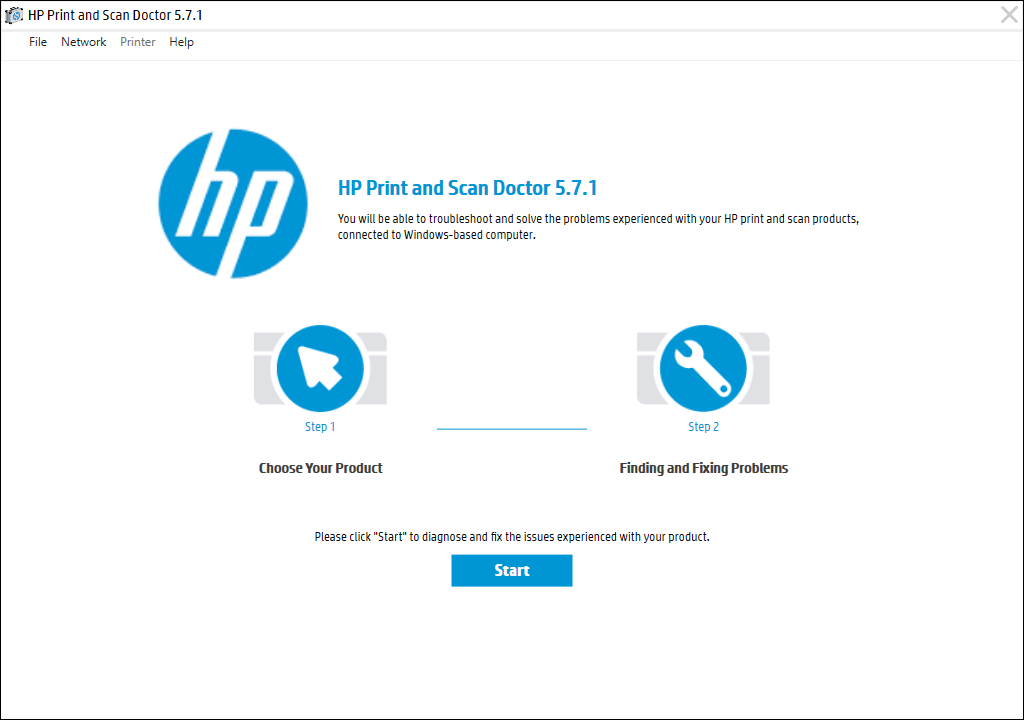
- Select the Fix Printing option.
- Follow the troubleshooting instructions.
7. Use Genuine Hewlett-Packard Cartridges
Third-party ink cartridges, while usually cheaper, don’t always work so well on HP printers. Sometimes the cartridge is faulty, other times it is not compatible with the HP software.
If you’re using a third-party ink cartridge, and having printing problems, try replacing it with an official HP ink cartridge.
8. Align the Printhead
A printer might not print black ink if it has not been calibrated properly. Calibrating your HP Printer by aligning its printhead may fix these issues.
HP printers have an Align Printhead option in their Printer Maintenance menu or within the Control Panel menu that can be used to calibrate the printer.
When you select the Align Printhead option, the printer will print an alignment page and prompt you to make changes based on the outcome of the alignment printout. The actual process will depend on your model. Refer to your HP printer manual for specific printhead alignment guidelines.
9. Check the Paper Type
If you’re printing in black and white and getting blank pages (or it won’t print at all ), the issue may not be the ink but the paper. Try inserting plain paper rather than any specialty paper and see whether the issue is resolved.
If the printer prints fine on normal paper, you might need to adjust your paper settings. Make sure that the paper selected in your printer settings for the print job matches the paper type you’re trying to print on.
10. Contact HP Support
If all else fails, it’s time to contact customer service. You can access HP Support here . Select Contact Us to get in contact with an HP staff member that can hopefully talk you through your printer problems.
Print it Black
Hopefully, the above solutions have helped you fix your HP printer so that it prints in black once again. If they don’t help and HP support is unable to identify the problem, the printer itself might need repairing.
Users can return HP printers within their warranty periods to the manufacturer for repairs. So check the warranty period of your printer to see if you can return it.
- How to Fix the “Error – Printing” Status Error in Windows
- How to Fix Missing or Failed Printhead Error on HP Printers
- How to Add a Printer to Your Chromebook
- How to Fix the Printer Error “0x0000011b” on Windows
- How to Fix HP “Printer Status Unknown” Error
Jake Harfield is an Australian freelance writer whose passion is finding out how different technologies work. He has written for several online publications, focusing on explaining what he has learned to help others with their tech problems. He’s an avid hiker and birder, and in his spare time you’ll find him in the Aussie bush listening to the birdsong. Read Jake’s Full Bio
