A computer network is a set of interconnected computers that are connected wirelessly or via cabling for the purpose of sharing media or data. The computers on a network, also known as nodes, can share resources including access to the internet , printers, and file servers, or allow electronic communications.
A computer network consists of at least two computers that may be linked via radio waves, cables, satellites, telephone lines, or infrared light beams. There are other mediums or devices that help the different devices communicate such as a switch, router, bridge or hub, which are known as network devices.

Altogether, these hardware and software combine to make computer networking possible such that the interconnected devices can share information , data, resources, and other network devices.
Types of Computer Networks
There are two main types of computer networks: wired and wireless.
Wired networks use a medium to transport data between the computers (nodes), while wireless networks use radio waves to transport data and information over the air so that devices can connect to the network without cables.

While wired networking offers greater speed, security and reliability, wireless networks offers more flexibility, scalability and mobility.
However, networks can also be classified based on their topology, design, build, scale and environment.
Computer Network Topology
The topology is simply the layout of the connected devices, more like a structure or virtual shape of the network that doesn’t correspond to the physical layout you see.

For instance, the computers in a home or office network may be arranged in a square or circular style, but the topology isn’t necessarily the same.
Computer network topologies are classified into five basic types: bus, star, ring, mesh and tree, but there are hybrid builds that combine two or more of these topologies to form a more complex network.
Bus Network Topology
This type of computer network shares a backbone – a single cable – that connects all the network devices together. The cable acts as a medium for shared communication that the devices tap into or attach to with an interface connector. Any device that communicates with another on the same network broadcasts a message, which other devices will see , but it’ll only be accepted and processed by the intended recipient.

This type is best with few devices, as its performance is affected when more than a few dozen computers are added to it. Plus, if the cable fails, you can’t use the network.
Star Network Topology
This network topology features a hub node to which all devices connect. It can be either a network switch, hub or router, but requires more cable, unlike the bus topology.

In case of a cable failure though, it doesn’t affect the entire local area network; it just takes down access for one of the connected computers. However, if the hub node fails, then the whole network gets affected.
Mesh Network Topology
This network topology interconnects the modes through a point-to-point connection. Data is transmitted via routes, where the nodes work out the shortest distance the packets can use to get to their destination, by using routing logic.

It also uses the flooding method, which doesn’t need any routing logic but sends data to all the nodes in the network.
Mesh topology is commonly used for wireless networks and compared to the bus topology, failure of one computer doesn’t cause a break in data transmission or in the network itself. This type is usually found in offices or school campuses.
Ring Network Topology
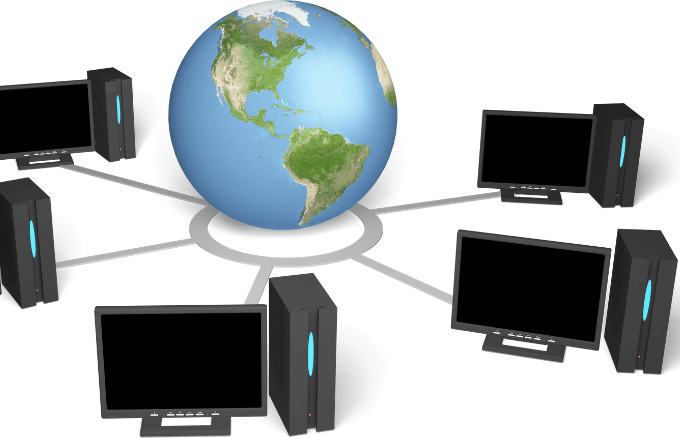
In this network topology, computers are connected in a ring or circular format, with each device having two neighbors for communication purposes. The first and last nodes are connected to link the loop together such that all messages travel in the same direction through a ring on the way to their destination. This topology can effectively sustain large
Tree Network Topology
The tree network topology is a network structure that’s a hybrid of the bus and star topologies. It consists of multiple star topologies joined onto a bus to form a tree-like shape with its many branches, and is commonly used with wide area networks to withstand spread-out devices and future network expansion.
Hybrid Network Topology

This computer network topology comprises of two or more topologies, and is commonly used in larger enterprises whose departments have different network topologies from one another. When all are connected together, it is referred to as a hybrid topology. The common thing they have is flexibility, and scalability that makes them suitable for larger networks.
By understanding the type of network topologies and networking concepts like hubs, routes, and broadcasts, it’ll be easier for you to build a home or office computer network.
How a Computer Network Works
A computer network is designed in two basic forms: client-server and peer-to-peer.
The client-server network comprises centralized server computers that store files, web pages, email, and applications that client devices access. These are commonly used in business.

Conversely, in a peer-to-peer network design, all the devices support similar functions, and are commonly used in homes.
For a computer network to work properly, you’ll need physical infrastructure such as routers, switches, and wireless access points, the firmware to operate the equipment, and the software to manage, monitor and secure it.
Networks also rely on standard protocols to communicate different data types or perform discrete functions uniformly, regardless of the equipment. The common protocols include TCP/IP that’s found in home networks and on the internet.
Not all devices can join a network though, except those with special communications hardware that physically connect to other devices, while others don’t support networking at all.
Devices generally work as either a client or a server. For example, your phone, tablet, PC or network printer can function as a network client.
A server, on the other hand, holds the data that the client generally makes requests for and consumes. It can be a game server or web server, and usually consists of large disk storage, lots of memory and high performance processors.

For the network to run properly though, you’re going to need a network hub, which enables nodes to send data directly to other nodes, network switch to open up multiple paths for connected nodes to communicate with each other.
You’ll also need a network router to expand the network switch capabilities, repeater to receive signals sent across the network connection and enable them to travel further, and network bridge that connects incompatible network links together.
Enhance Data Sharing
With computers today being applied to multiple fields, and internet usage is sporadically improving such that all classes of people benefit from the useful information therein.
There’s therefore a need to inter-network computers, especially for organizations and enterprises, to further help in data retrieval and sharing, plus efficiently using and managing computing resources.
- HDMI Cable Types and Specifications Explained
- What Is The Cloud & How To Get The Most Out Of It
- HDG Explains : What Is a Dedicated IP Address & Should I Get One?
- HDG Explains: What Is Telnet?
- HDG Explains : What Is a Parked Domain & What Are Its Advantages?
Elsie is a technology writer and editor with a special focus on Windows, Android and iOS. She writes about software, electronics and other tech subjects, her ultimate goal being to help people out with useful solutions to their daily tech issues in a simple, straightforward and unbiased style. She has a BCom degree in Marketing and currently pursuing her Masters in Communications and New Media. Read Elsie’s Full Bio
Times change and so does Windows. If you’ve recently moved from a Windows Server 2012 and Windows 7 or 8 environments into Windows Server 2019 and Windows 10 , things are a little different.
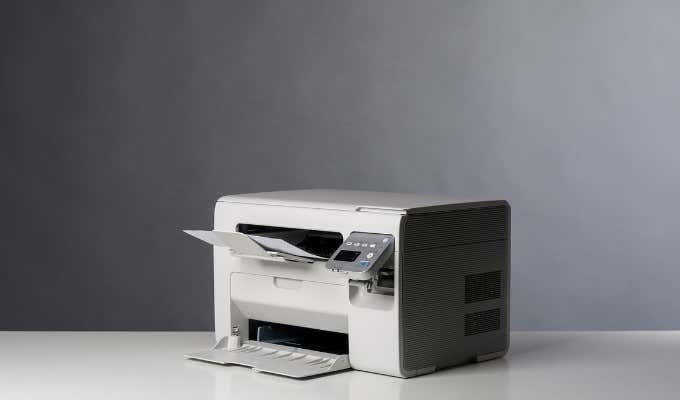
The old ways to connect to a network printer are still there. They may look a little different, too. So we’ll show you how to connect to a network printer in Windows 10 or Server 2019. Our favorite way is the last method.
Use Add Printers & Scanners
The new Windows Settings world works the same as in the Control Panel , but it looks different enough to cause confusion for some. Note that if this is at work and you’re not an administrator, the printer must be on the network and the driver already installed. If it’s not installed, you’ll get a prompt to enter the administrator account name and password.
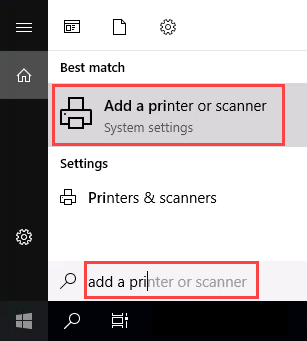
- In the Start menu, type add printers . When the result Add a printer or scanner shows, select it.
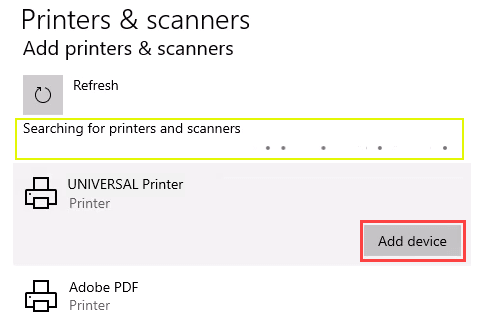
- When the Printers & scanners window opens, select Add a printer or scanner . It will start searching for available printers.

- It may look like it’s still searching, even though all the printers available are showing. Find the printer needed, select it, and then the Add device button will show. Select it.
- The printer will install. There’ll be a progress bar and when it’s done, it’ll say Ready .

Connect to a Network Printer Through a Network Share
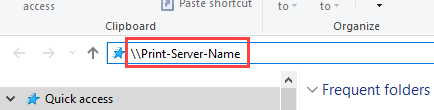
Here’s a way to install a printer that’s different from what you may be used to. It requires that the printer is shared and on the network. Unless you’re the administrator, the driver needs to be installed on your local machine or server. You need to know the path to the share as well. It will look something like Print-Server-Name , where Print-Server-name is the name of the server.
- Open File Explorer . In the location bar, enter the printer share path and then press the enter key. File Explorer will find the share.
All the shared printers will show.
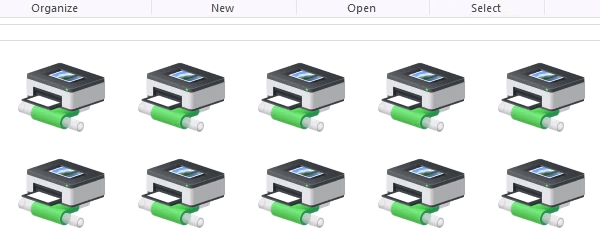
- There are two options: Install a single printer Install several printers at one time
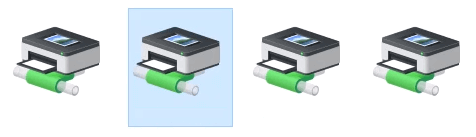
To install a single printer, double-click on it.
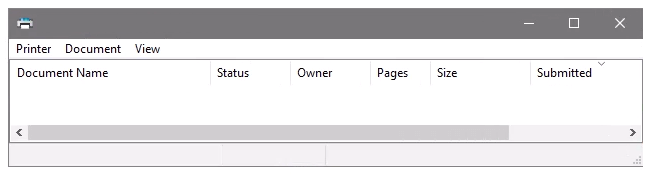
When the installation finishes, you’ll see the newly installed printer’s print queue window.
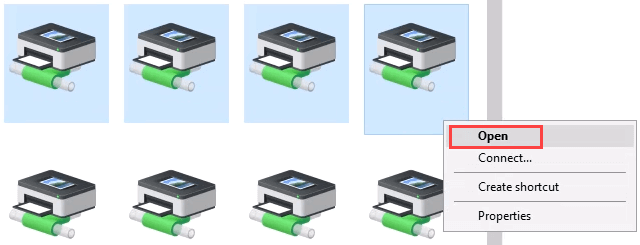
- To install several printers at once, select printers by clicking and dragging a rectangle around them, or hold down the Ctrl key while selecting printers individually. Either right-click and select Open or simply press the Enter key.
Connect to Network Printer via Control Panel
The good old control panel is still there. If you’ve used it before, you know what to do. If not, it’s almost the same as adding a printer through Settings.
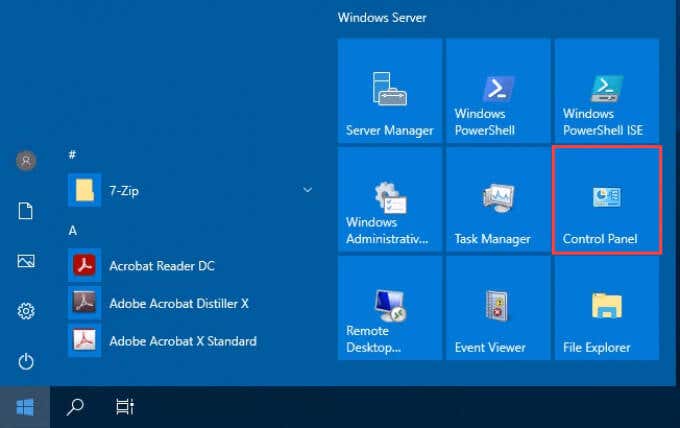
- Open the Start menu and select Control Panel . If it’s not there, start typing control and it will show.
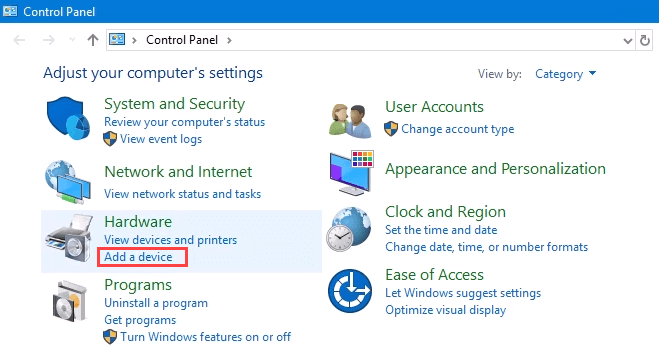
- Select Add a device in the Hardware category.
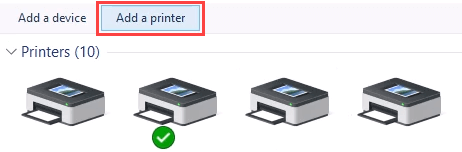
- Select Add a printer .
- It will show a selection of printers. Select the one needed and then select Next .
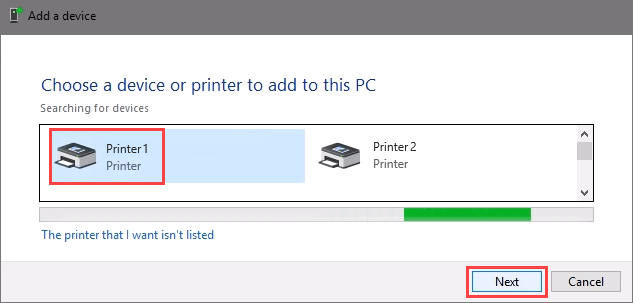
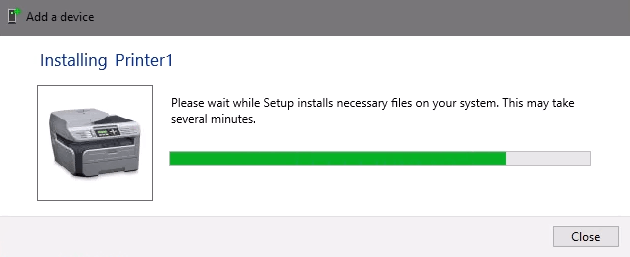
The printer will start installing. It may take a few seconds or minutes.
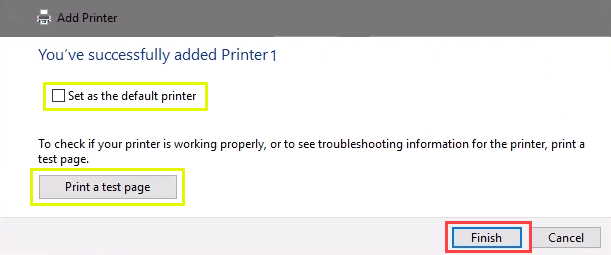
- Once the success window opens, there are options to Set as the default printer and Print a test page . Set the printer as default if needed. It’s always a good idea to print a test page. To exit, select Finish .
Connect to Network Printer via IP Address
The printer you want to install might not be easily visible, but if you have the IP address for it you can use that to connect with the printer. Administrator rights may be required. The first part is the same as adding a printer through the Control Panel until you get to the step to choose the printer. Let’s pick it up from there.
- At the Add a device window, select The printer that I want isn’t listed .
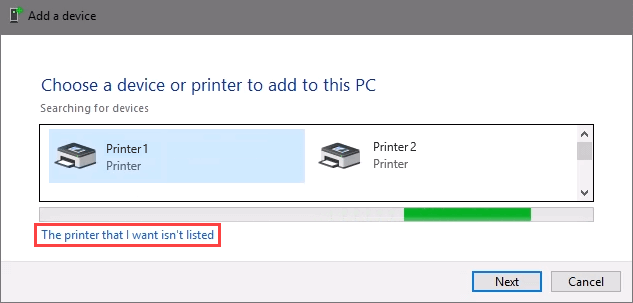
- If administrator rights are required, select Add a local or network printer as an administrator .
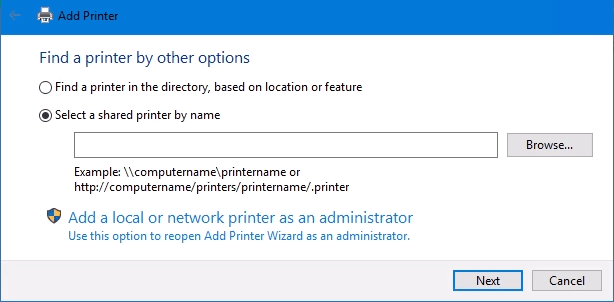
Otherwise, the window below will show. Select Add a printer using TCP/IP address or hostname then select Next .
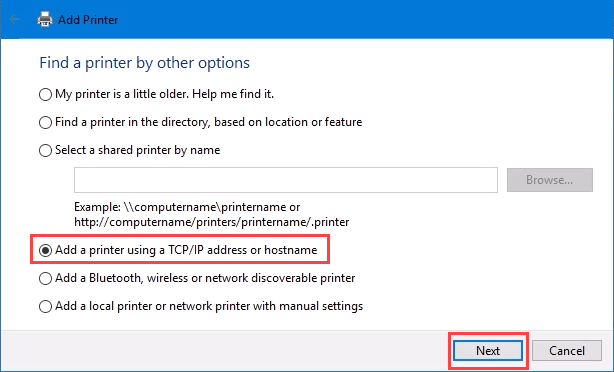
- For Device type: there are several choices. Web Services Device and Web Services Secure Print Device are used for special cases. If you don’t know what those mean, you probably don’t need them. Autodetect may make the wrong choice as well. Select TCP/IP Device .
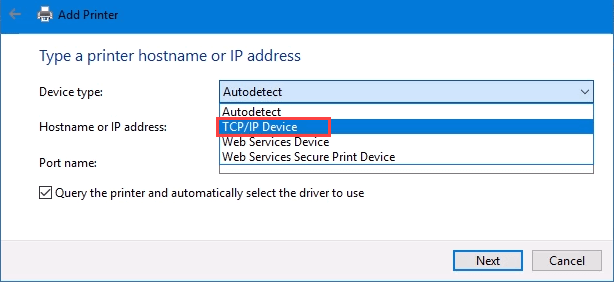
Enter the IP address in the Hostname or IP address: field. Notice how the Port name: field auto-populates with whatever is entered. The port name can be left as is or changed. In most cases, Query the printer and automatically select the driver to use remains checked.
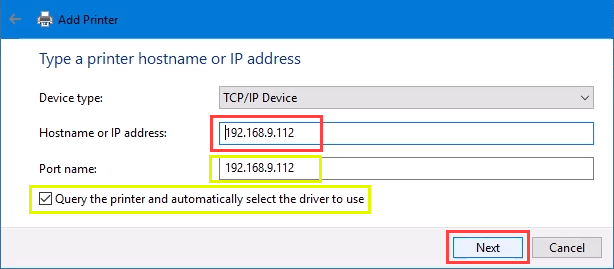
Sometimes an organization will use a universal printer driver to keep things simpler and use less storage. It also keeps the registry small and login times faster. The HP Universal Print Driver works well for HP and many other printers. Select Next .
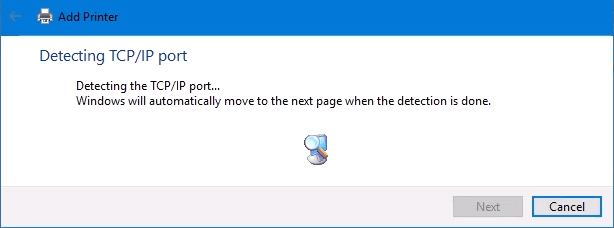
It detects the TCP/IP port to see if it exists.
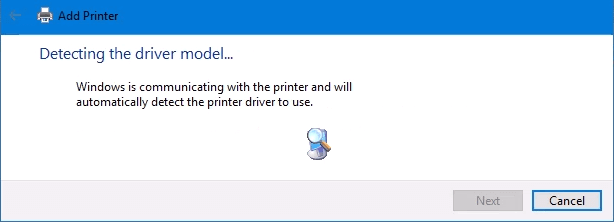
Then it detects the driver model needed.
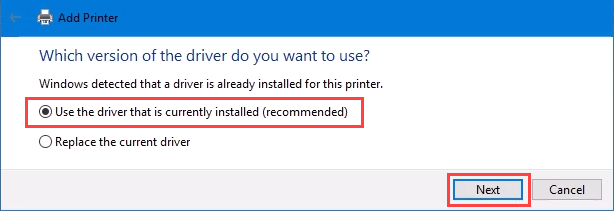
- Normally, Windows will find a driver already installed, offer the option to replace the driver, or ask to install a driver. If it’s on the network already, it probably installed the driver already. Select Use the driver that is currently installed and select Next .
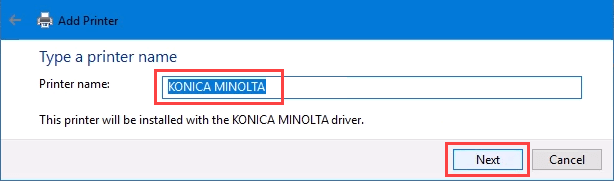
- It will auto-select a name for the printer. That can change as needed. Select Next .
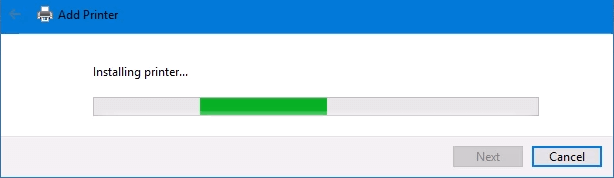
The real installation begins.
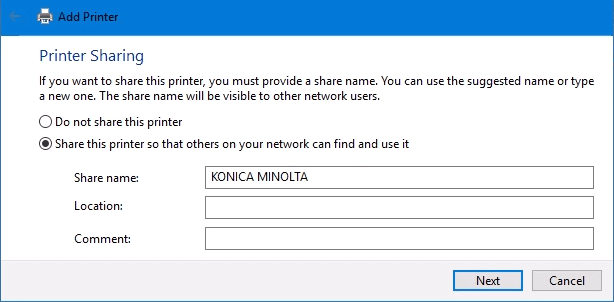
- If sharing the printer, add a location so others can see where the printer is located.
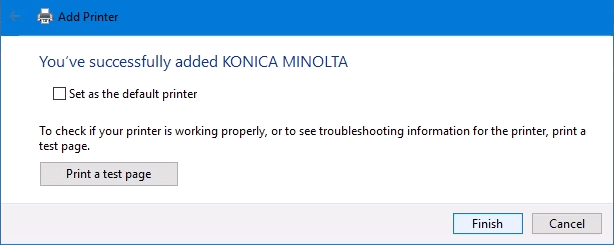
It successfully installed the printer. Set it as the default or not as needed. As always, it’s a good idea to Print a test page . Select Finish closes out the window.
Connect to a Network Printer via PowerShell
Finally, the last, and possibly best, way to connect network printers is with PowerShell . Why is this best? If you’re a System Administrator and have dozens of printers to connect, or if you need to make sure the printer is connected every time the server starts or someone logs in, a PowerShell script is best. It’s fast, done once, and easy to call many times.
You will need to know:
- Printer IP address
- Printer driver name
- What to name the printer
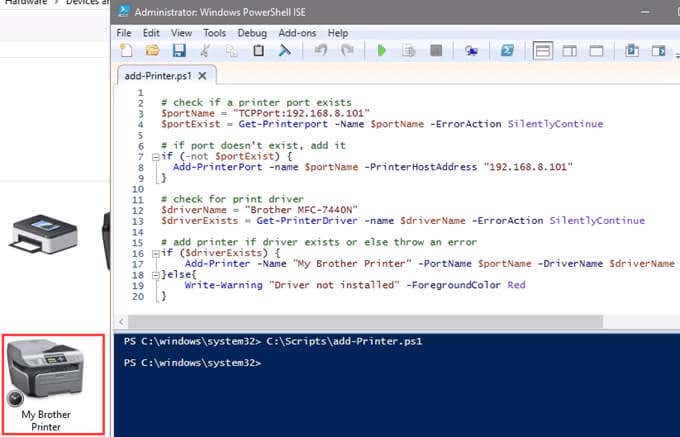
Following is a sample script. Make it into a looping script to install several printers at a time, or make it a function to call from other processes.
check if a printer port exists
$portName = “TCPPort:192.168.8.101”
$portExist = Get-Printerport -Name $portName -ErrorAction SilentlyContinue
if port doesn’t exist, add it
if (-not $portExists) { Add-PrinterPort -name $portName -PrinterHostAddress “192.168.8.101” }
check for print driver
$driverName = “Brother MFC-7440N”
$driverExists = Get-PrinterDriver -name $driverName -ErrorAction SilentlyContinue
add printer if driver exists or else throw an error
if ($driverExists) { Add-Printer -Name “My Brother Printer” -PortName $portName -DriverName $driverName } else { Write-Warning “Driver not installed” -ForegroundColor Red }
When the script is run, it takes maybe 3 seconds. Then you’ll see the printer installed.
Any Other Ways to Connect to a Network Printer?
We’ve given you several ways to connect to a network printer or several printers. One of them will be the best way for you. There is at least one other way, and that’s by the Command Prompt.
- Preparing for Windows 10 End of Support: Upgrading to Windows 11
- How to Fix a “This file does not have an app associated with it” Error on Windows
- How to Fix an Update Error 0x800705b4 on Windows
- How to Resolve “A JavaScript error occured in the main process” Error on Windows
- How to Fix the Network Discovery Is Turned Off Error on Windows
Guy has been published online and in print newspapers, nominated for writing awards, and cited in scholarly papers due to his ability to speak tech to anyone, but still prefers analog watches. Read Guy’s Full Bio
